‘My Computer’ is called This PC in Windows 11 and Windows 10, and you find it in the left navigation pane of File Explorer.
This guide shows the quickest way to open it, how to put the This PC icon on your desktop, how to make File Explorer open straight to it, and what to do when it seems to be missing.
The fastest way to open This PC in Windows 11
This PC lives inside File Explorer, so the keyboard shortcut for File Explorer gets you there in two moves.
The same steps work on Windows 11 Home, Windows 11 Pro and Windows 10.
- Press Windows logo key + E to open File Explorer.
- Look at the navigation pane on the left side of the window.
- Select This PC to see your drives and network locations.
If there is no pane on the left, it is switched off. The fix is in the troubleshooting section below.
Which route to This PC should you use?
Every route ends at the same This PC view. Pick the one that matches how you use your computer.
| Your situation | Use this | Why |
|---|---|---|
| You want it once, right now | Windows logo key + E, then This PC in the left pane | No setup and nothing to change |
| You miss the old My Computer icon on the desktop | Turn on the This PC desktop icon in Desktop icon settings | A double-click on the desktop opens it, just like older Windows |
| You open File Explorer many times a day | Set Open File Explorer to to This PC | Every Win + E press and every taskbar click lands on your drives, not on Home |
| You prefer clicking over shortcuts | Pin File Explorer to the taskbar and set it to open to This PC | One click from any app |
| Your This PC view has no Documents or Downloads | Use Home or the left pane for those folders | Windows 11 version 22H2 moved them out of This PC |
How to put the This PC icon on your desktop
Windows 11 does not show This PC on the desktop by default. Microsoft's Desktop icon settings dialog adds it back in Windows 11 and Windows 10.
- Right-click Start and select Settings.
- Select Personalization, then select Themes.
- Scroll down and select Desktop icon settings.
- Tick the This PC check box. You can also tick User's Files, Network or Recycle Bin.
- Untick Allow themes to change desktop icons if you do not want a new theme to replace the icon.
- Select OK to close the dialog.
- Go to the desktop and double-click This PC to open it.
According to Microsoft, the This PC icon provides access to the computer's drives and connected devices.
How to make File Explorer open to This PC instead of Home
Windows 11 opens File Explorer to Home, which was called Quick access before version 22H2. Windows 10 opens it to Quick access.
Changing one option makes every new File Explorer window start on This PC, including windows opened with Win + E.
Windows 11
The option sits behind the three-dot menu on the command bar.
- Press Windows logo key + E to open File Explorer.
- Select See more (the three dots) on the command bar.
- Select Options.
- Open the Open File Explorer to list and select This PC.
- Select Apply, then OK.
Windows 10
The option sits on the View tab of the ribbon.
- Press Windows logo key + E to open File Explorer.
- Select the View tab.
- Select Options.
- In the Open File Explorer to list, select This PC.
- Select Apply, then OK.
How to reach This PC in one click from the taskbar
Microsoft's taskbar instructions cover pinning apps, not This PC itself. Pinning File Explorer does the same job once File Explorer is set to open to This PC.
- Set Open File Explorer to to This PC using the previous section.
- Select the Search box on the taskbar and type File Explorer.
- Right-click File Explorer in the results.
- Select Pin to taskbar.
- Select the folder icon on the taskbar to open straight to This PC.
If File Explorer is already open, right-click its taskbar icon and select Pin to taskbar instead.
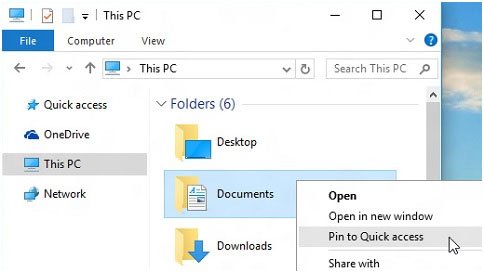
To pin a regular folder to Start, right-click it in File Explorer and select Pin to Start.
What This PC shows in Windows 11 compared with My Computer
This PC is the same virtual folder older Windows versions called My Computer, and Microsoft's developer documentation still lists My Computer as its legacy display name.
| Item | Where it appears in Windows 11 | Notes |
|---|---|---|
| Hard drives and SSDs (C:, D:) | This PC | Open a drive to browse every folder on it |
| USB drives, memory cards, phones | This PC | Shown while the device is connected |
| Network locations | This PC | Mapped drives and network shares |
| Desktop, Documents, Downloads, Pictures, Music, Videos | Home and the left navigation pane | Pinned there by default since version 22H2, no longer listed under This PC |
| System information (processor, RAM, device name) | Settings > System > About | Press Windows logo key + Pause to open it directly |
To search every drive at once, open This PC first and then search, so File Explorer looks across all your drives instead of one folder.
How to check it worked
- Close every File Explorer window.
- Press Windows logo key + E. The new window should show your drives, not the recent files on Home.
- Plug in a USB drive if you have one and confirm it appears in the same view.
- Press Windows logo key + D to show the desktop and check that the This PC icon is there.
- Double-click the desktop icon. It should open the same drive view.
How to switch back to Home or remove the desktop icon
- Open File Explorer and select See more > Options in Windows 11, or View > Options in Windows 10.
- In the Open File Explorer to list, select Home in Windows 11 or Quick access in Windows 10, then select Apply.
- Open Settings > Personalization > Themes > Desktop icon settings.
- Untick This PC and select OK to remove the desktop icon.
Fix This PC when you cannot find it
There is no left pane, so This PC is missing from File Explorer
The navigation pane has been switched off in File Explorer's View menu.
- Press Windows logo key + E to open File Explorer.
- Select View on the command bar.
- Select Show, then select Navigation pane so it has a check mark.
- Select This PC in the pane that appears.
The My Computer icon is not on the Windows 11 desktop
The This PC icon is off by default, or all desktop icons are hidden.
- Right-click an empty area of the desktop.
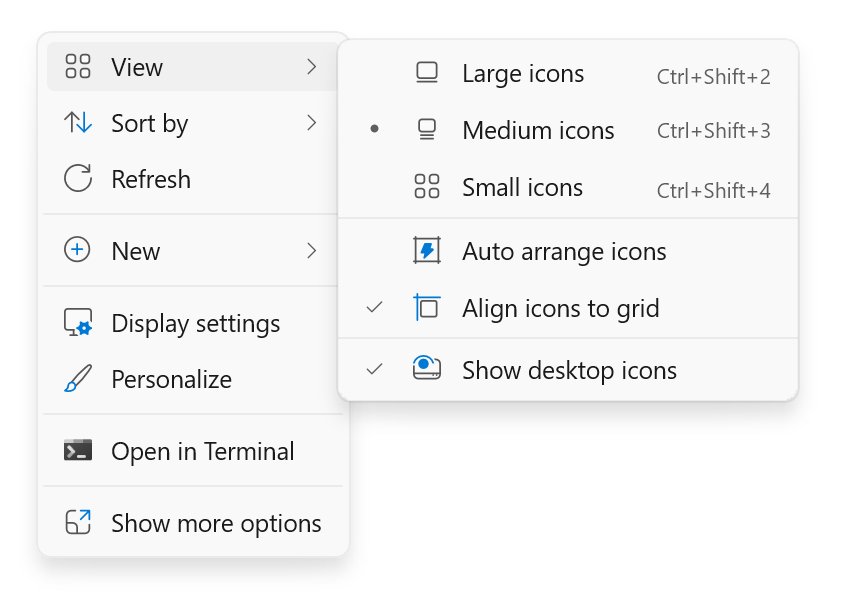
- Select View and make sure Show desktop icons is ticked.
- If the icon still does not appear, open Settings > Personalization > Themes > Desktop icon settings.
- Tick This PC and select OK.
File Explorer keeps opening to Home instead of This PC
Open File Explorer to is still set to Home, the Windows 11 default.
- Open File Explorer and select See more > Options.
- Set Open File Explorer to to This PC.
- Select Apply, then OK, and open a new File Explorer window to test it.
Documents, Downloads and Pictures are gone from This PC
Windows 11 version 22H2 removed these folders from This PC so it shows only drives and network locations.
- Select Home in the navigation pane to find them pinned under Quick access.
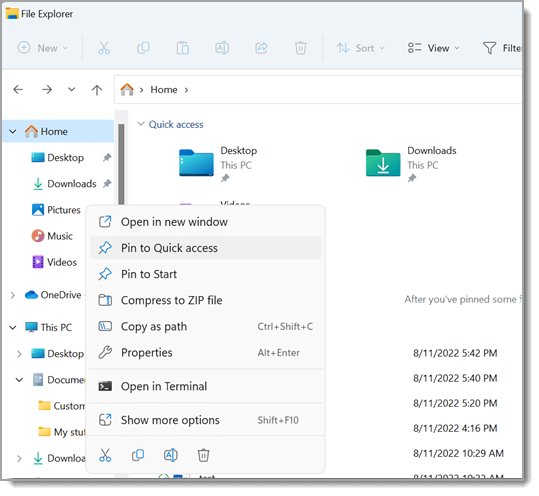
- If a folder is missing there, open it from its drive, right-click it and select Pin to Quick access.
- To remove a pin you no longer want, right-click it and select Unpin from Quick access.
Frequently asked questions
Where is My Computer in Windows 11?
My Computer is called This PC in Windows 11. Press Windows logo key + E to open File Explorer, then select This PC in the navigation pane on the left. It lists your drives, connected devices and network locations.
Where is My Computer on Windows 11 Pro?
It is in the same place as on Windows 11 Home: File Explorer's navigation pane, under the name This PC. The desktop icon and the Open File Explorer to option work the same way on both editions.
Where is the My Computer icon in Windows 11?
Windows 11 hides it by default. Open Settings > Personalization > Themes > Desktop icon settings, tick This PC and select OK. The icon then appears on the desktop and opens your drives when you double-click it.
Where is This PC in Windows 11 File Explorer?
This PC is listed in the navigation pane on the left of File Explorer. Select it to see your drives and network locations. If the pane is missing, select View > Show > Navigation pane to bring it back.
Is This PC the same as My Computer?
Yes. This PC is the same virtual folder older versions of Windows called My Computer. Microsoft's developer documentation lists My Computer as its legacy display name. It still shows your drives and devices.
Why does This PC no longer show Documents and Downloads?
Windows 11 version 22H2 moved Desktop, Documents, Downloads, Pictures, Music and Videos out of This PC. They are pinned under Home and in the navigation pane instead, so This PC shows only drives and network locations.
How do I see my computer's specs from This PC?
Windows 11 keeps device details in Settings rather than File Explorer. Press Windows logo key + Pause, or open Settings > System > About, to see the processor, installed RAM and device name.

Accessing the C Drive on Windows 11: Step-by-Step Guide - Techdows
[…] If the left pane is missing, select View > Show > Navigation pane to bring it back. For more ways to reach This PC itself, see where My Computer went in Windows 11. […]
How To Show Desktop Icons On Windows 11 – Full Guide - Techdows
[…] This PC is the modern name for My Computer. If you are hunting for it, see where My Computer went in Windows 11. […]
How to Get Help with File Explorer in Windows 11/10 - Techdows
[…] File Explorer to in Folder Options, covered in the view settings table below. Other ways to reach This PC are covered […]
Can’t find Recycle Bin! Where is the Recycle Bin in Windows 11? - Techdows
[…] same window also brings back the This PC desktop icon, Network and your user […]
How to find and use Windows Search in Windows 10 and 11 - Techdows
[…] you are in. Pick the narrowest folder you can, then widen the scope only if needed. Searching from This PC checks every drive, which is […]
How to Find the Printer on Your Network in Windows 11 - Techdows
[…] Where is My Computer (This PC) […]