To fix "Access Denied" on Windows, give your account permission to the file on its Security tab, or take ownership with takeown and grant yourself access with icacls from an elevated Command Prompt.
This guide covers Windows 11 and Windows 10, from a blocked app and a locked folder to Controlled folder access, network shares, OneDrive, long paths and files held open by another process.
How to fix the Access Denied error on Windows 11 and 10
Most Access Denied messages on a local drive come from missing NTFS permissions. These steps restore access to a file or folder you are entitled to open, using an administrator account.
- Right-click the file or folder that refuses to open and select Properties.
- Select the Security tab, then select Edit.
- Select your account under Group or user names. If it is not listed, select Add, type your user name in Enter the object names to select, select Check Names, then OK.
- Tick Allow next to Full control, or Modify if you only need to read and change files.
- Select Apply, approve the User Account Control prompt, then OK.
- Open the item again. If the Security tab itself says you have no permission, take ownership first (method 3) and repeat these steps.
Identify what is being denied
The wording of the error and where the file lives point to the cause. Match your case to a row and go straight to that fix.
| What you see | Likely cause | Fix to use |
|---|---|---|
| An installer or tool fails with "Access is denied" when writing to Program Files or system folders | The app runs with a standard user token | Method 1: run it as administrator |
| "You don't have permission to access" a file on your own drive | Your account is missing from the item's permission list | Method 2: check the permissions |
| The Security tab says you cannot view or change permissions | Another account, an old Windows install or TrustedInstaller owns the item | Method 3: take ownership |
| A Windows Security notification says an unauthorized change was blocked | Controlled folder access protects Documents, Pictures, Desktop and similar folders | Method 4: allow the app |
| A Microsoft Store app cannot open or save files | File system access is off for that app | Method 5: allow file system access |
| "You do not have permission to access \\server" or System error 5 | Share or NTFS permissions, guest access blocked, or SMB signing | Method 6: fix the network share |
| A OneDrive file will not open, or shows a blue cloud | Online-only file, OneDrive not running, or missing permission | Method 7: check OneDrive |
| Copy, delete or rename fails deep inside nested folders | The full path is longer than 260 characters | Method 8: shorten the path |
| Delete, rename or save is refused only while a certain program is running | Another process holds the file open | Method 9: find the process |
1. Run the application as administrator
Windows gives even administrator accounts a standard user token by default. An app that writes to protected locations fails with Access is denied until you run it as administrator and approve elevation.
- Close the app that showed the error.
- Open Start and type the app's name, or find its shortcut on the desktop.
- Right-click the app and select Run as administrator.
- Select Yes on the User Account Control prompt. A standard user is asked for an administrator's password instead.
- Repeat the action that failed.
For commands such as takeown, icacls or chkdsk, right-click Command Prompt in the Start menu and select Run as administrator before you type them.
Setup programs that fail the same way, such as the IDM setup unpacker error, usually clear once they run elevated.
2. Check the file or folder permissions
Permissions decide which accounts can read, change or delete an item. Check them before changing anything, because an explicit Deny entry overrides every Allow.
- Right-click the item and select Properties, then open the Security tab.
- Select each entry under Group or user names and read the Allow and Deny columns below it.
- Select Edit to change them.
- Clear any Deny tick that applies to your account or to a group you belong to, such as Users.
- Tick Allow for Modify or Full control on your account, then select Apply and OK.
- Run
icacls "D:\Folder\File.docx"in Command Prompt to list the same permissions as text. (F) means full access, (M) modify and (RX) read and execute.
If a whole folder tree has broken permissions, reset it to the permissions inherited from its parent with the command in the undo section below.
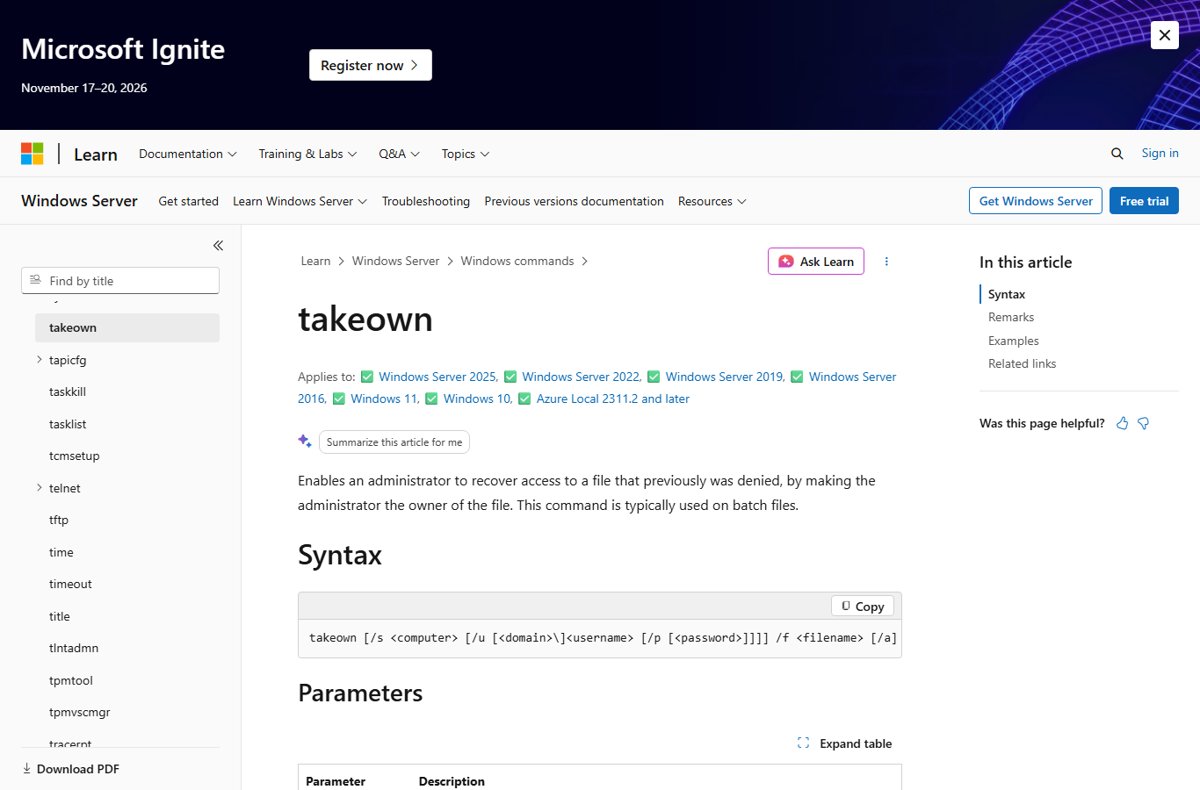
3. Take ownership of the item
The owner of a file can always change its permissions. Files copied from another PC, an old Windows installation or a different user account often belong to an account that no longer exists, so the Security tab locks you out.
Open Command Prompt with Run as administrator, then run the two commands below. Replace the path with your own, and run whoami first if you need your exact account name.
takeown /f "D:\Old Files" /r /d y
icacls "D:\Old Files" /grant YourAccountName:(OI)(CI)F /t /c
takeown /f makes your account the owner; /r repeats it for every subfolder and file and /d y takes ownership of folders you cannot list. icacls /grant then adds Full control (F) for your account; (OI)(CI) makes new files and subfolders inherit it, /t applies it to everything below and /c keeps going past individual errors. Add /a to takeown to give ownership to the Administrators group instead of your account.
You should see: Both commands finish without an Access is denied line, and the folder opens in File Explorer without a permission prompt. Run icacls "D:\Old Files" to see your account listed with (F).
Do not take ownership of C:\Windows, C:\Program Files or other system folders. Changing their owner can break updates and apps; use these commands on your own data folders only.
4. Check Controlled folder access
Controlled folder access is the ransomware protection in Windows Security. When it is on, untrusted apps cannot change files in Documents, Pictures, Videos, Music, Desktop and any folder you add. Allow the specific app you trust rather than turning the protection off.
- Open Windows Security from the Start menu.
- Select Virus & threat protection, then Manage ransomware protection.
- Under Controlled folder access, select Allow an app through Controlled folder access and approve the User Account Control prompt.
- Select + Add an allowed app, then Recently blocked apps.
- Pick the app that was refused. If it is not listed, choose Browse all apps and select its .exe file.
- Restart the app and save the file again.
Add only apps you know. Microsoft warns that an allowed app can change every file in the protected folders, so a compromised one puts that data at risk.
5. Allow file-system access for a Store app
Microsoft Store apps must be granted file system access. Desktop programs installed from the web, a disc or a USB drive do not appear in this list and are not affected by it.
- Open Start > Settings > Privacy & security > File system.
- Turn on Let apps access your file system.
- Find the app in the list below and turn its switch On.
- Close and reopen the app, then open the file again.
If the page says Some settings are managed by your organization, a work or school policy controls the switch and only that IT department can change it.
6. Fix access to a network share
Every folder you share over a network has two permission layers: share permissions and NTFS permissions. The most restrictive of the two wins. Newer Windows versions also refuse guest sign-ins and, from Windows 11 version 24H2, require SMB signing by default.
- Map the share with an account that exists on the server or NAS: run
net use Z: \\ServerName\ShareNameand enter that account's user name and password when asked. - If the message says your organization's security policies block unauthenticated guest access, create a user account on the NAS or server and connect with it instead of guest.
- On the PC that hosts the folder, right-click it, select Properties, open Sharing > Advanced Sharing > Permissions, and allow the access the user needs.
- On the same folder, open the Security tab and confirm that user or group also has matching NTFS permission.
- If the share worked before an upgrade to Windows 11 24H2, turn on SMB signing on the NAS or server, and connect by the server's name rather than its IP address.
- Check Event Viewer > Applications and Services Logs > Microsoft > Windows > SMBClient for the event that names the exact cause.
Microsoft advises against re-enabling insecure guest logons as a fix, because it exposes the PC to rogue servers and interception.
7. Check OneDrive
Files On-Demand is on by default in current OneDrive builds. A file with a blue cloud icon is online-only and cannot open without an internet connection and a running OneDrive app.
- Confirm the OneDrive cloud icon is in the notification area. If it is missing, open OneDrive from the Start menu.
- Right-click the file or folder and select Always keep on this device so a local copy downloads.
- If OneDrive reports "You do not have access permissions to the item", close any app that may have the file open first.
- Then right-click the file, select Properties > Security > Edit, select your account and tick Allow for Full control.
- Select Apply and OK, then open the file again.
8. Shorten an excessively long path
Most Windows apps are limited to MAX_PATH, 260 characters for the drive, folders and file name together. Deeply nested folders, often from extracted archives or cloned code repositories, can pass that limit.
- Click the File Explorer address bar to see the full path and judge its length.
- Rename the longest folder names in the chain to short names.
- Or move the top folder closer to the drive root, for example from a long Documents path to D:\Work.
- Retry the copy, rename or delete.
The Enable Win32 long paths policy, or the LongPathsEnabled value under HKEY_LOCAL_MACHINE\SYSTEM\CurrentControlSet\Control\FileSystem set to 1, only helps apps whose developers declared long path support. Shortening the path works with every app.
9. Check whether another process has the file open
Windows refuses to delete, rename or overwrite a file that another program holds open. The message often names the program; when it does not, find it before you change any permissions.
- Close apps that could be using the file, including preview panes, sync tools and media players.
- Use Microsoft Sysinternals Process Explorer, which shows the process that has a particular file or folder open, and close that program normally.
- For files opened over the network on this PC, run
openfiles /queryin an elevated Command Prompt to list them. - If nothing obvious holds the file, restart the PC and try again before anything else starts.
Uninstallers can hit the same lock, as in the Google Drive message that another application has exclusive access to the file. For local files, openfiles /local on lets openfiles track them after a restart, but Microsoft notes it can slow the system, so turn it off again with openfiles /local off.
When an administrator still gets “Access denied”
Being in the Administrators group does not bypass every check. These are the cases where an admin account is still refused, and what clears each one.
| Reason | Why the admin is refused | What to do |
|---|---|---|
| App not elevated | Admins run apps with a standard user token until they approve elevation | Use Run as administrator (method 1) |
| Explicit Deny entry | A Deny on Administrators, Users or Everyone outranks every Allow | Remove the Deny on the Security tab (method 2) |
| Item owned by another account | Without ownership or Change permissions rights, the admin cannot edit the list | Run takeown then icacls /grant (method 3) |
| Encrypted with EFS by another user | Only the account that holds the encryption key can open the content | Run cipher /c on the file to see who can decrypt it, then decrypt it from that account |
| Controlled folder access | Windows Security blocks the app, not the account | Allow the app (method 4) |
| Administrator protection on Windows 11 | Each admin action needs Windows Hello approval, and admin rights end with the process | Approve the prompt for each elevated task |
| Work or school policy | Your organization controls the permission or the setting | Ask your IT department |
How to check that file access is restored on Windows
- Open the file or folder normally from File Explorer, without elevation.
- Make a small change, save it and close it, to confirm write access as well as read access.
- Run
icacls "D:\Your\Path"and confirm your account appears with (F) or (M) and no (N) or Deny entry. - For a share, run
net useand confirm the mapped drive letter is listed, then open a file on it.
If the file now opens with the message that no app is associated with this file, permissions are fixed and only the default app for that file type is missing.
Reset file and folder permissions to default with icacls
If permission edits made things worse, replace the folder's custom entries with the permissions it inherits from its parent. Save the current list first so you can restore it.
icacls "D:\Old Files\*" /save "D:\acl-backup.txt" /t
icacls "D:\Old Files" /reset /t /c
/save writes the current permissions of every matching file into a backup file. /reset replaces each item's permissions with the default inherited ones, /t covers all subfolders and files, and /c continues past errors. To roll back, run icacls "D:\Old Files" /restore "D:\acl-backup.txt".
You should see: Running icacls "D:\Old Files" afterwards shows entries marked (I), which means they are inherited from the parent folder.
Access Denied on Windows: fixes for encrypted, corrupted and old-profile files
Check for content encryption: one file refuses to open even after you take ownership
The file was encrypted with EFS by another account or on another Windows installation.
- Open Command Prompt in the file's folder and run
cipherto list which files are encrypted (E) and which are not (U). - Run
cipher /c "File.docx"to see the users who can decrypt it. - Sign in as that user and run
cipher /d "File.docx"to decrypt it, then copy it where you need it. - If that account or its certificate is gone, only an EFS recovery agent or a backup of the key can open the file.
Check for file corruption: Access Denied appears on many files on one drive
File system errors on the volume can block access to otherwise normal files.
- Open Command Prompt with Run as administrator.
- Run
chkdsk D: /f, replacing D: with the affected drive. - If the drive is in use, answer Y to schedule the check for the next restart, then restart the PC.
- Try the files again after the check finishes.
Sign in or create a new local user account: your own profile folders refuse to open
A corrupted user profile can lose access to its own folders.
- Open Settings > Accounts > Other users and select Add account.
- Choose I don't have this person's sign-in information, then Add a user without a Microsoft account, and finish the setup.
- Make the new account an administrator, sign out, and sign in to it.
- Open C:\Users\<Old_Username> in File Explorer and copy your files into C:\Users\<New_Username>.
Recover files from the Windows.old folder: "You don't currently have permission to access this folder"
Old user folders belong to the previous installation and need administrator approval.
- Sign in with an administrator account. Windows.old is kept for only 10 days after an upgrade.
- In File Explorer, open This PC > C: > Windows.old > Users and then the old user folder.
- Select Continue when Windows says you do not currently have permission, then open the folder again.
- Copy the files you need from Documents, Pictures or Desktop and paste them into your current profile.
Useful Microsoft references for Access Denied errors
- takeown command reference — Every switch for taking ownership, including /a, /r and /d
- icacls command reference — Permission masks, inheritance flags, /reset, /save and /restore
- Access Denied when you access an SMB file share — Guest access, SMB signing and NTLM changes in Windows 11 24H2
- Configure controlled folder access — Allowing apps and adding protected folders
- Windows file system access and privacy — File system permission for Store apps
- Maximum path length limitation — The 260-character limit and long path settings
- Retrieve files from the Windows.old folder — Copying files from a previous installation
Windows Access Denied error FAQ
Why do I get Access Denied when I am an administrator?
Windows runs your apps with a standard user token until you approve elevation, so an admin account is still refused until the app runs as administrator. A Deny entry, another owner, EFS encryption or Controlled folder access can also block an administrator.
How do I take ownership of a folder in Windows 11?
Open Command Prompt as administrator and run takeown /f followed by the folder path, adding /r /d y for everything inside it. Then grant yourself access with icacls and the /grant switch, because ownership alone does not add permissions.
Is it safe to give Everyone Full control of a folder?
No, not for personal data. Everyone Full control lets any account and any program on the PC change or delete the files. Grant Modify or Full control to your own account, or to the specific user who needs a shared folder.
How do I reset folder permissions to default in Windows?
Run icacls with the folder path followed by /reset /t /c in an elevated Command Prompt. It replaces custom entries with the permissions inherited from the parent folder. Save the current list first with icacls /save so you can restore it.
Why does a network share say I do not have permission?
Either the share or NTFS permissions do not include your account, or Windows refused a guest sign-in. Connect with a real account on the server or NAS, and check both the Sharing and Security tabs on the host PC.
Can Controlled folder access cause Access Denied?
Yes. It stops untrusted apps from changing files in protected folders such as Documents and Desktop, and the app reports it cannot save. Allow that app through Controlled folder access in Windows Security instead of turning the protection off.
How do I delete a file that says Access is denied?
Close any program that has it open, then check its permissions and owner. If you are not the owner, take ownership with takeown, grant yourself Full control with icacls, and delete it. Never do this to files inside C:\Windows.
The bottom line on restoring file access in Windows
Read the error first, then fix only the layer that is blocking you: elevation for apps, the Security tab for permissions, takeown and icacls for files you do not own. Each Access Denied cause has its own fix, and broad changes such as Everyone Full control, disabling Controlled folder access or taking ownership of system folders create security or stability problems that are harder to undo than the original error.






