To disable startup programs in Windows 11 or Windows 10, press Ctrl + Shift + Esc, open the Startup apps tab in Task Manager, select the program and select Disable.
This guide covers all seven places a program can start from, how to pick what to turn off, how to re-enable an app, and what to do when a program keeps switching itself back on.
Method 1: Disable startup programs via Task Manager
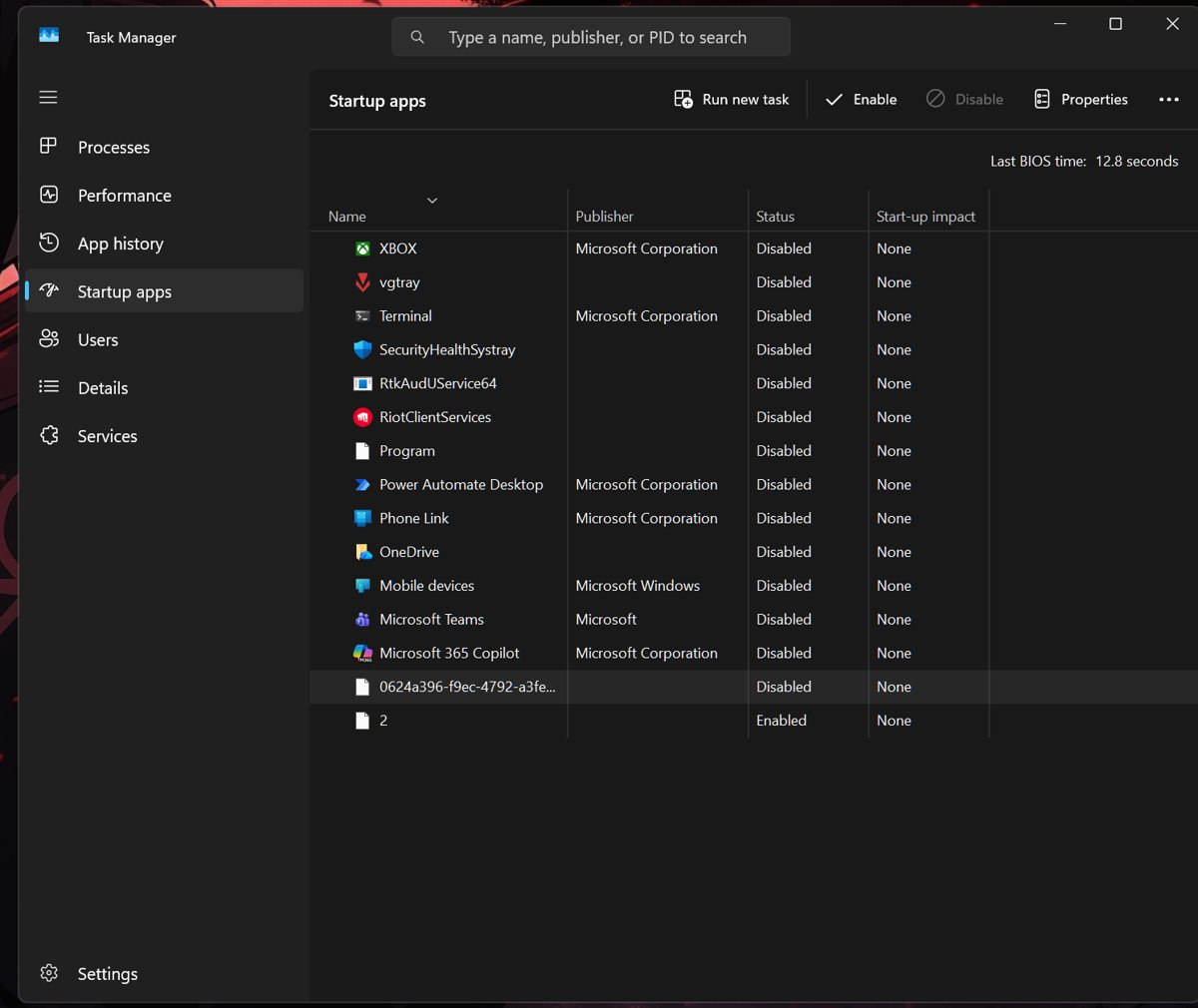
Task Manager shows every app registered with a startup task, along with how much each one slows sign-in. The change takes effect at your next sign-in; the program is not uninstalled.
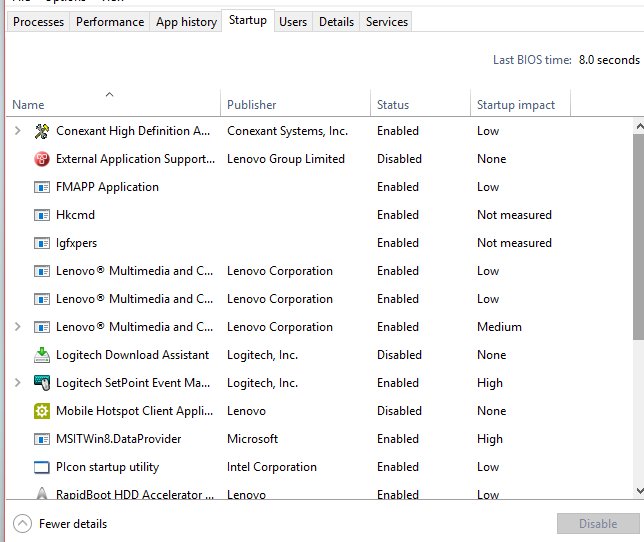
- Press Ctrl + Shift + Esc, or right-click Start and select Task Manager.
- Select Startup apps in the left menu (the tab is named Startup on older versions).
- Check the impact column to find the programs that slow sign-in most.
- Select the program you want to stop.
- Select Disable at the top, or right-click the program and select Disable.
- Check that its Status column now reads Disabled, then restart the PC.
There are other ways to open Task Manager if the shortcut does nothing.
Stop programs from running at startup on Windows 11: which method to use
| Where the program starts from | Use this method | Why |
|---|---|---|
| Listed in Task Manager or Settings | Method 1 or Method 2 | Same list, one toggle or button, easy to undo |
| A shortcut you or an app placed in the Startup folder | Method 3: Startup folder | Task Manager does not manage every folder shortcut the same way |
| Troubleshooting a slow or crashing PC | Method 4: msconfig clean boot | Turns off third-party services and startup apps together |
| Not listed anywhere but still launches | Method 5 or Method 6 | Run keys and scheduled tasks can start programs outside the list |
| Several PCs or a script | Method 7: Command Prompt or PowerShell | Repeatable commands instead of clicks |
To see every entry before you change anything, view all startup programs first, then come back to disable the ones you do not need.
Understanding startup programs
A startup program is any app or command Windows launches when you sign in, without you opening it. Windows keeps these entries in several places, which is why one list never shows everything.
| Location | Scope | Managed from |
|---|---|---|
| Registered startup task | Current user | Task Manager Startup apps or Settings > Apps > Startup |
shell:startup folder |
Current user | File Explorer |
shell:common startup folder |
All users | File Explorer, admin rights needed |
HKCU\Software\Microsoft\Windows\CurrentVersion\Run |
Current user | Registry Editor |
HKLM\Software\Microsoft\Windows\CurrentVersion\Run and the Wow6432Node copy |
All users | Registry Editor, admin rights needed |
RunOnce keys |
Runs once at the next sign-in, then the entry is deleted | Registry Editor |
| Scheduled tasks with a logon or startup trigger | User or system | Task Scheduler, schtasks, PowerShell |
Windows ignores the Run and RunOnce keys in Safe Mode by default, and it may delay Run-key and Startup folder programs so they do not compete with the apps you open first.
Why you should disable startup programs
Disable every startup program you do not need the moment you sign in, starting with the ones Task Manager marks as High impact. Microsoft lists startup apps as a cause of slow boot times and extra background use, and each one adds CPU and disk work to every sign-in.
Benefits of disabling unnecessary startup programs include a faster path from sign-in to a usable desktop, fewer tray icons, less memory taken before you open anything, and fewer surprise windows. Keep the security, input and sync tools covered further down.
Method 2: Disable startup programs from Settings app
Settings shows the same list as Task Manager with a simple On/Off switch per app.
- Press Windows key + I to open Settings.
- Select Apps > Startup.
- Set the toggle next to each unwanted app to Off.
- Select the arrow next to an app if you want to change its advanced startup options.
- Restart the PC to apply the change.
Method 3: Use the Startup folder
Programs that are not registered with a startup task often start from a shortcut in one of two Startup folders. Removing the shortcut stops the launch; the program itself stays installed.
- Right-click Start and select Run.
- Type
shell:startupand press Enter to open your own Startup folder (%userprofile%\AppData\Roaming\Microsoft\Windows\Start Menu\Programs\Startup). - Right-click the shortcut of the program you want to stop and select Delete.
- Open Run again, type
shell:common startupand press Enter to open the all-users folder (%ProgramData%\Microsoft\Windows\Start Menu\Programs\Startup). - Delete any unwanted shortcut there and confirm the administrator prompt.
- Restart the PC.
If you might want the program back, move the shortcut to a folder on the desktop instead of deleting it.
Set custom apps to run on startup
The same folders work in reverse: drop an app's shortcut in and it opens every time you sign in.
- Right-click Start, select Run, type
shell:appsfolderand press Enter; keep this window open. - Open Run again, type
shell:startup(just you) orshell:common startup(all users) and press Enter. - Drag the app from the first window into the second window.
- Sign out and back in to check that the app opens on its own.
Method 4: Disable startup programs via System Configuration (msconfig)
In Windows 11 and Windows 10, the Startup tab in System Configuration no longer lists programs; it hands you to Task Manager. msconfig is still the place to switch off third-party services for a clean boot.
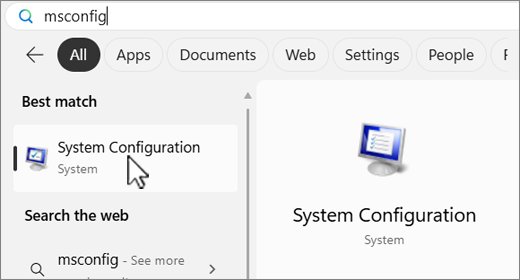
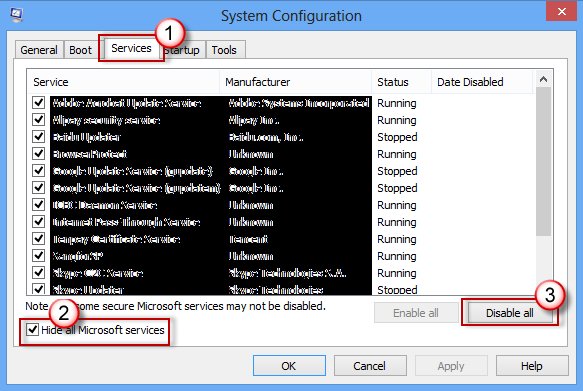
- Select Search, type
msconfigand select System Configuration. - On the Services tab, select Hide all Microsoft services first.
- Clear the check box of each third-party service you want to stop, or select Disable all, then select Apply.
- On the Startup tab, select Open Task Manager.
- Disable the startup apps you do not want, then close Task Manager.
- Select OK in System Configuration and restart when prompted.
Always tick Hide all Microsoft services before you select Disable all, so Windows' own services keep running.
Method 5: Disable startup programs via Registry Editor (advanced users)
Some programs write a value to a Run key instead of using a startup task. Deleting the value stops the launch. Back up the registry before you edit it.
- Press Windows key + R, type
regeditand press Enter, then select Yes. - For your account, go to
HKEY_CURRENT_USER\Software\Microsoft\Windows\CurrentVersion\Run. - For all users, check
HKEY_LOCAL_MACHINE\Software\Microsoft\Windows\CurrentVersion\RunandHKEY_LOCAL_MACHINE\Software\Wow6432Node\Microsoft\Windows\CurrentVersion\Run. - Find the value whose data points to the program you want to stop.
- Right-click File > Export first if you want a copy of the key to restore later.
- Right-click the value, select Delete and confirm.
- Restart the PC.
Method 6: Disable startup programs from Task Scheduler
Updaters and helper tools often use a scheduled task with a logon trigger, so they never show in the startup list. Disabling the task keeps it on the PC but stops it running.
- Select Start, type
Task Schedulerand open it. - Select Task Scheduler Library and look for tasks named after the program.
- Note the exact task name and its folder.
- Open Command Prompt as administrator and run
schtasks /change /tn "Task name" /DISABLE, using the name you noted. - Restart the PC and confirm the program no longer opens.
Method 7: Use Command Prompt or PowerShell
Commands are useful when you manage several PCs or want a record of what you changed. First list what runs at sign-in with Get-CimInstance Win32_StartupCommand | Select-Object Caption, Command, Location, User in PowerShell.
Then open Command Prompt and remove a Run-key entry withreg delete "HKCU\Software\Microsoft\Windows\CurrentVersion\Run" /v "ValueName" /f, or disable a scheduled task with schtasks /change /tn "Task name" /DISABLE.
Disable-ScheduledTask -TaskName 'Task name'Run in PowerShell as administrator. Disable-ScheduledTask switches off the named scheduled task without deleting it; Enable-ScheduledTask turns it back on.
You should see: PowerShell prints the task with its State shown as Disabled.
How to identify which programs to disable
| What Task Manager shows | What it means | What to do |
|---|---|---|
| High impact | More than 1 second of CPU or more than 3 MB of disk at startup | Disable unless you need it the moment you sign in |
| Medium impact | 300 ms to 1 second of CPU, or 292 KB to 3 MB of disk | Disable if you open the app yourself anyway |
| Low impact | Under 300 ms of CPU and under 292 KB of disk | Leave it unless you never use it |
| Not measured | Enabled, but no data yet | Restart once, then check again |
| None | Already disabled | Nothing to do |
| Unknown name or publisher | Unclear origin | Check the program name and publisher before deciding |
Performance boost: before and after comparison
Gains depend entirely on what you disable, so measure your own PC rather than trusting a fixed number.
| Check | Before disabling | After disabling and restarting |
|---|---|---|
| Task Manager Startup apps | Count the apps marked Enabled and note each High impact entry | Those entries now read Disabled with impact None |
| Time from sign-in to a usable desktop | Time it with a phone stopwatch after a restart | Repeat the same test after the next restart |
| Notification area icons | Count the icons next to the clock | Fewer icons appear |
| Task Manager Performance tab | Note memory in use a minute after sign-in | Compare the same figure at the same moment |
What is the Program app in my Task Manager list?
Task Manager and Settings read the same startup entries. When an entry points to a file that no longer exists, for example because the app was uninstalled or lived on a removable or network drive, Windows cannot read its name, and the entry shows a generic label. In Settings, the same entry appears as We couldn't find this app.
| Step | Where | Result |
|---|---|---|
| Find the entry | Settings > Apps > Startup | The broken item is labeled We couldn't find this app |
| See where it comes from | Select the info icon next to its toggle | Windows shows the registry location or file path with the broken path |
| Remove a registry entry | Open that Run key in Registry Editor and delete the value | The entry disappears after a restart |
| Fix a missing app | Reinstall the app, or reconnect its drive | The entry shows its real name again |
When you should not disable startup programs
| Keep enabled | Why |
|---|---|
| Windows Security and your antivirus | Protection must be running before you open files or browse |
| Touchpad, audio, graphics or keyboard utilities from the PC maker | Gestures, hotkeys and control panels can stop working |
| OneDrive or other cloud sync you rely on | Files stop syncing until you open the app yourself |
| Password managers and VPNs set to connect at sign-in | You lose auto-fill or a protected connection at startup |
| Microsoft services in msconfig | Windows features can break; keep Hide all Microsoft services ticked |
Check that a disabled startup program stays off
- Restart the PC and sign in.
- Wait a minute and check that the program's window or tray icon does not appear.
- Open Task Manager > Startup apps and confirm the program still reads Disabled.
- Check the Processes tab; the program should not be listed until you open it.
Re-enabling a disabled startup program
- Open Task Manager with Ctrl + Shift + Esc and select Startup apps.
- Select the program and select Enable; or set its toggle to On in Settings > Apps > Startup.
- For a Startup folder item, put the shortcut back in
shell:startuporshell:common startup. - For a registry entry, double-click the
.regfile you exported and confirm the merge. - For a scheduled task, run
schtasks /change /tn "Task name" /ENABLEas administrator. - After a clean boot, open msconfig, select Normal startup on the General tab, then Enable all on the Services tab.
Troubleshooting: when a program keeps re-enabling itself
The program is back in the startup list after you open it
The app has its own start-with-Windows option that rewrites its startup entry.
- Open the program's own settings or preferences.
- Turn off its option to start or launch with Windows.
- Disable it again in Task Manager and restart.
The program still opens although it shows Disabled
A second entry starts it from the Startup folder, a Run key or a scheduled task.
- Check
shell:startupandshell:common startupfor its shortcut. - Check the Run keys listed in Method 5.
- Check Task Scheduler for a task named after the program and disable it.
The program is not in Task Manager or Settings at all
It starts from a scheduled task or service, not a startup entry.
- Run
Get-CimInstance Win32_StartupCommandin PowerShell to list logon commands. - Look for its scheduled task and disable it with Method 6.
- If it is a third-party service, clear it on the msconfig Services tab with Microsoft services hidden.
The Disable button is greyed out or the change will not save
The entry is for all users or is managed by a work or school policy.
- Open Task Manager from an administrator account.
- On a work or school PC, ask your IT department; policy-managed entries come back after each refresh.
Tips for managing startup effectively
| Tip | Why it helps |
|---|---|
| Recheck Startup apps after installing new software | Many installers add a startup entry by default, and Windows 11 can notify you when apps add to startup |
| Turn off the start-with-Windows option inside each app | Stops the app re-adding itself |
| Set unused apps' background permission to Never under Installed apps > Advanced options | Cuts background activity as well as startup work |
| Disable one app at a time when troubleshooting | You know exactly which change fixed or broke something |
| Uninstall programs you never use instead of only disabling them | Removes their scheduled tasks and services too |
Browsers have their own startup features too; you can disable Chrome PWAs at startup from the browser.
Disable startup programs FAQs
Is it safe to disable startup programs in Windows?
Yes, for most apps. Disabling only stops a program from opening at sign-in; it stays installed and you can open it yourself. Keep security software, PC maker input and audio utilities, and sync tools you rely on enabled.
Does disabling a startup program uninstall it?
No. The program stays installed and works normally when you open it. To remove it completely, uninstall it from Settings > Apps > Installed apps, which also removes its scheduled tasks and services.
Will disabling startup programs make my PC faster?
It can shorten the time from sign-in to a usable desktop and reduce background use. The gain depends on what you disable, so start with apps Task Manager marks as High impact.
Can I still use msconfig to disable startup programs?
Only for services. In Windows 11 and Windows 10, the Startup tab in System Configuration just offers Open Task Manager, where you disable startup apps.
Is Task Manager or Settings better for startup apps?
They manage the same list. Settings gives a simple On/Off switch per app, while Task Manager adds a Startup impact column that shows how much each app slows sign-in.
Why does a program keep re-enabling itself at startup?
Usually the app's own start-with-Windows setting rewrites the entry, or a second entry in the Startup folder, a Run key or a scheduled task launches it. Turn off the in-app option and check those places.
How do I re-enable a startup program?
Open Task Manager, select Startup apps, select the program and select Enable. In Settings, go to Apps > Startup and set its toggle to On.
Do startup programs run in Safe Mode?
Programs in the Run and RunOnce registry keys are ignored in Safe Mode by default. That makes Safe Mode a quick test of whether a startup entry causes a problem.