To increase virtual memory in Windows 11, open System Properties with sysdm.cpl, go to Advanced > Performance > Settings > Advanced > Virtual memory > Change, set a larger custom page file size and restart.
This guide covers the exact steps, how much to set, how to confirm the new size took effect and what to do when Windows still reports low memory.
How to increase (or decrease) virtual memory
Windows 11 calls virtual memory the paging file. The only prerequisites are an administrator account and free space on the drive, and the new size applies after a restart. These step-by-step instructions also work to decrease it.
- Select Search on the taskbar, type
sysdm.cpland press Enter to open System Properties. - On the Advanced tab, select Settings in the Performance section.
- In Performance Options, open the Advanced tab and select Change under Virtual memory.
- Clear the Automatically manage paging file size for all drives check box.
- Select the system drive (usually C:), then select Custom size.
- Type a larger value in megabytes in Initial size (MB) and Maximum size (MB). Type smaller values to decrease it.
- Select OK to close each dialog, then restart the PC.
Values are in megabytes, so 1 GB is 1,024 MB. A 16 GB PC with an initial size of 1.5 times its RAM needs 24,576 MB.
System managed vs custom size vs no paging file
The Virtual Memory dialog offers three choices for each drive. Most PCs are best left on the default, and a custom size is for a specific problem.
| Your situation | Choose this | Why |
|---|---|---|
| No memory errors, normal home or office use | Automatically manage paging file size for all drives | Windows grows the file when the commit charge passes 90% of the commit limit |
| Apps show random out-of-memory errors | Custom size, initial size about 1.5 times your RAM | Microsoft's workaround when a small automatic file grows too slowly |
| Windows Update fails with error 0x8007000e | Automatically manage paging file size for all drives | A manually set, too-small page file is a listed cause |
| You need full crash dumps for support | System managed, or a custom size of at least RAM plus 257 MB | A complete memory dump needs a page file that large |
| Hyper-V host or domain controller | Keep the default "System managed" setting | Microsoft says these roles need a page file left at the default |
| You want to remove the page file | No paging file (not recommended) | The commit limit drops to slightly less than your RAM and crash dumps stop |
How much virtual memory should you set?
Microsoft states that the right page file size is unique to each PC, because it depends on peak memory use and the crash dump setting. Use these figures as starting points, then check real use in Task Manager.
Find your installed memory first; you can check RAM on Windows 11 under Settings > System > About.
| Goal | Initial size | Maximum size |
|---|---|---|
| Stop out-of-memory errors from slow growth | 1.5 x RAM (16 GB RAM = 24,576 MB) | Equal to or above the initial size |
| Support a complete memory dump | At least RAM + 257 MB (16 GB RAM = 16,641 MB) | Above peak commit charge |
| Match what Windows would allow itself | Leave system managed | Up to 3 x RAM or 4 GB, whichever is larger, capped at one-eighth of the drive |
| Freeze troubleshooting on Microsoft's checklist | At least 100 MB over installed RAM | At least 100 MB over installed RAM |
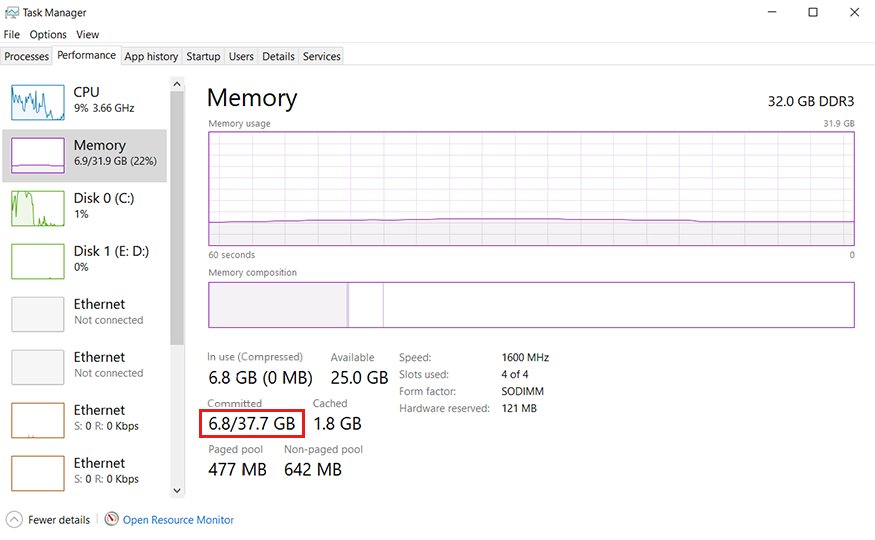
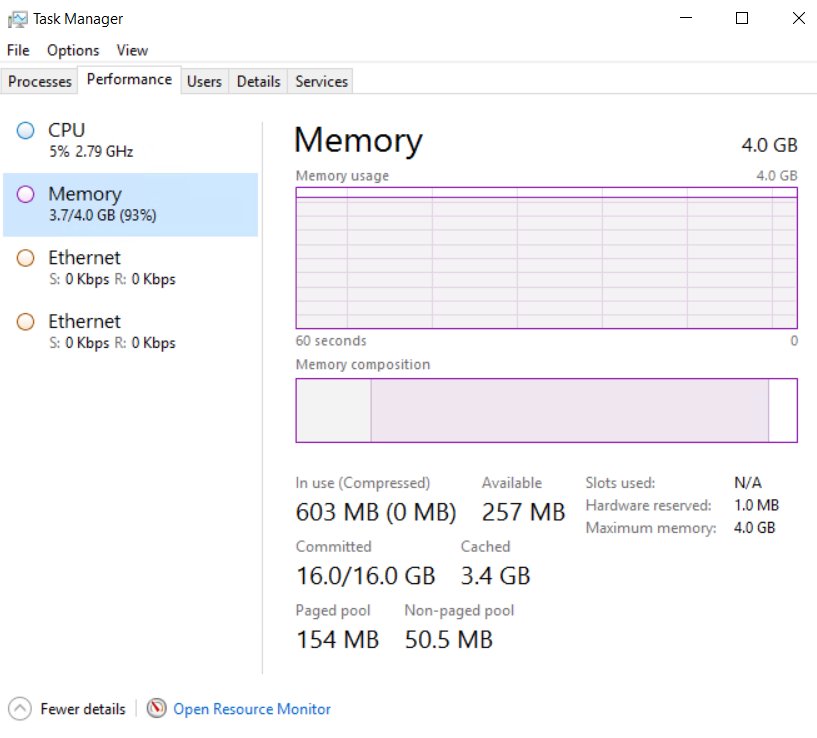
If committed memory on the Task Manager Performance tab regularly gets close to the commit limit, raise the maximum size. If it stays well below, a larger page file adds nothing but used disk space.
Virtual memory size calculator: multiply installed RAM in GB by 1,024 to get MB, then apply the rule above. For 1.5 x RAM, that is 8 GB = 12,288 MB, 16 GB = 24,576 MB and 32 GB = 49,152 MB. To set the right pagefile size, enter the result as Initial size (MB) and the same or a larger figure as Maximum size (MB).
Open virtual memory settings with Windows + Pause
This keyboard route reaches the same dialog without typing a command, and it is the one Microsoft gives in its out-of-memory workaround.
- Press Windows logo key + Pause/Break.
- Select Advanced system settings and approve the User Account Control prompt if it appears.
- On the Advanced tab, select Settings in the Performance section.
- Select the Advanced tab, then select Change in the Virtual memory section.
- Clear Automatically manage paging file size for all drives, select Custom size and enter the Initial size and Maximum size.
- Select OK and restart the system.
If your keyboard has no Pause key, use the sysdm.cpl route above; it opens System Properties directly.
Check page file size with PowerShell
This read-only command shows the page file Windows is using now, its size and its peak use since startup. Run it in PowerShell or Windows Terminal.
Get-CimInstance -ClassName Win32_PageFileUsage | Select-Object Name, AllocatedBaseSize, CurrentUsage, PeakUsage, TempPageFileQueries the Win32_PageFileUsage class. AllocatedBaseSize is the disk space set aside for the page file, CurrentUsage is what is in use and PeakUsage is the highest use, all in megabytes. TempPageFile is True when Windows had to create a temporary page file.
You should see: A row such as C:\pagefile.sys with an AllocatedBaseSize that matches the size you set, and TempPageFile showing False.
How to check the new virtual memory size took effect
- Restart the PC if you have not already.
- Run
sysdm.cpl, then go to Advanced > Performance > Settings > Advanced. - Select Change and confirm Custom size still shows your Initial size and Maximum size.
- Press Ctrl + Shift + Esc, open the Performance tab and select Memory.
- Check the committed memory figures: the commit limit is RAM plus all page files, and it should now be higher by the amount you added.
What is virtual memory?
In Windows, virtual memory (committed memory) is the total memory the system can promise to apps. Its ceiling, the commit limit, is your physical RAM plus every page file combined.
When RAM fills, Windows moves rarely used modified pages out to the page file so the RAM can hold pages that are in active use. If the commit charge reaches the limit, apps can freeze or crash.
| Term | What it means in Windows 11 |
|---|---|
| Page file (paging file) | An optional, hidden system file on disk that backs memory pages not kept in RAM |
| Commit charge | Memory that all running processes have been promised |
| Commit limit | Physical RAM plus all page files; the commit charge cannot go past it |
| Page size | About 4 KB per page fault on x86 and x64 Windows, which is why paging is measured in 4 KB pages |
| Crash dump support | On a Stop error, Windows writes memory to the page file to create Memory.dmp |
| VRAM | Memory on the graphics card, separate from virtual memory and the page file |
Virtual memory is not a substitute for RAM speed. Data read back from the page file comes from the drive, which is far slower than RAM, so frequent paging is a sign the PC needs more physical memory (RAM). Graphics memory is a different setting; VRAM and how to check it has its own limits.
How virtual memory works
Windows manages virtual memory by paging: memory is handled in pages, 4 KB each on x86 and x64 PCs, and the memory manager moves them between RAM and disk. This paging logic runs on its own; the page file size is the only part you set.
| Stage | What Windows does |
|---|---|
| An app starts | Each process gets a private virtual address space that other processes cannot access unless memory is shared |
| The app reads or writes an address | A per-process page table translates the virtual address into a physical address in RAM every time a thread uses it |
| The app touches a page for the first time | Windows supplies the page on demand (a demand-zero fault), so memory is only backed when it is actually used |
| Pages stay in use | Pages currently held in RAM form the process's working set |
| RAM runs short | The memory manager trims pages from working sets; modified data is written to the page file, while unchanged .exe and .dll pages are simply dropped because they already exist on disk |
| The app needs a trimmed page again | Windows reads it back from RAM if it is still cached, or from the page file if it was written out |
Types of virtual memory: paging vs segmentation
Windows 11 virtual memory is page-based. Segmentation is not something Windows uses for app memory: Win32 runs the x86 processor in 32-bit flat mode, so there is no segment setting to change.
| Type | How it works in Windows | Where you see it |
|---|---|---|
| Virtual memory in paging | Memory moves between RAM and disk in 4 KB pages; contiguous virtual pages can map to noncontiguous physical pages | The page file, pagefile.sys, set in the Virtual Memory dialog |
| Memory-mapped files | A file's contents are mapped into a process's virtual address space and read on demand | Large data files such as databases, and data shared between processes |
| Paged pool | System-space memory that can be paged out to a disk file as needed | Memory that Windows and drivers allocate dynamically |
| Nonpaged pool | System-space memory that is never paged out to disk | Memory that Windows and drivers allocate dynamically |
| Virtual memory in segmentation | Not used for app memory; Win32 uses the flat memory model | No setting in Windows 11 |
Understanding thrashing and page faults
A page fault happens whenever a process uses a page that is not in its working set. Most are harmless; trouble starts only when the disk cannot keep up.
| Term | What happens | What it means for you |
|---|---|---|
| Soft page fault | The page is already in RAM, for example shared with another process or still cached after being trimmed | No disk access, so no slowdown |
| Hard page fault | The page is read from disk: the page file, a memory-mapped file or part of an .exe or .dll | A normal part of Windows; each one costs roughly 4 KB of disk reads |
| Excessive paging (thrashing) | Hard page faults stay high and the drive holding the page file is overwhelmed | System-wide delays; 100 hard faults per second means about 400 KB per second of disk transfers |
| Commit limit reached | The commit charge hits RAM plus page file size | Apps can freeze or crash until memory is freed or the page file grows |
To check for excessive paging, open Performance Monitor (perfmon) and add the Memory counters Pages/sec and Page Reads/sec, then compare them with disk activity on the drive that holds pagefile.sys.
Virtual memory vs physical memory
| Aspect | Physical memory (RAM) | Virtual memory |
|---|---|---|
| What it is | The memory modules installed in the PC | The memory Windows can commit to apps: RAM plus all page files |
| Where data lives | On the RAM chips | In RAM while in use, in pagefile.sys on a drive when paged out |
| Speed | Fast | As fast as RAM for resident pages, drive speed for pages read from the page file |
| How to get more | Install more RAM | Raise the page file size in the Virtual Memory dialog |
| Addresses | Physical addresses | Private virtual addresses per process, translated through a page table |
What are the benefits and limitations of using virtual memory?
| Benefits | Limitations |
|---|---|
| Applications can commit more memory than the installed RAM, up to the commit limit | Pages read back from the page file come from the drive, which is far slower than RAM |
| Rarely used modified pages leave RAM, so active apps get more of it | Heavy paging can overwhelm the drive and slow the whole system |
| Each process has a private address space that other processes cannot read | The page file uses disk space, up to 3 times RAM when system managed |
| The page file lets Windows write a crash dump after a Stop error | It does not add video memory, and it cannot replace RAM for memory-hungry work |
Common applications of virtual memory in Windows 11: running more programs than RAM alone could hold, memory-mapped files that let a database work with a large file without loading all of it, sharing data between processes, and writing a crash dump after a Stop error.
Where is virtual memory located in Windows 11?
The setting, the file and the stored value live in three different places.
| Item | Location | Notes |
|---|---|---|
| Virtual memory setting | sysdm.cpl > Advanced > Performance > Settings > Advanced > Virtual memory |
Same dialog on Windows 11 and Windows 10 |
| Page file on disk | pagefile.sys on the system drive, usually C:\pagefile.sys |
Hidden system file; it can also sit on other drives you configure |
| Stored size | HKLM\SYSTEM\CurrentControlSet\Control\Session Manager\Memory Management, value PagingFiles |
A custom size reads like ?:\pagefile.sys 1024 1124 (initial, then maximum in MB) |
| Live usage | Task Manager > Performance > Memory | Shows committed memory against the commit limit |
Deleting pagefile.sys by hand is not the way to remove it, and deleting pagefile.sys safely comes with trade-offs.
How to reset virtual memory to system managed
Microsoft's fix for update and memory resource errors is to hand page file sizing back to Windows.
- Select Search, type
sysdm.cpland press Enter. - In System Properties, select Advanced > Performance > Settings.
- In Performance Options, select Advanced > Virtual memory > Change.
- Select Automatically manage paging file size for all drives.
- Select OK and restart the computer.
Fix low virtual memory errors in Windows 11
Apps show random out-of-memory errors
An automatic page file starts small, and growing it on demand can be too slow for apps that allocate memory quickly.
- Open the Virtual Memory dialog from
sysdm.cpl. - Clear Automatically manage paging file size for all drives and select Custom size.
- Set Initial size to 1.5 times your RAM in megabytes and a Maximum size at least as large.
- Select OK and restart.
- If the errors continue, raise the Initial size again.
Windows Update fails with 0x8007000e or 0x800705aa
The PC does not have enough available virtual memory to install the update, often because a manual page file is too small or an app is using a lot of memory.
- Open Event Viewer and look for Event ID 2004, which names the programs using the most virtual memory.
- Close those programs, or perform a clean boot with
msconfig. - Set the page file back to Automatically manage paging file size for all drives.
- Restart and run Windows Update again.
No crash dump is created after a blue screen
The page file is smaller than the dump type in Startup and Recovery needs, so Windows cannot write Memory.dmp.
- Open
sysdm.cpland select Settings under Startup and Recovery on the Advanced tab. - Note the type under Writing Debugging Information.
- For Complete memory dump, set the page file to at least RAM plus 257 MB, or return it to system managed.
- Restart the PC.
PowerShell shows TempPageFile as True
Windows created a temporary page file, usually because no permanent page file exists.
- Open the Virtual Memory dialog and check the system drive is not set to no paging file.
- Select Automatically manage paging file size for all drives, or a Custom size for the system drive.
- Make sure the drive has free space for the page file.
- Restart and run the PowerShell check again.
If errors persist even with a large page file, test the hardware: run Windows Memory Diagnostic to rule out faulty RAM.
Should you disable virtual memory in Windows 11?
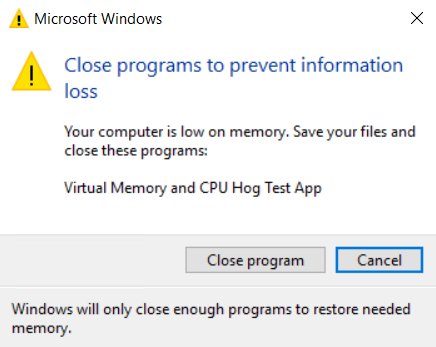
Do not remove the page file from every drive, even on a PC with a lot of RAM. Without a page file the commit limit is slightly less than your installed RAM, so a memory spike can freeze or crash apps, and Windows cannot write a crash dump after a Stop error. Microsoft suggests a dedicated dump file only for admins who want dumps without paging.
Windows 11 virtual memory FAQ
How do I change virtual memory in Windows 11?
Run sysdm.cpl, then select Advanced > Performance > Settings > Advanced > Virtual memory > Change. Clear Automatically manage paging file size for all drives, select Custom size, enter the initial and maximum size in MB, select OK and restart.
How do I increase virtual memory in Windows 10?
Windows 10 uses the same dialog as Windows 11. Press Windows logo key + Pause/Break, select Advanced system settings, then Performance Settings > Advanced > Change, and set a Custom size. Restart for the new size to apply.
What virtual memory should I set?
Leave it system managed unless you have a specific problem. For out-of-memory errors, Microsoft suggests an initial size of 1.5 times your RAM. For complete crash dumps, the page file must be at least your RAM plus 257 MB.
What is virtual memory on a PC?
Virtual memory is the total memory Windows can commit to programs. Its limit is your physical RAM plus the page file on disk, which holds rarely used data so RAM stays free for active work.
Where is virtual memory stored?
It is stored in pagefile.sys, a hidden system file on the system drive, usually C:\pagefile.sys. Custom sizes are also recorded in the PagingFiles registry value under Session Manager\Memory Management.
Why is virtual memory needed?
It lets Windows move rarely used data out of RAM and promise programs more memory than is physically installed. Without enough of it, apps can fail to get memory and freeze or crash, and Windows cannot save crash dumps.
Why is virtual memory slower than RAM?
Pages held in the page file must be read back from the storage drive, and even a fast SSD is much slower than RAM. That is why heavy paging slows a PC down and adding physical RAM helps more than a larger page file.
Is virtual memory the same as VRAM?
No. VRAM is memory on the graphics card used by the GPU. Virtual memory is system memory backed by RAM and the page file, and changing the page file does not add video memory.
Is virtual memory RAM or secondary storage?
It is both. The commit limit combines physical RAM with page files stored on secondary storage, such as an SSD or hard drive. Data moves between the two as Windows needs space in RAM.
Why is the virtual memory page size 4 KB?
x86 and x64 processors manage memory in 4 KB pages, so Windows reads and writes paged data in 4 KB units. Microsoft's page file guidance counts disk traffic as roughly 4 KB per hard page fault on these systems.
Virtual memory mastery: should you change the Windows 11 page file?
Keep Windows 11 on Automatically manage paging file size unless you see out-of-memory errors or missing crash dumps, then set a custom size of about 1.5 times your RAM. System-managed page files already grow to 3 times RAM when needed, and a manual size that is too small is one of the causes Microsoft lists for update and memory errors.

![8 best music players for Windows 11 [2026 updated]](https://techdows.com/wp-content/uploads/2026/10/8-best-music-players-for-Windows-11-2026-updated-600x338.jpg)