If Windows 11 26H2 runs slow after the update, restart once, install every pending update and optional driver in Settings > Windows Update, then disable unneeded startup apps in Task Manager; that clears most post-update slowdowns.
This guide covers why a 26H2 PC can feel slower, the fixes in the order worth trying, how to confirm the PC is back to normal, and the repair and rollback options when nothing else works.
The fastest fix for a slow PC after 26H2
- Select Start > Power > Restart so the update finishes its setup work.
- Open Settings > Windows Update and select Check for updates; install anything listed with Download & install.
- Go to Windows Update > Advanced options > Optional updates and install any driver updates offered.
- Press Ctrl + Shift + Esc, select Startup apps, then right-click each app you do not need at sign-in and select Disable.
- Restart again and use the PC for a while before judging its speed.
If the PC is still slow after these five steps, work through the symptom table below. First confirm the update really is 26H2 with the version check, because a PC can be slow while an update is still pending.
Why 26H2 itself rarely makes a PC slower
| What Microsoft says | What it means for speed |
|---|---|
| 24H2, 25H2 and 26H2 share a common core with an identical set of system files | Switching version does not replace Windows; the code was already on the PC |
| 26H2 arrives on 24H2 and 25H2 PCs as a small enablement package with a single restart | Any slowdown is more likely from the cumulative update, a driver or an app than from the version change |
| The package needs the 22 September 2026 cumulative update KB5124010 or later first | That cumulative update is the part that actually changes system files |
| 26H2 removes default kernel trust for cross-signed drivers, after an audit of at least 100 hours and three restarts | Old hardware drivers are the part worth checking on older PCs |
| Windows can now index frequently used folders automatically | Search indexing can add background disk activity; it is managed in Settings > Privacy & security > Search |
| File Explorer Home launches faster in 26H2 | Microsoft lists speed improvements, not regressions, in the release |
Microsoft has published no benchmark comparing 26H2 with 25H2, though some things did change in 26H2 performance and gaming, and the update itself is delivered by the KB5121794 enablement package.
Match your symptom to the fix
| What you notice | Most likely cause | Fix to try first |
|---|---|---|
| Slow to reach a usable desktop after sign-in | Too many startup apps | Disable startup apps in Task Manager |
| Everything slow, disk near full | Low storage after the update | Run Storage Sense and remove temporary files |
| Fans loud, one process near 100% in Task Manager | A background app or scan | Close or uninstall the app; run a Quick scan |
| Laptop slow on battery | Power mode set for efficiency | Set Power mode to Best performance when plugged in |
| A device, sound or network slow or failing | Driver or a 26H2 known issue | Install optional driver updates; check known issues |
| Slow, crashes and odd errors together | Damaged system files | Run DISM and SFC, then Reinstall now |
Install the remaining updates and drivers
Microsoft's first fix for a slow PC is to install Windows updates and optional driver updates, which often carry performance fixes.
- Select Start > Settings > Windows Update > Check for updates.
- If updates are listed, select Download & install and restart when asked.
- When the page shows You're up to date, go to Advanced options > Optional updates.
- Select any driver updates listed, then select Download & install.
- For graphics, chipset and storage drivers not offered there, get the current driver from the PC or component maker's own site.
If sound or Ethernet broke along with the slowdown, the Realtek audio fixes and Ethernet driver fixes cover those drivers in detail.
Cut startup and background apps
- Press Ctrl + Shift + Esc to open Task Manager.
- Select Startup apps from the left-hand menu.
- Right-click each app you do not need at sign-in and select Disable.
- Open Settings > Apps > Installed apps, select More options (…) next to an app, then Advanced options.
- Under Background app permissions, set Let this app run in the background to Never for apps you only use occasionally.
- Uninstall apps you no longer use from the same list with More options > Uninstall.
Free up disk space the update used
- Select Start > Settings > System > Storage.
- Select Storage Sense, then Run Storage Sense now.
- Back on Storage, select Temporary files, tick the file types you want to delete and select Remove files.
- For older system files, select Start, type Disk Cleanup, open it and choose the Windows drive.
- Select Start, type Defragment and Optimize Drives, open it, select the drive and select Optimize.
Optimize Drives runs the right action for the drive type, including SSDs. For concerns about SSD health on this release, see whether 26H2 corrupts SSD drives.
Check power mode and visual effects
- Select Start > Settings > System > Power & battery.
- In the Power mode dropdown, select Best performance; on a laptop this drains the battery faster and runs warmer.
- Select Start, type Adjust the appearance and performance of Windows and open it.
- On the Visual Effects tab, select Adjust for best performance, then OK.
- For games, check that Game Mode is on under Settings > Gaming > Game Mode.
Whether Game Mode helps depends on your hardware.
Repair system files with DISM and SFC
Run these when the slowdown comes with crashes, errors or failed updates. Open Command Prompt as administrator by typing command prompt in the taskbar search box and selecting Run as administrator.
DISM.exe /Online /Cleanup-image /Restorehealth
sfc /scannow
DISM repairs the component store Windows uses as its source of clean files; SFC then checks protected system files against it and replaces damaged ones. Run DISM first, wait for it to finish, then run SFC.
You should see: DISM ends with "The restore operation completed successfully" or "The operation completed successfully", and SFC reaches 100% verification.
How to check the PC is back to normal
- Press Ctrl + Shift + Esc and open the Performance page.
- With no apps open, watch CPU, Memory and Disk for a minute; they should settle well below 100%.
- On the Processes tab, sort by CPU or Disk and confirm no single process stays at the top constantly.
- On Startup apps, confirm only the apps you chose are Enabled.
- Restart and time how long the desktop takes to become usable against how it behaved before the fixes.
Fix 26H2 slowdowns that the basics do not cure
Black screen or slow desktop loading after sign-in
A known 26H2 issue reported in some virtual desktop environments, marked mitigated by Microsoft.
- Check the current status and workaround in the 26H2 known issues list on Microsoft's release health page.
- Press Ctrl + Shift + Esc, select Run new task, type
explorer.exeand select OK to bring the desktop back. - Install the latest cumulative update from Settings > Windows Update.
USB audio device lags, shows Code 10 or produces no sound
A known issue with some USB Audio Class 1.0 devices, listed for 26H2 and earlier versions.
- Open Device Manager and check whether the device shows This device cannot start (Code 10).
- Install all pending updates, since Microsoft is addressing the issue in a future update.
- Follow the workaround in the linked known issues guide until the fix arrives.
High CPU or disk use from an unknown process
Malware or a misbehaving app using system resources.
- Select Start > Settings > Privacy & security > Windows Security > Virus & threat protection.
- Select Quick scan and remove anything it finds.
- In Task Manager's Processes tab, right-click apps you are not using and select End task.
Still slow after every fix
Damaged Windows components that DISM and SFC could not repair.
- Select Start > Settings > System > Recovery.
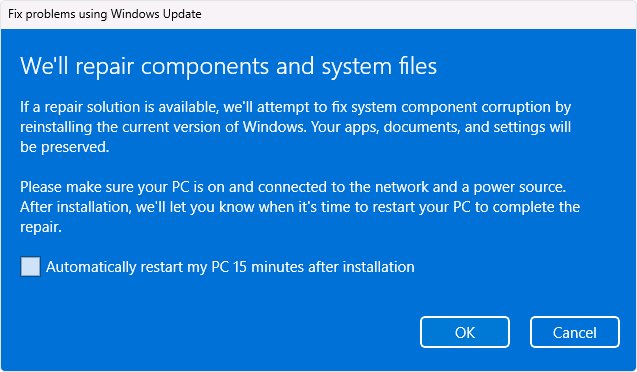
- Under Fix problems using Windows Update, select Reinstall now.
- Choose whether to allow an automatic restart 15 minutes after installation, then select OK.
- Keep the PC on power and online until it finishes; apps, files and settings are kept.
Current 26H2 known issues have workarounds, and you can also repair 26H2 without losing files.
Remove the latest update if it caused the slowdown
Microsoft suggests trying a reinstall of your Windows version before removing a security update. It has not published whether the 26H2 enablement package itself can be removed.
- Select Start > Settings > Windows Update.
- Under More options, select Update history.
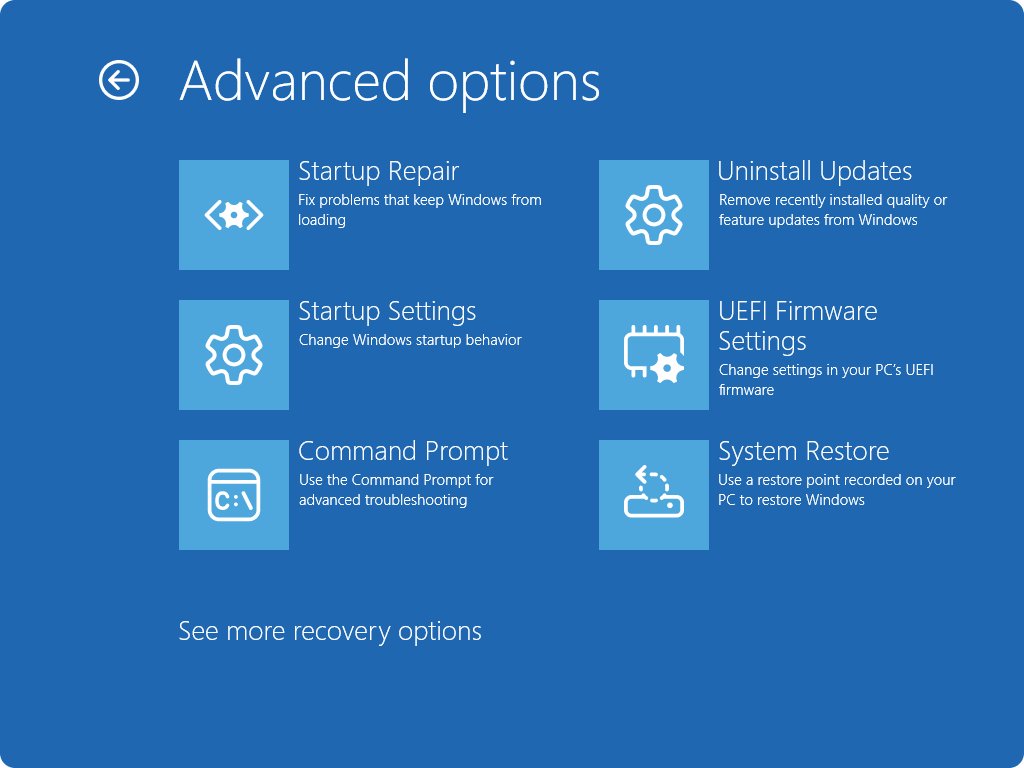
- Under Related settings, select Uninstall updates.
- Select the most recent update from the list, then select Uninstall.
- Restart and compare performance; some updates cannot be uninstalled.
Before going further back, read the checks in safely uninstall 26H2.
Frequently asked questions
Why is Windows 11 slow after the 26H2 update?
Usually because of what came with it rather than 26H2 itself: pending updates, an outdated driver, startup apps, low disk space or background activity. 26H2 shares an identical set of system files with 24H2 and 25H2 and only switches on features already present.
Does Windows 11 26H2 make PCs slower than 25H2?
Microsoft has published no benchmark showing that, and the two versions share the same system files and monthly updates. Its release notes list speed improvements, such as a faster File Explorer Home, rather than regressions.
How long does a PC stay slow after a Windows update?
Microsoft does not give a fixed time. Restart once, install every remaining update and optional driver, and use the PC normally for a while. If it is still slow after that, background work is not the cause, so work through the startup, storage and driver fixes.
Should I turn on Best performance power mode?
On a desktop, yes if power use is not a concern. On a laptop, Microsoft warns that Best performance drains the battery faster and makes the device run warmer, so use it when plugged in and when you need maximum speed.
Can I uninstall 26H2 to fix a slow PC?
You can remove recent updates from Settings > Windows Update > Update history > Uninstall updates, but Microsoft has not said whether the 26H2 enablement package can be removed. Try Reinstall now under Settings > System > Recovery first; it keeps apps and files.
Will a 26H2 clean install fix slowness?
It can, because it removes accumulated apps, drivers and settings, but it also erases the drive. Try the driver, startup and repair fixes first, and back up your files before any clean install.
Is 26H2 slow on older hardware?
26H2 uses the same minimum requirements as earlier Windows 11 versions. Microsoft notes that older PCs with outdated hardware may not improve much from tuning, and that upgrading the device may be the best long-term fix in those cases.
Bottom line
Finish updates and drivers, trim startup apps and free disk space before blaming 26H2. 26H2 switches on features already present on a patched 25H2 PC, so the version change is rarely the cause. If the PC is still slow after those steps and a DISM and SFC repair, Reinstall now repairs Windows while keeping your files.