Press Ctrl + Shift + Esc to open Task Manager and read the CPU column to check CPU usage in Windows 11; reduce it by closing or limiting the busiest process, and increase available CPU performance by setting Power mode to Best performance.
This guide covers Task Manager, Resource Monitor, efficiency mode, startup and background apps, power mode, how to confirm each change, and what sustained high CPU usage points to.
How to Check CPU Usage in Windows 11
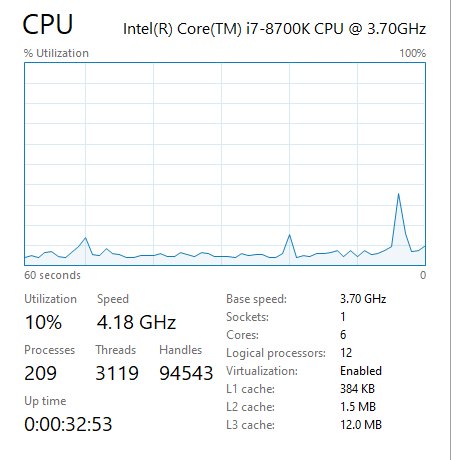
Task Manager is built into every edition of Windows 11 and shows live CPU use per app and for the whole processor. To read the same figure from a prompt or script, use the command to check CPU utilization in Command Prompt or PowerShell.
- Press Ctrl + Shift + Esc to open Task Manager.
- Stay on the Processes page, which opens by default.
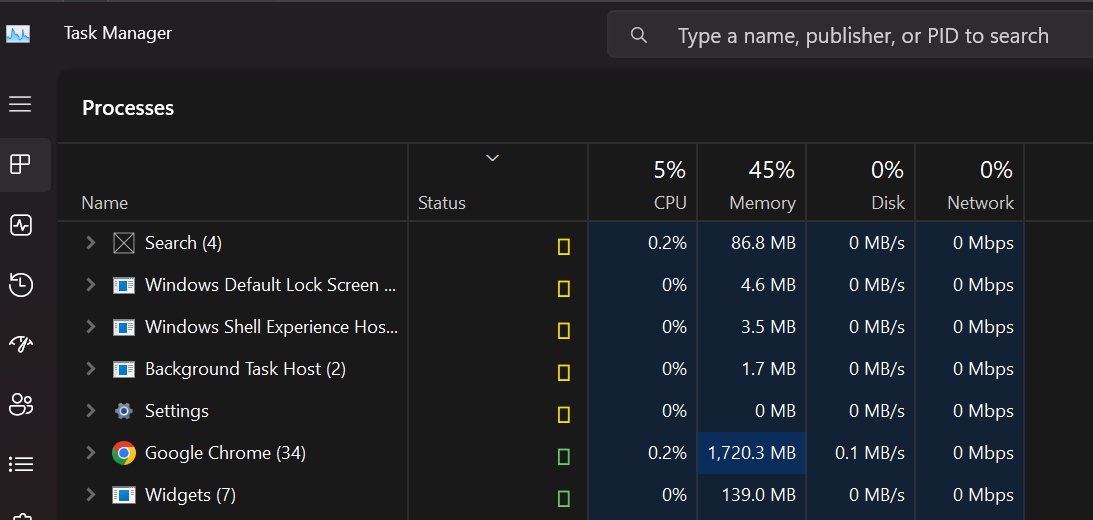
- Read the percentage at the top of the CPU column for total processor use.
- Select the CPU column header so the arrow points down and the heaviest process sits at the top.
- Select Performance in the left menu to see the live CPU graph over time.
If that shortcut does nothing, try a different way to open Task Manager.
Which tool or setting matches your goal?
Checking, reducing and increasing CPU usage are three different jobs. Pick the row that matches yours.
| Your goal | Use this | Why |
|---|---|---|
| See how busy the CPU is right now | Task Manager, Processes and Performance | Live total and per-app figures in one window |
| Find exactly which process is heavy over time | Resource Monitor, CPU tab, Average CPU | Averages smooth out brief spikes |
| Tame one app without closing it | Efficiency mode in Task Manager | Lowers that process's priority so foreground apps stay responsive |
| Cut CPU load from the moment you sign in | Startup apps in Task Manager or Settings | Fewer programs compete for the processor after boot |
| Stop apps working when you are not using them | Background app permissions set to Never | The app no longer syncs or updates in the background |
| Let the CPU run faster when a task needs it | Power mode set to Best performance | Removes the power-saving limit; it does not overclock the chip |
How to Identify Apps and Processes Using the Most CPU
Task Manager shows the current moment. Resource Monitor adds an average, which is better for catching a process that keeps coming back.
- In Task Manager, on Processes, select the CPU header to sort from highest to lowest.
- Select the arrow beside a grouped entry to expand it and see which child process is busy.
- Select Start, type resmon, and select Resource Monitor from the results.
- Select the CPU tab, then maximize the window so every column is visible.
- Select the Average CPU header so the arrow points down.
- Note the top two or three processes; these are the ones to close, limit or investigate first.
A brief spike while an app opens a file or installs an update is normal. A process that stays at the top of Average CPU for minutes is the one worth acting on.
How to Reduce High CPU Usage in Windows 11
Work down this list in order. The first steps fix the most common causes and take the least time.
- Close apps and browser tabs you are not using; in Task Manager, right-click an unused app on Processes and close it.
- Select Start > Power > Restart, then open only the apps you need.
- Select Start > Settings > Windows Update > Check for updates, and install what is offered.
- Open Windows Update > Advanced options > Optional updates and install any offered driver updates.
- Select Start > Settings > Privacy & security > Windows Security > Virus & threat protection, then select Quick scan.
- Limit one heavy app with efficiency mode, as shown in the next section.
- Turn off startup apps and background activity you do not need, as shown below.
Malware can consume CPU and disk resources, so do not skip the scan.
Limit one app with efficiency mode in Task Manager
Efficiency mode lowers a process's priority so Windows gives other apps first claim on the CPU. It helps foreground responsiveness and battery life.
Windows 11 can also apply it automatically when it detects high CPU use. A process in efficiency mode shows a green leaf icon in the Status column.
- Open Task Manager and select Processes.
- If the app is a group, select the arrow beside its name to expand it.
- Right-click the individual process and select Efficiency mode.
- Select OK on the prompt that asks whether to turn on efficiency mode for that process.
- Check for the green leaf icon beside the process.
You can also select the process and use the Efficiency mode button at the top right of Task Manager. Efficiency mode may cause instability in some processes; repeat the same steps to turn it off.
Disable unnecessary startup apps
Apps that start with Windows add CPU load from the moment you sign in. Task Manager rates each one by its startup impact.
- Right-click Start and select Task Manager.
- Select Startup apps in the left menu.
- Read the Startup impact column and start with apps rated High.
- Select an app you do not need at sign-in and select Disable.
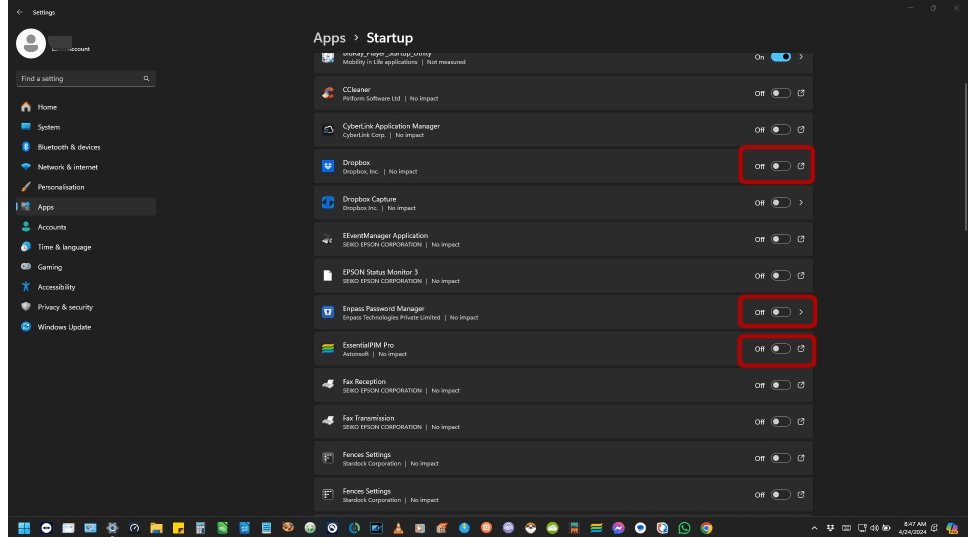
- Or use Settings: select Start > Settings > Apps > Startup and set the app's toggle to Off.
Both tools edit the same list. Task Manager adds the impact rating, which Settings does not show.
What the Startup impact ratings mean
| Rating | What Windows measured at startup |
|---|---|
| None | The startup app is disabled |
| Not measured | The app is enabled but there is no data yet |
| Low | Under 300 milliseconds of CPU time and under 292 KB of disk activity |
| Medium | 300 milliseconds to 1 second of CPU time, or 292 KB to 3 MB of disk activity |
| High | More than 1 second of CPU time, or more than 3 MB of disk activity |
Reduce background activity
Some apps keep syncing and updating when you are not using them. Stopping that removes their CPU use while they sit idle. Limiting background activity for Store apps also cuts the load on Runtime Broker, the Windows process that manages their permissions.
- Select Start > Settings > Apps > Installed apps.
- Find the app and select More options (…) on the right.
- Select Advanced options.
- Under Background app permissions, open Let this app run in background.
- Select Never to stop it, or Power optimized to let Windows limit it.
Setting Never also stops that app's notifications and updates while it is closed. Leave messaging and mail apps on Power optimized if you rely on their alerts.
How to Increase CPU Performance Safely
Windows 11 cannot add speed your processor does not have. Increasing CPU performance here means removing the power-saving limit so the CPU can run at higher performance when a task needs it. This is not overclocking.
Best performance raises power use. On a laptop it drains the battery faster and can make the device run warmer.
- Select Start > Settings > System > Power & battery.
- Find Power mode.
- Choose Best performance for Plugged in.
- Leave On battery at Balanced or Best power efficiency unless you need full speed unplugged.
- Close the heavy apps found earlier so the extra headroom goes to the task you care about.
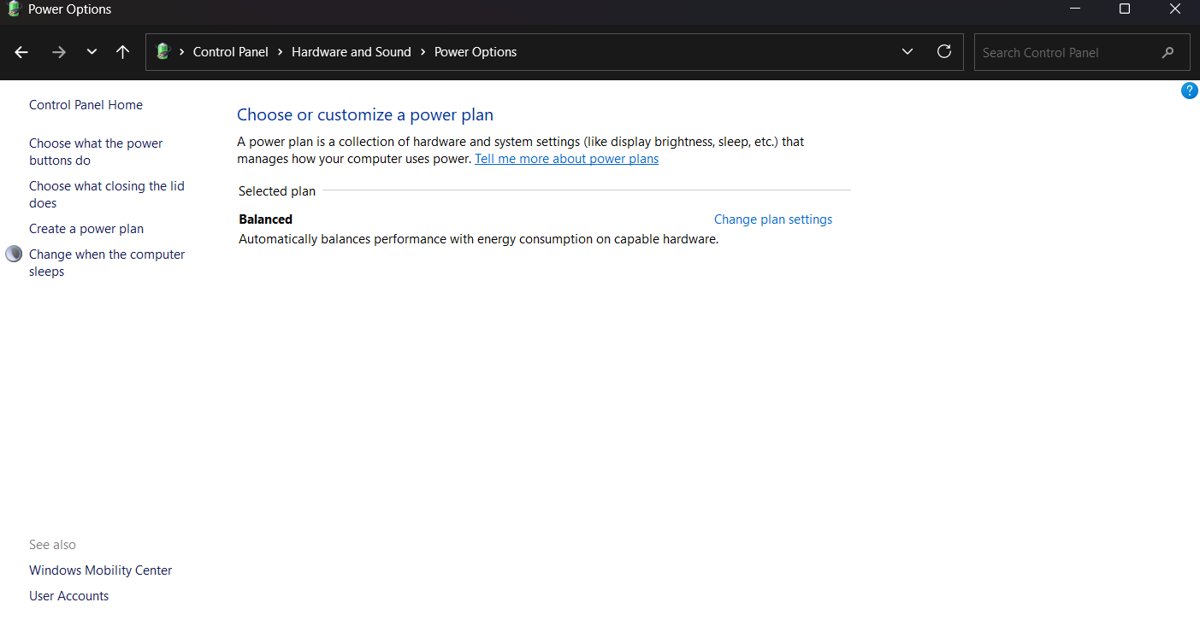
If the power mode will not change, a custom power plan is probably selected. Open Control Panel > System and Security > Power Options and select Balanced, then try again.
Windows 11 Settings That Affect CPU Usage
These are the built-in settings that change how much work the processor does or how fast it is allowed to run.
| Setting | Where it is | Effect on CPU |
|---|---|---|
| Power mode | Settings > System > Power & battery > Power mode | Best performance allows higher CPU performance; Best power efficiency saves battery |
| Startup apps | Settings > Apps > Startup, or Task Manager > Startup apps | Fewer apps loading at sign-in |
| Background app permissions | Settings > Apps > Installed apps > Advanced options | Stops idle apps from syncing and updating |
| Efficiency mode | Task Manager > Processes > right-click a process | Lowers one process's priority |
| Visual effects | Search Adjust the appearance and performance of Windows > Visual Effects > Adjust for best performance | Less work drawing animations and effects |
| Notifications | Settings > System > Notifications | Small savings from apps that no longer notify |
| Windows Update | Settings > Windows Update > Check for updates | Updates include fixes and performance improvements |
How to check the change worked
- Restart the PC so startup changes take effect.
- Wait a few minutes after sign-in, then press Ctrl + Shift + Esc.
- On Processes, sort by CPU and confirm the app you acted on is no longer near the top.
- On Startup apps, confirm the apps you turned off show Disabled and an impact of None.
- For efficiency mode, confirm the green leaf icon shows beside the process.
- For power mode, reopen Settings > System > Power & battery and confirm Best performance is still selected.
When High CPU Usage Signals a Bigger Problem
Short spikes are normal. CPU use that stays at 80 percent or higher for long periods points to an underlying cause.
CPU stays at 80 percent or higher after you close your apps
A background process, pending update or malware keeps the processor busy.
- Open Resource Monitor, select the CPU tab and sort by Average CPU.
- Note the process at the top and search its name on Microsoft's site if you do not recognise it.
- Install everything in Settings > Windows Update, then restart.
- Run a Quick scan from Windows Security > Virus & threat protection.
Antimalware Service Executable is the busy process
Microsoft Defender is scanning, often after an update or when new files arrive.
- Let a running scan finish before judging the CPU figure.
- If it stays high, fix Antimalware Service Executable’s high usage.
- Keep Defender switched on; it is your protection, not the fault.
A Service Host (svchost) entry sits at the top of the list
One svchost process can host several Windows services, so the name alone does not tell you which one is busy.
- In Task Manager, select the arrow beside the Service Host entry to see the services inside it.
- For a full list, open Command Prompt and run
tasklist /svcto show the services in each process. - Restart the PC and check whether the same service returns to the top.
- Stop a service only if you know what it does and that it can be stopped safely.
An app slows down or misbehaves after efficiency mode is applied
Efficiency mode lowers the process priority, and some processes become unstable when limited.
- Open Task Manager and select Processes.
- Right-click the process with the green leaf icon.
- Select Efficiency mode to turn it off, then check whether the app recovers.
Nothing helps and the PC is still slow on everyday tasks
Older hardware may no longer meet the demands of current apps.
- Open Task Manager > Performance during normal work and watch the CPU graph.
- If it sits near its limit with only light apps open, the processor is the bottleneck.
- Plan a hardware upgrade; Microsoft notes older PCs may not see significant gains from these settings.
How to undo these changes
- Power mode: open Settings > System > Power & battery and choose Balanced under Power mode.
- Efficiency mode: right-click the process on Processes and select Efficiency mode again to turn it off.
- Startup apps: open Startup apps in Task Manager, select the app and select Enable.
- Background apps: return to Advanced options for the app and select Power optimized or Always.
Frequently Asked Questions
What CPU usage percentage is normal in Windows 11?
There is no single normal number, because CPU use rises briefly whenever an app does work. Microsoft treats CPU use that stays at 80 percent or higher for extended periods as a sign of an underlying problem worth investigating.
Does Best performance power mode increase CPU usage?
No. Best performance lets the processor run at higher performance when a task needs it, so heavy work finishes sooner. It does not make idle apps use more CPU, and it does not overclock the chip. It does raise power use and heat.
What does the green leaf icon in Task Manager mean?
The green leaf icon means that process is in efficiency mode. Windows has lowered its priority so other apps get the CPU first. Windows 11 can apply it automatically when it detects high CPU use, or you can turn it on and off yourself.
Why is Efficiency mode greyed out for some processes?
Efficiency mode works on single processes, not most process groups, so expand the group and pick one process. If it is still greyed out, it is usually a core Windows process that Windows does not allow you to throttle.
Does turning off efficiency mode in Microsoft Edge turn it off in Task Manager?
No. Edge's energy saver, formerly called efficiency mode, is a browser feature. Windows efficiency mode in Task Manager is separate, and turning either one off does not affect the other.
Why can't I change the power mode in Windows 11?
A custom power plan is probably selected. Open Control Panel > System and Security > Power Options, select Balanced, then return to Settings > System > Power & battery and choose the power mode you want.
Can malware cause high CPU usage?
Yes. Malware can consume CPU and disk resources and slow the whole PC. Run a Quick scan from Windows Security > Virus & threat protection, and check Task Manager for processes you do not recognise.
Does disabling startup apps reduce CPU usage?
Yes, mainly right after sign-in. Task Manager rates an app High impact when it uses more than 1 second of CPU time at startup. Disabling apps you do not need removes that load and the app's background activity afterwards.
Is Resource Monitor better than Task Manager for CPU usage?
They answer different questions. Task Manager shows what is using the CPU right now. Resource Monitor's CPU tab adds an Average CPU column, which is better for finding a process that stays heavy over time.
Bottom Line
Check CPU usage in Task Manager first, act on the process that stays at the top, and only switch to Best performance when a demanding task needs the headroom. Most high CPU usage comes from a specific app, a startup program or background activity, which you can close or limit in minutes. Best performance removes a power limit but costs battery and heat, so it suits plugged-in work rather than everyday use.






What Is Runtime Broker and Why Is It Running? - Techdows
[…] the whole PC feels slow and Runtime Broker is not near the top of the list, see How to Check, Increase, or Reduce CPU Usage in Windows 11 for a system-wide […]
How to Fix WSAPPX High CPU Usage in Windows - Techdows
[…] For a wider look at what else is eating the processor, see How to Check, Increase, or Reduce CPU Usage in Windows 11. […]
How to fix Vmmem high memory and CPU usage - Techdows
[…] To track total CPU load over time, use the steps to check CPU usage in Windows 11. […]
[Fix] Microsoft Software Protection Platform (sppsvc) high CPU usage - Techdows
[…] does real work only when Windows or an app asks it to validate or change a license. High CPU usage means it is repeating that work, so the fix depends on what keeps triggering […]