Your computer is usually slow because too many apps start with Windows, the drive is nearly full, updates are pending, or something in the background is eating the CPU, memory or disk.
This guide lists the common causes, then 16 fixes built into Windows 11 and Windows 10, from a one-minute restart to a full reset, plus what to do when the PC is still slow.
1. Restart your PC and close apps you are not using
Many open apps and browser tabs compete for the same memory and processor time. A restart clears them and finishes any update that is waiting.
- Save your work and close every app and browser tab you do not need.
- Select Start > Power > Restart.
- After you sign in again, open only the apps you need right now.
- Close each app when you finish with it instead of leaving it minimised.
If the PC is fast for a while and then slows down again, the cause is something that starts with Windows or runs in the background. Fixes 2 to 5 deal with that.
How to fix a slow computer: pick a fix by symptom
| What you notice | Fix to try first | Where you do it |
|---|---|---|
| Slow after hours of use, many windows open | 1. Restart and close unused apps | Start > Power |
| Fans loud, one app near 100% usage | 2. Find the heavy process in Task Manager | Task Manager |
| Slow to start up and reach the desktop | 3. Disable startup apps | Task Manager |
| Slow even with nothing open | 4. Turn off background apps | Settings > Apps |
| Lots of software you never use | 5. Uninstall unused apps | Settings > Apps |
| Drive almost full | 6. Free up disk space | Settings > System > Storage |
| Slow since an update or never updated | 7. Install Windows and driver updates | Settings > Windows Update |
| Sudden slowdown, pop-ups, unknown processes | 8. Run a malware scan | Windows Security |
| Menus and windows feel sluggish to animate | 9. Adjust visual effects for performance | Start search |
| Laptop slow, especially on battery | 10. Set Power mode to Best performance | Settings > System > Power & battery |
| Old hard drive, slow file opening | 11. Optimize your drives | Defragment and Optimize Drives |
| Constant pop-up alerts while working | 12. Turn off unneeded notifications | Settings > System > Notifications |
| Browser slow with many tabs | 13. Put browser tabs to sleep | Edge settings |
| Slow plus crashes and odd errors | 14. Repair system files with DISM and SFC | Command Prompt (admin) |
| Still slow after all of the above | 15. Reinstall Windows and keep your files | Settings > System > Recovery |
| Nothing helps, or you want a fresh start | 16. Reset this PC | Settings > System > Recovery |
Microsoft's advice is to try every fix, because several causes often add up. Fixes 15 and 16 reinstall Windows, so keep them for last.
Causes of why your computer is slow all of a sudden
| Cause | Why it slows the PC | Fix number |
|---|---|---|
| Too many startup apps | They load at sign-in and keep running in the background | 3 |
| Background apps and processes | They use CPU and memory even when you are not using them | 2, 4 |
| Low disk space | Windows has little room for temporary files and updates | 5, 6 |
| Outdated Windows or drivers | Performance fixes arrive through Windows Update and optional driver updates | 7 |
| Malware | Malicious software can use CPU and disk resources | 8 |
| Too many open apps and browser tabs | Each one holds memory and processor time | 1, 13 |
| Damaged system files | Windows components fail or retry work repeatedly | 14, 15 |
| Old hardware | Older PCs may not keep up with current software, whatever you tweak | See the still-slow section |
A slowdown that starts suddenly usually points to something new: a recent update, a newly installed app, a full drive or malware. A PC that has always been slow is more often a hardware limit.
2. Find what is slowing your PC in Task Manager
Task Manager shows exactly which app is using the processor, memory or disk, so you know what to close or remove.
Checking it first tells you what is actually slowing your PC down, so you fix the real cause instead of guessing.
- Press Ctrl + Shift + Esc to open Task Manager.
- On the Processes tab, look for the apps using the most CPU, Memory or Disk.
- Right-click an app you are not using near the top of the list and close it.
- Open the Performance tab to see overall CPU, memory and disk use.
- Open Startup apps to see which apps load with Windows.
Do not end processes you do not recognise as apps. If an unknown process keeps using a lot of resources, run the malware scan in fix 8.
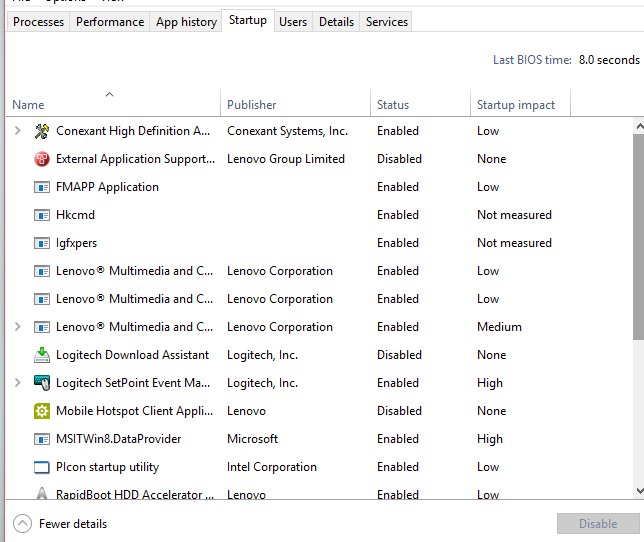
3. Disable startup apps to make the laptop start faster
- Press Ctrl + Shift + Esc to open Task Manager.
- Select Startup apps from the left-hand menu.
- Right-click each app you do not need at sign-in and select Disable.
- Restart the PC to see the difference.
Fewer startup apps also reduce the background activity that keeps the PC busy after sign-in.
Disabling a startup app does not uninstall it; you can still open it from Start. If the PC is also slow to turn off, fix the slow shutdown separately.
4. Turn off background apps in Windows 11
- Select Start > Settings > Apps > Installed apps.
- Find the app, select More options (…), then select Advanced options.
- Under Background app permissions, open the Let this app run in the background list.
- Select Never.
- Repeat for other apps you only use occasionally.
Apps that do not show Advanced options do not offer this setting; disable them at startup instead.
5. Uninstall unused apps
- Select Start > Settings > Apps > Installed apps.
- Find an app you no longer use.
- Select More options (…) next to it, then select Uninstall.
- Confirm, and repeat for other unused apps.
Removing apps frees storage and stops their background services and update checkers.
To identify bloatware, look for trial apps and utilities the PC maker preinstalled that you never open; these unwanted programs are safe to uninstall the same way. Browser toolbars and add-ons now arrive as extensions: in Microsoft Edge, select Extensions next to the address bar, select More actions beside one you do not use, then select Remove from Microsoft Edge > Remove.
6. Free up disk space with Storage Sense and Disk Cleanup
- Select Start > Settings > System > Storage.
- Select Storage Sense, then select Run Storage Sense now.
- Go back to Storage, select Temporary files, tick the file types you want gone and select Remove files.
- For older files, select Start, type Disk Cleanup and open Disk Cleanup.
- Choose the drive to clean and follow the prompts.
Read each file type under Temporary files before ticking it, so you do not remove files you still want.
7. Install Windows updates and optional driver updates
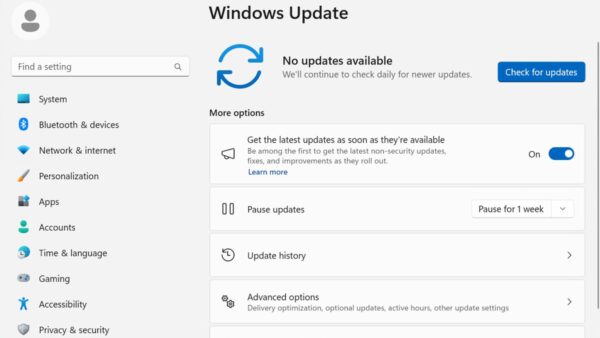
- Select Start > Settings > Windows Update > Check for updates.
- If updates are listed, select Download & install and restart when asked.
- When the page says You're up to date, select Advanced options > Optional updates.
- Select any driver updates listed and select Download & install.
If the slowdown started right after a feature update such as Windows 11 26H2, fix the update-specific causes first.
8. Run a virus and malware scan with Windows Security
- Select Start > Settings > Privacy & security > Windows Security.
- Select Virus & threat protection.
- Select Quick scan and wait for it to finish.
- Follow the prompts to remove anything it finds, and restart if asked.
Adware and browser hijackers often count as potentially unwanted apps rather than viruses, yet Microsoft says they can make a PC run slowly and show unexpected ads. In Microsoft Edge, open Settings > Privacy, search, and services and turn on Block potentially unwanted apps under Security.
9. Adjust visual effects for best performance
- Select Start and type Adjust the appearance and performance of Windows.
- Open the result.
- On the Visual Effects tab, select Adjust for best performance.
- Confirm the change and close the window.
This turns off animations and shadows, so Windows looks plainer but responds faster on modest hardware.
The search result opens the Control Panel performance settings, so you never have to dig through Control Panel menus to find the best performance option.
10. Set Power mode to Best performance on a laptop
- Select Start > Settings > System > Power & battery.
- Open the Power mode list.
- Select Best performance.
Best performance uses more power: on a laptop the battery drains faster and the device can run warmer. Use it when plugged in and switch back when you need battery life.
11. Optimize and defragment your drives
- Select Start, type Defragment and Optimize Drives and open it.
- Select the drive you want to optimize, usually C:.
- Select Optimize and let it finish.
Microsoft lists drive optimization as a standard performance step; the biggest gains come on PCs that still use a hard drive.
Windows picks the right job for each drive type: a fragmented HDD gets defragmented, while an SSD with TRIM support gets a retrim instead.
12. Turn off unneeded app notifications
- Select Start > Settings > System > Notifications.
- Turn off the toggle for each app whose alerts you do not need.
Microsoft describes the gain as small, but fewer apps waking up to send alerts also means fewer interruptions.
13. Put browser tabs to sleep in Microsoft Edge
If the PC is only slow while browsing, dozens of open tabs are the likely cause. Edge's sleeping tabs pause background tabs to free memory and CPU for the tabs you are using.
- In Microsoft Edge, select Settings and more > Settings > System and performance.
- Select Performance.
- Make sure Automatically put tabs to sleep is On.
- In Put inactive tabs to sleep after a set time, choose a shorter time than the default two hours.
- Add any site that must stay active under Always keep these sites active.
A sleeping tab fades and wakes when you select it. If downloads are what feel slow rather than the PC, the cause is usually the connection, not the computer.
14. Repair system files with DISM and SFC
Damaged Windows files can make a PC slow and unstable. These two tools check Windows against a known-good copy and replace damaged files.
Select Start, type command prompt, select Run as administrator and then Yes. Run the first command, wait for it to finish, then run the second.
DISM.exe /Online /Cleanup-image /Restorehealth
sfc /scannow
DISM repairs the Windows component store that SFC uses as its source. SFC then scans protected system files and replaces damaged ones.
You should see: Each command runs to completion without an error, and the SFC verification reaches 100% before it shows its result. Restart the PC afterwards.
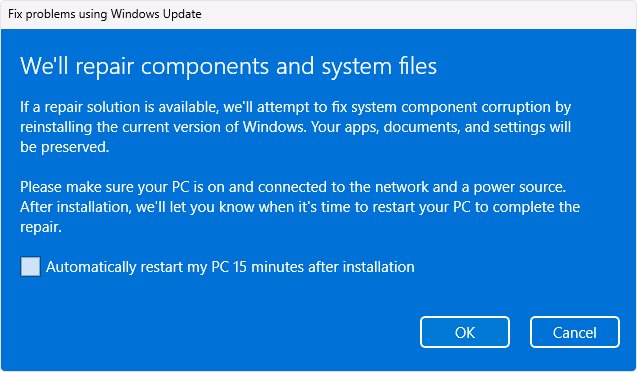
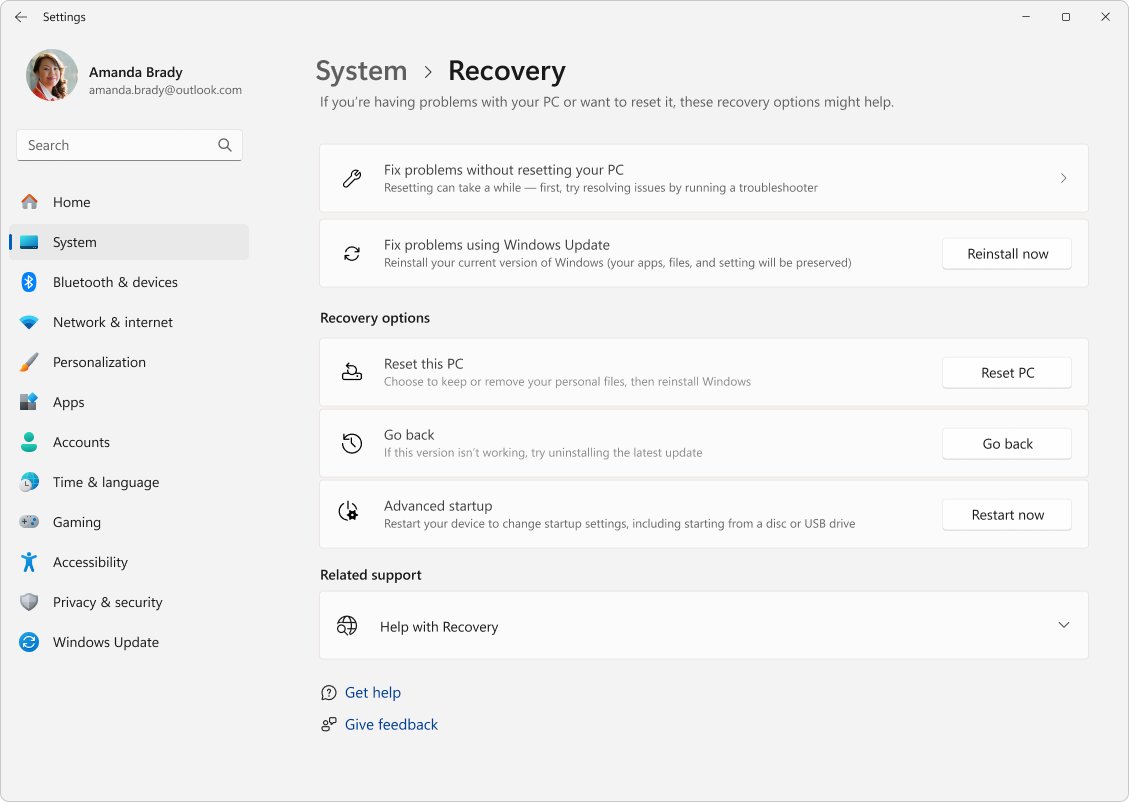
15. Reinstall Windows without losing files using Windows Update
This repairs system files and components while keeping your apps, files and settings. Keep the PC on power and connected to the internet throughout.
- Select Start > Settings > System > Recovery.
- Under Fix problems using Windows Update, select Reinstall now.
- Choose whether the PC may restart automatically 15 minutes after the install finishes.
- Select OK to start. Windows Update downloads and installs a repair version of Windows.
- Restart when it finishes, if you did not allow an automatic restart.
The option is missing on work or school PCs and on Windows 11 releases older than the 2022 update. It also needs the February 2024 optional update or later.
16. Reset this PC to restore performance
A reset reinstalls Windows. Keep my files removes apps and settings but keeps your documents; Remove everything wipes the PC. Back up first, and have your BitLocker recovery key if the drive is encrypted.
- Select Start > Settings > System > Recovery.
- Under Recovery options, select Reset PC.
- Choose Keep my files or Remove everything.
- Choose Cloud download for a fresh copy of Windows, or Local reinstall if your internet is slow.
- Confirm and wait. The screen can stay black for 15 minutes or more; do not restart the PC yourself.
After the reset, reinstall only the apps you use, and add them back slowly so you notice if one brings the slowdown back.
Warning: Remove everything cannot be undone, and even Keep my files removes your installed apps, so note their names and licence keys before you start.
How to check why your laptop is so slow and whether the fixes worked
- Restart the PC and wait a few minutes after signing in.
- Press Ctrl + Shift + Esc and open the Performance tab.
- With no apps open, note the CPU, Memory and Disk graphs; they should stay low rather than sit near 100%.
- Open the apps you normally use and watch which graph climbs when the PC slows down.
- Check the Startup apps tab to confirm the apps you disabled now show Disabled.
Memory near full with only a few apps open, or a disk that sits at 100% for long periods, points to a hardware limit rather than a setting.
My computer is still slow. Now what?
Laptop still slow after a factory reset
Updates, driver installs and app reinstalls run in the background for a while after a reset, or the hardware itself is the limit.
- Leave the PC on and connected to power and the internet while Windows Update finishes.
- Install all updates and optional driver updates (fix 7).
- Reinstall only the apps you use, one at a time.
- If it is still slow on a clean system, the hardware is the bottleneck; see the last group below.
Slow to start up or on startup
Startup apps and services load before the desktop is usable.
- Disable startup apps in Task Manager (fix 3).
- Select Search, type msconfig and open System Configuration.
- On the Services tab, select Hide all Microsoft services, then Disable all and Apply.
- Restart. If startup is now fast, re-enable half the services at a time until you find the one at fault.
- Return to a normal startup by re-enabling everything except the culprit.
Slow and laggy in Windows 11 with one app open
That app, its add-ons or its graphics driver is the problem, not Windows as a whole.
- Check the app's CPU and memory use on the Processes tab.
- Update the app and install optional driver updates.
- Do a clean boot as above and test the app again.
- If it runs well in a clean boot, another app or service is interfering.
New laptop is slow
A new PC runs first-day updates and often ships with trial software that starts with Windows.
- Install all pending updates and restart.
- Uninstall trial and preinstalled apps you will not use (fix 5).
- Disable their startup entries (fix 3).
- Check the Performance tab; if memory is constantly full, the model has too little RAM for your workload.
Old computer is slow no matter what you change
Microsoft notes that older PCs with outdated hardware may not see significant improvements from software fixes.
- Use the Performance tab to find which part is maxed out: memory, disk or CPU.
- If memory is full, ask the PC maker whether the model takes more RAM.
- If the disk sits at 100%, ask whether the model can take an SSD in place of a hard drive.
- If the CPU is maxed out on everyday tasks, replacing the PC is the long-term fix.
Is your PC too hot? How to check for thermal throttling and dust
Processors have built-in thermal protection. When cooling cannot keep up, the CPU runs below its normal speed, which is called thermal throttling, and a badly overheating PC can shut itself down. Intel lists general slowness, excessive fan noise and a lower than expected CPU frequency as symptoms.
- Press Ctrl + Shift + Esc, open the Performance tab and select CPU.
- Run the task that feels slow and watch the Speed reading; if it falls while the fans get loud, heat is the likely cause.
- Make sure nothing blocks the air vents, and use a laptop on a hard, flat surface rather than a bed or cushion.
- Shut down the PC and check the fans and vents for dust, then confirm the fans spin when the PC is on.
- Undo recent changes such as overclocking, and load the BIOS defaults or update the BIOS from the maker's site.
- For a laptop or prebuilt PC from Acer, ASUS, Dell, HP or Lenovo, contact the manufacturer if it keeps overheating.
The Best performance power mode (fix 10) makes a laptop run warmer, so switch back to a balanced mode while you cool down an overheating machine.
Should you swap to an SSD, add RAM or consider a new laptop?
Microsoft notes that older PCs with outdated hardware may not improve much from software fixes, and that upgrading the device may be the best long-term solution. Upgrades cost money, so use the Performance tab in Task Manager to find which part is the bottleneck first.
| What the Performance tab shows | Likely bottleneck | What to do |
|---|---|---|
| Memory near full with only a few apps open | Not enough RAM | Check with the PC maker whether the model takes more RAM, and how much |
| Disk at 100% for long periods on an older hard drive | Slow hard drive | Ask whether you can swap the hard drive for an SSD; it costs money but replaces the slowest part |
| CPU maxed out during everyday tasks | CPU bottleneck | Close heavy apps (fix 2); if it persists on a clean system, the processor is the limit |
| GPU at 100% only in games or video editing | Graphics bottleneck | Install optional driver updates (fix 7) and lower the app's graphics settings |
| Still slow after a reset with nothing extra installed | The hardware itself | Consider a new laptop or PC rather than spending money on more fixes |
Slowness from failing or simply aging hardware does not go away with software fixes, so back up your files before you spend money on repairs or upgrades.
Quick checklist to prevent future PC slowdowns
Most slowdowns creep back as apps, files and updates pile up. These habits keep the causes above from returning.
| Habit | When | Fix number |
|---|---|---|
| Install Windows and optional driver updates, then restart | When Windows Update offers them | 7 |
| Run Storage Sense to delete temporary files | When the drive starts to fill up | 6 |
| Check Startup apps in Task Manager | After installing new software | 3 |
| Uninstall programs and browser extensions you stopped using | Every few months | 5 |
| Run a Windows Security quick scan | Whenever the PC slows down suddenly | 8 |
| Keep vents clear and fans free of dust | Whenever the fans get louder than usual | Thermal throttling section |
| Restart instead of leaving the PC asleep for days | At least once a week | 1 |
Why is my laptop so slow: common questions
Why is my laptop so slow all of a sudden?
A sudden slowdown usually comes from something new: a pending or recent update, a newly installed app that runs in the background, a nearly full drive or malware. Open Task Manager with Ctrl + Shift + Esc and sort by CPU, Memory and Disk to see what changed.
How do I find out why my laptop is so slow?
Press Ctrl + Shift + Esc to open Task Manager. The Processes tab shows which apps use the most CPU, memory and disk, the Performance tab shows overall load, and Startup apps lists what loads with Windows. Whatever sits near the top while the PC is slow is your lead.
Why is my laptop so slow even after a reset?
After a reset, Windows downloads updates and drivers and restores apps in the background, which can keep the PC busy for a while. Let updates finish and restart. If it stays slow on a clean install with few apps, the hardware is the likely limit.
Why is my laptop so slow to start up?
Too many apps launching at sign-in is the most common cause. Open Task Manager, select Startup apps and disable everything you do not need immediately. If startup stays slow, a clean boot through System Configuration helps find a service that delays it.
Why is my new laptop so slow?
New laptops often install a large batch of updates in the first days and come with trial software that starts with Windows. Install all updates, uninstall the trial apps you do not want and disable their startup entries, then judge the speed again.
Why is my HP or Lenovo laptop so slow?
The causes are the same as on any Windows laptop: startup apps, background apps, a full drive, missing updates or malware. Preinstalled maker utilities count as startup and background apps too, so disable the ones you do not use and keep drivers current.
Why is my laptop so slow on Windows 10?
Windows 10 slows down for the same reasons as Windows 11. Task Manager, Disk Cleanup, Defragment and Optimize Drives and the visual effects settings open from Start search on both versions, so the same fixes apply.
Why is my laptop so slow to open apps?
Slow app launches point to a busy or nearly full drive, or to too little free memory. Free up disk space, optimize the drive, close apps you are not using and check the Disk and Memory graphs on Task Manager's Performance tab.
Does a factory reset make a laptop faster?
A reset often helps when software has piled up, because it removes apps and settings and reinstalls Windows. It cannot make old hardware faster. Try the smaller fixes first, and back up before choosing Remove everything.
Bottom line: what fixes a slow computer fastest
Restart, check Task Manager, disable startup apps and free up disk space first; move to DISM and SFC, an in-place reinstall or a reset only if those fail. The quick fixes target the most common causes in minutes and change nothing permanent, while the repair options take longer and the reset removes apps. If a clean system is still slow, the hardware has reached its limit.