To show battery percentage in Windows 11 26H2, open Settings > System > Power & battery and turn on the Battery Percentage toggle; the number then appears next to the battery icon on the taskbar.
The setting is built into 26H2, so no ViveTool or registry edit is needed. This guide covers the steps, what to do when the toggle is missing, what the new green, yellow and red icons mean, and how to check battery health.
Show battery percentage in the Taskbar on Windows 11
This works on any laptop or tablet running 26H2, and on 24H2 and 25H2 PCs with the October 2025 update or later.
- Select Start, then Settings.
- Select System > Power & battery.
- Turn on Battery Percentage.
- Look at the right end of the taskbar: the percentage now sits next to the battery icon.
Turn the same toggle off to hide the number again; the battery icon itself stays.
Which Windows 11 versions have the battery percentage toggle
| Windows 11 version | Build | Battery Percentage toggle |
|---|---|---|
| 26H2 | 26300 | Yes, included |
| 25H2 | 26200.7019 or later | Yes, from the October 28, 2025 update (KB5067036) onward |
| 24H2 | 26100.7019 or later | Yes, from the same update onward |
| 25H2 or 24H2 before build 7019 | Earlier builds | No; install the latest cumulative update first |
| Desktop PC without a battery | Any | No battery settings or icon, because there is no battery to report |
Because 26H2 is an enablement package on the same servicing branch as 24H2 and 25H2, the battery changes are identical on all three.
How to Turn On Battery Percentage on the Taskbar
If Power & battery has no Battery Percentage toggle, the PC is on a build older than October 2025. Updating fixes that, and 26H2 is the newest way to get it.
- Open Settings > Windows Update and select Check for updates.
- Install any cumulative update or the Windows 11, version 26H2 offer if it appears, then restart.
- If 26H2 is not offered yet, turn on Get the latest updates as soon as they're available and check again later.
- After the restart, open Settings > System > Power & battery.
- Turn on Battery Percentage and check the taskbar.
Microsoft releases 26H2 as a controlled rollout in phases, so many PCs are not offered it on day one. If the offer never shows, safeguard holds and paused updates can explain 26H2 not showing in Windows Update, and 26H2 can also be installed through other official routes.
What the green, yellow and red battery icons mean
The same update that added the percentage toggle also redrew the battery icon with colour indicators.
| Icon colour | Meaning | What to do |
|---|---|---|
| Green | The PC is charging and the battery is in good condition | Nothing |
| Yellow | Battery saver is on, at 20% or below | Plug in soon, or keep working with reduced background activity |
| Red | Battery is critically low | Plug in now to avoid a shutdown |
The new icons appear in the system tray, Quick Settings, Settings and the lower-right corner of the lock screen. On the lock screen the icon includes the battery percentage.
How to check the percentage is correct
- Hover over the battery icon on the taskbar to see the detailed battery status.
- Open Settings > System > Power & battery; the current battery level shows at the top of the page.
- Compare the two numbers with the taskbar percentage; they should match.
- Lock the PC and check the icon and percentage in the lower-right corner of the lock screen.
Check battery health with a battery report
The percentage shows charge, not wear. A worn battery can read 100% and still run out quickly, and the battery report shows how much capacity is left.
powercfg /batteryreportSelect Start, type Command prompt, right-click it, choose Run as administrator and select Yes. Run the command; it writes an HTML battery report and prints the file path.
You should see: The window shows where the report was saved. Open that HTML file and check Installed battery, Recent usage and Battery usage.
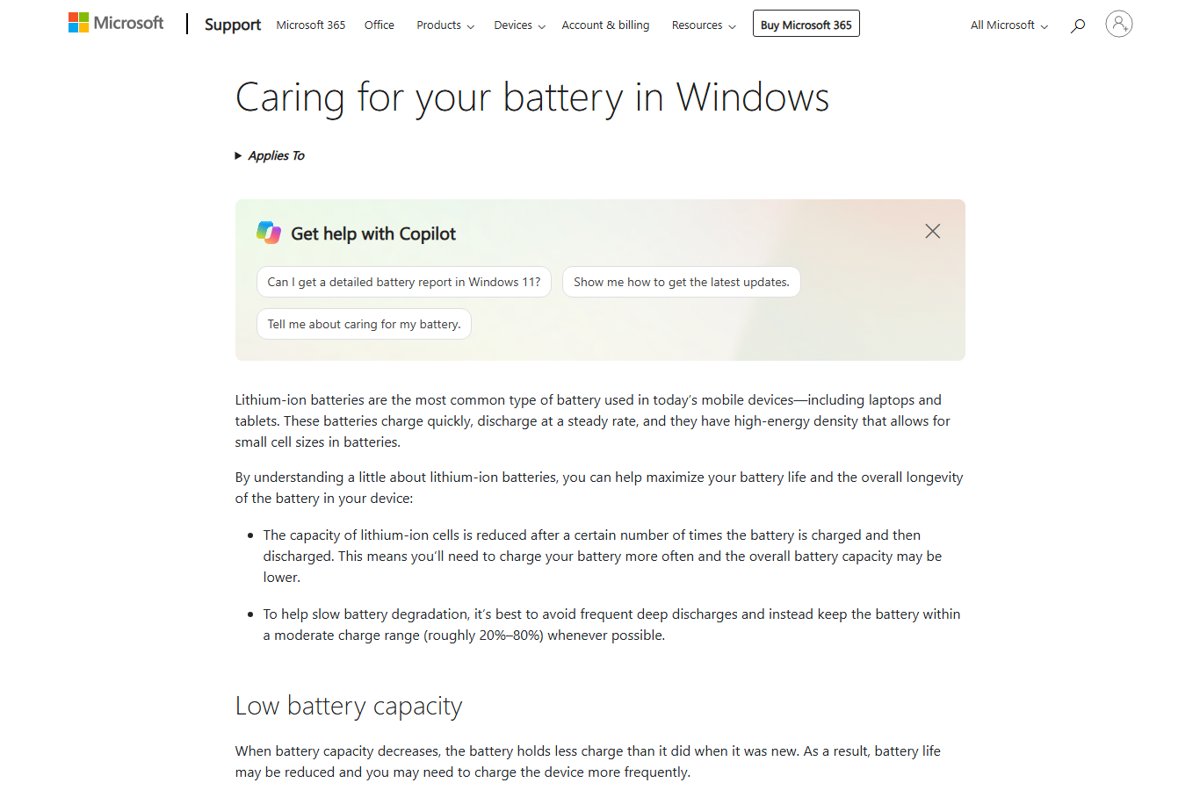
Microsoft recommends keeping a lithium-ion battery between roughly 20% and 80% where possible, and turning on Smart charging if the PC supports it.
Change when battery saver turns on
Windows 11 now calls battery saver energy saver in Settings. It is what turns the icon yellow, so moving its threshold changes when you see that warning colour.
- Open Settings > System > Power & battery.
- Select Energy saver to expand its options.
- Next to Turn energy saver on when battery level is at, choose the level you want.
- To turn it on right away, select the battery icon on the taskbar and select the Energy saver quick setting.
In 26H2 the taskbar can also sit at the top, left or right of the screen, and the battery icon moves with it.
Enable battery percentage in Taskbar using ViveTool
Skip ViveTool on Windows 11 26H2: the Battery Percentage toggle is already built in and switched on from Settings. ViveTool is a third-party command-line tool that flips hidden feature flags. It was a workaround while the toggle was still in Insider testing. On 26H2, and on 24H2 or 25H2 with the October 2025 update or later, it adds nothing, and forced feature flags can change or break after the next update.
Alternative: Use Registry Editor to Show Battery Percentage
| Approach | Documented by Microsoft? | Use it? |
|---|---|---|
| Settings > System > Power & battery > Battery Percentage | Yes | Yes, on every edition |
| Registry value or .reg file | No published value | No; Settings does the same job without editing the registry |
| ViveTool feature ID | No | No; not needed on 26H2 |
Microsoft has not published a registry value for this toggle, unlike other 26H2 registry tweaks, and a wrong registry edit is harder to undo than a Settings switch.
Fix battery percentage not showing in 26H2
No Battery Percentage toggle in Power & battery
The PC runs a 24H2 or 25H2 build older than 26100.7019 or 26200.7019.
- Press Win + R, type
winverand press Enter to read the build number. - If the build is below 7019, open Settings > Windows Update and install the latest updates.
- Restart, then open Power & battery again.
No battery icon or battery settings at all
The device has no battery, such as a desktop PC, so Windows has nothing to report.
- Confirm the device has a built-in battery.
- On a laptop, restart the PC and check Settings > System > Power & battery again.
- If the laptop still shows no battery, contact the PC maker's support, since the battery or its driver is not being detected.
Battery icon turned yellow or red
Yellow means battery saver is on at 20% or below; red means the battery is critically low.
- Plug the PC in.
- Check that the icon changes to green while charging.
- Adjust the energy saver threshold if the yellow warning comes too early or too late.
If the toggle vanished right after installing 26H2, check the 26H2 known issues list and confirm the update actually installed.
Frequently asked questions
How do I show battery percentage in Windows 11 26H2?
Open Settings > System > Power & battery and turn on Battery Percentage. The number then appears next to the battery icon on the taskbar. The toggle is built in, so no third-party tool or registry edit is required.
Is battery percentage on by default in 26H2?
No. Windows 11 shows the battery icon by default, and you turn on the percentage yourself with the Battery Percentage toggle under Settings > System > Power & battery. Hovering over the icon still shows battery details without the toggle.
Why can't I find the Battery Percentage toggle?
Either the PC runs a 24H2 or 25H2 build older than the October 28, 2025 update (build 7019), or it has no battery. Install the latest updates through Windows Update, restart, and check Power & battery again.
Does battery percentage work on Windows 11 25H2 as well?
Yes. The toggle arrived for 24H2 and 25H2 in the October 2025 non-security update, builds 26100.7019 and 26200.7019. Windows 11 26H2 shares the same servicing branch, so the setting works the same way on all three versions.
What does a yellow battery icon mean in Windows 11?
A yellow battery icon means battery saver, now called energy saver, is on because the charge is at 20% or below. A green icon means the PC is charging and healthy, and red means the battery is critically low.
Can I see the battery percentage on the lock screen?
Yes. The redesigned battery icon with its percentage appears in the lower-right corner of the lock screen on builds with the October 2025 update or later, including 26H2.
Do I need ViveTool to show battery percentage?
No. ViveTool was a workaround while the feature was in testing. On 26H2 the Battery Percentage toggle is a normal setting in Power & battery, so a third-party feature-flag tool adds nothing and can cause problems after updates.
How do I check battery health in Windows 11?
Run powercfg /batteryreport in an administrator Command Prompt. Windows saves an HTML report and shows its path. Open it and read the Installed battery, Recent usage and Battery usage sections for capacity and usage details.
Bottom line
Use the built-in Battery Percentage toggle under Settings > System > Power & battery and ignore ViveTool and registry guides. The toggle ships in 26H2 and in every 24H2 or 25H2 build since October 2025, it survives updates, and it switches off just as easily. If it is missing, updating Windows is the fix.