Open Process Explorer on Windows 11 by typing \\live.sysinternals.com\tools\procexp.exe into the File Explorer address bar, which runs it straight from Microsoft's Sysinternals Live service.
This guide also covers the Microsoft download, the Microsoft Store version, running it as administrator, replacing Task Manager and reading the window once it opens.
Fastest method: open Process Explorer from Microsoft Sysinternals Live
Sysinternals Live lets you run Sysinternals tools directly from the web without downloading them first. Microsoft documents the path format as \\live.sysinternals.com\tools\<toolname>, and the Process Explorer file is procexp.exe.
- Press Windows + E to open File Explorer.
- Click the address bar at the top of the window.
- Type
\\live.sysinternals.com\tools\procexp.exeand press Enter. - If Windows shows a security prompt, check that the publisher is Microsoft Corporation, then confirm to run it.
- Accept the Sysinternals license terms the first time the tool runs.
- Wait for the Process Explorer window to show the list of running processes.
Nothing is kept on your PC after you close it, so repeat these steps each time or use one of the permanent methods below.
Which way to open Process Explorer suits you?
| Your situation | Use this | Why |
|---|---|---|
| You need it once, right now | Sysinternals Live path in File Explorer | Nothing to download, unzip or clean up afterwards |
| You use it often on one PC | Microsoft Store (Sysinternals Suite) | Adds a Start menu entry and a procexp command, and the Store keeps it updated |
| The Store is blocked on a work PC | Download from the Microsoft Learn page | A portable file you can keep in any folder or on a USB drive |
| You work in a terminal | procexp command or the Live path |
Launches without leaving Windows Terminal, PowerShell or Command Prompt |
| You want it on Ctrl + Shift + Esc | Options menu, Replace Task Manager | Every Task Manager shortcut then opens Process Explorer |
What Process Explorer is in Windows 11
Process Explorer is a free Microsoft Sysinternals utility written by Mark Russinovich. It shows which handles and DLLs each running process has opened or loaded, which Task Manager does not.
| Fact | Detail |
|---|---|
| Publisher | Microsoft, through Sysinternals on learn.microsoft.com |
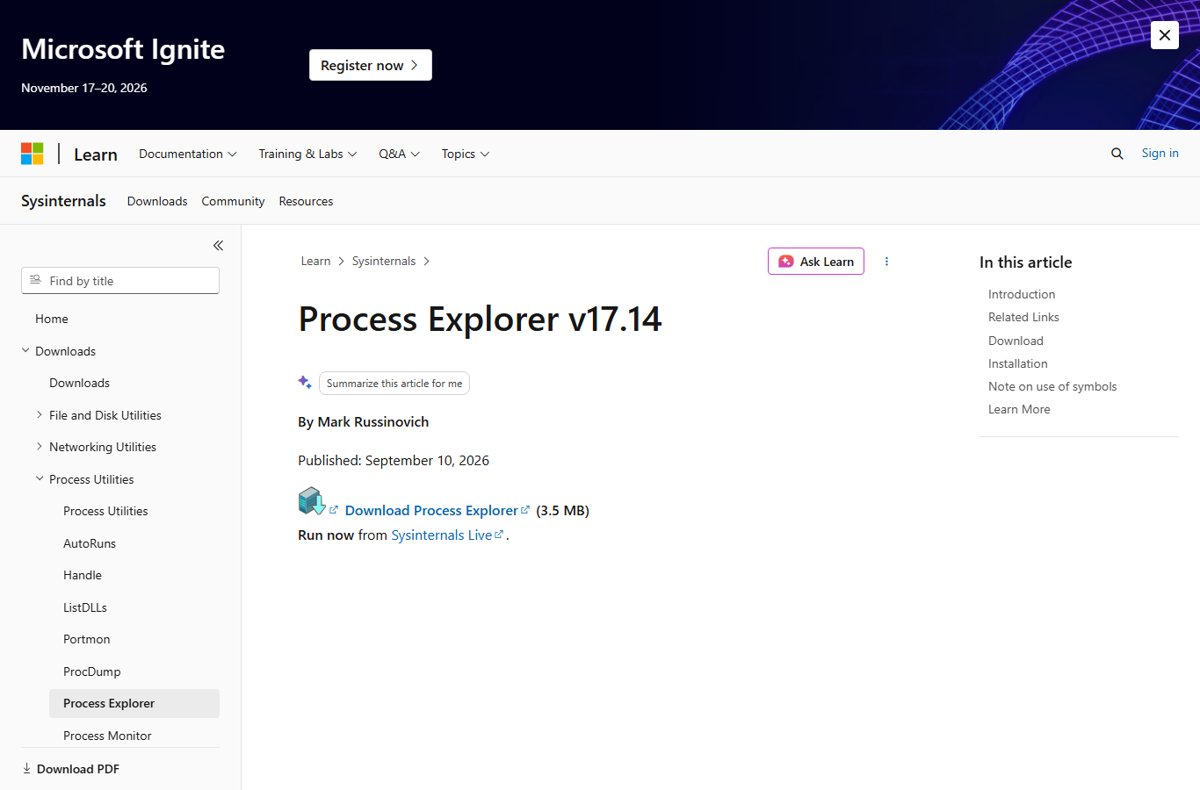
| Current version | v17.14, published September 10, 2026 |
| Supported Windows | Windows 11 and higher; Windows Server 2019 and higher |
| Installation | None needed. You run procexp.exe directly |
| File names in the download | procexp.exe, plus procexp64.exe for x64 and a 64a build for ARM64 |
| Other official sources | Sysinternals Live, and Sysinternals Suite in the Microsoft Store |
| Cost | Free |
Download and open Process Explorer from Microsoft
Get the file only from the official Process Explorer page on Microsoft Learn. Download portals repackage Sysinternals tools and add nothing but risk.
- Open the Process Explorer page on learn.microsoft.com in your browser.
- Select Download Process Explorer and save the ZIP file.
- Open your Downloads folder, right-click the ZIP file and select Extract All.
- Choose a permanent folder, such as a Tools folder in your user profile, and select Extract.
- Open the extracted folder and double-click
procexp64.exeon a normal 64-bit Intel or AMD PC, orprocexp.exeif you are unsure. - Accept the license terms on first launch.
Keep the extracted folder where it is. The shortcuts, pins and the Task Manager replacement described below all point at this location.
Open Process Explorer as administrator
Without elevation, Process Explorer can show fewer details for system processes and processes owned by other users. Microsoft's own troubleshooting guidance starts with running it as an administrator.
- Find
procexp64.exeorprocexp.exein its folder, or find Process Explorer in the Start menu. - Right-click it and select Run as administrator.
- Select Yes in the User Account Control prompt.
- Check that processes owned by SYSTEM and other accounts now show their details.
From PowerShell, run Start-Process procexp -Verb RunAs after a Store install. The -Verb RunAs switch is how PowerShell starts any .exe elevated.
Install and open Process Explorer from the Microsoft Store
Microsoft publishes Sysinternals Suite in the Microsoft Store as an MSIX package that includes Process Explorer. The Store installs only the build that matches your processor: x64, x86 or ARM64.
- Open the Microsoft Store app.
- Search for Sysinternals Suite and open the listing published by Microsoft Corporation.
- Select Get or Install and wait for it to finish.
- Open Start and select All apps.
- Open the Sysinternals Suite folder and select Process Explorer.
On Windows 11 the tools sit in a Sysinternals Suite Start menu folder. Windows 10 does not support Start menu folders for MSIX packages, so there each tool appears on its own.
Open Process Explorer from Windows Terminal, PowerShell, or Command Prompt
The Store version registers an app execution alias for every Sysinternals tool, so procexp works from any folder in any shell.
procexpStarts the Store-installed Process Explorer through its app execution alias. The alias lives in %LOCALAPPDATA%\Microsoft\WindowsApps, which is already on the path.
You should see: The Process Explorer window opens and the prompt returns immediately.
Without the Store version, run it from the Sysinternals Live share instead: \\live.sysinternals.com\tools\procexp.exe. For a downloaded copy, type the full path in quotes, for example "C:\Tools\ProcessExplorer\procexp64.exe", replacing the folder with your own.
Pin Process Explorer for easier access
Pinning works for the downloaded copy. Launch it from its permanent folder first so the pin points there.
- Open Process Explorer from its folder.
- Right-click its icon on the taskbar and select Pin to taskbar.
- For a desktop shortcut, right-click
procexp64.exe, select Show more options, then Send to > Desktop (create shortcut). - To make that shortcut always run elevated, right-click it and select Properties.
- On the Shortcut tab, select Advanced, tick Run as administrator and select OK twice.
Add Process Explorer to the Start menu
The Microsoft Store version adds Process Explorer to the Start menu automatically. Use these steps for the downloaded copy.
- Open the folder that holds
procexp64.exe. - Right-click the file and select Pin to Start.
- Open Start and check that Process Explorer appears in the Pinned section.
- Drag it to the position you want among your pinned apps.
Replace Task Manager with Process Explorer
Process Explorer has a Replace Task Manager option in its Options menu. Once it is on, Ctrl + Shift + Esc, the taskbar menu and every other Task Manager route open Process Explorer instead.
- Keep Process Explorer in a folder you will not move or delete.
- Open Process Explorer as administrator.
- Select the Options menu.
- Select Replace Task Manager so a check mark appears next to it.
- Press Ctrl + Shift + Esc to confirm Process Explorer opens.
To get the normal Task Manager back, open Process Explorer as administrator, select Options and select Replace Task Manager again to clear the check mark.
Open Process Explorer to find what is locking a file
When Windows says a file or folder is open in another program, Process Explorer's search shows which process holds it. Run it as administrator so it can see every process.
- Open Process Explorer as administrator.
- Select the Find menu and choose Find Handle or DLL.
- Type part of the file name, folder path or drive letter and start the search.
- Read the process name and PID in the results list.
- Select a result to jump to that process and its handle in the main window.
- Close the file in that program, or close the program itself, then retry your delete or move.
Two other Microsoft tools do the same job. The command-line Handle utility takes a name fragment, such as handle windows\system, and must run as administrator. PowerToys File Locksmith adds Unlock with File Locksmith to the File Explorer right-click menu.
Open Process Explorer to inspect a suspicious process
Process Explorer shows who started each process, where its file lives and whether its signature checks out. Those three facts settle most "is this malware?" questions.
- Open Process Explorer as administrator.
- Find the process in the tree and note its parent process above it.
- Right-click the process and select Properties to see its file path and command line.
- Check the file location: a system name such as svchost.exe running outside the Windows folder deserves a closer look.
- Add the Verified Signer column to confirm the publisher's digital signature.
- Turn on VirusTotal checking to see how many antivirus engines flag the file; enabling VirusTotal checks in Process Explorer walks through it.
For a process using high CPU, open Properties, select the Threads tab, pick the busiest thread and select Stack to see the functions it is running.
Understand the Process Explorer window after you open it
The window has two panes. The top pane always lists running processes with their owning accounts. The bottom pane changes with the mode you pick.
| Part of the window | What it shows | Where to find it |
|---|---|---|
| Process tree (top pane) | Every running process, its parent and its owning account | Main window |
| Handle view (lower pane) | Files, registry keys and other handles the selected process has open | View menu > Lower Pane, then Handle View |
| DLL view (lower pane) | DLLs and memory-mapped files the selected process has loaded | View menu > DLL View |
| Search | Which processes hold a given handle or DLL | Find menu |
| Performance graphs | CPU, I/O, memory and GPU use, with history in tooltips | Toolbar graphs and System Information |
| Process properties | Path, threads, stacks and security details for one process | Right-click a process > Properties |
| Symbols | Readable function names in thread stacks | Options menu > Configure Symbols |
How to update Process Explorer
How you update depends on how you got it. Compare your copy with the version shown at the top of the Microsoft Learn page.
- Microsoft Store version: open Microsoft Store, select Library and select Get updates.
- Sysinternals Live: nothing to do, since each launch runs the copy on Microsoft's server.
- Downloaded copy: close Process Explorer, including its notification area icon.
- Download the current ZIP from the Process Explorer page on learn.microsoft.com.
- Extract it into the same folder and replace the old files, so your pins and Task Manager replacement keep working.
How to check Process Explorer is working
- Look for the Process Explorer window with the process tree in the top pane.
- Find
procexpin that list. On an x64 PC you may see it running asprocexp64. - Select a process and check that the lower pane can show its handles or DLLs.
- If you turned on Replace Task Manager, press Ctrl + Shift + Esc and confirm Process Explorer opens rather than Task Manager.
Troubleshooting: Process Explorer will not open
The Sysinternals Live path does not open
The Live share is reached over the network, so a proxy, firewall or blocked web share can stop it.
- Check the path is exactly
\\live.sysinternals.com\tools\procexp.exe, with two leading backslashes. - Try the File Explorer form
live.sysinternals.com/procexp.exeinstead. - If it still fails, download the file from the Microsoft Learn page or install Sysinternals Suite from the Store.
`procexp` is not recognized in Command Prompt or PowerShell
The command alias exists only for the Microsoft Store version.
- Install Sysinternals Suite from the Microsoft Store, then open a new terminal window.
- Search Windows for Manage app execution aliases and check the Sysinternals aliases are on.
- For a downloaded copy, run it by its full path in quotes instead.
It will not run on Windows 10
The current release lists Windows 11 and higher, and Windows Server 2019 and higher, as supported client and server systems.
- Check your Windows version by pressing Windows + R, typing
winverand pressing Enter. - Use Process Explorer on a Windows 11 PC, or use Task Manager on Windows 10.
System processes show little or no detail
Process Explorer is running without administrator rights.
- Close Process Explorer.
- Right-click it and select Run as administrator.
- Select Yes in the User Account Control prompt.
Task Manager shortcuts fail or open the wrong thing
Replace Task Manager is on, but the Process Explorer file it points to was moved or deleted.
- Put Process Explorer back in its original folder, or download it again.
- Open it as administrator and select Options.
- Clear Replace Task Manager, then turn it on again from the new location if you still want it.
Process Explorer vs Task Manager in Windows 11
Task Manager ships with Windows and covers everyday tasks. Process Explorer adds the detail you need to trace locks, DLLs and unknown processes.
| Feature | Task Manager | Process Explorer |
|---|---|---|
| Comes with Windows | Yes | No, free from Microsoft Sysinternals |
| Parent and child process tree | No | Yes |
| Open handles and loaded DLLs | No | Yes, in the lower pane |
| Find which process locks a file | No | Yes, with the Find menu |
| Thread stacks with symbols | No | Yes, in Properties > Threads |
| Digital signature check | No | Yes, Verified Signer column |
| Startup apps and app history | Yes | No |
| Opens with Ctrl + Shift + Esc | Yes | Only after Replace Task Manager |
Best practices when using Process Explorer
| Practice | Reason |
|---|---|
| Download only from learn.microsoft.com, Sysinternals Live or the Microsoft Store | Third-party mirrors can bundle unwanted software with the tool |
| Run as administrator only when you need full detail | Elevated tools can end or change any process on the PC |
| Check the Verified Signer column before killing an unknown process | Ending a signed Windows process can crash the session or the PC |
| Keep the downloaded copy in one permanent folder | Pins, shortcuts and Replace Task Manager all depend on that path |
| Leave handle closing to the program that owns the file | Microsoft warns that forcibly closing handles can cause application or system instability |
Frequently Asked Questions
How do I open Process Explorer in Windows 10?
The current Process Explorer release lists Windows 11 and higher as its supported client system, so Windows 10 is no longer on Microsoft's list. On Windows 10, use Task Manager, or run Process Explorer on a Windows 11 PC.
How do I get Process Explorer?
Get Process Explorer from Microsoft only. Download it from the Process Explorer page on learn.microsoft.com, run it from Sysinternals Live at \\live.sysinternals.com\tools\procexp.exe, or install Sysinternals Suite from the Microsoft Store. All three are free.
How do I install Process Explorer?
Process Explorer needs no installation. Extract the ZIP from Microsoft Learn and double-click procexp.exe or procexp64.exe. If you want a Start menu entry and automatic updates, install Sysinternals Suite from the Microsoft Store instead.
Which Process Explorer do I install?
On a typical 64-bit Intel or AMD PC, run procexp64.exe from the download. ARM64 PCs use the build with the 64a suffix. The Microsoft Store version picks the matching build for you and names it plain procexp.exe.
How do I access Process Explorer without downloading it?
Use Sysinternals Live. Type \\live.sysinternals.com\tools\procexp.exe into the File Explorer address bar or a command prompt and press Enter. Process Explorer runs straight from Microsoft's server, and nothing stays on your PC afterwards.
How do I launch Process Explorer from the command line?
After installing Sysinternals Suite from the Microsoft Store, type procexp in Windows Terminal, PowerShell or Command Prompt. Without the Store version, run the Sysinternals Live path or the full path to your downloaded procexp64.exe.
How do I start Process Explorer as administrator?
Right-click Process Explorer in the Start menu or its folder and select Run as administrator, then select Yes. In PowerShell, run Start-Process procexp -Verb RunAs with the Store version installed. Elevation lets it show full details for every process.
How do I use Process Explorer in Windows 11?
Start with the process tree in the top pane. Use the Find menu to see which process locks a file, right-click a process and select Properties for its path and threads, and add the Verified Signer column to check digital signatures.