To fix a laptop battery that drains fast or will not charge, restart the laptop, check the charger and any charge limit, find the apps using the most power, switch to an efficient power mode, and update or reinstall the battery driver.
The 10 fixes below run from quickest to most involved, and a Windows battery report then tells you whether the battery itself is worn out.
1. Restart the laptop
A restart clears stuck processes and drivers that keep the processor busy or stop charging. Microsoft lists it as a first fix for problems that shorten battery life.
- Save your work and close open apps.
- Select Start > Power > Restart.
- Plug in the charger once Windows is back and hover over the battery icon on the taskbar.
- If the laptop is frozen, press and hold the power button until it turns off, wait a few seconds, then turn it on.
On a Surface, shut down, then hold the power button for 20 seconds for a forced restart. Other makers use their own reset sequences, listed on their support sites.
Common laptop battery problems
The battery icon on the taskbar tells you which kind of problem you have. Hover over it or select it to read the status.
| What you see | What it usually means | Start with |
|---|---|---|
| Battery drains fast | Busy apps, bright display, high refresh rate or a performance power mode | Fixes 4, 5 and 6 |
| Plugged in, not charging | Charger, cable or port problem, or a driver glitch | Fixes 2 and 8 |
| Charging slowly or discharging while plugged in | Charger or cable too weak for the laptop | Fix 2 |
| Stops at 80%, 60% or 50% | A charge limit or Smart charging is on (a heart on the icon) | Fix 3 |
| Exclamation mark on the icon | Power arrives but not enough to charge | Fix 2 |
| Red X on the icon, laptop dies when unplugged | The battery is not detected | Fixes 8 and 9, then service |
| Shuts down at 15-20% or jumps in percentage | The charge reading is off | Fix 10 |
| Loses charge overnight with the lid closed | Sleep is not reaching a low-power state | The sleep section below |
| Short runtime on an older laptop | Capacity lost to age | Fix 9 |
2. Check the charger, cable, outlet, and charging port
An underpowered or incompatible charger is the most common reason a laptop charges slowly or discharges while plugged in. Basic USB-C supplies 15W (5V, 3A), while USB Power Delivery chargers deliver much more.
- Plug the charger into a different wall outlet, not a power strip.
- Check that both ends of the cable are fully seated, and look for bent pins, fraying or a damaged port.
- Compare the wattage on the charger label with the wattage your laptop maker specifies.
- Use the charger and cable that came with the laptop, or one the maker lists as compatible.
- On a USB-C laptop, try another USB-C port, because not every port on every model accepts charging power.
- Unplug power-hungry accessories, such as external drives, and check whether charging starts.
- Unplug the charger, clean the connector pins with a pencil eraser, and plug it back in.
Charging is fastest while the laptop is asleep or turned off. If the charger light stays off or the cable is damaged, stop using it and contact the maker.
3. Check whether a battery charge limit is enabled
A laptop that stops at 80% or 60% while plugged in is often doing so on purpose. Charge limits protect the battery when it sits on the charger for long periods.
- Hover over the battery icon; a heart and the text Fully Smart charged mean Windows Smart charging is holding the level below 100%.
- On a Surface, open the Surface app > Battery & charging and select Charge to 100%, or switch Charging mode away from Limit to 80%.
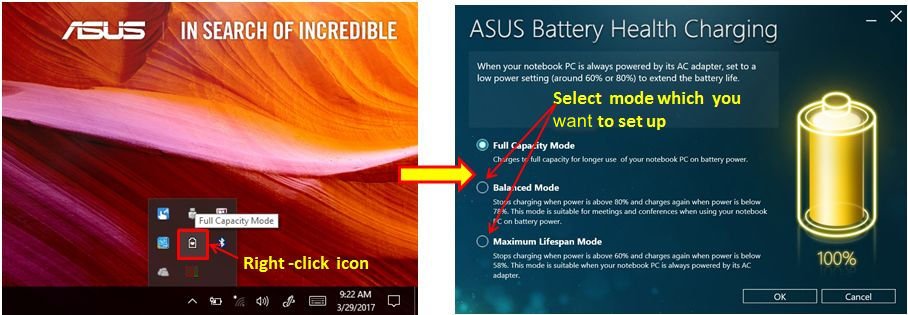
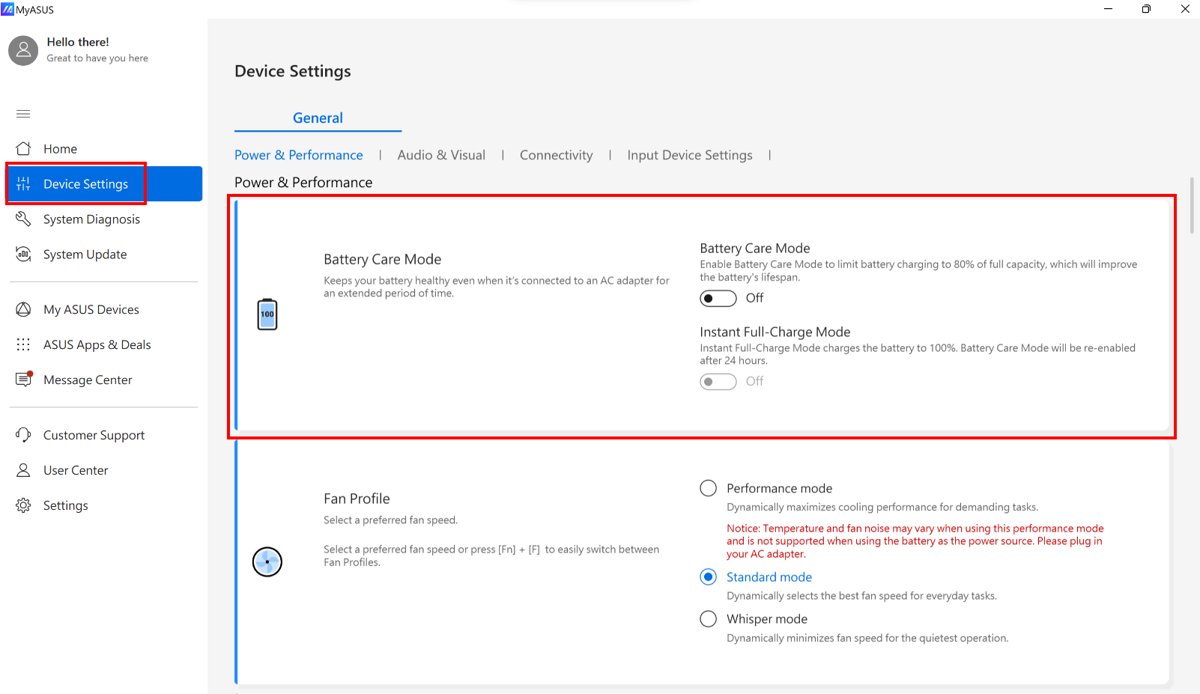
- On an ASUS laptop, open MyASUS > Device Settings and set Battery Health Charging to Full Capacity Mode.
- On other brands, open the maker's control app or BIOS setup and look for a battery charge limit or conservation option.
- Leave the limit on if you mostly work plugged in; turn it off before travel or long days away from an outlet.
ASUS Balanced Mode stops charging above 80% and Maximum Lifespan Mode above 60%. Surface Battery Limit can stop charging at 50%.
4. Check which apps are draining your battery
Windows records battery use per app. One app running in the background can halve your runtime.
- Select Start > Settings > System > Power & battery.
- Expand Battery usage and set Battery levels to Last 24 hours.
- Select an hour where the battery dropped fastest and check the apps listed under Battery usage per app.
- For an app you do not need running, select More options > Manage background activity and change Let this app run in the background.
- Press Ctrl + Shift + Esc, open Startup apps, right-click apps you do not need at sign-in and select Disable.
5. Use energy saver and a more efficient power mode
Power mode decides how hard the processor works, and energy saver limits background activity and dims the screen when the battery runs low.
- Select Start > Settings > System > Power & battery.
- Next to Power mode, choose Best power efficiency (the option depends on your hardware and maker).
- Expand Energy saver and set Turn energy saver on when battery level is at to a level such as 30%.
- Turn on Lower screen brightness when using energy saver.
- Open Energy recommendations and select Apply all, or apply the items you want.
To turn energy saver on right away, select the battery icon on the taskbar and choose the Energy saver quick setting.
6. Reduce display power consumption
The screen is one of the biggest power users on any laptop. Brightness and refresh rate, both in Windows 11 display settings, count, and so does screen-off time.
- Select Start > Settings > System > Display and lower the Brightness slider.
- Go to Display > Advanced display and pick a lower refresh rate, or turn on Dynamic refresh rate if it is offered.
- Go to Settings > System > Power & battery > Screen, sleep & hibernate timeouts and shorten the on-battery screen-off time.
- Go to Settings > Personalization > Colors and set Choose your mode to Dark.
- Go to Settings > Apps > Video playback and select Optimize for battery life.
Dark mode saves the most on OLED screens, where black pixels draw almost no power. For a demanding app, Settings > System > Display > Graphics lets you set Power saving per app.
7. Update Windows, BIOS, firmware, and laptop drivers
Battery and charging behaviour is controlled by firmware and drivers, and makers fix charging bugs through updates, so update the laptop firmware as well as Windows.
- Select Start > Settings > Windows Update > Check for Windows updates.
- Select Download & install for anything listed, including driver and firmware updates, then restart.
- Open your laptop maker's support app or website and enter your model or serial number.
- Install the latest BIOS (UEFI), chipset and power-management updates for your model, with the charger connected.
- Restart and check the battery status again.
On a Surface, the Surface app > Help & support checks update status and opens Windows Update. Never unplug the charger during a BIOS update.
8. Reinstall the Windows battery driver
Removing the battery driver forces Windows to detect the battery again. It is Microsoft's fix for the "Plugged in, not charging" status.
- Plug in the laptop.
- Select Search on the taskbar, type
device managerand open Device Manager. - Expand Batteries and right-click the battery entry (its name includes ACPI-Compliant Control Method Battery).
- Select Uninstall device and confirm.
- Select the computer name at the top of the list, then Action > Scan for hardware changes.
- Select Start > Power > Restart.
Do not do this on a Surface Pro X: Microsoft says the only way to restore its drivers afterwards is a full reset.
9. Generate a Windows battery health report
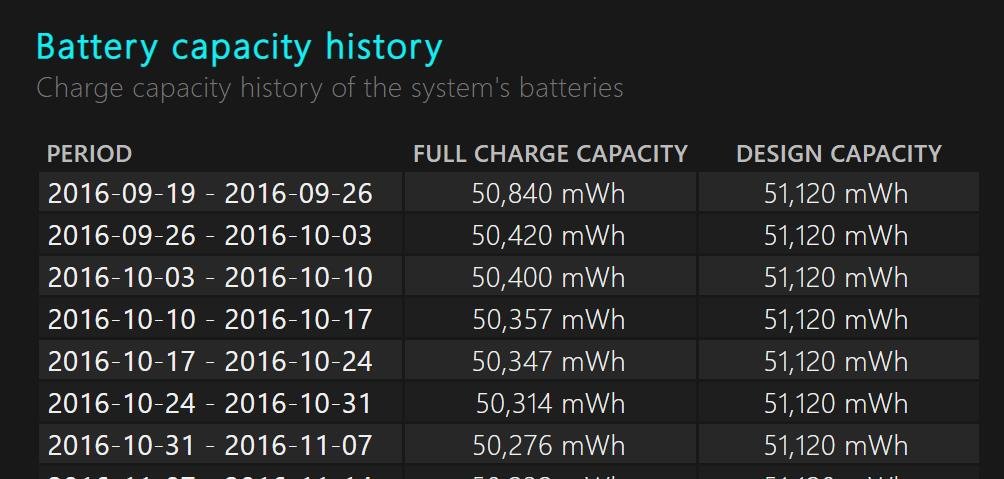
The battery report compares the battery's original capacity with what it holds now. Run it in Command Prompt as administrator.
powercfg /batteryreport /output "C:\battery-report.html"Writes an HTML report of battery use and capacity history. Without /output, the file lands in the current folder and Command Prompt prints the path. Add /duration 7 to analyse the last seven days of use.
You should see: Battery life report saved to file path C:\battery-report.html
Open the file in a browser. Under Installed batteries, compare Design Capacity with Full Charge Capacity; the gap is the capacity lost to wear. Recent usage and Battery usage show when the drain happened.
10. Calibrate the battery only if its percentage is inaccurate
Calibration does not restore lost capacity. It only helps when the percentage is wrong, such as a laptop that shuts down at 20% or jumps from 40% to 10%.
- Check your laptop maker's support site for a built-in calibration tool or procedure, and use it if one exists.
- Otherwise, charge the laptop to 100% without interruption, with it on or asleep.
- Use the laptop on battery as normal until Windows warns that the battery is low, then save your work.
- Plug in and charge back to 100% in one session.
- Check that the percentage now falls smoothly instead of jumping.
Microsoft notes that charging to 100% after unboxing or long storage helps calibration. Do not drain to 0% routinely, because frequent deep discharges speed up battery wear. You can show the battery percentage on the taskbar to watch for jumps.
Run the Windows Power troubleshooter
The Power troubleshooter checks settings such as sleep timers and display time-outs and changes the ones that waste battery.
- Select Start > Settings > System > Troubleshoot > Other troubleshooters.
- Select Run next to Power.
- Follow the prompts and let Windows apply the changes it suggests.
- For a deeper check, run
powercfg /energyin Command Prompt as administrator with all apps closed, and open the HTML report it creates after 60 seconds.
Laptop losing battery while sleeping?
Battery drops overnight with the lid closed
Apps or devices keep the laptop active in modern standby.
- Open Command Prompt as administrator and run
powercfg /sleepstudy. - Open the sleepstudy-report.html file and check the sessions with the highest drain and the components listed against them.
- Update, close or remove the app or driver that appears most often.
- Run
powercfg /sleepstudy /duration 7to confirm the drain has dropped over a week.
Laptop wakes on its own or never sleeps
A power request or a device set to wake the PC blocks sleep.
- Run
powercfg /requeststo list apps and drivers that are blocking sleep. - Run
powercfg /ato see which sleep states the laptop supports. - Run
powercfg /devicedisablewake "device name"for a device that should not wake the laptop.
Closing the lid does not put the laptop to sleep
The lid action is set to do nothing.
- Type
control panelin Search and open it. - Select Power Options > Choose what closing the lid does.
- Set On battery to Sleep or Hibernate and select Save changes.
SleepStudy works only on laptops that use modern standby. If powercfg /sleepstudy reports that it is not supported, check the lid action and wake devices instead.
When should you replace a laptop battery?
| Sign | What to do |
|---|---|
| Battery visibly swollen, case bulging or touchpad lifting | Stop using the laptop now, do not press or puncture the battery, and contact the maker |
| Full Charge Capacity far below Design Capacity in the battery report | Plan a replacement when runtime no longer covers your day |
| Red X on the battery icon and the laptop dies when unplugged | Reinstall the battery driver; if nothing changes, book a repair |
| Battery still drains fast after all 10 fixes | Ask the maker to test the battery; many base decisions on their own diagnostics, not cycle count alone |
Windows does not set a capacity figure that means "replace now". Use the maker's warranty terms and diagnostics, and buy replacement batteries from the maker or an authorized service centre.
How to make a laptop battery last longer
Lithium-ion batteries lose capacity with every charge cycle, and heat and full charge speed that up. These habits slow the wear.
| Habit | Why it helps |
|---|---|
| Keep the charge between about 20% and 80% when you can | Moderate charge levels age the cells more slowly |
| Use your maker's charge limit if you work plugged in | Stops the battery sitting at 100% for days |
| Avoid using or charging in heat | High temperatures permanently reduce capacity |
| Do not run it to 0% every day | Frequent deep discharges speed up degradation |
| Store it at 40-60% in a cool, dry place | Batteries stored full or empty lose capacity faster |
| Lower brightness and use Best power efficiency on battery | Cuts the biggest power draws |
| Turn on airplane mode or turn off Bluetooth when not needed | Radios use power even when idle |
Laptop battery problem: quick troubleshooting order
| Your situation | Try in this order | Why |
|---|---|---|
| Not charging at all | 1, 2, 8, 7 | Rules out a glitch and the charger before drivers and firmware |
| Stops below 100% | 3, then 2 | A charge limit is the usual cause |
| Charges slowly or discharges plugged in | 2, then 7 | Charger wattage first, then firmware |
| Drains fast while in use | 4, 5, 6, then 9 | Apps and settings first, then battery health |
| Drains while asleep | The sleep section, then 7 | Sleep blockers, then driver and BIOS fixes |
| Percentage jumps or sudden shutdowns | 9, then 10 | Check health before calibrating |
Laptop battery draining fast FAQ
How do I fix my laptop battery draining fast?
Check Settings > System > Power & battery > Battery usage for apps using the most power, switch Power mode to Best power efficiency, turn on energy saver, and lower brightness and refresh rate. Then run powercfg /batteryreport to see whether the battery has lost capacity.
Why does my laptop battery drain so fast?
The usual causes are background apps, a bright high-refresh display, a performance power mode, and a worn battery. A battery's capacity drops with every charge cycle, so an older laptop runs for less time even with the same settings.
How do I fix an HP laptop battery draining fast?
Use the same Windows fixes: check Battery usage per app, choose Best power efficiency, update Windows and the BIOS from HP's support site, and run a battery report.
How do I prevent my laptop battery from draining fast?
Keep energy saver set to turn on at a sensible level, limit background activity for apps that do not need it, shorten screen and sleep timeouts, and avoid heat. Using a charge limit when plugged in slows long-term capacity loss.
Why is my laptop plugged in but not charging?
Common causes are a charger too weak for the laptop, a loose cable or wrong port, a charge limit holding the level below 100%, or a battery driver glitch. Try another outlet and the original charger, check for a heart on the battery icon, then reinstall the battery driver.
Why won't my laptop charge past 80%?
A charge limit is usually on. Windows Smart charging shows a heart on the battery icon, and maker tools such as MyASUS Battery Health Charging or the Surface app's Limit to 80% stop charging early to protect the battery.
How do I check laptop battery health in Windows 11?
Open Command Prompt as administrator and run powercfg /batteryreport. Open the HTML file it creates and compare Design Capacity with Full Charge Capacity under Installed batteries.
Is leaving a laptop plugged in bad for the battery?
Keeping a battery at 100% for long periods speeds up wear. Windows Smart charging and maker charge limits stop charging at a lower level, so leaving a laptop plugged in with a limit turned on is fine.
How do I drain my laptop battery fast?
Set Power mode to its highest-performance option, raise brightness, turn off energy saver and run a demanding app until the battery is low. Only do this when a calibration procedure asks for it, because frequent deep discharges speed up battery wear.