Press Shift + Esc in Chrome on Windows or Linux to open its built-in Task Manager, or select More (the three dots) > More tools > Task Manager on any computer.
This guide shows how to read what each task is using, end a tab or extension that has stopped responding, explain why so many Chrome processes appear, and fix the cases where Task Manager will not open or a process will not end.
Open the Chrome Task Manager
Chrome's Task Manager is part of the browser, not Windows. It lists every tab, extension and helper process Chrome is running, with the CPU and memory each one uses.
- Open Chrome on your computer.
- Press Shift + Esc on Windows or Linux.
- Or select More (three dots) at the top right, then More tools > Task Manager.
- The Task Manager window opens with a list of everything Chrome is running.
What is Chrome Task Manager and why use it?
Chrome Task Manager is a window inside the browser that lists each tab, extension and Chrome process with the memory and CPU it is using. Use it when Chrome slows down or a page stops responding, because it names the exact tab or extension responsible and lets you end only that one.
| Question | Chrome Task Manager | Windows Task Manager |
|---|---|---|
| Where it lives | Inside Chrome (Shift + Esc or More > More tools > Task Manager) | In Windows (Ctrl + Alt + Delete > Task manager) |
| What it lists | Each tab, extension, Background page and Chrome helper process by name | Google Chrome as a group of chrome.exe processes |
| What it can end | One tab, extension or helper while the rest of Chrome keeps running | The whole browser with End task |
| Best use | Finding which site or extension makes Chrome slow | Closing Chrome when the whole window is frozen |
Chrome Task Manager shortcut on Windows, Mac, Linux and Chromebook
Google lists the keyboard shortcut for Windows and Linux only. The menu route works everywhere Chrome shows the three-dot menu.
| Your device | Fastest route | Notes |
|---|---|---|
| Windows PC | Shift + Esc | Also More > More tools > Task Manager |
| Linux | Shift + Esc | Same shortcut as Windows |
| Mac | More > More tools > Task Manager | Google's Mac shortcut list has no Task Manager key |
| Chromebook | More > More tools > Task Manager in the Chrome window | Use this if a keyboard shortcut does not respond |
| You need to close Chrome itself | Windows Task Manager (Ctrl + Alt + Delete > Task manager) | Chrome's own Task Manager cannot close the browser process |
View which resources tasks are using
Each row is one task, and the columns show how much of your computer it is using. Select a column heading to sort by it; Google recommends sorting by Memory first.
| What you see | What it means | What to do with it |
|---|---|---|
| Task column | The tab title, extension name, or a Chrome helper process such as the browser or GPU process | Find the site or extension behind a slowdown |
| Memory column | RAM the task is holding | Sort by it to put the heaviest task at the top |
| CPU column | Processor time the task is using right now | A tab that stays high while you are not using it is worth ending |
| Background page | An extension or app running in the background | Google flags these as worth checking when Chrome is slow |
| Browser process | The main Chrome process: address bar, bookmarks, network requests and file access | Leave it running; ending it closes Chrome |
| GPU process | Graphics work, kept apart from other processes | Expect higher use while video or games are on screen |
To see a tab's memory without opening Task Manager, go to More > Settings > Appearance and turn on Show tab memory usage under Tab hover preview card (on Mac, Show memory usage on tab hover preview card). Hovering over a tab then shows its memory.
End troublesome processes
Ending a task closes just that tab, extension or helper, so the rest of Chrome keeps working. Any unsaved work in that task is lost, so copy anything you typed first if you can.
- Press Shift + Esc, or select More > More tools > Task Manager.
- Select Memory (or CPU) to sort the list.
- Select the task you want to close.
- Select End Process.
- Return to that tab and reload it if you still need the site.
Turn off or remove an extension that uses too much memory
If the same extension or Background page keeps rising to the top of the Memory column, ending it only helps until Chrome restarts. Turning it off stops it for good.
- Note the extension's name in the Task column of Task Manager.
- Select More (three dots) at the top right of Chrome.
- Select Extensions > Manage Extensions.
- Find the extension and turn its switch off, or select Remove if you no longer need it.
- Open Task Manager again and confirm the extension's row is gone.
Cut Chrome memory use with Memory Saver
Memory Saver deactivates tabs you are not using and reloads them when you return. It reduces the number of busy tabs you see in Task Manager without closing anything, which is the simplest way to optimize the browsing experience once Task Manager has shown you where the memory goes.
- Select More > Settings.
- Select Performance on the left.
- Turn on Memory Saver.
- Choose Moderate, Balanced (recommended) or Maximum; Maximum deactivates tabs soonest.
- Turn on Inactive tabs appearance if you want sleeping tabs marked with a ring around their icon.
Some tabs stay active regardless: tabs playing audio or video, screen sharing, active downloads, partly filled forms, pinned tabs and tabs connected to USB or Bluetooth devices. On laptops, Energy Saver on the same page stops eligible CPU-heavy background tabs while the battery is in use.
Why Task Manager shows multiple Chrome processes
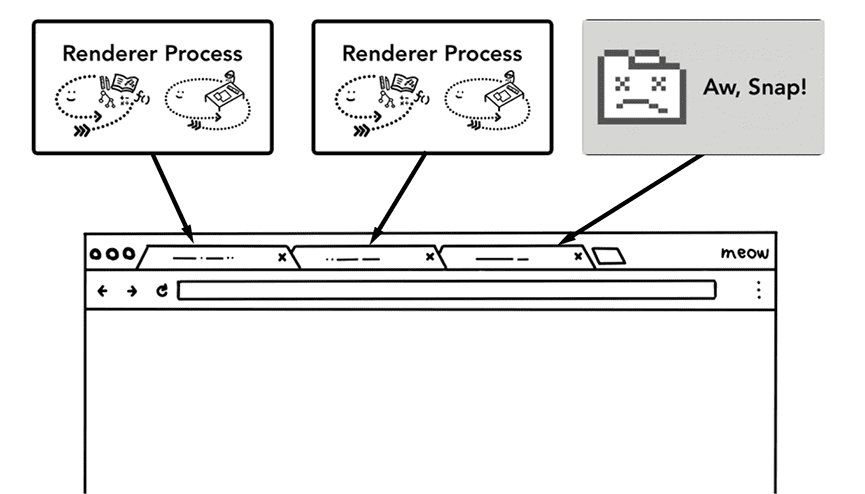
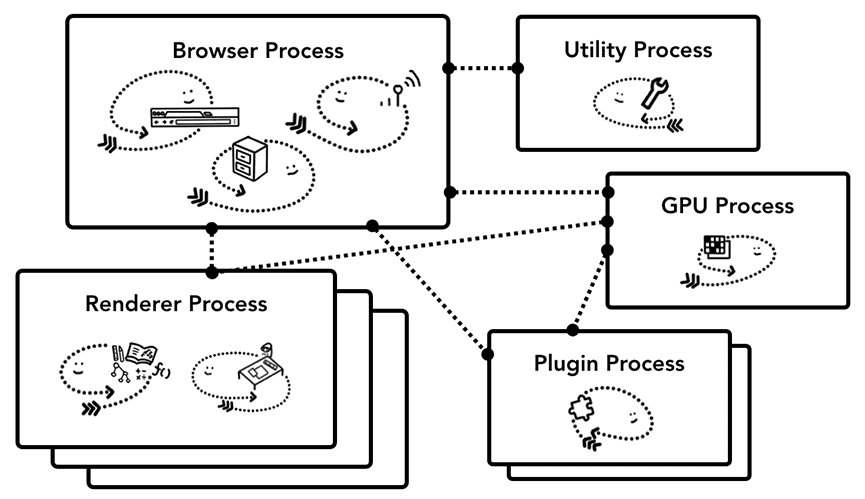
Chrome runs as many separate processes by design. Each site normally gets its own renderer process, so one frozen tab can be closed while the others keep working, and the sandbox limits what a compromised page can reach.
Since Chrome 67, Site Isolation also gives cross-site iframes their own process, which is why one tab can account for more than one entry. Chrome caps the total based on your memory and CPU, then starts sharing processes between tabs from the same site.
| Process type | What it handles | How many to expect |
|---|---|---|
| Browser | Address bar, bookmarks, back and forward buttons, network requests, file access | One |
| Renderer | Everything inside a tab where a site is displayed | Roughly one per site you have open |
| GPU | Graphics work for every tab | One |
| Extension | Each running extension | One per active extension |
| Utility and services | Network service, storage service and small sandboxed tasks | Several |
This is why Windows Task Manager can list Google Chrome with 15 or more entries for a handful of tabs. Chrome's own Task Manager labels each one, which Windows does not. If you run Chrome Stable and Canary side by side, the process names can look identical, so it helps to tell Stable and Canary processes apart before you end one.
Close Google Chrome completely from Windows Task Manager
Chrome's Task Manager cannot end the browser itself. When the whole window is frozen, use the operating system's tool instead. On Windows 11, Task Manager may also show Chrome with a leaf icon; that is Windows Efficiency mode for Chrome, not a Chrome setting.
- On Windows, press Ctrl + Alt + Delete and select Task manager.
- Under Processes, select Google Chrome or chrome.exe.
- Select End task.
- On a Mac, press Command + Option + Esc, select Google Chrome, then select Force Quit.
Windows has several other ways in, including Ctrl + Shift + Esc; the full list of shortcuts to open Task Manager helps when the keyboard is unresponsive.
How to check that ending a Chrome process worked
- Look at Task Manager: the ended task's row disappears from the list.
- Check the tab it belonged to: the site is no longer running there until you reload it.
- Sort by Memory again and confirm the top entry is no longer the task you ended.
- Reload the tab. If the same task climbs back to the top within minutes, the site or extension is the cause, so turn off the extension or close the site.
Fix Chrome Task Manager problems
Chrome Task Manager is not opening with the shortcut
Shift + Esc is the Windows and Linux shortcut only, and it needs a Chrome window in front.
- Select a Chrome window so it is active.
- Press Shift + Esc again.
- If nothing appears, select More > More tools > Task Manager instead.
- On a Mac, always use the menu route; Google lists no keyboard shortcut for it.
End Process is greyed out or does nothing
Your organization can turn off ending processes with the Chrome policy "Enable ending processes in Task Manager".
- If the computer belongs to a work or school, ask your IT administrator; only they can change the policy.
- Meanwhile, close the tab with Ctrl + W (or Command + W on Mac) or turn off the extension from Manage Extensions.
Why can't I end Google Chrome in Windows Task Manager?
Ending one chrome.exe entry only stops that process; the browser and its other processes keep running, and background apps can keep Chrome alive after you close it.
- In Windows Task Manager, under Processes, select the top-level Google Chrome entry rather than a single child process.
- Select End task.
- Open Chrome, select More > Settings, and type
backgroundin the search box. - Turn off Continue running background apps when Google Chrome is closed if you want Chrome to stop fully when you close it.
Chrome is slow but no single task looks heavy
Many small tabs and extensions add up.
- Close every tab you do not need.
- Quit other apps that are running at the same time.
- Pause downloads in progress.
- Turn off or remove extensions you do not use, then turn on Memory Saver.
Chrome Task Manager FAQ
How do I open Chrome Task Manager?
Press Shift + Esc in Chrome on Windows or Linux. On any computer, including a Mac, select the three-dot More menu at the top right, then More tools > Task Manager. A window opens listing every tab, extension and Chrome process with its memory and CPU use.
What is the Chrome Task Manager keyboard shortcut?
The shortcut is Shift + Esc on Windows and Linux. Google's list of Mac shortcuts does not include one, so on a Mac open it from the More menu under More tools > Task Manager.
Why does Task Manager show multiple Chrome processes?
Chrome uses a multi-process design. The browser, the GPU, each extension and each site you open run in separate processes, so a crash in one tab does not take down the others and sandboxing can limit what a page can reach.
Why are there so many Google Chrome processes, like Chrome (15), in Task Manager?
The number counts every Chrome process: one browser process, one GPU process, one per extension, utility services, and renderer processes for your sites. Site Isolation adds processes for cross-site frames. Chrome limits the total based on your memory and CPU.
Why can't I end Google Chrome in Task Manager?
Ending a single chrome.exe process leaves the rest of Chrome running. Select the top-level Google Chrome entry under Processes and choose End task. If Chrome reappears, turn off Continue running background apps when Google Chrome is closed in Chrome Settings.
Does ending a process in Chrome Task Manager lose my work?
Yes. Google warns that any unsaved work in the task you end will be lost. The rest of Chrome keeps running, and you can reload the affected tab, but text typed into a form on that tab is gone.
Is Chrome's Task Manager the same as Windows Task Manager?
No. Chrome's Task Manager lives inside the browser and names each tab and extension. Windows Task Manager shows Chrome as a group of chrome.exe processes without saying which tab each one belongs to, but it can close the whole browser.
How do I pin Chrome to the taskbar?
Type Chrome in the Search box on the taskbar, right-click Google Chrome in the results, and select Pin to taskbar. If Chrome is already open, right-click its taskbar icon and select Pin to taskbar instead.






