To boost your PC's performance for gaming, update the graphics driver, set Windows to its best performance power mode, run your monitor at its highest refresh rate, and match in-game settings to your hardware.
The 30 tips below cover Windows 11 settings (with Windows 10 paths where they differ), game settings, network fixes and the hardware changes that raise frame rates the most.
Quick tips to optimize gaming performance
Start at the top of this table. The first rows take seconds and cost nothing; the last rows need money or a screwdriver.
| # | Tip | Where you do it |
|---|---|---|
| 1 | Turn on Game Mode | Settings > Gaming > Game Mode |
| 2 | Install Windows updates and optional driver updates | Settings > Windows Update |
| 3 | Install the latest graphics driver from your GPU maker | NVIDIA, AMD or Intel driver page or app |
| 4 | Set Power mode to Best performance | Settings > System > Power & battery |
| 5 | Keep a gaming laptop plugged in | Charger |
| 6 | Run your monitor at its highest refresh rate | Settings > System > Display > Advanced display |
| 7 | Turn on optimizations for windowed games | Settings > System > Display > Graphics |
| 8 | Set the game to the High performance GPU | Settings > System > Display > Graphics |
| 9 | Try hardware-accelerated GPU scheduling | Graphics settings page |
| 10 | Turn off background recording | Windows capture settings |
| 11 | Disable startup apps | Task Manager > Startup apps |
| 12 | Stop apps running in the background | Settings > Apps > Installed apps |
| 13 | Adjust visual effects for best performance | Performance Options |
| 14 | Turn off app notifications | Settings > System > Notifications |
| 15 | Close unused apps and restart before you play | Start > Power |
| 16 | Free up disk space with Storage Sense | Settings > System > Storage |
| 17 | Uninstall apps you no longer use | Settings > Apps > Installed apps |
| 18 | Optimize your drives | Defragment and Optimize Drives |
| 19 | Run a malware scan | Windows Security |
| 20 | Find heavy processes in Task Manager | Task Manager > Processes |
| 21 | Check the game's system requirements | Store page and dxdiag |
| 22 | Lower in-game graphics settings and use upscaling | Game's graphics menu |
| 23 | Verify the game's files | Steam or your launcher |
| 24 | Install games on an SSD | Launcher install location |
| 25 | Use a wired Ethernet connection | Router |
| 26 | Pause downloads and streams while you play | Launchers and other devices |
| 27 | Connect the monitor to the graphics card | Back of the PC |
| 28 | Enable the XMP memory profile | BIOS/UEFI |
| 29 | Clean dust and keep airflow clear | Case fans and vents |
| 30 | Upgrade the GPU, RAM or storage | Hardware |
Turn on Game Mode in Windows for gaming
Tip 1. Game Mode tells Windows to prioritize the game you are playing. While a game runs, it stops Windows Update from installing drivers and sending restart notifications, and it helps keep the frame rate more stable depending on the game and your hardware.
- Select Start, type
Settingsand open Settings. - Select Gaming, then Game Mode.
- Turn the Game Mode switch On.
Game Mode is on by default, so this step usually confirms it rather than changes it. Whether to keep Game Mode on in 26H2 depends on what else you run while you play.
Update Windows and graphics drivers for better FPS
Tips 2 and 3. Updates are the essential system preparation before any other tweak. New games often need a recent graphics driver, and driver updates regularly include fixes for specific titles. Windows Update covers system fixes and some drivers; the GPU maker's own driver is usually newer.
- Tip 2: Open Settings > Windows Update and select Check for updates.
- Select Advanced options > Optional updates and install any driver updates listed.
- On Windows 10, open Settings > Update & Security > Windows Update, select Check for updates, then View optional updates.
- Tip 3: Find your graphics card name under Settings > System > Display > Advanced display > Display information.
- Get the newest driver for that card from NVIDIA, AMD or Intel. NVIDIA owners can use the NVIDIA App for automatic driver updates and pick Game Ready Drivers for day-one game support.
- Check your PC or motherboard maker's support page for BIOS/UEFI and firmware updates, and install them only with the maker's own instructions.
- Restart the PC after the driver installs.
Device Manager offers another way to update the graphics driver when the maker's app will not install.
Windows 10 support ended on October 14, 2025, so new game-ready fixes and security updates land on Windows 11. If you can, move to Windows 11 before you chase smaller tweaks.
Set power mode to best performance for gaming
Tips 4 and 5. The balanced power setting lowers clock speeds to save energy. Best performance lets the processor run faster for longer.
- Tip 4: Open Settings > System > Power & battery.
- Open the Power mode drop-down and select Best performance.
- On Windows 10, open Settings > System > Power & sleep > Additional power settings, select Show additional plans if it appears, and choose High performance.
- Tip 5: Plug a gaming laptop into its charger before you start a game.
Most gaming laptops cut GPU and CPU power on battery, so frame rates drop sharply when unplugged. On desktops where the classic plan is missing, you can add the High performance power plan back.
Set your monitor refresh rate to the highest value
Tip 6. A 144 Hz or 165 Hz monitor often ships running at 60 Hz. If Windows runs it at 60 Hz, every game is capped at what the screen can show, no matter how many frames the GPU renders.
- Open Settings > System > Display.
- Select Advanced display (on Windows 10, Advanced display settings).
- If you have more than one monitor, choose the gaming display first.
- Open the list next to Choose a refresh rate (on Windows 10, Refresh rate) and pick the highest value.
On Windows 11, Dynamic refresh rate changes the rate automatically and needs a display that supports variable refresh rate and at least 120 Hz. If a game seems to run at a lower refresh rate with it on, turn Dynamic refresh rate off on the same page.
If the highest rate does not appear, the cable or port in use may not carry it. Use the cable that came with the monitor.
Windows graphics settings for gaming: windowed games, GPU preference and HAGS
Tips 7, 8 and 9 all live on the Graphics page in Settings. Optimizations for windowed games moves DirectX 10 and DirectX 11 games in windowed and borderless windowed mode to a newer presentation model, which reduces frame latency and enables Auto HDR and variable refresh rate on supported displays.
- Tip 7: Open Settings > System > Display > Graphics.
- Under Default settings, turn on Optimizations for windowed games, then restart your game.
- Tip 8: Under Custom options for apps, select your game and choose Options.
- In Graphics preference, select High performance, then select Save and restart the game.
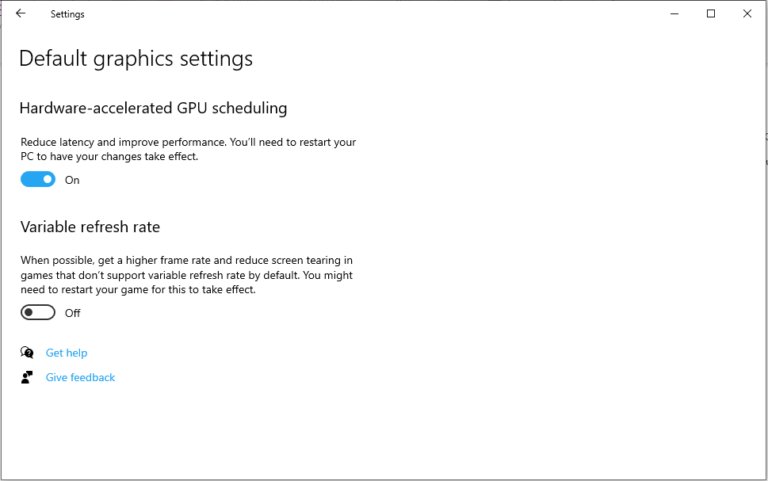
- Tip 9: On the same Graphics settings page, look for the Hardware-accelerated GPU scheduling switch and turn it on, then restart the PC.
The GPU choice in tip 8 appears only on PCs with more than one graphics processor, such as laptops with integrated and discrete graphics. High performance sends the game to the stronger GPU.
The hardware-accelerated GPU scheduling switch shows only when both the GPU and its driver support it. Microsoft introduced it as an opt-in setting and expects most people to notice no major change, so turn it back off if a game becomes less stable.
For GPU control panel tuning on NVIDIA cards, the NVIDIA App holds the graphics settings in one place: it can apply optimized in-game settings based on your GPU, CPU and display, override games to newer DLSS models, and turn on Smooth Motion on GeForce RTX 50 and 40 Series cards.
In competitive games that support it, turn on NVIDIA Reflex Low Latency in the game's graphics menu. It synchronizes rendering across the GPU and CPU to cut PC latency.
Turn off background recording in Game Bar captures
Tip 10. Background recording keeps capturing the last moments of gameplay so you can save a clip after the fact. That recording uses system resources the game could use instead.
- Open Settings and go to the capture settings for games.
- Find the background recording option, labelled Record what happened.
- Turn it off.
- If you want to keep it, lower the recorded video frame rate and quality on the same page instead.
System optimization techniques: startup apps, background apps and visual effects
Tips 11, 12 and 13. Every app that starts with Windows or runs in the background takes memory and processor time from your game.
- Tip 11: Press Ctrl + Shift + Esc to open Task Manager and select Startup apps.
- Right-click each app you do not need at sign-in and select Disable.
- Tip 12: Open Settings > Apps > Installed apps, select More options (…) next to an app, then Advanced options.
- Under Background app permissions, set Let this app run in the background to Never. On Windows 10, use Settings > Privacy > Background apps instead.
- Tip 13: Search Start for
Adjust the appearance and performance of Windowsand open it. - On the Visual Effects tab, select Adjust for best performance, then OK.
Leave your antivirus, audio software and the game launcher enabled at startup. Disable chat apps, updaters and cloud sync tools you can start by hand later.
Stop notifications and close apps before gaming
Tips 14 and 15. Pop-ups can pull a full-screen game out of focus, and apps left open from earlier keep using memory.
- Tip 14: Open Settings > System > Notifications (on Windows 10, Notifications & actions).
- Turn off notifications for apps you do not need while you play.
- Tip 15: Close browsers, video editors and other heavy apps, including extra browser tabs.
- Restart the PC from Start > Power > Restart before a long session if it has been on for days.
Free up disk space and optimize drives for gaming
Tips 16, 17 and 18. Games need free space for patches, shader caches and updates, and a nearly full drive slows down.
- Tip 16: Open Settings > System > Storage and turn on Storage Sense, then select Run Storage Sense now.
- Select Temporary files, check what you want gone and choose Remove files.
- Tip 17: Open Settings > Apps > Installed apps, select More options (…) next to an unused app or game and choose Uninstall.
- Tip 18: Search Start for
Defragment and Optimize Drivesand open it. - Select your game drive and choose Optimize.
For a deeper clean, search Start for Disk Cleanup, choose the drive and select the file types to delete.
Scan for malware and monitor resource usage in Task Manager
Tips 19 and 20. Malware such as crypto miners can take the GPU and processor for itself, and Task Manager shows exactly what is using your hardware.
- Tip 19: Open Settings > Privacy & security > Windows Security > Virus & threat protection.
- Select Quick scan and remove anything it finds.
- Tip 20: Press Ctrl + Shift + Esc and open the Processes tab.
- Sort by CPU, Memory or GPU and end apps you are not using with End task.
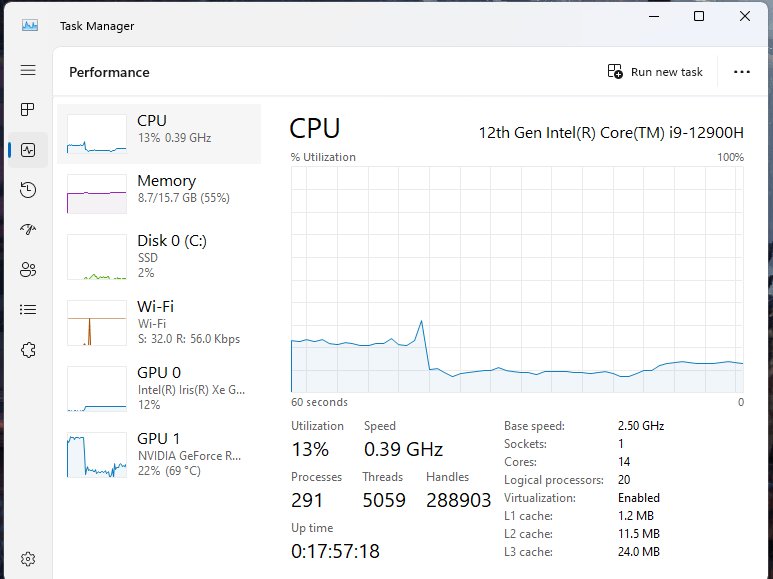
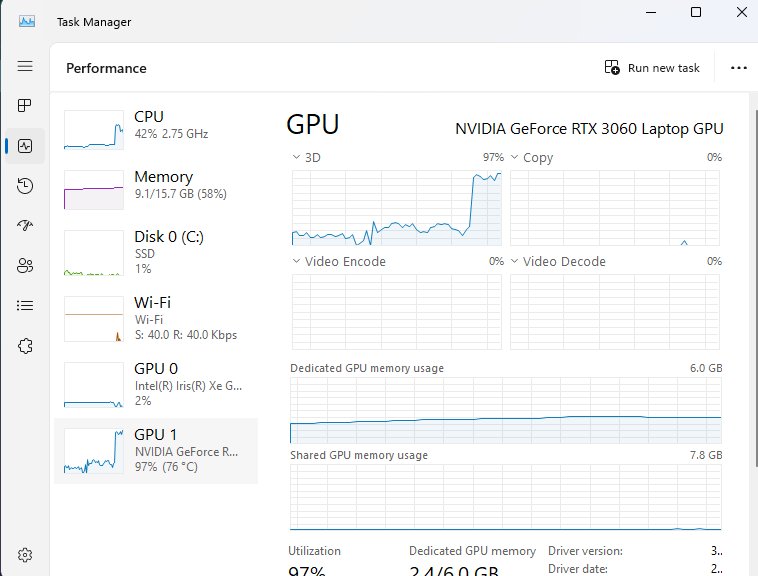
- Open the Performance tab and select GPU to see its model and load.
Gaming-specific settings: requirements, graphics presets and game files
Tips 21 to 24 happen inside the game and its launcher, and they usually change frame rates more than any Windows setting.
- Tip 21: Compare your PC with the game's minimum and recommended requirements on its store page. Press Windows logo key + R, type
dxdiagand press Enter to see your graphics hardware and driver. - Tip 22: In the game's graphics menu, start with a lower preset and set the resolution to your monitor's native resolution.
- Turn on the upscaler the game offers (NVIDIA DLSS, AMD FSR or Intel XeSS) in a quality mode before you lower the resolution.
- Lower shadows, volumetric effects and ray tracing first; they cost the most frames for the least visible change.
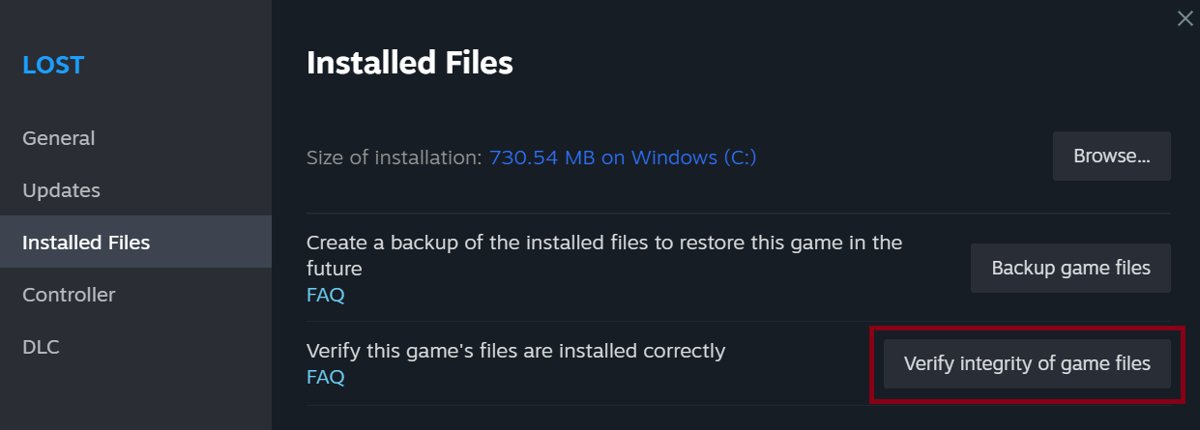
- Tip 23: In Steam, right-click the game in your Library, select Properties, open Installed Files and select Verify integrity of game files.
- Tip 24: Install or move the game to an SSD from your launcher's install location setting.
Steam reports that one or more files may fail to verify; those are local configuration files and the message is normal. Do not run verification while a defragment or virus scan is running, or for several games at once.
Network optimization for online gaming
Tips 25 and 26. Network fixes do not raise FPS, but they cut lag, rubber-banding and disconnects in online games.
- Tip 25: Connect the PC to the router with an Ethernet cable instead of Wi-Fi.
- If a cable is not possible, move the PC closer to the router or use its 5 GHz band.
- Tip 26: Pause game downloads in Steam and other launchers before you join a match.
- Stop large downloads, cloud backups and 4K streams on other devices sharing the same connection.
Hardware management: monitor connection, XMP memory and cooling
Tips 27, 28 and 29 cost nothing but need you at the back of the PC or in its firmware settings.
- Tip 27: On a desktop with a graphics card, plug the monitor cable into the card's ports, not the motherboard's video outputs.
- Tip 28: Restart the PC and open the BIOS/UEFI setup with the key your motherboard maker lists.
- Find the memory profile setting and enable Intel XMP (AMD boards list their own memory profile option), then save and exit.
- Tip 29: Shut down the PC and unplug it before you open the case.
- Clean dust from the fans, vents and GPU heatsink with short bursts of compressed air.
- Keep the case and laptop vents clear of walls, carpet and bedding while you play.
Ports on the motherboard use the processor's integrated graphics, so a monitor plugged in there ignores the graphics card you paid for.
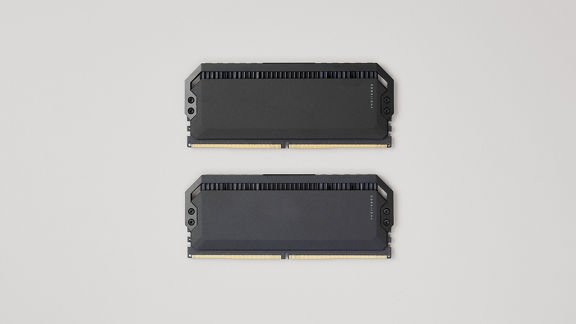
XMP profiles hold preset speed, timing and voltage combinations tested by the memory maker. Without one, memory runs at standard speeds below what the kit is rated for. Intel lists the BIOS menu location per board maker on its XMP page.
Gaming PC upgrades that raise FPS the most
Tip 30. When the settings above are done and games still stutter, hardware is the limit. Check your current parts under Settings > System > About and in Task Manager's Performance tab first.
| What you see | Upgrade | Why |
|---|---|---|
| GPU at full load, low FPS at every setting | Graphics card | The GPU decides resolution, detail and frame rate in most games |
| Memory near full in Task Manager, stutter when loading | RAM to 16 GB or more | 16 GB is the common target for gaming |
| Long load times, texture pop-in, game on a hard drive | SSD | SSDs load game data far faster than HDDs |
| CPU at full load while the GPU sits idle | Processor | More cores and higher clocks help busy and strategy games |
| Laptop with integrated graphics only | External GPU through Thunderbolt, or a new PC | Integrated GPUs suit lighter games, not demanding ones |
For gaming, put the GPU and RAM first. Check the motherboard, power supply and case size before you buy a new graphics card.
One-click PowerShell scripts for gaming performance
Two built-in commands repeat the power and drive tips from a terminal. Open Start, right-click Terminal and select Run as administrator before you run them.
- Run
powercfg /listto see every power scheme and its GUID. The active one has an asterisk. - Copy the GUID next to High performance and run
powercfg /setactive <GUID>with that value. - Run
powercfg /getactiveschemeto confirm the switch. - On an SSD, run
Optimize-Volume -DriveLetter C -ReTrim -Verbose, replacing C with your game drive letter. - On a hard drive, run
Optimize-Volume -DriveLetter D -Defrag -Verboseinstead, again with your own drive letter.
Add -Analyze in place of -ReTrim or -Defrag to report a drive's optimization state without changing anything. Save the lines in a .ps1 file if you want to run them together before a session.
Gaming PC maintenance schedule
Most of the tips above are one-time changes. These are the ones worth repeating.
| How often | Task | Where |
|---|---|---|
| Before long sessions | Close heavy apps, pause downloads, plug in the laptop | Taskbar, launchers, charger |
| Weekly | Check Windows Update and the GPU driver | Settings > Windows Update, NVIDIA App or AMD/Intel software |
| Monthly | Run Storage Sense and remove unused games | Settings > System > Storage |
| Monthly | Review startup apps | Task Manager > Startup apps |
| Every 3 to 6 months | Clean dust from fans, vents and the GPU heatsink | Inside the case or laptop vents |
| After a new game or driver | Recheck FPS and GPU load in the same scene | FPS counter and Task Manager |
How to check if your gaming performance improved
Measure before and after, in the same game and the same scene, so you can tell which tips helped.
- Turn on an FPS counter for PC games and note the frame rate in a repeatable spot.
- Apply a group of tips, restart the PC and return to the same spot.
- Press Ctrl + Shift + Esc, open Performance and check that the GPU graph is near full load while the game runs.
- Confirm the refresh rate under Settings > System > Display > Advanced display shows the highest value.
- Keep the changes that raised the frame rate or smoothed stutter, and undo any that made a game less stable.
Warnings before you tweak your gaming PC
| Change | Risk | What to do |
|---|---|---|
| Enabling XMP | Memory runs beyond standard settings; some systems become unstable | If the PC crashes or will not boot, turn XMP off in BIOS |
| Overclocking or automatic GPU tuning | Higher clocks add heat and can crash games | Watch temperatures and GPU load while you play, and return to stock settings if games become unstable |
| Hardware-accelerated GPU scheduling | Opt-in feature that some setups do not run well | Turn it off if games crash or stutter more |
| Opening the case | Static and live power can damage parts | Shut down, unplug and touch bare metal first |
| Disabling startup apps | Disabling security or audio software breaks features | Disable only apps you recognize |
| "PC booster" and "driver updater" tools | Many bundle unwanted software and change settings you cannot trace | Use Windows settings and the GPU maker's own driver instead |
| Best performance power mode | More heat, fan noise and battery drain | Switch back to balanced when you stop gaming |
For safety, never turn off Windows Security or your antivirus to gain frames. A full scan on a schedule outside gaming hours does not affect play.
PC gaming performance FAQ
How do I make my computer better for gaming?
Update the graphics driver, set Power mode to Best performance, run the monitor at its highest refresh rate, and lower in-game settings that cost the most frames. If games still stutter after that, upgrade the GPU, add RAM to reach 16 GB or move games to an SSD.
What makes a computer good for gaming?
A strong graphics card matters most, followed by enough RAM, a fast processor and SSD storage. Microsoft recommends 16 GB of RAM or more for gaming, more cores and higher clock speeds for the CPU, and an SSD rather than a hard drive for faster loading.
Is my computer good for gaming?
Compare your parts with the game's minimum and recommended requirements on its store page. Check your processor and RAM under Settings > System > About, and run dxdiag to see the graphics card and driver. Matching the recommended list means the game runs well at medium to high settings.
What is important for a gaming PC?
The GPU and RAM come first for gaming, then the processor and storage. A discrete graphics card handles heavy games far better than integrated graphics, 16 GB of RAM is the usual target, and an SSD cuts load times. A good monitor with a high refresh rate shows the extra frames.
Why should I get a gaming PC?
A gaming PC runs games from several stores, including Steam, Epic Games Store, GOG and the Xbox PC app with PC Game Pass. You can upgrade parts one at a time as games get more demanding, and the same machine handles work, streaming and creative apps.
Why is PC gaming considered the best by many players?
PC gaming gives the widest choice of stores and subscriptions, support for both keyboard and mouse and controllers, and graphics settings you can tune to your hardware. Parts can be upgraded instead of replacing the whole system when new games demand more.
How do I get better at PC gaming?
Start with a steady frame rate and a monitor running at its full refresh rate, because smooth, low-latency input makes aiming and timing easier. Use a wired connection for online games, keep the same mouse sensitivity across sessions, and practise in the game's training or offline modes.
What are good computer gaming tips for beginners?
Keep Game Mode on, install the latest graphics driver, and start new games on the preset the game recommends for your hardware. Install games on an SSD, play laptops plugged in, and close browsers and other heavy apps before you launch a game.
Which gaming PC tweaks matter most
Do the graphics driver update, refresh rate check, Best performance power mode and in-game settings first, then work down the table only if games still stutter. Those four changes affect every frame the GPU renders, while startup, notification and disk tweaks give smaller gains. If the GPU is already at full load with sensible settings, the next real improvement is a hardware upgrade, not another Windows tweak.

![6 best free virtual webcam software for Windows [2026 update]](https://techdows.com/wp-content/uploads/2026/10/6-best-free-virtual-webcam-software-for-Windows-2026-update-600x338.jpg)