Select Start, type Adjust the appearance and performance of Windows, open it, and choose Adjust for best performance on the Visual Effects tab to trade Windows animations and shadows for speed.
This guide covers that Performance Options dialog, the separate transparency and animation switches in Settings, the power mode, the other built-in speed settings, and how to put the original look back.
Adjust appearance and performance in Windows 11/10
The Performance Options dialog is the classic control for visual effects. It looks and works the same in Windows 11 and Windows 10.
- Select Start and type Adjust the appearance and performance of Windows.
- Open the matching result. The Performance Options dialog appears.
- Stay on the Visual Effects tab.
- Select Adjust for best performance.
- Select Apply, then OK to close the dialog.
The desktop now drops most animations, fades and shadows. Apps keep working exactly as before; only the way windows and menus are drawn changes.
Change visual effects settings in Advanced system settings
The same Performance Options dialog also opens from System Properties. This route is useful when search is slow, and it is the way into the advanced performance settings on the dialog's Advanced tab.
- Press Windows logo key + R, type
SystemPropertiesAdvancedand press Enter. Alternatively, press Windows logo key + Pause/Break and select Advanced system settings. - On the Advanced tab of System Properties, select Settings in the Performance section.
- Choose an option on the Visual Effects tab, or switch to the Advanced tab for virtual memory.
- Select Apply, then OK.
Microsoft does not document a supported Registry Editor value for these choices, so change visual effects settings through this dialog rather than by editing the registry.
Best performance vs appearance: which visual effects option to choose
The Visual Effects tab offers preset choices plus a list of individual effects. Pick the row that matches your PC.
| Your situation | Choose this | Why |
|---|---|---|
| Older or low-memory PC that feels sluggish when opening windows | Adjust for best performance | Switches off the effects that cost the most graphics and processor time |
| Modern PC that runs smoothly, or you are unsure | Let Windows choose what's best for my computer | Windows picks effects based on the hardware; Microsoft calls it the less drastic option |
| You want speed but miss one or two effects | Pick individual effects in the list | Keeps only the effects you value and drops the rest |
| Windows animations bother you, but the PC is fast | Settings toggles for Animation effects and Transparency effects | Removes motion and see-through panels without opening the older dialog |
| Laptop on battery | Leave effects alone and keep a balanced power mode | The power mode affects battery life far more than menu animations |
Customize individual visual effects in Performance Options
You do not have to switch every effect off. The list under the preset options lets you keep the ones you like.
- Open Performance Options by searching Adjust the appearance and performance of Windows from Start.
- On the Visual Effects tab, start from Adjust for best performance so every effect is cleared.
- Manually select the check box next to each essential effect you want back, such as font smoothing or thumbnail previews.
- Select Apply and watch the desktop for a moment to judge the change.
- Repeat with other check boxes until the balance looks right, then select OK to save the changes.
Starting from the cleared list makes it obvious what each check box does, because only the effects you add come back.
Configure virtual memory settings in Windows 11 and 10
Virtual memory is backed by the page file on your drive. Windows manages its size automatically, and that default suits most PCs. Change it only if apps show out-of-memory errors, because an automatic page file starts small and grows as needed.
- Open Performance Options through Advanced system settings as shown above.
- Select the Advanced tab, then select Change in the Virtual memory section.
- Clear the Automatically manage paging file size for all drives check box.
- Select Custom size and enter the Initial size and Maximum size in MB. Microsoft recommends an initial size of 1.5 times the installed RAM for this fix.
- Select OK, then restart the PC.
To check virtual memory settings later, reopen the same dialog. Select the automatic check box again to return to the default.
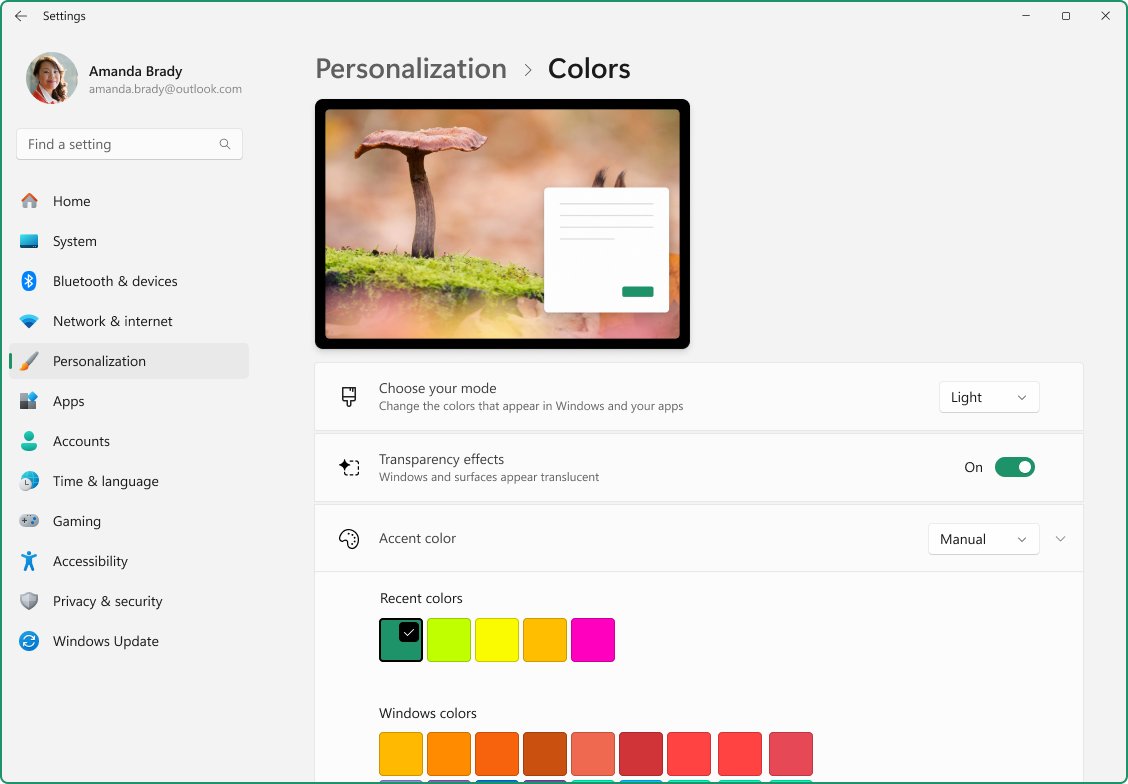
Turn off transparency and animation effects in Windows 11 and 10 Settings
Settings has its own switches for transparency and animations. They work alongside the Performance Options dialog and are easier to reach.
| What you want | Windows 11 path and toggle | Windows 10 path and toggle |
|---|---|---|
| Stop window and menu animations | Settings > Accessibility > Visual effects > turn off Animation effects | Settings > Ease of Access > Display > turn off Show animations in Windows |
| Make window backgrounds opaque | Settings > Accessibility > Visual effects > turn off Transparency effects | Settings > Ease of Access > Display > turn off Show transparency in Windows |
| Remove the desktop picture | Set a solid color under Settings > Personalization > Background | Settings > Ease of Access > Display > turn off Show desktop background image |
Windows 11 also has an Always show scrollbars toggle on the same Visual effects page; turn it off to hide scrollbars until you need them. Transparency has a second switch under Settings > Personalization > Colors.
Select the best power mode for performance in Windows 11 and 10
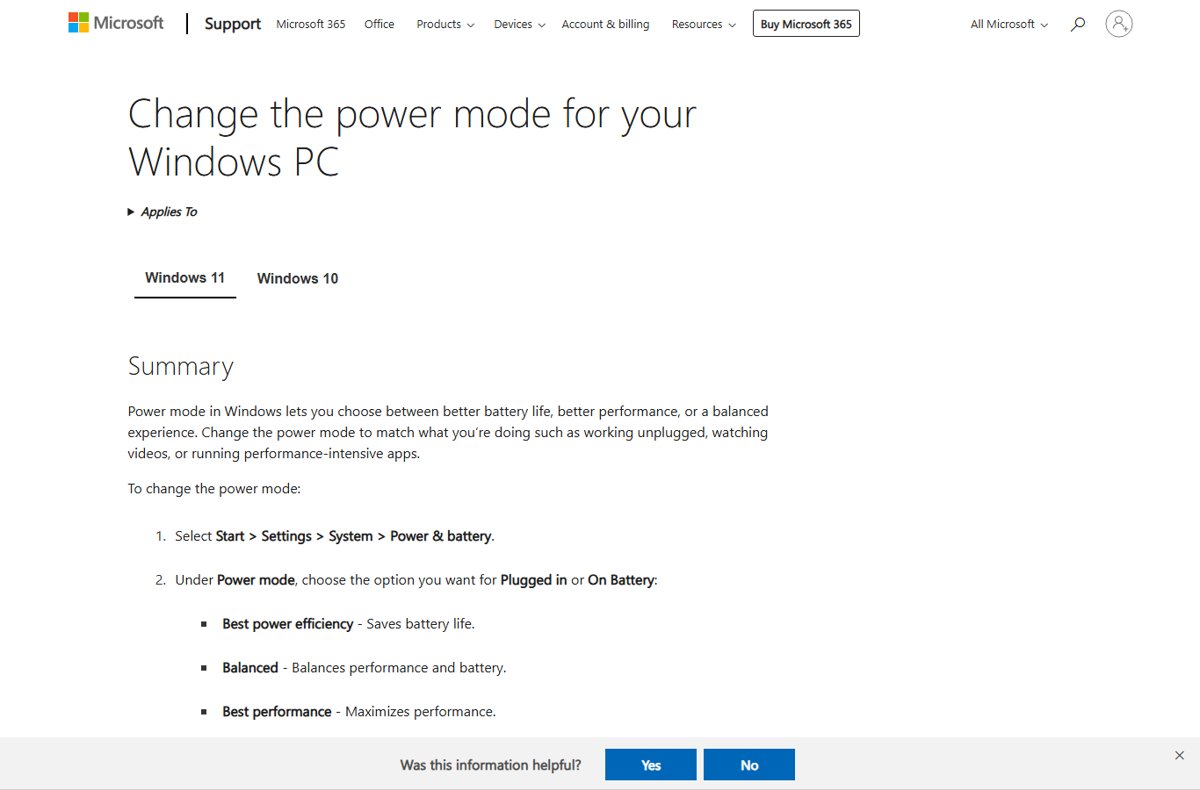
Power mode decides how hard the processor is allowed to work. On a desktop PC, Best performance usually matters more than any visual effect.
- In Windows 11, select Start > Settings > System > Power & battery.
- Under Power mode, choose Best performance. Laptops show separate choices for Plugged in and On battery.
- In Windows 10, select the Battery icon on the taskbar.
- Drag the slider toward the best performance end.
- If Windows 11 will not let you change the mode, open Control Panel > System and Security > Power Options and choose Balanced, then return to step 2.
Best performance raises power use, drains a laptop battery faster and can make the device run warmer. The Windows 10 slider needs version 1703 or later and is not available on every PC, because it depends on the hardware and manufacturer.
Desktop users who want the older plan can also add the High performance power plan in Windows 11.
Graphics performance settings in Windows 11
Windows 11 keeps per-app graphics choices in Settings. On a PC with more than one graphics processor, you can make a game or heavy app use the faster one.
- Select Start > Settings > System > Display > Graphics.
- Under Default settings, turn on Optimizations for windowed games to cut frame latency in DirectX 10 and 11 games that run windowed or borderless.
- Under Custom options for apps, select the app or game, then select Options.
- In Graphics preference, choose High performance, Power saving or Let Windows decide (Power saving).
- Select Save and restart the app or game.
If Auto HDR is on, Optimizations for windowed games stays on; turn off Auto HDR first if you want to switch the optimizations off.
Other Windows performance settings to change after visual effects
Visual effects are one of several built-in levers. These are the best Windows settings for maximum performance after visual effects, and running them as regular maintenance keeps a PC responsive. They often free more resources than the effects themselves.
| Setting | Where to find it | What it does |
|---|---|---|
| Startup apps | Press Ctrl + Shift + Esc > Startup apps > right-click an app > Disable | Stops apps loading at sign-in, which shortens boot time |
| Background app permissions | Settings > Apps > Installed apps > … > Advanced options > Let this app run in the background > Never | Stops an app working while you are not using it, which helps reduce unnecessary background apps |
| Storage Sense | Settings > System > Storage > Storage Sense > Run Storage Sense now | Deletes temporary files when the drive is low on space |
| Optimize drives | Search Defragment and Optimize Drives > select a drive > Optimize | Optimizes the drive layout |
| Windows updates and optional driver updates | Windows 11: Settings > Windows Update > Check for updates, then Advanced options > Optional updates | Installs fixes and newer drivers that can improve performance |
| App notifications | Settings > System > Notifications | Cuts interruptions and gives a small performance gain |
| Malware scan | Settings > Privacy & security > Windows Security > Virus & threat protection > Quick scan | Finds and removes threats that consume processor and disk resources |
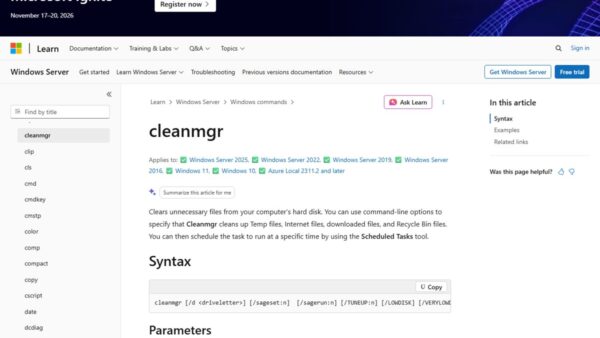
| Free up disk space | Settings > System > Storage > Temporary files > Remove files, or search Disk Cleanup | Removes temporary files when low disk space slows the PC |
| Uninstall unused apps | Settings > Apps > Installed apps > … > Uninstall | Frees storage and reduces background activity |
| Close unused apps and restart | Close apps and browser tabs you do not need; if the PC is still slow, select Start > Power > Restart | Releases memory held by open apps; there is no need to restart your PC regularly on a schedule, so restart only if closing apps does not help |
Microsoft notes that older PCs with outdated hardware may not improve much from these steps, and upgrading can be the better long-term fix.
Monitor resource usage and troubleshoot heavy processes in Task Manager
If the PC stays slow after these changes, the next common troubleshooting step is to find out which app is using the processor, memory or disk.
- Press Ctrl + Shift + Esc to open Task Manager.
- On the Processes tab, sort by the CPU, Memory or Disk column to see the heaviest processes.
- Right-click an app you are not using and select End task.
- Open the Performance tab to watch overall processor, memory and disk use.
- Open Startup apps and disable any heavy app that starts with Windows.
How to check the appearance and performance changes worked
Verify the improvement once the changes are saved with these quick checks.
- Minimize and restore a window. With animations off, it snaps in place instead of sliding.
- Open Start. With transparency off, the panel is a solid color instead of see-through.
- Reopen Performance Options and confirm your choice is still selected on the Visual Effects tab.
- Press Ctrl + Shift + Esc and open the Performance tab in Task Manager to watch processor and memory use while you work.
- In Windows 11, reopen Settings > System > Power & battery and confirm Power mode shows Best performance.
Restore the default Windows appearance settings
Every change here is reversible, and none of it deletes files or apps.
- Open Performance Options from Start by searching Adjust the appearance and performance of Windows.
- Select Let Windows choose what's best for my computer on the Visual Effects tab.
- Select Apply, then OK.
- Turn Animation effects and Transparency effects back on under Settings > Accessibility > Visual effects in Windows 11, or the matching Ease of Access > Display toggles in Windows 10.
- Set Power mode back to Balanced under Settings > System > Power & battery.
For resolution, scaling, themes and accent colors, use the display and personalization settings instead; Performance Options does not touch those.
Windows appearance and performance FAQs
Does adjusting appearance improve Windows performance?
Yes, on slower PCs. Visual effects use graphics and processor time, and Microsoft lists Adjust for best performance among its tips for a slow PC. On a modern computer the gain is small, because the hardware draws those effects easily.
Why change performance settings on Windows 11?
Slow startup, laggy windows and short battery life often come from startup apps, background activity, low disk space and the power mode. Changing these settings frees resources for the apps you are using, which matters most on older or low-memory PCs.
Will changing these settings damage my computer?
No. Visual effects only change how windows, menus and text are drawn, and you can restore them at any time with Let Windows choose what's best for my computer. The Best performance power mode raises heat and power use, so watch laptop temperatures.
Which option should I choose for the fastest performance?
Choose Adjust for best performance on the Visual Effects tab, then set Power mode to Best performance in Settings. Together these remove most drawing effects and let the processor run at higher performance when needed.
Can I keep some visual effects while improving performance?
Yes. Start from Adjust for best performance, then select the check boxes for the effects you want back, such as font smoothing. Only the effects you select return, and the rest stay off.
Do these settings increase gaming performance?
Visual effects mostly affect the desktop, not a running game, so the frame-rate gain is usually small. The Best performance power mode and closing background apps have more effect while you play.
Are these steps the same in Windows 11 and Windows 10?
The Performance Options dialog is identical in both. The Settings toggles differ: Windows 11 keeps them under Accessibility > Visual effects, and Windows 10 under Ease of Access > Display. Power mode is in Settings on Windows 11 and on the taskbar battery slider on Windows 10.
Where is Adjust the appearance and performance of Windows?
It is a Control Panel page that opens the Performance Options dialog. The quickest route is to select Start, type Adjust the appearance and performance of Windows, and open the result.
What does Let Windows choose what's best for my computer do?
It lets Windows decide which visual effects to keep based on your hardware. It is the less drastic choice than Adjust for best performance and the easiest way to return to the normal look.
Bottom line: should you adjust Windows for best performance?
Choose Adjust for best performance on older or low-memory PCs, and leave Let Windows choose what's best for my computer on modern hardware. The effects cost real resources only on weak hardware. On a current PC, startup apps, background permissions and the power mode change responsiveness far more than shadows and animations do.