RAM usage stays high with nothing open because background apps, startup programs, services, browser processes and Windows file caching all keep memory busy even when your desktop looks idle.
This guide shows how to find what is holding the memory in Task Manager, how to cut it back on Windows 11 and Windows 10, how to read your installed RAM and video memory, and when the page file or faulty RAM is the real cause.
Why is my RAM usage so high when nothing is running in Windows 11?
Closing every window does not stop the programs that run in the system tray, the services Windows starts at boot, or apps that keep working after you close them.
Windows also keeps recently used file data in RAM so it can open it again quickly. Idle memory is wasted memory, so some of that usage is normal and is released as soon as an app needs it.
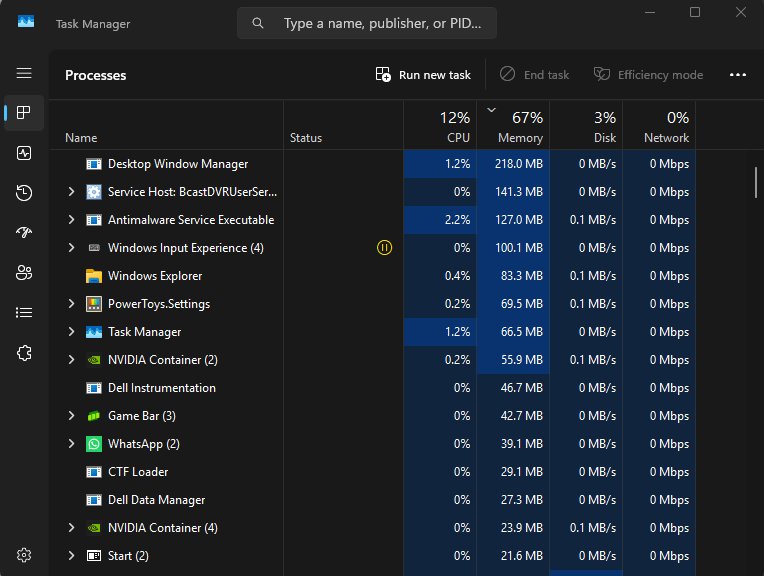
- Press Ctrl + Shift + Esc to open Task Manager.
- Select More details if Task Manager opens in the small view.
- On the Processes tab, click the Memory column header to sort the heaviest processes to the top.
- Right-click any app you do not need and select End task.
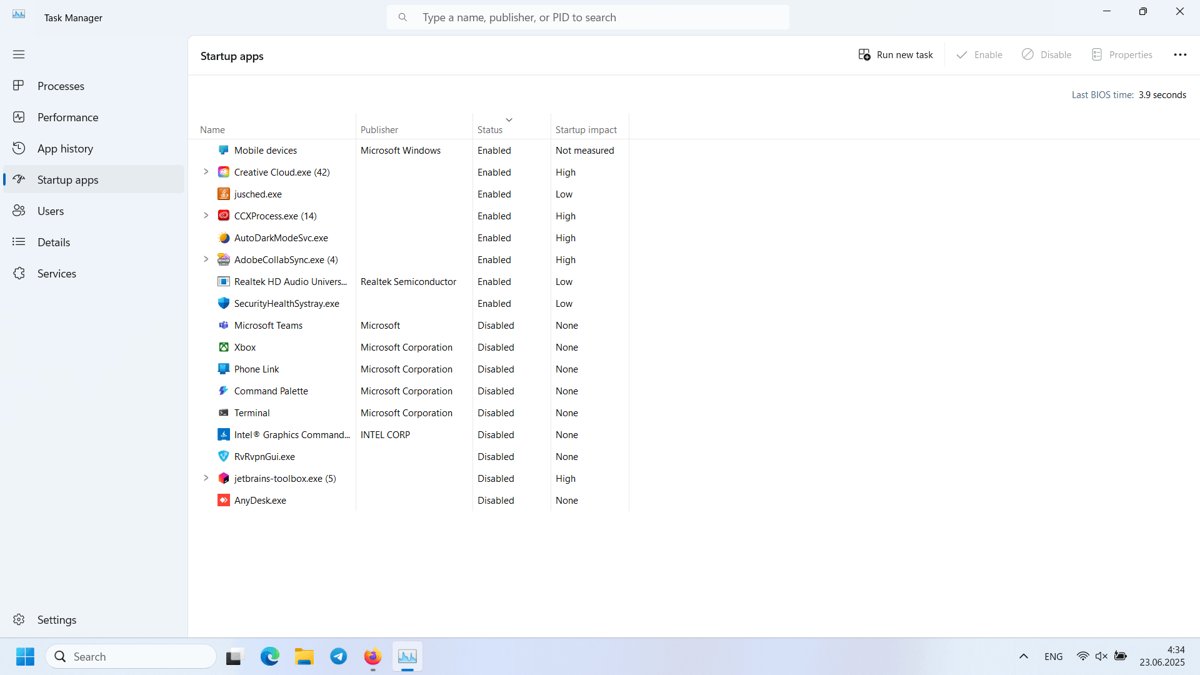
- Open the Startup apps page, right-click programs you do not need at sign-in and select Disable.
- Restart the PC from Start > Power > Restart and check the memory figure again after a few minutes.
If one process keeps growing after a restart, that process is the cause. Jump to the troubleshooting section for that pattern.
Common causes of high memory usage at idle
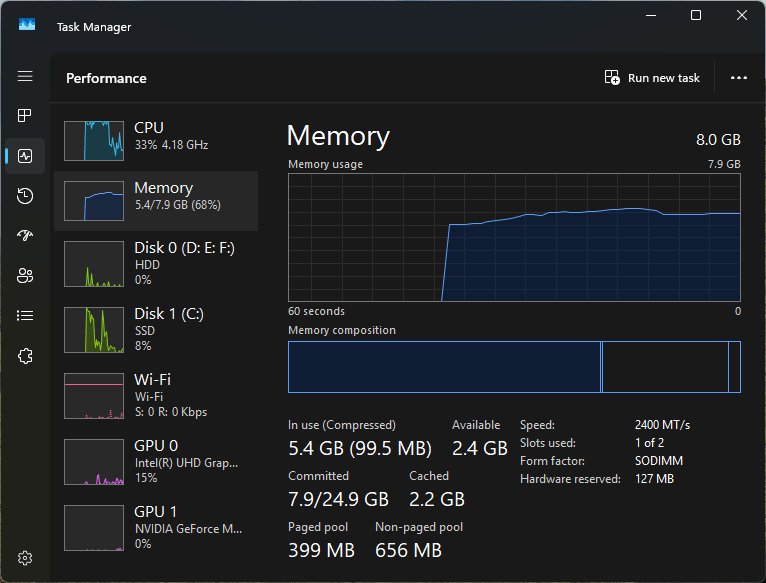
High memory usage only becomes a problem when the memory programs have committed approaches the commit limit (RAM plus the page file), or when the PC slows because Windows is paging. A large share of RAM filled by cached file data is not high usage in that sense.
Match what you see in Task Manager to a row. Each cause has a different fix, so identify it before you change settings.
| What you see | Likely cause | What to do |
|---|---|---|
| Several tray icons and long sign-in times | Startup apps loading at boot | Disable them on the Startup apps page of Task Manager |
| Many msedge.exe or other browser processes | Open tabs, extensions or background mode | Use the browser task manager and sleeping tabs (Edge section below) |
| vmmem near the top | A virtual machine or WSL distribution still running | Shut the virtual machine down |
| Store apps you never open still listed | Background app permissions allow them to run | Set Background app permissions to Never |
| Memory climbs steadily for hours, one process grows | An app or driver not releasing memory | Update or reinstall that app, update drivers |
| Usage high but the PC feels fast | Windows caching file data in RAM | Nothing; cached data is released on demand |
| Unknown processes, high usage, slow PC | Malware | Run a Microsoft Defender scan |
| Installed RAM higher than usable RAM | Memory reserved by firmware or integrated graphics | Nothing to fix; reserved memory is not available to apps |
How to find which process is using the most memory
There are no prerequisites beyond a Windows account that can open Task Manager; ending other users' processes needs an administrator.
The Processes tab shows working memory. The Details tab can also show Commit size, which is the memory a process has reserved, including the part that sits in the page file.
- Press Ctrl + Shift + Esc to open Task Manager.
- Select the Details tab.
- Right-click any column header and choose Select columns.
- Tick Commit size and select OK.
- Click the Commit size header to sort processes from largest to smallest.
- Close the program at the top if you are not using it. If it is a Windows system process, restart the PC instead of ending it.
How to stop unnecessary RAM usage from startup and background apps
These are the two settings that cut idle memory the most, because they stop programs loading at all.
- Press Ctrl + Shift + Esc, select Startup apps, right-click each program you do not need at sign-in and choose Disable.
- On Windows 11, open Settings > Apps > Installed apps.
- Select the … menu next to an app and choose Advanced options.
- Under Background app permissions, set the app to Never.
- On Windows 10, open Settings > Privacy > Background apps and turn off the toggle for each app you do not need.
- Uninstall apps you no longer use from Settings > Apps > Installed apps (Windows 11) or Apps & features (Windows 10).
- On Windows 11, open Settings > System > Notifications, expand Additional settings and clear Get tips and suggestions when using Windows to stop tips prompts.
- Restart the PC so disabled startup apps stay closed.
Disable unwanted third-party services with a clean boot
Services from drivers, updaters and utilities run with no window at all, so they never show up as open apps. A clean boot starts Windows with only Microsoft services and no startup apps, which shows how much idle memory the third-party ones were using.
- Sign in with an administrator account.
- Select Search, type
msconfigand select System Configuration. - On the Services tab, select Hide all Microsoft services, then select Disable all and Apply.
- On the Startup tab, select Open Task Manager and disable each enabled item on the Startup apps page, noting which ones you changed.
- Close Task Manager, select OK in System Configuration and restart.
- Check memory usage in Task Manager. If it is much lower, turn the services back on in halves and restart each time until the heavy one shows itself.
- Leave that service disabled or uninstall its program, then turn the rest back on with Enable all on the Services tab.
Some features can stop working while services are disabled, so return to a normal startup once you have found the culprit. On a work PC, network policy may block these changes.
Disable Superfetch (SysMain) to lower RAM usage
Superfetch is now the SysMain service. Microsoft describes it as a service that maintains and improves system performance over time, and gives no guidance to disable it. Turn it off only to test whether it is behind your idle memory use.
- Select Search, type computer management and open Computer Management.
- Expand Services and Applications and select Services.
- Double-click SysMain.
- Set Startup type to Disabled, select Stop, then select OK.
- Restart and compare memory usage and how quickly your apps open.
- If apps feel slower and memory use barely changed, set Startup type back to Automatic and select Start.
Memory SysMain uses for caching is released when an app needs it, so a high figure with SysMain running is usually harmless.
How to reduce Microsoft Edge memory usage
A browser with many tabs and extensions is the most common reason one app holds gigabytes of RAM. Edge also keeps running after you close it if background mode is on.
- In Edge, press Shift + Esc to open the browser task manager and sort by Memory.
- Select the heavy tab or extension and choose End process.
- Go to
edge://extensions/, turn off all extensions, then turn them back on one at a time to find the heavy one. - Go to
edge://settings/system/managePerformanceand turn on Save resources with sleeping tabs. - Go to
edge://settings/systemand turn off Continue running background extensions and apps when Microsoft Edge is closed. - If memory stays high, go to
edge://settings/resetand select Restore settings to their default values.
A reset keeps bookmarks, history and saved passwords, but resets pinned tabs, the startup page, the search engine and extensions.
How to fix Chrome memory bloat with Memory Saver
Chrome has its own answer to Edge sleeping tabs. Memory Saver frees memory from tabs you are not using and reloads them when you return, which Google says can cut Chrome memory use by up to 40 percent.
- In Chrome, select the three-dot menu and choose Settings.
- Open Performance.
- Turn on Memory Saver.
- Add sites you need to stay loaded, such as a music or chat tab, under Keep specific sites active.
- Turn on Tab memory usage to see how much memory each tab is using.
- Close tabs and remove extensions you no longer use from the same three-dot menu.
How much computer RAM, graphics card, or video memory do I have on my PC?
Check the installed amount before you judge the percentage. 60 percent of 4 GB and 60 percent of 32 GB are very different situations.
Firmware reserves a little memory at boot, and a GPU without its own memory borrows system RAM, so usable RAM can be lower than installed RAM.
| What you want to know | Where to look | What it shows |
|---|---|---|
| Installed RAM | Right-click Start > Settings > System > About, under Device specifications | Installed RAM, processor and 32-bit or 64-bit Windows |
| Which graphics card you have | Right-click Start > Device Manager > expand Display adapters | Each display adapter by name |
| Graphics card and driver details | Right-click Start > Run, type dxdiag.exe, open the Display tab |
Adapter name and driver in the Device section |
| Dedicated GPU memory in use | Task Manager > Performance > select the GPU | Dedicated GPU memory used and available |
| Per-app GPU memory | Task Manager > Details, right-click a column header and add Dedicated GPU memory | GPU memory per process |
Some GPUs, mainly integrated ones, have no dedicated memory. On those, the dedicated GPU memory counter shows 0 or is missing, and the GPU uses shared system memory instead.
How to change the page file size when RAM is full
When RAM fills, Windows moves rarely used modified data to the page file. If the total memory promised to programs reaches the commit limit (RAM plus all page files), apps can freeze, crash or show out-of-memory errors.
Microsoft recommends leaving the page file system managed. Adjust the pagefile with manual tuning, a custom size, only if you get out-of-memory errors with the automatic setting.
- Search for Advanced system settings in the Start menu and select Open to open System Properties.
- Select Settings in the Performance section of the Advanced tab.
- In Performance Options, select the Advanced tab, then Change in the Virtual memory section.
- To let Windows handle it, tick Automatically manage paging file size for all drives.
- To set a size, clear that box, select the drive, choose Custom size, and enter Initial size and Maximum size.
- Select Set, then OK, and restart the PC.
Do not choose No paging file if you have seen low-memory errors. Microsoft warns it can make the system unstable, and Windows also uses the page file to write crash dumps.
Windows keeps using HDD instead of SSD for page file when the RAM is full
When a PC has more than one page file, Windows uses whichever one responds first. A page file on a faster disk is therefore used more often, but a page file left on a hard drive can still be used.
To keep paging on the SSD, give the SSD a page file and remove the one on the hard drive in the Virtual Memory dialog shown above.
| Setup | What Windows does | What to change |
|---|---|---|
| Page file on SSD only | All paging goes to the SSD | Nothing |
| Page files on both SSD and HDD | Uses whichever page file responds first | Select the HDD, choose No paging file, select Set; keep System managed size on the SSD |
| Page file on HDD only | All paging goes to the slower disk | Select the SSD, choose System managed size, select Set, then remove the HDD page file |
| Automatic management ticked | Windows chooses drives and sizes itself | Clear Automatically manage paging file size for all drives before you pick drives |
Restart after any change. Paging speed only matters if the page file is used heavily; if it is, the better fix is closing memory-hungry apps or adding RAM.
How to clear RAM cache in Windows 11 and 10
Windows keeps recently used file data in RAM, on what is called the standby list, and hands that memory to any app that asks for it. Clearing it by force rarely helps, because the data then has to be read from disk again.
- Save your work and close open apps.
- Select Start > Power > Restart. A restart empties RAM completely, including the file cache.
- To see how much RAM is file cache rather than in-use memory, run Microsoft's free Sysinternals RAMMap; the Use Counts tab summarises memory by type and paging list.
- Open the Priority Summary tab to see the standby list sizes; that is cached data Windows gives back on demand.
- To check for memory fragmentation or locking, open the Physical Pages tab for per-page use of all physical memory and Physical Ranges for the addresses in use; the Use Counts tab also shows how much RAM the kernel and device drivers hold.
If cached memory is large but the PC is fast, leave it alone. Clear the cause instead when the committed figure, not the cache, is close to the limit.
How to investigate driver memory leaks (non-paged pool growth)
A leaking driver does not appear as a process in Task Manager. Kernel-mode leaks usually drain the non-paged pool, so that counter climbs steadily while the PC sits idle; user-mode leaks raise the paged pool and page file usage instead.
- Press Windows + R, type
perfmonand select OK to open Performance Monitor. - Under Monitoring Tools, right-click Performance Monitor and select Properties.
- On the Data tab, add Memory > Pool Nonpaged Bytes, Memory > Pool Paged Bytes and Paging File > % Usage.
- On the General tab, set Sample every to 600 seconds and Duration to 86400 to record a full day.
- Leave the PC idle for several hours; the values change quickly at first, so judge the trend only once they settle.
- If Pool Nonpaged Bytes keeps rising, run PoolMon from the Windows Driver Kit, press P to limit the list to non-paged pool tags and B to sort them by bytes.
- Run
poolmon /gwith the path to the WDK'spooltag.txtfile to add a Mapped_Driver column, then update or roll back the driver that owns the growing tag.
The pool counters occasionally rise because an app is caching data, so confirm the growth over several hours before you blame a driver.
How to check memory usage after the fixes
- Restart the PC and wait two or three minutes after signing in.
- Press Ctrl + Shift + Esc and select the Performance tab.
- Select Memory and compare the usage with the figure you saw before.
- Check Committed: the first number should stay well below the second, which is the commit limit.
- Leave the PC idle for an hour and check again. A figure that holds steady is normal; one that keeps climbing points to a leaking process.
Fix high memory usage that will not go down
Memory usage keeps increasing the longer the PC is on
A program or driver is not releasing memory it no longer needs.
- Sort the Details tab by Commit size and note which process grows over time.
- Update that app, or uninstall and reinstall it.
- Open Settings > Windows Update, select Check for updates, then install driver updates under Advanced options > Optional updates.
- Restart and watch the same process again.
vmmem uses gigabytes of RAM with no apps open
A virtual machine, Windows Subsystem for Linux or a container is still running in the background.
- Shut down the virtual machine or WSL distribution you started.
- Check Task Manager again; vmmem memory is returned once the virtual machine stops.
- If it comes back on its own, fix Vmmem high memory usage by capping its memory.
High memory usage on a laptop with slow performance and unknown, hidden or unlisted processes
Malware or unwanted software running in the background.
- On Windows 11, open Settings > Privacy & security > Windows Security > Virus & threat protection.
- On Windows 10, open Settings > Update & Security > Windows Security > Virus & threat protection.
- Select Quick scan and remove anything it finds.
- To scan for malware that hides while Windows runs, select Scan options, choose Microsoft Defender Antivirus (offline scan) and start it; the PC restarts, scans in the Windows Recovery Environment, and shows results under Protection history.
- To see every active process with its owning account, run Microsoft's Sysinternals Process Explorer and look for names you do not recognise.
- Restart and check memory usage again.
Store app processes stay busy in the background
Microsoft Store apps update and run in the background when their permissions allow it.
- Set Background app permissions to Never for Store apps you do not use.
- If the Store service itself stays busy, fix WSAPPX high CPU usage with the same background-app settings.
- Restart the PC.
Out-of-memory errors or apps crashing with RAM full
The commit charge has reached the commit limit, or the page file cannot grow fast enough.
- Free space on the system drive so the page file can grow.
- Open the Virtual Memory dialog and make sure a page file exists.
- If the errors continue with automatic management, set a custom Initial size and restart.
- Close large apps you are not using.
Memory usage high and the PC crashes or shows blue screens
A faulty RAM module.
- Save your work and close all apps.
- Press Windows + R, type
mdschedand press Enter. - Select Restart now and check for problems (recommended).
- After the PC restarts, read the result notification, or open Event Viewer at Applications and Services Logs > Microsoft > Windows > MemoryDiagnostics-Results; Event ID 2001 means no errors were found.
How to avoid high memory usage on Windows 11 and 10
Once memory is back to normal, these habits keep it there and stop the problem returning after the next app install.
- After installing any program, check the Startup apps page in Task Manager and disable it there if you do not need it at sign-in.
- Keep sleeping tabs on in Edge or Memory Saver on in Chrome, and close tabs you no longer need.
- Install updates from Settings > Windows Update, including optional driver updates, so fixes for leaking apps and drivers reach you.
- Restart the PC every few days instead of only shutting down, so a full start clears leaked memory.
- Run a Microsoft Defender quick scan whenever unknown processes appear in Task Manager.
- Leave the page file on automatic management and keep free space on the system drive.
- If committed memory still sits near the limit during normal work, add RAM: 8 GB suits long-term everyday use and 16 GB or more suits editing and other demanding work.
High RAM usage at idle FAQ
Why is my memory usage so high at idle?
Idle memory use comes from startup apps, tray programs, services, browser background processes and Windows caching recently used files. Sort the Processes tab in Task Manager by Memory to see what is responsible, then disable unneeded startup and background apps.
Is high RAM usage bad?
Not by itself. Windows uses spare RAM to cache file data and releases it when an app needs it. It becomes a problem when the PC slows down, apps freeze, or the committed memory approaches the commit limit on the Task Manager Performance tab.
What happens when memory usage is high?
Windows moves rarely used data to the page file, which is slower than RAM, so apps can lag. If committed memory reaches the commit limit, programs can freeze, crash or show out-of-memory warnings.
Why is memory usage so high in Task Manager when nothing is open?
Task Manager counts background apps, services and system processes, not just open windows. Startup programs and apps with background permissions keep running after you close their windows, and browsers can keep running in background mode.
Why does my memory usage keep increasing?
Usage that climbs steadily for hours usually means one program or driver is not releasing memory. Add the Commit size column on the Task Manager Details tab, watch which process grows, and update or reinstall it.
Why is my memory usage so high on Edge?
Many open tabs, extensions and background mode keep Edge memory high. Press Shift + Esc in Edge to see which tab or extension uses the most, turn on sleeping tabs, and turn off background extensions and apps when Edge is closed.
Why is my memory usage so high on Roblox?
Games load large amounts of data into RAM while they run. Close the browser and other background apps before playing, and check in Task Manager whether the game or something else running alongside it holds the memory.
Why is my laptop memory usage so high?
Laptops often ship with preinstalled utilities that start at sign-in and run in the background. Disable them on the Startup apps page in Task Manager, set background app permissions to Never, and remove apps you do not use.
How much RAM do I need for Windows 11?
Microsoft suggests at least 4 GB for browsing, documents and video, 8 GB for long-term use, and 16 GB or more for photo or video editing and other demanding work.
How do I fix high memory usage in Windows 10?
Use the same steps as Windows 11: end unneeded tasks in Task Manager, disable startup apps, turn off apps under Settings > Privacy > Background apps, run a Windows Security quick scan, and restart.
Bottom line on high RAM usage with nothing running
Sort Task Manager by memory, disable the startup and background apps you do not need, and restart before changing the page file or buying RAM. Most idle memory use comes from software that loads at sign-in or keeps running in the background. A page file change or a RAM test only matters when you see out-of-memory errors, crashes, or a process that never stops growing.

![EA Javelin anti-cheat setup: fix kernel errors [2026]](https://techdows.com/wp-content/uploads/2026/10/EA-Javelin-anti-cheat-setup-fix-kernel-errors-2026-1-570x338.jpg)