A slow shutdown in Windows 10 almost always means an app, service, driver or pending update is not closing on time, so start by closing open apps and ending stuck processes in Task Manager.
If that does not cure it, work down the eight fixes below: fast startup, updates, system file repair, startup items, malware and disk checks, Event Viewer and a clean boot, then confirm the result with a timed shutdown.
Fix 1: Check for apps and background processes delaying shutdown
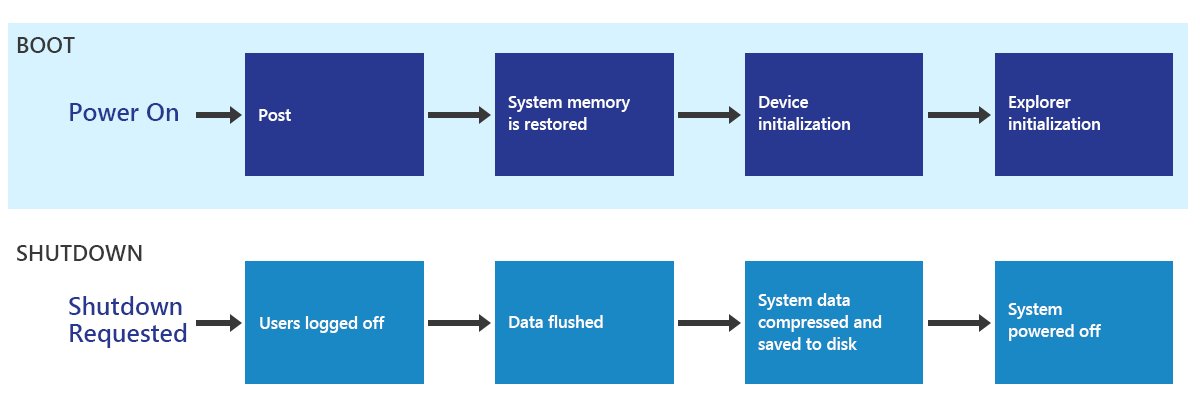
When you shut down, Windows asks every running app to save its data and close. An app that stalls on that request holds up the whole shutdown, and so does a tray utility that is syncing or updating in the background. Updates and unresponsive drivers are the other usual reasons Windows takes forever to shut down.
Closing those programs yourself before you shut down is the quickest test, and it also shows you which app is the culprit.
- Save your work and close every open window, including browsers with many tabs.
- Select the ^ arrow in the notification area, right-click each tray icon you do not need (cloud sync, game launchers, updaters) and choose its exit or quit option.
- Press Ctrl + Shift + Esc to open Task Manager, and select More details if it opens in the small view.
- On the Processes tab, look under Apps and Background processes for anything still using CPU or disk heavily.
- Select a stuck third-party process and choose End task. Leave Windows processes alone.
- Select Start > Power > Shut down and time how long the screen takes to go dark.
- If Windows shows a screen listing apps that are still running, note their names: those are the programs to update, reconfigure or remove.
If shutdown is quick after this, the delay comes from one of the apps you closed. Stop it from starting with Windows in Fix 5 so you do not have to repeat this every time.
Which Windows 10 slow shutdown fix to try first
| What you notice | Start with | Why |
|---|---|---|
| Shutdown is slow only with certain apps open | Fix 1: close apps and background processes | An app that does not answer the close request holds up shutdown |
| PC returns to the lock screen instead of turning off | Fix 2: fast startup and power settings | Fast startup hibernates the kernel, and a failed hibernation sends you back to the lock screen |
| Slow shutdown started after an update or new hardware | Fix 3: update Windows, drivers and BIOS | A half-installed update or an old driver can stall the power-off sequence |
| Errors, crashes or missing features alongside slow shutdown | Fix 4: SFC and DISM repairs | Corrupt system files affect services that must stop cleanly |
| Many programs load at sign-in | Fix 5: startup programs and services | Every startup app and third-party service has to be closed again at shutdown |
| PC also feels slow, noisy disk or unknown processes | Fix 6: malware scan and disk check | Malware and file system errors both slow every disk-heavy task, shutdown included |
| You want to see when shutdown starts and finishes | Fix 7: Event Viewer | Shutdown events in the System log give you timestamps and errors |
| Nothing above explains it | Fix 8: clean boot | Starting with only Microsoft services isolates the third-party program behind the delay |
Fix 2: Disable fast startup and adjust power settings
Fast startup is on by default in Windows 10. When it is on, Shut down logs off your session and then hibernates the kernel and drivers to the hibernation file instead of closing them. That disk write is part of every shutdown, and if a driver blocks hibernation, Windows can return to the lock screen instead of turning off.
Microsoft does not recommend turning fast startup off as a general tweak, so test first: run shutdown /s /t 0 from the Run box, which performs a full shutdown. If that is clearly faster or more reliable than Start > Power > Shut down, turn fast startup off.
- Select Start > Settings > System > Power & sleep.
- Under Related settings, select Additional power settings to open Power Options.
- Select Choose what the power buttons do in the left pane.
- Select Change settings that are currently unavailable and approve the administrator prompt.
- Under Shutdown settings, clear the fast startup checkbox and save the change.
- Back in Power Options, select Show additional plans if it appears and choose High performance on a desktop PC that is always plugged in.
- Shut down from the Start menu and compare the time with your earlier shutdowns.
Fast startup does not apply to Restart, which always performs a full shutdown and boot. If you turn fast startup off and see no difference, turn it back on, because it makes cold starts faster.
Fix 3: Update Windows, drivers, and BIOS
Pending updates finish installing during shutdown or restart, which is the most common cause of a one-off slow shutdown. Outdated storage, chipset and graphics drivers cause the repeated kind, and some power-handling bugs are fixed only in BIOS or UEFI firmware.
Windows 10 reached end of support on October 14, 2025, so make sure the PC is on the latest Windows 10 release and receiving whatever updates it is still offered.
- Install pending Windows updates: select Start > Settings > Update & Security > Windows Update and select Check for updates.
- Install everything offered, then choose Restart from the Power menu, not Shut down, because some updates only complete after a full restart.
- Update device drivers: right-click Start, select Device Manager, expand a category such as Display adapters or Storage controllers, right-click the device and select Update driver.
- Select Search automatically for updated driver software and let Windows install anything newer.
- For a driver downloaded from the PC or chip maker's website, choose Update driver > Browse my computer for drivers and point it at the downloaded folder.
- Check for BIOS or UEFI firmware updates on your PC or motherboard maker's support site, using your exact model number.
- Install firmware only with the maker's own tool and instructions, keep a laptop plugged in, and never interrupt the update.
Fix 4: Run System File Checker and DISM repairs
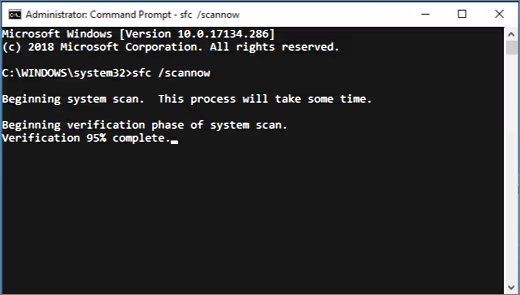
Damaged system files can stop services from closing cleanly. Microsoft's order is DISM first, to repair the component store, and then System File Checker, which replaces broken system files from that store.
- Select Start, type
cmd, right-click Command Prompt and select Run as administrator. - Type
DISM.exe /Online /Cleanup-image /Restorehealthand press Enter. Wait for it to reach 100 percent. - Type
sfc /scannowand press Enter. Leave the window open until verification finishes. - Read the result: "Windows Resource Protection did not find any integrity violations" means the system files are fine.
- "Windows Resource Protection found corrupt files and successfully repaired them" means the repair worked; restart the PC.
- If it reports corrupt files it could not fix, run the DISM command again, restart and run
sfc /scannowonce more.
Fix 5: Review startup programs and Windows services
Every app that starts with Windows and every third-party service it installs has to be stopped again at shutdown. Trimming them reduces the number of things that can stall.
- Press Ctrl + Shift + Esc and open the Startup tab in Task Manager.
- Select each app you do not need at sign-in, especially ones marked High impact, and select Disable.
- Alternatively, select Start > Settings > Apps > Startup and switch unneeded apps to Off.
- To review services, select Start, type
msconfigand open System Configuration. - On the Services tab, check Hide all Microsoft services so only third-party services remain.
- Clear the checkbox next to a service that belongs to software you no longer use, or that you suspect, then select Apply and OK.
- Restart the PC, then shut down and compare the time.
Change one or two items at a time. If a program stops working, return to the same place and re-enable its entry.
Fix 6: Scan for malware and check disk health
Malware that hooks into Windows can keep processes alive at shutdown. A disk with file system errors slows the final writes Windows makes before power-off, including the fast startup hibernation file.
- Open Windows Security, select Virus & threat protection and run a Quick scan under Current threats.
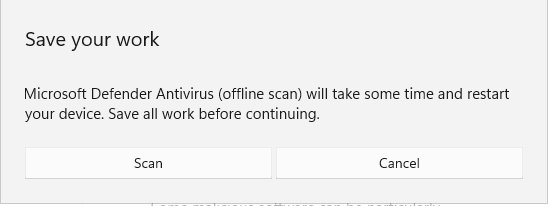
- For a deeper check, select Scan options, choose Microsoft Defender Offline scan and select Scan now. Save your work first: the PC restarts and the scan takes about 15 minutes.
- If BitLocker protects the system drive, suspend it before the offline scan so you are not asked for the recovery key.
- After the PC restarts, open Virus & threat protection > Scan options > Protection history to see what was found.
- To check the disk, open Command Prompt as administrator and run
chkdsk C: /scanfor an online check of the system drive. - If errors are reported, run
chkdsk C: /f. Type Y when asked to check the drive at the next restart, then restart the PC. - Let the check finish without interrupting it.
If the disk stays busy long after sign-in as well, fix 100% disk usage in Windows first, because the same activity also slows shutdown.
Fix 7: Use Event Viewer to identify shutdown delays
Windows records a System log event when a shutdown is requested and another when it has been turned off properly. The gap between those two timestamps shows roughly how long the shutdown took, and the warnings and errors between them name the services or drivers involved.
- Press Win + R, type
eventvwr.mscand select OK. - Expand Windows Logs, right-click System and select Filter Current Log.
- In the event ID box, type
1074,6006,6008,41and select OK. - Find the most recent event 1074, which records who or what started the shutdown, and the event 6006 that follows it.
- Compare the two times to see how long that shutdown took.
- Clear the filter, then read the warnings and errors logged between those two times. Repeat in the Application log.
- Look up the service, driver or app named in those entries, then update, reconfigure or remove it with Fixes 3 and 5.
Fix 8: Perform a clean boot to find the program slowing shutdown
A clean boot starts Windows with only Microsoft services and no startup apps. If shutdown is fast in that state, a third-party program is the cause, and you can find it by turning items back on in halves.
- Sign in with an administrator account, search for
msconfigand open System Configuration. - On the Services tab, check Hide all Microsoft services, select Disable all and then Apply.
- On the Startup tab, select Open Task Manager.
- Select each startup item marked Enabled, select Disable and write down what you disabled. Close Task Manager.
- Select OK in System Configuration and restart the PC.
- Shut down and time it. If it is fast, re-enable half of the services and startup items, restart and test again until the slow item shows up.
- To return to normal, open System Configuration, select Normal startup on the General tab, clear Hide all Microsoft services, select Enable all, re-enable your startup items and restart.
Fast shutdown command for Windows 10
The shutdown command turns the PC off immediately, without the Start menu. By default it performs a full shutdown, which also makes it a quick way to compare against a fast startup shutdown.
shutdown /s /t 0/s shuts the computer down and /t 0 sets the countdown to zero seconds. Add /hybrid (shutdown /s /hybrid /t 0) to shut down with fast startup instead. Adding /f forces open apps to close without warning, so unsaved work is lost. Run shutdown /a during a countdown to cancel it.
You should see: Windows signs you out and powers off without the usual countdown. In Event Viewer, a new event 1074 in the System log records the command that started the shutdown.
To make this a one-click option, right-click the desktop, select New > Shortcut, enter shutdown /s /t 0 as the location and name it Shut down.
How to check Windows 10 shutdown time after the fix
- Use the PC normally for a while so the usual apps and services are running.
- Select Start > Power > Shut down and time it from the click until the power light goes off.
- Start the PC again, open Event Viewer and filter the System log for events
1074,6006. - Compare the gap between the newest 1074 and 6006 events with the gap you noted before making changes.
- Repeat over two or three days. A fix holds when shutdown stays consistently quick, not just once after a restart.
Windows 10 shutdown event IDs in Event Viewer
| Event ID | Log and source | What it means for slow shutdown |
|---|---|---|
| 1074 | System, User32 | A user, the Start menu, Ctrl + Alt + Del or an app such as shutdown.exe started a shutdown or restart. Marks the start of the shutdown. |
| 6006 | System | Windows was turned off properly. Marks the end of a clean shutdown. |
| 6008 | System | The previous shutdown was unexpected or dirty, for example after a power cut or a forced power-off. |
| 41 | System, Microsoft-Windows-Kernel-Power | Windows restarted without shutting down cleanly. A nonzero PowerButtonTimestamp means the power button was held down. |
| 45 | System | Linked by Microsoft to a failed fast startup hibernation that sends the PC back to the lock screen. |
Windows 10 shutdown not working: fixes by symptom
Windows 10 goes back to the lock screen instead of shutting down
Fast startup tries to hibernate the kernel, the crash dump configuration fails to load, and Windows aborts the hibernation.
- Run
shutdown /s /t 0to perform a full shutdown that skips fast startup. - Open Event Viewer and check the System log for event ID 45 at the time of the failed shutdown.
- If event 45 is there, back up the registry, open
regeditand go toHKEY_LOCAL_MACHINE\System\CurrentControlSet\Control\CrashControl. - Open the DumpFilters value, remove every entry except
dumpfve.sys, close Registry Editor and restart. - If you do not want to edit the registry, turn fast startup off as described in Fix 2.
Delayed shutdown every time updates are waiting
With fast startup on, some updates only finish after a full restart, so they keep waiting at each shutdown.
- Open Settings > Update & Security > Windows Update and check whether updates are pending.
- Select Start > Power > Restart rather than Shut down to let them complete.
- Wait for the restart to finish fully, then select Check for updates again until nothing is pending.
PC will not shut down and needs a hard shutdown
An app, service or driver has stopped responding to the shutdown request.
- Wait a few minutes in case updates or a disk write are still running.
- If you can still reach the desktop, press Win + R and run
shutdown /s /f /t 0to force open apps to close. Unsaved work in those apps is lost. - Use the power button only if nothing else responds: hold it for at least four seconds. Windows logs Event ID 41 for this.
- After the next start, run Fix 4 and the disk check in Fix 6, because a forced power-off can leave files damaged.
- Use Fix 7 and Fix 8 to find which program is refusing to close.
Windows 10 slow shutdown FAQ
How long should Windows 10 normally take to shut down?
Microsoft does not publish a standard shutdown time. What matters is change: if shutdown takes noticeably longer than it used to, or sits on the shutting down screen for minutes, an app, service, driver or pending update is holding it up.
Can Fast Startup make Windows 10 shutdown slower?
It can. With fast startup on, Windows hibernates the kernel and drivers to disk at every shutdown, and a driver that blocks hibernation can stop shutdown altogether. Compare with a full shutdown using shutdown /s /t 0 before turning fast startup off.
Will forcing my PC to power off damage Windows?
Holding the power button interrupts the normal shutdown, so open files and caches are not written properly, which can cause data loss or file corruption. Microsoft recommends it only when the PC is not responding. Run SFC and a disk check afterwards.
How do I find out what is delaying shutdown in Windows 10?
Open Event Viewer, filter the System log for events 1074 and 6006, and read the warnings and errors logged between them. If that does not name a culprit, a clean boot shows whether a third-party service or startup app is responsible.
Should I reinstall Windows if shutdown is still slow after trying fixes?
Only as a last resort. Try a clean boot first, because it shows whether a third-party program is to blame. If Windows itself is damaged and SFC and DISM cannot repair it, resetting the PC reinstalls Windows and can keep your personal files.
How do I fast shutdown Windows 10?
Press Win + R, type shutdown /s /t 0 and press Enter. Windows shuts down immediately without a countdown. You can also put the same command in a desktop shortcut so a double-click turns the PC off.
Does Restart take longer than Shut down in Windows 10?
Often, yes. Fast startup does not apply to Restart, so a restart always closes the kernel and performs a full boot, and pending updates install during it. Shut down with fast startup on saves the kernel session to disk instead.
Do these fixes work for slow shutdown on Windows 11?
Yes. Fast startup, SFC and DISM, startup apps, Event Viewer and clean boot work the same way on Windows 11, though some Settings paths differ. If the slowdown began with the latest feature update, fix Windows 11 26H2 running slow problems first.
Bottom line: fixing slow shutdown in Windows 10
Close stuck apps first, compare a full shutdown with shutdown /s /t 0, then install pending updates with a restart and trim startup apps; use Event Viewer and a clean boot only if the delay remains. Most slow shutdowns come from a program, service or update that does not close on time. These steps find that item quickly, while SFC, DISM, malware and disk checks rule out damage to Windows itself.






