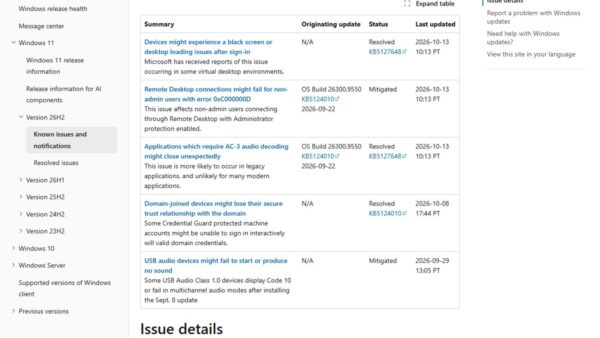
To force restart Windows 10, press Ctrl + Alt + Delete, select the Power button and choose Restart; if the screen does not respond, hold the PC's power button for at least four seconds until it turns off, then press it again.
This guide covers the keyboard, Power menu, Command Prompt and hardware button routes, what to do when the restart hangs, and how to fix the problems that show up after a forced reboot.
How to force restart a frozen Windows 10 PC
Try the keyboard route first, because it still lets Windows close apps and services in order. Use the power button only when the keyboard gets no response at all.
- Press Ctrl + Alt + Delete together and wait up to a minute for the blue security screen.
- Select the Power button on that screen, then select Restart.
- If the security screen never appears, press and hold the PC's physical power button for at least four seconds until the screen and fans go off.
- Wait about 10 seconds, then press the power button once to start Windows 10 again.
- Sign in and reopen your apps, then check which files need recovering.
Which Windows 10 force restart method to use
| What still works | Use this | Why |
|---|---|---|
| One app is stuck, the rest of Windows responds | Alt + F4 or Task Manager End task | No restart needed, other open files stay safe |
| Keyboard responds, mouse does not | Ctrl + Alt + Delete, then Power > Restart | Clean restart without touching the mouse |
| Start menu opens | Start > Power > Restart | The normal restart path, slowest to lose data |
| Apps refuse to close and block the restart | shutdown /r /f /t 0 |
Forces running apps to close, then restarts at once |
| Nothing responds, Caps Lock light does not change | Hold the power button | Hard reset; the only route when Windows has stopped |
| The restart hangs or Windows will not start | Windows Recovery Environment | Startup Repair and Safe Mode live there |
What a force restart actually does (and what it doesn't)
A restart from Windows sends every open app a request to save and close, then shuts down services in order. A hardware reset cuts that process off, so Windows records it as an unexpected shutdown.
| Restart type | What happens to open apps | Unsaved work | What Windows logs |
|---|---|---|---|
| Start menu or Ctrl + Alt + Delete restart | Each app is asked to save and close | Apps can prompt you to save | Event ID 1074 (user-initiated restart) |
shutdown /r /f |
Running apps close without warning | Lost unless the app autosaves | Event ID 1074 from shutdown.exe |
| Holding the power button | Power is cut while apps are running | Lost unless the app autosaves | Event ID 41 (Kernel-Power) with a PowerButtonTimestamp value |
| Pulling the plug or battery | Power is cut instantly | Lost | Event ID 41, often with zero values |
A force restart does not fix the cause of a freeze. It clears memory and restarts drivers, so a freeze caused by a faulty driver, failing drive or overheating will usually come back.
Microsoft describes the power button hold as interfering with the Windows shutdown operation and recommends it only when there is no alternative, such as a PC that is not responding.
Before you force restart: quick checks that save data
Spend one or two minutes on these checks first. A frozen app is far more common than a frozen PC, and closing only that app keeps everything else you had open.
- Press Caps Lock and watch the keyboard light; if the light does not change, Windows has stopped responding to input and you can skip to the power button.
- If the screen is black but the PC is on, press Windows logo key + Ctrl + Shift + B, which wakes the PC from a blank or black screen.
- If one window is stuck, click it and press Alt + F4 to close the active app.
- If the app ignores Alt + F4, press Ctrl + Shift + Esc to open Task Manager, select More details if it opens in compact view, select the stuck app on the Processes tab and select End task.
- Switch to your other open apps with Alt + Tab and save anything you can before restarting.
- Wait two to three minutes if the drive light is busy; a PC catching up on disk activity often recovers on its own.
Method 1: Keyboard restart without touching the mouse
This is the answer to how to force restart Windows 10 with the keyboard. It works when the mouse pointer is frozen but keystrokes still register.
- Press Ctrl + Alt + Delete to open the security screen.
- Press Tab repeatedly until the Power button in the corner is highlighted.
- Press Enter to open the power options.
- Use the Up or Down arrow key to select Restart.
- Press Enter and wait for Windows to close apps and restart.
If the security screen opens but the Power button is missing, your organisation may have removed it; Microsoft documents a Custom Logon setting that hides the Power button on Enterprise and Education editions. Use Method 3 or Method 4 instead.
Method 2: Use the Power menu (fastest normal-path restart)
When the Start menu still opens, use it. This is the standard restart, and it gives every app a chance to write its data to disk.
- Select Start on the taskbar.
- Select the Power icon above Start.
- Select Restart.
- If Start does not open, press Windows logo key + X to open the Quick Link menu instead.
- Select Shut down or sign out, then select Restart.
If you can get Task Manager open but not the Start menu, close the app hogging the CPU or memory with End task first. Once Windows responds again, restart from the Power menu.
Method 3: Force restart using Command Prompt
The shutdown command restarts Windows 10 immediately and closes apps that would otherwise hold the restart open. Type it in Command Prompt, PowerShell or the Run box.
shutdown /r /f /t 0/r restarts the computer after shutdown, /f forces running apps to close without warning, and /t 0 sets the delay to zero seconds instead of the default 30. Any delay above 0 already implies /f, so shutdown /r /t 0 alone does not force apps closed.
You should see: The screen goes to Restarting within a few seconds and the PC boots back to the sign-in screen. If you typed a delay and want to cancel, run shutdown /a in a new window before the timer ends.
If Command Prompt won't start, press Windows logo key + R, type shutdown /r /f /t 0 in the Run box and press Enter. The same command runs without opening a console window.
To restart straight into the Advanced startup menu instead, add /o: shutdown /r /o /f /t 0. Microsoft notes that /f can lose unsaved data, so save first whenever the apps still respond.
Method 4: The hardware button reset (when Windows is totally frozen)
Use the power button only when the keyboard and mouse get no response. Windows logs this as an unexpected shutdown and anything unsaved is lost.
| Device | How to force it off | How to start it again |
|---|---|---|
| Desktop PC (tower) | Press and hold the power button on the case for at least four seconds until the fans stop | Wait about 10 seconds, then press the power button once |
| Laptop (Dell, HP, Lenovo ThinkPad and others) | Press and hold the power button for at least four seconds until the screen and keyboard lights go off | Wait about 10 seconds, then press the power button once |
| Surface Pro 5th Gen and later, Surface Laptop, Surface Go, Surface Book 2 and later | Press and hold the power button for about 20 seconds until the Windows logo appears | Release the button; the Surface restarts by itself |
| Surface Pro, Pro 2, Pro 3, Pro 4, Surface Book, Surface 3 | Hold volume-up and the power button together for at least 15 seconds | Release both, wait 10 seconds, then press and release the power button |
| Laptop that still will not turn off | Unplug the charger and let the battery run down | Plug in, wait a minute, then press the power button |
Do not press the power button repeatedly while Windows starts. Two interrupted starts in a row send Windows 10 into the recovery environment, which is useful only when you mean to get there (Method 5).
Method 5: If the restart itself won't complete
A restart can stall on a spinning dots screen, usually while an update finishes or a driver refuses to stop. Give it time first, then use the Windows Recovery Environment (WinRE).
- Leave the PC on the restarting or updates screen for at least 20 minutes if the drive light is still flickering.
- If nothing changes, hold the power button until the PC turns off, then turn it on again.
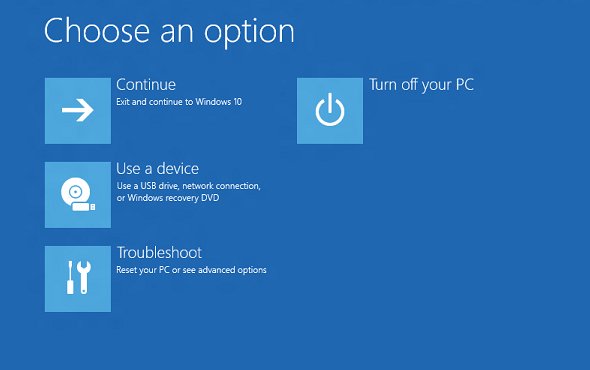
- Repeat the forced shutdown before Windows finishes loading; after two interrupted starts, Windows 10 boots into WinRE on the third start.
- In the recovery environment, select Troubleshoot > Advanced options > Startup Repair to fix common causes of a failed start.
- If Startup Repair does not help, select Troubleshoot > Advanced options > Startup Settings > Restart, then press 4 or F4 for Enable Safe Mode, or 5 or F5 for Safe Mode with Networking.
- In Safe Mode, uninstall the app or driver you added just before the freezes started, then restart normally.
Windows 10 also opens WinRE on its own after two consecutive failed starts, or after two unexpected shutdowns within two minutes of boot completing.
Check Event Viewer after a Windows 10 force restart
Event Viewer shows whether the last restart was clean or forced, which tells you whether a freeze ended in a hard reset or in a crash.
- Right-click Start and select Event Viewer.
- Expand Windows Logs and select System.
- Select Filter Current Log in the right pane, type
41,1074,6008in the event ID box and select OK. - Event 1074 means the restart came from the Start menu, Ctrl + Alt + Delete or
shutdown.exe, so it was clean. - Event 41 from Kernel-Power means Windows restarted without shutting down cleanly; a nonzero PowerButtonTimestamp means the power button was held.
- If event 41 shows a nonzero BugcheckCode, the PC crashed with a Stop error rather than freezing, so treat it as a blue screen problem.
Common failure modes and fixes after reboot
Most PCs come back normally after one forced restart. These are the problems that do show up afterwards, and the fix for each.
Blue screen (BSOD) after forced restart
A driver or hardware change is crashing Windows, or the forced shutdown left a system file damaged.
- Shut down and remove any hardware you connected just before the problem started.
- Start Windows in Safe Mode from WinRE (Method 5) if it will not reach the desktop.
- Right-click Start, select Device Manager and update or uninstall any device marked with an exclamation point.
- Open Command Prompt as administrator, run
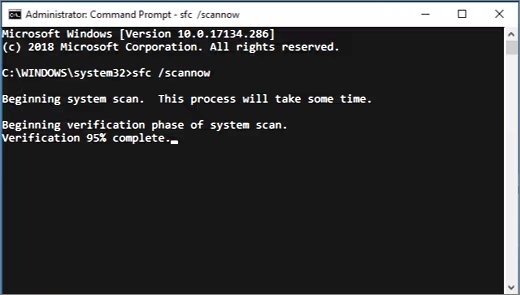
DISM.exe /Online /Cleanup-image /Restorehealth, then runsfc /scannow. - Wait for Windows Resource Protection did not find any integrity violations or found corrupt files and successfully repaired them.
Freeze returns within minutes
Something that loads with Windows, such as a startup app, an outdated driver or failing memory, triggers the same hang.
- Open Start > Settings > Update & Security > Windows Update and select Check for updates.
- Disable startup apps you do not need at sign-in, so fewer programs load with Windows.
- Type Windows Memory Diagnostic in the search box, open it and let it restart the PC to test the RAM.
- If the freezes started after a new app or driver, uninstall it from Safe Mode.
- If nothing helps, restore Windows from a restore point in WinRE under Troubleshoot > Advanced options > System Restore.
Disk running at 100% then stalling
Windows is checking the drive or finishing interrupted updates after the unexpected shutdown, or the drive is close to full.
- Leave the PC alone for 10 to 15 minutes after sign-in so disk recovery and diagnostics can finish.
- Open Task Manager with Ctrl + Shift + Esc and sort the Processes tab by Disk to find the app responsible.
- Free up space so about 10% to 15% of the drive stays empty.
- Run
sfc /scannowfrom an administrator Command Prompt to repair damaged system files.
Windows 10 keeps restarting
A Stop error triggers an automatic restart before you can read it, or a faulty update or driver loads at every start.
- Let Windows 10 fail to start twice so it opens WinRE automatically.
- Select Troubleshoot > Advanced options > Startup Repair and let it finish.
- If the loop continues, start Safe Mode with 4 or F4 from Startup Settings.
- In Safe Mode, check Event Viewer for event 41 with a BugcheckCode to see which Stop error is behind the restarts.
- Uninstall the most recent driver or app, then restart normally.
PC will not start after the force restart
Boot files or the drive were mid-write when power was cut.
- Disconnect USB drives, docks and external disks, then press the power button.
- If Windows fails to start twice, it opens WinRE on its own; otherwise force two interrupted starts with the power button.
- Select Troubleshoot > Advanced options > Startup Repair.
- If repair fails, select Troubleshoot > Reset this PC and choose Keep my files to reinstall Windows 10 without removing personal files.
How to stop Windows 10 forcing a restart for updates
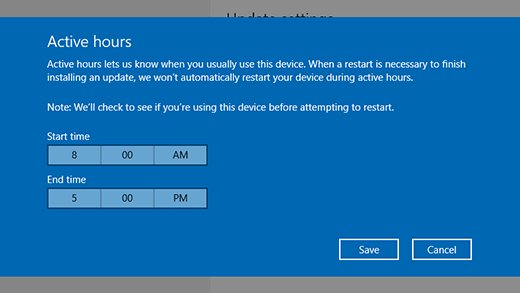
Windows Update can restart a PC on its own to finish installing updates. Active hours tell Windows when you normally use the PC, so it avoids restarting during that window.
Windows 10 restarts on its own while you work
A pending update is scheduled to install outside the active hours Windows guessed for you.
- Select Start > Settings > Update & Security > Windows Update.
- Select Change active hours.
- Next to your current active hours, select Change.
- Select the start time and end time you normally use the PC, then select Save.
- Restart at a time that suits you whenever Restart required shows on the Windows Update page.
Best practices to prevent Windows 10 freezes next time
Repeated freezes have a cause that a restart cannot remove. These checks address the causes Microsoft lists for PCs that stop responding more than once.
- Install Windows and driver updates from Settings > Update & Security > Windows Update, and from your PC maker's support site for chipset and graphics drivers.
- Scan the PC with Windows Security to rule out malware.
- Disable startup apps you do not need, so fewer programs load with Windows.
- Keep 10% to 15% of the system drive free.
- Run the Windows Memory Diagnostic and the drive Error checking tool if freezes keep returning.
- Restart from the Start menu at least once a week instead of only using sleep, so drivers and memory start fresh.
- Save work often, and turn on AutoSave or AutoRecover in the apps you rely on.
Force restart Windows 10 FAQ
How do I force restart Windows 10 with the keyboard?
Press Ctrl + Alt + Delete, press Tab until the Power button is highlighted, press Enter, select Restart with the arrow keys and press Enter again. If the security screen does not appear, Windows is not processing input and only the power button will restart it.
What is the command to force restart Windows 10 from CMD?
Run shutdown /r /f /t 0 in Command Prompt or the Run box. The /r switch restarts the PC, /f closes running apps without warning, and /t 0 removes the default 30-second delay. Save open work first, because /f does not wait for apps to save.
How do I force restart a laptop running Windows 10?
Press and hold the laptop's power button for at least four seconds until the screen and keyboard lights go off, wait about 10 seconds, then press it again. Newer Surface models need about 20 seconds of holding, and they restart by themselves.
How do I force restart Windows 11?
The same methods work on Windows 11: Ctrl + Alt + Delete and the Power button, Start > Power > Restart, shutdown /r /f /t 0, or holding the power button. If the PC hangs on a pending update, you can force a Windows 11 update to install once it is responsive again.
Will forcing a restart damage my PC?
A single forced restart does not damage hardware, but it can lose unsaved work and, if the drive was writing, damage files. Microsoft recommends holding the power button only when there is no alternative. Run sfc /scannow afterwards if Windows behaves oddly.
How long should I wait before hard powering off a frozen Windows 10 PC?
Wait two to three minutes if the drive light is active, and up to 20 minutes on an update screen. If the Caps Lock light does not change when you press the key and nothing moves, the PC has stopped responding and waiting longer will not help.
Is it okay to use the power button repeatedly?
Avoid it. Each hard power-off is logged as an unexpected shutdown and risks file damage. Interrupting Windows during startup twice in a row also sends the PC into the Windows Recovery Environment on the next start, which is only useful when Windows will not boot.
How do I force start Windows 10 when it will not turn on?
Check the power cable or charger, disconnect USB drives and docks, then press the power button once. If Windows starts but fails to load twice, it opens the recovery environment, where Startup Repair can fix common start problems.
What is the difference between force restart and force reset in Windows 10?
A force restart only turns the PC off and on again, keeping your files and apps. Reset this PC, under Settings > Update & Security > Recovery, reinstalls Windows 10; Keep my files preserves personal files but removes installed apps.
How do I fully restart Windows 10?
Select Start > Power > Restart, or run shutdown /r /t 0. A restart closes every app and service and starts Windows from scratch, which is what a stuck driver or app needs. Sleep does not reload anything and will not clear a freeze.
My PC restarts but immediately freezes again. What should I do?
Start Windows 10 in Safe Mode from the recovery environment and uninstall the most recent app, driver or update. Then run DISM and sfc /scannow, check Windows Update and test the memory with Windows Memory Diagnostic before using the PC normally.
How do I stop Windows 10 from forcing a restart?
Set active hours under Start > Settings > Update & Security > Windows Update > Change active hours. Windows avoids automatic update restarts during those hours. Restart manually when Windows Update shows a restart is required, so the update finishes on your schedule.
Bottom line: the safest way to force restart Windows 10
Start with Ctrl + Alt + Delete and the Power button, use shutdown /r /f /t 0 when apps block the restart, and hold the power button only when the Caps Lock light no longer responds. The software routes let Windows close files in order, while a hardware reset is logged as an unexpected shutdown and can lose unsaved work. If freezes repeat, check Event Viewer and fix the cause instead of restarting again.

![How to enable DLNA media server in Windows 11 [solution]](https://techdows.com/wp-content/uploads/2026/10/Windows-11-Network-folder-banner-offering-to-turn-on-network-discovery.jpg)