To optimize Windows 11 power and sleep settings, open Settings > System > Power & battery, set the power mode to Best performance when plugged in and Best power efficiency on battery, shorten the screen and sleep timers, and turn on energy saver at a sensible battery level.
This guide walks through each setting, the Control Panel power plan and lid options, powercfg commands, the battery and energy reports, and fixes for a greyed-out power mode or a PC that will not sleep.
Best Windows 11 power and sleep settings for performance and battery life
Plugged in and on battery have separate settings, so you can favour speed at the desk and endurance on the move.
| Setting | For battery life | For performance (plugged in) |
|---|---|---|
| Power mode | Best power efficiency | Best performance |
| Turn my screen off after | 3 minutes | 5 minutes |
| Make my device sleep after | 3 to 10 minutes | 5 to 15 minutes |
| Energy saver | On automatically at a battery level you choose, or always on | Off |
| Display refresh rate | Lower rate or dynamic refresh rate | Highest rate your display supports |
| Graphics preference per app | Power saving for apps that do not need the GPU | High performance for games and creative apps |
| Lid close action | Sleep | Sleep, or Do nothing with an external monitor |
The timer values match Microsoft's updated defaults for new Windows 11 PCs, which cut screen-off on battery to 3 minutes and sleep when plugged in to 5 to 15 minutes depending on the device.
Accessing power and sleep settings
Most options live in the Settings app. Power plans, lid actions and advanced power management options still sit in the classic Control Panel.
| What you want to change | Where it is in Windows 11 |
|---|---|
| Power mode, energy saver, screen and sleep timers | Settings > System > Power & battery |
| One-click efficiency changes | Settings > System > Power & battery > Energy recommendations |
| Battery use per app | Settings > System > Power & battery > Battery usage |
| Refresh rate and per-app graphics | Settings > System > Display > Advanced display, and Display > Graphics |
| Power plans and advanced power settings | Control Panel > System and Security > Power Options |
| Lid and power button actions, Hibernate in the power menu | Control Panel > System and Security > Power Options > Choose what the power buttons do |
The Energy recommendations page can apply several efficient settings at once, including the 3-minute screen and sleep timers and turning off the screen saver.
Configuring screen and sleep timers
Short idle timers save the most energy for the least effort, because the display is usually the biggest power draw on a laptop.
- Select Start > Settings > System > Power & battery.
- Expand Screen, sleep & hibernate timeouts (called Screen and sleep on some builds).
- Set Turn my screen off after (or On battery power, turn off my screen after) to 3 minutes for battery and 5 minutes when plugged in.
- Set Make my device sleep after (or On battery power, put my device to sleep after) to a short value such as 3 to 10 minutes on battery.
- Choose a longer plugged-in sleep value if you run long downloads or renders at your desk.
Adjusting power mode
Power mode tells Windows how hard to push the processor. Best power efficiency saves battery, Balanced trades the two, and Best performance maximizes speed.
- Select Start > Settings > System > Power & battery.
- Find Power mode.
- Choose Best performance for Plugged in.
- Choose Best power efficiency or Balanced for On Battery.
- Close Settings; the change applies immediately.
Which modes appear depends on your PC and its manufacturer. Older builds use a slider on the battery icon instead.
Enabling energy saver mode
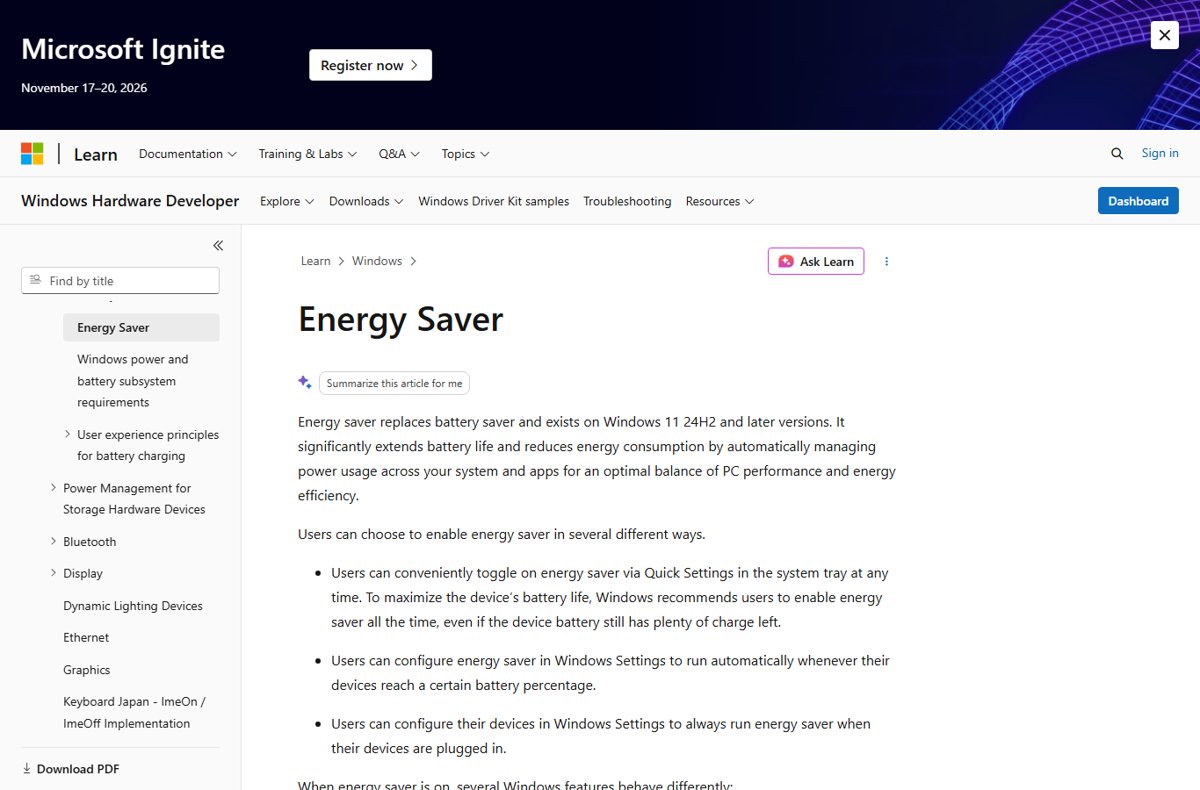
Energy saver replaced battery saver in Windows 11 version 24H2. It dims the display and limits background activity, and Microsoft recommends leaving it on all the time for the longest battery life.
- Select Start > Settings > System > Power & battery.
- Expand Energy saver.
- Choose a level next to Turn energy saver on when battery level is at to switch it on automatically.
- Set Always use energy saver to On if you want it running until the next charge.
- Turn the 30% brightness reduction on or off with the brightness option in the same section.
- For a quick toggle, select the Battery icon on the taskbar and choose the Energy saver quick setting.
On Windows 11 versions before 24H2, the same feature is Battery saver under Settings > System > Battery, with the Turn battery saver on automatically if my battery falls below option.
What energy saver changes in Windows 11
Knowing these trade-offs explains most of the side effects people blame on energy saver, such as OneDrive pausing or the power mode locking.
| When energy saver is on | Effect |
|---|---|
| Power mode | Cannot be changed in Settings |
| Display brightness | Reduced by 30%, which you can turn off |
| Transparency effects | Turned off on window backgrounds |
| Sync apps on low battery | OneNote, OneDrive, Phone Link and some others may stop syncing |
| Background apps on low battery | Blocked, except apps you allow and categories such as VoIP |
| Windows Update on low battery | Non-critical downloads blocked; scans still run |
| Scheduled tasks on low battery | Idle-only and maintenance tasks wait until energy saver turns off |
Implementing adaptive energy saver
Adaptive energy saver is an opt-in option that turns energy saver on and off for you, based on the device's power state and current system load. Microsoft first released it to Windows Insiders in Canary Channel build 27898 in July 2025.
| Question | Answer |
|---|---|
| Where to set it | Settings > System > Power & battery > Energy saver, in the drop-down that sets when energy saver runs |
| Which devices | Devices with a battery only |
| Screen brightness | Not changed when adaptive energy saver switches energy saver on |
| How it differs from a battery threshold | It reacts to power state and system load, not only to a battery percentage |
| If you cannot find it | Your Windows build does not include it yet; use the battery-level option instead |
Managing power plans
Windows 11 still keeps power plans in Control Panel. If a custom plan is selected, the Settings power mode can grey out, and selecting Balanced restores it.
- Select Search on the taskbar, type control panel and open it.
- Select System and Security > Power Options.
- Select Balanced to restore the Settings power mode control.
- Select Change plan settings next to the plan to edit its display and sleep timers.
- Select Save changes.
To list plans from a terminal, run powercfg /list; to switch, run powercfg /setactive followed by the plan GUID from that list.
Configuring lid and power button actions
Set separate actions for On battery and Plugged in. This is also where Hibernate is added to the power menu.
- Open Control Panel > System and Security.
- Under Power Options, select Choose what the power buttons do.
- Select Change settings that are currently unavailable.
- Set When I press the power button and When I close the lid for On battery and Plugged in, for example Sleep.
- Under Shutdown settings, check Hibernate to add it to the Start power menu.
- Select Save changes.
You can also customize the power button to hibernate or shut down instead of sleeping.
Utilizing advanced power settings
Advanced settings expose options the Settings app hides, including Wi-Fi power management and the battery threshold and action policy.
- Open Control Panel > System and Security > Power Options.
- Select Change plan settings next to the active plan.
- Select Change advanced power settings.
- Expand a category, such as the wireless adapter or battery section, and set separate On battery and Plugged in values.
- Select Apply, then OK.
On modern standby PCs, Windows shows a shorter list here than on PCs that use traditional S3 sleep, so some options may be missing by design.
Change Windows 11 sleep and screen timeouts with powercfg
powercfg sets the same timers from Command Prompt or PowerShell, which is useful on several PCs. Values are in minutes; -ac means plugged in and -dc means on battery.
powercfg /change monitor-timeout-dc 3
powercfg /change standby-timeout-dc 10
powercfg /change monitor-timeout-ac 5
powercfg /change standby-timeout-ac 15
Sets the screen to turn off after 3 minutes and sleep after 10 minutes on battery, and 5 and 15 minutes when plugged in, in the active power plan. hibernate-timeout-ac and hibernate-timeout-dc work the same way.
You should see: The new values appear under Screen, sleep & hibernate timeouts in Settings > System > Power & battery.
Run powercfg /hibernate on from an administrator window if the Hibernate checkbox is missing from Shutdown settings.
Check Windows 11 battery drain with powercfg reports
Two built-in reports show whether your changes worked and what still drains power.
- Open Settings > System > Power & battery > Battery usage and review Battery usage per app for apps active in the background.
- Search for Terminal, right-click it and select Run as administrator.
- Run
powercfg /batteryreportto create an HTML battery report in the current folder, showing usage over the life of the PC. - Close open programs, then run
powercfg /energyto analyse the PC for common energy-efficiency and battery-life problems. - Open the HTML files the commands name and fix any errors listed in the energy report.
Fix Windows 11 power mode and sleep problems
Power mode is greyed out or missing
A custom power plan is selected, or energy saver is on, which locks the power mode.
- Turn off energy saver from the Battery quick setting or Settings > System > Power & battery.
- Open Control Panel > System and Security > Power Options.
- Select the Balanced plan.
- Reopen Settings > System > Power & battery and choose a power mode.
The PC does not go to sleep
An app or driver holds a power request that keeps the system awake.
- Open an administrator terminal.
- Run
powercfg /requeststo list the apps and drivers holding power requests. - Close or update the app or driver the list names, then try sleep again.
- Run
powercfg /waketimersto see scheduled wake timers, andpowercfg /lastwakeafter an unexpected wake to see what caused it.
Hibernate is not in the power menu
Hibernate is turned off in Shutdown settings or disabled on the system.
- Open Control Panel > System and Security > Choose what the power buttons do.
- Select Change settings that are currently unavailable.
- Check Hibernate under Shutdown settings and select Save changes.
- If the checkbox is missing, run
powercfg /hibernate onas administrator and repeat the steps.
Battery still drains quickly after the changes
Background apps, a high refresh rate or hardware power issues keep consumption high.
- Check Battery usage per app and set Let this app run in the background to off for heavy apps that allow it.
- Lower the refresh rate under Settings > System > Display > Advanced display.
- Run the Power troubleshooter from Settings > System > Troubleshoot > Other troubleshooters.
- Run
powercfg /energyand address the errors it reports.
Windows 11 power and sleep settings FAQ
What is the best power mode for Windows 11 battery life?
Best power efficiency gives the longest battery life in Windows 11. Set it for On Battery under Settings > System > Power & battery > Power mode, and keep Best performance or Balanced for Plugged in, since each power source has its own setting.
Does Best performance mode drain the battery faster?
Yes. Best performance maximizes processor speed, which raises power use and heat. Use it when plugged in for games or heavy work, and switch the On Battery setting to Balanced or Best power efficiency for longer runtime.
What sleep timer should I use on a Windows 11 laptop?
A screen-off time of 3 minutes and a sleep time of 3 to 10 minutes on battery match Microsoft's updated defaults. When plugged in, 5 minutes for the screen and 5 to 15 minutes for sleep keep the PC efficient without interrupting work.
Should I leave energy saver on all the time?
Microsoft recommends enabling energy saver all the time for maximum battery life. The trade-offs are 30% lower brightness, which you can turn off, a locked power mode and, on low battery, paused background apps and sync.
What is the difference between energy saver and battery saver?
Energy saver replaced battery saver in Windows 11 version 24H2. It does more, including working when plugged in if you choose, and it can switch on automatically at a battery level you set. Battery saver remains on versions before 24H2.
Why can't I change the power mode in Windows 11?
The power mode locks when energy saver is on or when a custom power plan is active. Turn energy saver off, then select the Balanced plan in Control Panel > System and Security > Power Options to bring the control back.
Are power plans still available in Windows 11?
Yes. Power plans remain in Control Panel > System and Security > Power Options, and powercfg /list shows them. A custom plan can lock the Settings power mode, so most people should leave Balanced selected.
How do I make my laptop sleep when I close the lid?
Open Control Panel > System and Security > Choose what the power buttons do. Set When I close the lid to Sleep for On battery and Plugged in, then select Save changes.
Bottom line: the Windows 11 power settings worth changing
Split power mode by source, use 3-minute screen and short sleep timers on battery, keep the Balanced plan, and let energy saver turn on automatically. Those four changes cover the biggest power draws, the display and processor, without breaking the Settings power mode control, and the battery report confirms the gain.