To fix Vmmem high memory and CPU usage, shut down the virtual machine behind it: run wsl --shutdown for WSL 2 and Docker Desktop, or stop the Hyper-V VM, then cap its memory and processors so it cannot take over the PC again.
Vmmem is the Windows process that shows the memory and CPU a running virtual machine uses, so every fix below targets WSL 2, Docker Desktop or Hyper-V rather than Vmmem itself.
How to Fix Vmmem High Memory Usage in Windows 11
WSL 2 is the most common source, and Docker Desktop usually runs on top of it. Shutting WSL down frees the memory at once.
- Save your work in any Linux terminal, editor or container.
- Right-click Start and select Terminal or Windows PowerShell.
- Run
wsl --shutdownto stop every running WSL 2 distribution and the WSL 2 VM. - Wait about 8 seconds for the VM to stop completely.
- Press Ctrl + Shift + Esc and check that Vmmem has gone from the Processes list or dropped sharply.
- Cap WSL 2 memory and processors, as shown below, so the usage does not climb back.
This also stops Docker Desktop's WSL 2 engine. Docker restarts its engine the next time you open Docker Desktop or run a container.
What Is Vmmem and Why Is It Using So Many Resources?
Microsoft documents vmmem.exe as the VM memory process: when you see it near the top of Task Manager, a virtual machine is consuming that memory, and shutting the VM down makes the memory available.
| Question | Answer |
|---|---|
| What Vmmem represents | The memory and CPU used by running virtual machines, shown as one Windows process |
| What starts it | WSL 2 distributions, Docker Desktop, Hyper-V VMs and other tools built on Windows virtualization |
| Why it shows so much memory | It carries the whole VM's memory, including cache the Linux guest keeps for speed |
| Why CPU spikes | A build, container, indexing job or stuck process inside the VM is working |
| When it disappears | When every VM behind it has shut down |
What Is the Vmmem Process?
| Fact | Detail |
|---|---|
| File name | vmmem.exe, listed as Vmmem in Task Manager |
| Role | Host-side process for a VM's memory; Hyper-V's companion VM worker process is vmwp.exe |
| Where you see it | Task Manager > Processes or Details |
| Can you uninstall it | No; it is part of Windows virtualization and has no separate install |
| How to stop it | Shut down the VM it represents, such as with wsl --shutdown |
Why Does Vmmem Use So Much Memory?
By default, WSL 2 may use up to half of your PC's memory and all of its logical processors. Docker Desktop's Hyper-V engine also defaults to half of the host's memory.
| Setting | Default | Effect on Vmmem |
|---|---|---|
WSL 2 memory |
50% of total Windows memory | Vmmem can grow to half your RAM |
WSL 2 processors |
All logical processors | A busy Linux job can load every core |
WSL 2 swap |
25% of memory, rounded up to the nearest GB | Extra disk-backed memory for the VM |
WSL 2 vmIdleTimeout |
60,000 ms | The VM shuts down after a minute of idle time once all distros stop |
| Docker Desktop memory limit (Hyper-V backend) | 50% of host memory | Docker's VM can hold half your RAM |
| Docker Desktop swap (Hyper-V backend) | 1 GB | Extra disk-backed memory for Docker's VM |
Is Vmmem Safe? Could It Be a Virus?
Vmmem is a genuine Windows process that appears when a virtual machine runs. A file pretending to be it would be unusual, but you can check where it comes from in a few seconds.
| Check | Genuine Vmmem | Investigate further |
|---|---|---|
| Do you use WSL, Docker Desktop, Hyper-V or an emulator? | Yes, and Vmmem appears while they run | Vmmem appears with no VM tool installed |
Does wsl --shutdown or closing the VM end it? |
Yes | It keeps running after every VM is off |
| Is there a vmmem.exe file in a user or download folder? | No; Vmmem is a system process | Yes; run a Microsoft Defender full scan |
If something looks wrong, run a Microsoft Defender full scan rather than ending random processes.
Check Which Virtualization Tool Is Causing the Spike
Vmmem does not say which VM it belongs to. These commands do, so you fix the right tool.
| Check | Command or place | If it shows something running |
|---|---|---|
| Running WSL distributions | wsl --list --running, or wsl -l -v for state and version |
Limit WSL 2 or shut it down |
| Docker Desktop | Docker whale icon in the notification area, or the Dashboard's Containers list | Stop containers, turn on Resource Saver, or lower limits |
| Hyper-V virtual machines | Get-VM | Where-Object {$_.State -eq 'Running'} in an admin PowerShell |
Shut the VM down or lower its memory |
| Android emulators or sandboxes | The app's own window or tray icon | Close the app; it uses the same virtualization layer |
Limit WSL 2 Memory and CPU Usage
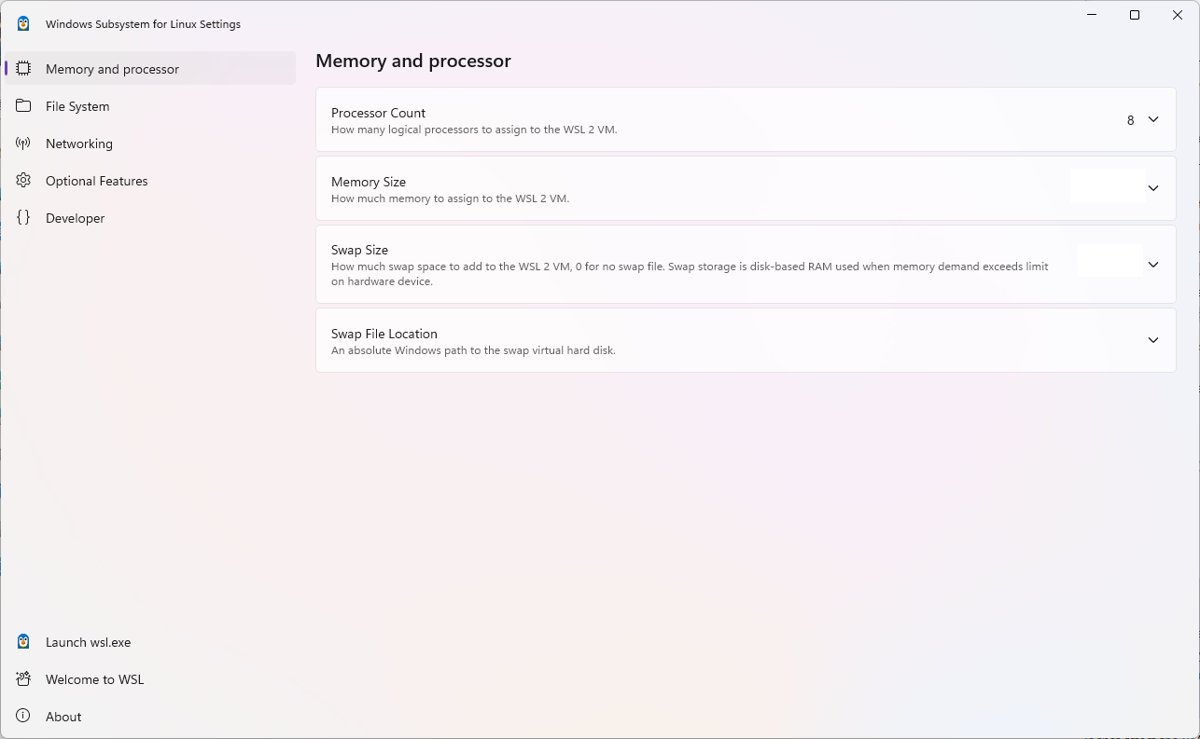
Microsoft recommends changing these values in the WSL Settings app from the Start menu. Editing the .wslconfig file does the same thing and works on any WSL 2 install on Windows build 19041 or later.
- Open File Explorer, type
%UserProfile%in the address bar and press Enter. - Create a text file named
.wslconfigthere if it does not exist; it does not exist by default. - Add the line
[wsl2]at the top. - Add
memory=4GBbelow it, or another whole number of GB or MB that leaves enough RAM for Windows. - Add
processors=2, or another number of logical processors to give WSL. - Save the file, run
wsl --shutdown, and start your distribution again.
The limits apply to all WSL 2 distributions together. If Docker Desktop uses the WSL 2 engine, these limits also cap Docker.
Reduce Docker Desktop Resource Consumption
Docker Desktop's VM shows up as Vmmem too. Which setting applies depends on the engine Docker uses.
- Open Docker Desktop, then select the Settings icon on the Dashboard, or select the Docker menu and Settings.
- On General, check whether Use the WSL 2 based engine is selected.
- If it is, set memory and CPU limits in
.wslconfigas in the WSL section above. - If it is not, open Resources > Advanced and lower CPU limit, Memory limit and Swap.
- On the same Resources page, turn on Resource Saver where your engine offers it, so Docker turns off its Linux VM when idle; it restarts in a few seconds when a container runs.
- On the Kubernetes tab, turn off Enable Kubernetes if you do not use it, because it runs as containers all the time.
Restart or Shut Down WSL, Docker, and Hyper-V Services
Shut down only what you saved. A forced Hyper-V turn-off is like pulling the power on that VM.
| Tool | Command or action | What it does |
|---|---|---|
| All of WSL 2 | wsl --shutdown |
Stops every running distribution and the WSL 2 VM |
| One WSL distribution | wsl --terminate <DistroName> |
Stops that distribution only |
| Docker Desktop | Quit Docker Desktop from the Docker menu | Stops Docker's engine and its VM |
| A Hyper-V VM | Stop-VM -Name <VMName> |
Shuts the VM down through its guest operating system |
| A Hyper-V VM that will not respond | Stop-VM -Name <VMName> -TurnOff |
Cuts power to the VM; unsaved data in it is lost |
Update Windows, WSL, Docker, and Virtualization Components
Memory handling in WSL and Docker improves between releases, so update all three before tuning further.
- Open Settings > Windows Update and select Check for updates; install everything offered and restart.
- In PowerShell, run
wsl --updateto install the latest WSL release. - Run
wsl --versionto confirm the new version number. - Inside each Linux distribution, install its package updates with its own package manager.
- In Docker Desktop, install the update shown in the Docker menu or the Dashboard footer.
Advanced Fixes for Persistent Vmmem High Usage
If Vmmem stays high after limits and updates, look inside the VM and change how it returns memory.
- Open your Linux distribution and run
topto see which Linux process is using CPU or memory, then stop it. - In
.wslconfig, add an[experimental]section withautoMemoryReclaim=gradualto release cached memory slowly and automatically. - In the same section, add
sparseVhd=trueso newly created WSL virtual disks are sparse. - For a Hyper-V VM, shut it down and turn on dynamic memory with a maximum, for example
Set-VMMemory <VMName> -DynamicMemoryEnabled $true -MinimumBytes 512MB -StartupBytes 1GB -MaximumBytes 4GB. - Run
wsl --shutdownor restart the VM so the new settings load.
The autoMemoryReclaim values are disabled, gradual and dropCache. WSL settings under [experimental] can change in future releases.
How to check Vmmem usage dropped
- Press Ctrl + Shift + Esc to open Task Manager.
- On Processes, sort by Memory, then by CPU, and find Vmmem.
- Start your WSL distribution or Docker workload again and watch Vmmem stay under the limit you set.
- Inside WSL, run
free -h; the total memory should match yourmemory=value. - Close the workload and check that Vmmem disappears after the VM's idle timeout.
To track total CPU load over time, use the steps to check CPU usage in Windows 11.
Fix Vmmem when it keeps coming back
Vmmem returns right after wsl –shutdown
Docker Desktop or another app restarts WSL automatically.
- Run
wsl --list --runningto see which distribution started. - If it is a Docker distribution, quit Docker Desktop or turn on Resource Saver.
- Check the notification area for other apps that use WSL and close them.
.wslconfig limits have no effect
The file is in the wrong folder, has the wrong name, or WSL was not restarted.
- Confirm the file is at
%UserProfile%\.wslconfigand not.wslconfig.txt. - Confirm the settings sit under a
[wsl2]line. - Run
wsl --shutdown, wait about 8 seconds, then start the distribution and runfree -h.
Vmmem high with no WSL or Docker running
A Hyper-V VM or an emulator is still running.
- Run
Get-VM | Where-Object {$_.State -eq 'Running'}in an admin PowerShell. - Shut down each running VM with
Stop-VM -Name <VMName>. - Close Android emulators and sandbox apps from their own windows.
Should You Ever Disable Vmmem Completely?
No; shut down or limit the VM behind Vmmem instead of turning off Windows virtualization features. Vmmem exists only while a VM runs, and turning off the features that create it also breaks WSL 2, Docker Desktop and Hyper-V. Limits and idle shutdown give back the memory without losing those tools.
Frequently Asked Questions
What is Vmmem in Task Manager?
Vmmem is the process Windows uses to show the memory and CPU taken by running virtual machines, such as WSL 2 distributions, Docker Desktop and Hyper-V VMs. It is not a separate app; it appears when a VM starts and disappears when every VM stops.
How do I stop Vmmem?
Shut down the virtual machine behind it. Run wsl –shutdown for WSL 2 and Docker's WSL engine, quit Docker Desktop, or stop Hyper-V VMs with Stop-VM. Vmmem ends once no VM is running, usually within a few seconds.
Is it safe to end the Vmmem process in Task Manager?
Ending it is the same as cutting power to the VMs behind it, so unsaved work inside Linux, containers or VMs can be lost. Use wsl –shutdown or Stop-VM instead, which shut the VM down properly.
How do I stop Vmmem from using so much RAM with WSL 2?
Create a .wslconfig file in your user profile folder with a [wsl2] section and a memory line such as memory=4GB, plus processors=2 to limit CPU. Run wsl –shutdown and start WSL again so the limit applies.
Can Docker Desktop keep Vmmem high when no containers are running?
Yes. Docker Desktop keeps its Linux VM running while the app is open. Turn on Resource Saver in Docker Desktop settings so the VM turns off when idle, or quit Docker Desktop from its menu when you do not need it.
Will restarting my PC permanently fix high Vmmem usage?
No. A restart frees the memory once, but Vmmem climbs again the next time WSL, Docker or a VM runs heavy work. Set memory and processor limits in .wslconfig or Docker settings for a lasting fix.
Does limiting Vmmem memory hurt WSL or Docker performance?
Only if the limit is lower than your workload needs. Builds or containers that need more memory will use swap or fail. Start with a limit that leaves several gigabytes for Windows, then raise it if Linux jobs slow down.
How do I increase memory on a Hyper-V VM?
Shut the VM down, then run Set-VMMemory in an admin PowerShell, for example Set-VMMemory <VMName> -DynamicMemoryEnabled $true -StartupBytes 1GB -MaximumBytes 4GB. Raise the maximum value to give the VM more memory when it needs it.
How do I check how much memory a VM is using?
Open Task Manager and read Vmmem's memory column for the total used by running VMs. Inside a WSL distribution, run free -h to see the memory available to Linux and how much is in use or cached.
Bottom Line
Run wsl –shutdown when Vmmem spikes, then set memory and processor limits in .wslconfig and turn on Docker's Resource Saver. Vmmem only mirrors what WSL 2, Docker and Hyper-V use, and their default limits let a VM take half your RAM and every core.