To enable the new Software Center, open Administration > Client Settings in the Configuration Manager console, edit Default Client Settings, and set Use new Software Center to Yes under Computer Agent.
This guide covers the all-clients and pilot routes, the PowerShell equivalent, how to force policy and prove it applied, what Software Center does for users, and fixes for missing apps, Company Portal redirects and broken custom tabs.
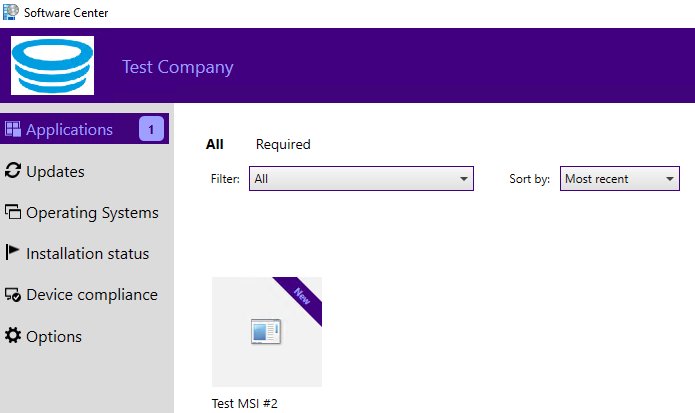
How do you enable the new Software Center for all Configuration Manager clients?
Editing the default client settings applies the change to every client in the hierarchy that no custom setting overrides. In current branch the value already defaults to Yes, so on most sites this is a check rather than a change.
- Open the Configuration Manager console and go to the Administration workspace.
- Select the Client Settings node.
- Select Default Client Settings, then select Properties on the Home tab of the ribbon.
- Select Computer Agent in the navigation pane.
- Set Use new Software Center to Yes.
- Select OK to save the default client settings.
Clients pick up the change at their next policy download.
What is the new Software Center in SCCM ConfigMgr Configuration Manager?
The new Software Center is the current self-service client interface of Configuration Manager, also called SCCM, ConfigMgr or MECM. Microsoft states that the previous version of Software Center and the Application Catalog are no longer supported.
| Item | New Software Center |
|---|---|
| Support status | The only supported version; the previous Software Center is no longer supported |
| Client setting | Use new Software Center under Computer Agent, Yes by default |
| User-available apps | Shown directly on the Applications tab, with policy from the management point |
| Application Catalog | No longer supported; Hide Application Catalog link in Software Center is enabled by default |
| Branding | Company name, color scheme, foreground color (2103+), logo and notification logo (2111+) |
| Custom tabs | Up to five, optionally rendered with Microsoft Edge WebView2 (2103+) |
What is Microsoft Software Center?
Microsoft Software Center is the user-facing app of the Configuration Manager client. It installs automatically on every Windows device that your IT organization manages with Configuration Manager.
It lists only what IT deploys to you or your computer. That makes it different from the Microsoft Store, which is a public storefront; Software Center is a private catalog controlled by your admin.
| What users can do | Where in Software Center |
|---|---|
| Install, request or uninstall approved apps | Applications tab |
| Install software updates IT has deployed | Updates tab |
| Upgrade or reinstall Windows from a task sequence | Operating Systems tab |
| See what installed, failed or is scheduled | Installation Status tab |
| Check the device against security policies | Device Compliance tab |
| Set business hours, power and remote control preferences | Options tab |
| Open IT pages such as a help desk site | Custom tabs added by the admin |
What should you check before enabling the new Software Center?
| Check | Why it matters |
|---|---|
| Existing custom client settings | Custom settings override the default settings, and the lowest order number wins a conflict |
| Client version | New Software Center features only work fully once clients are updated to match the site |
| .NET Framework on clients | Version 2107 and later clients require .NET 4.6.2; WebView2 custom tabs fall back to Internet Explorer without it |
| Install permissions under Computer Agent | No Users blocks every install from Software Center |
| Co-management | Select the user portal decides whether notifications open Company Portal or Software Center |
| Deployments with the Available purpose | Software Center lists nothing until apps are deployed to the user or device |
| A pilot collection | Lets you test branding and tabs before every client sees them |
How do you enable the new Software Center for only a pilot collection?
Custom client settings override the default settings for the collection you deploy them to. Use this route to test branding, tabs and portal choice on a small group first.
- Create a device collection that contains only the pilot computers.
- Go to Administration > Client Settings in the console.
- On the Home tab, in the Create group, select Create Custom Client Settings > Create Custom Client Device Settings.
- Enter a unique name, such as
Software Center pilot, and an optional description. - Select the Computer Agent group, open it in the navigation pane and set Use new Software Center to Yes.
- Select OK to save the custom setting.
- Select the new setting, choose Deploy in the Client Settings group, pick the pilot collection and select OK.
- Use Move Item Up or Move Item Down if another custom setting with a lower order number conflicts with it.
Can you enable the new Software Center with PowerShell?
Yes. The Configuration Manager module includes Set-CMClientSettingComputerAgent, which has a -UseNewSoftwareCenter Boolean parameter. Run the cmdlets from the site drive, for example PS XYZ:\>, after you connect the console's PowerShell session.
# All clients: edit the default client settings
Set-CMClientSettingComputerAgent -DefaultSetting -UseNewSoftwareCenter $true

# Pilot only: create, configure and deploy a custom device setting
New-CMClientSetting -Name "Software Center pilot" -Type Device
Set-CMClientSettingComputerAgent -Name "Software Center pilot" -UseNewSoftwareCenter $true
New-CMClientSettingDeployment -Name "Software Center pilot" -CollectionName "Software Center Pilot"
-DefaultSetting edits Default Client Settings. The pilot block creates a custom device setting, turns the option on and deploys it to the named collection.
You should see: The cmdlets return without an error, and the custom setting shows the pilot collection on its Deployments tab in the console.
How do you make a client receive the Software Center setting?
Clients download policy on the schedule set in client settings. Trigger retrieval on demand when you test a change.
- From the console: go to Assets and Compliance > Devices, select the device, then select Client Notification > Download Computer Policy in the Device group. Run it against a collection to reach every member.
- From the client: open the Configuration Manager control panel, switch to the Actions tab, select Machine Policy Retrieval & Evaluation Cycle and select Run Now.
- Select OK at the prompt, then run User Policy Retrieval & Evaluation Cycle the same way for user settings and user-targeted apps.
- From a script: run
Invoke-WmiMethod -Namespace root\ccm -Class sms_client -Name TriggerSchedule "{00000000-0000-0000-0000-000000000021}"on the client. - Ask the user to select Sync Policy on the Options tab of Software Center if you cannot reach the device.
How can you verify that the new Software Center setting is effective?
- In the console, go to Assets and Compliance > Devices and select a target device.
- Select Resultant Client Settings in the Client Settings group of the ribbon.
- Select Computer Agent in the left pane and confirm Use new Software Center reads Yes.
- On the client, open Start, type
Software Centerand open it. - Check that the window shows the Applications, Updates, Operating Systems, Installation Status, Device Compliance and Options tabs, plus your branding.
- Open
SCClient_<domain>@<username>_1.login%windir%\CCM\Logsand confirm the session started without errors.
Software Center architecture and how it works behind the scenes (MECM client, policies, and content flow)
Software Center is a front end. The Configuration Manager client does the work: it fetches policy from the management point, finds content on a distribution point, then installs and reports status.
| Stage | What happens | Client log |
|---|---|---|
| Site assignment and registration | The client gets its GUID and assigned site | ClientIDManagerStartup.log, ClientLocation.log |
| Locate servers | The client finds management points and distribution points | LocationServices.log |
| Policy download | Deployment policy comes from the management point of the assigned primary site | PolicyAgent.log, CcmMessaging.log |
| Policy evaluation | The client evaluates requirements, applicability and dependencies | PolicyEvaluator.log, AppIntentEval.log |
| Content download | BITS or SMB transfers content into the local client cache | CAS.log, ContentTransferManager.log, DataTransferService.log |
| Install and detect | The deployment type runs, then the detection method confirms the result | AppEnforce.log, AppDiscovery.log |
| User interface | Software Center shows state and notifications to the signed-in user | SCClient_*.log, SCNotify_*.log |
User experience deep dive: Navigating Software Center as an end user
- Select Start and type
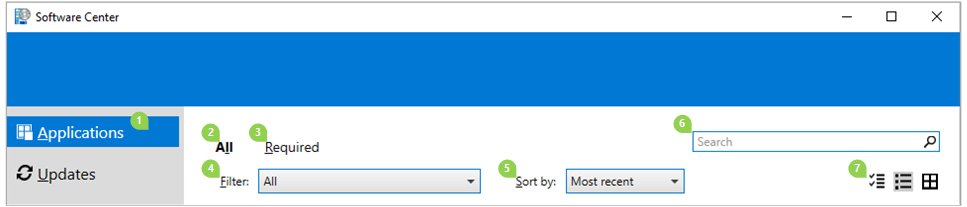
Software Center, or open the Microsoft Endpoint Manager folder in the Start menu (Microsoft System Center on clients older than version 1910). - Select the Applications tab and switch between All and Required.
- Use Filters to narrow the list to a category your admin created.
- Use Sort by to reorder the list; new apps carry a New banner for seven days.
- Type a name in the Search box to find a specific title.
- Switch between tile view and list view with the view icons in the upper right.
- Select Share on an app page to copy a
softwarecenter:link that opens the same app for a colleague.
On a shared device, only the session with the lowest session ID sees every deployment.
Software Center tabs
| Tab | What it shows | Key controls |
|---|---|---|
| Applications | Apps deployed to you or this computer | All, Required, Filters, Sort by, Search, multi-select |
| Featured | User-available apps the admin marked as featured | Admins can make it the default tab in client settings |
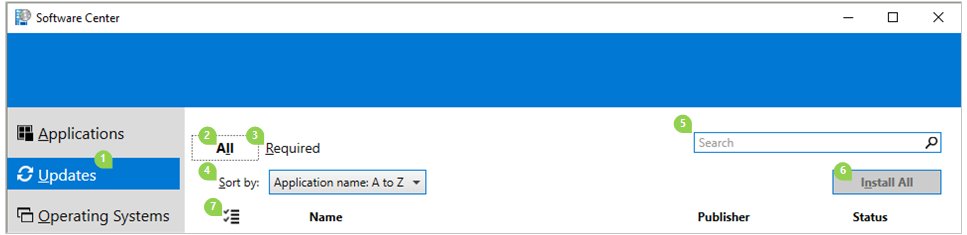
| Updates | Software updates deployed to this computer | Install All, Install Selected |
| Operating Systems | Windows versions deployed through task sequences | All, Required, Sort by, Search |
| Installation Status | Installed, Downloading, Failed and Scheduled to install after | Install Now before the maintenance window |
| Device Compliance | Compliance state against IT security policies | Check compliance |
| Options | Work hours, power, maintenance and remote control | Sync Policy |
| Custom tabs | Websites the admin adds, up to five | Named by the admin |
Installing applications
- Open Software Center and select the Applications tab.
- Select an app to open its details page.
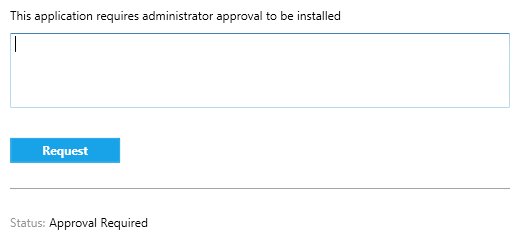
- Select Install. If the app needs approval, enter a comment and select Request instead.
- To install several apps, select the multi-select icon, tick each app and select Install Selected.
- Select the Installation Status tab to check progress: Downloading, Installed, Failed or Scheduled to install after.
- Select Install Now on a scheduled item to install before the maintenance window opens.
Application deployment through Software Center: Available vs required apps, detection, and user interaction
| Deployment purpose | What the user sees | What the client does |
|---|---|---|
| Available to a user collection | App appears on Applications; user chooses to install | Installs on demand; self-service without IT help |
| Available with approval required | Request button, request history and a cancel option | Installs after an admin approves, outside business hours if the user waits |
| Required | App listed under Required with a deadline | Installs at the deadline and reinstalls it if the user removes it |
| Featured (user available) | App on the Featured tab | Same as Available; only for user-available apps |
Detection decides whether Software Center reports an app as installed. The client logs detection results in AppDiscovery.log and the install itself in AppEnforce.log.
Installing updates
- Open Software Center and select the Updates tab.
- Select Required to see updates IT enforces, or All for every available update.
- Select Install All to install everything listed.
- To pick specific updates, select the multi-select icon, tick the updates and select Install Selected.
- Restart when Software Center prompts you, if an update requires it.
Operating system deployment, updates, and maintenance tasks in Software Center
Operating-system deployments appear when IT deploys a task sequence to your computer. Maintenance timing follows the business hours you set and the windows IT defines.
- Select the Operating Systems tab to see Windows versions deployed to the computer.
- Select a deployment to see its details, then select Install to start the upgrade.
- Select Options > Work information and set the hours and days you use the computer (defaults are 5:00 AM to 10:00 PM, weekdays).
- Under Computer maintenance, enable Automatically install or uninstall required software and restart the computer only outside of the specified business hours if you want deadlines handled out of hours.
- Keep Suspend Software Center activities when my computer is in presentation mode enabled to avoid interruptions during presentations.
Useful settings in Options
| Setting | Default | Use it when |
|---|---|---|
| Work information (hours and days) | 5:00 AM to 10:00 PM, weekdays | You want installs scheduled outside your working time |
| I regularly use this computer to do my work | Not selected | This is your primary device, so IT can target it |
| Do not apply power settings from my IT department to this computer | Disabled | IT allows users to opt out of power plans |
| Suspend Software Center activities when my computer is in presentation mode | Enabled | You present often and want no prompts |
| Sync Policy | Button | IT asks you to fetch new deployments now |
How do you customize the new Software Center?
- Open the default or custom client settings and select the Software Center group.
- Set Select these new settings to specify company information to Yes, then select Customize.
- On General, enter the Company name, pick a Color scheme and, from version 2103, a foreground color.
- Enable Select a logo for Software Center and browse to a JPG, PNG or BMP file of 400 x 100 pixels, 750 KB or less, with no spaces in the name.
- On Tabs, use Add, Remove, Move Up and Move Down to set visible tabs, and Add tab to create up to five custom tabs with a Tab name and Content URL.
- On Defaults, set the Default application filter (All or Required) and Default application view (Tile or List).
- Select OK, then deploy or refresh the client setting.
From version 2111 you can add a separate square logo for notifications, up to 2 MB.
Administrative configuration of Software Center: Client settings, branding, and customization
These are the Configuration Manager administrator settings that shape Software Center. Company name in the Software Center group takes priority over Organization name in the Computer Agent group.
| Client setting group | Setting | Effect |
|---|---|---|
| Computer Agent | Use new Software Center | Yes by default; the old version is unsupported |
| Computer Agent | Organization name displayed in Software Center | Fallback name when no Company name is set |
| Computer Agent | Install permissions | All Users, Only Administrators, Only Administrators and primary users, or No Users |
| Software Center | Select the user portal | Software Center or Company Portal for notifications |
| Software Center | Hide installed applications in Software Center | Enabled by default; installed apps move to Installation Status only |
| Software Center | Hide Application Catalog link in Software Center | Enable it; the catalog is no longer supported |
| Software Center | Display custom tabs with Microsoft Edge WebView2 runtime | Version 2103 and later; the client installs the fixed runtime if missing |
| Metered internet connections | Software Center requests | Always permitted, even on a metered connection |
Software Center vs Intune Company Portal: Key differences, overlap, and co-management scenarios
| Point | Software Center | Company Portal |
|---|---|---|
| Managed by | Configuration Manager client | Intune, with Configuration Manager apps on co-managed devices |
| Devices | Any device with the Configuration Manager client | Co-managed Windows 10 1803 or later with an Entra identity and Intune license |
| Site version | Any current branch | Configuration Manager 2006 or later, Company Portal 11.0.8980.0 or later |
| Client apps workload with Configuration Manager | Shows Configuration Manager apps | Shows only Configuration Manager client apps |
| Client apps workload with Pilot Intune or Intune | Shows Configuration Manager apps | Shows both Configuration Manager and Intune apps |
| Office Click-to-Run apps with Pilot Intune or Intune | Configuration Manager Office apps | Only Intune Office Click-to-Run apps |
Setting Select the user portal to Company Portal makes both Intune and Configuration Manager notifications open Company Portal. Scenarios Company Portal does not support still open Software Center.
Why are applications missing after the new Software Center is enabled?
Turning the setting on changes the interface, not what is deployed. When an application or tab is missing, the cause is almost always deployment targeting or a display option.
Software Center still shows no applications after it is enabled
No app is deployed as Available to the user or device, or policy has not arrived yet.
- Confirm the app has an Available deployment to a collection that contains the user or device.
- Run Machine Policy Retrieval & Evaluation Cycle and User Policy Retrieval & Evaluation Cycle on the client.
- Select Sync Policy on the Options tab and reopen Software Center.
An installed app disappeared from the Applications tab
Hide installed applications in Software Center is enabled by default.
- Look for the app on the Installation Status tab.
- Disable Hide installed applications in Software Center in client settings if users need it on the Applications tab.
Apps that need approval do not appear
Hide unapproved applications in Software Center is enabled.
- Open Customize under the Software Center client setting group.
- Clear Hide unapproved applications in Software Center and refresh client policy.
A tab is missing
The admin moved it to Hidden tabs in Software Center customization.
- Open Customize > Tabs in the Software Center client settings.
- Select the tab under hidden tabs and select Add, then refresh policy.
Packages or task sequences are missing for one user on a shared device
Only the session with the lowest session ID sees every deployment.
- Open Task Manager and check session IDs on the Users tab.
- Sign out the other sessions or run the install from the lowest session.
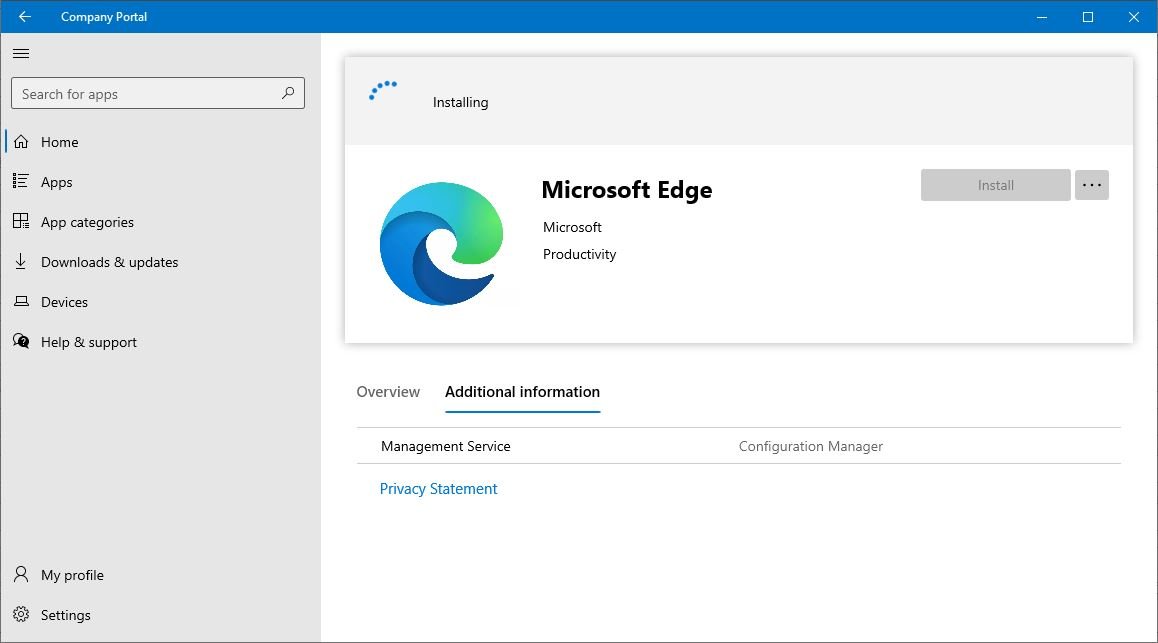
Why does a co-managed device open Company Portal instead of Software Center?
Notifications open Company Portal instead of Software Center
Select the user portal is set to Company Portal in the Software Center client settings.
- Open the client setting deployed to the device and select Software Center.
- Set Select the user portal to Software Center if you want Configuration Manager to keep its own portal.
- Refresh machine policy on the device.
Some notifications open Company Portal and others open Software Center
Company Portal is installed but the portal setting is Software Center, so Intune notifications still open Company Portal.
- Pick one portal for co-managed devices.
- Set Select the user portal to Company Portal if users should only see one app.
Company Portal shows Intune apps but not Configuration Manager apps
The device does not meet Company Portal prerequisites for Configuration Manager apps.
- Confirm the site is version 2006 or later and Company Portal is 11.0.8980.0 or later.
- Confirm the user has an Entra identity and an Intune license.
- Check CoManagementHandler.log on the client.
What should you do when a custom Software Center tab fails?
Script errors or security warnings in a custom tab
The tab uses the built-in Internet Explorer browser control.
- Enable Display custom tabs with Microsoft Edge WebView2 runtime (version 2103 and later).
- Confirm the client has .NET Framework 4.6.2 or later; otherwise it falls back to Internet Explorer.
- Predeploy the WebView2 runtime as an application if the 100 MB-plus download worries you.
Error: Could not load type 'System.Runtime.InteropServices.Architecture'
The client runs a .NET Framework version older than 4.7.1.
- Update .NET Framework on the client to 4.7.1 or later.
- Reopen Software Center and select the tab again.
Sign-in fails in a tab that loads a Conditional Access site
In version 2103 and earlier, single sign-on with multifactor authentication can fail in custom tabs.
- Update the site and clients beyond version 2103.
- Enable the WebView2 option and retest the tab.
The tab opens the wrong page or nothing
Configuration Manager does not validate the Content URL.
- Open Customize > Tabs, select the tab and choose Edit tab.
- Correct the Content URL, using only trusted or intranet addresses.
Common troubleshooting scenarios: Application failures, content download issues, and client health
These are the common restrictions and failure cases behind a Failed status or a deployment that never starts.
Install button missing or users cannot install anything
Install permissions is set to No Users or Only Administrators.
- Check Install permissions under Computer Agent in Resultant Client Settings.
- Change it to All Users or Only Administrators and primary users to match your policy.
Application shows Failed on Installation Status
The installer returned an error or the detection method did not find the app afterwards.
- Open AppEnforce.log and find the exit code for the deployment type.
- Open AppDiscovery.log to see whether detection ran and what it found.
- Fix the command line or detection method, then retry from Software Center.
Stuck on Downloading
The client cannot find or reach a distribution point with the content.
- Check LocationServices.log and CAS.log for distribution point lookups.
- Check ContentTransferManager.log and DataTransferService.log for transfer errors.
- Confirm the content is distributed to a distribution point in the client's boundary group.
Nothing new reaches the client at all
Client health or site assignment problems stop policy download.
- Check ClientIDManagerStartup.log and ClientLocation.log for registration and assignment.
- Check CcmMessaging.log and PolicyAgent.log for management point communication.
- Trigger Download Computer Policy from the console once the errors are fixed.
Which logs help diagnose Software Center problems?
Client logs sit in %windir%\CCM\Logs. Open them with CMTrace or Support Center OneTrace, the log viewers Microsoft documents for diagnostics and deep troubleshooting.
| Log | Records | Open it for |
|---|---|---|
| SCClient_<domain>@<username>_1.log | Software Center activity for that user | The interface, endpoint URL and user actions |
| SCNotify_<domain>@<username>_1.log | User notifications about software | Missing or duplicate notifications |
| SoftwareCenterSystemTasks.log | Software Center prerequisite validation | Software Center failing to start |
| AppIntentEval.log | Current and intended app state, requirements and dependencies | Apps not applicable |
| AppDiscovery.log | Application detection results | Wrong installed state |
| AppEnforce.log | Install and uninstall actions | Failed installs and exit codes |
| execmgr.log | Packages and task sequences | Package programs and OS deployments |
| UpdatesDeployment.log | Software update deployments and UI interaction | Updates tab problems |
| CAS.log, ContentTransferManager.log | Content cache and downloads | Stuck downloads |
| CoManagementHandler.log | Co-management | Company Portal versus Software Center |
Best practices, limitations, and real-world use cases in enterprise environments
| Practice or limitation | Detail |
|---|---|
| Pilot first | Deploy branding and tab changes as a custom setting to a pilot collection before the default settings |
| Keep order numbers tidy | The lowest order number wins conflicts, so document which custom setting owns Software Center |
| Use only trusted URLs in custom tabs | Configuration Manager does not validate the Content URL |
| Plan WebView2 bandwidth | The runtime installer is over 100 MB; predeploy it as an app on large estates |
| Update clients with the site | New Software Center features are not fully functional until clients match the site version |
| Multi-session limitation | Only the lowest session ID sees packages and task sequences |
| Self-service use case | Deploy common tools as Available to user collections so users install without a ticket |
| Approval use case | Require approval for licensed apps so requests and history are tracked |
New Software Center enablement checklist
| Step | Done when |
|---|---|
| Use new Software Center set to Yes | Resultant Client Settings shows Yes on a test device |
| Company name, colors and logo set | Branding appears in the Software Center banner |
| Tabs ordered and custom tabs tested | Every visible tab loads without errors |
| User portal chosen for co-managed devices | Notifications open the intended app |
| Install permissions confirmed | A standard user can install an Available app |
| At least one Available deployment | The app shows on the Applications tab |
| Policy refreshed on pilot devices | SCClient log shows a clean session |
| Custom setting deployed wider or merged into defaults | All target collections listed on the Deployments tab |
New Software Center in Configuration Manager FAQ
Is the new Software Center a separate download?
No. Software Center is part of the Configuration Manager client and installs automatically on managed Windows devices. Enabling the new version is a client setting, Use new Software Center under Computer Agent, which already defaults to Yes in current branch.
Why does Software Center still show no applications after it is enabled?
Software Center only lists software deployed to that user or device. Create an Available deployment to a collection containing them, then run Machine Policy and User Policy Retrieval & Evaluation Cycle on the client, or select Sync Policy on the Options tab.
What should I check when the Software Center setting is enabled but the client behaves differently?
Check Resultant Client Settings for the device in the console. A custom client setting with a lower order number overrides the default settings, so the device can receive a different value than the one you edited.
Why does my co-managed device open Company Portal instead of Software Center?
The Select the user portal client setting is set to Company Portal, or Intune sends the notification. Set the option to Software Center in the Software Center client settings group if you want Configuration Manager notifications to open Software Center.
How do I open Software Center?
Select Start and type Software Center, or open the Microsoft Endpoint Manager folder in the Start menu. On clients older than version 1910 the folder is named Microsoft System Center. If you cannot find it, contact your IT administrator.
How do I install new software from Software Center?
Open the Applications tab, select the app and select Install. If the app needs approval, enter a comment and select Request. Track progress on the Installation Status tab, which shows Downloading, Installed or Failed.
Is Software Center the same as the Microsoft Store?
No. Software Center shows only applications, updates and Windows upgrades that your IT department deploys through Configuration Manager. The Microsoft Store is a public storefront open to anyone, while Software Center is a private catalog your IT admin controls.
The bottom line: should you enable the new Software Center?
Leave Use new Software Center set to Yes in Default Client Settings, and test branding, tabs and the user portal on a pilot collection first. The previous Software Center and the Application Catalog are no longer supported, so the new version is the only supported self-service portal for Configuration Manager clients.




![Java JRE latest version: Download & Install [32-bit, 64-bit]](https://techdows.com/wp-content/uploads/2026/10/Java-JRE-latest-version-Download-Install-32-bit-64-bit-1-600x338.jpg)