The 10 new things in Windows Server 2022 are Secured-core server, better containers with Azure Arc, Azure Edition hybrid features, faster storage, Windows Admin Center upgrades, TLS 1.3 and encrypted DNS, application platform changes, Hyper-V updates, a new edition, and a longer container lifecycle.
Each item below lists only what Microsoft's own What's new page for Windows Server 2022 confirms, plus the support dates from the Microsoft lifecycle page.
The 10 new things at a glance
Microsoft groups the release under three themes: security, Azure hybrid integration and management, and the application platform. Use this table to jump to the change that affects your servers.
| # | What changed | Headline detail | Which editions |
|---|---|---|---|
| 1 | Secured-core server | TPM 2.0, Secure Launch (DRTM), DMA protection, VBS and HVCI on certified hardware | All editions, certified hardware |
| 2 | Windows containers and Azure Arc | Smaller images, gMSA without a domain-joined host, Azure Arc Setup wizard | Standard and Datacenter (containers) |
| 3 | Hybrid cloud | Hotpatch, Azure Extended Network, Azure Local guest support | Datacenter: Azure Edition |
| 4 | Storage | SMB over QUIC, adjustable S2D repair speed, ReFS snapshots, SMB compression | Varies by feature |
| 5 | Windows Admin Center | Secured-core status, .NET app containerization, disk anomaly detection | All editions |
| 6 | Networking | TLS 1.3 on by default, DNS-over-HTTPS, AES-256 SMB encryption, faster TCP and UDP | All editions |
| 7 | Application platform | DirectX GPU in containers, MSMQ and DTC, 48 TB memory on Intel Ice Lake | All editions |
| 8 | Hyper-V | Nested virtualization on AMD, vSwitch RSC, Hyper-V Manager for Server Core | All editions |
| 9 | Editions and deployment | New VM-only Datacenter: Azure Edition, Edge replaces Internet Explorer | Edition-specific |
| 10 | Support lifecycle | Container images get five years mainstream plus five years extended | All editions |
1. Advanced Security with Secured-core Server
Secured-core server is certified OEM hardware that turns on Windows Server security features from firmware up. Windows Server 2022 brings to servers the protections that Secured-core PCs already had.
You find certified hardware in the Windows Server Catalog. Existing servers without certification can still use the recommended baseline of TPM 2.0 and Secure Boot.
| Feature | What it protects against | Hardware requirement |
|---|---|---|
| TPM 2.0 (hardware root of trust) | Tampered boot code; stores BitLocker keys and boot measurements | TPM 2.0 chip |
| UEFI Secure Boot | Rootkits; only vendor-signed firmware and OS components boot | Secure Boot on in UEFI |
| Boot DMA protection | Direct Memory Access attacks during boot and at runtime | IOMMU (Intel VT-D or AMD-Vi) |
| System Guard Secure Launch | Firmware attacks; new starting with Windows Server 2022 | DRTM-capable Intel or AMD processor |
| Virtualization-based security (VBS) | Credential theft; enables Credential Guard in an isolated memory region | 64-bit CPU with Intel VT-x or AMD-V |
| Hypervisor-protected code integrity (HVCI) | Unsigned kernel drivers and system files | HVCI-compatible drivers plus VBS |
| Kernel Data Protection (KDP) | Tampering with Windows Defender System Guard runtime structures | VBS |
The steps to switch these features on are in the section on turning on Secured-core below.
2. Improved Windows Container Support and Azure Arc Integration
Windows containers get smaller, easier to authenticate, and better suited to Kubernetes. Azure Arc onboarding moves into a built-in wizard.
| Change | What it means for you |
|---|---|
| Smaller Server Core image | The RTM layer is 2.76 GB uncompressed, down from 3.47 GB in Windows Server 2019, a 33% cut for that layer |
| gMSA without a domain-joined host | Containers use a portable user identity, so Windows worker nodes no longer need a domain join |
| Virtualized time zone | Each container keeps its own time zone; set it with tzutil or Set-TimeZone |
| HostProcess containers | Run node management tasks directly on the host through Kubernetes, without signing in to each node |
| IPv6 dual stack | Supported on L2bridge networks; needs Kubernetes 1.20 or later and a supporting CNI |
| Direct Server Return routing | Request and response traffic take different paths, cutting hops and latency on overlay and l2bridge networks |
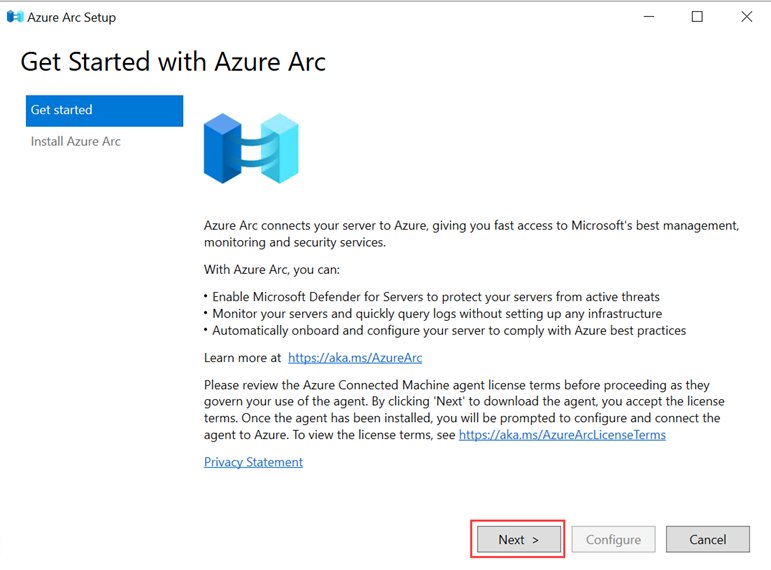
| Azure Arc Setup wizard | Since KB5031364, an Azure Arc tray icon launches setup and installs the Azure Connected Machine agent |
| Arc-enabled servers | An on-premises server appears in Azure as a resource you manage like a native Azure VM |
The Azure Connected Machine agent itself carries no extra charge on your Azure account. Azure Arc Setup is an optional component you can remove in Remove Roles and Features.
3. Enhanced Hybrid Cloud Capabilities
Most hybrid features ship in Windows Server 2022 Datacenter: Azure Edition, a VM-only edition built on Datacenter. It runs in Azure or as a guest VM on Azure Local.
| Feature | What it does | Availability |
|---|---|---|
| Hotpatch | Installs updates without a restart after installation | Azure Edition; Desktop Experience entered public preview in April 2023 |
| Azure Extended Network | Stretches an on-premises subnet into Azure so migrated VMs keep their private IP addresses | Azure Edition |
| SMB over QUIC | File access from edge file servers over QUIC and TLS 1.3, no VPN needed | Azure Edition |
| Storage Replica compression | Compresses replication traffic for more throughput and faster resync | Azure Edition, from KB5017381 (build 20348.1070 or higher) |
| Azure Local guest support | Run Azure Edition as a supported guest VM on Azure Local, version 22H2 | From the September 2022 update |
| Azure Marketplace images | Deploy Azure Edition from Azure Marketplace on Arc-enabled Azure Local | Preview |
4. Improved Storage Features: SMB over QUIC, Storage Spaces Direct (S2D), and More
Storage changes focus on faster recovery and simpler migration. Storage Spaces Direct is a Datacenter feature, and SMB over QUIC is limited to Azure Edition.
| Feature | What's new | Editions |
|---|---|---|
| SMB over QUIC | SMB 3.1.1 runs over QUIC instead of TCP; Windows 11 clients connect without a VPN | Datacenter: Azure Edition only |
| Adjustable storage repair speed (S2D) | Choose whether resync favors resiliency or running workloads | Datacenter and Azure Edition |
| Faster repair and resync (S2D) | Repairs after node reboots or disk failures run twice as fast and move only changed data | Datacenter and Azure Edition |
| Storage bus cache on standalone servers | Pairs NVMe or SSD with HDD to cache reads and writes without a cluster | All editions |
| ReFS file-level snapshots | Read-only snapshots in constant time, useful for VHD and VHDX backups; use ReFSUtil or the API | All editions |
| SMB compression | Compresses files during transfer, so zipping them first is no longer needed | All editions |
| Storage Migration Service | Migrates local users and groups, failover clusters, Samba on Linux, and NetApp FAS arrays; syncs to Azure File Sync | All editions |
5. Enhanced Windows Admin Center and Modern Management Experiences
Windows Admin Center (WAC) is the browser-based console for Windows Server. The 2022 improvements tie it to Secured-core, containers, and System Insights.
| WAC capability | What you can do |
|---|---|
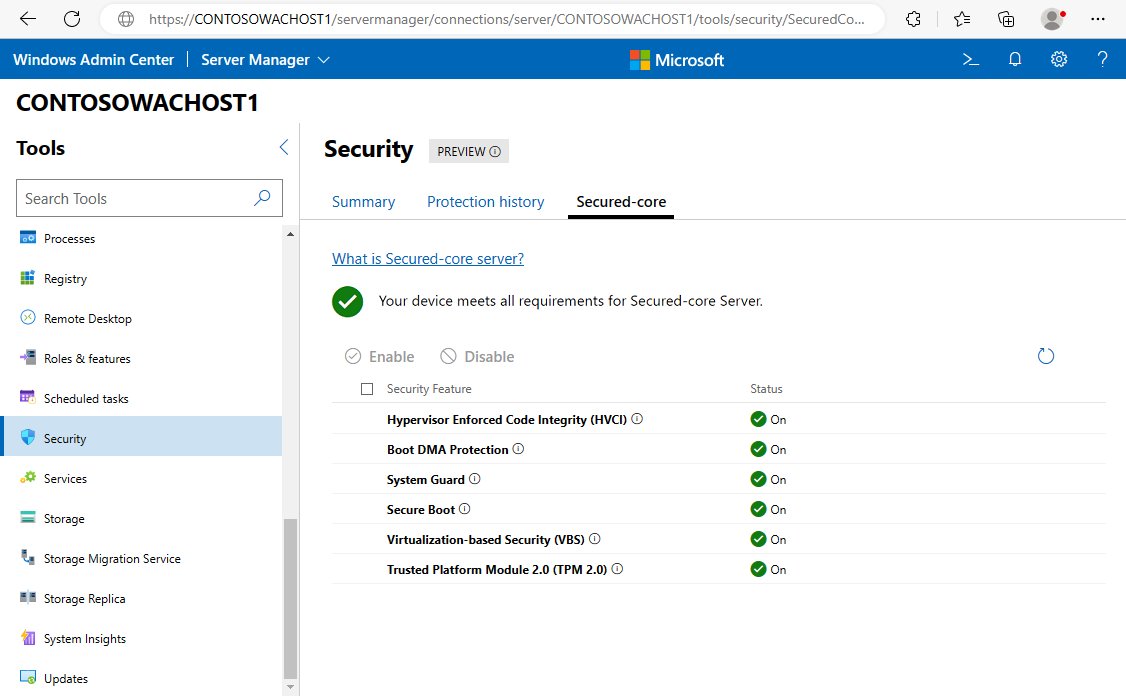
| Secured-core reporting | See the current state of each Secured-core feature and turn features on where the hardware supports them |
| Containers extension | Containerize ASP.NET apps built on .NET Framework from static folders or Visual Studio solutions |
| Web Deploy support | Extract an app and its configuration from a running server, then containerize it |
| Azure Container Registry and Instances | Validate an image locally, push it to the registry, and start or stop container instances |
| System Insights disk anomaly detection | Flag disks behaving differently than usual; also works on Windows Server 2019 |
For scripted management, Secured-core settings are also readable and configurable from Windows PowerShell.
6. Improvements in Networking: DNS Security, Network Performance, and Secure Connectivity
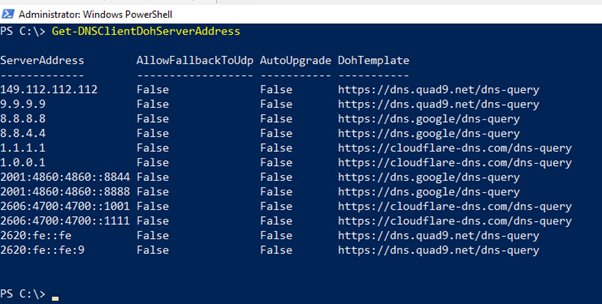
The DNS security change in Windows Server 2022 is DNS-over-HTTPS (DoH) in the DNS client. Microsoft's What's new page does not list DNSSEC as a 2022 change.
Secure connectivity comes from TLS 1.3 turned on by default. Applications and services still need to support TLS 1.3 themselves.
| Area | Change | Detail |
|---|---|---|
| Secure connectivity | HTTPS and TLS 1.3 on by default | Drops obsolete algorithms and encrypts more of the handshake |
| DNS security | DNS-over-HTTPS in the DNS client | Works only with known DoH servers; Cloudflare, Google and Quad9 ship on the default list |
| SMB encryption | AES-256-GCM and AES-256-CCM | Negotiated automatically or required by Group Policy; AES-128 remains for older clients |
| Cluster traffic | East-west SMB encryption and signing | Covers Cluster Shared Volumes and the storage bus layer in Storage Spaces Direct |
| SMB Direct and RDMA | Encryption before data placement | Adds AES-128 and AES-256 privacy with far less performance loss than before |
| UDP performance | UDP Segmentation Offload and UDP Receive Side Coalescing | Moves UDP send work to the network adapter and cuts CPU use |
| TCP performance | HyStart++ and RACK | On by default; reduce packet loss at start-up and retransmit timeouts |
Do not set Require DoH on domain-joined servers. Active Directory Domain Services relies on DNS, and the Windows Server DNS Server service does not answer DoH queries.
7. Application Platform Enhancements: .NET Framework and Container Base OS Updates
Container base images and hardware limits both move forward. .NET Framework 3.5 and 4.8 features are available in every Windows Server 2022 edition.
| Change | Detail |
|---|---|
| Container image size | Microsoft cites up to 40% smaller Windows container images and 30% faster startup |
| Legacy app support in containers | Containers now support Microsoft Distributed Transaction Coordinator (DTC) and Message Queuing (MSMQ) |
| Simple buses | Process-isolated containers can talk over SPI, I2C, GPIO and UART/COM |
| GPU acceleration | DirectX APIs run hardware-accelerated in containers, for example machine learning inference |
| .NET Framework app migration | WAC and Azure Migrate App Containerization move ASP.NET apps into containers and on to Azure Kubernetes Service |
| Scale on Intel Ice Lake | Up to 48 TB of memory and 2,048 logical cores across 64 physical sockets |
| Confidential computing | Intel SGX on Ice Lake isolates applications in protected memory |
8. Improved Hyper-V and Virtualization Features
Hyper-V gains wider hardware support and better virtual network throughput. Server Core also gets the graphical Hyper-V tool back through a Feature on Demand.
| Feature | What changed |
|---|---|
| Nested virtualization on AMD | Run Hyper-V inside a Hyper-V VM on AMD processors, not only Intel |
| Virtual switch RSC | Receive Segment Coalescing processes packets as larger segments; on by default for external virtual switches |
| Hyper-V Manager on Server Core | Hyper-V Manager (virtmgmt.msc) and Task Scheduler (taskschd.msc) join the App Compatibility Feature on Demand |
| Remote Desktop IP Virtualization | Per-session and per-program IP virtualization for Winsock apps, available from KB5030216 |
| Overlay networking scale | Fixes port exhaustion with hundreds of Kubernetes services and speeds packet forwarding in the vSwitch |
9. Licensing and Deployment Model Updates
The main deployment change is a new edition: Datacenter: Azure Edition. Match your needs to a row to see which edition fits.
Pricing and core licensing terms are not covered here; check your Microsoft licensing agreement for those.
| Edition or change | What sets it apart | Pick it when |
|---|---|---|
| Standard | No Storage Spaces Direct, SMB over QUIC, Hotpatch, Network Controller or Host Guardian Hyper-V Support | You need none of the Datacenter-only or Azure-only features |
| Datacenter | Adds Storage Spaces Direct, Network Controller and Host Guardian Hyper-V Support; can host AVMA guests | You build clusters or software-defined storage |
| Datacenter: Azure Edition | VM-only; adds Hotpatch and SMB over QUIC; activated by Azure, cannot be a KMS host, no Containers feature | Your VMs run in Azure or on Azure Local |
| Microsoft Edge in the box | Replaces Internet Explorer on Server with Desktop Experience | Every Desktop Experience install |
| Automatic update rollback | Removes a recent driver or quality update that stops the server from starting | Server Core with a Windows Recovery Environment partition |
Essentials is also listed as a Windows Server 2022 edition on the lifecycle page, alongside Standard, Datacenter and Azure Edition.
10. Extended Support and Lifecycle Improvements
Windows Server 2022 follows the Fixed Lifecycle Policy. The dates below come from the Microsoft lifecycle page and apply to Datacenter, Datacenter: Azure Edition, Essentials and Standard.
| Lifecycle item | Date or term |
|---|---|
| Start date | Aug 17, 2021 |
| Mainstream support ends | Oct 13, 2026 |
| Extended support ends | Oct 14, 2031 |
| Containers released with Windows Server 2022 | Same dates as the OS |
| Container images (Server Core, Nano Server, Server) | Five years mainstream plus five years extended support |
| Hotpatch on Datacenter: Azure Edition Core | Supported through the end of Mainstream Support |
| Microsoft Edge | Follows the Modern Lifecycle Policy, not the server's dates |
Microsoft describes the ten-year container image window as a longer support cycle, giving time to deploy, upgrade or migrate on your own schedule.
Check whether a server runs Windows Server 2022
Windows Server 2022 is OS build 20348. The systeminfo command shows the OS name and version on the local or a remote server.
systeminfo /fo listLists operating system configuration, security information, product ID and hardware properties. Add /s <computer> to query a remote server.
You should see: The OS name shows Windows Server 2022 and the OS version shows build 20348.
How to turn on Secured-core features
Before you start, enable Secure Boot, TPM 2.0, virtualization extensions, IOMMU and DRTM in the BIOS. The BIOS menu names vary by hardware vendor, so follow your server maker's Secured-core guide.
- Open Start, select Windows Administrative Tools, and open Computer Management.
- Select Device Manager and resolve any device errors.
- On AMD systems, confirm the DRTM Boot Driver device is present.
- Open Start and select Windows Security.
- Select Device security, then Core isolation details.
- Turn on Firmware Protection, restart, and then turn on Memory Integrity.
- Restart the server when prompted.
How to check Secured-core is working
- Open Start, type
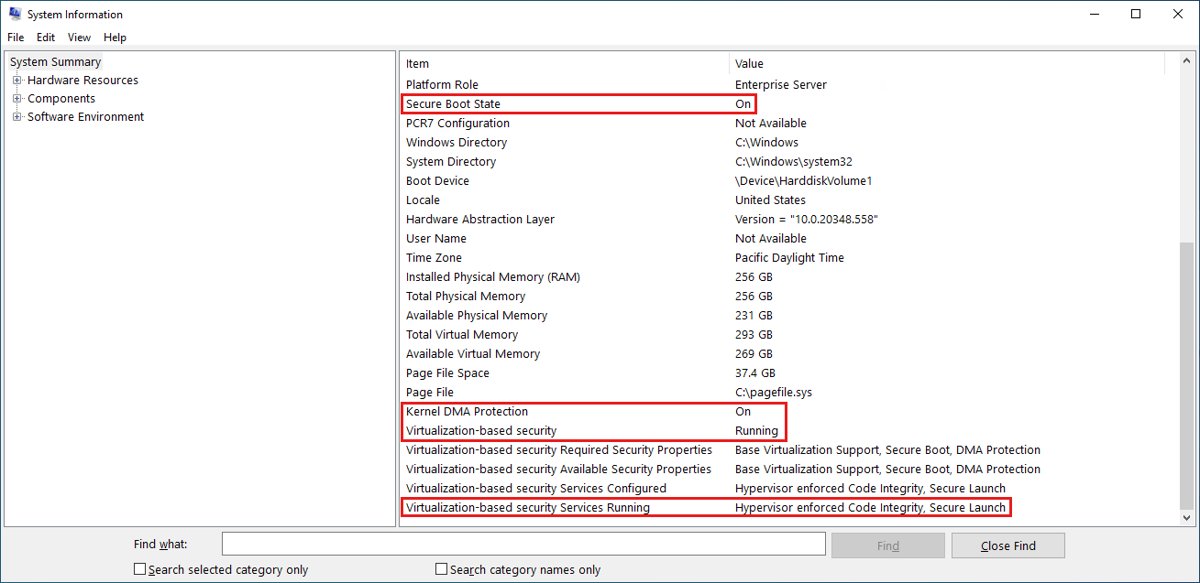
msinfo32.exe, and open System Information. - On System Summary, confirm Secure Boot State and Kernel DMA Protection show On.
- Confirm Virtualization-based security shows Running.
- Confirm Virtualization-based security Services Running lists Hypervisor enforced Code Integrity and Secure Launch.
Frequently Asked Questions
What Windows Server do I have?
Run systeminfo in Command Prompt and read the OS name and version lines. Windows Server 2022 reports OS build 20348, and Windows Server 2025 reports build 26100. Add /s and a computer name to check a remote server.
What is Secured-core server?
Secured-core server is certified OEM hardware running Windows Server with TPM 2.0, Secure Boot, Boot DMA protection, System Guard Secure Launch, VBS and HVCI turned on. It protects the server from firmware attacks and unsigned kernel code. Certified models are listed in the Windows Server Catalog.
Which Windows Server 2022 edition supports SMB over QUIC?
Only Windows Server 2022 Datacenter: Azure Edition supports SMB over QUIC. Standard and Datacenter do not. It lets Windows 11 clients reach edge file servers over QUIC and TLS 1.3 without a VPN.
Does Windows Server 2022 support TLS 1.3?
Yes. HTTPS and TLS 1.3 are on by default in Windows Server 2022. Applications and services running on the server must also support TLS 1.3 before their connections use it.
Is DNSSEC new in Windows Server 2022?
No. Microsoft's What's new page for Windows Server 2022 does not list DNSSEC. The DNS security addition is DNS-over-HTTPS in the DNS client, which encrypts queries to known DoH servers such as Cloudflare, Google and Quad9.
Does Windows Server 2022 include .NET 6?
The What's new page does not list .NET 6 as a Windows Server 2022 feature. Every edition includes .NET Framework 3.5 and .NET Framework 4.8 features, and Windows Admin Center can containerize ASP.NET apps built on .NET Framework.
What does Azure Arc integration do on Windows Server 2022?
Azure Arc lets you manage an on-premises or multicloud server from Azure as if it were an Azure VM. Since KB5031364, a tray icon launches Azure Arc Setup, which installs the Azure Connected Machine agent at no extra charge.
When does Windows Server 2022 support end?
Mainstream support for Windows Server 2022 ends on Oct 13, 2026, and extended support ends on Oct 14, 2031, per the Microsoft lifecycle page. Containers released with Windows Server 2022 follow the same dates.
Bottom line
Run Windows Server 2022 on Secured-core hardware where you can, and pick Datacenter: Azure Edition if your VMs live in Azure or on Azure Local. Mainstream support ends on Oct 13, 2026, and Hotpatch support on Azure Edition Core ends with it. Extended support runs to Oct 14, 2031, so plan any move to Windows Server 2025 inside that window.

![Blue Screen of Death Causes and Solutions [Guide]](https://techdows.com/wp-content/uploads/2026/10/Blue-Screen-of-Death-Causes-and-Solutions-Guide-600x338.jpg)





Windows Server 2016 EOL and end of support: January 12, 2027 - Techdows
[…] For most servers, Windows Server 2025 is the target that avoids a second project before 2030. The new features in Windows Server 2022 are worth reviewing if your vendors stop at […]