To manage Apple devices with Microsoft Intune, upload an Apple MDM push certificate, connect Apple Business Manager, enroll each iPhone, iPad or Mac, then assign compliance, configuration, app and update policies.
This guide covers corporate and personal devices, every admin center path, the yearly renewals that keep management alive, and fixes for the enrollment errors admins hit most.
How to manage Apple devices with Intune: the short version
Every step happens in the Microsoft Intune admin center, which runs in a supported web browser on Windows or macOS.
- Sign in to the Microsoft Intune admin center with an Intune administrator account.
- Go to Devices > Device onboarding > Enrollment, select the Apple tab and upload an Apple MDM Push Certificate.
- For company-owned devices, add an Enrollment program token from Apple Business Manager and set a default enrollment policy.
- For personal iPhones and iPads, create an account-driven user enrollment profile, or protect work apps without enrollment.
- Create a compliance policy under Devices > Compliance, then a Conditional Access policy that requires a compliant device.
- Push settings with Settings catalog profiles and apps through an Apple VPP location token.
- Assign a Declarative Device Management software update policy, and renew the certificate and tokens every year.
Corporate vs personal Apple devices: start with ownership, not with a policy
Ownership decides which enrollment method is allowed, how much control Intune gets, and what the user keeps private. Settle it per device group before you write a single policy.
| Ownership | Typical enrollment | Supervision | What Intune can do |
|---|---|---|---|
| Company-owned iPhone or iPad | Automated Device Enrollment (ADE) through Apple Business Manager | Yes, when the enrollment policy sets Supervised to Yes | Full device control, locked enrollment, full wipe, hidden Setup Assistant panes |
| Company-owned Mac | ADE for macOS, direct enrollment, or a device enrollment manager account | Turned on automatically for user-approved enrollments on macOS 11 and later | Configuration, apps, bootstrap token escrow, wipe |
| Shared or kiosk iPad | ADE with Enroll without User Affinity | Required for Shared iPad | Shared iPad sessions, single-purpose setups |
| Personal iPhone or iPad | Account-driven user enrollment, or device enrollment through Company Portal or the web | No | Work apps and a separate managed volume; no serial number, IMEI or personal app inventory with user enrollment |
| Personal device the user will not enroll | None: app protection policies only | No | PIN, copy and paste limits, save-as limits and selective wipe inside protected apps |
What you need before enrolling Apple devices in Intune
| Requirement | Where it comes from | Why it matters |
|---|---|---|
| Intune license for each user | Microsoft 365 admin center | Unlicensed users get User Name Not Recognized during enrollment |
| MDM authority set to Intune | Intune admin center | Enrollment fails with MdmAuthorityNotDefined without it |
| Company Apple ID (Managed Apple Account preferred) | Apple, owned by a shared mailbox | Creates and renews the push certificate and tokens; a personal Apple ID leaves with the employee |
| Apple MDM push certificate | Apple Push Certificates Portal | Required for every iOS, iPadOS and macOS enrollment |
| Apple Business Manager or Apple School Manager | business.apple.com or school.apple.com | Needed for ADE and for volume-purchased apps |
| Microsoft Entra ID P1 or P2 | Microsoft licensing | Required for Conditional Access; compliance alone does not need it |
| Microsoft Entra groups | Entra admin center | Policies, apps and enrollment profiles are assigned to groups |
| Service discovery file (user enrollment only) | Your web server | Account-driven user enrollment needs it to find Intune |
Configure Apple trust in Intune: MDM push certificate and ADE token
The push certificate lets Intune contact any enrolled Apple device. The enrollment program token is a separate link to Apple Business Manager that syncs company-owned serial numbers.
Microsoft's current documentation labels the enrollment tab Apple in some steps and Apple mobile in others, so open whichever your tenant shows.
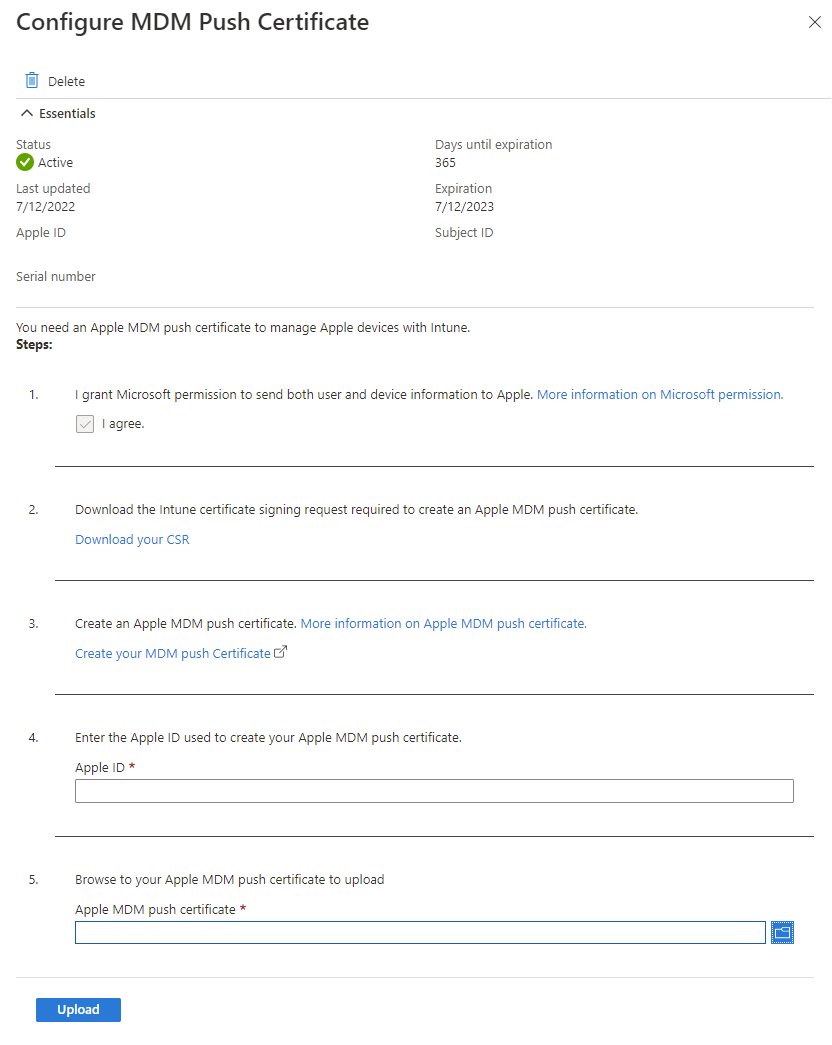
- In the admin center, go to Devices > Device onboarding > Enrollment > Apple > Apple MDM Push Certificate, select I agree and then Download your CSR.
- Select Create your MDM push Certificate, sign in to the Apple Push Certificates Portal with the company Apple ID, select Create a Certificate, upload the CSR and Download the .pem file.
- Back in Intune, enter the same Apple ID, browse to the .pem file and select Upload.
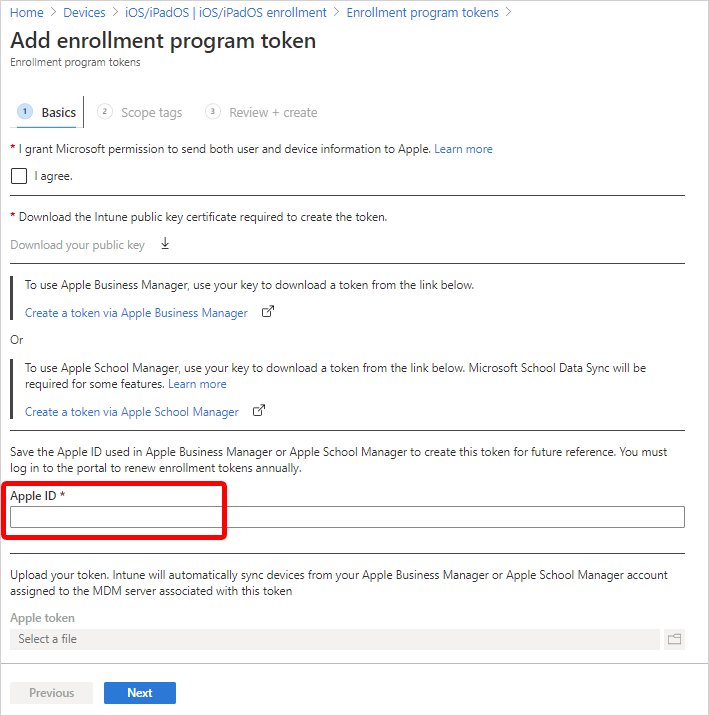
- Open Enrollment program tokens, select Add, select I agree and download the Intune public key certificate. Keep this browser tab open until the end.
- In Apple Business Manager, go to your account > Preferences > MDM server assignments, add an MDM server, upload the public key and download the server token (.p7m).
- In Apple Business Manager, open Devices, select the devices, choose Edit device management and pick the new MDM server.
- Return to Intune, enter the Apple ID, browse to the .p7m file in Apple token and select Create.
The push certificate lasts 365 days, with a 30-day grace period after expiry. Renew it with the same Apple ID; a replacement certificate forces every Apple device to re-enroll.
Choose and configure the Apple enrollment method in Intune
For company-owned iPhones and iPads, the enrollment policy must be assigned before anyone turns the device on. A synced device without a policy fails enrollment at setup.
- Go to Devices > Device onboarding > Enrollment > Apple mobile > Enrollment program tokens, pick the token and select Enrollment policies.
- Select Create policy > iOS/iPadOS, then give the policy a name and description.
- Under User Affinity, choose Enroll with User Affinity for assigned users, or Enroll without User Affinity for kiosk and shared devices.
- For user-affinity devices, set the authentication method to Setup Assistant with modern authentication.
- Set Supervised to Yes, set Locked enrollment to Yes, and leave Await final configuration on Yes.
- Optionally turn on Apply device name template with a value such as
{{DEVICETYPE}}-{{SERIAL}}(63 characters maximum). - Hide the Setup Assistant panes you do not need, then select Create.
- Open the token again, select Set Default Policy, choose the new policy and select Save.
Policy changes only reach a device after a factory reset and fresh activation; the name template is the one exception. Personal devices use the Enrollment types profile instead, covered in the BYOD section below.
A practical decision framework for Apple enrollment in Intune
| Your situation | Use this | Why |
|---|---|---|
| New company iPhones, iPads or Macs bought through Apple Business Manager | Automated Device Enrollment: the default for corporate-owned hardware | Over-the-air, supervised, and users cannot remove management |
| Personal iPhone or iPad on iOS/iPadOS 15 or later | Account-Driven Apple User Enrollment: the privacy-oriented BYOD option | Work data stays on a separate volume; enrollment starts in Settings |
| Personal device where you need device-level settings | Traditional device enrollment and web enrollment | Company Portal app (iOS 14+) or web-based enrollment (iOS 15+); no reset, no supervision |
| User refuses any device management | App protection policies without enrollment | Protects Outlook, Teams and other protected apps only |
| Company iPhone or Mac not bought through Apple Business Manager | Apple Configurator and direct enrollment | Needs physical access to each device; on a Mac, direct enrollment has no user affinity |
| Many Macs set up by IT staff | Device enrollment manager account | One account enrolls up to 1,000 devices, but not through ADE |
Use a staged deployment sequence for Intune Apple rollout
- Phase 1, establish trust: upload the push certificate, the enrollment program token and the VPP location token.
- Phase 2, define ownership-specific policies: build separate groups, enrollment policies and compliance policies for corporate and personal devices.
- Phase 3, pilot representative devices: enroll one of each model and OS version your fleet runs, including at least one Mac.
- Phase 4, validate the entire service chain: confirm enrollment, compliance, Conditional Access sign-in, app installs and a test retire on each pilot device.
- Expand the assigned groups in waves, and watch Devices > Monitor > Assignment failures after each wave.
- When moving from another MDM provider, reassign the devices to Intune's MDM server in Apple Business Manager, then wipe and reactivate them so the new enrollment policy applies.
A VPP location token works with one MDM at a time. Set Take control of token from another MDM to Yes when you upload it to Intune.
Configure Apple devices after enrollment with the settings catalog
- Go to Devices > Manage devices > Configuration > Create > New policy.
- Set Platform to iOS/iPadOS or macOS and Profile type to Settings catalog, then select Create.
- Name the profile after its platform and purpose, for example "iOS: passcode and restrictions".
- Select Add settings, then pick categories such as Security > Passcode or Restrictions.
- Configure each value, and remove any setting you do not want managed with the minus sign.
- On Assignments, add the device or user groups, then select Review + create > Create.
Hide the Passcode and Touch ID or Face ID Setup Assistant panes on iOS 14.5 and later; require a passcode through this profile or a compliance policy instead.
Deploy Apple apps and app configuration separately in Intune
Apps reach Apple devices through volume-purchase licenses from Apple Business Manager. App configuration policies are a separate object, so keep the two in separate change requests.
- In Apple Business Manager, go to Preferences > Payments and Billing > Apps and Books > Content Tokens and select Download.
- In Intune, go to Tenant administration > Connectors and tokens > Apple VPP tokens > Create and upload the token with its Apple Account.
- On Settings, choose the Country/Region, set Automatic app updates to Yes, and select I agree.
- Go to Apps > All Apps, open the purchased app, select Properties and Edit next to Assignments.
- Assign it as Required for device groups, or Available for enrolled devices for user groups.
- Deploy the Company Portal app this way, as a required device-licensed app, on ADE devices.
- Create app configuration policies afterwards under Apps > App configuration policies, targeted at the same groups.
Device licensing needs no Apple ID on the device. User enrollment devices only accept user-licensed apps, and the DDM management type supports Required and Uninstall assignments only.
Build Intune compliance and Conditional Access in that order
Conditional Access reads the compliance result, so a block rule without a working compliance policy locks out every Apple user.
- Go to Devices > Manage devices > Compliance > Create policy and choose iOS/iPadOS or macOS.
- On Compliance settings, set a minimum OS version, require a passcode and block jailbroken devices.
- On Actions for noncompliance, keep Mark device noncompliant, add a grace period, and add an email to the user.
- Assign the policy to a pilot group and wait until the devices report Compliant.
- Go to Endpoint security > Device compliance > Compliance policy settings and set Mark devices with no compliance policy assigned as to Not compliant.
- In Microsoft Entra Conditional Access, create a policy for the same pilot users with the grant Require device to be marked as compliant.
- Widen both assignments only after pilot users can still sign in to email and Teams.
Devices that do not report within the compliance validity period, 30 days by default, become noncompliant on their own.
Protect organizational data on BYOD iPhones and iPads
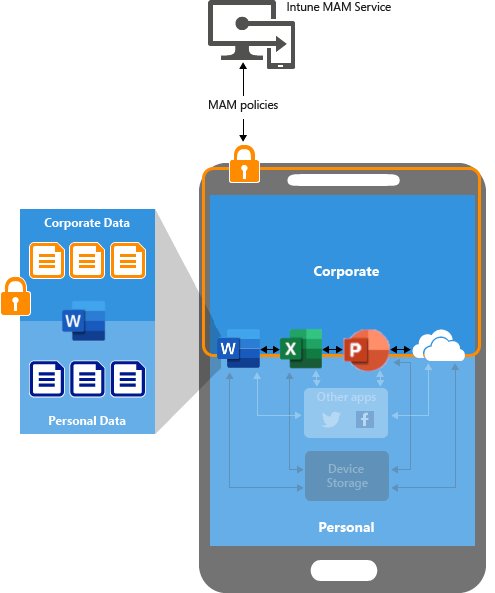
For personal devices, combine account-driven user enrollment with app protection policies, or use app protection alone when the user will not enroll.
Account-driven enrollment needs Managed Apple IDs and a JSON service discovery file at https://yourdomain/.well-known/com.apple.remotemanagement, saved without a file extension and served as application/json.
- Set up just-in-time registration and assign Microsoft Authenticator as a required app.
- Go to Devices > Enrollment > Apple > Enrollment types > Create profile > iOS/iPadOS.
- Set Enrollment type to Account driven user enrollment, assign user groups and select Create.
- Tell users to open Settings > General > VPN & Device Management and sign in with their work account.
- For app-level protection, go to Apps > Protection > Create policy > iOS/iPadOS.
- Target Core Microsoft Apps, then set Data protection limits such as Save copies of org data and Restrict cut, copy, and paste.
- Set an app PIN under Access requirements, assign user groups and select Create.
Assign app protection before Conditional Access rules. With user enrollment, Intune cannot read the serial number, IMEI or apps outside the managed volume, and cannot full-wipe the device.
Plan Apple software updates separately with DDM update policies
Intune now manages Apple updates through Declarative Device Management in the settings catalog. The older MDM update policies are deprecated. DDM updates need iOS/iPadOS 17 or macOS 14 and later.
| Goal | Settings catalog category | Key settings |
|---|---|---|
| Always install the newest release after a delay | Declarative Device Management > Software Update Enforce Latest | Delay in Days and Install Time (24-hour format, such as 02:00) |
| Hold the fleet on a tested version | Declarative Device Management > Software Update | Target OS Version, Target Build Version, Target Date Time, Details URL |
| Control what users see before the deadline | Software Update Settings | Hide updates for a period, limit major or minor updates, suppress notifications |
At the deadline the user gets a one-minute countdown, then the device installs and restarts. A policy marked Success only means it reached the device, so check the reported OS version.
Operate the Intune Apple environment through its full lifecycle
| Task | When | Where |
|---|---|---|
| Renew the Apple MDM push certificate | Every 365 days, same Apple ID | Devices > Enrollment > Apple > Apple MDM Push Certificate > Renew in the Apple portal |
| Renew the enrollment program token | Yearly, or when the token owner leaves or changes password | Enrollment program tokens in Intune and MDM server assignments in Apple Business Manager |
| Renew the VPP location token | Yearly, or when the Managed Apple Account changes | Tenant administration > Connectors and tokens > Apple VPP tokens > Edit |
| Accept new Apple terms | Whenever Apple publishes them | Apple Business Manager, by an Administrator |
| Retire a personal device | When a user leaves | Devices > All devices > device > Remove data > Retire |
| Wipe a company device | Before reassignment | The Wipe device action, which restores factory settings |
| Release a sold or scrapped device | After retire or wipe | Apple Business Manager > Devices > device > Release from Organization |
Retire removes the management profile, Intune apps, Wi-Fi, VPN, certificates and managed email, but leaves personal data. It does not delete the Microsoft Entra device record.
How to check an Apple device is enrolled and compliant in Intune
- In the admin center, go to Devices > All devices and search for the device name or user.
- Confirm Compliance shows Compliant and the ownership matches the enrollment method.
- On a Mac, open Hardware and check User approved enrollment and Bootstrap token escrowed both read Yes.
- On the iPhone, open Settings > General > VPN & Device Management and confirm the management profile or work account is listed.
- On the push certificate page, confirm the status is active and the expiry date is more than 30 days away.
Troubleshoot Intune Apple enrollment by locating the broken layer
Work from the bottom up: Apple trust, then enrollment policy, then user licensing, then policy delivery. The error text usually names the layer.
"APNSCertificateNotValid" or "NoEnrollmentPolicy" on every Apple device
The Apple MDM push certificate is missing or expired.
- Open Apple MDM Push Certificate in the admin center and check the expiry date.
- Renew it in the Apple Push Certificates Portal with the original Apple ID; do not create a new one.
- Upload the renewed .pem file and re-enroll the affected devices.
"Invalid Profile" while setting up an iPhone or iPad
A device platform restriction blocks iOS/iPadOS for All Users.
- Open the enrollment restrictions and select the All Users device type restriction.
- Select Edit next to Platform settings and set iOS/iPadOS to Allow.
- Block only personally owned devices if you want corporate devices alone, then select Save.
Company iPhone skips Intune at setup or ADE enrollment does not start
No enrollment policy was assigned before activation, or the policy predates the token.
- Check the device in Enrollment program tokens > Devices has a policy assigned.
- Edit the policy (any change) so its modification time updates, then select Sync now on the token.
- Erase the device and run Setup Assistant again.
Enrollment program token shows expired, access denied or terms not accepted
The yearly token lapsed, Intune was removed from MDM servers, or Apple published new terms.
- Accept any pending terms in Apple Business Manager as an Administrator.
- Confirm Intune still appears under MDM server assignments.
- Download a fresh server token and upload it to the existing token in Intune.
"Sign-in Failed" during account-driven user enrollment
The service discovery file is missing or served with the wrong content type.
- Run
curl -I "https://yourdomain/.well-known/com.apple.remotemanagement"from any computer. - Confirm the response shows
Content-Type: application/json. - Fix the file or web server, then ask the user to sign in again from VPN & Device Management.
"User Name Not Recognized" or "DeviceCapReached"
The user has no Intune license, or already enrolled the maximum number of devices.
- In the Microsoft 365 admin center, open Users > Active users and confirm an Intune license.
- For the device cap, have the user remove an old device in Company Portal.
- Retry enrollment.
Update policy reports Success but the Mac or iPhone has not updated
Success only means the policy arrived; the deadline has not passed or the device is offline.
- Check the device's OS version in Devices > All devices.
- Confirm the Target Date Time has passed in the device's local time zone.
- Remove older-version policies from devices that already run a newer release, since they report an error.
Common design mistakes when managing Apple devices with Intune
| Mistake | Consequence | Do this instead |
|---|---|---|
| Creating the push certificate with a personal Apple ID | Renewal is impossible after that person leaves; a new certificate forces every device to re-enroll | Use a company Apple ID on a mailbox several admins can read |
| Turning on Conditional Access before compliance reports | Users are blocked from email on day one | Pilot compliance first, then add the access rule |
| Leaving Mark devices with no compliance policy assigned as on Compliant | Unassigned devices pass Conditional Access | Set it to Not compliant |
| Installing Company Portal from the App Store on ADE devices | No automatic updates and gaps on enrolled devices | Deploy it as a required device-licensed VPP app |
| Editing an ADE policy and expecting live changes | Nothing changes until the device is reset | Plan the policy before devices ship |
| Mixing device and user licenses for one app on one device | Install and update failures | Pick one license type per assignment |
Intune Apple device management FAQ
How do you manage Apple devices with Intune?
Upload an Apple MDM push certificate, connect Apple Business Manager with an enrollment program token, and enroll devices through ADE or user enrollment. Then assign compliance, settings catalog, app and update policies to Microsoft Entra groups from the Intune admin center.
Can Microsoft Intune manage Macs as well as iPhones and iPads?
Yes. The same push certificate covers iOS, iPadOS and macOS. Macs enroll through Automated Device Enrollment, direct enrollment, a device enrollment manager account, or the Company Portal app for personal Macs, and every Mac enrollment counts as user-approved.
Is Company Portal required for every Apple enrollment?
No. Account-driven user enrollment and web-based device enrollment work without the Company Portal app, using Microsoft Authenticator instead. ADE devices with modern authentication still benefit from Company Portal deployed as a required VPP app.
Can Intune manage a personal iPhone?
Yes. Account-driven user enrollment keeps work data on a separate managed volume, and Intune cannot see the serial number, IMEI or personal apps. If the user refuses enrollment, app protection policies still protect data inside Outlook, Teams and other protected apps.
What is the difference between the Apple MDM push certificate and the enrollment token?
The push certificate lets Intune send commands to any enrolled Apple device. The enrollment program token links Intune to Apple Business Manager for company-owned serial numbers. Both renew yearly, but replacing the push certificate forces every device to re-enroll.
How do you manage Apple devices for business?
Buy devices through Apple Business Manager, assign them to an MDM server such as Intune, and let Automated Device Enrollment apply settings at first startup. Volume-purchased app licenses from the same portal then install apps without users signing in with an Apple ID.
How do you manage Apple apps with Intune?
Download a location token from Apple Business Manager, upload it under Tenant administration > Connectors and tokens > Apple VPP tokens, and sync it. Purchased apps then appear in Apps > All Apps, where you assign them as Required or Available.
Can you manage Apple devices from a Windows PC?
Yes for Intune: the admin center is a web console, so a Windows PC in a supported browser works. For a personal iPhone, the Apple Devices app for Windows handles backups and content transfer instead.
Bottom line: the right way to manage Apple devices with Microsoft Intune
Buy company Apple devices through Apple Business Manager and enroll them with supervised ADE, and use account-driven user enrollment plus app protection for personal phones. ADE gives full, non-removable control from first startup, while user enrollment protects work data without touching personal content. Put the yearly certificate and token renewals in a shared calendar, because a lapsed push certificate stops management for every Apple device at once.







Mobile device management overview - Techdows
[…] also manages Macs, iPhones and iPads, so you can manage Apple devices with Microsoft Intune from the same admin […]