To remove DuckDuckGo completely, set a different default search engine, delete the DuckDuckGo entry from the search list, remove any DuckDuckGo extension, and uninstall the DuckDuckGo browser app if it is on your computer.
This guide covers each step for Chrome, Microsoft Edge, Firefox and Safari, plus how to reset a browser that keeps switching back to DuckDuckGo.
How to remove DuckDuckGo completely?
DuckDuckGo can sit in a browser in up to four places: the default search engine, the search engine list, an extension, and the startup or home page. A separate DuckDuckGo browser app may also be installed. Work through the list in this order.
- Change the default search engine to Google, Bing or another provider in your browser's Settings.
- Delete the DuckDuckGo entry from the browser's list of search engines or site search shortcuts.
- Remove the DuckDuckGo Search & Tracker Protection extension, or any other extension you do not recognise.
- Reset the homepage and On startup pages so DuckDuckGo no longer opens when the browser starts.
- Clear cookies and cached files so old DuckDuckGo settings stop loading.
- Reset the browser settings if DuckDuckGo still returns.
- Uninstall the DuckDuckGo browser app from Windows or Mac if you no longer use it.
Each browser keeps its own search setting, so repeat the steps in every browser you use. The browser sections below give the exact menu path for each one.
Is DuckDuckGo a search engine, an extension or a browser?
All three exist, and each one is removed in a different place. Match what you see to a row.
| What you see | What it is | How to remove it |
|---|---|---|
| Searches from the address bar open duckduckgo.com | DuckDuckGo is the browser's default search engine | Pick another engine in the browser's search settings |
| A DuckDuckGo icon sits next to the address bar | The DuckDuckGo Search & Tracker Protection extension, available for Chrome, Edge, Firefox and Opera | Remove it from the browser's extensions page |
| A separate app called DuckDuckGo in the Start menu or Applications folder | The DuckDuckGo browser for Windows or Mac | Uninstall it like any other app |
| DuckDuckGo opens every time the browser starts | A startup page or homepage set to duckduckgo.com | Change the On startup and homepage settings |
| Searches go to DuckDuckGo or Bing after installing a video or new-tab extension | An unofficial extension that DuckDuckGo says is not affiliated with it | Remove the extension, then reset the browser |

How to remove DuckDuckGo from Google Chrome
Change the default first, then delete the DuckDuckGo shortcut and its extension.
- Open Chrome, select More (three dots) at the top right, then select Settings.
- Select Search engine, then under Search engine select Change and pick a new default, such as Google.
- Select Manage search engines and site search on the same page.
- Find DuckDuckGo, select More next to it, then select Delete.
- Open More > Extensions > Manage extensions.
- Select Remove on the DuckDuckGo extension, then select Remove again to confirm.
- Open Settings > On startup and choose Open the New Tab page, or delete a DuckDuckGo page from Open a specific page or set of pages with More > Delete.
You can also right-click the DuckDuckGo icon to the right of the address bar and select Remove from Chrome.
To keep the entry but stop using it, select More > Deactivate instead; it moves to Inactive shortcuts.
On Chrome for Android, tap More > Settings, then under Basics tap Search engine and choose another engine.
How to remove DuckDuckGo from Microsoft Edge
Edge sets its search engine on one settings page, and removes extensions from the Extensions button next to the address bar.
- In Edge, select Settings and more (three dots) > Settings.
- Select Privacy, search, and services, then Search and connected services.
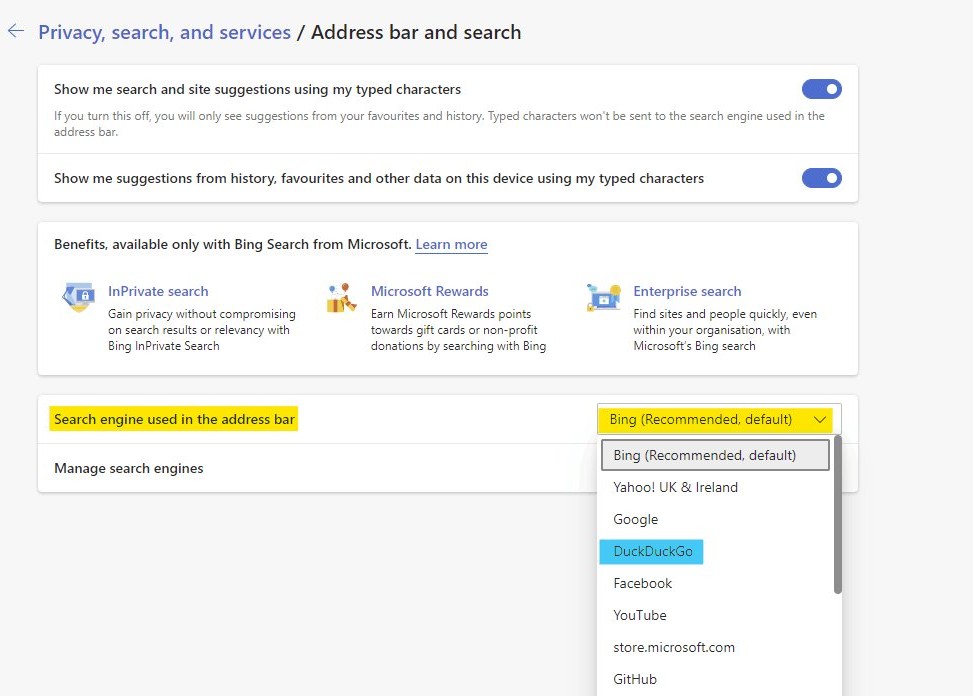
- Select Address bar and search.
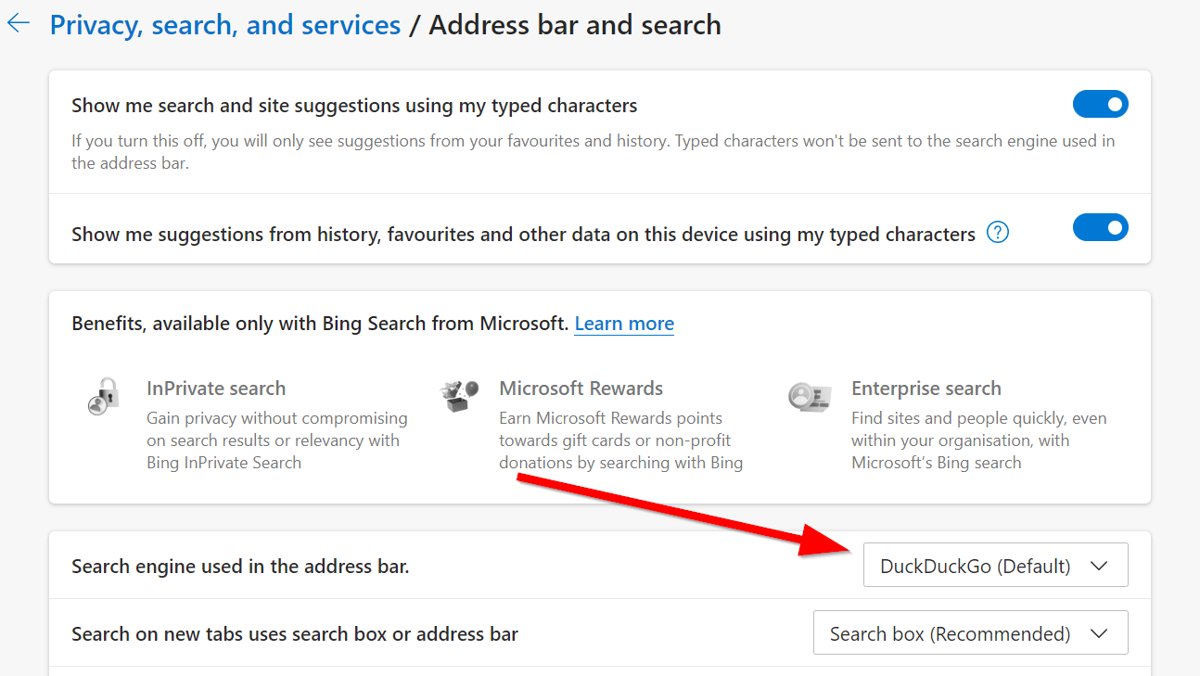
- Choose Bing or another engine from the Search engine used in the address bar menu.
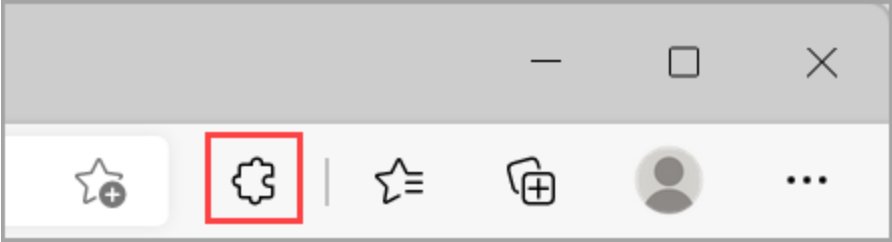
- Select Extensions to the right of the address bar, then select More actions next to the DuckDuckGo extension.
- Select Remove from Microsoft Edge > Remove.
- Go to Settings > Start, home, and new tab page and, under On startup, choose Open the new tab page.
To add an engine that is not in the menu, run one search on that site from the address bar. It then appears in the Address bar and search list.
How to remove DuckDuckGo from Firefox
Firefox keeps its default search engine on the Search page of its settings.
- Open Firefox and click the menu button (three lines) at the top right.
- Select Settings.
- Select Search in the left sidebar.
- Choose a different engine as the default search engine on that page.
The Home panel in the same settings holds the Homepage and new windows menu; set it to Firefox Home (Default) or Blank Page if it opens DuckDuckGo.
If a DuckDuckGo add-on is installed, remove it from the Firefox add-ons manager as well.
How to remove DuckDuckGo from Safari on Mac
Safari has a separate search engine setting for Private Browsing, so check both menus.
- Open Safari and choose Safari > Settings in the menu bar.
- Click Search.
- Choose Google or another engine from the Search engine menu.
- Change the Private Browsing search engine menu too if it shows DuckDuckGo.
- Click Extensions, select any DuckDuckGo extension, then click Uninstall.
- Click General and replace a duckduckgo.com address in the Homepage field.
Deleting the app that contains a Safari extension also removes the extension.
How to remove DuckDuckGo from Safari on iPhone
On iPhone, Safari's search engine is set in the Settings app, not inside Safari.
- Open the Settings app on your iPhone.
- Tap Search, then tap Search Engine.
- Tap Google or another engine to make it the default.
- To delete the DuckDuckGo app, touch and hold its icon on the Home Screen or in App Library.
- Tap Remove App, then Delete App, then Delete to confirm.
Choosing Remove from Home Screen only moves the app to App Library; it stays installed.
How to uninstall DuckDuckGo browser on Windows 11
The DuckDuckGo browser for Windows installs as an app package, so it uninstalls from Settings or the Start menu. Removing it does not change the search engine in Chrome or Edge.
- Close every DuckDuckGo browser window.
- Select Start > Settings > Apps > Installed apps.
- Type DuckDuckGo in the search box above the list.
- Select More (three dots) next to DuckDuckGo, then select Uninstall.
- Confirm with Uninstall.
- If it is not listed, open Start > All apps, right-click DuckDuckGo and select Uninstall.
Some apps only appear in Control Panel > Programs > Programs and Features. You can also completely remove a program together with its leftover folders and startup entries.
How to uninstall DuckDuckGo browser on Mac
- Quit the DuckDuckGo browser if it is open.
- Click Applications in the Finder sidebar, or choose Go > Applications.
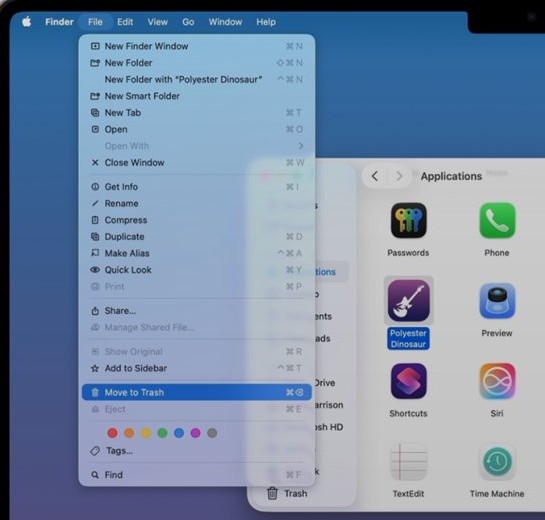
- Drag DuckDuckGo to the Trash, or select it and choose File > Move to Trash.
- Enter an administrator name and password if macOS asks.
- Choose Finder > Empty Trash to delete it permanently.
If macOS says the app is in use, restart the Mac and try again before opening anything else.
How to clear browser cache and cookies after removing DuckDuckGo
Clearing cookies and cached files removes the site data duckduckgo.com stored in the browser. It also signs you out of many other sites.
| Browser | Where to clear it | What to select |
|---|---|---|
| Chrome | More > Delete browsing data | A time range, Cookies and other site data and Cached images and files, then Delete data |
| Microsoft Edge | Settings and more > History > Open history page > Delete browsing data | All time, Browsing history and Cached images and files, then Clear now |
| Safari on Mac | Safari > Settings > Privacy > Manage Website Data | Select duckduckgo.com and click Remove, or click Remove All |
| Safari history on Mac | History > Clear History | How far back to clear, from the pop-up menu |
How to reset Chrome and Edge settings to remove DuckDuckGo
A reset is the last step when DuckDuckGo keeps returning. It puts the search engine, startup pages and extensions back to defaults in one go.
| Browser | How to reset | What is reset | What is kept |
|---|---|---|---|
| Chrome | More > Settings > Reset settings > Restore settings to their original defaults > Reset settings | Default search engine, homepage and startup tabs, new tab page, pinned tabs, content settings, cookies and site data, extensions and themes | Bookmarks and saved passwords |
| Microsoft Edge | Type edge://settings/reset in the address bar and select Restore settings to their default values |
Search engine, startup page, pinned tabs and extensions | Bookmarks, history and saved passwords |
Chrome applies the reset on every device where you are signed in to that profile. Open the extensions page afterwards and remove the DuckDuckGo extension if it is still listed.
How to tell if DuckDuckGo is still your search engine
- Type a word in the address bar and press Enter.
- Look at the results page address: it should start with the engine you chose, not duckduckgo.com.
- Close the browser completely and open it again.
- Check that the first page is the New Tab page or your own homepage, not DuckDuckGo.
- Open the extensions page and check that no DuckDuckGo extension is listed.
- On Windows, search DuckDuckGo in Settings > Apps > Installed apps and check that nothing appears.
Why does DuckDuckGo keep coming back as my search engine?
DuckDuckGo comes back after you change the search engine
An extension or a program on the computer is changing the setting again.
- Remove every extension you do not recognise, not only the DuckDuckGo one.
- Uninstall unknown programs from Settings > Apps > Installed apps on Windows or the Applications folder on Mac.
- Reset Chrome or Edge with the steps above.
- Run a scan with Windows Security, then remove the browser hijacker if the change keeps returning.
Searches go to DuckDuckGo or Bing after installing a video extension
DuckDuckGo warns that unofficial Chrome extensions, often with "video" in the name such as My Video Grid, Video Tips and My Vital Video, send searches to DuckDuckGo and Bing without being affiliated with it.
- Open More > Extensions > Manage extensions in Chrome.
- Remove the video, recipe, game or new-tab extension you installed before the change started.
- Set your default search engine again under Settings > Search engine.
Chrome or Edge will not let you change the search engine
A work or school administrator manages the browser and has fixed the search engine.
- Check whether the PC or Chromebook belongs to an organisation.
- Ask the network administrator to change the managed search engine.
- On a personal PC that shows as managed, treat it as unwanted software and reset the browser.
DuckDuckGo app will not uninstall because it is in use
A DuckDuckGo window or background process is still open.
- Close every DuckDuckGo window.
- Restart the computer.
- Uninstall the app before opening anything else.
Remove DuckDuckGo FAQ
Is DuckDuckGo harmful to my browser?
No. DuckDuckGo is a legitimate private search engine and browser maker. The risk comes from unofficial extensions that send your searches to DuckDuckGo or Bing without your choice; DuckDuckGo says it is not affiliated with them. Remove any such extension.
Why does DuckDuckGo keep coming back?
DuckDuckGo usually returns because an extension or installed program keeps changing the search setting. Remove unknown extensions and programs, then reset Chrome or Edge so the search engine, startup pages and extensions return to their defaults.
Can I remove DuckDuckGo from all browsers at once?
No. Each browser stores its own search engine and extensions, so change each one separately. A Chrome reset does apply to every device where you are signed in to the same Chrome profile.
Will resetting the browser delete my data?
Resetting keeps your bookmarks and saved passwords in Chrome, and bookmarks, history and passwords in Edge. It does reset the search engine, startup pages, pinned tabs and extensions, and Chrome also clears cookies and site data.
Do I need to uninstall DuckDuckGo from Windows?
Only if the separate DuckDuckGo browser app is installed. Changing the search engine in Chrome or Edge does not need an uninstall. If DuckDuckGo appears in Settings > Apps > Installed apps and you do not use it, uninstall it there.
How do I change DuckDuckGo back to Google in Chrome?
Open Chrome, select More > Settings > Search engine, select Change and choose Google. Then open Manage search engines and site search and delete the DuckDuckGo entry if you no longer want it.
Does removing the DuckDuckGo extension change my search engine?
Not always. Removing the extension takes away its features, but check the browser's search settings afterwards and choose a new default engine if DuckDuckGo is still selected.
How do I remove DuckDuckGo from Safari on iPhone?
Open the Settings app, tap Search, then Search Engine, and choose another engine. To delete the DuckDuckGo app as well, touch and hold its icon, tap Remove App, then Delete App and Delete.