To enable an SSH server on Windows, install the built-in OpenSSH Server optional feature, start the sshd service, and set it to start automatically.
This guide covers installing it on Windows 11 and Windows 10, configuring sshd_config and key-based sign-in, connecting from another computer, and reading the connection logs.
Enable SSH server on Windows 11 and 10 with PowerShell
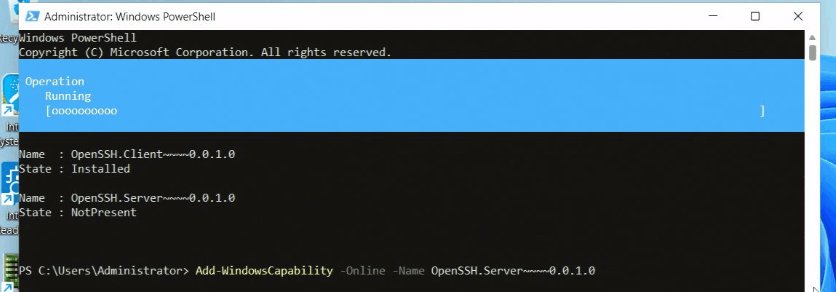
These commands install and start OpenSSH Server in one pass. You can run PowerShell as administrator from the Start menu first.
- Open PowerShell as an administrator.
- Run
Get-WindowsCapability -Online | Where-Object Name -like 'OpenSSH*'to see whether OpenSSH.Server~~~~0.0.1.0 shows NotPresent or Installed. - Run
Add-WindowsCapability -Online -Name OpenSSH.Server~~~~0.0.1.0to install the server. - Run
Start-Service sshdto start the service. - Run
Set-Service -Name sshd -StartupType 'Automatic'so the server starts with Windows. - Run
Get-NetFirewallRule -Name "OpenSSH-Server-In-TCP"to confirm the inbound rule for TCP port 22 exists.
A successful install returns Online : True and RestartNeeded : False. On Windows Server 2025, OpenSSH is already installed and only needs enabling.
OpenSSH Server requirements on Windows 10 and 11
| Requirement | Minimum | How to check |
|---|---|---|
| Windows version | Windows 10 build 1809 or Windows Server 2019 | Run winver.exe |
| PowerShell | 5.1 or later | Run $PSVersionTable.PSVersion |
| Account | Member of the built-in Administrators group | Microsoft's IsInRole Administrator check in PowerShell returns True |
| Network port | TCP 22 open inbound | Firewall rule OpenSSH-Server-In-TCP |
How to install OpenSSH Server on Windows
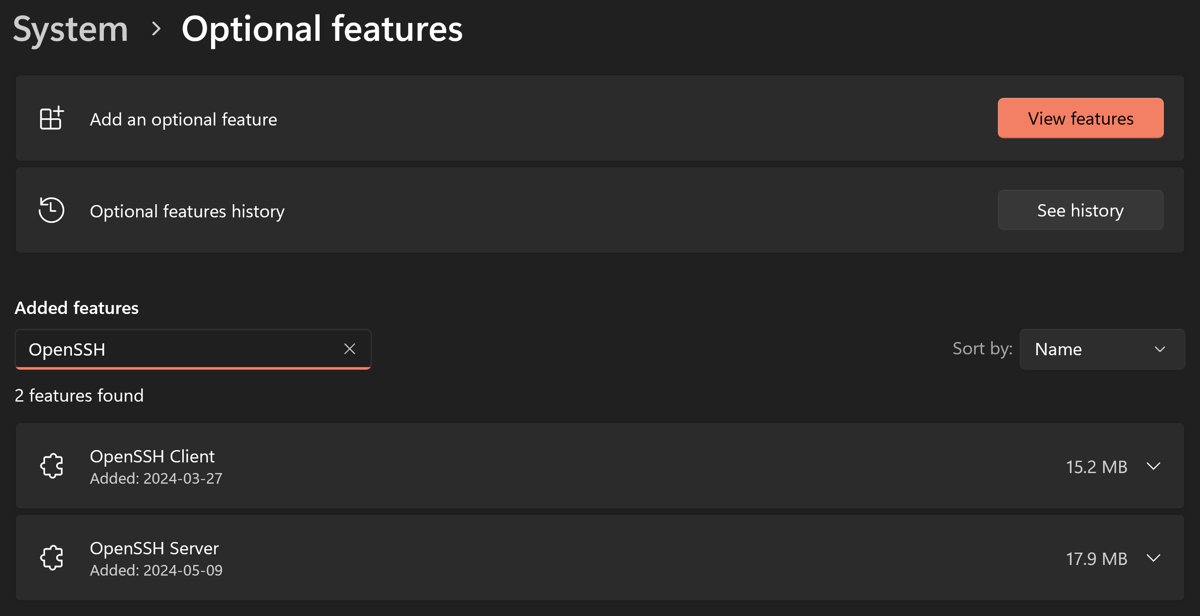
On Windows 11 the server is an optional feature in Settings. Windows 10 uses the same page with slightly different button names, shown after the steps.
- Select Start, type
Optional Featuresand select Optional Features. - Check the list for OpenSSH Server. If it is missing, select View features at the top of the page.
- Search for OpenSSH Server, select it and select Add. Add OpenSSH Client the same way if this PC will also connect out.
- Select Start, type
services.mscand press Enter. - Double-click OpenSSH SSH Server.
- On the General tab, set Startup type to Automatic, select Start, then select OK.
On Windows 10, the page may be called Manage optional features; select Add a feature, search for OpenSSH Server and select Install. Installing the server creates and enables the OpenSSH-Server-In-TCP firewall rule for port 22.
Configuring SSH server on Windows
The default shell for an SSH session is Command Prompt (cmd.exe). Set PowerShell as the default with the DefaultShell registry value under HKEY_LOCAL_MACHINE\SOFTWARE\OpenSSH.
- Open PowerShell as an administrator.
- Run
New-ItemProperty -Path "HKLM:\SOFTWARE\OpenSSH" -Name DefaultShell -Value "C:\Windows\System32\WindowsPowerShell\v1.0\powershell.exe" -PropertyType String -Force. - To limit who can sign in, add the allowed accounts to the OpenSSH Users group, or use
AllowUsersandAllowGroupsinsshd_config. - Run
Restart-Service sshdafter any configuration change.
The DefaultShell value only affects OpenSSH Server, not the OpenSSH client on the same PC. Windows OpenSSH supports only password and public key sign-in, and Microsoft Entra accounts cannot sign in over SSH.
Sshd_config: OpenSSH server configuration file
OpenSSH Server reads %programdata%\ssh\sshd_config, which is C:\ProgramData\ssh\sshd_config on most PCs. Edit it in an elevated text editor; if the file is missing, sshd creates a default copy when the service starts.
| Directive | What it does on Windows | Example |
|---|---|---|
| Port | Sets the listening port, 22 by default | Port 22 |
| AllowUsers / AllowGroups | Lets only the named local or domain accounts sign in; names must be lowercase | AllowGroups sshusers |
| DenyUsers / DenyGroups | Blocks accounts; processed in the order DenyUsers, AllowUsers, DenyGroups, AllowGroups | DenyGroups administrators |
| AuthenticationMethods | Restricts sign-in to password, publickey or both |
AuthenticationMethods publickey |
| AuthorizedKeysFile | Per-user key file, .ssh/authorized_keys in the profile; admins use administrators_authorized_keys |
AuthorizedKeysFile .ssh/authorized_keys |
| SyslogFacility | AUTH sends logs to Event Viewer; LOCAL0 writes files to %programdata%\ssh\logs |
SyslogFacility LOCAL0 |
| LogLevel | Sets log detail; VERBOSE records more connection data |
LogLevel VERBOSE |
| PermitRootLogin | Not used on Windows; block administrators with DenyGroups instead |
Not applicable |
Domain accounts use the format domain\user, and user?domain* in allow and deny rules. Run sshd -t to test the file for errors before restarting the service.
Set up SSH key authentication on Windows
Key pairs replace guessable passwords. Generate the key on the client, then place the public key on the server in the file that matches the account type.
- On the client, run
ssh-keygen -t ecdsa, press Enter to acceptC:\Users\username\.ssh\id_ecdsa, and set a passphrase. - Run
Get-Service ssh-agent | Set-Service -StartupType AutomaticandStart-Service ssh-agentin an elevated PowerShell window. - Run
ssh-add $env:USERPROFILE\.ssh\id_ecdsato store the private key in the agent. - For a standard user, copy the contents of
id_ecdsa.pubintoC:\Users\username\.ssh\authorized_keyson the server. - For an administrator, copy it into
C:\ProgramData\ssh\administrators_authorized_keysinstead. - On the server, run
icacls.exe "C:\ProgramData\ssh\administrators_authorized_keys" /inheritance:r /grant "Administrators:F" /grant "SYSTEM:F"so only Administrators and SYSTEM can access the admin key file.
If you do not pass -t, ssh-keygen creates an Ed25519 key. A session opened with a key has no stored user credentials, so it cannot authenticate onward to network shares as that user.
How to connect to a remote Windows computer via SSH?
Any OpenSSH-compatible client can connect, including the built-in ssh command in PowerShell or Windows Terminal. You need the server's host name or local IP address.
- Open PowerShell on the client computer.
- Run
ssh username@servernamefor a local account, orssh domain\username@servernamefor a domain account. - Type
yeswhen asked whether to continue connecting, which adds the server to your known hosts. - Enter the account password; the characters do not appear as you type.
- Work at the remote prompt, such as
username@SERVERNAME C:\Users\username>, and typeexitto disconnect.
Test that the OpenSSH server is listening on port 22
- On the server, run
Get-Service -Name sshdand confirm the status is Running. - Run
netstat -an | findstr :22and confirm lines such asTCP 0.0.0.0:22 ... LISTENING. - From another PC, run
Test-NetConnection -ComputerName <hostname_or_IP> -Port 22and confirm the TCP test succeeds. - Connect with
ssh username@servernameto confirm sign-in works end to end.
Checking SSH connection logs in Windows
By default, OpenSSH Server writes its logs to the Windows Event Viewer. Switch to file logging when you want plain-text logs you can search.
| Log type | Where to find it | How to turn it on |
|---|---|---|
| Event Viewer (default) | Applications and Services Logs > OpenSSH | SyslogFacility AUTH or no setting |
| Log files | %ProgramData%\ssh\logs |
Set SyslogFacility LOCAL0 in sshd_config |
| Verbose detail | Same location as above, with more entries per connection | Set LogLevel VERBOSE in sshd_config |
After editing the logging lines, run NET STOP "OpenSSH SSH Server" and then NET START "OpenSSH SSH Server" from Command Prompt so the new settings apply.
SSH connection refused or timing out on Windows
Connection refused
The firewall blocks TCP port 22 or the inbound rule is disabled.
- Run
Get-NetFirewallRule -DisplayName "*SSH*" | Get-NetFirewallPortFilterto find the rule. - If none exists, run
New-NetFirewallRule -Name "OpenSSH-Server-In-TCP" -DisplayName "OpenSSH Server (SSH)" -Enabled True -Direction Inbound -Protocol TCP -LocalPort 22 -Action Allowas administrator. - Retry the connection. You can also review Windows Firewall settings without turning the firewall off.
Port 22 is not listening
The sshd service is stopped or sshd_config has an error.
- Run
Get-Service -Name sshdand start it withStart-Service sshdif it is stopped. - Open
C:\ProgramData\ssh\sshd_configand check the Port line is set to 22 and not commented out. - Run
sshd -tto check the file, thenRestart-Service sshd.
Key sign-in fails for an administrator account
Admin accounts read administrators_authorized_keys, not the profile file, and its permissions must be restricted.
- Move the public key into
C:\ProgramData\ssh\administrators_authorized_keys. - Run the
icacls.execommand from the key section to grant only Administrators and SYSTEM. - Restart the sshd service and connect again.
Connections drop or work only on the local network
A router, NAT device or external firewall does not forward port 22.
- Forward port 22 to the Windows host on the router or external firewall.
- Run
Test-NetConnection -ComputerName <hostname_or_IP> -Port 22from outside the network. - Limit inbound access to trusted IP addresses where possible.
Disable or uninstall OpenSSH Server on Windows
- To pause SSH access, run
Stop-Service sshdandSet-Service -Name sshd -StartupType 'Disabled'as administrator. - To remove it, run
Remove-WindowsCapability -Online -Name OpenSSH.Server~~~~0.0.1.0, or select OpenSSH Server in Optional Features and select Remove. - Run
Remove-NetFirewallRule -Name 'OpenSSH-Server-In-TCP'to delete the firewall rule. - Restart Windows if the service was in use when you uninstalled it.
OpenSSH Server on Windows FAQ
Does Windows 11 have a built-in SSH server?
Yes. OpenSSH Server is an optional feature in Windows 11 and Windows 10 build 1809 and later. Install it from Optional Features or with Add-WindowsCapability, then start the sshd service. Microsoft services this version through Windows Update.
Where is the sshd_config file on Windows?
OpenSSH Server reads %programdata%\ssh\sshd_config, normally C:\ProgramData\ssh\sshd_config. Edit it as an administrator and restart the sshd service, because the server only reads the file when the service starts.
What port does OpenSSH use on Windows?
OpenSSH Server listens on TCP port 22 on IPv4 and IPv6 by default. Installing it creates the OpenSSH-Server-In-TCP firewall rule for that port. Change it with the Port line in sshd_config and update the firewall rule to match.
How do I make PowerShell the default SSH shell on Windows?
Create a string value named DefaultShell under HKEY_LOCAL_MACHINE\SOFTWARE\OpenSSH and set it to the full path of powershell.exe. The setting applies to OpenSSH Server only and takes effect for new SSH sessions.
How do I start the SSH server automatically with Windows?
Run Set-Service -Name sshd -StartupType 'Automatic' in an elevated PowerShell window, or open services.msc, double-click OpenSSH SSH Server and set Startup type to Automatic. Without this, the service must be started manually after each restart.
Can I sign in to a Windows SSH server with a Microsoft Entra account?
No. Windows OpenSSH does not support Microsoft Entra account authentication, including key-based sign-in. Use a local Windows account or an Active Directory domain account with a password or a public key instead.
Where are the OpenSSH logs on Windows?
By default, logs go to Event Viewer under Applications and Services Logs > OpenSSH. Set SyslogFacility LOCAL0 in sshd_config to write log files to %ProgramData%\ssh\logs instead, and LogLevel VERBOSE for more detail.