Microsoft Entra self-service password reset (SSPR) lets users reset a forgotten password or unlock their account at https://aka.ms/sspr without calling the help desk, once an admin enables it under Entra ID > Password reset.
This deep dive covers licensing, the checks Entra ID runs during a reset, registration and reconfirmation, authentication methods, notifications, on-premises writeback, B2B guests, the Windows sign-in screen and common failures.
How to enable self-service password reset in Microsoft Entra ID
You need at least the Authentication Policy Administrator role. Start with a test group before switching it on for everyone.
- Sign in to the Microsoft Entra admin center as at least an Authentication Policy Administrator.
- Browse to Entra ID > Password reset.
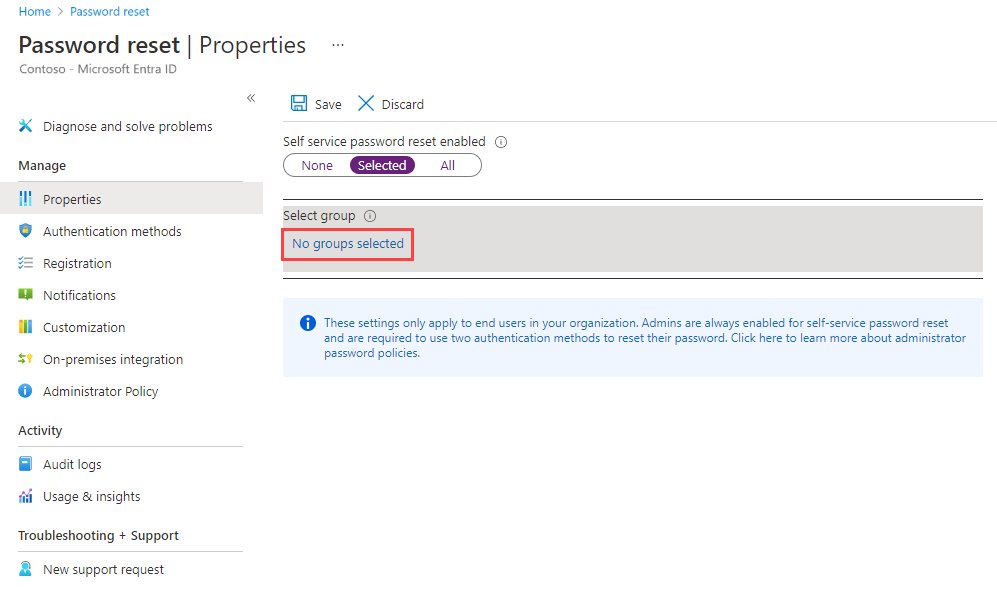
- On the Properties page, under Self service password reset enabled, choose Selected to pilot or All for every user.
- For Selected, choose No groups selected, pick your group, and choose Select.
- Select Save.
- On the Authentication methods page, set Number of methods required to reset to 1 or 2 and select Save.
- On the Registration page, set Require users to register when signing in to Yes and select Save.
The admin center can enable only one group for SSPR, but nested groups inside it are supported.
Self-service password reset license requirements
Prerequisites for setting up SSPR: a Microsoft Entra tenant with at least a Microsoft Entra ID P1 license, an account with at least the Authentication Policy Administrator role, a non-admin test user whose password you know, and a group that test user belongs to for the pilot.
| Feature | Microsoft Entra ID Free | Microsoft 365 Business Standard | Microsoft 365 Business Premium | Microsoft Entra ID P1 or P2 |
|---|---|---|---|---|
| Cloud-only user password change (user knows the password) | Yes | Yes | Yes | Yes |
| Cloud-only user password reset (user forgot it) | No | Yes | Yes | Yes |
| Hybrid user change or reset with on-premises writeback | No | No | Yes | Yes |
Microsoft's enablement tutorial asks for a tenant with at least Microsoft Entra ID P1. Some unlicensed users may technically reach SSPR, but every user meant to benefit needs a license.
How does the password reset process work?
A user reaches the SSPR portal from the Can't access your account link or by going straight to https://aka.ms/sspr. The page uses the browser locale, and you can force a language by adding ?mkt= with a locale, such as https://passwordreset.microsoftonline.com/?mkt=es-us.
After the user enters a user ID and passes a CAPTCHA, Entra ID runs these checks in order.
| Check | If it passes | If it fails |
|---|---|---|
| Is SSPR enabled for this user? | Continue | User is told to contact an administrator |
| Has the user registered enough methods for the policy (one or two)? | Continue | User is told to contact an administrator |
| Does the user hold a Microsoft Entra admin role? | The stricter two-gate admin policy applies | Normal user policy applies |
| Is the password managed on-premises (federation, pass-through or password hash sync)? | Reset proceeds if SSPR writeback is configured | Without writeback, user is told to contact an administrator |
| All checks complete | User verifies identity and sets a new password | Not applicable |
Reset emails go through an SMTP relay service that processes the message body but does not store it; its logs keep only protocol metadata.
Require users to register when they sign in
With this on, users who sign in with modern authentication or a browser are asked to register. That covers Microsoft 365, the Microsoft Entra admin center, Access Panel, federated apps and custom apps that use Entra ID.
- In the Microsoft Entra admin center, go to Entra ID > Password reset > Registration.
- Set Require users to register when signing in to Yes.
- Select Save.
- Tell users who were not prompted that they can register manually at https://aka.ms/ssprsetup or from Register for password reset under the Profile tab in Access Panel.
Users can cancel or close the registration page, but they are prompted again at each sign-in until they finish. The prompt does not break a session that is already signed in, and it appears once per interactive session.
Reconfirm authentication information
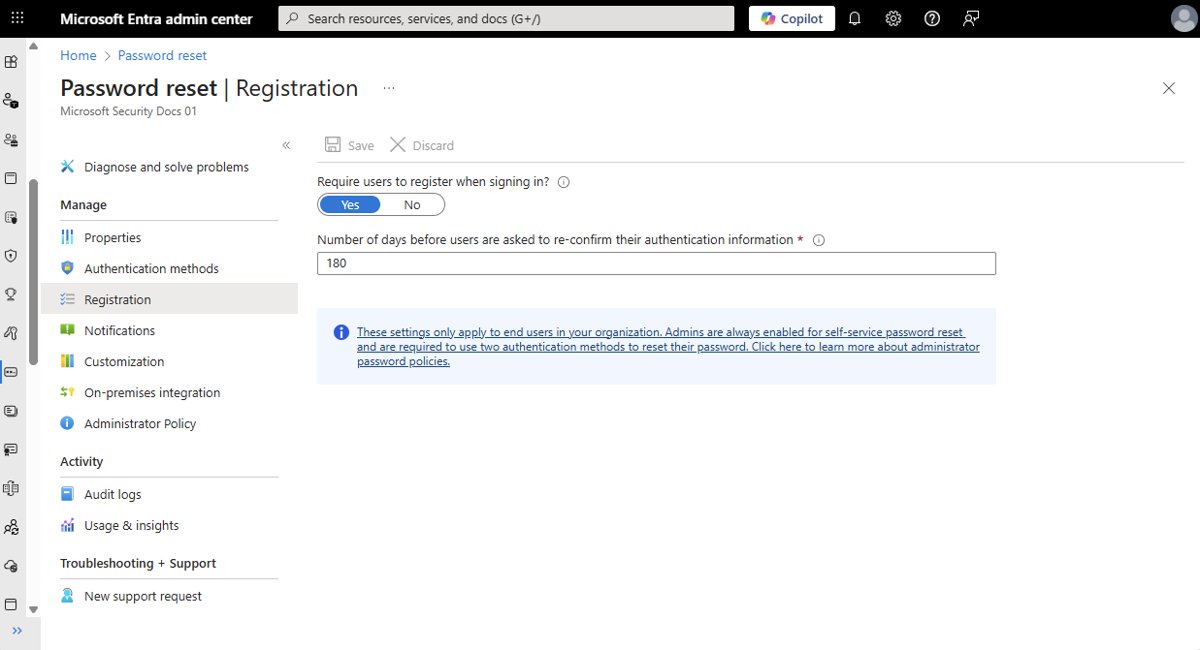
Reconfirmation keeps phone numbers and email addresses current, because outdated details can stop a user resetting their password. It is only available when Require users to register when signing in is set to Yes.
- Open Entra ID > Password reset > Registration.
- Set Number of days before users are asked to reconfirm their authentication information to a value from 0 to 730. Microsoft's tutorial uses 180.
- Select Save.
A value of 0 means users are never asked to reconfirm. If two methods are required and a user deletes one, they are not asked to reconfirm until the configured number of days is reached.
Authentication methods
Every SSPR user must register at least one method, and Microsoft recommends allowing two or more so a user can still reset if one is unavailable. Users can only reset with a method the administrator has enabled.
Since September 30, 2025, methods can no longer be managed in the legacy MFA and SSPR policies, so enable them in the Authentication methods policy.
| Method | Available for SSPR | Notes |
|---|---|---|
| Microsoft Authenticator push notifications | Yes | Counts as one method together with software and hardware OATH tokens |
| Software OATH tokens | Yes | Same single-method group as Authenticator |
| Hardware OATH tokens | Yes (preview) | Same single-method group as Authenticator |
| SMS | Yes | Uses the registered mobile number |
| Voice call | Yes | Office and mobile voice calls are blocked for admins on trial or free tenants |
| Email OTP | Yes | Uses the registered alternate email |
Authenticator cannot be the only method when one is required, and it cannot be paired with just one other method when two are required. Users register the app at https://aka.ms/mfasetup or in combined registration at https://aka.ms/setupsecurityinfo.
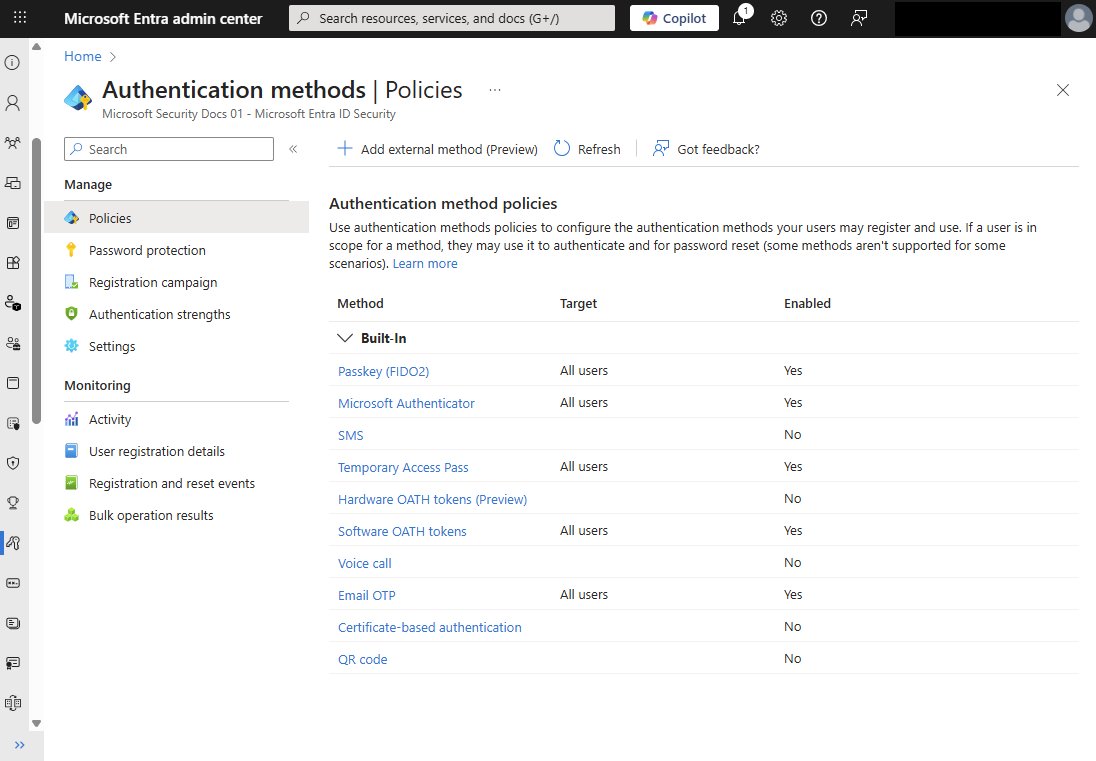
Number of authentication methods required
The required number can be one or two. Raising it, or removing a method users relied on, locks out anyone without enough registered data.
| Methods the user registered | Methods the policy requires | Result |
|---|---|---|
| 1 or more | 1 | Able to reset or unlock |
| 1 | 2 | Unable to reset or unlock; an administrator must reset the password |
| 2 or more | 2 | Able to reset or unlock |
| Only methods you just disabled | Any | Unable to reset until the user registers an enabled method |
Accounts with a Microsoft Entra admin role always follow a two-gate policy that needs two pieces of authentication data and bans security questions. You cannot change that policy, so always test SSPR with a non-admin account.
Notifications
SSPR can email users after their own reset and alert Global Administrators when another admin resets a password.
- Open Entra ID > Password reset > Notifications.
- Set Notify users on password resets? to Yes to email users at their primary and alternate addresses, or their UPN if neither exists.
- Set Notify all admins when other admins reset their password? to Yes to email Global Administrators.
- Select Save.
- Optionally open Customization, set Customize helpdesk link to Yes, and enter a help desk email or URL in Custom helpdesk email or URL.
In the public cloud, SSPR mail comes from [email protected] or [email protected]. If notifications do not arrive, check spam filtering for those senders.
On-premises integration
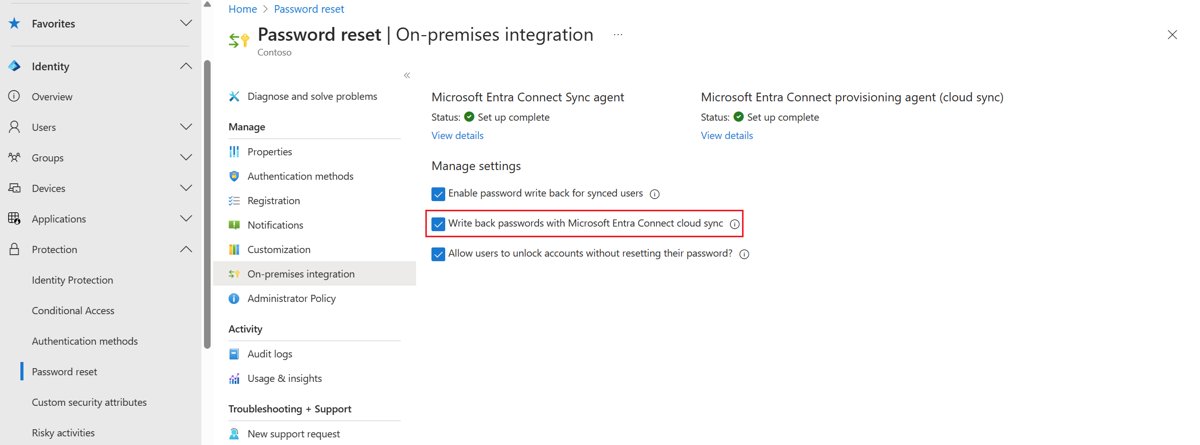
In a hybrid environment, Microsoft Entra Connect cloud sync writes password changes from Entra ID back to on-premises Active Directory. Entra ID reports hybrid connectivity status and errors in the admin center.
| Setting | Yes | No |
|---|---|---|
| Write back passwords to your on-premises directory | Federated, pass-through and password hash sync users can reset | Those users cannot reset their passwords |
| Allow users to unlock accounts without resetting their password | Users can unlock only, or reset and unlock | Users get a combined reset and unlock |
| On-premises Active Directory password filters | SSPR acts like an admin-initiated reset, so a third-party filter must apply to admin resets | Microsoft Entra password protection for AD DS works by default |
You can turn writeback off temporarily in the admin center without reconfiguring Entra Connect. Federated users with synced passwords may wait up to 2 minutes after a reset, because password hash sync runs every 2 minutes.
Password reset for B2B users
| Guest type | How reset works |
|---|---|
| Users from a partner with its own Microsoft Entra tenant | The partner tenant's SSPR policy applies; the partner only needs SSPR enabled |
| Users who joined through self-service sign-up | They reset with the email address they registered |
| New B2B users invited with Entra B2B | They reset with the email address from the invitation |
| Personal Microsoft accounts (Outlook.com, Hotmail.com) as guests | Cannot use Microsoft Entra SSPR |
To test, open https://passwordreset.microsoftonline.com with a partner account that has an alternate or authentication email set.
Enable self-service password reset on the Windows sign-in screen
Windows 10 version 1803 or later and Windows 11 can show a Reset password link on the sign-in screen. Devices must be Microsoft Entra joined or Microsoft Entra hybrid joined, and users must already be registered for SSPR.
- Sign in to the Microsoft Intune admin center.
- Go to Configuration, select + Create, and choose New Policy.
- Set Platform to Windows 10 and later and Profile type to Settings Catalog, then select Create.
- Name the profile, select Next, then under Configuration settings select Add.
- Browse to Authentication, select Allow Aad Password Reset, and set the toggle to Allow.
- Assign the profile to a test group of devices, review it, and select Create.
Without Intune, set AllowPasswordReset to DWORD 1 under HKEY_LOCAL_MACHINE\SOFTWARE\Policies\Microsoft\AzureADAccount on each PC. Devices need port 443 open to passwordreset.microsoftonline.com and ajax.aspnetcdn.com.
Home PCs signed in with a local account or a personal Microsoft account do not use Entra SSPR; reset a Windows 11 or Windows 10 password through those accounts instead.
SSPR on the Windows sign-in screen: general limitations
Once the policy is in place, users see a Reset password or Forgot password link when they sign in, and can reset without another device. These limitations decide whether that link works.
| Limitation | Effect |
|---|---|
| Remote Desktop or Hyper-V enhanced sessions | Password reset is not supported in either |
| Non-Microsoft credential providers | Some are known to cause problems with the feature |
| User Account Control turned off through the EnableLUA registry key | Known to cause issues |
| 802.1x network authentication with Perform immediately before user logon | The feature does not work; use machine authentication instead |
| Microsoft Entra hybrid joined devices | Need line of sight to a domain controller, on the internal network or a VPN, to use the new password and update cached credentials |
| Lock screen notifications off, or HideFastUserSwitching, DontDisplayLastUserName, NoLockScreen, BlockNonAdminUserInstall or a smart card requirement enabled | Interferes with Reset password; the same limits apply to Windows Hello for Business PIN reset |
Windows 7, 8 and 8.1 password reset needs a small SSPR component from the Microsoft Download Center, a patched operating system, port 443 to passwordreset.microsoftonline.com and TLS 1.2 enabled, not just set to autonegotiate.
Test self-service password reset as a user
- Open an InPrivate or incognito window and go to https://aka.ms/ssprsetup.
- Sign in as a non-admin test user in the SSPR group and register the authentication contact details.
- Select Looks good and close the window.
- Open a new InPrivate window and go to https://aka.ms/sspr.
- Enter the test user's account, type the CAPTCHA characters and select Next.
- Complete the verification steps and set a new password.
- Confirm the test user receives the email saying the password was reset.
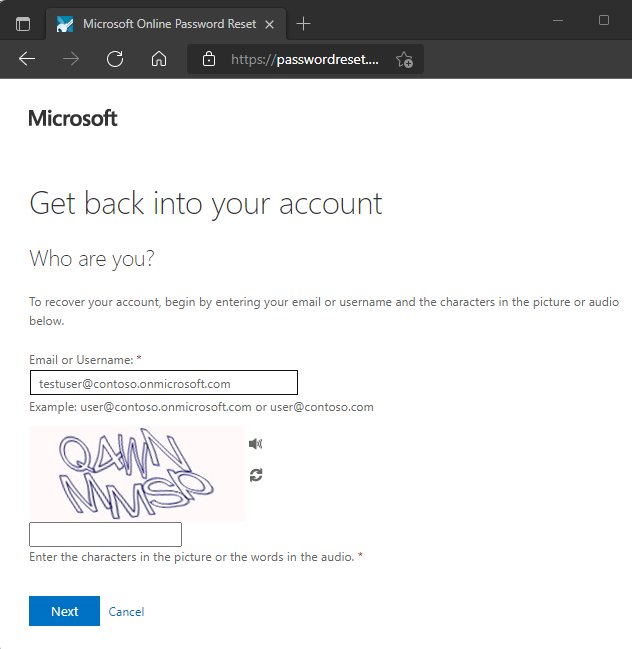
How to reset a forgotten password for a Microsoft work or school account
This is the end-user side of SSPR. It works only after an administrator turns the feature on and the user has registered at least one verification method on their mobile device or email.
- Go to mysignins.microsoft.com/security-info, or any Microsoft 365 sign-in page.
- At the sign-in screen, select Can't access your account?
- Enter your work or school email address or username, then type the characters shown on the screen.
- Select Next.
- On the Get back into your account screen, select a verification method and enter the requested information.
- If your organization requires two methods, repeat the verification with a second method.
- Enter and confirm your new password.
If a Contact your administrator link appears instead of the Get back into your account screen, SSPR is not turned on for that account. The link sends a reset request to the administrator by email or through a web portal.
MIM self-service password reset with a custom MFA provider
Microsoft Identity Manager (MIM) 2016 has its own SSPR portal for on-premises Active Directory. Azure Multi-Factor Authentication Server stopped serving MFA requests on September 30, 2024, so MIM SSPR deployments must now use a custom MFA provider or move to Microsoft Entra SSPR. Microsoft recommends Entra SSPR for organizations licensed for Microsoft Entra ID P1 or P2.
| Stage | What it involves |
|---|---|
| Prerequisites | A domain controller with an account lockout Group Policy, MIM Sync, MIM Service and Portal with the SSPR Registration and Reset portals, sync rules for AD and the MIM database, and the MIM Add-ins and Extensions for Windows sign-in |
| Prepare MIM to work with MFA | In the MIM Portal, open Workflows > Password Reset AuthN Workflow > Activities > Add Activity, then select Phone Gate or One-Time Password SMS Gate |
| Register users | Users sign in to the MIM Password Reset Registration Portal and enter a country code, a space and their phone number |
| How users reset | At the Windows sign-in screen they select Problems logging in?, or they open the Password Reset Portal in a browser, verify by phone or SMS, then unlock the account or set a new password |
If the MFA provider generates the one-time password itself, set the gate's length field to match it. Users moving to Entra SSPR do not need to register again when their alternate email or mobile number is synced or set with PowerShell.
Turn off self-service password reset in Microsoft Entra ID
To clean up resources after a pilot you no longer need, set the SSPR status back to None.
- Sign in to the Microsoft Entra admin center as at least an Authentication Policy Administrator.
- Browse to Entra ID > Password reset.
- On the Properties page, under Self service password reset enabled, select None.
- Select Save.
Leave SSPR on if you plan to set up password writeback, because writeback depends on it.
Fix Microsoft Entra self-service password reset problems
The user is told to contact an administrator
SSPR is not enabled for the user, the user has too few registered methods, or the password is managed on-premises without writeback.
- Check the user is in the group selected under Self service password reset enabled.
- Compare the user's registered methods with Number of methods required to reset.
- For synced or federated users, confirm password writeback is set to Yes.
Users lost the ability to reset after a policy change
Raising the required methods to two, or removing a method, leaves users without enough registered data.
- Reset affected passwords as an administrator.
- Turn on Require users to register when signing in so users add the missing method.
- Change required methods only after users have registered the new ones.
Admin accounts cannot reset with the methods you configured
Admin roles use the fixed two-gate policy, not the user policy.
- Register two methods on the admin account, such as email and Authenticator.
- Test configuration changes with a non-admin user instead.
Windows sign-in reset shows "Something went wrong. Please, try again later."
An authenticated proxy blocks the temporary local account (defaultuser1) that SSPR uses.
- Configure a machine-wide proxy, for example with the Group Policy Make proxy settings per-machine (rather than per-user).
- Allow port 443 to passwordreset.microsoftonline.com and ajax.aspnetcdn.com.
The Reset password link does not appear or work on the Windows sign-in screen
Settings such as lock screen notifications off, DontDisplayLastUserName, NoLockScreen or HideFastUserSwitching interfere, and Remote Desktop sessions are not supported.
- Confirm the device is Microsoft Entra joined or hybrid joined and runs Windows 10 version 1803 or later.
- Check the AllowPasswordReset policy reached the device.
- Remove the conflicting lock screen or sign-in policies, then try again at the physical sign-in screen.
Reset notification emails do not arrive
Spam filtering catches mail from the SSPR sender addresses.
- Check junk mail for messages from [email protected] or [email protected].
- Allow those senders in your mail filtering.
"We couldn't verify your account" after entering the user ID
The user never registered for password reset, or SSPR is not turned on for the organization.
- Have the user register security info at https://aka.ms/ssprsetup, such as an authenticator app, phone or email.
- If SSPR is off for that user, add them to the group selected under Self service password reset enabled.
- Until then, the user selects the contact-an-administrator link to request a reset.
Error when choosing the new password
The password contains a word, phrase or pattern that makes it easy to guess.
- Choose a longer password without common words, names or keyboard patterns.
- Try the reset again.
Microsoft Entra self-service password reset FAQ
What is self-service password reset?
Self-service password reset (SSPR) lets users change or reset their own password, or unlock their account, without an administrator or help desk. In Microsoft Entra ID, users verify their identity with registered methods such as Authenticator, SMS or email at https://aka.ms/sspr.
What is Microsoft self-service password reset?
Microsoft self-service password reset is the Microsoft Entra ID feature behind the Can't access your account link on Microsoft 365 and other Entra sign-ins. It covers password change, reset, account unlock and writeback to on-premises Active Directory, depending on license.
What is self-service password reset in Azure?
Azure AD self-service password reset is the same feature now called Microsoft Entra self-service password reset, after Azure Active Directory was renamed Microsoft Entra ID. Settings live in the Microsoft Entra admin center under Entra ID > Password reset.
Where is self-service password reset in Entra?
In the Microsoft Entra admin center, browse to Entra ID > Password reset. The Properties page turns SSPR on for None, Selected or All users, and the Authentication methods, Registration, Notifications and Customization pages hold the rest of the settings.
How do I enable self-service password reset?
Sign in to the Microsoft Entra admin center as an Authentication Policy Administrator, open Entra ID > Password reset, and set Self service password reset enabled to Selected or All. Then choose the number of methods required and require registration at sign-in.
How do I set up self-service password reset for users?
Enable SSPR for a pilot group, set one or two required methods, enable methods in the Authentication methods policy, and require registration at sign-in. Add notifications and a custom help desk link, then test with a non-admin account before widening it.
How do I reset my password with self-service password reset?
Go to https://aka.ms/sspr or select Can't access your account on the sign-in page, enter your work or school account, and type the CAPTCHA. Complete the verification steps with your registered methods, then choose a new password. Unregistered users must ask their help desk.
What is the self-service password reset URL?
Users reset at https://aka.ms/sspr, which opens passwordreset.microsoftonline.com, and register their methods at https://aka.ms/ssprsetup. Add ?mkt= with a locale, such as ?mkt=es-us, to the reset URL to open the page in a specific language.