Windows Group Policy is the built-in feature that pushes computer and user settings from one place, either a local policy on a single PC or Group Policy Objects (GPOs) stored in Active Directory.
This guide explains how GPOs are built, processed and filtered, then walks through the tasks admins run most: AppLocker, firewall, Wi-Fi profiles, time sync, scheduled restarts, exclusions and troubleshooting.
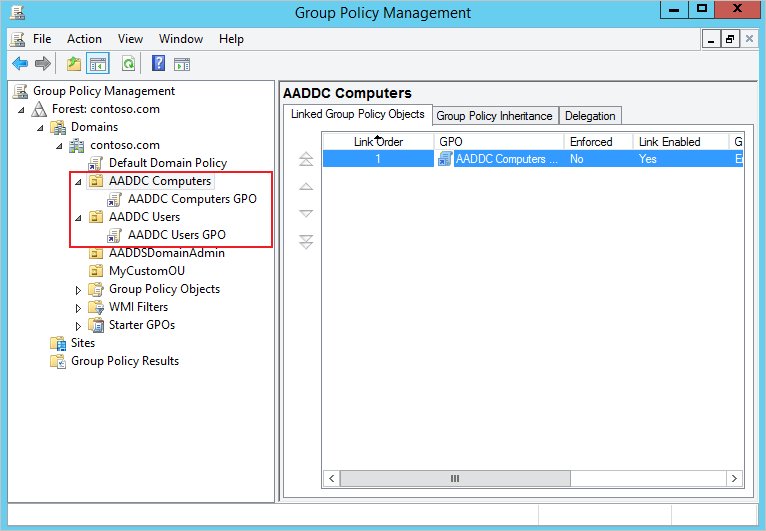
How to create and link a GPO in Group Policy Management
A domain GPO does nothing until it is linked to a site, domain or organizational unit (OU). By default, only Domain Admins and Enterprise Admins can link GPOs.
- Select Start, type Group Policy Management and open it.
- Expand your forest and domain, right-click Group Policy Objects and select New.
- Type a name in the New GPO dialog box and select OK.
- Right-click the new GPO and select Edit to open the Group Policy Management Editor.
- Browse to the setting under Computer Configuration or User Configuration, double-click it, set it and select OK.
- Close the editor, right-click the target OU and select Link an Existing GPO.
- Pick your GPO and select OK, then run
gpupdate /forceon a test PC.
On a standalone PC there is no GPMC or linking step. You edit the local policy instead, so open the Local Group Policy Editor with gpedit.msc.
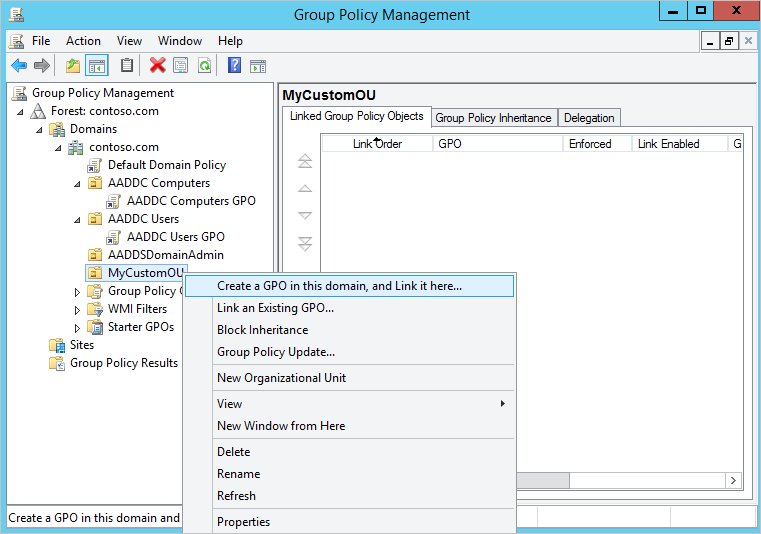
Group Policy architecture and components
A GPO is a virtual collection of policy settings, security permissions and a scope of management. Each GPO has a GUID and is stored in two halves that replicate separately.
| Component | Where it lives | What it does |
|---|---|---|
| Group Policy container (GPC) | Domain partition of Active Directory | Holds the GPO's properties, version and links; replicates with AD replication |
| Group Policy template (GPT) | SYSVOL folder on every domain controller | Holds the setting files and scripts; replicates with DFSR (or FRS on old domains) |
| Computer Configuration | Inside each GPO | System-wide settings such as firewall rules, power and startup scripts; applied at startup |
| User Configuration | Inside each GPO | Per-user settings such as Folder Redirection and logon scripts; applied at sign-in |
| Client-side extensions (CSEs) | On each Windows client | Each CSE applies its own area, for example registry, security or Folder Redirection |
| Local GPO | Each Windows PC | Applies first and has the lowest precedence when domain GPOs exist |
| Group Policy preferences | Inside each GPO | Preference items such as drive maps, processed top to bottom per extension |
| Links (GPLink) | Sites, domains and OUs | Decide scope; a link can be enabled, disabled or enforced |
| Organizational unit (OU) | Inside a domain in Active Directory | The lowest-level container a GPO can be linked to; most GPOs are linked at OU level |
Changes reach clients only after the GPO replicates. AD replication within a site usually takes under a minute, and SYSVOL replication within a site runs every 15 minutes.
Group Policy processing order: LSDOU, enforced and block inheritance
Group Policy is inherited and cumulative. When two GPOs set the same value, the one applied last wins, so the order below decides every conflict.
| Rule | How it works |
|---|---|
| Processing order | Local GPO, then site, then domain, then OU (parent OUs before child OUs) |
| Link order | At one site, domain or OU, the link with the lowest number has the highest precedence |
| Enforced link | Lower-level GPOs cannot override it, and Block Inheritance does not stop it; GPMC shows a padlock icon |
| Block Inheritance | Set on a domain or OU to stop higher-level GPOs, except enforced ones |
| Computer vs user | Computer settings override user settings when they conflict |
| Loopback processing | Applies the computer's user settings to anyone who signs in; Merge adds them, Replace uses only them |
| Refresh interval | Every 90 minutes plus up to 30 random minutes; domain controllers every 5 minutes |
| Logon-only extensions | Folder Redirection applies only at sign-in; software installation only at startup or sign-in |
| Time limit | All processing must finish within 60 minutes, and the limit cannot be changed |
Loopback lives at Computer Configuration\Policies\Administrative Templates\System\Group Policy as Configure user Group Policy loopback processing mode. It suits kiosks, classrooms and shared terminals.
Group Policy management tools
| Your task | Tool | Why |
|---|---|---|
| Change policy on one PC | Local Group Policy Editor (gpedit.msc) |
Edits the local GPO directly |
| Create, link, back up or copy domain GPOs | Group Policy Management Console (gpmc.msc) |
Central console for GPOs, links, WMI filters and permissions |
| Edit settings inside a domain GPO | Group Policy Management Editor | Opens from GPMC with right-click Edit |
| Create AppLocker rules on one PC | Local Security Policy (secpol.msc) |
Holds Application Control Policies locally |
| Apply changes now | gpupdate or Invoke-GPUpdate |
Triggers a refresh locally or, with PowerShell, on a remote PC |
| See what actually applied | gpresult or the Group Policy Results wizard |
Shows the winning GPO for each setting |
| Test before deploying | Group Policy Modeling wizard | Simulates group membership, WMI filters and OU moves |
| Script firewall rules into a GPO | PowerShell with -PolicyStore |
Writes rules straight into a named domain GPO |
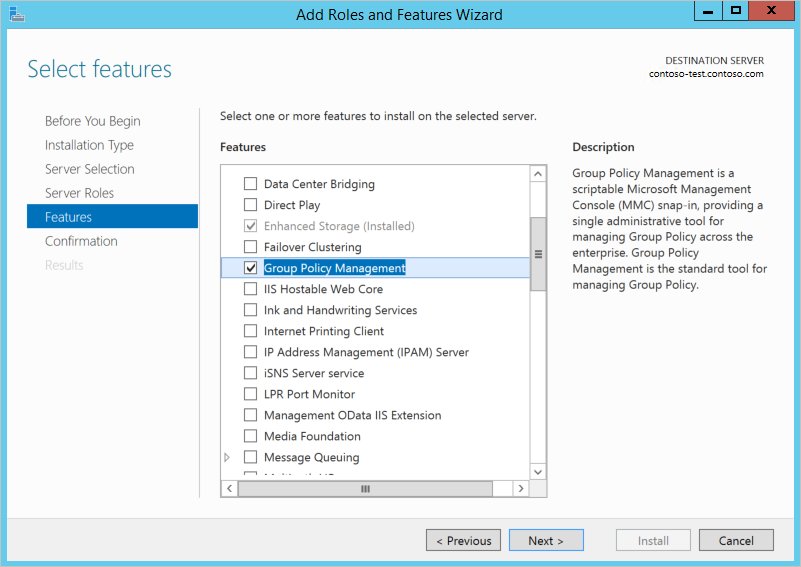
Install Group Policy Management Console (RSAT) on Windows 11
GPMC ships with Windows Server. On Windows 11 and Windows 10 version 1809 or later, it comes as an RSAT optional feature.
- Select Start > Settings > System > Optional features (on some builds this page is under Apps).
- Select View features or Add a feature.
- Type
Remotein the search box. - Select RSAT: Group Policy Management Tools and install it.
- Open Group Policy Management from Start once the install finishes.
On Windows Server, add the Group Policy Management feature instead. RSAT tools on Windows 11 version 25H2 on Arm64 devices are added from Turn Windows features on or off.
The other GPMC prerequisites are permissions: Edit settings, delete, and modify security on the GPO, and modify permission on a site, domain or OU before you can link GPOs to it. By default, only Domain Admins and Enterprise Admins have that permission.
Force a Group Policy update with gpupdate
By default gpupdate applies only settings that changed. Add /force to reapply everything after you edit a GPO.
gpupdate /forceReapplies all computer and user policy settings. Add /target:computer or /target:user to refresh only one half, /logoff for user Folder Redirection or software installation, and /boot for computer software installation. In PowerShell, Invoke-GPUpdate does the same and can target a remote computer.
You should see: Computer Policy update has completed successfully. User Policy update has completed successfully.
From GPMC you can refresh a whole OU: right-click it and select Group Policy Update. On a single PC, you can also force a Group Policy update with the other gpupdate switches.
Change GPO link order and unlink a GPO in GPMC
Within each site, domain and OU, the link order decides which GPO wins, and the link with the lowest number has the highest precedence. Deleting a link stops the GPO applying there but keeps the GPO itself.
- Open Group Policy Management and select the site, domain or OU that holds the links.
- Move the GPO link up or down in its link list; set it to link order 1 to give it the highest precedence.
- To unlink a GPO, expand Group Policy Objects in the forest and domain that contain it and select the GPO.
- In the details pane, select the Scope tab.
- Under Links, right-click the site, domain or OU and select Delete Link(s).
Deleting the GPO itself is a different action. It removes the GPO and its links in the selected domain, but not links from other domains, so remove those first.
Disable User Configuration or Computer Configuration settings in a GPO
A GPO that holds only user settings can skip the computer half, and the reverse. Disabling the unused half slightly reduces startup time because those settings no longer have to be evaluated.
- In GPMC, expand Group Policy Objects in the forest and domain that contain the GPO.
- Right-click the GPO and open GPO Status.
- Select User configuration settings disabled for a computer-only GPO, or Computer configuration settings disabled for a user-only GPO.
- Select All policy settings disabled to switch the whole GPO off without unlinking it, or Enabled to restore the default.
Most useful GPO examples and best practices
These settings cover the jobs most domains need first. The best-practice rows come from how Group Policy processes and replicates.
| Example or practice | Where or how |
|---|---|
| Firewall rules for all PCs | Computer Configuration > Policies > Windows Settings > Security Settings > Windows Firewall with Advanced Security |
| Allow or block apps | Security Settings > Application Control Policies > AppLocker |
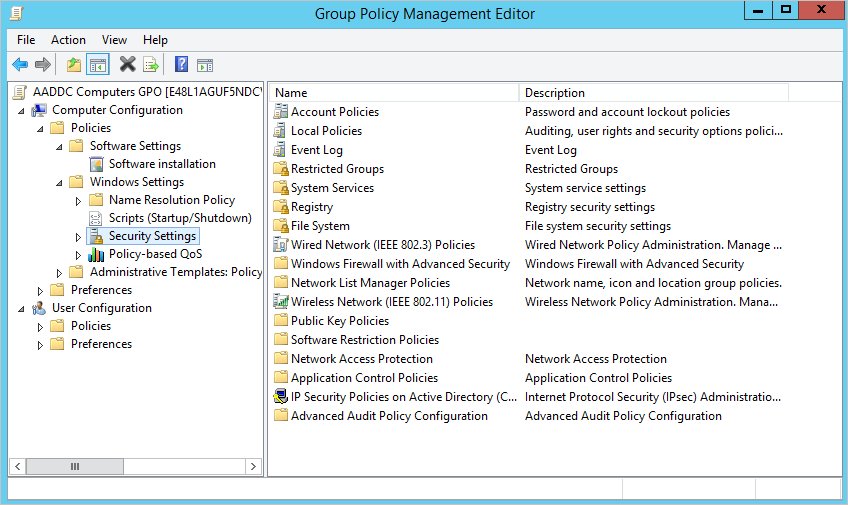
| Deploy Wi-Fi networks | Security Settings > Wireless Network (IEEE 802.11) Policies |
| Redirect Documents or Desktop to a server | User Configuration > Policies > Windows Settings > Folder Redirection |
| Same user settings on kiosks | Configure user Group Policy loopback processing mode |
| Link at the OU level | Keep users and computers in separate OUs so unused halves can be disabled |
| Disable the unused half | Set GPO Status to User configuration settings disabled (or computer) to speed processing |
| Combine small GPOs | Fewer GPOs shortens startup and sign-in and simplifies troubleshooting |
| Do not shorten refresh intervals | Shorter intervals add network traffic and domain controller load |
| Test before linking | Run Group Policy Modeling; it ignores local GPOs, so confirm with gpresult |
| Back up GPOs | GPMC backs up, restores, imports and copies GPOs, with migration tables across domains |
After a Windows feature update such as Windows 11 26H2, compare Group Policy results before and after on a pilot group.
Fix ‘this app has been blocked by your administrator’ in Windows
This message usually means an AppLocker policy denied the file. When an AppLocker policy applies, Microsoft Store apps are blocked unless packaged app rules allow them.
- On the affected PC, open Event Viewer.
- Go to Applications and Services Logs > Microsoft > Windows > AppLocker.
- Find event 8004 (EXE or DLL), 8007 (script or MSI) or 8022/8025 (packaged apps) for the blocked file.
- Note the rule collection, file path and user SID in the event.
- On an admin PC, edit the GPO that holds AppLocker rules and open Application Control Policies > AppLocker.
- Add an allow rule for the app, or right-click Packaged app Rules and select Create Default Rules for Store apps.
- Run
gpupdate /forceon the PC and start the app again.
Event 8027 means no packaged apps can run because EXE rules are enforced with no packaged app rules. If you are not the admin, the fix sits with your IT department.
Add wireless Wi-Fi profiles on Windows devices via export/import or GPO
Use netsh to copy a profile from one PC to others, or a wireless policy in a GPO for domain-joined devices.
- On a PC that already connects, open an elevated Command Prompt.
- Run
netsh wlan export profile name="CorpWiFi" folder="C:\WiFiProfiles" key=clearto save the profile as XML. - Copy the XML file to the target PC and run
netsh wlan add profile filename="C:\WiFiProfiles\Wi-Fi-CorpWiFi.xml" user=all. - For the GPO route, edit a GPO and open Computer Configuration > Policies > Windows Settings > Security Settings.
- Right-click Wireless Network (IEEE 802.11) Policies and select Create a new Wireless Policy for Windows Vista and Later Releases.
- Select Add > Infrastructure, type a Profile Name, enter the SSID under Network Name(s) (SSID) and select Add.
- Set the security options on the Security tab, select OK, and link the GPO to the computers' OU.
key=clear writes the Wi-Fi password in plain text, so delete the XML file once the import is done. Exported files are named after the interface and profile, for example Wi-Fi-CorpWiFi.xml.
How to prevent users from saving files to Desktop, Downloads and other profile folders
Group Policy has no single switch that stops saving to profile folders. The supported way to keep files off local disks is Folder Redirection, which moves each folder to a server share.
- In GPMC, right-click the users' OU and select Create a GPO in this domain, and Link it here.
- Name the GPO, then right-click it and clear Link Enabled until it is configured.
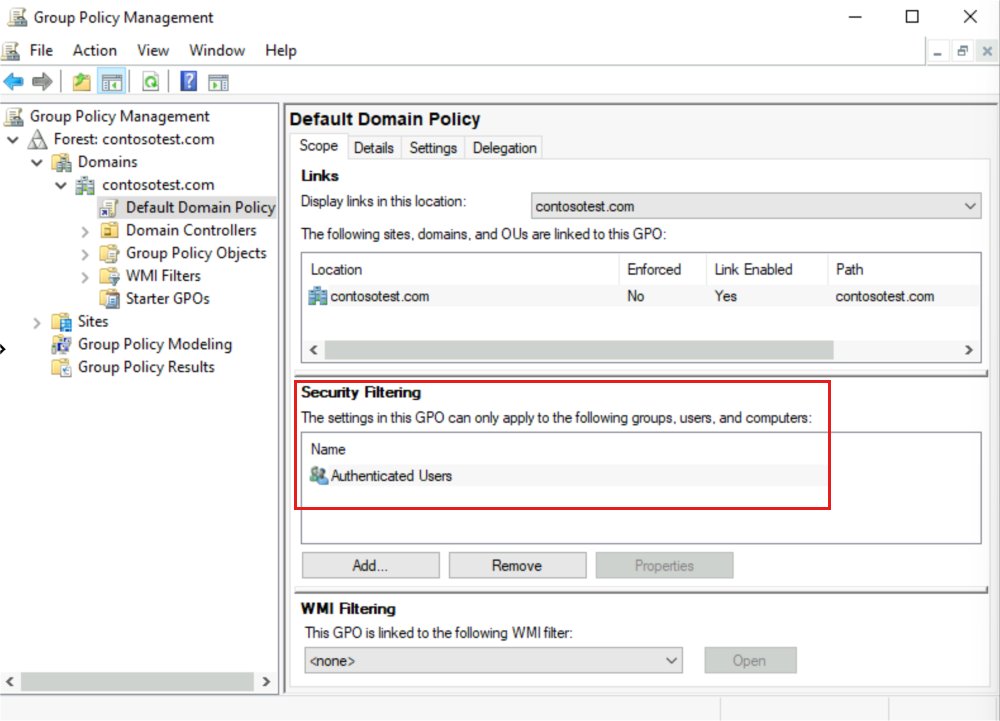
- On the Scope tab, remove Authenticated Users under Security Filtering and add your Folder Redirection users group.
- On the Delegation tab, select Add, enter Authenticated Users and keep the default Read permission.
- Edit the GPO and go to User Configuration > Policies > Windows Settings > Folder Redirection.
- Right-click the folder to redirect (for example Documents), select Properties and choose Basic – Redirect everyone's folder to the same location.
- Select Create a folder for each user under the root path, enter the share in Root Path and select OK.
- Right-click the GPO and select Link Enabled, then sign in as a test user.
Folder Redirection applies only at sign-in, so gpupdate /force alone will not move the folders. Use gpupdate /logoff or sign out and back in.
How to set a custom drive icon in Windows
Windows reads a drive's icon and label from an autorun.inf file in the drive's root. This works without Group Policy and suits USB and data drives.
- Copy an .ico file (or an .exe, .dll or .bmp that contains icons) to the root of the drive, for example
D:\drive.ico. - Open Notepad and type
[AutoRun]on the first line. - Type
icon=drive.icoon the second line; for a file with several icons, add the index, such asicon=MyProg.exe,1. - Optionally add
label=Projectsto set the text shown with the icon. - Save the file as
autorun.infin the root of the same drive, with Save as type set to All files. - Close and reopen File Explorer, or remove and reinsert a USB drive, to see the new icon.
AppLocker: configure application restriction policies in Windows
AppLocker controls which executables, scripts, installers, DLLs and packaged apps users can run. It is included in all Windows editions except Windows 10 version 1809 or earlier, and it is not supported on Server Core.
- Edit a GPO and go to Computer Configuration > Windows Settings > Security Settings > System Services; set Application Identity to start automatically.
- Open Security Settings > Application Control Policies > AppLocker.
- Right-click Executable Rules (and the other collections you need) and select Create Default Rules so Windows files keep running.
- Right-click a rule collection, select Create New Rule, choose Allow or Deny and the user or group.
- Pick a Publisher, Path or File hash condition, add exceptions if needed, name the rule and select Create.
- Right-click AppLocker, select Properties, and on the Enforcement tab tick Configured with Audit only.
- Review events 8003 and 8006 in the AppLocker log, then switch the collection to Enforce rules.
Without the Application Identity service, AppLocker rules are not enforced. Path-based deny rules are weak, because a user can copy the file elsewhere; prefer publisher rules. Microsoft classes AppLocker as defense in depth and points to App Control for Business for stronger protection.
How to enable or disable Windows Defender Firewall
Microsoft recommends keeping Windows Defender Firewall on. Turning it off removes IPsec connection security rules, boot-time filters and other protection, so allow traffic with rules instead.
- On a single PC, open an elevated PowerShell window.
- Run
Set-NetFirewallProfile -Profile Domain,Public,Private -Enabled Trueto turn the firewall on for all profiles. - For a domain, edit a GPO and go to Computer Configuration > Policies > Windows Settings > Security Settings > Windows Firewall with Advanced Security.
- Set the firewall state to On for the Domain, Private and Public profiles in the firewall properties.
- Add the rules you need under Inbound Rules with Action > New rule, rather than switching a profile off.
- Run
gpupdate /forceon a client and confirm the profiles show as on.
If a vendor still requires the firewall off, Microsoft's supported way is to disable the profiles and leave the Windows Defender Firewall service (MpsSvc) running. Stopping the service breaks the Start menu, app installs and phone activation.
Configure Windows to auto restart/shutdown with Task Scheduler
A scheduled task that runs shutdown gives you a nightly restart without third-party tools. Run the command below in an elevated Command Prompt.
schtasks /create /tn "Nightly restart" /tr "shutdown /r /t 60 /c \"Scheduled restart\"" /sc daily /st 03:00 /ru systemCreates a task that runs daily at 03:00 as SYSTEM, so no one has to be signed in. shutdown /r restarts with a 60-second warning; use /s instead of /r to shut down. A time-out above 0 implies /f, which closes apps without saving. Add /s <computer> to create the task on a remote PC.
You should see: SUCCESS: The scheduled task "Nightly restart" has successfully been created.
Check the task in Task Scheduler > Task Scheduler Library, and use schtasks /delete /tn "Nightly restart" to remove it. Warn users first, because /f discards unsaved work.
Configure NTP time source for Active Directory domain
Domain members sync time through the domain hierarchy, so only the PDC emulator in the forest root domain should use an external NTP source. Back up the registry before you change it.
- On the forest root PDC emulator, open Registry Editor and go to
HKEY_LOCAL_MACHINE\SYSTEM\CurrentControlSet\Services\W32Time\Parameters. - Set Type to
NTP. - In
...\W32Time\Config, set AnnounceFlags to5(use0xAif the upstream link is unreliable). - In
...\W32Time\TimeProviders\NtpServer, set Enabled to1. - Back in
...\W32Time\Parameters, set NtpServer to a space-separated list of peers, each ending in,0x1. - In
...\W32Time\Config, set MaxPosPhaseCorrection and MaxNegPhaseCorrection in decimal, for example3600. - Run
net stop w32time && net start w32timeto restart the Windows Time service.
The default for both phase-correction values is 48 hours on Windows Server 2008 R2 and later, which lets the PDC accept large jumps. A tighter value stops a bad upstream source from moving the whole domain's clock.
How to remove ‘some settings are managed by your organization’ on Windows 11 or 10
The message appears when a policy, a management (MDM) enrollment or a policy registry value controls a setting. On a domain or work PC it is expected, and only the admin can change it.
- Open an elevated Command Prompt and run
gpresult /h C:\gp.html, then open the file to see which GPOs and settings apply. - Select Settings > Accounts > Access work or school and check for a work or school account you no longer need.
- Select that account and select Disconnect if the device is personal and the account is not required.
- On a personal PC, open
gpedit.msc, find the setting named in the report and set it to Not Configured. - Run
gpupdate /forceand restart, then reopen the Settings page.
After you enable BitLocker on an unmanaged PC, Windows can show "For your security, some settings are managed by your administrator" even with no policy set. Microsoft lists this as a known issue (KB5051141).
Exclude a specific user or computer from Group Policy
A GPO applies only to accounts that have both Read and Apply group policy permissions. Security filtering controls those permissions.
- Create a security group for the users or computers that should get the GPO.
- In GPMC, select the GPO and open the Scope tab.
- Under Security Filtering, select Authenticated Users, select Remove, then Add your group.
- Open the Delegation tab, select Add, choose Authenticated Users (or Domain Computers) and set Read.
- Run
gpresult /h gp.htmlon an excluded account's PC and confirm the GPO is listed as denied.
The Read step matters: since security update MS16-072, computers read user GPOs in their own context, and user settings fail without it. An explicit Deny on a user or computer also excludes it, because a deny always overrides an allow.
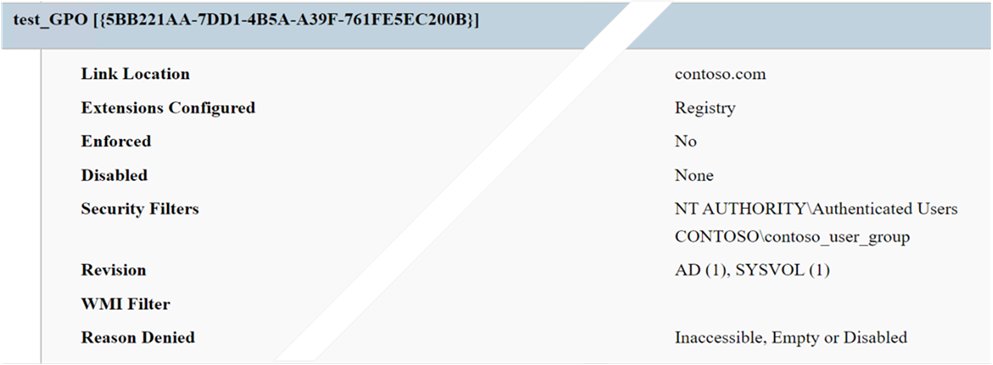
Check which GPOs applied with gpresult and Group Policy Results
- On the client, run
gpresult /rfor a summary of applied and filtered GPOs. - Run
gpresult /h C:\gp.html /ffor a full HTML report and open it in a browser. - In the report, find the setting and check the Winning GPO column.
- From GPMC, right-click Group Policy Results and select Group Policy Results Wizard to query a remote PC.
- Pick the computer and user, finish the wizard and review the Summary and Settings tabs.
Use /scope computer or /scope user to limit the output. On ARM64 Windows, only the SysWOW64 copy of gpresult supports /h.
Group Policy troubleshooting guides
GPO settings are not applying
The GPO is unlinked, filtered out, overridden by a higher-precedence link, or has not replicated yet.
- Run
gpresult /h gp.htmland look for the GPO under applied or denied GPOs, with the reason. - In GPMC, check the link is enabled and the GPO status is not disabled for that half.
- Check link order and enforced links on parent containers.
- Wait for replication or run
gpupdate /force, then check again.
Event ID 1129: Group Policy failed because of lack of network connectivity
The client cannot reach a domain controller, often because LDAP port 389 is blocked.
- Confirm the PC can reach a domain controller over the network.
- Check firewalls between the client and DC for blocked LDAP traffic.
- Run
gpupdateagain once connectivity is back.
User settings stopped applying after security filtering changed
Authenticated Users was removed, so computer accounts lost Read on the GPO.
- Open the GPO's Delegation tab and select Add.
- Add Authenticated Users or Domain Computers with Read.
- Run
gpupdate /forceand sign in again.
Errors in the event log but no clear cause
The failing step is buried among normal processing events.
- In Event Viewer, open the Group Policy error in Windows Logs > System and copy the ActivityID from the Details tab.
- Create a custom view of Microsoft-Windows-GroupPolicy/Operational filtered on that ActivityID.
- If that is not enough, create
HKEY_LOCAL_MACHINE\Software\Microsoft\Windows NT\CurrentVersion\Diagnostics, add DWORD GPSvcDebugLevel set to hexadecimal30002, and rungpupdate /force. - Read
%windir%\debug\usermode\gpsvc.log(create the usermode folder if it is missing), then delete the value when done.
Windows Group Policy (GPO) FAQ
What does GPO mean in computers and IT?
In Windows IT, GPO stands for Group Policy Object. It is a named collection of policy settings, permissions and scope that Active Directory applies to computers and users. Outside IT, GPO also stands for group purchasing organization, which is unrelated.
What does GPO enforced mean?
An enforced GPO link cannot be overridden by GPOs linked lower in the hierarchy, and Block Inheritance on an OU does not stop it. GPMC marks an enforced link with a padlock icon. If several enforced links conflict, the highest one wins.
What is the difference between Group Policy and a GPO?
Group Policy is the Windows feature that delivers settings. A GPO is one container of settings within it. A domain can hold hundreds of GPOs, each linked to sites, domains or OUs, while every PC also has one local GPO.
How often does Group Policy refresh?
Windows clients and member servers refresh Group Policy every 90 minutes, plus a random offset of up to 30 minutes. Domain controllers refresh every 5 minutes. Run gpupdate /force to apply changes immediately.
Does a domain GPO override local Group Policy?
Yes. The local GPO is processed first, then site, domain and OU GPOs. Because the last applied setting wins, any conflicting domain setting replaces the local one.
Can you link a GPO directly to a user?
No. GPOs link only to sites, domains and OUs. To target specific users, link the GPO to their OU and use security filtering with a security group.
What is the difference between gpedit.msc and gpmc.msc?
gpedit.msc edits the local GPO on the PC you are using. gpmc.msc, the Group Policy Management Console, manages domain GPOs, links, filtering, backups and reports across Active Directory.
How do I see which Group Policies are applied to my PC?
Run gpresult /r in Command Prompt for a summary, or gpresult /h report.html for a full HTML report. The report lists applied and denied GPOs and the winning GPO for each setting.


![[Solved] Lenovo laptop plugged in but not charging](https://techdows.com/wp-content/uploads/2026/10/Solved-Lenovo-laptop-plugged-in-but-not-charging-533x338.jpg)