Go to admin.microsoft.com in any browser and sign in with a work or school account that holds a Microsoft 365 admin role to open the Microsoft 365 admin center.
This guide covers the browser, app launcher and mobile app routes, the Teams, Entra, Intune and Exchange admin centers, how to grant admin access, and what to do when access is denied.
The fastest way to open the Microsoft 365 admin center
Both admin.microsoft.com and admin.cloud.microsoft open the same admin center. Microsoft's own link for the admin center now lands on admin.cloud.microsoft.
- Open a browser and go to https://admin.microsoft.com.
- Enter your work or school email address, then your password.
- Approve the multifactor authentication prompt if your organization asks for one.
- Wait for the Home page of the Microsoft 365 admin center to load.
If you see "You don't have permission to access this page or perform this action" instead, your account has no admin role. Skip to the troubleshooting section below.
What Is the Microsoft Admin Center?
The Microsoft 365 admin center is the web console where a business, school or enterprise manages its Microsoft 365 subscription. It is the common entry point for every admin role, and it links out to specialist admin centers for each service.
Most admins see Dashboard view. Smaller organizations can use Simplified view, and a button at the top of the page switches between them. The left navigation holds these areas:
| Menu | What it is for |
|---|---|
| Home | Landing page with cards for users, billing, service health and reports |
| Users | Create and manage accounts, set permission levels, reset passwords |
| Teams and groups | Microsoft 365 groups, teams, distribution and security groups, shared mailboxes |
| Roles | Assign Microsoft Entra built-in roles and see who holds them |
| Billing | Buy, view or cancel subscriptions, see invoices and license counts |
| Support | Open and track service requests with Microsoft |
| Settings | Org-wide app settings, domains, password policy, org profile and release preferences |
| Setup | Domains, multifactor authentication, mailbox migration and app installs |
| Reports | Usage reports for email, activations and more |
| Health | Service health and the Message center for upcoming changes |
| Admin centers | Links to the Exchange, Teams, SharePoint, Viva Engage and Microsoft Entra admin centers |
The admin centers listed under Admin centers depend on your plan and region. Select Show all at the bottom of the navigation if a menu is hidden.
Before You Start: What You Need to Access It
| Requirement | Details | Where to get it |
|---|---|---|
| 1. A Microsoft 365 work or school account | An account in an organization with a Microsoft 365 or Office 365 business, education or enterprise subscription | Your organization's IT team, or sign up for a business plan yourself |
| 2. An admin role | Global Administrator, Global Reader, User Administrator, Billing Administrator or another admin role. A plain user role cannot open the admin center | The person who bought the subscription is a Global Administrator by default and can assign roles |
| 3. Multifactor authentication access | Your phone or authenticator method, because tenants created after October 2019 have security defaults on, which require MFA | Set up at your first sign-in when prompted |
| 4. A supported browser | Any current browser that meets Microsoft 365 system requirements | Microsoft 365 system requirements page |
The Microsoft 365 Admin mobile app does not work with Microsoft 365 Family or Microsoft 365 Personal subscriptions; it needs a business, enterprise, Office 365, Exchange Online or OneDrive plan.
How to Access Microsoft Admin Center from a Web Browser
Use this route on any computer. It also works on a phone browser, though the admin mobile app is easier on small screens.
- Go to the admin center URL: type admin.microsoft.com or admin.cloud.microsoft into the address bar and press Enter.
- Enter your admin email address, for example [email protected], and continue.
- Enter your password and sign in.
- Complete MFA or security verification: approve the notification in your authenticator app or type the code you receive.
- Confirm you are in the Microsoft 365 admin center: the page title reads Microsoft 365 admin center and the left navigation shows Home, Users and Billing.
Bookmark the page once it loads so the next visit skips the address bar.
How to Access Admin Center from Microsoft 365
If you already work in Microsoft365.com, you can jump to the admin center without typing a URL.
- Sign in to Microsoft365.com with your work account.
- Select the app launcher to see your apps.
- Select Admin in the list of apps.
- Wait for the admin center Home page to open.
The Admin tile only appears for accounts that have permission to access the admin center. A missing tile means your account holds no admin role.
How to Access Microsoft Admin Center from the Microsoft 365 Admin Mobile App
The free Microsoft 365 Admin app for iPhone, iPad and Android is a companion to the web admin center. You must already be an admin in a Microsoft 365 organization to use it.
- Install the Microsoft 365 Admin app: search for Microsoft 365 Admin in the Apple App Store or Google Play Store and install it.
- Sign in with your admin account email address and password.
- Complete the MFA prompt if one appears.
- Use available admin features from the dashboard: service health, user licenses, messages and service requests.
- Go to Settings > Notifications in the left menu to choose service health, Message center and billing alerts.
The app can add or edit users, reset passwords, assign roles and licenses, manage groups, view invoices and open service requests. If you manage more than one organization, you can sign in to each and switch between them.
How to Access Other Microsoft Admin Portals
Each Microsoft 365 service has a specialist admin center with its full settings. Open any of them from Admin centers in the Microsoft 365 admin center navigation, or go straight to the address below. Your role decides which ones open.
| What you need to manage | Admin center | Address | Typical role |
|---|---|---|---|
| Users, licenses, billing, org settings | Microsoft 365 admin center | admin.microsoft.com or admin.cloud.microsoft | Any admin role |
| Teams meetings, calling, messaging, devices | Microsoft Teams admin center | admin.teams.microsoft.com | Teams Administrator |
| Identity, roles, Conditional Access, security defaults | Microsoft Entra admin center | entra.microsoft.com | Privileged Role Administrator for role changes |
| Device enrollment, compliance, app deployment | Microsoft Intune admin center | intune.microsoft.com | Intune role or Microsoft Entra admin role |
| Mailboxes, mail flow, distribution groups | Exchange admin center | admin.cloud.microsoft/exchange | Exchange Administrator |
| Sites, sharing, OneDrive settings | SharePoint admin center | Admin centers > SharePoint | SharePoint Administrator |
| Incidents, alerts, threat hunting | Microsoft Defender portal | security.microsoft.com | Security Administrator or Security Reader |
The Microsoft 365 admin center manages only a subset of Microsoft Entra and Intune roles. The full role lists live in the Entra and Intune admin centers.
How to access the Microsoft Teams admin center
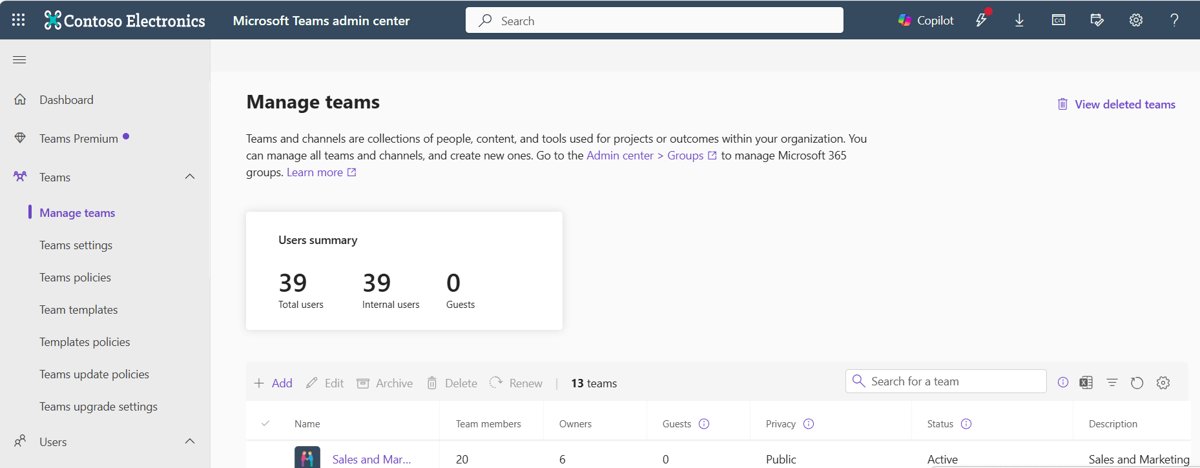
The Teams admin center at admin.teams.microsoft.com needs its own role. For full access, your account must hold Global Administrator or Teams Administrator. Teams Reader gets a read-only view.
- Sign in to the Microsoft 365 admin center at admin.microsoft.com.
- Select Show all at the bottom of the left navigation.
- Under Admin centers, select Teams.
- Or go directly to https://admin.teams.microsoft.com and sign in with the same account.
- Select Teams > Manage teams to confirm the list of your organization's teams loads.
Narrower Teams roles exist for delegated work: Teams Communications Administrator for meetings and calling, Teams Device Administrator for devices, and Teams Telephony Administrator for phone numbers. Teams Reader currently needs a Teams license to see the Manage teams section.
How to Check If You Have Admin Access
The quickest test is the sign-in itself: if the admin center opens, you are an admin. To see exactly which role you hold, check your own account.
- Look for the admin app: open the app launcher on Microsoft365.com and check whether Admin appears.
- Go directly to admin.microsoft.com. A permission message means you are not an admin.
- If the admin center opens, select Users > Active users and select your own name.
- Read the Roles entry on the Account tab of the flyout pane.
- Or select Roles > Role assignments, select a role and open Assigned to see which users hold it.
- If you are not an admin, ask an existing administrator: your IT help desk, the business owner, or whoever created your account.
A role without a setting's permission still opens the admin center but blocks that page. That is a role mismatch, not a sign-in fault.
How to Give Someone Access to Microsoft Admin Center
Assign an admin role in the Microsoft 365 admin center. New users get a user role with no admin privileges until you do this.
- In the Microsoft 365 admin center, select Users > Active users.
- Select the person you want to make an admin.
- In the flyout pane, under Roles, select Manage roles.
- Select the admin role they need. Select Show all at the bottom of the list if the role is not shown.
- Select Save changes.
- To add several people to one role, go to Roles > Role assignments instead, select the role, then Assigned > Add users, pick the users and select Add.
On the Role assignments page, the Microsoft Entra ID, Exchange, Intune and Billing tabs show the roles your subscription offers. Select up to three roles and choose Compare roles to find the least permissive one.
Assign roles in the Microsoft Entra admin center
Use Microsoft Entra when you need a role the Microsoft 365 admin center does not list, or an *eligible* assignment through Privileged Identity Management.
- Sign in to https://entra.microsoft.com as a Privileged Role Administrator.
- Browse to Entra ID > Users.
- Search for and select the user.
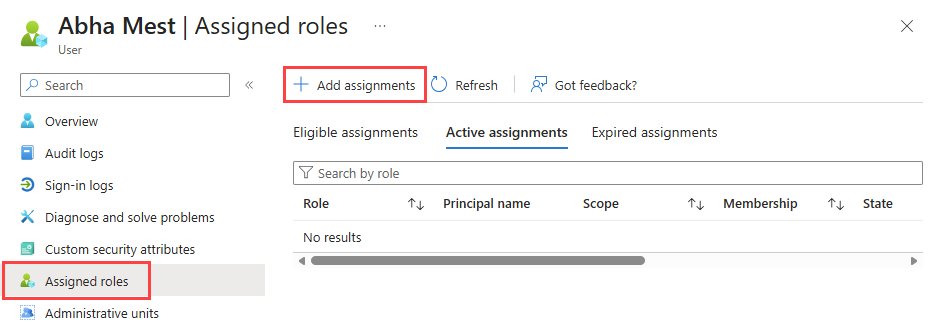
- Select Assigned roles, then Add assignments.
- Pick the role from the dropdown list and select Next.
- Choose an Assignment type, then select Assign.
Organizations on Microsoft Entra ID Free or P1 can assign roles as *active* only. Eligible, just-in-time assignments need Microsoft Entra ID P2, Microsoft Entra ID Governance or Microsoft Entra Suite.
Which admin role should you assign?
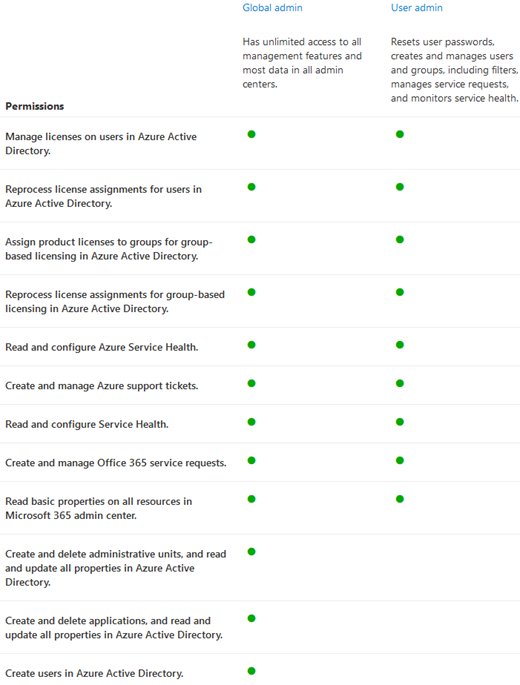
Microsoft recommends the role with the fewest permissions that still gets the job done. Match the person's task to a row.
| The person needs to | Assign this role | Why not Global Administrator |
|---|---|---|
| Reset passwords for regular users | Password Administrator or Helpdesk Administrator | Password resets need no access to billing or settings |
| Create users, assign licenses, manage groups | User Administrator | Covers account work without tenant-wide control |
| Buy subscriptions and view invoices | Billing Administrator | Limited to purchases, subscriptions and service requests |
| Manage Teams meetings, calling and policies | Teams Administrator | Scoped to the Teams admin center |
| Manage mailboxes and mail flow | Exchange Administrator | Scoped to Exchange Online |
| Audit settings without changing anything | Global Reader | Can view everything a Global Administrator sees but edit nothing |
| Open service requests alongside another role | Service Support Administrator | Adds support tickets, Message center and service health only |
First Things to Do After Accessing the Admin Center
On a first visit, run through this checklist. It confirms the tenant is healthy and that sign-ins are protected.
- Check the Home dashboard: select Add card to pin the cards you use most, and drag cards to reorder them.
- Review users and licenses: select Users > Active users and confirm each person has the right product license.
- Check service health: select Health > Service health to see active incidents and advisories.
- Read the Message center: select Health > Message center and filter to Plan for change posts to see upcoming changes.
- Confirm MFA is on: in the Entra admin center, go to Identity > Overview > Properties and check the Security defaults section.
- Set release preferences: select Settings > Org settings > Organization profile > Release preferences if you want admins to see new features early.
Troubleshooting: Why You Can’t Access Microsoft Admin Center
"You don't have permission to access this page or perform this action"
Your account holds a user role, not an admin role.
- Confirm you signed in with your work account, not a personal one.
- Ask an existing administrator to assign you a role under Users > Active users > Manage roles.
- If you do not know who the admin is, contact your IT help desk, the business owner, or the person who gave you your account.
- Sign out, sign back in, and open admin.microsoft.com again.
The Admin tile is missing from the app launcher
The tile only appears for accounts with permission to use the admin center.
- Open admin.microsoft.com directly to confirm the result.
- Check your role as described in the verify section above.
- Request the least permissive role that covers your task.
A specific page or setting is blocked after you sign in
Your role lacks that permission, for example a Billing Administrator opening Teams settings.
- Select Roles > Role assignments, select your role and open the Permissions tab.
- Ask another administrator to add the role that covers the setting.
- Contact Microsoft support for business if no admin in your organization can help.
Nobody can sign in to the admin center
A Microsoft service incident can block tenant sign-in.
- Open the Microsoft 365 service status page at status.cloud.microsoft.
- Check the @MSFT365Status account on X for posted events.
- Retry once the incident shows Service restored.
A Global Administrator is locked out
The password or sign-in method is lost.
- Ask another Global Administrator or a Privileged Authentication Administrator to reset the password.
- Sign in and register fresh MFA methods when prompted.
- Keep at least one Privileged Authentication Administrator and two emergency access accounts so this cannot strand the tenant.
The Microsoft 365 Admin app will not sign in or misbehaves
A stale app build or a broken authentication companion app.
- Close and reopen the app.
- Uninstall and reinstall the app so you are on the latest version.
- Update or reinstall Microsoft Authenticator or Company Portal if either is installed.
- Email [email protected] if the problem continues.
The admin center looks different from help articles
Targeted release admins see new features first, so layouts differ between organizations.
- Select Show all in the navigation to reveal hidden menus.
- Use the search bar at the top of the admin center to find a page by name.
- Check Settings > Org settings > Organization profile > Release preferences to see your release track.
Security Best Practices for Admin Center Access
Admins can see names, email addresses and locations of every user, so an admin account is the most valuable target in the tenant.
| Practice | Why it matters |
|---|---|
| Keep Global Administrators to as few people as possible | The role has almost unlimited access to settings and most data |
| Assign the least permissive role | A password reset job needs Password Administrator, not Global Administrator |
| Require MFA for every administrator | A stolen password alone is then not enough to sign in |
| Keep a Privileged Authentication Administrator | It can reset a locked-out Global Administrator's password |
| Create two emergency access accounts | Excluded from MFA policies and used only when normal admins cannot sign in |
| Use eligible roles through Privileged Identity Management | Admins elevate just in time instead of holding standing access (needs Entra ID P2 or Governance) |
| Export the admin list regularly | Roles > Role assignments > Export admin list shows every current admin in a .csv file |
A Global Administrator cannot remove their own Global Administrator assignment. This prevents an organization from ending up with none.
Common Admin Center Tasks After Signing In
| Task | Where to go in the admin center |
|---|---|
| Add a user | Users > Active users > Add a user, then Finish adding |
| Change a user's licenses | Users > Active users, select the user, then manage their product licenses |
| Make someone an admin | Users > Active users, select the user, then Manage roles |
| Create a group or team | Teams and groups |
| View or cancel a subscription | Billing |
| Open a support request | Support, or Help & support (headphones icon) |
| See usage reports | Reports |
| Check an outage | Health > Service health |
| Add or update a domain name | Settings; manage existing domains under Setup |
Advanced settings for each service live in its own admin center under Admin centers, covered in the table of other admin portals above.
Frequently Asked Questions
How do I access the Microsoft 365 admin center?
Go to admin.microsoft.com or admin.cloud.microsoft and sign in with a work or school account that holds an admin role. You can also sign in to Microsoft365.com, open the app launcher and select Admin. The Admin tile appears only for accounts with admin permission.
How do I access the Microsoft Teams admin center?
Go to admin.teams.microsoft.com, or open the Microsoft 365 admin center, select Show all, and choose Teams under Admin centers. Your account needs Global Administrator or Teams Administrator for full access, or Teams Reader for a read-only view.
How do I access the Microsoft Entra admin center?
Go to entra.microsoft.com and sign in with your work account. You can also reach it from Admin centers in the Microsoft 365 admin center. Assigning roles there requires the Privileged Role Administrator role or higher.
How do I access the Microsoft Intune admin center?
Go to intune.microsoft.com and sign in with an account that has an Intune or Microsoft Entra admin role. Administrators can manage Intune without holding an Intune license themselves, although managed users and devices each need one.
How do I access the Exchange admin center?
Open admin.cloud.microsoft/exchange, or select Exchange under Admin centers in the Microsoft 365 admin center. Role based access control decides which features you see, and the Exchange Administrator role covers mailboxes, groups and mail flow.
Why can't I access the Microsoft admin center?
The usual reason is that your account has a user role rather than an admin role, which produces a message saying you don't have permission. Ask an existing administrator to assign a role. If nobody can sign in, check status.cloud.microsoft for a service incident.
Who is the admin of my Microsoft 365 account?
The person who bought the Microsoft 365 business subscription is a Global Administrator by default. In a large company, ask the IT help desk. In a school, contact technical support. In a small business, ask the owner or the IT consultant who set up your account.
Can I use the admin center with Microsoft 365 Family or Personal?
No. Admin roles belong to Microsoft 365 organizations, which come with business, education or enterprise plans. Microsoft states that the Microsoft 365 Admin mobile app does not work with Microsoft 365 Family or Personal subscriptions, and those plans do not include an admin role to assign.
Is Windows Admin Center the same as the Microsoft 365 admin center?
No. Windows Admin Center is a separate, locally installed tool for managing Windows Server, clusters, Windows PCs and Azure VMs. It does not manage Microsoft 365 users or licenses. The Microsoft 365 admin center is a web console reached at admin.microsoft.com.
How do I get to Windows Admin Center?
After installing it, select Windows Admin Center (v2) on the Start menu. Your default browser opens its sign-in screen, using port 6600 on Windows client and port 443 on Windows Server. You must be a member of the local Administrators group.
How do I use the Microsoft admin center once I'm in?
Start from Home, then use Users for accounts and licenses, Billing for subscriptions, Health for service status and Message center, and Settings for org-wide options. Select Show all to expand the full navigation, or use the search bar to find a page by name.







How To Access Microsoft Office Outlook On The Web - Techdows
[…] the mailbox is switched off for web access, only an administrator can turn it back on. See How to Access Microsoft Admin Center for where that setting […]
How to access Microsoft 365 Defender portal - Techdows
[…] center links to every specialist workspace, including Security. If you are new to it, see how to open the Microsoft 365 admin center […]
How to create an alias in Outlook: a step-by-step guide - Techdows
[…] Microsoft 365 admin center […]
How to manage Apple devices with Microsoft Intune - Techdows
[…] the Microsoft 365 admin center, open Users > Active users and confirm an Intune […]
View or download your invoice in the Microsoft 365 admin center - Techdows
[…] the date range or choose another account from the Billing account view selector. If you need to open the Microsoft 365 admin center for the first time, sign in with the account that bought the […]