Windows Server 2019 reaches end of life on January 9, 2029, when Microsoft's extended support and free security updates end for every edition.
This guide covers the full support timeline, what end of life changes, how it compares with other Windows Server versions, whether Extended Security Updates exist, and how to upgrade before the deadline.
Windows Server 2019 end of life date
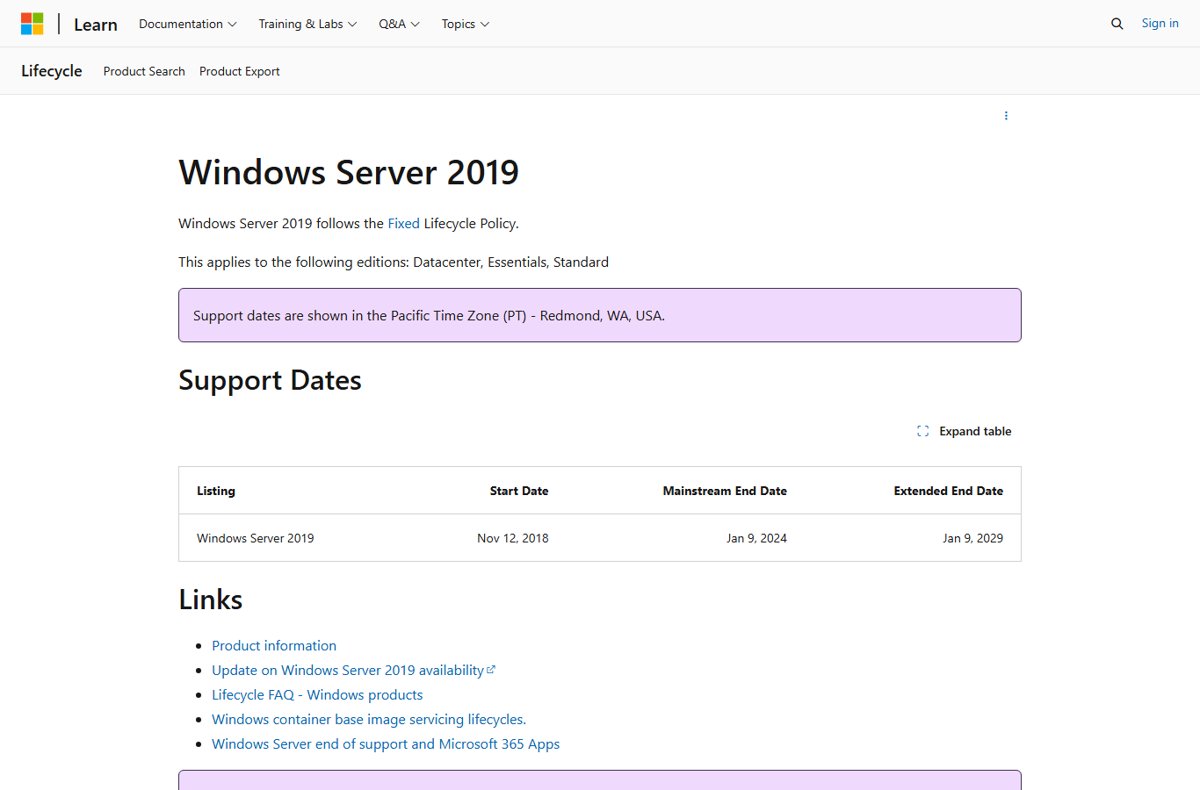
Windows Server 2019 follows Microsoft's Fixed Lifecycle Policy, with five years of mainstream support followed by five years of extended support. Mainstream support already ended in January 2024.
For background, the table gives an overview of every milestone, from the November 2018 re-release to the final security update.
| Milestone | Date | What it means for your server |
|---|---|---|
| Release (re-release) | November 13, 2018 | Support clock starts for version 1809, OS build 17763 |
| End of mainstream support | January 9, 2024 | No new features or non-security fixes; security updates continue |
| Microsoft 365 Apps support ends | October 14, 2025 | Office apps on Windows Server 2019 are no longer supported |
| Microsoft 365 Apps security updates end | October 10, 2028 | Last security fixes for Office desktop apps on this OS |
| End of extended support (end of life) | January 9, 2029 | No more security updates or paid support from Microsoft |
Microsoft's lifecycle page timestamps the cut-off in the early hours of January 10, 2029. January 9, 2029 is that month's Patch Tuesday, so its security update is the last scheduled one for Windows Server 2019.
What does Windows Server 2019 end of life mean?
End of life is the date extended support ends. The server keeps booting and running, but Microsoft stops fixing it.
| Type of support | Mainstream (to Jan 2024) | Extended (to Jan 2029) | After end of life |
|---|---|---|---|
| Security updates | Yes | Yes, at no extra cost | Only through a paid Extended Security Update program, if Microsoft offers one |
| Non-security fixes | Yes | No | No |
| New features or design change requests | Yes | No | No |
| Paid technical support | Yes | Yes | No, unless covered by an ESU-related support plan |
| Free incident support included with licenses | Yes | No | No |
| Online self-help articles | Yes | Yes | Yes, for at least 12 months |
Microsoft notes that older products may not meet current security requirements. A server past end of life also tends to fall out of compliance with audit frameworks that require vendor-supported software.
Windows Server 2019 Standard end of life and other editions
Every edition of Windows Server 2019 shares the same lifecycle dates. Standard does not get extra time over Datacenter or Essentials.
| Edition | Mainstream end | Extended end (end of life) |
|---|---|---|
| Windows Server 2019 Standard | January 9, 2024 | January 9, 2029 |
| Windows Server 2019 Datacenter | January 9, 2024 | January 9, 2029 |
| Windows Server 2019 Essentials | January 9, 2024 | January 9, 2029 |
| Windows Server 2019 containers | January 9, 2024 | January 9, 2029 |
Containers released with Windows Server 2019 follow the same dates as the host operating system.
Windows Server servicing channels: LTSC vs Annual Channel
Since September 2023, Windows Server ships in two servicing channels. Annual Channel releases do not apply to Windows Server 2019 and earlier, so every Windows Server 2019 server runs a Long-Term Servicing Channel (LTSC) release.
| Detail | Long-Term Servicing Channel (LTSC) | Annual Channel (AC) |
|---|---|---|
| Best for | File servers, infrastructure roles, traditional apps and hyper-converged infrastructure | Containerized apps on container hosts |
| New releases | Typically every 2 to 3 years | Typically every 12 months |
| Support length | 5 years mainstream plus 5 years extended | 18 months mainstream plus 6 months extended |
| Licensing | All licensing programs | Software Assurance customers only, with Datacenter activation keys |
| Installation options | Server Core or Server with Desktop Experience | Server Core for a container host only |
| Moving to a new release | In-place upgrade or clean install | Clean installation only |
That also settles which Windows Server 2019 version to run: there is one LTSC release, version 1809 build 17763, and it ends on January 9, 2029. The real choice is which LTSC version replaces it, and Windows Server 2025 carries support the longest.
Windows Server end of life dates for every current version
Windows Server 2016 reaches end of life two years before 2019, so mixed estates need two migration deadlines in their plan.
| Version | Released | Mainstream end | Extended end (end of life) |
|---|---|---|---|
| Windows Server 2012 / 2012 R2 | 2012 / 2013 | Ended | October 10, 2023 (paid ESU Year 3 ended October 13, 2026) |
| Windows Server 2016 | August 2, 2016 | Ended | January 12, 2027 |
| Windows Server 2019 | November 13, 2018 | January 9, 2024 | January 9, 2029 |
| Windows Server 2022 | August 18, 2021 | October 2026 | October 14, 2031 |
| Windows Server 2025 | November 1, 2024 | November 13, 2029 | November 14, 2034 |
Windows Server 2019 Extended Security Updates after end of life
The Extended Security Update program is a paid bridge that delivers Critical and Important security fixes for up to three years after a product's end of support. Microsoft has used it for Windows Server 2008 and 2012.
Plan to be off Windows Server 2019 by January 9, 2029, and treat any ESU offer as a short emergency bridge rather than the plan. As of October 2026, Microsoft's ESU availability table lists only Windows Server 2012/R2 and Windows 10, not Windows Server 2019. When ESUs have been offered, they cost 100% of the full license price each year on premises, are free only for VMs running in Azure, and include no general technical support.
Check if a server runs Windows Server 2019
Windows Server 2019 is version 1809, OS build 17763. Run this in an elevated PowerShell window to confirm what each server is running.
Get-ComputerInfo -Property WindowsProductName,WindowsBuildLabExReturns the product name, such as Windows Server 2019 Standard or Datacenter, and the full build string. Requires PowerShell 5.1 or later, which Windows Server 2019 includes.
You should see: A build string starting with 17763 confirms Windows Server 2019. A string starting with 14393 is Windows Server 2016, 20348 is Windows Server 2022, and 26100 is Windows Server 2025.
Windows Server 2019 upgrade options before end of life
Windows Server 2019 can upgrade in place directly to Windows Server 2022 or Windows Server 2025. Each Windows Server upgrade needs its own license for the target version, so compare the Windows Server 2025 editions before you buy one.
| Your situation | Best route | Why |
|---|---|---|
| Standalone server, roles support upgrade, same hardware | In-place upgrade to Windows Server 2025 | Keeps settings, roles and data, and buys support to 2034 |
| No installation media available | Feature update through Windows Update | Supported from Windows Server 2019 to 2025 once the required cumulative update is installed |
| Domain controller | Clean install of a new DC, then demote the old one | Microsoft advises against in-place upgrades for AD DS servers |
| Failover cluster | Cluster OS rolling upgrade, one version at a time | Keeps Hyper-V and Scale-Out File Server workloads running |
| New hardware or a role that cannot upgrade | Migration to a fresh Windows Server 2025 install | Moves roles one at a time to a clean destination |
| Workload must stay on 2019 for app reasons | Move the VM to Azure | Azure has historically provided ESUs free for VMs hosted there |
| App is certified only for Windows Server 2022 | In-place upgrade to Windows Server 2022 | Supported directly from 2019, but extended support ends October 14, 2031, three years before 2025 |
| Containerized app or container host | Rebuild on a Windows Server 2025 container host, or on the Annual Channel with Software Assurance | Annual Channel releases target container hosts and always need a clean installation |
| Server no longer needed | Move its data, then decommission it before January 9, 2029 | A retired server needs no new license, upgrade or ESU |
Every server has a clear path off Windows Server 2019 before EOL: upgrade it, migrate it, move it to Azure, containerize the app, or retire the server. A move to Azure can rehost the VM unchanged, replatform the app onto a managed PaaS service, or refactor it for the cloud.
Windows Server 2019 end of life migration checklist
Work through this list for every server before you start an upgrade or migration. Begin with inventory, because Windows Server 2016 machines face an earlier deadline of January 12, 2027.
Treat the steps as actionable priorities in the order Microsoft recommends, whether you run one server or a whole community of branch offices, and leave enough days for compatibility testing before the migration itself.
- Inventory every server and record its build: 17763 is Windows Server 2019 and 14393 is Windows Server 2016.
- List the roles and features on each server and check that each one supports in-place upgrade before you choose that route.
- Confirm that your Microsoft server applications and any non-Microsoft apps are supported by their vendors on the target version.
- Check that the hardware meets the target version's requirements; if it does not, plan a migration to new hardware.
- Buy a license for the target version, the main cost consideration in procurement. Unlike Windows client, each Windows Server upgrade requires a separate license.
- Pick the route for each server from the upgrade options table above.
- Take a full backup of the operating system, apps, data and VMs, then run a restore test.
- Collect pre-upgrade diagnostics with
Get-ComputerInfo,systeminfo.exeandipconfig /all, and store the output off the server. - Book a maintenance window and shut down or migrate any VMs running on the host.
- As an immediate and ongoing control, keep installing the monthly security updates on servers that are still waiting, until January 9, 2029, and plan containment, such as a move to Azure, for any server that must outlive that date.
Upgrade Windows Server 2019 to Windows Server 2025 in place
Take a full backup and test the restore first, and schedule a maintenance window, because the server restarts several times. Shut down or migrate any VMs running on the host.
- Mount the Windows Server 2025 ISO or insert the installation media.
- Open File Explorer, go to the root of the media, and open
setup.exe. Select Yes at the User Account Control prompt. - Leave the default update download setting and select Next, or choose Change how Setup downloads updates first.
- Enter your Windows Server 2025 product key if prompted, then select Next.
- Select the edition to install and select Next. Standard can move to Datacenter, but Datacenter cannot move down to Standard.
- Select Accept on the license terms.
- Select Keep files, settings, and apps, then select Next.
- On the Ready to install screen, select Install and wait for the server to restart.
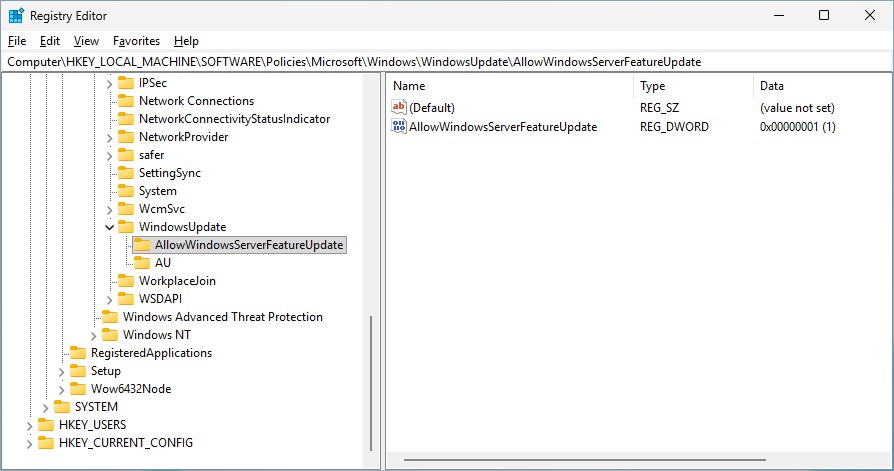
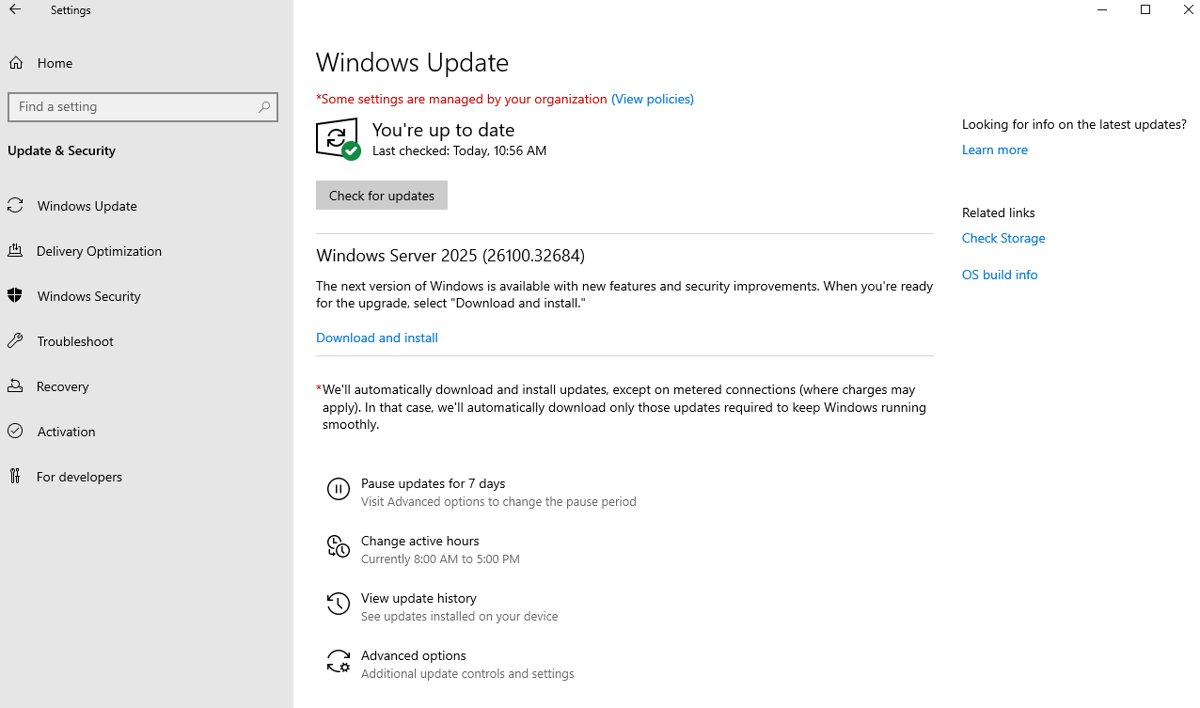
To upgrade through Windows Update instead, install the 2026-03 cumulative update KB5078752 or later, set the AllowWindowsServerFeatureUpdate policy value to 1, then select Download and Install on the feature update banner in Settings > Windows Update.
Confirm the server is off Windows Server 2019
- Open an elevated PowerShell prompt after the final restart.
- Run
Get-ComputerInfo -Property WindowsProductNameand confirm it shows the new version and expected edition. - Check that applications start and clients can connect.
- If anything fails, review the Setup logs in
C:\Windows\Pantherbefore rolling back from your backup.
Common Windows Server 2019 upgrade pitfalls and how to avoid them
Domain controller upgraded in place without the new AD improvements
An in-place upgrade of an AD DS server is technically possible but does not deliver the AD performance and feature improvements in Windows Server 2025.
- Install Windows Server 2025 cleanly on a new server.
- Promote the new server to a domain controller.
- Demote the old Windows Server 2019 domain controller.
Setup refuses to upgrade a cluster node
Clustered servers are excluded from the standard in-place upgrade, and clusters can move only one version at a time.
- Use a cluster OS rolling upgrade or Cluster-Aware Updating instead of running Setup directly.
- Move the cluster from Windows Server 2019 to 2022 first, then from 2022 to 2025.
Network problems on a server that uses NIC Teaming
NIC Teaming must be off during an in-place upgrade.
- Disable NIC Teaming before you start Setup.
- Re-enable NIC Teaming after the upgrade completes.
The upgrade option is missing or blocked
The change you asked for is not supported in place: a different language, a switch between Server Core and Desktop Experience, Datacenter down to Standard, an evaluation or preview target, a boot-from-VHD server or a Windows Storage Server edition.
- Keep the same language, installation option and edition, or move up from Standard to Datacenter.
- For any other change, do a clean install or migrate the roles to a fresh server.
Installation media will not upgrade an Azure VM
The media method covers non-Azure servers only.
- Use the Windows Update feature update method on the VM.
- Or use Azure's in-place upgrade process for Windows Server VMs.
Running Windows Server 2019 after January 2029
The server keeps working, but each area below brings risks and weaknesses that grow every month without patches.
| Area | What changes after January 9, 2029 |
|---|---|
| Security | Newly found vulnerabilities stay unpatched unless Microsoft offers a paid ESU program |
| Microsoft support | No support tickets for the operating system without ESU coverage and a paid support plan |
| Microsoft 365 Apps | Already unsupported since October 2025; security updates for the apps stop October 10, 2028 |
| Third-party software | Vendors typically drop support for an operating system once Microsoft does |
| Compliance | Audits that require vendor-supported software flag the server |
Windows Server 2019 end of life FAQ
When is Windows Server 2019 end of life?
Windows Server 2019 reaches end of life on January 9, 2029. That is the end of extended support, after which Microsoft stops releasing free security updates and stops offering technical support for the operating system.
What is the Windows Server 2019 end of life support date for mainstream support?
Mainstream support for Windows Server 2019 ended on January 9, 2024. Since then the operating system receives security updates only, with no new features and no non-security fixes.
When is Windows Server 2019 Standard end of life?
Windows Server 2019 Standard reaches end of life on January 9, 2029, the same date as Datacenter and Essentials. Microsoft does not give individual editions different lifecycle dates.
What is the Windows Server 2016 end of life date?
Windows Server 2016 reaches end of life on January 12, 2027, two years before Windows Server 2019. Servers on 2016 can upgrade in place to Windows Server 2019, 2022 or 2025.
What is the Windows Server 2012 end of life date?
Windows Server 2012 and 2012 R2 reached end of life on October 10, 2023. Paid Extended Security Updates covered them for three more years, and Year 3 ended on October 13, 2026.
Will Microsoft offer Extended Security Updates for Windows Server 2019?
Microsoft has not listed Windows Server 2019 in its ESU availability table as of October 2026. Earlier programs for Windows Server 2008 and 2012 ran for up to three years, cost the full license price each year on premises, and were free for Azure VMs.
Can I upgrade Windows Server 2019 directly to Windows Server 2025?
Yes. Windows Server 2019 can upgrade in place to Windows Server 2022 or 2025 using installation media, or to 2025 through the Windows Update feature update. Each upgrade needs a valid license for the new version.
Does Windows Server 2019 stop working after end of life?
No. Windows Server 2019 keeps running after January 9, 2029, but it receives no further security updates or support, so every newly discovered vulnerability stays open.
Is Microsoft 365 Apps supported on Windows Server 2019?
No. Microsoft 365 Apps support on Windows Server 2019 ended on October 14, 2025. Microsoft continues security updates for the apps on this OS until October 10, 2028, with devices held on Version 2608.
Bottom line: when to move off Windows Server 2019
Upgrade or migrate Windows Server 2019 machines to Windows Server 2025 during 2027 and 2028, well before the January 9, 2029 end of life. Windows Server 2025 is supported until November 14, 2034, and Windows Server 2019 can upgrade to it directly. Starting early leaves time to rebuild domain controllers and clusters, which cannot simply be upgraded in place.
The strength of Microsoft's fixed lifecycle is that this date has been published for years, so it fits any governance calendar. Its weakness, and the main risk, is that no Extended Security Update program for Windows Server 2019 has been announced, so a paid safety net cannot be assumed. The clear recommendation therefore stays the same: finish the move before January 9, 2029.