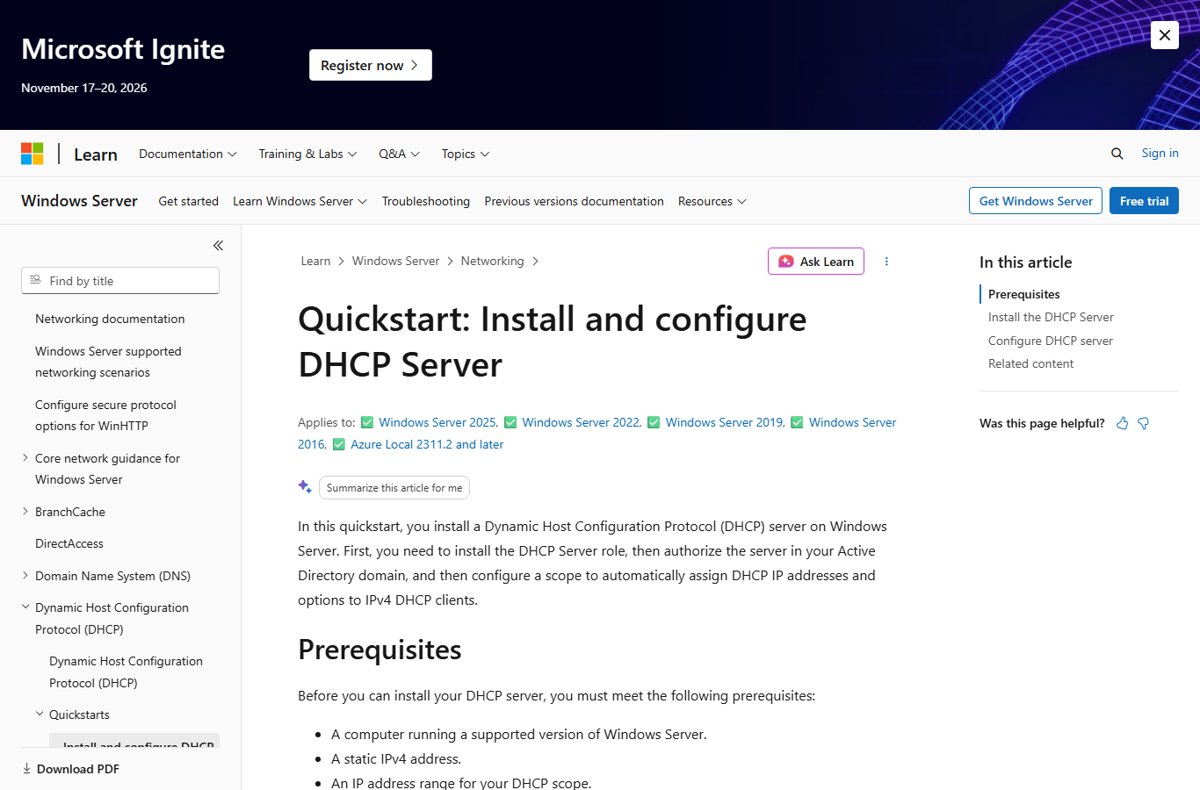
To install and configure DHCP Server on Windows Server, add the DHCP Server role with Install-WindowsFeature DHCP -IncludeManagementTools or Server Manager, authorize the server in Active Directory, then create and activate an IPv4 scope.
The steps apply to Windows Server 2025, 2022, 2019 and 2016, and cover both the GUI and PowerShell, scope options, reservations, exclusions, checks and fixes for servers that will not lease addresses.
Install the DHCP Server role with PowerShell
PowerShell is the quickest way to get started with DHCP. Open PowerShell as administrator on the server and run one command; the installation does not need a reboot.
Install-WindowsFeature DHCP -IncludeManagementToolsInstalls the DHCP Server role plus the DHCP console and PowerShell module (-IncludeManagementTools) on the local server.
You should see: The output shows Success as True. Then authorize the server and create a scope, covered below.
DHCP server setup: PowerShell or Server Manager?
| Your situation | Use this | Why |
|---|---|---|
| Server Core or remote session | PowerShell cmdlets | No desktop needed; one command per step |
| Server with Desktop Experience, first DHCP setup | Server Manager and the DHCP console | The New Scope Wizard prompts for every required value |
| Several scopes or servers to build | PowerShell (Add-DhcpServerv4Scope) | Repeatable and easy to script |
| Server joined to an Active Directory domain | Either, plus authorization | Unauthorized DHCP servers in a domain do not lease addresses |
| Workgroup server, no domain | Either, skip authorization | Authorization only applies in a domain environment |
DHCP server prerequisites on Windows Server
| Requirement | Detail |
|---|---|
| Operating system | A supported Windows Server version: 2025, 2022, 2019 or 2016 |
| Static IPv4 address | The DHCP server itself must not get its address from DHCP |
| Address range | The start and end IP addresses and subnet mask for the scope you plan to create |
| Account | A member of the local Administrators group, or equivalent; domain authorization also needs rights in Active Directory |
| Gateway and DNS addresses | The router (default gateway) and DNS server IPs clients should receive; the wizard requires both |
Install the DHCP Server role with Server Manager
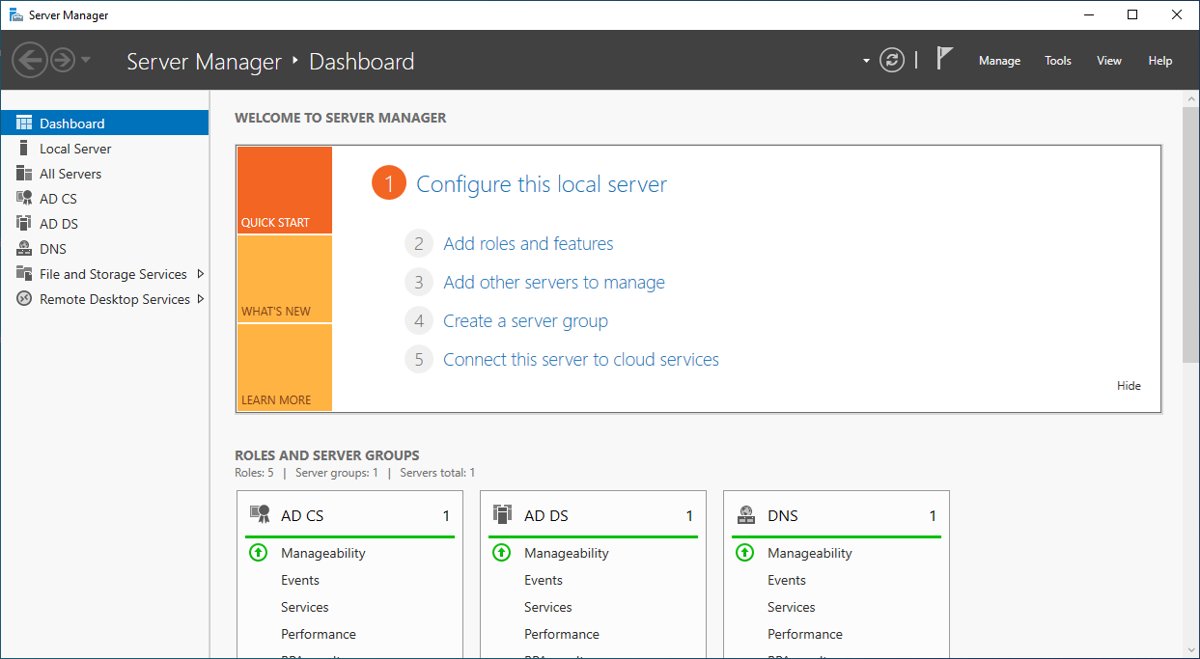
- Open the Start menu and select Server Manager.
- Go to Manage > Add Roles and Features, then select Next on Before you begin.
- On Select installation type, choose Role-based or feature-based installation and select Next.
- On Select destination server, keep the defaults and select Next.
- On Select server roles, tick DHCP Server, select Add Features when prompted, then Next.
- Keep the defaults on Select features, read the DHCP Server page and select Next.
- On Confirm installation selections, select Install, then Close when it finishes. No reboot is required.
Authorize the DHCP server in Active Directory
In a domain, Windows disables unauthorized DHCP servers so a rogue server cannot hand out wrong addresses. Skip this section on a workgroup server.
- Open Start > Windows Administrative Tools > DHCP.
- Expand the DHCP server name, right-click it and select Authorize.
- Wait a few seconds, then refresh the server list.
- Confirm a green icon now appears on the server's IPv4 node and scopes.
- In PowerShell, run
Add-DhcpServerInDC -DnsName DHCP1.corp.contoso.com -IPAddress 10.0.0.3, replacing the name and address with your server's.
Create a DHCP scope with the new scope wizard
A scope is the range of IP addresses the server leases to clients on one subnet.
- In the DHCP console, expand the server, right-click IPv4 and select New Scope, then Next.
- On Scope Name, type a name and select Next.
- On IP Address Range, enter the start and end addresses and the subnet mask, then select Next.
- On Add Exclusions and Delay, enter any addresses the server must not hand out, such as static servers and printers.
- On Lease Duration, set how long clients keep an address before renewing, then select Next.
- On Configure DHCP Options, choose Yes, I want to configure these options now, enter the gateway on Router (Default Gateway) and select Add.
- On Domain Name and DNS Servers, enter the domain name and DNS server addresses, then select Next; skip WINS Servers if you do not use WINS.
- On Activate Scope, choose Yes, I want to activate this scope, then select Finish.
Create a DHCP scope with PowerShell
This example creates a scope named Contoso network for 10.10.10.100 to 10.10.10.200 with a /24 mask. Change the name, range and mask to match your subnet.
Add-DhcpServerv4Scope -Name "Contoso network" -StartRange 10.10.10.100 -EndRange 10.10.10.200 -SubnetMask 255.255.255.0-Name labels the scope, -StartRange and -EndRange set the pool of leasable addresses, and -SubnetMask defines the subnet.
You should see: The command returns without an error and the scope appears under IPv4 in the DHCP console. Add router and DNS options next with Set-DhcpServerv4OptionValue.
Configure DHCP scope options, reservations and exclusions
After the scope exists, these three settings control what clients receive and which addresses stay out of the pool.
| Task | DHCP console | PowerShell example |
|---|---|---|
| Set DNS servers or other scope options | Expand the scope, right-click Scope Options > Configure Options, tick the option and set its value | Set-DhcpServerv4OptionValue -ScopeId 192.168.15.0 -OptionId 6 -Value "192.168.15.10", "192.168.15.11" |
| Reserve an address for one device | Right-click Reservations > New Reservation, then enter a name, IP address and MAC address | Add-DhcpServerv4Reservation -ScopeId 192.168.15.0 -IPAddress 192.168.15.100 -ClientId "00-11-22-33-44-55" |
| Turn an existing lease into a reservation | In Address Leases, right-click the lease and select Add to Reservation | Use Add-DhcpServerv4Reservation with the lease's IP and MAC |
| Keep a range out of the pool | Select Address Pool, then Action > New Exclusion Range, enter Start IP address and End IP address and select Add | Add-DhcpServerv4ExclusionRange -ScopeId 192.168.15.0 -StartRange 192.168.15.1 -EndRange 192.168.15.10 |
Option 6 is the DNS servers option. A reservation ties one IP address to one network card's MAC address, so that device always gets the same address.
Advanced techniques build on the same scope: DHCP failover lets two servers share or back up a scope (they talk over TCP port 647), a DHCP relay agent forwards requests from other subnets so one server can cover them all, and MAC address filters allow or deny specific devices.
How to check the DHCP server is working
- On the server, run
Get-Service DHCPServerand confirm the status is Running, or runnet startand look for DHCP Server. - In a domain, run
Get-DhcpServerInDCand confirm your server's IP address and DNS name are listed. - In the DHCP console, check the scope shows as active with a green icon.
- On a client set to obtain an address automatically, run
ipconfig /releaseand thenipconfig /renew. - Run
ipconfig /allon the client and confirm the address falls inside your scope and the DHCP server entry shows your server's IP. - Back in the console, open the scope's Address Leases node and confirm the client's lease appears.
How to find the DHCP server on Windows
To find which DHCP server gave a Windows PC its address, or which DHCP servers a domain trusts, use one of these methods.
| Method | Where to run it | What it shows |
|---|---|---|
ipconfig /all |
Command Prompt on the client | The full TCP/IP configuration of each adapter, including the DHCP server that leased the address |
Get-CimInstance Win32_NetworkAdapterConfiguration -Filter "DHCPEnabled=True" | Select-Object Description, IPAddress, DHCPServer |
PowerShell on the client | The IP address of the DHCP server for every adapter that gets its address automatically |
Get-DhcpServerInDC |
PowerShell on a server with the DHCP tools installed | Every DHCP server authorized in Active Directory, with its IP address and DNS name |
If the DHCP server shown on a client is not one of your authorized servers, another device on the subnet, often a router, is handing out addresses.
What is a DHCP server and how does it work?
DHCP (Dynamic Host Configuration Protocol) is a client/server protocol, defined in RFCs 2131 and 2132, that hands each device its IP address and related settings automatically. Every Windows client has the DHCP client built in and turned on by default.
These are the main components of a Windows Server DHCP deployment:
| Part | What it does |
|---|---|
| Scope (address pool) | The range of addresses the server can lease on a subnet, minus exclusions |
| Lease | A time-limited address assignment; unused addresses return to the pool automatically |
| Options | Extra settings sent with the address, such as Router (default gateway), DNS Servers and DNS Domain Name |
| Reservation | A fixed address always leased to one MAC address |
| Relay agent | Forwards DHCP messages between subnets, so one server can serve several subnets |
| Failover | Two DHCP servers share a scope for redundancy and load balancing; uses TCP port 647 |
| Ports | The DHCP Server service (DHCPServer) listens on UDP 67; clients use UDP 68 |
Without DHCP, every new or moved computer needs a manually typed address, which invites typing errors and address conflicts.
How DHCP works: Discover, Offer, Request and Acknowledge
The working of DHCP is a short conversation between client and server. A client with no address broadcasts for a server, picks an offer, requests it and waits for an acknowledgment. If no server is on the client's subnet, a relay agent forwards these messages to one.
| Message | Sent by | What it does |
|---|---|---|
| DHCPDiscover | Client | Broadcast when the client first joins the network, asking any DHCP server for an address |
| DHCPOffer | Server | Offers an unleased address with the subnet mask, server identifier, lease length and other settings; the server holds that address for the client |
| DHCPRequest | Client | Asks for the offered address; naming the chosen server makes other servers withdraw their offers |
| DHCPAck | Server | Confirms the lease and sends the options; the client can now use the address |
| DHCPNak | Server | Refuses the request, for example because the client moved to another subnet or the address is no longer available |
| DHCPDecline | Client | Rejects an offered address that appears to be in use by another computer |
| DHCPRelease | Client | Gives up the address and cancels the rest of the lease |
| DHCPInform | Client | Asks only for extra settings when the client already has an address |
Running ipconfig /release on a client sends DHCPRelease, and ipconfig /renew starts a new request, which is why both appear in the checks above.
DHCP renewal: Lease renewal process
A lease is not permanent. The client renews it on a schedule set by the scope's lease duration, and the lease time, renewal time (T1) and rebind time (T2) it receives come from the scope settings on the server.
| Stage | When it happens | What the client does |
|---|---|---|
| Bound | After the DHCPAck | Uses the address and its options |
| Renewing (T1) | By default, when 50 percent of the lease time has passed | Sends a unicast DHCPRequest to the server that granted the lease; a DHCPAck renews it with current settings |
| Rebinding (T2) | When 87.5 percent of the lease time has passed and the original server has not answered | Broadcasts DHCPRequest so any available DHCP server can renew or refuse the lease |
| Lease expired or DHCPNak received | End of the lease, or on refusal | Stops using the address at once and starts again with DHCPDiscover |
Because renewal also delivers updated options, changing the DNS servers in a scope reaches clients at their next renewal, or immediately after ipconfig /renew.
Why use DHCP? Benefits and features of DHCP Server
Every device on a TCP/IP network needs a unique IP address. DHCP hands those out and takes them back automatically, so administrators stop typing and reclaiming addresses by hand.
| Benefit or feature | What it gives you |
|---|---|
| Reliable IP address configuration | Fewer typing errors and fewer conflicts from one address being assigned twice |
| Central configuration | Gateway, DNS and other options set once in the scope reach every client |
| Mobile devices handled automatically | Laptops that move between subnets or wireless networks get a correct address each time |
| DHCP relay agents | One server can serve several subnets without a DHCP server on each |
| DHCP policies | Different options or settings based on client traits such as MAC address or vendor class |
| Audit logging | A record of server activity, including lease assignments and renewals |
| Active Directory authorization | Stops unauthorized DHCP servers from handing out addresses in the domain |
| Dynamic DNS integration | DNS records update automatically when leases are assigned or renewed |
| IPv4 and IPv6 support | Addresses for both protocols from the same role |
| DHCP failover | Two servers share one scope for redundancy and load balancing |
| IPAM integration | Manage DHCP servers and leases from IP Address Management |
Security concerns with DHCP
DHCP clients accept settings from whichever server answers first, so a misconfigured or rogue server can hand out wrong addresses, gateways or DNS servers and disrupt the network. Windows Server has a control for each common risk.
| Risk | Windows Server protection |
|---|---|
| Rogue or unauthorized DHCP server | Authorize servers in Active Directory; an unauthorized Windows DHCP server in the domain does not lease addresses |
| Unknown devices taking addresses | MAC address filtering: Add-DhcpServerv4Filter -List Allow -MacAddress "F0-DE-F1-7A-00-5E", then turn the list on with Set-DhcpServerv4FilterList -Allow $True |
| Address conflicts with static devices | Exclude static addresses from the scope; clients send DHCPDecline for addresses already in use, which show as BAD_ADDRESS |
| No record of who got which address | DHCP audit logging, with logs in %windir%\System32\Dhcp |
| Single server outage | DHCP failover with a second server sharing the scope |
Turn on the allow list only after every legitimate device's MAC address is in it. With the allow list enabled, devices that are not listed get no address.
Can you install DHCP Server on Windows 11?
No. DHCP Server is a role in Windows Server, and Windows 11 cannot run it. Windows 11 can, however, manage a DHCP server remotely with the RSAT DHCP Server Tools.
| On Windows 11 you want to | What to use |
|---|---|
| Manage a Windows Server DHCP server | RSAT DHCP Server Tools: the DHCP console, netsh context and DHCP PowerShell module |
| Add those tools | Run DISM /Online /Add-Capability /CapabilityName:Rsat.DHCP.Tools~~~~0.0.1.0 as administrator |
| Share a connection and hand out addresses at home | Internet Connection Sharing, which provides basic DHCP to the private network |
| Run a full DHCP server | Windows Server, or your router's built-in DHCP server |
If you prefer the Server Manager console on a Windows 11 PC, you can install Server Manager on Windows 11 through the same RSAT optional features.
DHCP server not responding or not leasing addresses
DHCP server is not responding to clients
The service is stopped, the server is unauthorized, or it is not bound to an address on the clients' subnet.
- Run
net startand confirm DHCP Server is listed; start the service if it is not. - Run
Get-DhcpServerInDCand authorize the server if it is missing. - Run
Get-DhcpServerv4Bindingand confirm the server binds to an IP in the scope's subnet, unless a relay agent forwards requests. - If a relay agent is used, ping its IP address from the DHCP server.
Clients report no DHCP server was found
Another service holds UDP ports 67 and 68, or the scope has no free addresses.
- Run
netstat -anband confirm only the DHCP server listens on UDP 67 and 68; WDS or PXE must not occupy them. - Open the scope statistics in the DHCP console and check addresses are still available.
- Enlarge the range or shorten the lease duration if the pool is full.
Why does BAD_ADDRESS show on the DHCP server?
A client declined an offered address because it detected a conflict, often from a static device inside the scope or a switch's IP Device Tracking ARP probe.
- Check Address Leases for BAD_ADDRESS entries and note the addresses.
- Exclude any static IP devices on the network from the scope.
- Search the logs in
%windir%\System32\Dhcpfor Conflict entries. - If the conflicts come from a Layer 3 switch or router, deactivate its IP Device Tracking feature or delay its ARP probes.
DHCP server installed but no addresses are leased in the domain
The server is not authorized in Active Directory, so Windows keeps it from leasing.
- Open the DHCP console, right-click the server and select Authorize.
- Refresh and confirm the green icon appears.
- Renew a client with
ipconfig /renewto test.
Windows Server DHCP FAQ
What is a DHCP server?
A DHCP server automatically gives devices on a network an IP address, subnet mask, default gateway and DNS servers. In Windows Server it is an optional role you install, and every Windows client includes a DHCP client that is enabled by default.
How do DHCP servers work?
The server keeps a pool of addresses and leases one to each DHCP-enabled client when it joins the network. The lease lasts a set time and is renewed while the device stays connected; addresses that fall out of use return to the pool automatically.
Why use a DHCP server?
It removes manual IP configuration. Without DHCP, every new or moved device needs an address typed in by hand, which causes typing mistakes and duplicate address conflicts. DHCP also lets you change DNS or gateway settings for every client from one place.
How do I find the DHCP server on my network?
On a Windows PC, open Command Prompt and run ipconfig /all. The adapter that obtained its address automatically lists the IP address of the DHCP server that leased it. On home networks this is usually the router.
What DHCP server am I using?
Run ipconfig /all and read the DHCP server entry under your active network adapter. If the address matches your router's, the router is your DHCP server; in an office it is usually a Windows Server or a dedicated network device.
How do I access the DHCP server in Windows Server?
Open Start > Windows Administrative Tools > DHCP on the server. From a Windows 11 or 10 PC, install the RSAT DHCP Server Tools and connect the DHCP console to the server, or use the DhcpServer PowerShell module.
Can I install DHCP Server on Windows 11?
No. The DHCP Server role exists only in Windows Server. Windows 11 can manage a remote DHCP server with the RSAT DHCP Server Tools, and Internet Connection Sharing gives basic DHCP to devices sharing the PC's connection.
Can a laptop be a DHCP server?
A Windows laptop can hand out addresses through Internet Connection Sharing, which provides basic DHCP to the private network it shares with. For a full DHCP server with scopes, reservations and authorization, the laptop needs Windows Server.
Can a router be a DHCP server?
Yes. Most home and small-office routers run a built-in DHCP server. If you add a Windows Server DHCP server on the same subnet, turn off the router's DHCP so the two do not hand out conflicting addresses.
Is DHCP a server?
DHCP is a client/server protocol, not a server itself. The DHCP server is the role or device that leases addresses, and the DHCP client built into each computer requests them.
What port does a DHCP server use?
The DHCP Server service listens on UDP port 67, and clients use UDP port 68. DHCP failover between two Windows servers uses TCP port 647.

![8 best music players for Windows 11 [2026 updated]](https://techdows.com/wp-content/uploads/2026/10/8-best-music-players-for-Windows-11-2026-updated-600x338.jpg)