To prevent Server Manager from starting at logon, open Manage > Server Manager Properties, select Do not start Server Manager automatically at logon and click OK.
This guide also covers the Group Policy setting for many servers, the unattend.xml option for new builds, SConfig on Server Core, and the Server Manager admin tasks that sit next to this change.
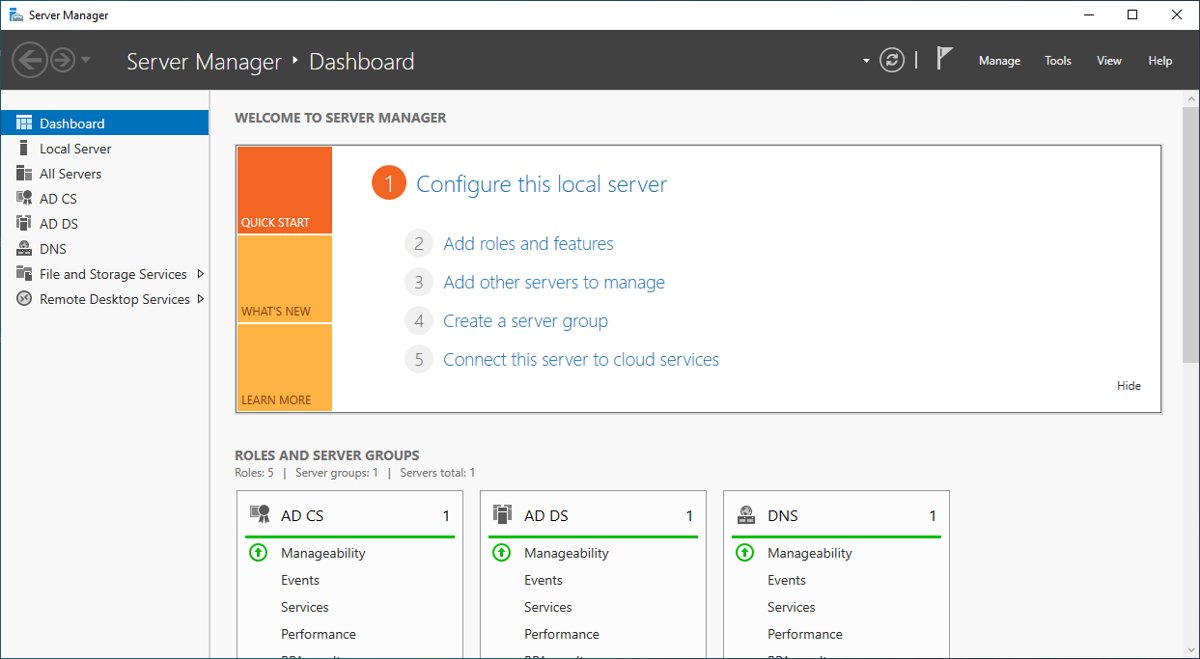
How to stop Server Manager from opening at logon
Server Manager opens by default whenever a member of the Administrators group signs in to Windows Server.
The console has its own switch for this, and it takes effect at the next sign-in.
- Open Server Manager if it is not already on screen.
- Select the Manage menu in the top-right corner.
- Click Server Manager Properties.
- Select the Do not start Server Manager automatically at logon check box.
- Click OK, then sign out and sign back in to confirm the console stays closed.
Server Manager is not removed. It still opens from the taskbar button or the Start menu whenever you need it.
Disable Server Manager at startup: checkbox, Group Policy or answer file
All three routes stop the console from opening at sign-in. They differ in scope and in who can undo them.
| Your situation | Use this | Why |
|---|---|---|
| One server you manage yourself | Server Manager Properties check box | Two clicks, no policy tools needed |
| A standalone server where the choice must stick | Local Group Policy Editor | The policy overrides the check box for every administrator |
| Many domain-joined servers | A domain GPO linked to the servers' OU | One setting covers every server the GPO reaches |
| New servers built from an image | DoNotOpenServerManagerAtLogon in unattend.xml | The server never opens Server Manager on first sign-in |
| Server Core on Windows Server 2022 or later | Set-SConfig -AutoLaunch $False | Server Core opens SConfig at sign-in, not Server Manager |
Disable Server Manager at logon with Group Policy
The setting lives in ServerManager.admx under Computer Configuration. When it is enabled, Server Manager is not displayed automatically when any user signs in.
- Press Win + R, type
gpedit.mscand press Enter. - Go to Computer Configuration > Administrative Templates > System > Server Manager.
- Double-click Do not display Server Manager automatically at logon.
- Select Enabled.
- Click OK and close the Local Group Policy Editor.
- Sign out and sign back in.
Microsoft's Server Manager page labels this policy Do not start Server Manager automatically at logon. The editor itself shows the Do not display wording.
Turn off Server Manager at logon for all servers with a domain GPO
In a domain, set the same policy once in a Group Policy Object instead of on each server.
- Open Group Policy Management on a domain controller or a computer with the Group Policy management tools.
- Right-click the GPO linked to the OU that holds your servers and select Edit.
- Go to Computer Configuration > Policies > Administrative Templates > System > Server Manager.
- Double-click Do not display Server Manager automatically at logon, select Enabled and click OK.
- On a target server, run
gpupdate /forcein an elevated Command Prompt to apply the policy now. - Sign out of the server and sign back in.
Link the GPO only to server OUs. The setting has no purpose on workstations that do not run Server Manager.
Server Manager Group Policy settings and registry values
ServerManager.admx holds four computer policies. All of them sit under Computer Configuration > Administrative Templates > System.
| Policy name | What it controls | Registry key (HKLM) | Value name |
|---|---|---|---|
| Do not display Server Manager automatically at logon | Server Manager at sign-in (Windows Server 2012 and later) | Software\Policies\Microsoft\Windows\Server\ServerManager | DoNotOpenAtLogon |
| Configure the refresh interval for Server Manager | How often Server Manager refreshes role and feature data | Software\Policies\Microsoft\Windows\Server\ServerManager | RefreshIntervalEnabled |
| Do not display Initial Configuration Tasks window automatically at logon | The Initial Configuration Tasks window on Windows Server 2008 and 2008 R2 | Software\Policies\Microsoft\Windows\Server\InitialConfigurationTasks | DoNotOpenAtLogon |
| Do not display Manage Your Server page at logon | The legacy Manage Your Server page (sits directly under System) | Software\Policies\Microsoft\Windows NT\CurrentVersion\MYS | DisableShowAtLogon |
When the Server Manager policy is disabled, the console opens at every sign-in, whatever the check box says. When it is not configured, the Do not start Server Manager automatically at logon check box decides.
Disable Server Manager at logon in an unattend.xml answer file
For servers built from an image, the Microsoft-Windows-ServerManager-SvrMgrNc component carries a setting called DoNotOpenServerManagerAtLogon. Set it to true and Server Manager does not open on the first sign-in.
- Open your answer file in Windows System Image Manager.
- Add the Microsoft-Windows-ServerManager-SvrMgrNc component to the generalize or specialize configuration pass.
- Set DoNotOpenServerManagerAtLogon to
true. In the XML it reads<DoNotOpenServerManagerAtLogon>true</DoNotOpenServerManagerAtLogon>. - Save the answer file and validate it.
- Deploy the image and sign in to confirm Server Manager stays closed.
The default value is false, which opens Server Manager at first sign-in. The setting has no effect on Server Core installations of Windows Server 2008, 2008 R2 and 2012.
Stop SConfig from starting automatically on Windows Server Core
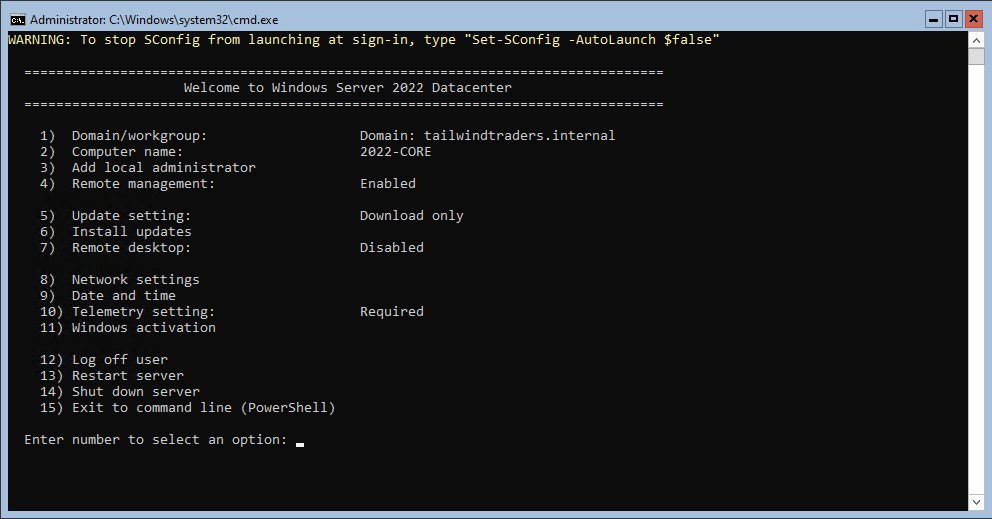
Server Core has no Server Manager window at sign-in. Starting with Windows Server 2022, it opens the Server Configuration tool (SConfig) inside PowerShell instead.
Set-SConfig -AutoLaunch $FalseRun it in PowerShell as a member of the local Administrators group. It turns off the automatic SConfig launch for later sign-ins on Windows Server 2022 and later Server Core installations.
You should see: The next sign-in lands at a plain PowerShell prompt. Type SConfig and press Enter whenever you want the menu back.
On Windows Server 2019 and earlier, SConfig never starts on its own. You launch it with SConfig.cmd.
How to tell if Server Manager auto-start is disabled
A clean sign-in is the real test, but the policy and check box can also be read directly.
- Sign out and sign back in with an administrator account. Server Manager should not open.
- Open Server Manager from the taskbar, select Manage > Server Manager Properties, and check whether Do not start Server Manager automatically at logon is selected.
- If you used Group Policy, open PowerShell and run
Get-ItemProperty -Path 'HKLM:\SOFTWARE\Policies\Microsoft\Windows\Server\ServerManager'. - Look for DoNotOpenAtLogon in the output. If the key does not exist, no Server Manager policy reaches this server.
- For a domain GPO, run
gpresult /rand confirm the GPO name appears under the computer's applied Group Policy objects.
Change the Server Manager refresh interval
Server Manager refreshes role, feature and status data every 10 minutes by default on Windows Server 2012 and later. A longer interval cuts background traffic when the console is left open.
- In Server Manager, select Manage > Server Manager Properties.
- Set Refresh the data shown in Server Manager every to the number and unit you want (minutes, hours or days).
- Click OK.
- To enforce one value on many servers, enable Configure the refresh interval for Server Manager under Computer Configuration > Administrative Templates > System > Server Manager instead.
If that policy is disabled, Server Manager stops refreshing automatically, and only a manual refresh updates the data.
How to make Server Manager start automatically at logon again
- Open Server Manager from the taskbar or the Start menu.
- Select Manage > Server Manager Properties.
- Clear Do not start Server Manager automatically at logon and click OK.
- If you set the policy, open
gpedit.msc(or the GPO), go to Computer Configuration > Administrative Templates > System > Server Manager, and set Do not display Server Manager automatically at logon to Not Configured. - Run
gpupdate /forceand sign out and back in.
Setting the policy to Disabled instead of Not Configured forces Server Manager to open at every sign-in for every user.
How to install RSAT (Remote Server Administration Tools) on Windows 11 to run Server Manager remotely
Many admins stop Server Manager at logon because they no longer sign in to each server. The console runs on a Windows 11 or Windows 10 Pro or Enterprise PC through RSAT and manages the servers from there.
On a client PC, Server Manager cannot manage the local computer or any other Windows client. It manages Windows-based servers only.
- Sign in to the Windows 11 PC with an administrator account.
- Select Start, type *Optional Features* and select Add an optional feature.
- Select View features at the top of the page.
- Search for RSAT: Server Manager, select it, then select Next and Install.
- When the install finishes, open the Start menu, type *Server Manager* and select Server Manager.
- Select Manage > Add Servers and add the servers you want to manage.
PowerShell users can list the RSAT capabilities with Get-WindowsCapability -Online | Where-Object Name -like 'RSAT*' and install the one they need with Add-WindowsCapability -Online -Name <name>. On a PC without access to Windows Update, you can install Server Manager on Windows 11 with DISM and local source files.
Managing Windows Firewall rules with PowerShell for Server Manager remote management
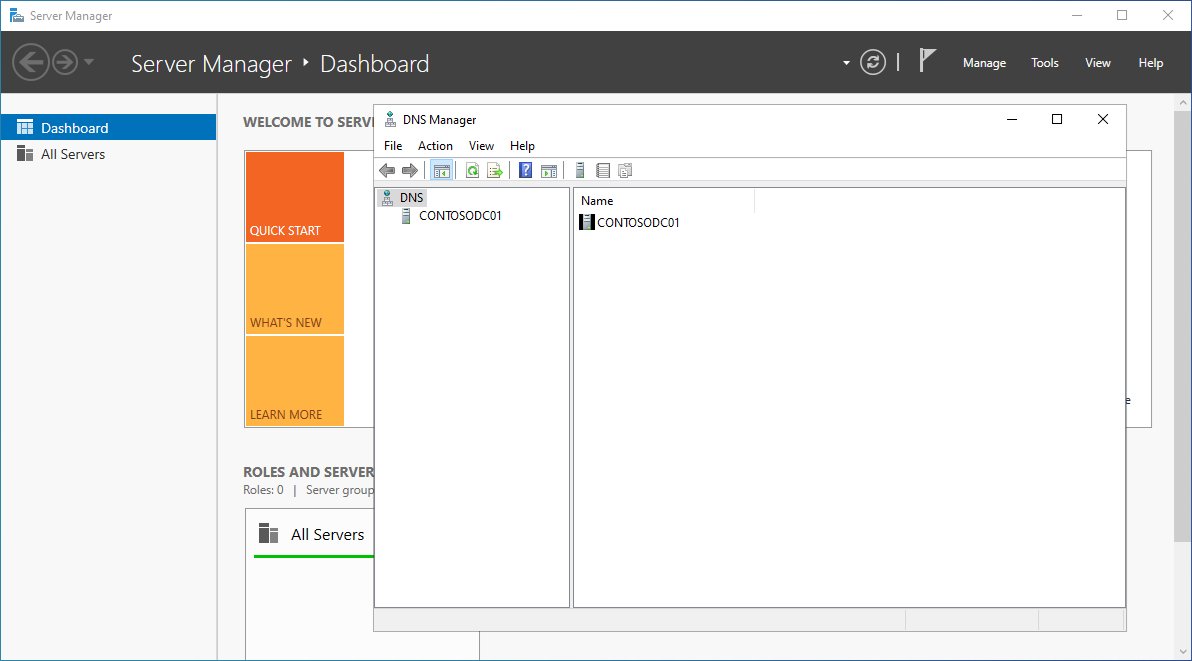
Remote Server Manager needs WinRM on the managed server, and MMC snap-ins launched from its Tools menu also need DCOM firewall rules. Configure-SMremoting.exe -Enable turns on the WinRM exceptions; the DCOM rules are enabled separately.
Enable-NetFirewallRule -DisplayName "COM+ Network Access (DCOM-In)","Remote Event Log Management (NP-In)","Remote Event Log Management (RPC)","Remote Event Log Management (RPC-EPMAP)"Run it in an elevated PowerShell window on the server you want to manage. It enables the four inbound rules that remote MMC and other DCOM-based tools need. The -DisplayName parameter accepts several rule names at once, separated by commas.
You should see: The command returns no output on success. Run Get-NetFirewallRule -DisplayName "Remote Event Log Management*" | Select-Object DisplayName, Enabled and each rule should show Enabled as True.
Run Configure-SMremoting.exe -Enable on the same server to enable Server Manager remote management over WinRM, or Configure-SMremoting.exe -Get to read the current setting.
Server Manager expects the default WinRM listener on HTTP port 5985 with Kerberos and Negotiate authentication. If a GPO disables these rules, a local change does not stick, so fix it in the GPO.
Add an additional domain controller to an existing domain with Server Manager
Promoting a member server to an extra domain controller is a Server Manager job too. You need membership in the Domain Admins group.
- In Server Manager, select Manage > Add Roles and Features.
- Choose Role-based or feature-based installation, select the target server from the server pool, and select Next.
- On Select server roles, select Active Directory Domain Services, then Add Features, then Install on the confirmation page.
- On the Results page, select Promote this server to a domain controller. If you closed the wizard, use the notification flag in Server Manager instead.
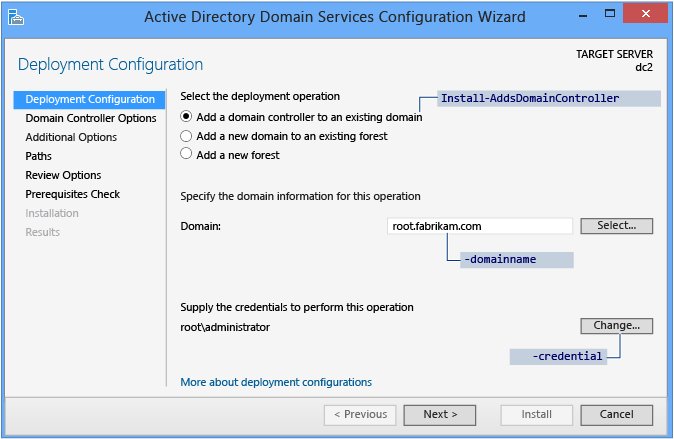
- On Deployment Configuration, select Add a domain controller to an existing domain, enter the domain name and Domain Admins credentials, and select Next.
- On Domain Controller Options, choose Domain Name System (DNS) server and Global Catalog (GC) as needed, pick the site, and type the DSRM password.
- Accept or change the replication source, paths and review pages, then select Install after the prerequisites check passes. The server restarts automatically.
The PowerShell equivalent is Install-WindowsFeature -Name AD-Domain-Services -IncludeManagementTools followed by Install-ADDSDomainController -DomainName "corp.contoso.com", with your own domain name.
Fix: Remote Desktop licensing mode is not configured in Server Manager
On a Remote Desktop Services host, this balloon appears at every sign-in until the licensing mode is set. It names Server Manager on the RD Connection Broker as the place to fix it.
"Remote Desktop licensing mode is not configured. Remote Desktop Services will stop working in x days"
No licensing mode is set during the 120-day grace period, or the session host cannot reach the license server.
- On the RD Connection Broker server, open Server Manager.
- Select Remote Desktop Services > Overview.
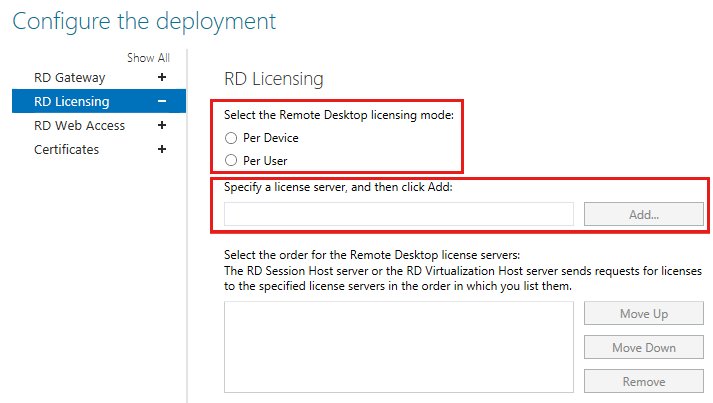
- In DEPLOYMENT OVERVIEW, select TASKS > Edit Deployment Properties.
- Select RD Licensing and choose Per User or Per Device.
- Type the license server name, select Add, then click OK.
The message stays after you set the mode in Server Manager
Group Policy settings override the Remote Desktop Services console.
- Open the GPO that targets the session hosts, or
gpedit.mscon the host. - Go to Computer Configuration > Administrative Templates > Windows Components > Remote Desktop Services > Remote Desktop Session Host > Licensing.
- Open Use the specified Remote Desktop license servers, select Enabled and enter the license server names, separated by commas.
- Open Set the Remote Desktop licensing mode, select Enabled and choose Per Device or Per User.
- Click OK and run
gpupdate /forceon the session host.
"Remote Desktop Services will stop working because this computer is past its licensing grace period"
The 120-day grace period has ended, so clients now need a valid RDS CAL from an activated license server.
- Confirm the RD license server is activated in Remote Desktop Licensing Manager.
- Check that your RDS CAL version is the same as or newer than the session host's Windows Server version.
- Set the licensing mode and license server with one of the two fixes above.
- Open the required ports between the session host and the license server if a firewall sits between them.
The balloon also shows during an administrative session, or with a local account when the mode is Per User. In those two cases it does not mean anything is wrong.
Server Manager still opens at logon on Windows Server
Server Manager opens even though the check box is selected
The Do not display Server Manager automatically at logon policy is set to Disabled, which forces the console open.
- Run
gpresult /rto see which GPOs apply to the computer. - Edit the GPO that sets the policy, or open
gpedit.mscfor a local policy. - Set Do not display Server Manager automatically at logon to Enabled, or to Not Configured to let the check box decide.
- Run
gpupdate /forceand sign in again.
Initial Configuration Tasks opens at logon on Windows Server 2008 or 2008 R2
Older releases show Initial Configuration Tasks first, and Server Manager waits until it closes.
- Select Do not show this window at logon in the Initial Configuration Tasks window.
- For many servers, enable Do not display Initial Configuration Tasks window automatically at logon under Computer Configuration > Administrative Templates > System > Server Manager.
A PowerShell menu opens at sign-in instead of Server Manager
This is SConfig on a Server Core installation of Windows Server 2022 or later.
- Choose option 15 to exit to PowerShell.
- Run
Set-SConfig -AutoLaunch $False. - Sign out and sign in to confirm a plain PowerShell prompt opens.
Server Manager startup at logon FAQ
Does disabling Server Manager at logon uninstall it?
No. The check box and the Group Policy setting only stop the console from opening when you sign in. Server Manager stays installed and opens normally from the taskbar or the Start menu, and the servers in its pool remain.
How do I open Server Manager after turning off auto-start?
Click the Server Manager button on the Windows taskbar, or open the Start menu and select Server Manager. Both routes work whatever the startup setting is, because the policy only controls the automatic launch at sign-in.
Which wins, the Group Policy setting or the Server Manager check box?
Group Policy wins. Enabled keeps Server Manager closed at sign-in, Disabled forces it open for every user, and Not Configured hands the decision back to the Do not start Server Manager automatically at logon check box in Server Manager Properties.
Who sees Server Manager at logon by default?
Members of the local Administrators group. Server Manager starts automatically by default when an administrator signs in to a Windows Server installation with the Desktop Experience. Standard users can still open it manually, but some tasks are blocked for them.
Does Server Manager open at logon on Server Core?
No. Server Core installations of Windows Server 2022 and later open SConfig in a PowerShell window at sign-in instead. Run Set-SConfig -AutoLaunch $False to stop it, and type SConfig at the prompt when you need the menu again.
What registry value stops Server Manager at logon?
The Group Policy setting writes DoNotOpenAtLogon under HKLM\Software\Policies\Microsoft\Windows\Server\ServerManager. Set it through Group Policy rather than by hand, so the GPO stays the single place where the setting is managed and reported.
What is the default Server Manager refresh interval?
Ten minutes on Windows Server 2012 and later, and two minutes on Windows Server 2008 and 2008 R2. Change it in Server Manager Properties, or enforce one value with the Configure the refresh interval for Server Manager policy.