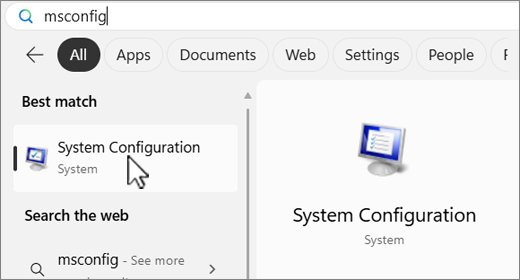
Local Security Policy is missing in Windows 11/10 Home because Microsoft includes security policy settings only in the Pro, Enterprise and Education editions.
This guide shows how to confirm your edition, get the tool by upgrading, repair it on Pro when Windows cannot find secpol.msc, and refresh or import security policy afterwards.
Fix Local Security Policy missing in Windows 11/10
Start by checking the edition. If it says Home, the console was never installed, and no setting brings it back.
- On Windows 11, open Settings > System > Activation. On Windows 10, open Settings > Update & Security > Activation.
- Read the edition name at the top of the page.
- If it shows Home, upgrade to Pro to get Local Security Policy (steps below).
- If it shows Pro, Enterprise or Education, press Windows logo key + R, type
secpol.mscand press Enter. - If Pro still reports that Windows cannot find
secpol.msc, repair system files with DISM and SFC.
What is secpol.msc and why is it missing on Windows 10/11?
secpol.msc is the Local Security Policy console. It covers account policies, local policies such as user rights and security options, firewall, software restriction, application control and advanced audit settings.
| What you see | Cause | What to do |
|---|---|---|
| No result when you search for Local Security Policy | Windows Home edition, which does not include security policy settings | Upgrade to Pro |
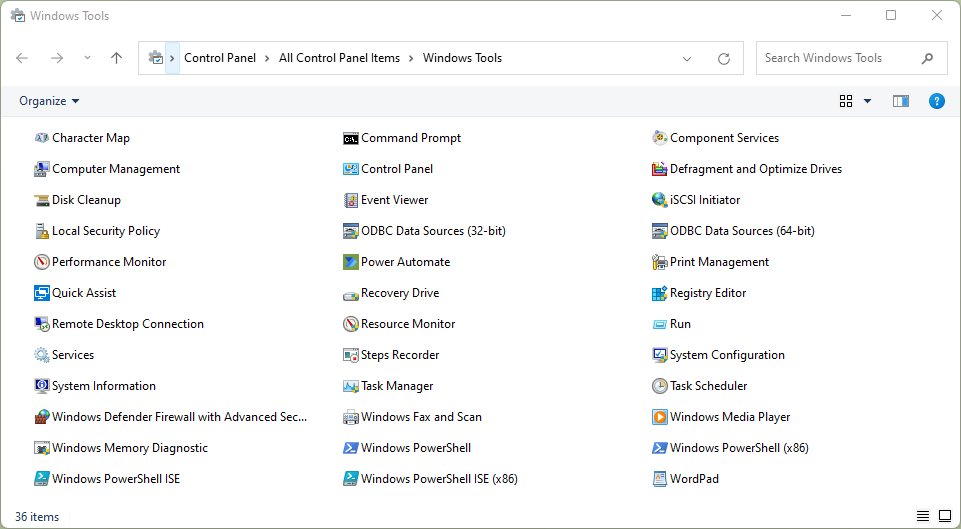
| Local Security Policy not listed in Windows Tools | The tools in that folder vary by edition | Check the edition in Activation |
Windows cannot find secpol.msc on Pro |
Damaged or missing system files | Run DISM, then sfc /scannow |
| The console opens but a setting is greyed out | A Group Policy Object controls that setting | Ask the domain or Intune admin |
| A setting reverts after you change it | Domain Group Policy overwrites local settings at refresh | Change it in the domain GPO instead |
| Changes are refused | Your account is not an administrator | Sign in with an administrator account |
Can't access Local Security Policy in Windows 11 Pro? Check admin rights first
Microsoft requires Administrators rights on the local device to configure security policy. A standard account cannot save changes even on Pro.
- Select Start, type
secpol.mscand confirm Local Security Policy appears in the results. - Right-click it and select Run as administrator.
- Approve the User Account Control prompt, or enter an administrator's password.
- In the console tree, expand Security Settings to reach Account Policies and Local Policies.
Upgrade Windows 11 Home to Pro to get Local Security Policy
Microsoft recommends the Microsoft Store route to upgrade Home to Pro. The manual steps work only if Windows Home is already activated.
- Open Settings > System > Activation (Windows 10: Update & Security > Activation).
- If you own a Pro product key, select Change next to Change product key, enter the 25-character key and select Next.
- If you do not have a key, expand Upgrade your edition of Windows and select Open Store (Windows 10: Go to the Store).
- Sign in with your Microsoft account, buy Windows Pro and install it.
- Restart the PC, then press Windows logo key + R, type
secpol.mscand press Enter.
Pro also adds the Local Group Policy Editor and BitLocker Drive Encryption. Scripts that claim to enable Local Group Policy Editor on Home are not a Microsoft-supported way to get security policy settings.
Open security settings in gpedit.msc when the secpol shortcut is gone
On Pro, Enterprise and Education the same security settings also sit inside the Local Group Policy Editor. Use this route if the Local Security Policy shortcut is missing from Start or Windows Tools.
- Press Windows logo key + R, type
gpedit.mscand press Enter. - Go to Computer Configuration > Windows Settings > Security Settings.
- Select Account Policies for password and lockout rules, or Local Policies for audit policy, user rights and security options.
- Double-click the setting, select Define these policy settings if it is not yet defined, change it and select OK.
Windows cannot find ‘secpol.msc’
Windows cannot find secpol.msc on Windows 11 Home or Windows 10 Home
Home does not include security policy settings, so the console file is not there.
- Confirm the edition in Settings > System > Activation.
- Upgrade to Pro through Upgrade your edition of Windows.
- Run
secpol.mscagain after the restart.
Windows cannot find secpol.msc on Pro, Enterprise or Education
The console file or the components it needs are damaged.
- Select Start, type
cmd, right-click Command Prompt and select Run as administrator. - Run
DISM.exe /Online /Cleanup-image /Restorehealthand wait for it to finish. - Run
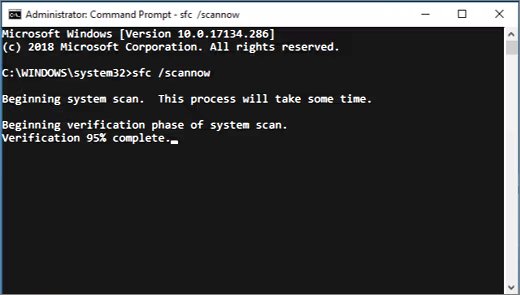
sfc /scannowand wait until verification reaches 100%. - Restart the PC and run
secpol.mscagain.
Local Security Policy not showing settings you can change
A Group Policy Object controls the setting, so the local value is inaccessible.
- Check whether the PC is joined to a work domain or managed by your organisation.
- Ask the administrator to change the setting in the domain GPO.
- Run
gpupdate /forceafter the change to pull the new policy.
How do I refresh the Local Security Policy?
Local changes take effect immediately, but some need a restart and user rights changes apply at the next sign-in. To reapply every policy now, force a Group Policy update from an administrator Command Prompt.
gpupdate /force/force reapplies all policy settings instead of only the ones that changed. Add /target:computer to refresh only computer settings, which is where security settings live.
You should see: The window reports that the computer policy update and the user policy update completed successfully.
How do I import Local Security Policy?
Security policy can be saved as an .inf security template on one PC and applied on another with secedit. Run both commands from an elevated Command Prompt, and create a C:\Security folder first.
- On the source PC, run
secedit /export /cfg C:\Security\secpol.inf /areas securitypolicy. - Copy
secpol.inftoC:\Securityon the target PC. - On the target PC, run
secedit /configure /db C:\Security\import.sdb /cfg C:\Security\secpol.inf /overwrite /areas securitypolicy. - Run
gpupdate /force, then opensecpol.mscand confirm the imported values.
Add user_rights after securitypolicy in the /areas list to carry user rights assignments too. Test the template on one PC before applying it widely.
USB flash security: password protect your USB drive with BitLocker
Many people open Local Security Policy to lock down removable drives. Third-party tools such as KASHU USB Flash Security password-protect a USB drive, but Windows Pro already includes BitLocker To Go, which encrypts the drive and unlocks it with a password.
BitLocker is not available on Windows Home. Standard users on Pro can turn it on for removable drives without admin rights.
- Plug in the USB drive.
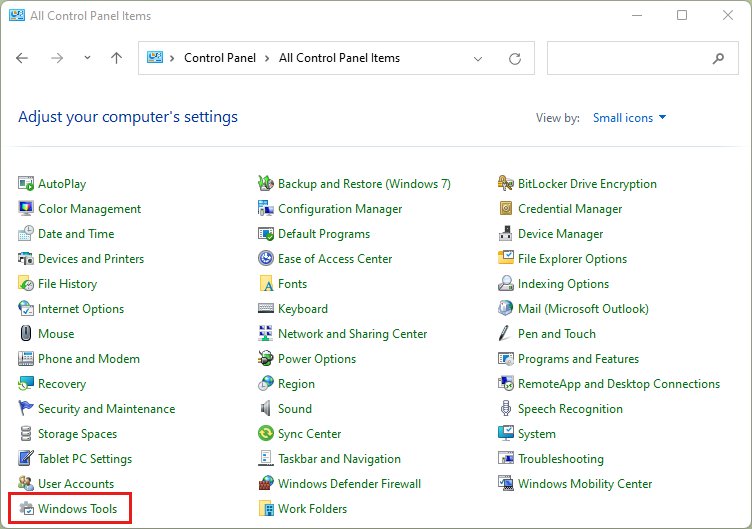
- Open Control Panel and select BitLocker Drive Encryption.
- Under Removable data drives – BitLocker To Go, select the drive and select Turn on BitLocker.
- Choose the password unlock option and type a strong password twice.
- Save the recovery key to your Microsoft account, a file or a printout.
- Start encryption and wait for it to finish before you remove the drive.
On another Windows PC, the drive asks for the password when you plug it in. Keep the recovery key separate from the drive.
How to confirm Local Security Policy works after the fix
- Press Windows logo key + R, type
secpol.mscand press Enter. - Confirm the Local Security Policy window opens with Security Settings in the left pane.
- Expand Account Policies > Password Policy and confirm the policy list loads.
- Open one setting and confirm the OK button is available, which shows your account can change it.
Local Security Policy missing FAQ
Why can't I find Local Security Policy in Windows 11?
Windows 11 Home does not include security policy settings, so secpol.msc is not there. Pro, Enterprise and Education include it; check your edition in Settings > System > Activation.
Does Windows 11 Home have Local Security Policy?
No. Microsoft lists security policy settings for Windows Pro, Enterprise, Pro Education and Education only. Upgrading Home to Pro adds Local Security Policy and the Local Group Policy Editor.
Can't access Local Security Policy in Windows 11 Pro. What should I check?
Make sure you are signed in as an administrator and run the console with Run as administrator. If a setting is greyed out, a Group Policy Object from your organisation controls it.
Can I download Local Security Policy for Windows 11?
No. Microsoft does not offer secpol.msc as a separate download. It is part of Windows Pro, Enterprise and Education, so the supported way to get it on Home is an edition upgrade.
How do I enable Local Security Policy in Windows 11?
There is nothing to switch on in Pro, Enterprise or Education: press Windows logo key + R, type secpol.msc and press Enter. On Home, upgrade to Pro first.
Why is Local Security Policy not showing in Windows Tools?
The tools in the Windows Tools folder vary by edition, and Home does not list Local Security Policy. On Pro, run secpol.msc directly or repair system files with DISM and SFC.
How do I refresh the Local Security Policy?
Open Command Prompt as administrator and run gpupdate /force. Some settings also need a restart, and user rights changes take effect the next time the account signs in.
How do I import Local Security Policy?
Export it on the source PC with secedit /export /cfg, copy the .inf file, then run secedit /configure with /db, /cfg and /areas securitypolicy on the target PC.
Is Local Security Policy missing in Windows 10 for the same reason?
Yes. Windows 10 Home also lacks security policy settings. Check the edition in Settings > Update & Security > Activation, and upgrade to Pro to get secpol.msc.
Bottom line: getting Local Security Policy back on Windows 11/10
On Home, upgrade to Pro; on Pro, Enterprise or Education, repair the files with DISM and SFC and open secpol.msc as an administrator. Home never ships the console, so only an edition upgrade adds it, while a missing console on Pro points to damaged system files that DISM and SFC restore.