To find passwords stored on this computer, open Credential Manager from Control Panel, list saved credentials and Wi-Fi keys from Command Prompt, or check the one password Windows can keep in Registry Editor.
This guide walks through those three ways on Windows 11 and Windows 10, shows where Edge, Chrome and Wi-Fi keep their own passwords, and explains what Windows never reveals.
![Find passwords stored on this computer [3 ways]](https://techdows.com/wp-content/uploads/2026/10/Find-passwords-stored-on-this-computer-3-ways.jpg)
1. Use the Control Panel
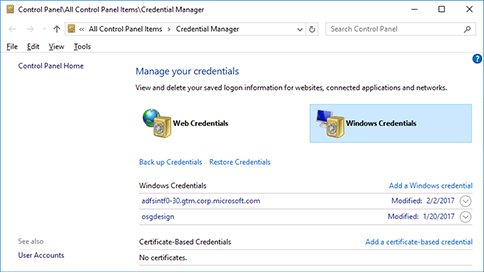
Credential Manager is the Control Panel tool that stores sign-ins for websites, connected apps and network locations. It lets you view and delete those saved credentials.
- Type
credential managerin the search box on the taskbar. - Select Credential Manager (the Control Panel result).
- Select Web Credentials to see sign-ins saved for websites, or Windows Credentials for network shares, mapped drives and apps.
- Select an entry to expand it and see the saved address and user name.
- Delete any entry you no longer want Windows to keep from inside its expanded view.
Wi-Fi passwords are also reachable from Control Panel on Windows 10: open Network and Sharing Center, select your Wi-Fi name next to Connections, select Wireless Properties, open the Security tab and tick Show characters.
Where each type of saved password lives in Windows
| Password you want | Where to look | Can you see the password itself? |
|---|---|---|
| Network share, mapped drive or app sign-in | Credential Manager > Windows Credentials, or cmdkey /list |
You see the target and user name; cmdkey never displays stored passwords |
| Website password saved in Microsoft Edge | Edge > Settings > Passwords and autofill > Microsoft Password Manager | Yes, with the eye icon after you confirm your device PIN or password |
| Website password saved in Google Chrome | Chrome > More > Passwords and autofill > Google Password Manager | Yes, with the Show password icon |
| Wi-Fi password on Windows 11 | Settings > Network & internet > Wi-Fi > network properties | Yes, select Show next to Wi-Fi network password |
| Wi-Fi password from the command line | netsh wlan export profile ... key=clear as administrator |
Yes, in plain text inside the exported XML file |
| Automatic sign-in password | Registry: Winlogon key, DefaultPassword value | Only if autologon was set up directly in the registry |
| Your Windows account password or PIN | Not shown by any of these tools | No. Reset it instead of looking it up |
If you forgot the password you use to sign in to Windows, none of these stores will show it, so reset your Windows password instead.
2. Try the Command Prompt
Command Prompt gives two useful views: the list of stored credentials from cmdkey, and saved Wi-Fi keys from netsh wlan.
- Type
cmdin the taskbar search box and open Command Prompt. - Run
cmdkey /listto display every stored user name and credential target on this account. - To narrow the list, run
cmdkey /list:<targetname>, replacing the placeholder with a server or domain name. - For Wi-Fi keys, close the window, right-click Command Prompt in search and choose Run as administrator.
- Run
netsh wlan show profilesto list every saved Wi-Fi network. - Create an empty folder such as
C:\WiFiProfiles, then runnetsh wlan export profile name="YourNetwork" folder="C:\WiFiProfiles" key=clear. - Open the exported XML file in Notepad and read the key inside the
keyMaterialelement. - Delete the XML file when you are done, because it holds the Wi-Fi password in plain text.
Microsoft documents that cmdkey does not display passwords after they are stored, so it shows what is saved but not the secret itself. The Wi-Fi key only exports in plain text when the command runs as a local administrator; otherwise it stays encrypted in the file.
3. Access the Registry Editor
The registry holds one readable password: the one Windows uses for automatic sign-in, when someone set up autologon by editing the registry. Microsoft warns that this value is stored in plain text and can be read remotely by the Authenticated Users group.
- Press Windows key + R, type
regeditand press Enter. - Select Yes at the User Account Control prompt.
- Browse to
HKEY_LOCAL_MACHINE\SOFTWARE\Microsoft\Windows NT\CurrentVersion\Winlogon. - Check whether AutoAdminLogon is set to
1. - Look for a string value named DefaultPassword in the right pane; its data is the automatic sign-in password.
- If you no longer need automatic sign-in, set AutoAdminLogon to
0and delete DefaultPassword.
No DefaultPassword value usually means autologon is off. When autologon is configured with the Sysinternals Autologon tool, the password is kept as an LSA secret instead of in the Winlogon key, so Registry Editor cannot show it.
What is the Windows password manager called?
Windows has two built-in places for passwords, and they do different jobs.
| Tool | Where to open it | What it stores | Who can use it |
|---|---|---|---|
| Credential Manager | Taskbar search > Credential Manager (Control Panel) | Web Credentials and Windows Credentials for sites, apps and networks | Any Windows 11 or Windows 10 account |
| Microsoft Password Manager | Edge > Settings > Passwords and autofill | Website passwords and passkeys, synced to devices where you sign in to Edge | Personal Microsoft account profiles in Edge; work or school admins may restrict it |
| Passkeys in Windows Settings | Settings > Accounts > Passkeys > Advanced options | Passkeys saved through Edge with a personal account | Signed-in personal accounts |
What are some of the best Windows 11 password managers?
The best Windows password managers for most people are the ones already on the PC. What you need to know about Windows password managers is that they split the work: Credential Manager keeps Windows and network sign-ins, while the browser managers keep website passwords, generate new ones and sync them.
| Password manager | Best for | Strong password generator and leak alerts | Syncs to other devices |
|---|---|---|---|
| Microsoft Password Manager (Edge) | Edge users with a personal Microsoft account, and the most customization through More settings | Yes: Password Generator, Password Monitor and Password Health | Yes, wherever you sign in to Edge and sync passwords |
| Google Password Manager (Chrome) | Chrome users with a Google Account | Yes: compromised password check | Yes, through your Google Account and passwords.google.com |
| Credential Manager (Windows) | Network shares, mapped drives and app sign-ins | No | No, it stays on this PC |
| A third-party password manager app | Several browsers or platforms in one vault | Depends on the app; check the vendor's own feature page | Check the vendor's own feature page |
For beginners, the easiest pick is the manager in the browser you already use: Microsoft Password Manager in Edge and Google Password Manager in Chrome are free, already installed and save passwords as you sign in. For on-device storage that never syncs, Credential Manager keeps its entries on this PC only. Paid third-party apps add features such as one vault across several browsers; compare those on each vendor's own site.
How to store passwords and passkeys in the Microsoft Password Manager
Microsoft Password Manager saves as you go. It needs an Edge profile signed in with a personal Microsoft account; on work or school accounts, your IT admin may restrict it.
- Sign in to Edge with your personal Microsoft account.
- Enter a password on a website for the first time and accept Edge's prompt to save it.
- When you create a new account, select the strong password Edge suggests in the password field; it is saved for you automatically.
- If no suggestion appears, right-click the password field and select Suggest strong password.
- When a site asks you to create a passkey, choose whether to save it to this device or to a credential manager.
- To sync data on your other devices, turn on password sync from Microsoft Password Manager, then sign in to Edge with the same account on each device.
How to find the Microsoft Password Manager in Edge
Edge keeps every saved password and its security tools in one hub, and its More settings page holds the options you can customize.
- Open Edge and make sure the profile belongs to a personal Microsoft account.
- Select the three dots next to your profile image, then Settings.
- Select Passwords and autofill, then Microsoft Password Manager.
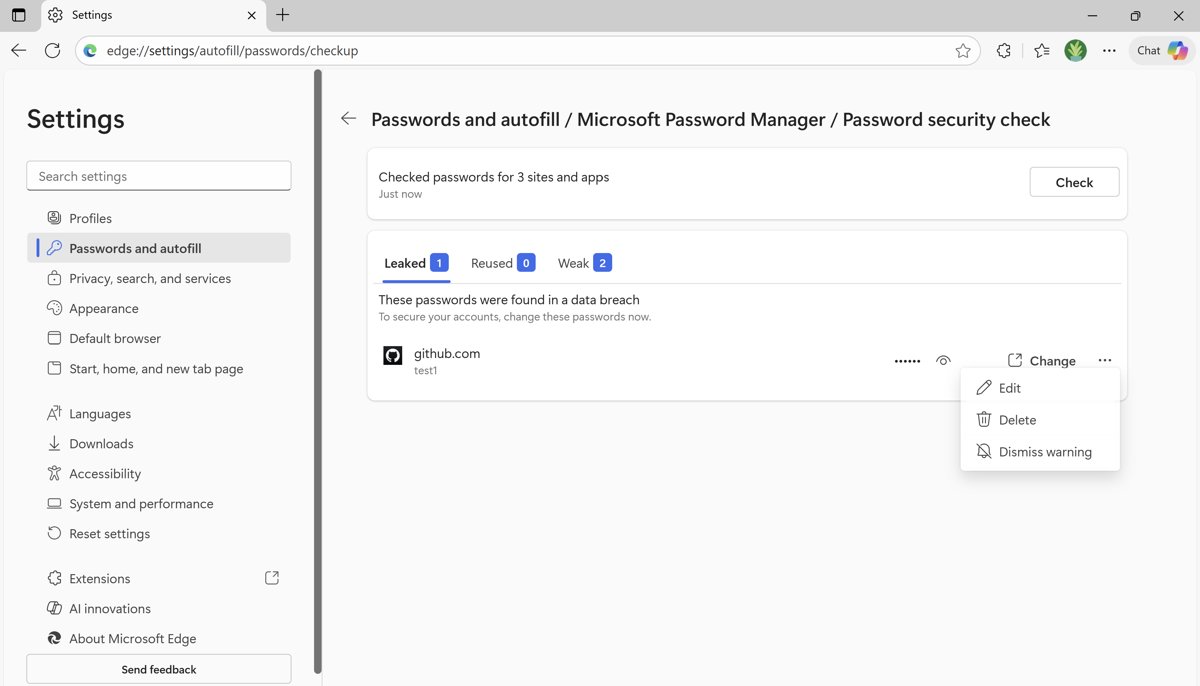
- Scroll down to see your saved passwords, or run Password security check to find ones flagged as Reused or Weak.
- Open More settings to switch Suggest strong passwords and Scan passwords for leaks on or off.
How to find the Microsoft Password Manager in Windows Settings
Windows Settings shows the passkeys stored in Microsoft Password Manager, but only after you have signed in to Edge with a personal account profile.
- Sign in to Microsoft Edge with your personal Microsoft account.
- Open Settings in Windows.
- Select Accounts > Passkeys.
- Select Advanced options to see the passkeys saved in Microsoft Password Manager.
To view saved website passwords, open them in Edge as shown below.
View saved passwords in Microsoft Edge and Google Chrome
- In Edge, open the menu next to your profile picture and select Settings.
- Go to Passwords and autofill > Microsoft Password Manager.
- Open the site entry and enter your device PIN or password when prompted.
- Select the eye icon to reveal the password, or Edit to change it.
- In Chrome, select More > Passwords and autofill > Google Password Manager.
- Under Passwords, select the site, then select the Show password icon.
Editing a saved password in Edge does not change it on the website, so update both. Chrome passwords saved to a Google Account can also be managed from any browser at passwords.google.com.

What are some tips for managing passwords on Windows 11?
| Tip | How to do it | Why it matters |
|---|---|---|
| Require device sign-in before showing passwords in Edge | Microsoft Password Manager > More settings > Prompt for the device sign-in options before viewing or filling website password | Someone at your unlocked PC cannot read saved passwords without Windows Hello or your device password |
| Do not rely on Edge's custom primary password | Switch to device-based authentication in the same menu | Custom Primary Password was removed on June 4, 2026, and Edge now moves users to device authentication |
| Avoid registry autologon | Turn off AutoAdminLogon and delete DefaultPassword | That password sits in the registry in plain text |
| Delete exported Wi-Fi or password files | Remove any exported XML file after use | A key=clear export holds the Wi-Fi password in plain text |
| Clear out stale credentials | Remove old entries in Credential Manager | Old sign-ins for retired servers or apps are just extra exposure |
| Check for weak or leaked passwords | Use Password Monitor in Edge or Chrome's compromised password check | Both flag saved passwords that need changing |
Chrome users can also run Chrome's Safety check for weak passwords to find saved logins worth replacing.
Windows password manager FAQ
How do I access the Windows password manager?
Type credential manager in the taskbar search box and select Credential Manager to open the Windows tool. For website passwords saved in Edge, open Edge Settings and go to Passwords and autofill, then Microsoft Password Manager.
What is the Windows password manager called?
The Windows tool is called Credential Manager, and it sits in Control Panel. Microsoft's website password manager is a separate service called Microsoft Password Manager, built into Microsoft Edge for personal Microsoft account profiles.
Where is the Windows password manager?
Credential Manager is a Control Panel app, and the quickest way to reach it is to search for credential manager from the taskbar. Edge passwords live in Edge Settings under Passwords and autofill, not in Credential Manager's Web Credentials list.
Does Windows have its own password manager?
Yes. Credential Manager is built into Windows 11 and Windows 10 and stores credentials for websites, apps and networks. For syncing website passwords and passkeys across devices, Microsoft uses Microsoft Password Manager inside Edge.
Does Microsoft make a password manager?
Yes. Microsoft Password Manager is built into Microsoft Edge and saves passwords and passkeys for a personal Microsoft account. Saved passwords can be used on any device where you sign in to Edge with that account.
How does Microsoft Password Manager work?
Edge offers to save a password when you sign in to a site, stores it with your Microsoft account and fills it next time. You can view, edit or delete entries in Settings, and Edge can ask for Windows Hello or your device password first.
How do I use Microsoft Password Manager?
Sign in to Edge with a personal Microsoft account and accept the prompt to save passwords as you log in to sites. To manage them, go to Settings, then Passwords and autofill, then Microsoft Password Manager, and open any entry.
What does a password manager do?
A password manager saves your sign-ins, fills them on the right site and keeps them behind an extra check, such as a PIN or Windows Hello. That lets you use a different strong password for every account without memorising each one.
Is the Windows password manager safe?
Edge can require Windows Hello or your device password before it shows or fills a saved password, which is the setting to turn on. The weak spots are your own copies: registry autologon passwords and exported files store passwords in plain text.
Can I see my Windows sign-in password?
No. Credential Manager, cmdkey and Registry Editor do not show your Windows account password or PIN, unless an old autologon setup left it in the registry. If it is forgotten, reset the password from the sign-in screen or your Microsoft account.

![7 best open-source PDF editors [Windows, Mac, Linux]](https://techdows.com/wp-content/uploads/2026/10/7-best-open-source-PDF-editors-Windows-Mac-Linux.jpg)