To run an app as administrator in Windows 11, right-click it in Start, search results or File Explorer, select Run as administrator, then select Yes in the User Account Control prompt.
This guide covers every route, including keyboard shortcuts, Command Prompt and PowerShell, Task Manager, shortcuts that always run elevated, scheduled tasks, and fixes when the option fails.
How to Run as Administrator in Windows 11
- Select Start or press the Windows key and type the app's name.
- Right-click the app in the results.
- Select Run as administrator.
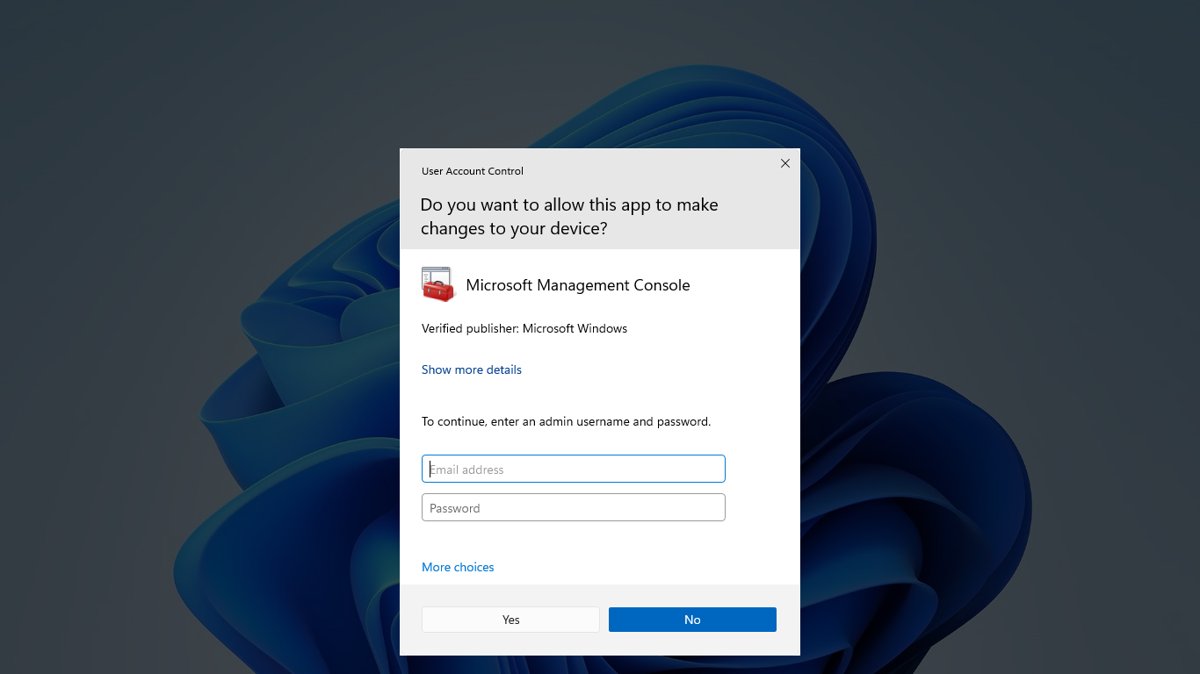
- Select Yes in the User Account Control prompt, or enter an administrator password if you use a standard account.
The app now runs with full administrator rights until you close it. The next time you open it normally, it runs with standard rights again.
Which method should you use?
| Your situation | Use this | Why |
|---|---|---|
| Opening one app occasionally | Start search, then right-click | Works for any installed desktop app |
| The app is pinned to the taskbar | Ctrl + Shift + click its icon | One action, no menu |
| You only have the .exe file | Right-click it in File Explorer | Works for programs that are not in Start |
| Desktop or Start is not responding | Task Manager > Run new task | Task Manager works when Explorer fails |
| You already have a terminal open | Start-Process -Verb RunAs |
No mouse needed, scriptable |
| You need the same app elevated every time | Shortcut with Run as administrator ticked | Saves the right-click each time |
| A task must run elevated on a schedule | Task Scheduler Run with highest privileges | Runs without you being there |
Understanding Administrator Privileges in Windows 11
Even on an administrator account, Windows runs apps with standard rights by default. Run as administrator is how you hand one app the full rights for one session.
| Concept | What it means |
|---|---|
| Two access tokens | An administrator who signs in gets a standard token and an administrator token; apps use the standard one unless you approve elevation |
| User Account Control (UAC) | The prompt that asks you to approve an app's use of the administrator token |
| Consent prompt | What an administrator sees: select Yes or No |
| Credential prompt | What a standard user sees: enter an administrator's user name and password |
| Inheritance | Programs started from an elevated app inherit its rights |
| Integrity levels | Lower-integrity apps cannot change data in higher-integrity apps |
| When you need it | Changing system files, Program Files, HKLM registry keys, services, drivers and system-wide settings |
Method 2: Use the Start Menu Search
- Press Windows key + S to open search.
- Type the app's name, such as
cmd. - Right-click the top result and select Run as administrator.
- Select Yes in the UAC prompt.
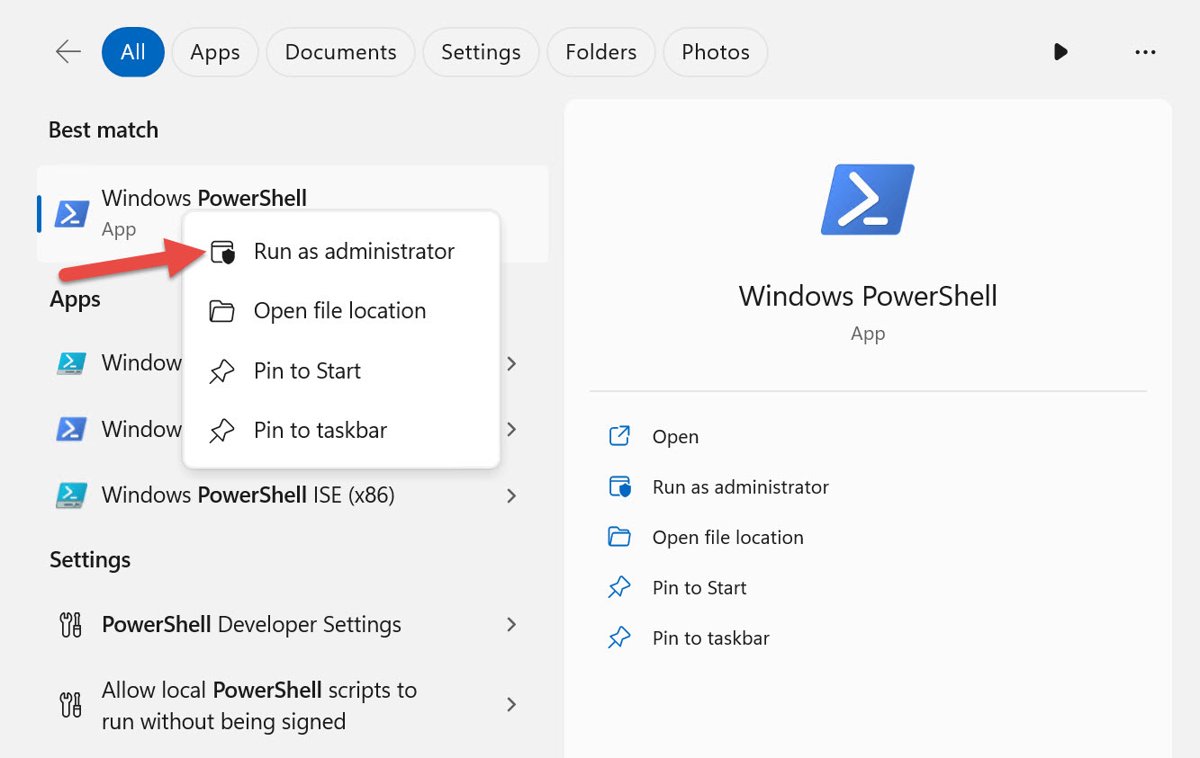
Method 3: Using the Start Menu Context Menu
- Select Start, then All to see every app.
- Find the app in the alphabetical list.
- Right-click it and select Run as administrator; if it is not listed directly, look under More.
- Select Yes in the UAC prompt.
Method 4: Run from File Explorer with Admin Rights
- Open File Explorer and browse to the program's .exe file or shortcut.
- Right-click the file.
- Select Run as administrator; on some file types it sits under Show more options.
- Select Yes in the UAC prompt.
To find an app's file from Start, right-click it, select More > Open file location, then right-click the file that opens.
Method 5: Open a taskbar app as administrator with the keyboard
- Pin the app to the taskbar if it is not already there.
- Hold Ctrl + Shift and click the app's taskbar icon.
- Or press Windows key + Ctrl + Shift + number, where the number is the icon's position on the taskbar, counting from the left.
- Select Yes in the UAC prompt.
You can also hold Shift, right-click a pinned icon and select Run as administrator.
Method 6: Using Command Prompt or Windows PowerShell
PowerShell does not trigger UAC prompts on its own, so a command that needs elevation simply fails. Start an elevated process instead. For more ways to open an elevated console, see how to run PowerShell as administrator.
Start-Process -FilePath "cmd" -Verb RunAsOpens a new Command Prompt with administrator rights. Replace cmd with powershell, notepad or the path to any .exe. The RunAs verb is what asks Windows to elevate.
You should see: A UAC prompt appears; after Yes, the new window's title starts with Administrator:.
To run a program as a different account, use runas /user:<UserAccountName> "<ProgramName>" in Command Prompt and enter that account's password.
Method 7: Use Task Manager to Run with Admin Rights
- Press Ctrl + Shift + Esc to open Task Manager.
- Select Run new task; in older layouts it is under File > Run new task.
- Type the program name, such as
cmd.exe. - Tick the option to create the task with administrative privileges.
- Select OK.
This works even when the desktop, Start or taskbar has stopped responding.
Method 8: Create a Shortcut that Always Runs as Administrator
- Right-click the app in Start and select More > Open file location.
- Right-click the app's shortcut and select Show more options > Send to > Desktop (create shortcut).
- Right-click the new desktop shortcut and select Properties.
- On the Shortcut tab, select Advanced.
- Tick Run as administrator, then select OK and OK again.
The shortcut still shows a UAC prompt each time, which is intended. To undo it, clear the same box.
Method 9: Run Scheduled Tasks with Admin Rights
- Search for Task Scheduler and open it.
- Find your task in Task Scheduler Library, right-click it and select Properties.
- On the General tab, select Run with highest privileges.
- Select OK and enter an administrator password if asked.
Bonus Tip: Use Windows Terminal with Admin Rights
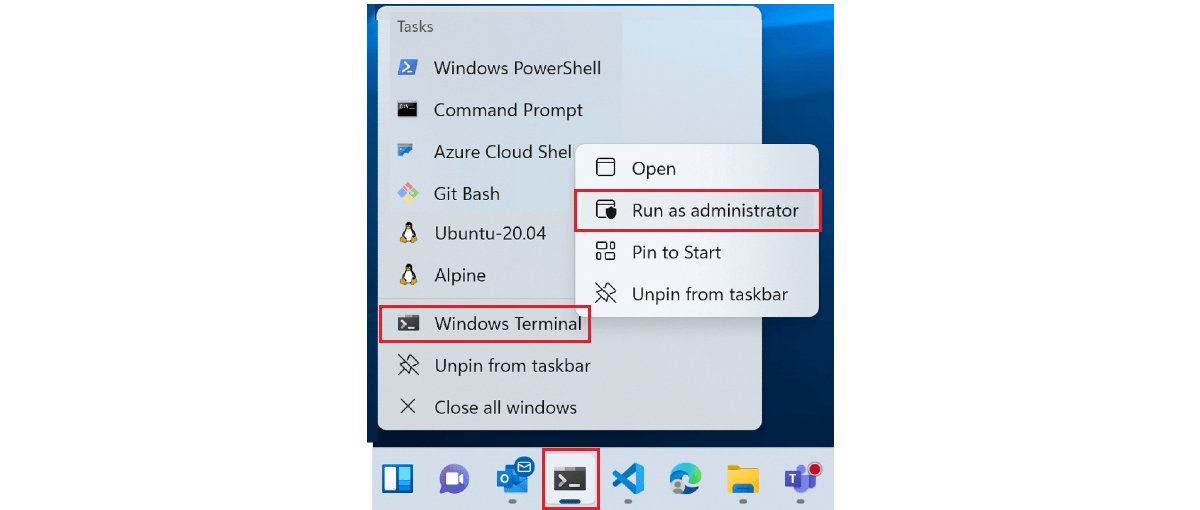
- Press Windows key + X.
- Select Windows Terminal (Admin).
- Select Yes in the UAC prompt.
- Open new tabs in this window; they all run as administrator.
Windows Terminal cannot mix administrator and standard tabs in one window, so keep a separate window for normal work.
How to check an app is running as administrator
- For Command Prompt, PowerShell or Terminal, check that the title bar starts with Administrator:.
- Run a command that needs elevation, such as
sfc /verifyonly; it runs instead of returning an access error. - For other apps, confirm that the change which failed before, such as saving into Program Files, now works.
Method 10: Enable Administrator Account (Built-in Super Admin)
Leave the built-in Administrator account disabled and use Run as administrator from your normal account instead. Windows Setup disables this account by default, Microsoft advises keeping it disabled and not signing in with it unless necessary, and attackers know it exists on every PC. It cannot be deleted or locked out, only renamed or disabled, and Safe Mode enables it automatically when no other account is enabled.
Use Group Policy to control admin mode (Pro editions)
There is no safe policy that runs every app as administrator. These UAC policies live under Local Policies > Security Options in the Local Group Policy Editor on Pro, Enterprise and Education editions.
| Policy | What it controls | Advice |
|---|---|---|
| User Account Control: Run all administrators in Admin Approval Mode | Turns UAC on or off for all admins | Keep Enabled (default); disabling it turns off UAC and Windows Security warns that security is reduced |
| Behavior of the elevation prompt for administrators in Admin Approval Mode | Consent prompt or password prompt for admins | Set to prompt for credentials on shared PCs |
| Behavior of the elevation prompt for standard users | Credential prompt or automatic denial | If set to automatically deny, Run as administrator fails silently for standard users |
| Admin Approval Mode for the built-in Administrator account | Whether the built-in Administrator also sees UAC prompts | Keep enabled |
Troubleshooting Common Issues
Can't run as administrator in Windows 11 or 10: it asks for a password
You are signed in with a standard account, so UAC shows a credential prompt.
- Enter the user name and password of an administrator account on the PC.
- If you have none, ask the PC's owner or administrator to approve it.
- On a work PC, contact IT; admin rights may be restricted on purpose.
Run as administrator does nothing or is denied immediately
A policy set to automatically deny elevation requests for standard users, which hides the prompt.
- Sign in with an administrator account and try again.
- On Pro editions, check Behavior of the elevation prompt for standard users in the Local Group Policy Editor.
- On a managed PC, ask IT; the setting may come from your organization.
A command fails with access denied in PowerShell
PowerShell does not prompt for elevation; the console is running with standard rights.
- Close the console.
- Run
Start-Process powershell -Verb RunAsor right-click PowerShell and choose Run as administrator. - Run the command again in the window titled Administrator:.
A scheduled task fails with access denied
The task's account lacks administrative privileges, or it runs with different credentials.
- Open the task's Properties in Task Scheduler.
- On General, select Run with highest privileges.
- Confirm the account set to run the task is an administrator.
Start, the taskbar or search will not open
Explorer has stopped responding, so right-click menus are unavailable.
- Press Ctrl + Shift + Esc.
- Use Run new task with administrative privileges ticked.
Security Considerations When Running as Administrator
| Consideration | What to do |
|---|---|
| Elevated apps can change the whole system | Approve UAC only for apps you opened yourself |
| Anything an elevated app starts is also elevated | Do not browse or open downloads from an elevated app |
| UAC prompts are colour-coded by publisher | Be wary of prompts for unknown or unsigned publishers |
| A standard everyday account is safer | Microsoft recommends a standard user account as your primary account |
| Turning off UAC removes the safety check | Leave it on rather than disabling it to avoid prompts |
Tips for Running as Administrator in Windows 11
Additional tips and best practices that save time without weakening security.
| Tip | Benefit |
|---|---|
| Elevate only when an app asks for it or a task fails | Keeps most of your work at standard rights |
| Use Ctrl + Shift + click on taskbar icons | Fastest elevation for apps you use often |
| Keep one elevated Terminal window for admin commands | No need to re-elevate for each command |
| Use an always-admin shortcut only for tools that always need it | Avoids running everyday apps elevated |
| Close elevated apps when finished | Limits how long full rights stay active |
Frequently Asked Questions
How do I run as administrator in Windows 11?
Right-click the app in Start, search results or File Explorer, select Run as administrator, then select Yes in the User Account Control prompt. Standard users enter an administrator password instead.
How do I run as administrator in Windows 10?
The steps match Windows 11: search for the app, right-click it and select Run as administrator, then approve the UAC prompt. Ctrl + Shift + click on a taskbar icon and Task Manager's Run new task also work in Windows 10.
How do I run Command Prompt as administrator in Windows 11?
Search for cmd, right-click Command Prompt and select Run as administrator. You can also press Windows key + X and choose Windows Terminal (Admin), or run Start-Process cmd -Verb RunAs from PowerShell.
What does run as administrator mean in Windows?
It lets one app use your account's full administrator token instead of the standard token Windows uses by default. The app can then change system files, protected registry keys and system-wide settings.
Why can't I run as administrator in Windows 11?
Usually your account is a standard user, so Windows asks for an administrator password. If nothing appears at all, a policy may automatically deny elevation requests, which is common on work PCs managed by IT.
Why run as administrator in Windows 11?
Some tasks need full rights: installing system-wide software, editing files in Program Files or Windows, changing services or drivers, and running repair tools such as sfc. Without elevation, these fail with access denied errors.
How do I run Steam as administrator in Windows 11?
Right-click Steam in Start or its shortcut and select Run as administrator. To make it permanent, open the shortcut's Properties, select Advanced and tick Run as administrator. Only do this when a game or tool requires it.
Is running as administrator the same on Windows 11 Home and Pro?
Yes. Every method in this guide works on Home and Pro. Only the Local Group Policy Editor settings for UAC are limited to Pro, Enterprise and Education editions.
How do I run my computer as administrator all the time?
You should not. Use an administrator account with UAC on, and elevate individual apps when needed. Microsoft recommends keeping the built-in Administrator account disabled and using a standard account for everyday work.
Conclusion
Use right-click > Run as administrator or Ctrl + Shift + click for day-to-day elevation, and an always-admin shortcut only for tools that need it every time. These keep UAC working as a safety check while giving each app full rights only when you approve it.