To set up picture password in Windows 11, open Settings > Accounts > Sign-in options, select Picture password under Ways to sign in, then pick a photo and draw three gestures on it.
This guide covers how the feature works, what blocks it, the full setup, signing in with gestures, changing or removing it, and fixes for a missing option.
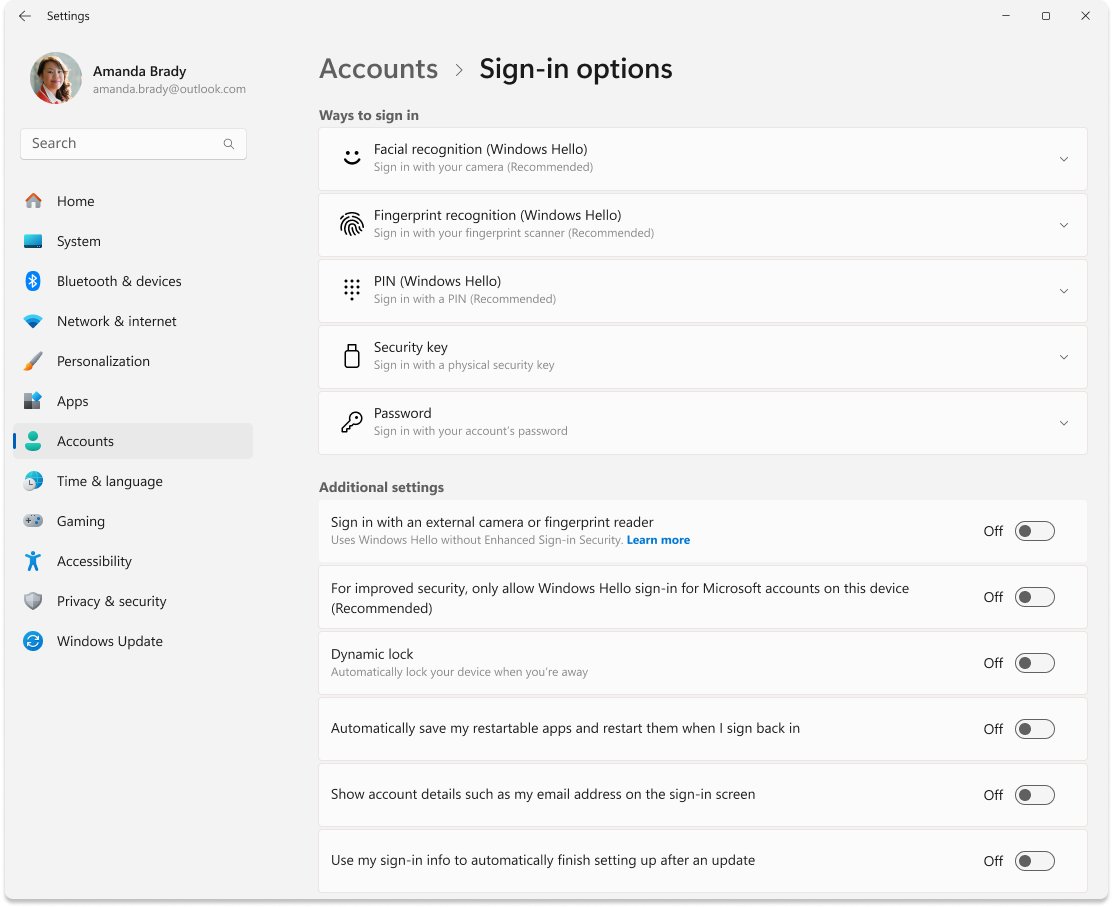
The fastest way to set up picture password in Windows 11
You need your current account password before you start, because Windows asks for it to confirm it is you. If you have forgotten it, reset your Windows password first.
- Press Win + R, type
ms-settings:signinoptionsand press Enter to open Sign-in options. - Under Ways to sign in, select Picture password to expand it and start the setup.
- Enter your account password when Windows asks you to verify your identity.
- Choose a picture from your files and confirm it.
- Draw three gestures on the picture: any mix of taps, straight lines and circles.
- Draw the same three gestures again to confirm them, then finish the wizard.
Lock the PC with Win + L and sign in with your gestures once, so you know they work before you need them.
What is a picture password and how does it work?
A picture password is a sign-in method that combines a photo you choose with a series of gestures you draw on it. It sits on top of your normal account password and never replaces it.
| Part | How Windows handles it |
|---|---|
| The picture | Any photo from your own files; Windows overlays an invisible 100-segment grid on its longest side |
| Tap gesture | Windows records the grid position of the point you tap or click |
| Line gesture | Windows records the start point, end point and the direction you drew it in |
| Circle gesture | Windows records the centre, the size and whether you drew clockwise or counterclockwise |
| Gesture count | Three gestures per picture password, entered in the same order every time |
| Mouse support | A mouse works too: click for a tap, click and drag for a line or circle |
| Wrong attempts | After five incorrect tries, Windows makes you sign in with your text password |
| Remote access | Picture password is turned off for remote and network sign-ins |
Because position, order and direction all count, someone who sees roughly where you touched the screen still has to guess the exact sequence.
Benefits of using a picture password
Picture password earns its place on touch devices, where typing a long password on an on-screen keyboard is slow and error-prone.
| Benefit | What it means in practice |
|---|---|
| Faster touch sign-in | Three taps, lines or circles take less time than typing a long password on an on-screen keyboard |
| Text password kept as a fallback | Picture password is added on top of your account password, so the password still works if you forget the gestures |
| Built-in lockout | After five wrong attempts Windows stops accepting gestures until you sign in with the text password |
| Works without a touchscreen | A mouse or touchpad draws the same gestures with clicks and drags |
| Local sign-in only | Picture password is turned off for remote and network sign-ins, so it cannot be tried over Remote Desktop |
Before you begin: picture password requirements
Picture password does not appear on every Windows 11 PC. Check these points first, because each one can hide the option completely.
| Requirement | Why it matters |
|---|---|
| A password on your account | Picture password is an extra way to enter that password, so an account with no password has nothing to attach it to |
| Password sign-in not switched off | The Only allow Windows Hello sign-in for Microsoft accounts on this device setting removes password sign-in for a Microsoft account |
| A home PC, not a domain PC | Picture password is disabled on domain-joined computers unless an administrator allows it |
| No work email added to the Mail app | Microsoft notes the option may not be available after you add work email accounts |
| No policy blocking it | The Turn off picture password sign-in Group Policy hides the feature on Pro, Enterprise and Education |
| A memorable photo | Pick one with several distinct details you can find quickly, such as faces, windows or signs |
Set up picture password in Windows 11
This is the full route through the Settings app, with what to expect on each screen of the wizard.
- Select Start, then open Settings.
- Select Accounts in the left pane, then select Sign-in options.
- Under Ways to sign in, select Picture password and start the setup from the expanded entry.
- Type your current account password in the verification box and confirm it.
- Choose a picture from your files, then drag it into position so the important details are on screen.
- Confirm the picture, or go back and pick a different one.
- Draw your three gestures on the picture: tap a point, drag a straight line between two details, or draw a circle around one.
- Repeat the same three gestures in the same order and direction when Windows asks you to confirm.
- Finish the wizard; Picture password now shows as set up under Ways to sign in.
If you also want a face, fingerprint or PIN option, set up Windows Hello on the same page.
Use picture password on touchscreen devices or with a mouse
The gestures are the same on every device; only the way you draw them changes.
| Gesture | On a touchscreen | With a mouse or touchpad |
|---|---|---|
| Tap | Touch one point on the picture with a finger | Click once on the point |
| Line | Drag a finger in a straight line from one point to another | Click and hold, drag to the end point, then release |
| Circle | Draw a circle around a detail with a finger, clockwise or counterclockwise | Click and hold, drag around the detail, then release |
| Direction | Start and end points must match the setup | Same rule: a line drawn the other way is a different gesture |
Set up the gestures on the device you sign in with most, because drawing a circle with a touchpad feels different from drawing it with a finger.
Picture password gesture tips for a stronger login
A picture password is only as strong as the gestures you pick. Microsoft's own guidance for the feature comes down to avoiding predictable patterns.
| Do this | Why it helps |
|---|---|
| Use a photo with at least 10 points of interest | More landmarks mean far more possible gesture combinations |
| Mix taps, lines and circles | Three of the same gesture type lets a guesser rule out the other types |
| Vary the order of gesture types | A random order multiplies the combinations compared with a fixed tap-line-circle pattern |
| Draw lines in an unexpected direction | Most people draw left to right, so reversing it adds a real unknown |
| Pick circle direction and size on purpose | Clockwise versus counterclockwise, and bigger or smaller than expected, both count |
| Block onlookers and wipe the screen | Shoulder surfing and smudge trails on a touchscreen can reveal gestures |
Picture password security considerations
Does it hold up to normal passwords? With three mixed gestures there are roughly 1.16 billion possible combinations, far more than the 10,000 possible four-digit PINs.
The weak points are human rather than mathematical: predictable gestures, people watching, and smudge trails on a glossy touchscreen.
| Risk | How to reduce it |
|---|---|
| Predictable gestures on obvious details such as eyes or faces | Mix tap, line and circle gestures and vary their order and direction |
| Someone watching you sign in | Shield the screen in public places, or use a PIN or fingerprint there instead |
| Smudge trails on a touchscreen | Wipe the screen regularly so finger marks do not reveal the strokes |
| A weak account password behind it | Keep a strong text password, because it still unlocks the account after five failed gesture attempts |
Picture password suits a personal tablet or laptop; on a shared or public device, a PIN or Windows Hello face or fingerprint sign-in is the safer choice.
Log in using picture password in Windows 11
Once picture password is set up, Windows can show your photo on the sign-in screen. You can always switch back to the text password.
- Press Win + L, or restart the PC, to reach the lock screen.
- Swipe up, click, or press any key to dismiss the lock screen.
- Select your account if more than one is listed.
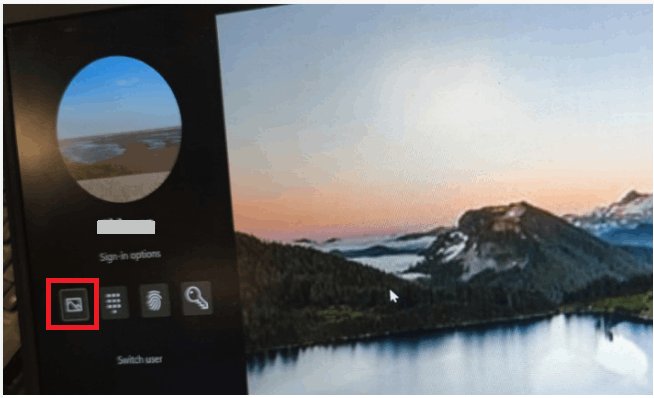
- If a PIN or password box appears instead of your photo, use the sign-in options control below it and pick the picture password icon.
- Draw your three gestures in the original order and direction.
- Wait for the desktop to load; after five wrong attempts, sign in with your text password instead.
How to check picture password is working
- Open Settings > Accounts > Sign-in options and confirm Picture password shows as set up under Ways to sign in.
- Press Win + L to lock the PC.
- Confirm your chosen photo appears, or that the picture password icon is offered among the sign-in options.
- Draw your gestures and confirm Windows signs you in on the first attempt.
If Windows rejects gestures you are sure are right, check the direction of each line and circle; a reversed stroke counts as a different gesture.
How to change or remove picture password in Windows 11
- Open Settings > Accounts > Sign-in options.
- Select Picture password under Ways to sign in to expand it.
- Choose the change option to pick a new photo or new gestures, and verify your account password when asked.
- Choose the remove option instead if you want to stop using picture password.
- Lock the PC with Win + L to confirm the sign-in screen reflects the change.
Removing picture password leaves your account password, PIN and other Windows Hello methods untouched, and you can still change your Windows 11 PIN separately.
How picture password fits into Windows sign-in
Picture password is one of several ways to sign in listed under Settings > Accounts > Sign-in options. You can set it up alongside the others and pick one at the sign-in screen.
| Sign-in option | How it works with picture password |
|---|---|
| Password | The base credential; picture password depends on it and it stays available as the fallback |
| PIN (Windows Hello) | Works alongside picture password; choose either from the sign-in options icons |
| Facial recognition or fingerprint (Windows Hello) | Can be set up on supported hardware next to picture password |
| Security key | A separate option for physical-key sign-in; it does not affect picture password |
| Windows Hello-only setting | Turning on Only allow Windows Hello sign-in for Microsoft accounts on this device hides password-based options, including picture password |
Combine picture password with a PIN on a touchscreen laptop: gestures for quick touch sign-in, the PIN when you are using the keyboard.
Fix picture password not showing or not working in Windows 11
Picture password option not showing in Sign-in options
Password sign-in is switched off for your Microsoft account, so the password-based options are hidden.
- Open Settings > Accounts > Sign-in options.
- Scroll to Additional settings.
- Turn off Only allow Windows Hello sign-in for Microsoft accounts on this device.
- Close and reopen Settings, then check Ways to sign in for Picture password.
Picture password missing on a work or school PC
The PC is joined to a domain, has work email added, or a policy turns the feature off.
- Check the account and management context first: if the PC belongs to a workplace or school domain, or a work email account is added in the Mail app, the organization's settings decide whether picture password is offered.
- Press Win + R, type
gpedit.mscand press Enter on Windows 11 Pro, Enterprise or Education. - Go to Computer Configuration > Administrative Templates > System > Logon.
- Open Turn off picture password sign-in and check whether it is Enabled.
- Ask your IT administrator to change it; on a managed PC the policy is set on purpose and comes back if you edit it locally.
Picture password not working at the sign-in screen
One gesture differs in type, order or direction from the ones you recorded.
- Sign in with your text password or PIN instead.
- Open Settings > Accounts > Sign-in options and select Picture password.
- Choose the change option and record three new gestures you can repeat exactly.
- Lock the PC with Win + L and test the new gestures straight away.
Picture password not offered for a Remote Desktop sign-in
Windows turns picture password off for remote and network sign-ins by design.
- Sign in to the remote session with your account password.
- Use picture password only when you sign in at the PC itself.
Windows 11 picture password FAQ
Does Windows 11 have picture password?
Yes. Windows 11 lists Picture password under Ways to sign in in Settings > Accounts > Sign-in options. It can be hidden on domain PCs, by policy, or when password sign-in is turned off for a Microsoft account.
What is picture password in Windows 11?
Picture password is a Windows sign-in method where you draw three gestures, such as taps, lines and circles, on a photo you chose. Windows checks the position, order and direction of each gesture and signs you in when they match.
How do I enable picture password in Windows 11?
Open Settings > Accounts > Sign-in options, select Picture password under Ways to sign in, verify your account password, choose a photo and draw three gestures twice. If the option is missing, turn off the Windows Hello-only setting under Additional settings.
How do I set picture password on a laptop?
A laptop uses the same steps as a desktop: Settings > Accounts > Sign-in options > Picture password. A touchscreen is not required, because a touchpad or mouse can draw the gestures with clicks and drags.
How do I set picture password in Windows 10?
On Windows 10, open Settings > Accounts > Sign-in options and select Picture password, then follow the on-screen setup. The wizard asks for your password, a photo and three gestures, just like Windows 11.
Is picture password secure?
Picture password is reasonably secure for a home PC. Three mixed gestures give over a billion possible combinations, and Windows forces the text password after five wrong tries. Onlookers and screen smudges are the real risks, so it suits personal devices better than shared ones.
Can I use picture password without a touchscreen?
Yes. Click once for a tap, and click and drag to draw a line or a circle. The gestures still need the same order and direction you used during setup.
What happens if I forget my picture password gestures?
Sign in with your account password or PIN instead, because picture password never replaces them. Then open Sign-in options, select Picture password and record new gestures.
Can you password protect a picture with picture password?
No. Picture password only protects signing in to Windows; it does not lock or encrypt image files. Anyone who can sign in to your account can still open the photo you used.
Why is picture password not showing in Windows 11?
The most common cause is the Only allow Windows Hello sign-in for Microsoft accounts on this device setting, which removes password-based sign-in. Domain membership, work email accounts and the Turn off picture password sign-in policy can also hide it.
Should you use picture password in Windows 11?
Use picture password on a personal touchscreen laptop or tablet where typing a long password is slow, and keep a strong text password behind it. It signs you in faster than an on-screen keyboard, locks itself after five wrong attempts, and your text password still works whenever the gestures fail.