To enable or disable User Account Control (UAC), open Control Panel > System and Security > Change User Account Control settings, move the slider, and select OK.
This guide covers the slider, the registry, Command Prompt, PowerShell and Group Policy on Windows 11 and Windows 10, plus what you lose when UAC is off. Microsoft recommends keeping UAC on, and so does this guide.
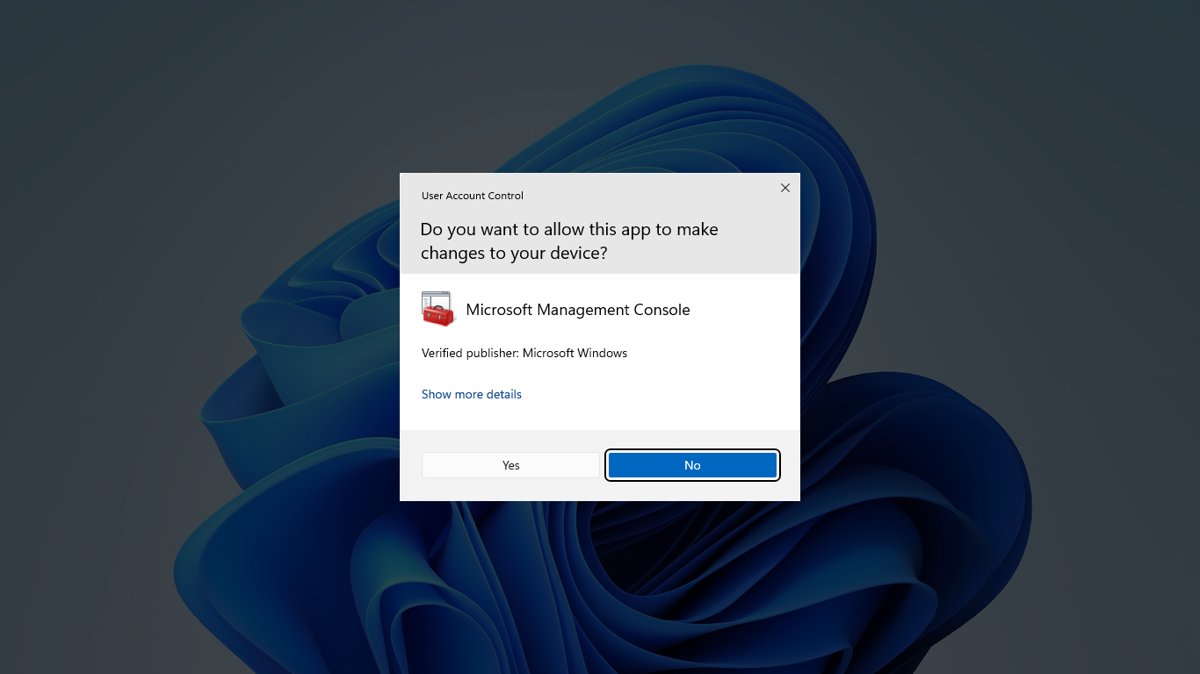
How to Enable or Disable UAC from Control Panel
The slider is the route Microsoft documents for home users. You need an administrator account to change it.
- Select Start, type Control Panel, and open it.
- Select System and Security.
- Select Change User Account Control settings.
- To turn UAC on, move the slider to Notify me only when apps try to make changes to my computer (default), or to Always notify for the strictest level.
- To stop UAC prompts, move the slider to the bottom position, Never notify. Microsoft labels this option "Disable UAC" and warns it isn't recommended due to security concerns.
- Select OK. If Windows asks for permission, select Yes.
To switch UAC off completely, including Admin Approval Mode, Microsoft documents a separate policy: Run all administrators in Admin Approval Mode. The registry, Command Prompt, PowerShell and Group Policy sections below change that policy, and each one needs a restart.
What User Account Control Does in Windows
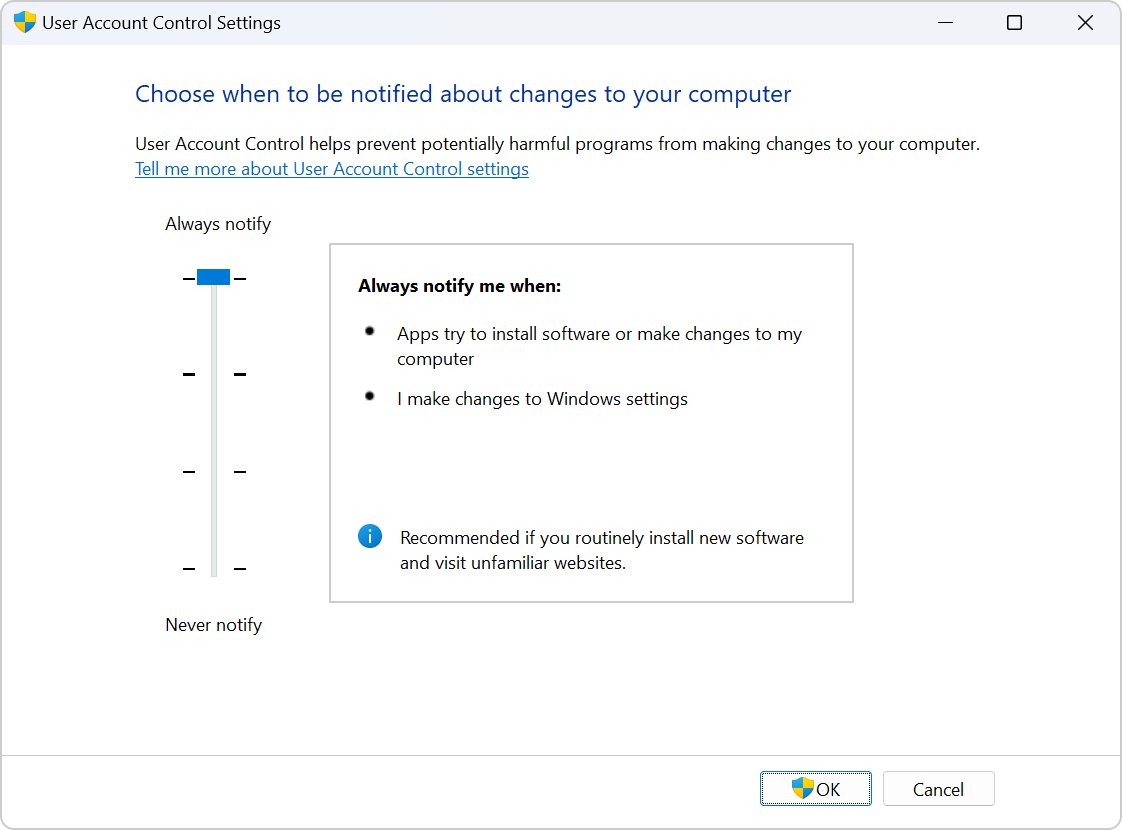
UAC stops apps from getting administrator rights silently. When a change needs admin-level permission, Windows asks you to approve or deny it first.
UAC is on by default. Unless you disable it, malicious software is prevented from disabling or interfering with UAC settings.
| UAC part | What it does |
|---|---|
| Consent prompt | Asks an administrator to select Yes or No before an app gets full admin rights. |
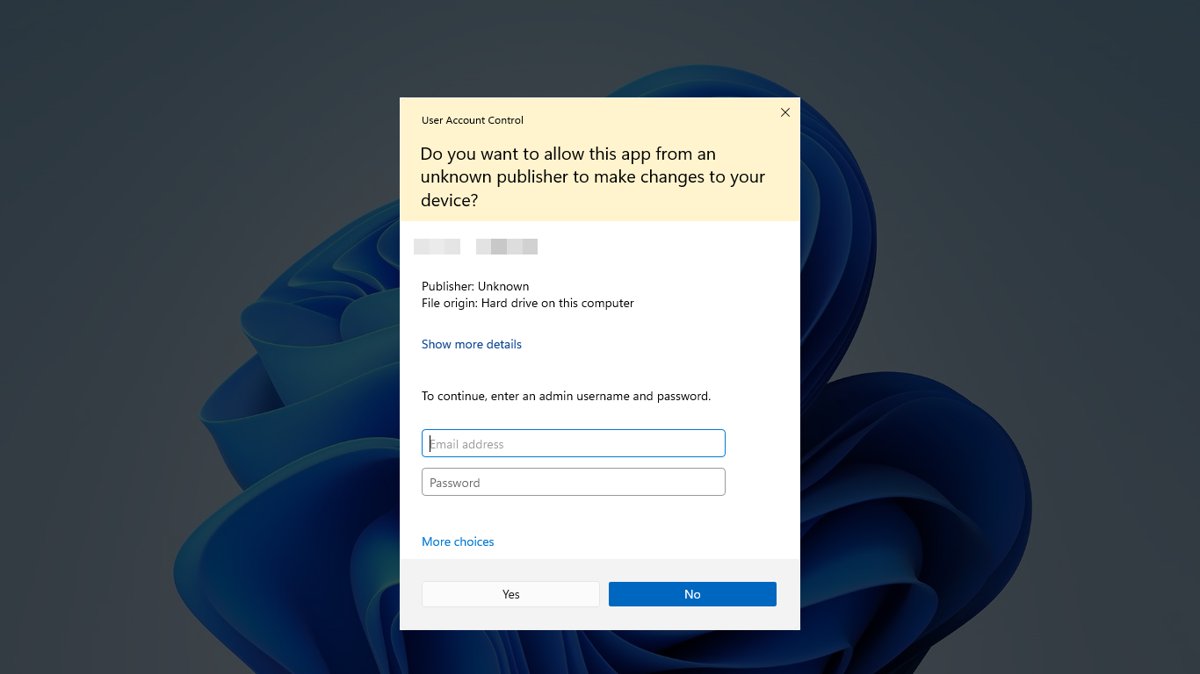
| Credential prompt | Asks a standard user to type an administrator's user name and password. |
| Secure desktop | Dims your desktop and shows the prompt where only Windows processes can reach it. Enabled by default. |
| Filtered (standard) token | Runs your apps with standard rights even when you sign in as an administrator. |
| File and registry virtualization | Redirects older apps that write to protected folders or registry keys into per-user locations. |
| Installer detection | Spots setup programs that need admin rights and prompts for elevation. |
| Colour-coded prompts | Gray for Windows apps and verified publishers, yellow for unsigned or untrusted apps. |
| Shield icon | Marks buttons, such as Change date and time, that need a full administrator token. |
Should You Disable UAC?
Microsoft's own guidance points one way. The Never notify level "isn't recommended due to security concerns", and turning off Admin Approval Mode makes Windows Security warn that overall security is reduced.
The one case Microsoft calls acceptable is a well-managed Windows Server where only administrators sign in, and only to do administrative work.
Keep UAC enabled at the default level. With UAC on, apps that need an administrator token can't install silently, so malware needs your explicit Yes or your password. If prompts annoy you, change the slider level instead of turning UAC off.
Understanding the Four UAC Notification Levels
The slider in Change User Account Control settings has four positions. The descriptions below follow Microsoft Support's wording.
| Slider level | Notifies when apps change your PC | Notifies when you change Windows settings | Freezes other tasks | Microsoft's note |
|---|---|---|---|---|
| Always notify (top) | Yes | Yes | Yes | Recommended if you routinely install new software or visit unfamiliar websites. |
| Notify me only when apps try to make changes to my computer (default) | Yes | No | Yes | Same case, when you don't want prompts for your own Windows settings changes. |
| Notify me only when programs try to make changes to my computer (do not dim my desktop) | Yes | No | No | Only recommended if dimming the desktop takes a long time on your PC. |
| Never notify (Disable UAC) (bottom) | No | No | No | Not recommended due to security concerns. |
Which method should you use?
Every route below changes the same UAC behaviour. Pick the one that matches where you are.
| Your situation | Use this | Why |
|---|---|---|
| You only want fewer or more prompts | Control Panel slider | Changes the notification level; Microsoft's steps end at selecting OK. |
| You looked in the Windows Settings app | Control Panel slider | Microsoft documents the UAC slider under Control Panel, not as a page in the Settings app. |
| You need UAC fully off or back on | Registry Editor, Command Prompt or PowerShell | Sets EnableLUA, the value behind Run all administrators in Admin Approval Mode. |
| You manage the PC's security policy | Local Security Policy (secpol.msc) or Group Policy |
Shows every UAC policy by name with its default. |
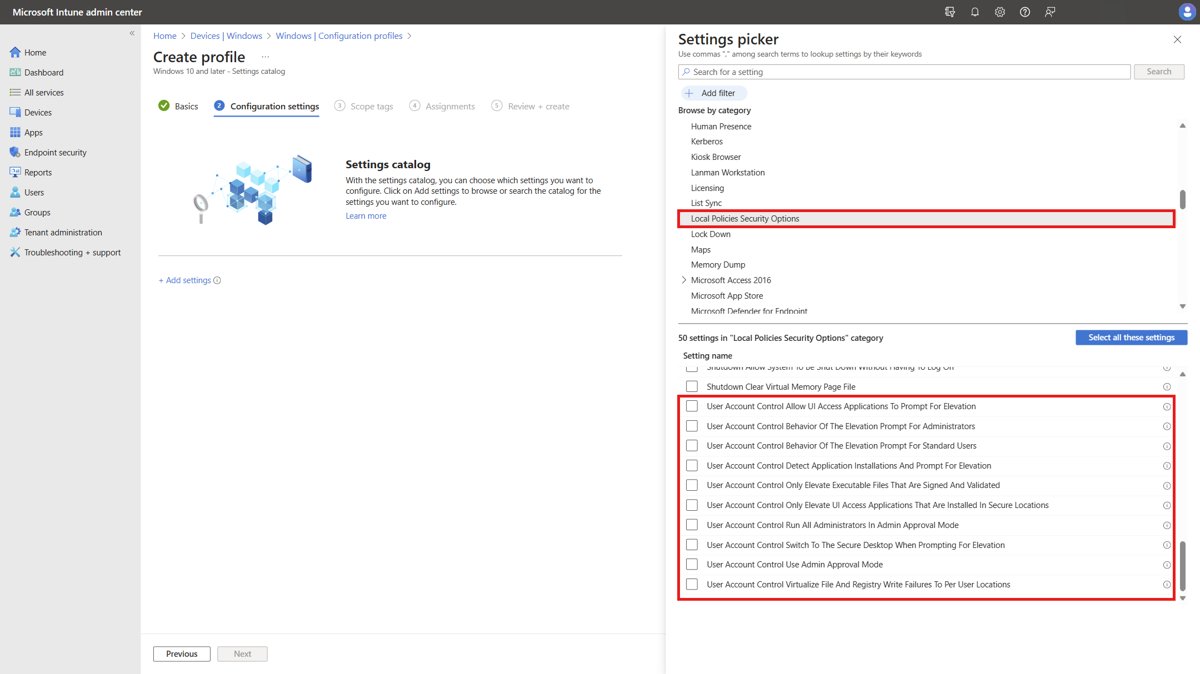
| The PC belongs to a work or school | Ask your IT admin | UAC can be set through Microsoft Intune, a CSP or domain Group Policy. |
How to Enable or Disable UAC Using the Registry
All UAC registry values live under one key: HKEY_LOCAL_MACHINE\SOFTWARE\Microsoft\Windows\CurrentVersion\Policies\System. The on/off switch is EnableLUA, where 1 (the default) is enabled and 0 is disabled.
- Press Windows + R, type
regedit, and press Enter. Select Yes at the UAC prompt. - Go to
HKEY_LOCAL_MACHINE\SOFTWARE\Microsoft\Windows\CurrentVersion\Policies\System. - Double-click EnableLUA in the right pane.
- Set Value data to
0to disable UAC, or1to enable it. - Select OK and close Registry Editor.
- Restart the PC. Microsoft states the change takes effect only after a restart.
How to Enable or Disable UAC Using Command Prompt
The reg add command writes the same EnableLUA value. The /f switch overwrites the existing value without asking.
- Select Start, type
cmd, right-click Command Prompt, and select Run as administrator. - To disable UAC, run
reg add HKLM\SOFTWARE\Microsoft\Windows\CurrentVersion\Policies\System /v EnableLUA /t REG_DWORD /d 0 /f - To enable UAC, run
reg add HKLM\SOFTWARE\Microsoft\Windows\CurrentVersion\Policies\System /v EnableLUA /t REG_DWORD /d 1 /f - Confirm the value with
reg query HKLM\SOFTWARE\Microsoft\Windows\CurrentVersion\Policies\System /v EnableLUA. - Restart the PC to apply the change.
How to Enable or Disable UAC Using PowerShell
PowerShell treats registry values as item properties, so Set-ItemProperty changes EnableLUA and Get-ItemProperty reads it back.
- Select Start, type PowerShell, and select Run as administrator.
- To disable UAC, run
Set-ItemProperty -Path "HKLM:\SOFTWARE\Microsoft\Windows\CurrentVersion\Policies\System" -Name "EnableLUA" -Value 0 - To enable UAC, run
Set-ItemProperty -Path "HKLM:\SOFTWARE\Microsoft\Windows\CurrentVersion\Policies\System" -Name "EnableLUA" -Value 1 - Restart the PC so Windows applies the new value.
How to Manage UAC with Local Group Policy
Every UAC setting is a security policy under Computer Configuration\Windows Settings\Security Settings\Local Policies\Security Options. Open it locally with the Local Security Policy snap-in, or set it for a domain or OU with Group Policy.
- Press Windows + R, type
secpol.msc, and press Enter. - Expand Local Policies and select Security Options.
- Double-click User Account Control: Run all administrators in Admin Approval Mode.
- Select Disabled to turn UAC off, or Enabled to turn it back on.
- Select OK.
- Restart the PC. The policy applies only after a restart, whether saved locally or delivered through Group Policy.
If secpol.msc doesn't open on your edition of Windows, use the registry or command-line method instead. Both write the same EnableLUA value.
Key UAC Group Policy settings and their registry values
Each policy maps to one value under HKLM\SOFTWARE\Microsoft\Windows\CurrentVersion\Policies\System. Change the policy name on the left, or the registry value in the middle.
| Policy (User Account Control: …) | Registry value | Values (default marked) |
|---|---|---|
| Run all administrators in Admin Approval Mode | EnableLUA |
1 = Enabled (default), 0 = Disabled. Turns all of UAC on or off. |
| Behavior of the elevation prompt for administrators in Admin Approval Mode | ConsentPromptBehaviorAdmin |
0 = Elevate without prompting, 1 = Credentials on secure desktop, 2 = Consent on secure desktop, 3 = Credentials, 4 = Consent, 5 = Consent for non-Windows binaries (default) |
| Behavior of the elevation prompt for standard users | ConsentPromptBehaviorUser |
0 = Automatically deny, 1 = Credentials on secure desktop, 3 = Prompt for credentials (default) |
| Switch to the secure desktop when prompting for elevation | PromptOnSecureDesktop |
1 = Enabled (default), 0 = Disabled |
| Admin Approval Mode for the built-in Administrator account | FilterAdministratorToken |
0 = Disabled (default), 1 = Enabled |
| Detect application installations and prompt for elevation | EnableInstallerDetection |
1 = Enabled (default on Home editions), 0 = Disabled |
| Only elevate executables that are signed and validated | ValidateAdminCodeSignatures |
0 = Disabled (default), 1 = Enabled |
| Virtualize file and registry write failures to per-user locations | EnableVirtualization |
1 = Enabled (default), 0 = Disabled |
How to check whether UAC is enabled
Read the switch directly. Run this in PowerShell; it needs no administrator rights to read.
Get-ItemProperty -Path "HKLM:\SOFTWARE\Microsoft\Windows\CurrentVersion\Policies\System" -Name EnableLUAReturns the current value of EnableLUA. In Command Prompt, reg query HKLM\SOFTWARE\Microsoft\Windows\CurrentVersion\Policies\System /v EnableLUA shows the same value.
You should see: EnableLUA : 1 means UAC is on; 0 means it is off. For a live test, open Date and Time in Control Panel and select Change date and time: with UAC on, a prompt appears first.
How UAC Works with Administrator and Standard Accounts
Both account types run apps with standard rights by default. The difference is what happens when an app asks for more.
Microsoft calls a standard user account for daily work the recommended and more secure way to run Windows.
| Account | Tokens at sign-in | Prompt you see | Default policy |
|---|---|---|---|
| Administrator (Admin Approval Mode) | Two: a standard token and an administrator token | Consent prompt: select Yes or No | Prompt for consent for non-Windows binaries |
| Standard user | One standard token | Credential prompt: enter an administrator's password | Prompt for credentials |
| Built-in Administrator account | Full administrator token | None by default; every app runs with full rights | Admin Approval Mode for the built-in Administrator is Disabled |
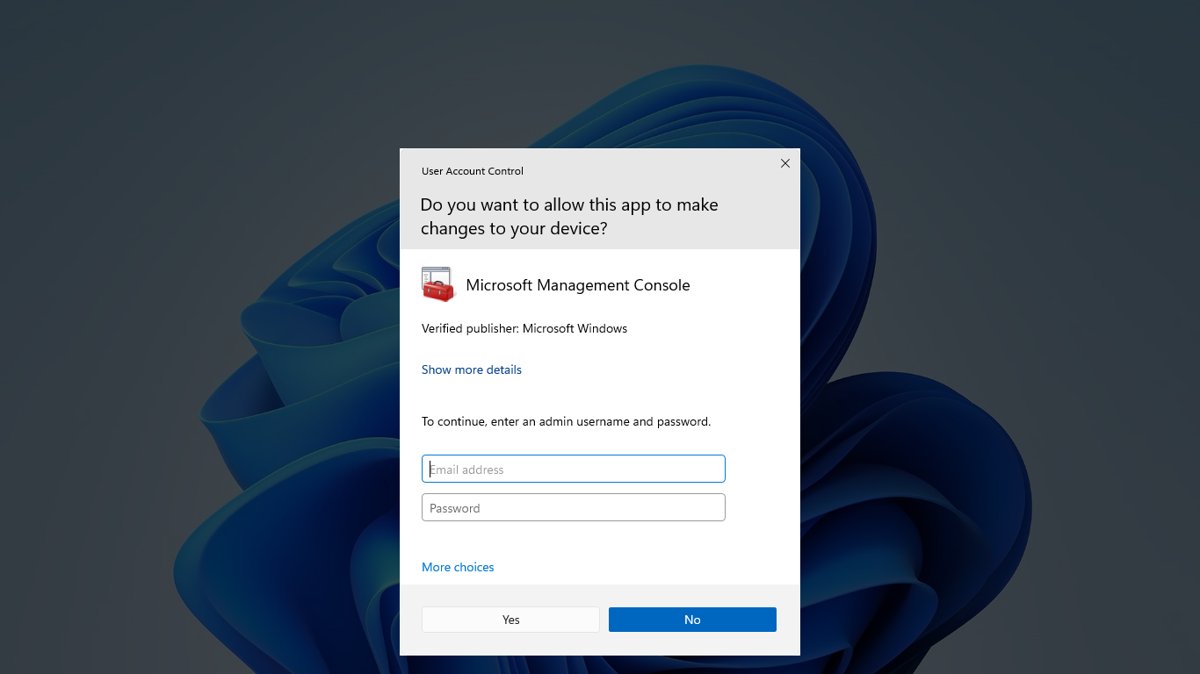
What Changes When You Disable UAC
Turning off Run all administrators in Admin Approval Mode disables every UAC feature at once, not just the prompts. Microsoft lists these effects.
| Area | With UAC off |
|---|---|
| Programs you run | No filtered token is created, so every program runs with your full rights. |
| Older apps | File and registry virtualization stops, so apps that write to protected folders or keys fail. |
| Run as administrator | Shield icons and the Run as administrator menu still appear but have no effect. |
| Runas.exe | Programs started with another account get that account's full token. |
| Remote admin with local accounts | The token-filtering limit on NET USE and WinRM is lifted, which raises risk where many PCs share one local admin password. |
| Windows Security | Shows a notice that the overall security of the operating system is reduced. |
| UAC settings | Malicious software is no longer prevented from changing UAC settings. |
Recommended UAC Settings for Different Situations
Match your case to a row. Where Microsoft publishes guidance for that case, the reason cites it.
| Situation | Recommended setting | Why |
|---|---|---|
| Home PC or personal laptop | Default slider level | Prompts for app changes and keeps the secure desktop. |
| You install lots of software or visit unfamiliar sites | Always notify | Microsoft recommends it for exactly this use. |
| Shared family computer | Default level, with standard accounts for everyone else | Standard users must enter an administrator's password to make system changes. |
| Gaming PC | Default level | Microsoft publishes no gaming exception; Never notify is not recommended. |
| Slow PC where the desktop takes long to dim | Do not dim my desktop level | The only case Microsoft gives for this level. |
| Business workstation | Standard users; UAC set through Intune or Group Policy | Automatically deny elevation requests can cut help desk calls on standard-user desktops. |
| Windows Server used only by administrators for admin work | Disabling UAC can be acceptable | Microsoft allows it only when both conditions are true. |
| Windows Server where others sign in, or admins browse and read email | Keep UAC on | Microsoft says UAC should remain enabled as defence in depth. |
Troubleshooting UAC Problems
The UAC button is grayed out or settings keep reverting
Only administrators can change UAC, and a managed PC can receive UAC settings from Intune, a CSP or domain Group Policy.
- Sign in with an administrator account, or ask the PC's administrator to make the change.
- On a work or school PC, contact your IT admin; organisation policy decides the UAC setting.
- On a home PC, check User Account Control: Run all administrators in Admin Approval Mode in
secpol.mscand set it to Enabled.
UAC prompts appear too often
The slider is at Always notify, which also prompts when you change Windows settings.
- Open Control Panel > System and Security > Change User Account Control settings.
- Move the slider down one step to Notify me only when apps try to make changes to my computer (default).
- Select OK. You still get prompts for apps, but not for your own settings changes.
"User Account Control has been disabled" or Windows Security says security is reduced
EnableLUA is set to 0, so Admin Approval Mode and all related UAC policies are off.
- Open Command Prompt as administrator.
- Run
reg add HKLM\SOFTWARE\Microsoft\Windows\CurrentVersion\Policies\System /v EnableLUA /t REG_DWORD /d 1 /f - Restart the PC and confirm the notice is gone.
Run as administrator does nothing
UAC is disabled, so the elevation mechanism is off even though the menu item still shows.
- Check the value with the PowerShell command in the verify section.
- If
EnableLUAis 0, set it to 1 with any method above. - Restart, then use Run as administrator again.
An older app can't save its settings after you disable UAC
Virtualization stopped, so writes to protected folders or registry keys now fail.
- Turn UAC back on by setting
EnableLUAto 1. - Restart the PC.
- Open the app again; its writes are redirected to your user profile.
Security Tips If You Keep UAC Enabled
| Tip | Why it helps |
|---|---|
| Use a standard account for daily work | Microsoft calls this the recommended and more secure way to run Windows. |
| Read the prompt colour before selecting Yes | A yellow prompt means the app is unsigned or its publisher isn't trusted. |
| Keep Switch to the secure desktop when prompting for elevation enabled | Microsoft recommends it; only Windows processes can reach the secure desktop. |
| Prefer consent prompts for administrators | An imitation prompt that you select Yes on doesn't grant malware elevation. |
| Say No to prompts you didn't trigger | Apps that need an administrator token can't install silently while UAC is on. |
Security Tips If You Must Disable UAC
| Tip | Why it helps |
|---|---|
| Limit it to admin-only systems | Microsoft's only accepted case is a server where just administrators sign in for admin tasks. |
| Don't browse, read email or chat on that system | Microsoft says UAC should stay on wherever administrators run risky apps. |
| Don't reuse one local admin password across PCs | With UAC off, local accounts lose the remote-access token filter, which raises pass-the-hash risk. |
| Consider Elevate without prompting instead | On servers it removes prompts but keeps other UAC features; Microsoft limits it to the most constrained environments. |
| Turn UAC back on when the task is done | Set EnableLUA to 1 and restart. |
Frequently Asked Questions
How do I disable User Account Control in Windows 11?
Open Control Panel > System and Security > Change User Account Control settings, drag the slider to Never notify, and select OK. To turn UAC off completely, set EnableLUA to 0 and restart. Microsoft doesn't recommend either change because of the security loss.
How do I enable User Account Control?
Open Change User Account Control settings from Control Panel and move the slider to Notify me only when apps try to make changes to my computer (default). If UAC was fully off, also set EnableLUA to 1 in the registry and restart the PC.
How do I disable User Account Control from CMD?
Open Command Prompt as administrator and run reg add HKLM\SOFTWARE\Microsoft\Windows\CurrentVersion\Policies\System /v EnableLUA /t REG_DWORD /d 0 /f, then restart. Run the same command with /d 1 to enable UAC again.
Can I temporarily disable User Account Control?
There is no timed off switch. Move the slider to Never notify or set EnableLUA to 0, do the task, then restore the default setting. Changing EnableLUA needs a restart each way, so the slider is the quicker temporary change.
Can I disable User Account Control for certain apps only?
Microsoft's UAC settings apply to the whole PC, and none of the documented UAC policies exempts a single app. Keep UAC on and approve the prompt for that app, or run the app from a standard account if it doesn't need admin rights.
Do I need to restart after changing UAC?
Yes, when you change Run all administrators in Admin Approval Mode or its registry value EnableLUA. Microsoft states the computer must restart before that policy takes effect. Microsoft's slider instructions end at selecting OK, with no restart step.
Should I disable User Account Control on Windows Server?
Only when both of Microsoft's conditions hold: only administrators sign in, and only to do administrative work. If other users sign in through Remote Desktop, or admins browse and read email on the server, keep UAC enabled.
What does "User Account Control has been disabled" mean?
It means Admin Approval Mode is off, usually because EnableLUA is 0. Every program then runs with your full rights, and Windows Security reports reduced security. Set EnableLUA to 1 and restart to turn UAC back on.
Is it safe to disable User Account Control?
No, not on an everyday PC. With UAC off, apps get your full rights without asking and malware can change UAC settings. Microsoft calls Never notify not recommended due to security concerns.
What is the default UAC level in Windows?
The default is Notify me only when apps try to make changes to my computer. It prompts when apps try to install software or change the PC, dims the desktop for the prompt, and doesn't prompt for your own Windows settings changes.







How to Check if You Have Admin Privileges on Windows? - Techdows
[…] User Account Control runs administrators with a standard token by default. When a task needs the full admin token, Windows shows a consent prompt. Selecting Yes grants the permission for that task only. […]
Windows Remote Assistance FAQs - Techdows
[…] Both PCs need this switch on before an invitation can work. Changing it needs administrator rights, so expect a User Account Control prompt. […]