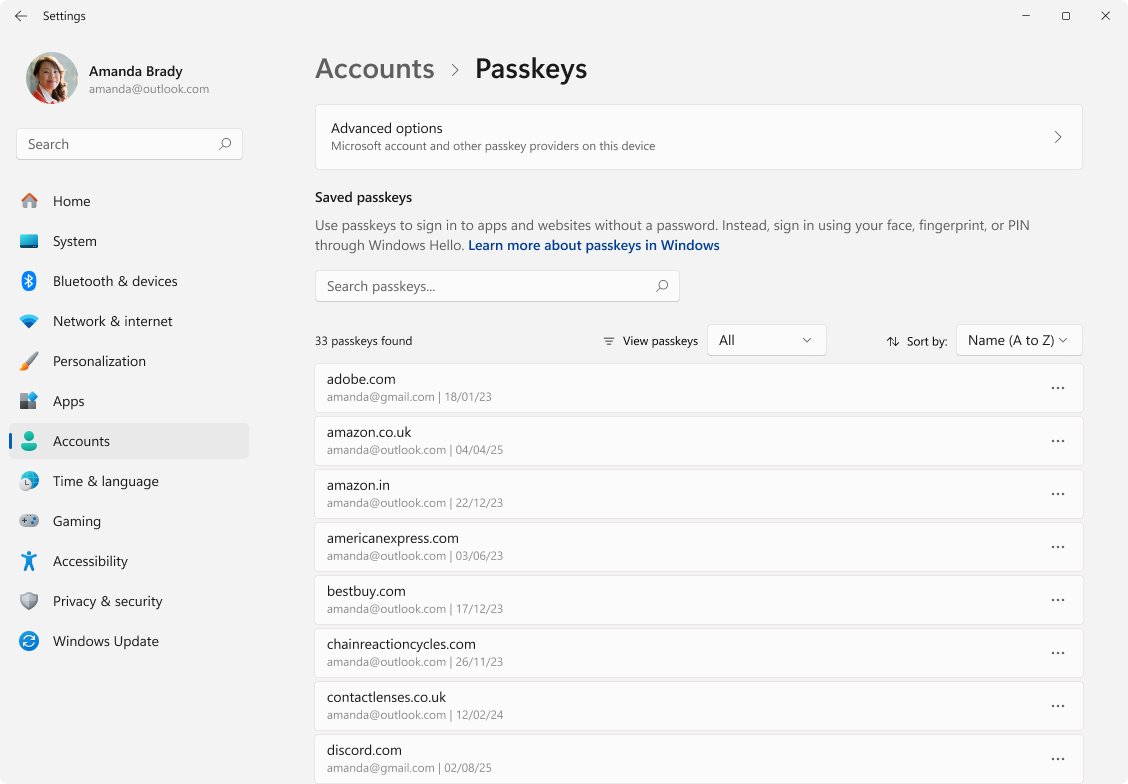
To view passkeys in Windows 11, open Settings, select Accounts, then select Passkeys to see every passkey saved on the PC.
This guide covers the shortcut to that page, deleting a passkey, choosing where new passkeys are saved, passkeys for Microsoft and work accounts, app permissions in Windows 11 24H2, and fixes when the page or a passkey is missing.
Open the Windows 11 Passkeys page
Windows 11 has a native passkey management page from version 22H2 with update KB5030310 onward. It lists the passkeys stored on this device with Windows Hello.
- Right-click Start and select Settings.
- Select Accounts in the left pane.
- Select Passkeys.
- Read the list of passkeys saved on this PC. Each entry is listed by its passkey name.
- For a quicker route, press Win + R, type
ms-settings:savedpasskeysand press Enter. The same page opens directly.
The list covers only passkeys stored on this PC. Passkeys kept in a password manager, on a phone or on a security key are managed by that provider.
Quick decision guide
Passkey management is handled by whichever provider holds the passkey. Match where your passkey lives to the place that can show and remove it.
| Where the passkey is saved | Where to view or manage it | What you can do there |
|---|---|---|
| On this Windows PC with Windows Hello | Settings > Accounts > Passkeys | See the list, delete a passkey |
| Microsoft Password Manager (Edge, personal profile) | Edge Settings > Passwords and autofill > Microsoft Password Manager, or Accounts > Passkeys > Advanced options in Windows | Use and manage synced passkeys |
| A personal Microsoft account sign-in method | account.live.com/proofs/manage | See where it is saved and when it was last used, rename, remove |
| A work or school account sign-in method | mysignins.microsoft.com/security-info | See where it is saved and last use, rename, remove |
| Another password manager (Google, iCloud Keychain, a third-party app) | That provider's own app or website | Whatever that provider allows |
| A phone or a hardware security key | The phone's passkey or password settings, or the key maker's tools | Windows Settings does not list these |
Check your Windows 11 version and updates
Microsoft states that the latest passkey features need Windows 11, and some options appear only after recent updates. Check your version and installed Windows updates before you go looking for a missing page.
- Right-click Start and select Settings.
- Select System, then About.
- Under Windows specifications, read the Edition and Version lines. The Passkeys page needs Windows 11, version 22H2 with KB5030310 or later.
- Return to Settings and select Windows Update.
- Check for updates, then select Download & install if updates are offered.
- Restart the PC when Windows asks, then open Accounts > Passkeys again.
The Windows Update page holds more than the check button; the Windows 11 update settings also control when restarts happen.
Delete a passkey saved on the Windows PC
Deleting a passkey here removes the copy stored on this PC. It does not remove the matching entry from the website's account, so the site may still list it.
- Open Settings > Accounts > Passkeys.
- Find the passkey you want to remove in the list.
- Select the menu button next to the passkey name.
- Select Delete passkey.
- Confirm with your Windows Hello PIN, fingerprint or face if Windows asks.
- Sign in to the website or app and remove the old passkey from its security settings too.
Before deleting an account passkey, make sure you can still sign in another way. Add a new passkey or another sign-in method first, then remove the old one.
View a passkey for a personal Microsoft account
A passkey for your Microsoft account can live on this PC, in a password manager or on a phone. The account dashboard shows all of them in one place, whichever device holds them.
- Open a browser and go to
account.live.com/proofs/manage. - Sign in to your Microsoft account.
- Find the entries marked with the passkey icon in the list of sign-in methods.
- Expand a passkey to see where it is saved, such as a device or Microsoft Password Manager, and when it was last used.
- Select Rename to give it a name you will recognise later, or Remove to delete it from the account.
Removing a passkey here means it can no longer sign you in to your Microsoft account. If you remove every piece of security info, Microsoft puts the account into a 30-day restricted state for security changes.
Manage a work or school account passkey
Work and school passkeys are managed from the Microsoft Entra security info page. Your organisation decides whether passkeys are allowed at all, so some options may be missing.
- Go to
mysignins.microsoft.com/security-infoin a browser. - Sign in with your work or school account.
- Find the passkey entries, shown with the passkey icon.
- Expand a passkey to see where it is saved and when it was last used.
- Rename or remove it as needed.
- If you removed a passkey saved with Windows Hello, also delete it in Settings > Accounts > Passkeys on the PC that holds it.
A work passkey needs both removals: one from the account and one from wherever the passkey was saved. Contact your IT admin if the page does not offer passkeys.
Passkey access permissions in Windows 11 24H2
From Windows 11, version 24H2, Windows asks for consent before an app can use your passkeys. If you declined that prompt, passkey sign-in and registration fail in that app until you allow it again.
- Open Settings.
- Select Privacy & security.
- Select Passkey access.
- Find the app in the list.
- Turn its switch on to allow passkey access, or off to block it.
- Close the app, reopen it and try the passkey sign-in again.
On a managed PC, an administrator can hide Settings pages through policy, so Passkey access may not appear there.
Check that a passkey is saved on this Windows PC
A passkey that works on one site may still be stored somewhere other than this PC. Confirm where it actually lives before you rely on it.
- Open Settings > Accounts > Passkeys and look for the site or app name in the list.
- If it is not listed, open Advanced options on the same page and note which passkey providers are turned on.
- For a Microsoft or work account, open the account's security dashboard and expand the passkey to read where it is saved.
- Sign out of the site and sign back in with the passkey. A prompt for your Windows Hello PIN, fingerprint or face shows the PC copy is in use.
What you can see in Windows Settings
The Passkeys page is a list and a delete button, not a password viewer. A passkey has no readable secret to show or copy.
| Item | Shown in Accounts > Passkeys? | Why |
|---|---|---|
| Passkeys stored on this PC with Windows Hello | Yes | These are the device-bound passkeys the page manages |
| Passkey name (site or app) | Yes | Each entry is listed by name, with a delete option beside it |
| The private key itself | No | It stays locked on the device and is only unlocked by Windows Hello |
| A password behind the passkey | No | A passkey is a key pair, not a stored password |
| Passkeys in Microsoft Password Manager | Under Advanced options | Available after you sign in to Edge with a personal profile |
| Passkeys on a phone, security key or other password manager | No | The provider that stores them manages them |
Why a passkey may not appear in Windows Settings
A missing entry usually means the passkey was saved somewhere other than this PC. Work through the likely causes in this order.
| Cause | How to tell | What to do |
|---|---|---|
| Saved to a synced password manager | The account dashboard says Microsoft Password Manager or another manager | Open that manager to view it |
| Saved to a phone or tablet | Sign-in shows a QR code to scan with the phone | Manage it in the phone's passkey settings |
| Saved to a hardware security key | Sign-in asks you to insert or touch the key | Use the key maker's management tools |
| Created on another Windows PC | The passkey works only on that PC | Open Accounts > Passkeys on that PC |
| The passkey was deleted | The site says the passkey can no longer be used | Create a new passkey |
| Device managed by work or school | Accounts > Access work or school shows a connection | Ask your IT admin; some options are blocked |
What happens when you replace a Windows PC?
Passkeys saved with Windows Hello are bound to the old PC and do not move to a new one. Passkeys in a synced password manager follow your account instead.
| Where the passkey was saved | On the new PC | Clean-up |
|---|---|---|
| The old PC with Windows Hello | Create a new passkey for each site | Remove the old passkey from each account afterwards |
| Microsoft Password Manager or another synced manager | Sign in to the manager; no new passkey needed | None |
| A phone | Keep using the phone for cross-device sign-in | None |
| A hardware security key | Plug in the same key | None |
Set up the new passkey first, then delete the old one. That order keeps you from being locked out between the two steps.
Windows Hello, phones, and FIDO2 security keys
When you create a passkey, Windows lets you choose where to save it. That choice decides where you will find it later.
| Save option | Where the passkey lives | How you sign in | Listed in Windows Settings? |
|---|---|---|---|
| Windows device / Windows Hello | This PC | PIN, fingerprint or face | Yes |
| iPhone, iPad or Android device | The phone or tablet | Scan a QR code; Bluetooth on both devices | No |
| Security key | A FIDO2 hardware key | Insert or tap the key | No |
| Password manager | Microsoft Password Manager or another synced manager | Unlock the manager on any signed-in device | Microsoft Password Manager under Advanced options |
Cross-device sign-in with a phone needs Bluetooth on both devices, both in range and both online. They do not need to be on the same network.
Configure passkey providers and local saving
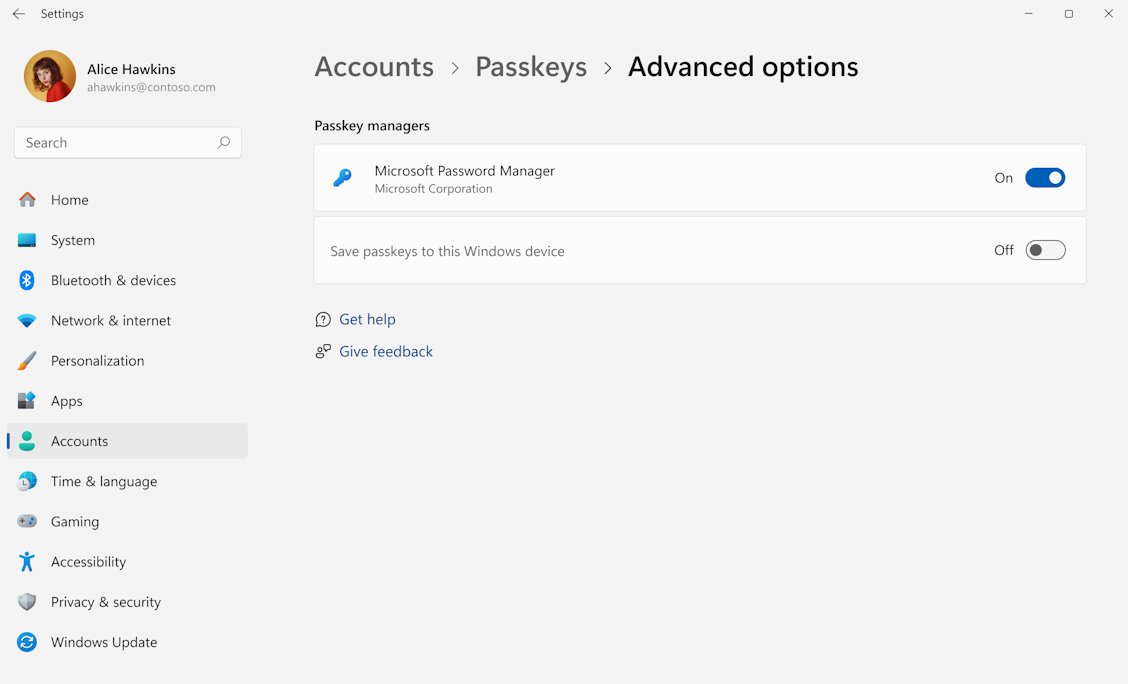
The Advanced options page controls which passkey services Windows offers when a site asks to create or use a passkey.
- Open Settings > Accounts > Passkeys.
- Select Advanced options.
- Turn on Save passkeys to this Windows device to save and use passkeys stored locally with Windows Hello.
- Turn other listed passkey services on or off, including third-party passkey managers you have installed.
- Sign in to Microsoft Edge with a personal profile if you want Microsoft Password Manager passkeys available here.
Your organisation's IT admin can turn these options off. In Edge, the Automatically upgrade to passkeys switch sits under Settings > Passwords and autofill > Microsoft Password Manager > More settings.
What to do if the Passkeys option is missing
Group the problem by what you see, then follow the matching fix.
No **Passkeys** entry under **Accounts**
The PC runs Windows 10 or a Windows 11 build without the passkey management update.
- Open Settings > System > About and confirm the PC runs Windows 11.
- Open Settings > Windows Update and install every available update.
- Restart the PC and check Accounts again.
- Try
ms-settings:savedpasskeysin the Run box to open the page directly.
The page or some options are missing on a work PC
Your organisation manages the device and has limited passkey options.
- Open Settings > Accounts > Access work or school.
- Check whether a work or school account is connected.
- If one is, ask your IT admin which passkey options the organisation allows.
"No passkeys available" when signing in
Passkeys cannot be used without a screen lock such as a PIN, fingerprint or face.
- Open Settings > Accounts.
- Set up Windows Hello with a PIN, fingerprint or face for your account.
- Try the passkey sign-in again.
"This passkey can no longer be used"
The passkey was deleted, or you changed your PIN or biometric method.
- Sign in to the site another way.
- Create a new passkey for the site.
- Remove the old, unusable passkey from the account's security settings.
No QR code for a phone passkey
Bluetooth is off, the devices are out of range, or your organisation blocks cross-device sign-in.
- Turn Bluetooth on, on both the PC and the phone.
- Keep the phone near the PC with both connected to the internet.
- Refresh the sign-in page and try again.
An app cannot use passkeys on Windows 11 24H2
Passkey access was declined for that app at the consent prompt.
- Open Settings > Privacy & security > Passkey access.
- Turn the app's switch on.
- Reopen the app and sign in again.
Windows 11 passkeys FAQ
How do I view passkeys on Windows?
Open Settings > Accounts > Passkeys on Windows 11. The page lists every passkey saved on the PC with Windows Hello. You can also press Win + R and run ms-settings:savedpasskeys to open it directly.
Where do I find my passkeys?
Look where the passkey was saved. Passkeys on the PC appear in Windows Settings, synced ones in Microsoft Password Manager or your other password manager, and phone passkeys in the phone's settings. A Microsoft account dashboard shows where each of its passkeys is saved.
Does Windows 11 Settings show all of my passkeys?
No. Accounts > Passkeys lists only passkeys stored on that PC. Passkeys on a phone, a hardware security key or another password manager stay with that provider, and Microsoft Password Manager passkeys sit under Advanced options.
Can I view a passkey password or copy it as text?
No. A passkey is not a password. It is a private key that stays locked on your device and is only unlocked by Windows Hello, so Windows has no text, password or code to display or copy.
How do I view my Microsoft account passkeys?
Sign in at account.live.com/proofs/manage. Passkeys appear with a passkey icon among your sign-in methods. Expand one to see where it is saved, when it was last used, and options to rename or remove it.
How do I delete a passkey in Windows 11?
Open Settings > Accounts > Passkeys, select the menu button next to the passkey name and choose Delete passkey. Then remove the same passkey from the website's account settings, since deleting it on the PC does not update the site.
Why is the Passkeys option missing in Windows 11?
The PC may run an older build, miss recent updates, or be managed by work or school. Native passkey management arrived in Windows 11, version 22H2 with KB5030310. Install updates, restart, and check Accounts > Access work or school.
How do I view saved passkeys in Microsoft Edge?
In Edge, open Settings > Passwords and autofill > Microsoft Password Manager while signed in with a personal profile. Passkeys saved there sync to your other devices, and Windows can reach them from Accounts > Passkeys > Advanced options.
How do passkeys work?
Your device creates a key pair for each site. The private key stays on the device and the public key goes to the site. At sign-in, Windows Hello unlocks the private key, which signs a challenge the site checks with the public key.
How do I use passkeys on Windows?
Choose to sign in with a passkey on a site that supports them, then confirm with your Windows Hello PIN, fingerprint or face. To create one, accept the site's passkey prompt and pick Windows device / Windows Hello or another save location.
How do I give a web browser access to passkeys?
On Windows 11, version 24H2 and later, open Settings > Privacy & security > Passkey access and turn on the switch for the browser. If you declined the consent prompt earlier, the browser cannot use passkeys until you allow it here.
The bottom line on Windows 11 passkeys
Use Settings > Accounts > Passkeys to see and delete passkeys stored on the PC, and the account dashboard or your password manager for everything else. Windows lists only device-bound passkeys, so a passkey saved to a phone, security key or synced manager is managed by that provider. Before removing any passkey, set up a replacement sign-in so you are never locked out.