To end up with a Windows 11 26H2 local account, install 26H2, finish setup with a Microsoft account, then select Sign in with a local account instead under Settings > Accounts > Your info.
Microsoft requires internet and a Microsoft account during setup on Home and on Pro for personal use, so this guide covers the supported switch, the answer-file route for organizations, and where the setup-screen workarounds stand.
Switch to a local account right after setup
This works on every 26H2 edition, on a clean install, an upgrade or a new PC. Microsoft documents it in its own account help, and the local account keeps your apps and settings on the device.
- Finish Windows setup and sign in with a Microsoft account.
- Open Settings > Accounts > Your info.
- Select Sign in with a local account instead; the link appears only when you use a Microsoft account.
- Type a username, password and password hint; the username must differ from any other account on the PC.
- Select Next, then Sign out and finish.
- Sign back in with the new local account.
Microsoft recommends a Microsoft account for sync and some features, and some Windows features need one. You can switch back at any time with Sign in with a Microsoft account instead on the same page.
Which local account route fits your edition
The requirement differs by edition and by who owns the PC. Microsoft's Windows 11 specifications state that Home and Pro for personal use need internet and a Microsoft account during initial device setup.
| Your situation | Supported route to a local account | Notes |
|---|---|---|
| Windows 11 Home, clean install or new PC | Set up with a Microsoft account, then switch in Settings | Home also needs a network connection to finish setup |
| Windows 11 Pro for personal use | Set up with a Microsoft account, then switch in Settings | Same rule as Home for the first sign-in |
| Pro, Enterprise or Education deployed by an organization | Answer file with a LocalAccounts entry | Built with Windows System Image Manager |
| Extra person on the PC who needs no Microsoft account | Add a user without a Microsoft account | Works on any edition after setup |
| PC upgrading from 24H2 or 25H2 | Nothing to do; existing accounts stay as they are | The enablement package does not rerun setup |
The edition differences between 26H2 Home and Pro go beyond sign-in.
What you need before a clean install
| Item | Why |
|---|---|
| Windows 11 26H2 USB drive or ISO | Microsoft's download page lists version 26H2 as the current release |
| Internet connection during setup | Home requires a network to complete setup, and Home and Pro for personal use need a Microsoft account |
| A Microsoft account email and password | Used once for setup; you can switch away from it afterwards |
| Backup of your files | A clean install replaces what is on the drive you install to |
| Product key or digital license | Only if the PC was never activated on Windows 11 |
Make the installer with the guide to create a bootable 26H2 USB, or grab the official 26H2 ISO. If you are unsure about activation, check whether 26H2 needs a new product key before you wipe the drive.
Set up Windows 11 Home without a Microsoft account
Home cannot finish setup offline or without a Microsoft account. The supported path is to use one for the first sign-in, then convert the account.
- Boot from the 26H2 USB drive and complete Windows Setup.
- In setup, pick your region and keyboard, then connect to a network.
- Accept the license terms and let setup download any critical updates.
- Sign in with a Microsoft account and finish the privacy and Windows Hello screens.
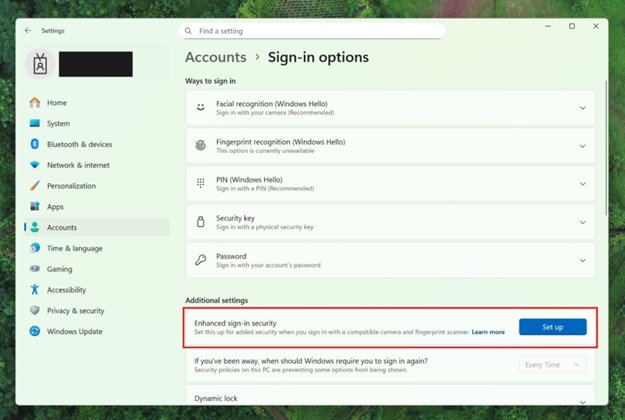
- On the desktop, open Settings > Accounts > Your info.
- Select Sign in with a local account instead and create the local username and password.
- Select Sign out and finish, then sign in with the local account.
Setup can restart during the first-run screens when it downloads a critical update or installs an updated version of Windows. That is expected.
Set up Windows 11 Pro without a Microsoft account
Microsoft's account rule covers Pro for personal use. Organizations that deploy Pro, Enterprise or Education can create the local account in an answer file instead, which is Microsoft's documented deployment method.
| Answer file setting | Configuration pass | What it does |
|---|---|---|
| Microsoft-Windows-Shell-Setup | UserAccounts | LocalAccounts | LocalAccount | oobeSystem (or auditSystem) | Creates a named local account with a password, display name and group such as Administrators |
| Microsoft-Windows-Shell-Setup | OOBE | HideOnlineAccountScreens | oobeSystem | Set to true, hides the sign-in page during setup; Microsoft describes it as primarily for enterprises |
| Answer file location | Setup | Windows Setup searches set locations for an answer file, or run setup.exe with the /unattend: option |
Build the file in Windows System Image Manager from the Windows Assessment and Deployment Kit. Test it on one PC before rolling it out through WSUS or Intune.
Set up new PC without a Microsoft account
A new PC runs the same first-run screens as a clean install. On Home, and on Pro for personal use, sign in with a Microsoft account first, then convert it.
- Turn on the PC and choose your language, region and keyboard.
- Connect to Wi-Fi or Ethernet when setup asks.
- Sign in with, or create, a Microsoft account.
- Finish the remaining screens, including any maker registration pages.
- Open Settings > Accounts > Your info and select Sign in with a local account instead.
- Create the local account, select Sign out and finish, and sign back in.
Check the version under Settings > System > About, then confirm 26H2 is installed. If the PC shipped with 24H2 or 25H2, it gets 26H2 later through Windows Update.
Add a second local account without a Microsoft account
This creates a separate local user on a PC that is already set up. Make it an administrator if it will replace your Microsoft account sign-in.
- Open Settings > Accounts > Other users.
- Next to Add other user, select Add account.
- Select I don't have this person's sign-in information.
- Select Add a user without a Microsoft account and enter a name and password.
- To give it admin rights, select the account, then Change account type next to Account options.
- Choose Administrator and select OK.
Microsoft advises keeping the number of administrator accounts low and using standard accounts day to day.
Set up Windows 11 without a Microsoft account using Learn more
Setup-screen tricks, such as the Learn more link route, the bypassnro command and the ms-cxh:localonly command, are not Microsoft-supported ways to create an account. Microsoft has been removing them in Windows Insider builds.
| Workaround | What Microsoft announced | Status for 26H2 |
|---|---|---|
| bypassnro.cmd script | Removed from Insider build 26200.5516 in March 2025 so that all users exit setup with internet and a Microsoft account | Not a supported route |
| Learn more link, ms-cxh:localonly and other local-only commands | Insider build 26220.6772 in October 2025 removed known mechanisms for creating a local account in setup, because they skip critical setup screens | Not a supported route; Microsoft says users must complete setup with internet and a Microsoft account |
Microsoft has not published a 26H2-specific statement on these commands. A PC that skips setup screens can end up not fully configured, which is the reason Microsoft gave for removing them.
Set up Windows 11 with local account using Rufus
Rufus is a free third-party tool that writes an ISO to a bootable USB drive. Its image customization options are not a Microsoft-documented way to skip the account requirement.
| Use Rufus for | Instead use |
|---|---|
| Writing the official 26H2 ISO to a USB drive | Fine; download the ISO from Microsoft first |
| Skipping the Microsoft account screen on Home or personal Pro | The supported switch in Settings after setup |
| Company-wide local accounts | A Microsoft answer file built in Windows System Image Manager |
The ISO can be written with Rufus.
How to check you are signed in with a local account
- Open Settings > Accounts > Your info.
- Check that no Microsoft account email address appears under your name.
- Confirm the page now offers Sign in with a Microsoft account instead, a link that appears only for local accounts.
- Sign out and sign back in with the local username and password to confirm they work.
- Open Settings > Accounts > Other users to see any extra local users you added.
Fix local account problems on 26H2
Sign in with a local account instead is missing
The link appears only when you are signed in with a Microsoft account; a work or school sign-in does not show it.
- Open Settings > Accounts > Your info and check which account type is listed.
- If it already says local account, no switch is needed.
- If a work or school account manages the PC, ask the organization's IT team.
Setup will not continue without a network on Home
Connecting to a network is required to complete setup on Home.
- Connect by Ethernet or Wi-Fi when setup asks.
- Finish setup with a Microsoft account.
- Switch to a local account in Settings afterwards.
The local username is rejected
The username must be different from any other account on the device.
- Pick a name that no other user on the PC uses.
- Check Settings > Accounts > Other users for existing names.
Setup keeps restarting or repeats screens
Setup restarts after a critical update or language change, and repeats pages if the network drops during a restart.
- Keep the network connected through setup.
- Let the restart finish and complete any repeated pages.
- If setup fails outright, check the 26H2 known issues.
Frequently Asked Questions
Can I use a local account on Windows 11 26H2?
Yes. After setup, open Settings > Accounts > Your info and select Sign in with a local account instead. Home and Pro for personal use still need a Microsoft account and internet for the first setup.
Can I install Windows 11 26H2 Home without a Microsoft account?
Not through a supported route. Microsoft states that Windows 11 Home requires an internet connection and a Microsoft account to complete device setup. You can switch to a local account once you reach the desktop.
Can I set up Windows 11 26H2 Pro without a Microsoft account?
Pro for personal use has the same requirement as Home. Organizations deploying Pro, Enterprise or Education can create local accounts during setup with an answer file that uses the LocalAccounts setting.
Does the bypassnro command work on Windows 11 26H2?
Microsoft removed the bypassnro.cmd script from Insider builds in March 2025 and later removed other local-only setup commands. It is not a supported method, and Microsoft has not published a 26H2 statement restoring it.
Does upgrading to 26H2 change my local account?
No. PCs on 24H2 or 25H2 get 26H2 through a small enablement package with one restart. Setup does not run again, so existing local and Microsoft accounts stay as they are.
What do I lose with a local account?
Settings and files do not sync across devices, and some features need a Microsoft account, such as the Xbox app and several AI features in Paint and Photos. A local account is tied to one PC and signs in without internet.
Can I switch back to a Microsoft account later?
Yes. Open Settings > Accounts > Your info and select Sign in with a Microsoft account instead. The link appears only when you use a local account.
Bottom line
Install 26H2 with a Microsoft account, then switch to a local account in Settings; organizations should use an answer file. Microsoft requires a Microsoft account during setup on Home and personal Pro and has been removing setup-screen workarounds, while the Settings switch is documented and works on every edition.