To change your PIN on Windows 11, open Settings > Accounts > Sign-in options, select PIN (Windows Hello) > Change PIN, enter your current PIN and then the new one.
This guide also covers resetting a forgotten PIN from Settings or the lock screen, PIN complexity rules on work PCs, removing a PIN, and fixes when Windows refuses the change.
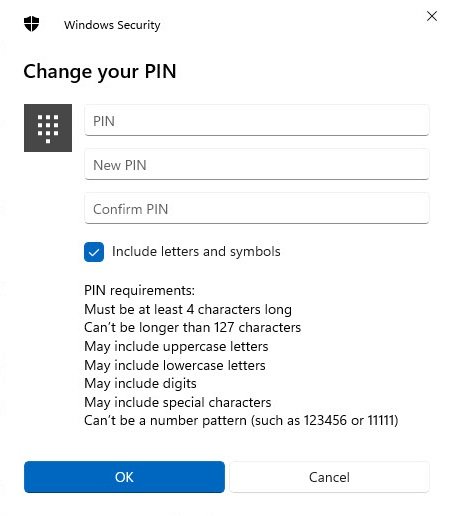
How to Change Your PIN on Windows 11
Use this route when you are signed in and still remember your current PIN. Each user on the PC changes their own PIN from their own account.
- Open Settings and select Accounts > Sign-in options. The shortcut URI
ms-settings:signinoptionsopens the same page. - Under Ways to sign in, select PIN (Windows Hello) to expand it.
- Select Change PIN.
- Enter your current PIN in the first box. Windows will not accept a new PIN without the old one.
- Type the new PIN, type it again in the confirmation box, and confirm.
- Use the new PIN the next time you sign in or unlock the PC.
The same path works on Windows 10: Settings > Accounts > Sign-in options > PIN (Windows Hello). If you do not know the current PIN, skip to the reset routes below.
Which route fits your situation?
| Your situation | Use this | Why |
|---|---|---|
| Signed in, you know the current PIN | Change PIN in Sign-in options | Fastest; asks for the old PIN once |
| Signed in with your password, PIN forgotten | I forgot my PIN in Sign-in options | Verifies your account, then lets you create a new PIN |
| At the lock screen, Microsoft account, PIN forgotten | I forgot my PIN below the PIN box | Resets without signing in first |
| At the lock screen, local account, PIN forgotten | Sign in with your password, then reset in Settings | The lock screen link is for Microsoft accounts only |
| Forgot both PIN and password | Reset the password first, then the PIN | The PIN reset needs you to prove who you are |
| Work or school PC | I forgot my PIN, then your organisation's sign-in and verification | Windows Hello for Business policy controls the reset |
Understanding Windows 11 PIN and Its Benefits
A Windows Hello PIN is not a short password. It unlocks a credential that lives on this one device, which is why Microsoft treats it as safer than typing an online password.
| Point | Windows Hello PIN | Microsoft account password |
|---|---|---|
| Where it works | Only on the PC where you set it | Any device and website that accepts the account |
| Where it travels | Never leaves the device | Sent to Microsoft's servers at sign-in |
| What a thief needs | The physical device and the PIN | Only the password |
| Guessing protection | Built-in brute force protection | Depends on the service |
| Recovery | Backed up for recovery with your Microsoft account | Reset online from any browser |
| Changing one | Does not change the other | Does not change the PIN |
Because the two are separate, changing your PIN never touches your Microsoft account password, and resetting the password never changes the PIN.
Prerequisites for Changing Your PIN
| What you need | When it matters | If you do not have it |
|---|---|---|
| A PIN already set up | Change PIN only appears once a PIN exists | Select PIN (Windows Hello) > Set up to create one |
| Your current PIN | Change PIN route | Use I forgot my PIN instead |
| A Microsoft account | I forgot my PIN on the lock screen | Local accounts sign in with the password first, then reset in Settings |
| Your account password or verification method | Every forgotten-PIN reset | Reset the password first |
| Internet or corporate network access | Resets that verify your account online; hybrid-joined work PCs need to reach a domain controller | Connect, then retry the reset |
| Your own user account | Always | Each person signs in to their own account and changes their own PIN |
Setting up a PIN for someone new starts with their own account: add a user account in Windows 11 first, then have that person sign in and create their PIN.
Reset a forgotten PIN from Settings
Use this when you signed in with your password, fingerprint or face but cannot remember the PIN.
- Open Settings > Accounts > Sign-in options.
- Select PIN (Windows Hello).
- Select I forgot my PIN.
- Follow the prompts to verify your account, such as your Microsoft account password or a security code.
- Enter the new PIN twice and confirm.
On work and school PCs, a standard reset deletes the old PIN and the keys tied to it, then creates new ones. Some work apps may ask you to sign in again afterwards.
Using Sign-in Options from the Lock Screen
Use this when you are locked out and the PIN no longer works. The I forgot my PIN link sits below the PIN box on the sign-in screen.
- On the sign-in screen, pick your account if several users are listed.
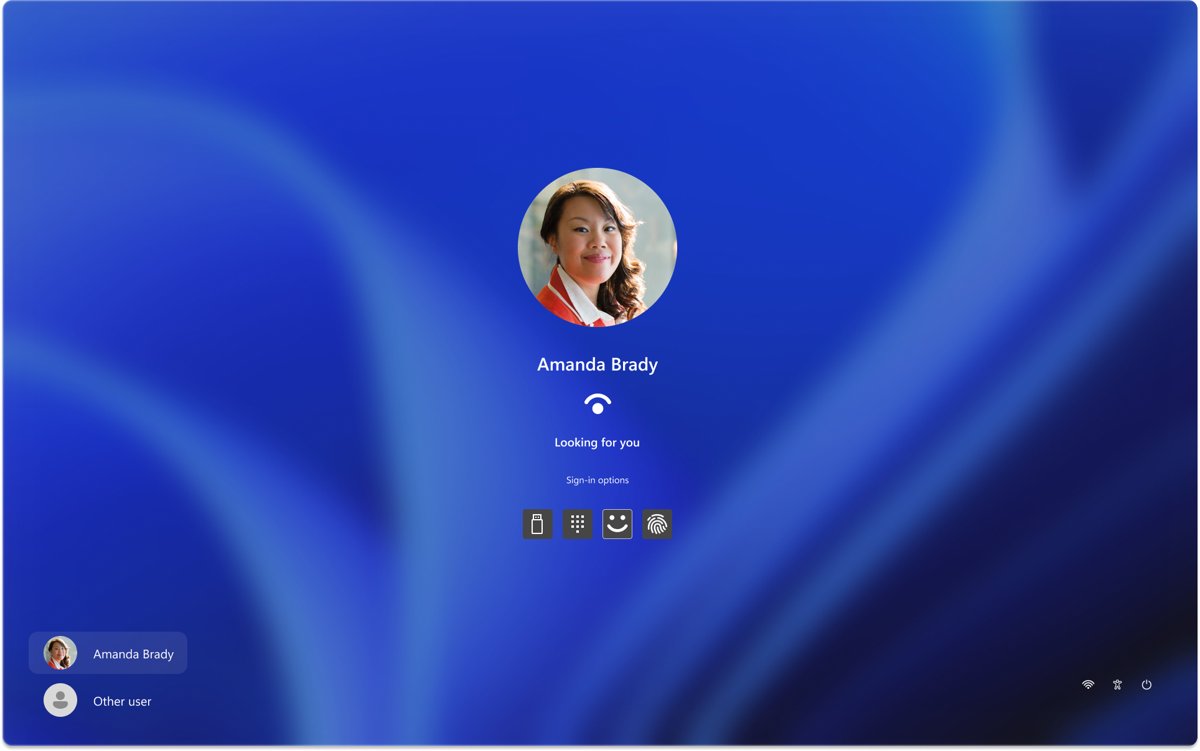
- If the PIN box is not showing, select Sign-in options and then the PIN pad icon.
- Select I forgot my PIN below the PIN box.
- Verify your identity with the options shown. A work PC may list a password, security key or another method set by your organisation.
- Create the new PIN when prompted and confirm it.
- Sign in with the new PIN.
If I forgot my PIN is missing, select Sign-in options, choose Enter your password, sign in, and reset the PIN from Settings instead.
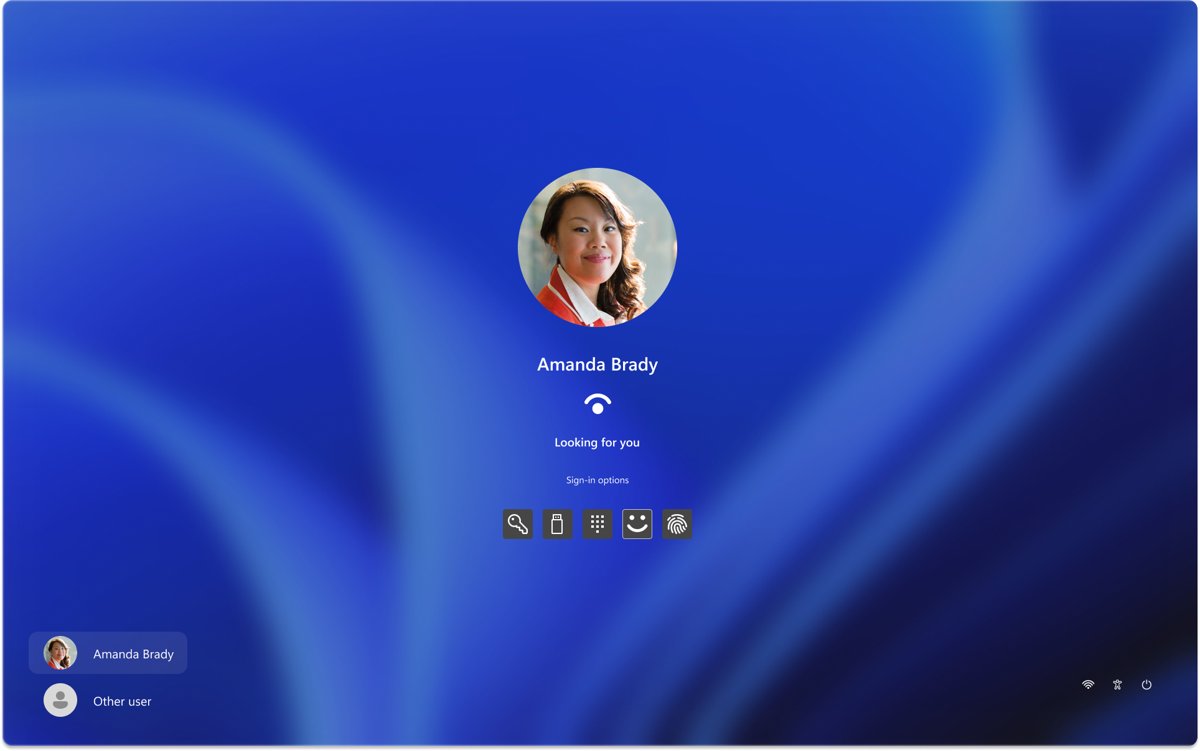
Reset your PIN when you also forgot your password
The PIN reset needs your account verified, so fix the password first.
- Microsoft account: on the sign-in screen, select I forgot my password and follow the prompts.
- Or select Sign-in options > Web sign-in, sign in, then select Forgot my password.
- Or reset the Microsoft account password from any browser on another device.
- Local account: select the password entry button, then OK > Reset password, and answer your security questions. Use Use a password reset disk if you made one.
- Sign in with the new password.
- Go to Settings > Accounts > Sign-in options > PIN (Windows Hello) > I forgot my PIN and create a new PIN.
How to check the new PIN works
- Sign out or lock the PC.
- On the sign-in screen, make sure the PIN box is selected rather than the password box.
- Enter the new PIN. Windows unlocks without asking for anything else.
- Enter the old PIN once on purpose if you want proof it was replaced. It should be rejected.
- Back in Settings > Accounts > Sign-in options, confirm PIN (Windows Hello) still shows Change PIN and I forgot my PIN.
Check PIN reset support on a work PC with dsregcmd
On a PC joined to Microsoft Entra ID, one command shows whether a PIN exists and which kind of reset your organisation allows. Run it in Command Prompt or PowerShell while signed in.
dsregcmd /statusPrints device and user registration state. In the User State block, NgcSet : YES means a Windows Hello PIN is set. CanReset shows DestructiveOnly (reset deletes and recreates the PIN and its keys) or DestructiveAndNonDestructive (your organisation has turned on PIN recovery, so keys survive a reset).
You should see: A User State block that lists NgcSet : YES and a CanReset value.
How to remove your PIN
Removing the PIN means you sign in with your password again. Turn off Windows Hello-only sign-in first: while it is on, Windows offers no password at sign-in, so the PIN or another Windows Hello method is your only way in.
- Open Settings > Accounts > Sign-in options.
- Under Additional settings, turn off For improved security, only allow Windows Hello sign-in for Microsoft accounts on this device. On Windows 10 it is called Require Windows Hello sign-in for Microsoft accounts.
- Sign out and back in once with your password so Windows offers the password option again.
- Return to Sign-in options and select PIN (Windows Hello).
- Select Remove if it is offered, then confirm with your account password.
Work and school PCs often require a PIN through policy. If the option is not available there, the setting is managed by your organisation.
Best Practices for Creating a Secure PIN
Home PCs accept a numeric PIN. Work and school PCs can enforce stricter rules through the PIN Complexity policy, so a PIN that fails there usually breaks one of these rules.
| Rule | What it controls | Default or range |
|---|---|---|
| Minimum PIN length | Fewest characters allowed | At least 6 when the policy is not configured; can be set as low as 4 |
| Maximum PIN length | Most characters allowed | Up to 127 |
| Require digits, lowercase, uppercase, special characters | Each can be required, allowed or blocked | Not configured means allowed but not required |
| History | How many old PINs you cannot reuse | 0 to 50; default 0. History is wiped by a PIN reset |
| Expiration | Days before Windows makes you change the PIN | 1 to 730 days; 0 (default) means never |
For your own PIN, pick one that is not your birthday, a repeated digit or a sequence, and never reuse your bank card PIN. Longer is harder to guess, and letters or symbols add more if your PC accepts them.
Administrators set these rules at Computer Configuration > Administrative Templates > System > PIN Complexity in Group Policy, or through Intune.
Security Tips When Managing Your PIN
| Tip | Why it matters |
|---|---|
| Keep the PIN different from your Microsoft account password | A PIN only works on this device; a shared value would expose your online account |
| Do not share the PIN with other users of the PC | Each person has their own account and should set their own PIN |
| Leave the password as a fallback until the PIN is proven | Turning on Windows Hello-only sign-in removes the password option at sign-in |
| Turn on Dynamic lock in Additional settings | Windows locks within a minute after your paired Bluetooth phone goes out of range |
| Check for Windows updates if you are asked to create a PIN again | Security updates and system changes can require a new PIN |
| Change the PIN if someone watched you type it | The PIN plus your device is all anyone needs to sign in |
Additional Methods to Access Your Account Securely
The PIN is the fallback for every Windows Hello method, so keep it set even if you mostly use your face or finger.
| Method | Where to set it up | What it needs |
|---|---|---|
| Facial recognition (Windows Hello) | Sign-in options > Facial recognition (Windows Hello) > Set up | A Windows Hello-compatible infrared camera, built in or USB |
| Fingerprint recognition (Windows Hello) | Sign-in options > Fingerprint recognition (Windows Hello) > Set up | A fingerprint reader, built in or USB |
| Security key | Sign-in options > Ways to sign in | A physical FIDO2 security key |
| Password | Your Microsoft account or local account password | Nothing extra; hidden if Windows Hello-only sign-in is on |
| Web sign-in | Sign-in options on the lock screen | A Microsoft account; also used to reset a forgotten password |
Troubleshooting Common Issues in Changing PIN
Cannot change PIN due to error messages
PIN creation failed partway, often after an update, or the new PIN breaks a complexity rule on a work PC.
- Sign out and sign back in.
- Try Change PIN again.
- On a work PC, check your organisation's PIN rules, such as minimum length or a required character, and meet them.
- If it still fails, select I forgot my PIN to create a fresh PIN.
PIN reset options are not visible
I forgot my PIN on the lock screen is only offered to Microsoft accounts, not local accounts.
- On the sign-in screen, select Sign-in options > Enter your password.
- Sign in with your password.
- Open Settings > Accounts > Sign-in options > PIN (Windows Hello).
- Select I forgot my PIN and create a new one.
Forgot the PIN but can log in via password
The PIN and password are separate, so the password still works.
- Sign in with the password.
- Open Settings > Accounts > Sign-in options > PIN (Windows Hello).
- Select I forgot my PIN, verify your account and set the new PIN.
Why is Windows 11 making me change my PIN?
A work or school PIN expiration policy (1 to 730 days), or a security update that requires the PIN to be created again.
- Follow the prompt and create a new PIN.
- On a work PC, choose a PIN you have not used before, because a history policy can block up to 50 old PINs.
- On a home PC, run Windows Update afterwards and install pending updates.
- Ask your IT team about the expiration period if the prompt keeps returning on a managed PC.
"We can't open that page right now" during a work PIN reset
The reset uses web sign-in, which blocks domains your organisation has not allowed.
- Note the error text and the time.
- Report it to your IT team. They fix it with the Configure Web Sign In Allowed Urls policy.
- Sign in with your password meanwhile and reset from Settings, if your organisation allows it.
Hardware compatibility issues
On managed PCs a policy can require a working TPM chip before Windows Hello will create a PIN.
- Try creating the PIN again after a restart.
- Install pending updates from Windows Update.
- If the PIN is still refused on a work PC, ask IT whether the Use a hardware security device policy applies to your device.
FAQs Related to Changing PIN on Windows 11
How do I change my PIN on a Windows 11 laptop?
Open Settings > Accounts > Sign-in options, select PIN (Windows Hello) > Change PIN, enter your current PIN and then the new one twice. Laptops and desktops use the same steps. The change applies only to that laptop, because each PIN belongs to one device.
How do I change my PIN in Windows 11 if I forgot it?
Select I forgot my PIN, either below the PIN box on the sign-in screen or under PIN (Windows Hello) in Settings > Accounts > Sign-in options. Verify your account, then create a new PIN. Local accounts must sign in with the password first and reset from Settings.
How do I change my PIN from the Windows 11 lock screen or login screen?
You can reset it there but not change it. Select I forgot my PIN below the PIN box, verify your Microsoft account and set a new PIN. If the link is missing, choose Sign-in options > Enter your password, sign in, and change the PIN from Settings.
Why can't I change my PIN on Windows 11?
Usually the old PIN is wrong, the new one breaks a work complexity rule, or PIN creation hit an error. Sign out and back in, then retry Change PIN. If it still fails, select I forgot my PIN to replace the PIN outright.
Why is Windows 11 making me change my PIN?
On a work or school PC, a PIN expiration policy can force a change after 1 to 730 days. On any PC, a security update or system change can require you to create the PIN again. Follow the prompt, then install pending Windows updates.
How do I change my PIN in Windows 10?
Windows 10 uses the same path: Settings > Accounts > Sign-in options > PIN (Windows Hello) > Change PIN. Enter the old PIN, then the new one twice. The I forgot my PIN reset works the same way as on Windows 11.
How do I change my Microsoft PIN in Windows 11?
The Windows PIN is set per device in Settings > Accounts > Sign-in options > PIN (Windows Hello). It is separate from your Microsoft account password, so changing one never changes the other. Reset the account password online if that is what you need.
Conclusion
Change a known PIN with Change PIN in Sign-in options, and use I forgot my PIN for everything else. Both live under Settings > Accounts > Sign-in options > PIN (Windows Hello), the lock screen offers the same reset for Microsoft accounts, and your password stays a separate fallback throughout.







How to set up and use Windows Hello in Windows 11 to sign in - Techdows
[…] change your Windows 11 PIN later, select PIN (Windows Hello) > Change PIN and enter the old PIN […]