To install Windows Hello face on Windows 11, open Settings > Accounts > Sign-in options, select Facial recognition (Windows Hello) and then Set up, which works only when the PC has an infrared (IR) camera and its driver.
This guide covers the hardware check, the PIN, the camera driver, external cameras, removal, and fixes for the errors that block face sign-in.
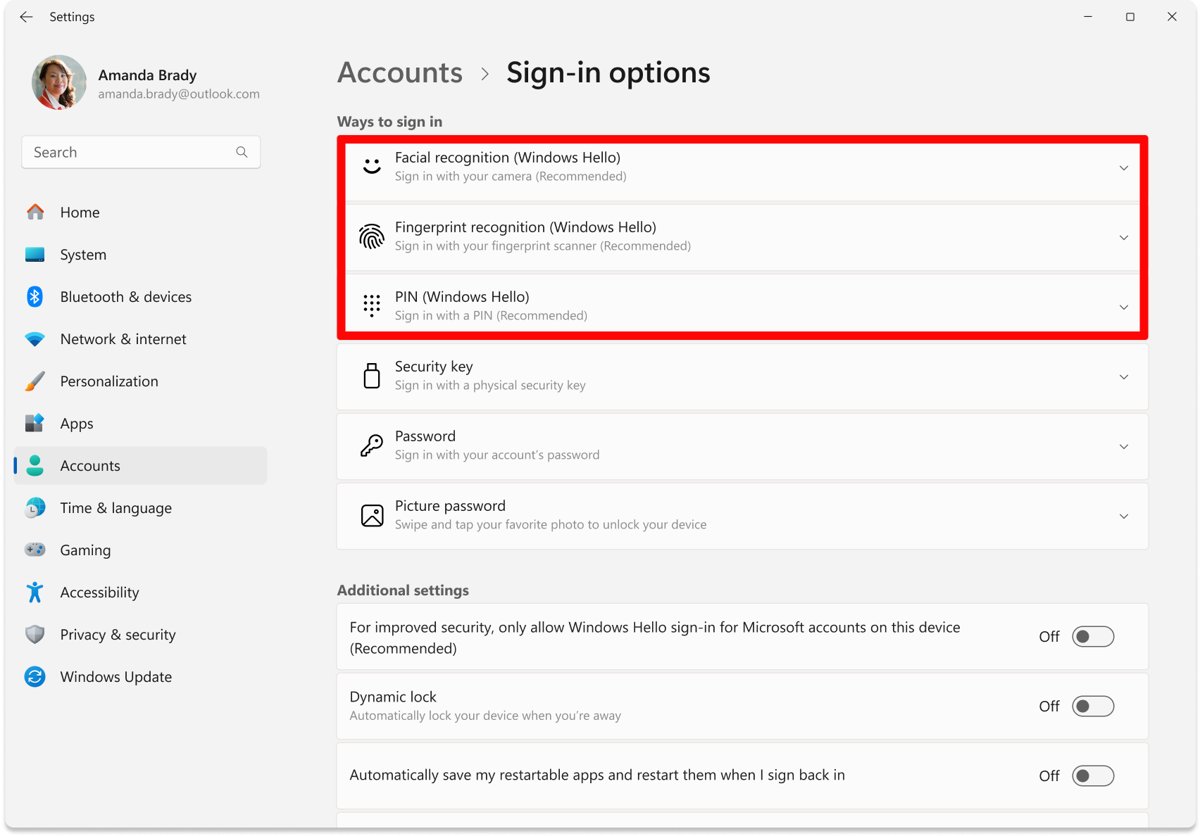
Set up Windows Hello face
Face sign-in is part of Windows 11 itself, so there is nothing separate to download. Setup scans your face and stores an encrypted representation on the PC, never a photo.
- Select Start > Settings > Accounts > Sign-in options.
- Under Ways to sign in, select Facial recognition (Windows Hello).
- Select Set up and follow the on-screen instructions.
- Look straight at the camera, within about 15 degrees of facing it, until the scan finishes.
- Select Improve recognition if you wear glasses, and scan again with them on or off.
- Create a PIN when Windows asks, so you have a fallback when the camera cannot see you.
- Lock the PC or sign out, then look at the camera at the sign-in screen to sign in.
If Facial recognition (Windows Hello) says the option is unavailable or shows the camera error, the PC has no Windows Hello camera or its driver is missing. The sections below fix both.
What you need for Windows Hello face on Windows 11
| Requirement | Detail | Where to check |
|---|---|---|
| Near-infrared (IR) camera | Windows Hello face needs a camera configured for near-infrared imaging. A normal color webcam cannot be used for face sign-in. | Device Manager > Cameras, or the laptop's spec sheet |
| Camera driver | The IR camera needs its driver from Windows Update or the PC maker. | Settings > Windows Update > Advanced options > Optional updates |
| Windows Hello PIN | Windows asks for a PIN during setup so you can still sign in when the camera fails. | Settings > Accounts > Sign-in options > PIN (Windows Hello) |
| Policy allows it | On a work or school PC, an administrator can block biometric sign-in. | Ask your IT department if the option is missing |
| External camera (optional) | A USB Windows Hello camera adds face sign-in to a PC without one. | Sign-in options > Additional settings |
Windows 11 runs fine without any of this; a PC without biometric hardware can still use Windows Hello with a PIN or a security key.
Check whether your PC supports Windows Hello face
Settings tells you quickly whether Windows sees a compatible camera. Device Manager confirms what hardware is installed.
- Open Settings > Accounts > Sign-in options and select Facial recognition (Windows Hello).
- Read the message: a Set up button means the camera is ready, while We couldn't find a camera compatible with Windows Hello Face means it is not.
- Right-click Start and select Device Manager.
- Expand Cameras and look for an IR or infrared camera entry next to the normal webcam.
- Check the PC maker's specifications for "IR camera" or "Windows Hello face" if no IR entry appears.
- On a Surface, note that the Surface Laptop 13-inch (1st Edition) and every Surface Laptop Go model have no face recognition and use fingerprint instead.
IR cameras used for Windows Hello do not appear on the Bluetooth & devices > Cameras page in Settings, so an empty entry there proves nothing.
Set up a Windows Hello PIN first
The PIN is the fallback for face sign-in. If face recognition fails several times, Windows makes face sign-in unavailable until you sign in with the PIN, and a restart does not bring it back.
- Open Settings > Accounts > Sign-in options.
- Select PIN (Windows Hello) and then Set up.
- Follow the instructions to verify your account and create the PIN.
- To change it later, select PIN (Windows Hello) > Change PIN and enter the old PIN first.
The PIN works only on that PC and is protected by the TPM chip, so it is safer than a local account password even though it is shorter.
Install or update the Windows Hello camera driver
Most Windows Hello driver problems are fixed by Windows Update. Camera drivers often arrive as optional updates, which Windows does not install on its own. This is also the first thing to check after a fresh Windows 11 installation.
- Select Start > Settings > Windows Update > Advanced options.
- Turn on Receive updates for other Microsoft products.
- Under Additional options, select Optional updates.
- Tick any camera, IR or biometric driver listed and select Download and install.
- Restart the PC, even if no update asks for it.
- If nothing is listed, right-click Start > Device Manager, expand Cameras, right-click the IR camera and select Update driver > Search automatically for updated driver software.
- If Windows still finds nothing, download the camera driver only from the PC or camera maker's own support site.
On a Surface, the Surface app shows driver and firmware status under Help & support and sends you to Windows Update when updates are waiting.
Use an external Windows Hello camera on Windows 11
A USB camera labelled Windows Hello compatible adds face sign-in to a desktop or older laptop. When a PC has both a built-in and an external Windows Hello camera, Windows uses the external one for face sign-in.
- Connect the camera and follow any setup instructions from its maker.
- Open Settings > Accounts > Sign-in options once the driver has installed.
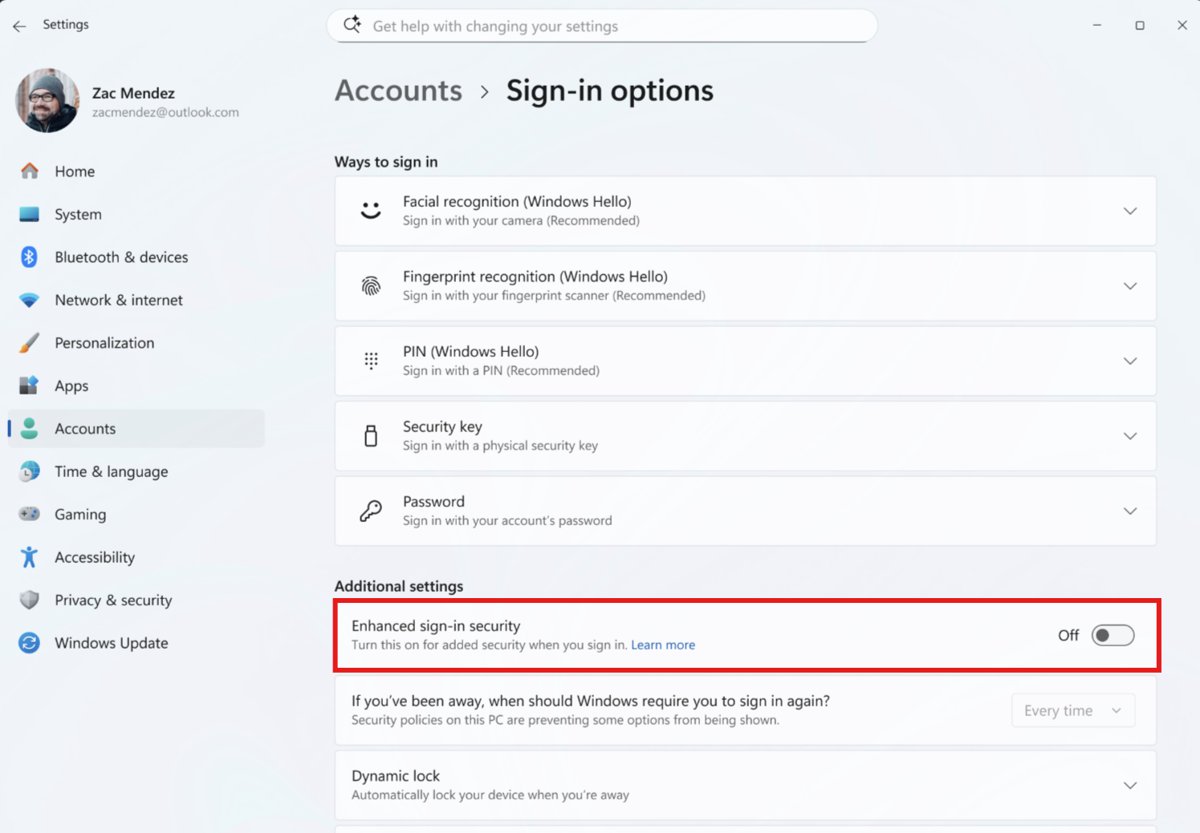
- On Windows 11 version 24H2 or newer, scroll to Additional settings and find the Enhanced sign-in security toggle.
- Turn Enhanced sign-in security off to allow an external camera, because Enhanced Sign-in Security does not support external camera modules.
- On Windows 11 version 23H2, turn on Sign in with an external camera or fingerprint reader instead.
- Go back to Ways to sign in, select Facial recognition (Windows Hello) and select Set up.
Turning Enhanced Sign-in Security off removes existing ESS enrollments and the passkeys tied to them, so set those up again afterwards. If the toggle is missing, your organization may have blocked external Windows Hello devices.
Use Windows Hello face with apps and websites
Once face sign-in is set up, apps and websites that support Windows Hello or passkeys ask for your face instead of a password. Your face data is never sent to the app or site; Windows only confirms the match.
- Sign in to your Microsoft account security page at
account.live.com/proofs/manage. - Choose Add a new way to sign in or verify.
- Select Face and follow the prompt on your PC.
- When asked where to save the passkey, choose Windows device / Windows Hello.
- Look at the camera to approve the passkey.
- On any other website that offers a passkey, accept its prompt and choose Windows Hello the same way.
- Review saved passkeys under Settings > Accounts > Passkeys.
Check camera privacy permissions for Windows Hello face
Camera privacy settings control apps, not Windows sign-in. Windows Hello still signs you in when Camera access is off, so these settings rarely block face sign-in itself.
- Select Start > Settings > Privacy & security > Camera.
- Turn Camera access on if apps that use Windows Hello prompts need the camera.
- Turn Let apps access your camera on and allow the specific Store apps that need it.
- Turn Let desktop apps access your camera on for browsers and Microsoft Teams.
- Open Settings > Bluetooth & devices > Cameras and select Enable under Disabled cameras if the webcam was switched off (admin rights needed).
Remove and reinstall Windows Hello face
Removing and scanning again keeps only the newest scan. Use it after a big change in appearance, or when Improve recognition has not helped.
- Open Settings > Accounts > Sign-in options.
- Select Facial recognition (Windows Hello) and then Remove.
- To reinstall the camera driver as well, right-click Start > Device Manager, expand Cameras, right-click the IR camera and select Uninstall device > Uninstall.
- Restart the PC so Windows reinstalls the camera driver.
- Return to Facial recognition (Windows Hello) and select Set up to scan your face again.
Install Windows Hello Face from Optional Features
Older Windows 10 guides mention a Windows Hello Face optional feature. Microsoft's current Windows 11 setup instructions do not use Optional features, and the current Microsoft Learn list of available features on demand has no Windows Hello Face entry. What makes face sign-in available is the camera and its driver.
| What you see | What it means | What to do |
|---|---|---|
| Set up button under Facial recognition (Windows Hello) | Face sign-in is installed and ready | Select Set up and scan your face |
| We couldn't find a camera compatible with Windows Hello Face | No IR camera, or no driver for it | Install the camera driver from Optional updates, or add an external Windows Hello camera |
| No IR camera in Device Manager and none in the specs | The PC has no Windows Hello camera | Use a PIN or fingerprint, or buy a Windows Hello compatible USB camera |
| A site offering a "Windows Hello Face installer download" | Not a Microsoft source | Skip it; get drivers only through Windows Update or the PC maker |
How to check Windows Hello face is working
- Open Settings > Accounts > Sign-in options and select Facial recognition (Windows Hello).
- Confirm it now shows Improve recognition and Remove instead of Set up.
- Lock the PC or sign out.
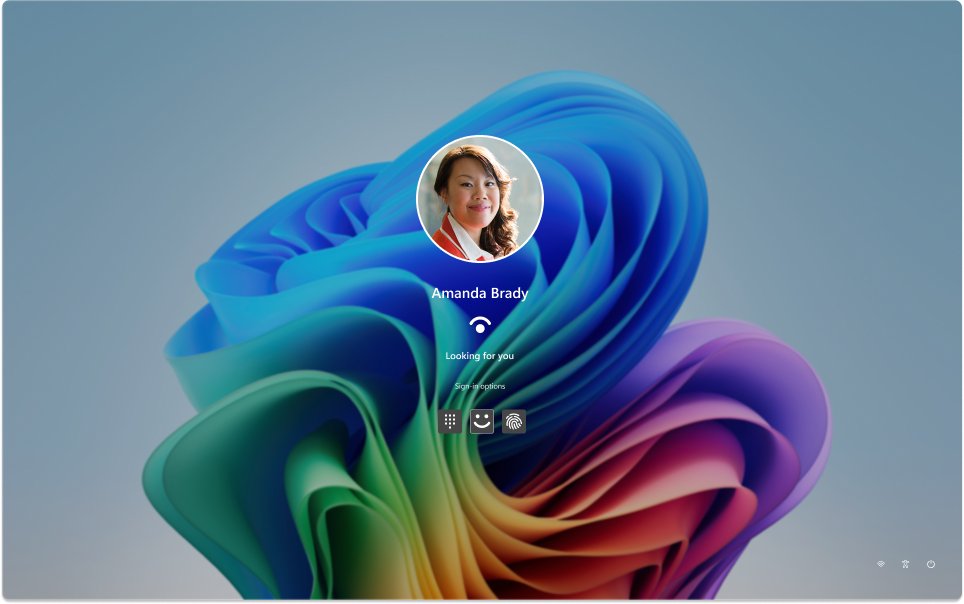
- Look at the camera; the sign-in screen should confirm it recognized you and open the desktop within about two seconds.
- If the sign-in screen shows several options, select the face icon under Sign-in options to test face sign-in specifically.
Turn on automatic sign-in behavior for Windows Hello face
These settings sit under Settings > Accounts > Sign-in options and change how face sign-in behaves after setup.
| Setting | Where it is | What it does |
|---|---|---|
| Only allow Windows Hello sign-in for Microsoft accounts on this device | Additional settings | Removes the password option for your Microsoft account so you sign in with face, fingerprint or PIN |
| Dynamic lock | Additional settings | Locks the PC within about a minute after your paired Bluetooth phone goes out of range; face sign-in unlocks it again |
| Automatically adjust screen brightness during face recognition | Expand Facial recognition (Windows Hello) | Brightens the screen in dim rooms to light your face; off by default and scheduled to return from November 2026 |
| Show account details on the sign-in screen | Additional settings | Shows your account email on the sign-in screen |
Improve Windows Hello face recognition accuracy
Improve recognition adds another face template without deleting the first one. That raises the chance of a match in different lighting or with and without glasses.
- Clean the camera window and remove anything blocking it.
- Sit where light is even, without a bright lamp or window on one side.
- Take off hats or accessories that frame or shadow your face, and remove a mask.
- Open Settings > Accounts > Sign-in options > Facial recognition (Windows Hello).
- Select Improve recognition and follow the on-screen scan.
- Repeat the scan with glasses if you wear them only some of the time, and after a change in facial hair.
Bright sunshine adds near-infrared light, so a fresh scan outdoors helps if you often work outside.
How to uninstall Windows Hello Face
Selecting Remove unenrolls you from face sign-in and deletes the stored face template from the PC. The camera and your PIN stay as they are.
- Select Start > Settings > Accounts > Sign-in options.
- Select Facial recognition (Windows Hello).
- Select Remove.
- Sign out and back in with your PIN to confirm face sign-in no longer appears.
Troubleshooting Windows Hello face installation problems
"We couldn't find a camera compatible with Windows Hello Face"
The PC has no IR camera, or its driver or firmware is missing or out of date.
- Confirm the PC has an IR camera in its specs or under Cameras in Device Manager.
- Install camera drivers from Settings > Windows Update > Advanced options > Optional updates.
- Install all pending Windows and firmware updates, then restart.
- If the PC has no IR camera, connect a Windows Hello compatible USB camera instead.
"Couldn't recognize you. Please sign in with your PIN."
Lighting, glasses, make-up or accessories differ from when you scanned your face.
- Sign in with your PIN.
- Fix side lighting and remove hats or accessories around your face.
- Select Improve recognition under Facial recognition (Windows Hello) and scan again.
- If recognition still fails in normal conditions, contact the PC maker about a possible camera fault.
Windows Hello face not working and Windows keeps asking for the PIN
After several failed attempts, Windows makes face sign-in unavailable until another sign-in method is used.
- Sign in once with your PIN; this re-enables face sign-in.
- Do not restart to clear it, because a restart does not restore face sign-in.
- Run Improve recognition so the next attempts match.
Windows Hello face stopped working after an update
A recently installed driver, app or Windows update changed the camera setup.
- Install any remaining updates from Windows Update and Optional updates, then restart.
- In Device Manager, uninstall the IR camera with Uninstall device and restart so the driver reinstalls.
- Select Remove under Facial recognition (Windows Hello), then Set up to scan your face again.
External Windows Hello camera is not offered at sign-in
Enhanced Sign-in Security is on and blocks external camera modules.
- Open Settings > Accounts > Sign-in options > Additional settings.
- Turn Enhanced sign-in security off (24H2 or newer) or turn Sign in with an external camera or fingerprint reader on (23H2).
- Set up Facial recognition (Windows Hello) again with the external camera.
- If no toggle appears on a work PC, ask IT, because policy can disable external Windows Hello devices.
Security tips for Windows Hello face
| Tip | Why it matters |
|---|---|
| Keep a PIN set up | It is the fallback when the camera fails, and it unlocks face sign-in after too many failed attempts |
| Never enroll while wearing a mask | Other people wearing a similar mask could unlock the PC |
| Keep Windows Update current | Microsoft released Windows Hello camera security fixes on July 13, 2021 (CVE-2021-34466) and continues to patch sign-in |
| Leave Enhanced Sign-in Security on with a built-in ESS camera | ESS isolates face matching with Virtualization Based Security and TPM 2.0; turn it off only to use an external camera |
| Know where the data lives | The face template is encrypted, stays on the PC, never roams and is never sent to websites; no photo is stored |
| Limit who enrolls | One PC supports up to 10 enrolled users, and the match threshold rises as more people enroll |
| Block external Windows Hello cameras on shared PCs | Admins can set the DWORD ShouldForbidExternalCameras to 1 under HKEY_LOCAL_MACHINE\Software\Microsoft\Windows\CurrentVersion\Authentication\LogonUI\FaceLogon |
Microsoft rates the Windows 11 face algorithm at a false accept rate below 0.001%, or about 1 in 100,000, for a random person trying your PC.
Windows Hello face install FAQ
How do I install Windows Hello face?
Open Settings > Accounts > Sign-in options, select Facial recognition (Windows Hello) and select Set up. Windows Hello face is built into Windows 11, so nothing extra is downloaded, but the PC needs an infrared camera and its driver.
How do I install the Windows Hello face driver?
Go to Settings > Windows Update > Advanced options > Optional updates and install any camera or IR driver listed, then restart. If none appears, use Update driver in Device Manager or get the driver from the PC maker's support site.
How do I reinstall the Windows Hello face driver?
Right-click Start, open Device Manager, expand Cameras, right-click the IR camera and select Uninstall device > Uninstall. Restart the PC and Windows reinstalls the driver, then set up facial recognition again.
How do I make Windows Hello face available?
Windows Hello face becomes available when Windows detects a Windows Hello compatible IR camera with a working driver. Install pending driver updates, or connect a Windows Hello compatible USB camera if the PC has no IR camera.
How do I use Windows Hello face after setup?
Look at the camera on the lock screen and Windows signs you in automatically. Apps and websites that support Windows Hello or passkeys also accept your face when they ask you to confirm your identity.
Can I use Windows Hello face with a regular webcam?
No. Windows Hello face needs a camera configured for near-infrared imaging, which ordinary color webcams lack. Without one, use a Windows Hello PIN, a fingerprint reader or a security key instead.
Can more than one person use Windows Hello face on the same PC?
Yes. Each person signs in to their own account and sets up facial recognition there. A single device supports up to 10 enrolled users, and the match threshold rises as more users enroll.
Why does Windows still ask for my PIN sometimes?
Windows asks for the PIN when it cannot recognize your face, for example in poor lighting, or after several failed attempts. Signing in with the PIN once makes face sign-in available again.
How do I fix Windows Hello face?
Clean the camera, fix uneven lighting and run Improve recognition under Facial recognition (Windows Hello). If the camera is not found, install driver updates from Optional updates and restart, then set up face sign-in again.
Can I uninstall Windows Hello face?
Yes. Open Settings > Accounts > Sign-in options, select Facial recognition (Windows Hello) and select Remove. This deletes your stored face data from the PC and leaves your PIN and password working.
Bottom line: can every Windows 11 PC install Windows Hello face?
Set up Windows Hello face from Sign-in options if your PC has an IR camera, and add a Windows Hello compatible USB camera if it does not. Face sign-in is already part of Windows 11, so the only things that can be missing are the IR camera and its driver, and both come from the hardware maker or Windows Update.