To link your Microsoft account to your Windows digital license, sign in to Windows with that Microsoft account as an administrator, open Settings > System > Activation, select Add an account if it appears, and sign in.
This guide covers the Windows 11 and Windows 10 paths, how to confirm the link, how to reactivate with the Activation troubleshooter after a motherboard swap, and fixes for the usual failures.
How to link a Microsoft account to your Windows digital license
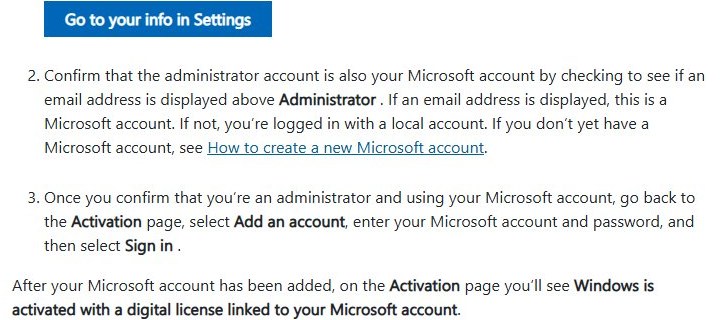
These are Microsoft's own steps from its Activate Windows page. Windows must already be activated before you link it.
On Windows 10, the Activation page lives under Settings > Update & Security > Activation instead. Every other step is the same.
- Select Start, then open Settings > Accounts > Your info.
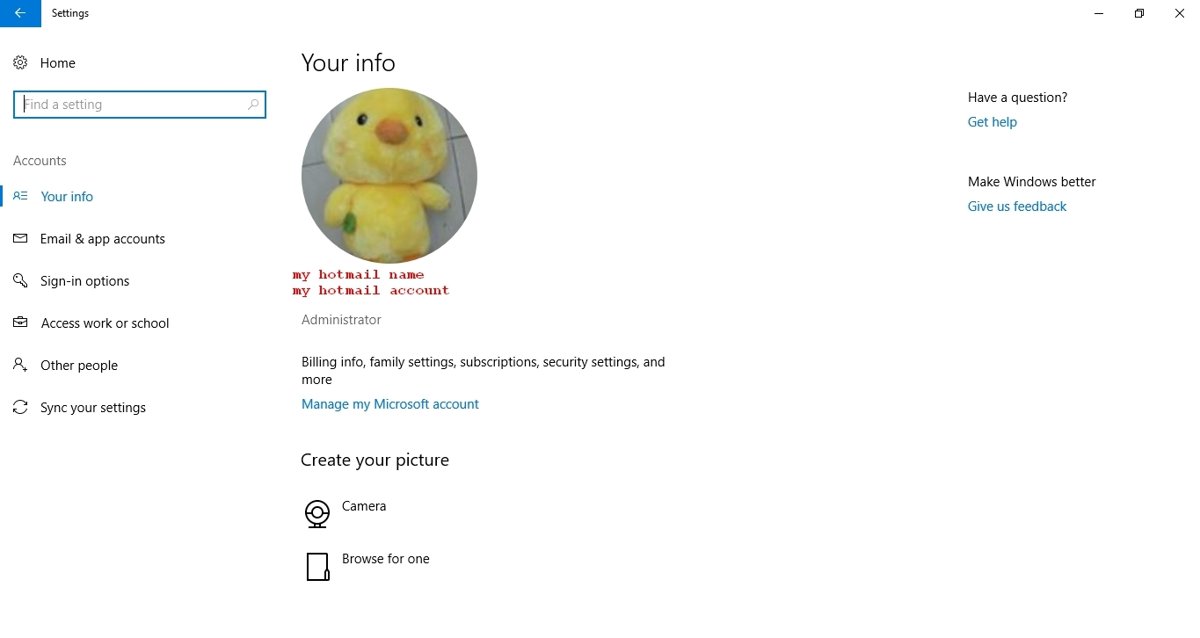
- Check that Administrator appears under your name and that an email address appears above it. The email address means you are signed in with a Microsoft account.
- If there is no email address, you are on a local account. Switch to a Microsoft account first (see the prerequisites below), then come back.
- Go to Settings > System > Activation.
- Select Add an account.
- Enter your Microsoft account email and password, then select Sign in.
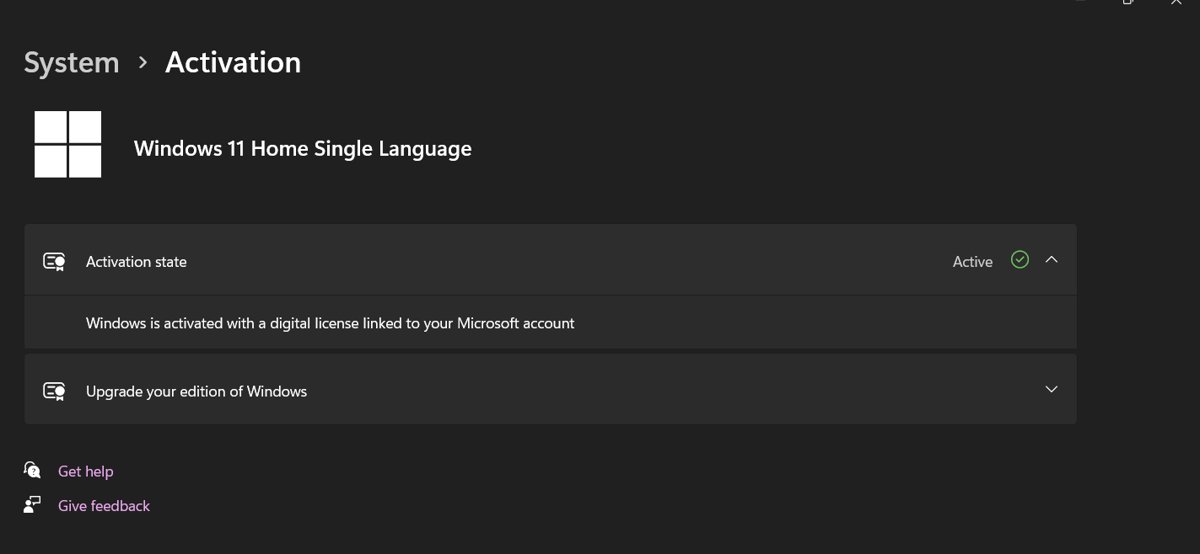
- Wait for the status to change to Windows is activated with a digital license linked to your Microsoft account.
If the status already reads linked to your Microsoft account, there is nothing to do. The link is in place and the Add an account option does not appear.
What a Windows digital license is and why linking matters
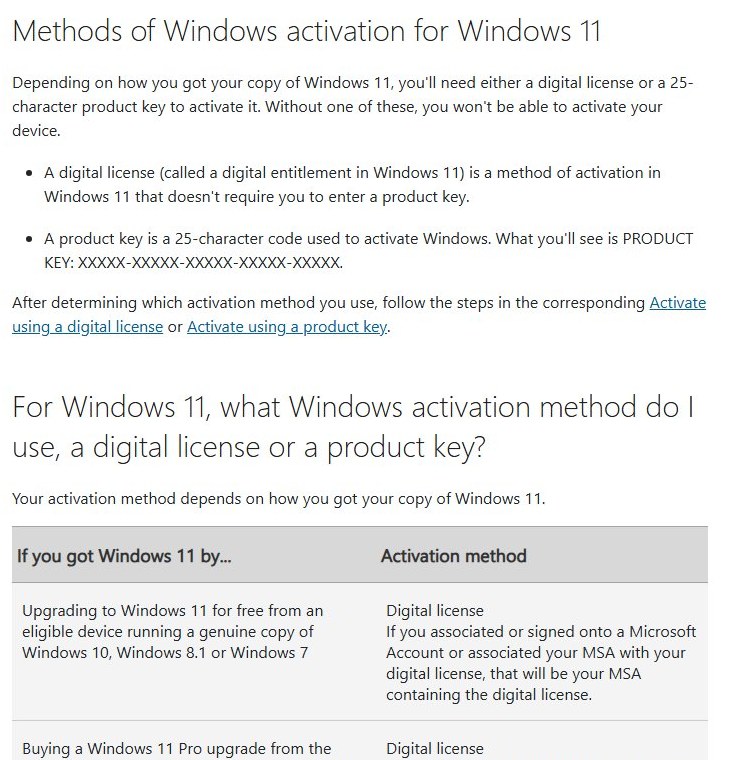
A digital license (Microsoft also calls it a digital entitlement) activates Windows without a product key. It ties itself to your PC's hardware when Windows activates.
Replace a major part such as the motherboard and Windows no longer finds a license that matches the device. A license linked to your Microsoft account can be reclaimed with the Activation troubleshooter; an unlinked one usually cannot.
| How you got Windows | Activation method | Where the license or key lives |
|---|---|---|
| Free upgrade from a genuine, activated Windows 10, 8.1 or 7 | Digital license | The Microsoft account you signed in with or linked to the license |
| Bought Windows or a Pro upgrade in the Microsoft Store app | Digital license | The Microsoft account that received the purchase confirmation email |
| Windows Insider build on a device that was already activated | Digital license | Usually the Microsoft account used for the Windows Insider Program |
| PC that came with Windows preinstalled | Product key | Device packaging or the Certificate of Authenticity (COA) sticker |
| Boxed copy from an authorized retailer | Product key | A label inside the box |
| Digital copy from an authorized retailer | Product key | The confirmation email or the retailer's digital locker |
| Refurbished PC | Product key | Supplied by the refurbisher, not by Microsoft |
Windows turns a valid retail product key into a digital license for that device once it activates. Microsoft keeps a record of product keys only for purchases from its own online store, which you can check under Order history in your Microsoft account.
Prerequisites before linking your Microsoft account
Four things decide whether the link works and whether it is worth anything later. Check them in this order.
| Requirement | How to check it | If it fails |
|---|---|---|
| Windows is activated | Settings > System > Activation shows Windows is activated (Windows 10: Update & Security > Activation) | Activate first with your product key or the steps on the Activation page |
| You are an administrator | Administrator appears under your name in Settings > Accounts > Your info | Sign in with an administrator account or have one set up for you |
| You are signed in with a Microsoft account | An email address appears above Administrator on Your info | Select Sign in with a Microsoft account instead on the same page |
| The correct edition is installed | The Activation page names Windows 11 Home or Windows 11 Pro | The license only reactivates the edition you are licensed for |
| The PC is online | Any website loads | Activation needs an internet connection |
Link Microsoft account to Windows 11 digital license by switching local account to Microsoft account
Microsoft’s linking steps assume the administrator account you use is a Microsoft account. If you set up the PC offline with a local account, convert it before you open the Activation page. Our guide to switching from a local account to a Microsoft account covers every prompt.
- Open Settings and select Accounts > Your info.
- Select Sign in with a Microsoft account instead. The link appears only while you use a local account.
- Sign in with your Microsoft account email and password, or create a new account from the prompt.
- Follow the remaining prompts, then select Next and Sign out and finish.
- Sign back in, open Settings > System > Activation, and check the status. If it does not yet say “linked to your Microsoft account”, select Add an account.
Your files and apps stay in place. Only the way you sign in to Windows changes.
Link Microsoft account to Windows 11 digital license by adding Microsoft account during clean install
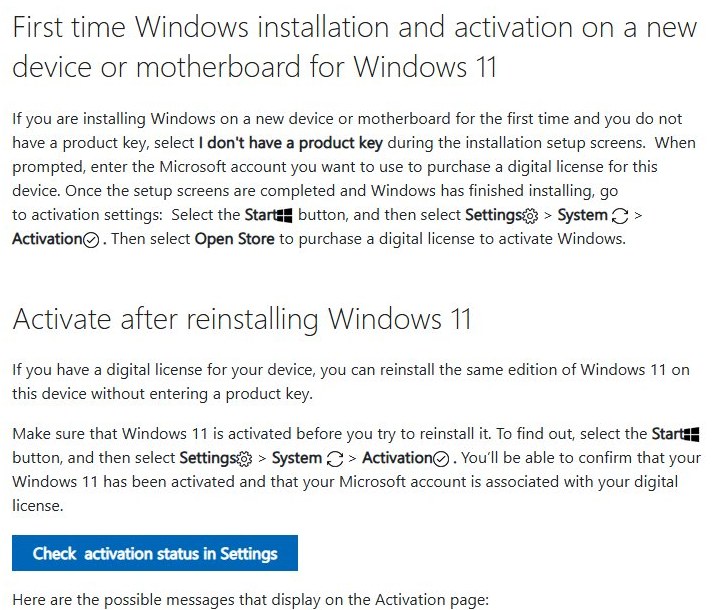
If you are reinstalling Windows 11 on a PC that already has a digital license, sign in with your Microsoft account during setup instead of creating a local account. Microsoft’s reinstall steps say to skip the key prompt with I don’t have a product key; Windows activates online after installation.
- Boot from your Windows 11 installation media and choose the same edition that was activated before (Home or Pro).
- When asked for a product key, select I don’t have a product key.
- At the account screen, sign in with your Microsoft account.
- After the desktop appears and the PC is online, open Settings > System > Activation and confirm the license status.
- Select Add an account on that page if the status does not mention your Microsoft account.
Link Microsoft account to Windows 11 digital license by adding Microsoft account as new account
You can keep your local account for daily use and add a second user that signs in with your Microsoft account. The new user must be an administrator, because only an administrator can add the account on the Activation page.
- Open Settings > Accounts > Other users and select Add account; our steps to add a user account in Windows 11 walk through the screens.
- Enter your Microsoft account email and finish the wizard.
- Select the new account, choose Change account type, pick Administrator and select OK.
- Sign out, sign in as the new account, and open Settings > System > Activation.
- Select Add an account if offered, then confirm the status reads “linked to your Microsoft account”.
Link Microsoft account to Windows 11 digital license by adding Microsoft account to be used by other apps
Adding your Microsoft account only for apps (Settings > Accounts > Email & accounts > Add a Microsoft account, then Microsoft apps only) keeps the local Windows sign-in. Some users report that the Activation page then shows the license as linked. Microsoft’s documented method is still the Add an account button on the Activation page from an administrator Microsoft account, so check the status line and use that method if it does not say “linked to your Microsoft account”.
Where is Activation in Windows 11 and Windows 10 Settings
Microsoft places the same Activation page in different spots on each version. Use the row for your system.
| Task | Windows 11 | Windows 10 |
|---|---|---|
| Check activation and link status | Settings > System > Activation | Settings > Update & Security > Activation |
| Link a Microsoft account | Activation > Add an account | Activation > Add an account |
| Run the Activation troubleshooter | Activation > Troubleshoot | Activation > Troubleshoot (version 1607 or later) |
| Enter a product key | Activation > Change product key | Activation > Change product key |
| Confirm you are an administrator | Settings > Accounts > Your info | Settings > Accounts > Your info |
How to check that your license is linked successfully
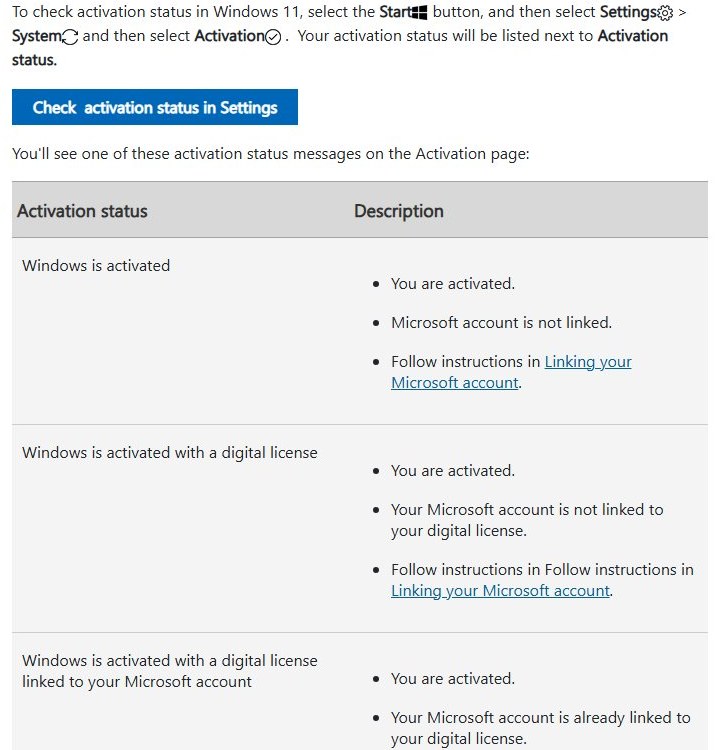
The status line on the Activation page is the proof. Windows shows one of four messages next to Activation status.
- Open Settings > System > Activation on Windows 11, or Settings > Update & Security > Activation on Windows 10.
- Read the message. Windows is activated with a digital license linked to your Microsoft account means the link worked.
- Windows is activated with a digital license without the words "linked to your Microsoft account" means the account is not linked yet. Repeat the linking steps.
- Windows is activated alone means you are activated but no Microsoft account is linked. Follow the same linking steps.
- Windows is not activated means you need a valid license or product key before a link is possible.
- Open Settings > Accounts > Your info and note the email address shown. That account is the one the troubleshooter will ask for after a hardware change.
To see which PCs are signed in to your account, go to account.microsoft.com/devices. Microsoft adds Windows 11 PCs to that list automatically when you sign in, and a new device can take up to 24 hours to appear.
Activation troubleshooter or product key after a hardware change
Before you open the troubleshooter, match your situation to a row. The right route depends on how Windows was licensed and whether the link was made before the change.
| Your situation | Use this | Why |
|---|---|---|
| Digital license linked to your Microsoft account before the change | Activation troubleshooter > I changed hardware on this device recently | The troubleshooter finds the license through the linked account |
| Retail product key, or you upgraded with a product key | Change product key and enter the same key | The key reactivates the same edition after the change |
| The manufacturer replaced the motherboard under repair | Wait for automatic activation, then use the key on the COA card if it fails | Microsoft says the PC should reactivate automatically in that case |
| Windows came preinstalled and you replaced the motherboard yourself | Go to Microsoft Store on the Activation page | Microsoft says you may need to buy a new license |
| No link, no product key | Go to Microsoft Store to buy a digital license | There is nothing for Windows to match against |
Feature updates do not touch the license either: a digital license carries over when you install a new Windows 11 version, so Windows 11 26H2 needs no new product key.
How to reactivate Windows after a hardware change
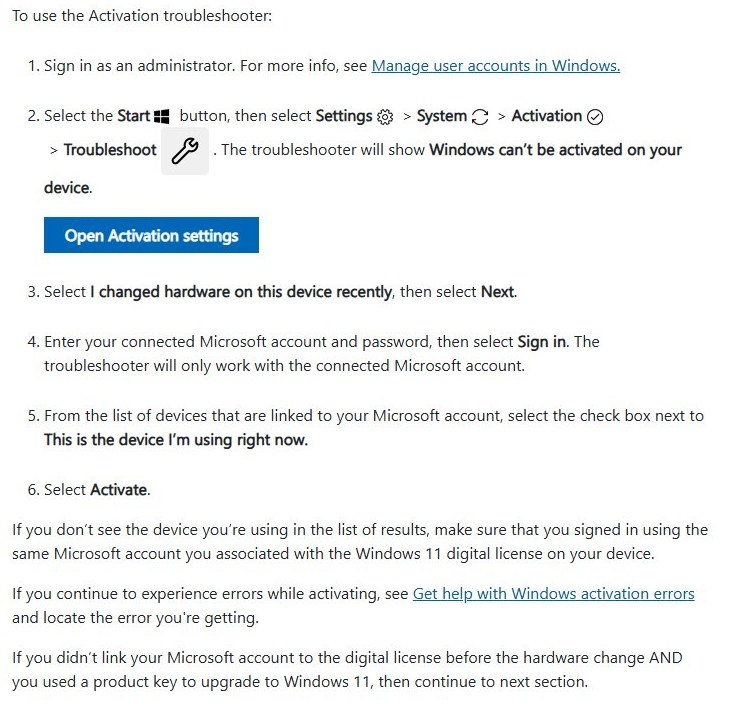
Microsoft's Reactivating Windows after a hardware change page gives these steps. Connect the PC to the internet first. The Troubleshoot option appears only while Windows is not activated.
techdows covered the same tool when it arrived in Windows 10, in a guide to using the Activation Troubleshooter after hardware changes.
- Sign in to Windows as an administrator.
- Open Settings > System > Activation > Troubleshoot (Windows 10: Settings > Update & Security > Activation > Troubleshoot).
- When the troubleshooter reports that Windows can't be activated, select I changed hardware on this device recently, then select Next.
- Enter the Microsoft account and password linked to the license, then select Sign in.
- In the list of devices linked to your account, check the box next to This is the device I'm using right now.
- Select Activate.
- Go back to the Activation page and confirm it reads Windows is activated.
Keep the edition the same. A Windows 11 Home license reactivates only Windows 11 Home, and a Pro license only Pro.
If you have a product key instead, select Change product key on the same page and enter the key you used before the change.
Troubleshooting common linking and activation problems
Each fix below comes from Microsoft's activation support pages. If an error code appears, look it up on Get help with Windows activation errors as well.
Your device does not appear in the list in the troubleshooter
You signed in to the troubleshooter with a different Microsoft account from the one linked to the license.
- Close the troubleshooter.
- Run it again from Settings > System > Activation > Troubleshoot.
- Sign in with the exact Microsoft account that was linked to the digital license on this PC.
- If you bought Windows from the Microsoft Store, try the account that received the purchase confirmation email.
Windows does not reactivate after replacing the motherboard
The license was never linked, or it was an OEM license tied to the original board.
- Check whether your error is 0xC004F211 or 0xC004F213; both mean Windows found changed hardware.
- If you still have the product key used before the change, select Change product key and enter it.
- If the manufacturer did the repair, look for a COA card with a 25-character key under a grey scratch-off coating and enter that key.
- If Windows came preinstalled and you swapped the board yourself, select Go to Microsoft Store to buy a new license.
The Troubleshoot option is missing from the Activation page
Windows is already activated, or you are not signed in as an administrator.
- Read the Activation status line; if it says activated, no reactivation is needed.
- Open Settings > Accounts > Your info and confirm Administrator appears under your name.
- On Windows 10, check that the PC runs version 1607 or later.
Status still says the Microsoft account is not linked
Windows is signed in with a local account, or the account added is not the administrator account.
- Open Settings > Accounts > Your info and check for an email address above Administrator.
- If none appears, select Sign in with a Microsoft account instead and complete the switch.
- Return to Activation, select Add an account, and sign in again.
Wrong edition installed after a reinstall (error 0xC004F212)
Setup installed an edition other than the one the digital license covers.
- Open Settings > System > Activation and select Troubleshoot.
- If your license is for Pro and Home is installed, select Upgrade to Windows 11 Pro, then Start upgrade.
- If your license is for Home and Pro is installed, create installation media for Windows 11 Home and reinstall.
- Skip the product key prompt during setup; Windows activates with the digital license afterwards.
Windows digital license FAQ
Why link a digital license to a Microsoft account?
Linking lets you reactivate Windows with the Activation troubleshooter after a significant hardware change such as a new motherboard. Without the link, Windows cannot match the old license to the changed PC, and you need a product key or a new license.
How do I link my Microsoft account to Windows?
Sign in to Windows with your Microsoft account as an administrator, then open Settings > System > Activation and select Add an account. On Windows 10 the page is under Settings > Update & Security > Activation. Sign in, and the status confirms the link.
How do I know if my Windows license is already linked to my Microsoft account?
Open the Activation page in Settings. If the status reads Windows is activated with a digital license linked to your Microsoft account, the license is linked. Any other activated message means it is not linked yet.
Can I link a Windows digital license if I use a local account?
Microsoft's linking steps require an administrator account that is also a Microsoft account. Switch first with Settings > Accounts > Your info > Sign in with a Microsoft account instead, then add the account on the Activation page.
How do I link my computer to my Microsoft account?
Sign in to Windows with your Microsoft account. Microsoft adds Windows 11 PCs to your device list at account.microsoft.com/devices automatically when you sign in, and a new device can take up to 24 hours to show up there.
What is linked to my Microsoft account?
Sign in at account.microsoft.com/devices to see the PCs and other devices registered to your account. The Activation troubleshooter shows the devices linked to your account whenever you reactivate Windows after a hardware change.
What should I do if Windows does not reactivate after replacing my motherboard?
Enter the product key you used before the change with Change product key. If Windows came preinstalled and you replaced the board yourself, Microsoft says you may need a new license from Go to Microsoft Store. A board replaced by the manufacturer should reactivate automatically.
Does reinstalling Windows remove the digital license from my Microsoft account?
No. With a digital license you can reinstall the same edition on the same PC without a product key. Select I don't have a product key during setup, sign in with the linked Microsoft account, and Windows activates online afterwards.
Will linking my Microsoft account let me move Windows to a new PC?
Microsoft documents the linked license for reactivating the same device after a significant hardware change, not for moving it to another computer. A license that came preinstalled on a PC may need replacing with a new one if its motherboard is swapped.





How to Activate Windows 10 Product Key - Techdows
[…] Activation troubleshooter reactivate Windows after a motherboard swap. The full walkthrough is in how to link a Microsoft account to your Windows digital license; the short version […]
Restore Your Computer to a Previous Version of Windows 10 - Techdows
[…] For the licence step, follow the guide to link your Microsoft account to your Windows digital license. […]
How to Add Mojang Account to Microsoft - Techdows
[…] Microsoft account can hold more than the game. See How to Link Microsoft Account to Windows Digital License for the Windows activation side of […]