To redeem a gift card on a Microsoft account, go to redeem.microsoft.com, sign in, enter the 25-character code and select Next; the full amount lands in your account balance.
This guide covers the website, an Xbox console, the Microsoft Store app and the Xbox app, plus how to check your balance, what the money can buy, and how to fix codes that refuse to redeem.
How to Redeem a Gift Card on the Microsoft Website
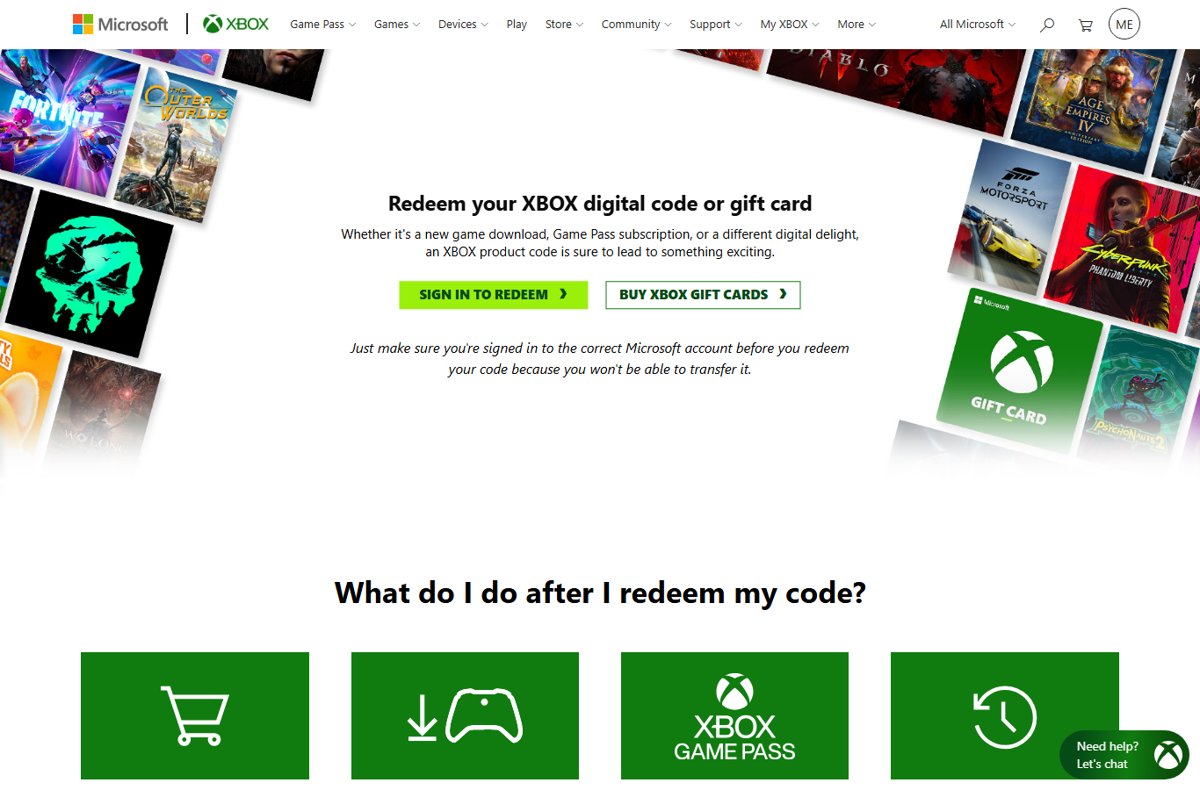
The website works from any browser, on any device, and it is the route Microsoft points to first. Microsoft gift cards, Xbox gift cards, download codes and tokens all redeem the same way.
- Open redeem.microsoft.com in a browser. Xbox's own address, xbox.com/redeem, also takes Microsoft and Xbox codes.
- Select Redeem code if prompted, then sign in with the Microsoft account that should receive the money.
- Check the account shown at the top of the page. If you have more than one Microsoft account, confirm this is the right one before going further.
- Find the code on the back of a physical card, or copy it from the email for a digital card.
- Enter or paste the 25-character code. It is formatted as five blocks of five characters:
XXXXX-XXXXX-XXXXX-XXXXX-XXXXX. - Select Next and follow the prompts to confirm.
- Wait for the confirmation screen. The entire value of the card is added to your Microsoft account balance.
Redeemed codes cannot be moved to another Microsoft account afterwards, and Xbox Support states it cannot transfer them for you. The account check in step 3 is the one step worth slowing down for.
Which redeem route should you use?
Every route adds the money to the same Microsoft account balance. Pick the one on the device you are holding.
| Your situation | Use this | Why |
|---|---|---|
| Any phone, tablet or PC with a browser | redeem.microsoft.com | No app needed, and you can see exactly which account is signed in |
| Sitting at an Xbox Series X|S or Xbox One | Xbox console Store > Redeem | The balance is ready for a game or Game Pass purchase on the same screen |
| On a Windows PC | Microsoft Store app > your account > Redeem code or gift cards | Redeem and buy an app or game without opening a browser |
| Already using the Xbox PC app | Xbox app > Settings > Redeem a code | Handy for Game Pass codes on PC |
| The code is a Microsoft 365 or Office product key | Office.com/setup | Product keys activate a subscription; they do not add money |
| The code is a Windows activation key | Settings > Activation > Change product key | Windows keys activate the PC, not the account balance |
What You Need Before Redeeming a Microsoft Gift Card
Three things decide whether a redemption goes through first time: the right account, the right kind of code, and a code that matches your region.
| Item | What to check | Why it matters |
|---|---|---|
| Microsoft account | You are signed in to the account that should hold the money | Redeemed value cannot be transferred to another account |
| The 25-character code | All five blocks are readable, with no scratched-off characters | Xbox Support sends damaged or unreadable codes back to the retailer |
| Code type | Microsoft gift card, Xbox gift card, Xbox download code or token | These add money or content; Microsoft 365 and Windows keys go elsewhere (see the table above) |
| Country or region | The card was bought in the same country or region as your account | Many codes only work in the region they were sold for |
| Card activation | A physical card was activated at the till when you bought it | An inactive card has to be fixed by the retailer, not Microsoft |
Microsoft gift cards and Xbox gift cards are interchangeable once redeemed. Microsoft says either card can be used in any Microsoft Store, whether online, on Windows or on Xbox.
How to Redeem a Gift Card on Xbox or the Microsoft Store App
On an Xbox Series X|S or Xbox One, the redeem option sits inside the console's Store. Have your controller and the code ready.
- Press the Xbox button to open the guide.
- Select Store.
- Press the View button to open the side menu.
- Select Redeem.
- Enter the 25-character code and select Next.
- Follow the prompts to finish. The value is added to the Microsoft account signed in on the console.
If several people share the console, check the profile that is signed in before you type the code.
Redeem in the Microsoft Store app on Windows
The Microsoft Store app on Windows uses the Microsoft account it is signed in with.
- Select the Start button and type store in the search bar.
- Choose Microsoft Store from the results to open the app.
- Select your account in the top-right corner of the window.
- Select Redeem code or gift cards.
- Enter the 25-character code, select Next, and follow the prompts.
Redeem a code in the Xbox app for Windows
The Xbox PC app has its own redeem box, which suits Game Pass codes and PC game codes.
- Select the Start button and type Xbox in the search bar.
- Choose the Xbox app from the results.
- Select your gamerpic in the top-left corner, then select Settings.
- Under Redeem a code, select Redeem.
- Enter the 25-character code, select Next, and follow the prompts.
A code for a specific game unlocks that game instead of adding money. Install it from your console or PC after redeeming.
How to Check Your Microsoft Account Balance After Redemption
A successful redemption shows up as money in your account balance, not as an order. Check it before you shop so you know how much you have to spend.
- Open account.microsoft.com/billing/payments in a browser.
- Sign in with the same Microsoft account you redeemed the card on.
- Look for your Microsoft account balance on the payment options page. The card's full value should be included.
- To confirm the code itself, open your order history on account.microsoft.com, which lists codes you have redeemed.
- On an Xbox console, follow Xbox Support's Check your Microsoft account balance article for the console route.
If the balance did not change, you were probably signed in to a different account when you redeemed. Sign in to each of your accounts and check the balance there.
Using Your Redeemed Balance for Apps, Games, Devices, and Subscriptions
Your balance is spent automatically at checkout in Microsoft Store, online, on Windows and on Xbox. The limits below are the ones that surprise people.
| Purchase | Can the balance pay? | Notes |
|---|---|---|
| Apps, games and in-app purchases | Yes | Includes add-ons bought in Microsoft Store and the Xbox Store |
| Movies and TV shows | Yes | Listed by Microsoft as content the balance can buy |
| Surface, Xbox consoles and accessories | Yes, in most countries and regions | Gift cards cannot be used to buy hardware in Taiwan |
| Xbox subscriptions, including Game Pass | Yes | Microsoft says only Xbox subscriptions can be bought with a gift card |
| Microsoft 365 subscription | No | Pay with a card or PayPal, or redeem a Microsoft 365 product key at Office.com/setup |
| Purchases in Microsoft Store retail locations | No | The balance is for online and in-app stores only |
| Cash, other gift cards or gift certificates | No | Except where the law requires it |
When an item costs more than your balance, continue through checkout. If the balance is not selected, choose Change and pick it; Microsoft takes the balance first and charges the difference to your other payment option, such as a credit card or PayPal.
Microsoft gift cards carry no fees and no expiration date, so there is no rush to spend a small leftover amount. If you earn Microsoft Rewards points, claiming Robux from Microsoft Rewards is another way to put the same account to work.
Common Gift Card Redemption Errors and How to Fix Them
Most failed redemptions come down to the account, the region or the retailer. Match your message to a heading below.
"This code has already been redeemed"
The code was used on another Microsoft account, often a second account you own or a family member's.
- Sign in to each Microsoft account you use at account.microsoft.com.
- Open the order history and look for the code in the list of redeemed codes.
- Check the balance at account.microsoft.com/billing/payments on each account.
- If no account shows the code, contact the retailer that sold the card with your receipt.
Region, currency, and account mismatch errors
The code was sold for a different country or region than your account or device.
- Confirm your Microsoft account's country or region matches where you live.
- Confirm the card was bought from a retailer in that same region.
- On an Xbox console, press the Xbox button to open the guide.
- Select Profile & system > Settings > System > Language & location.
- Choose your country or region under Location, then restart the console if prompted.
- If the card was bought for another region, contact the retailer for help, as Xbox Support advises.
Why won't my Xbox gift card redeem? The code is invalid or incorrect
A mistyped character, a damaged card, or a card the retailer never activated.
- Check the Xbox status page for a service outage before you retry.
- Retype the code slowly and compare each block with the card.
- If the card is scratched or unreadable, take it and the receipt back to the retailer.
- Ask the retailer to confirm the card was activated at purchase.
Wrong code type or unsupported purchase
The code is a product key or promo code, not a gift card, or the item cannot be bought with balance.
- Redeem a Microsoft 365 or Office key at Office.com/setup instead of the redeem page.
- Enter a Windows key under Settings > Activation > Change product key.
- Read the instructions or terms that came with the code; some codes are subscription time rather than money.
- If a subscription code will not stack, wait until your current subscription ends, then redeem it.
- Pay for Microsoft 365 with another payment method, because gift card balance cannot buy it.
Redeem fails on an account with an Xbox network suspension
Xbox lists an active enforcement suspension as a reason redemption can be blocked.
- Wait until the Xbox network suspension has ended.
- Redeem the code again on the same account.
If you bought the wrong code, Microsoft directs you to the retailer. Xbox Support's My digital code or gift card doesn't work page lists the same checks.
How to avoid Microsoft gift card scams
Microsoft states it will never ask you to pay for support with gift cards or cryptocurrency. Anyone who asks you to read out a gift card code over the phone is running a scam.
| Warning sign | What Microsoft says | What to do |
|---|---|---|
| A caller or email asks you to pay for support with gift cards | Microsoft never asks for payment in gift cards or cryptocurrency | Hang up or delete the message; never share the code |
| A pop-up or error shows a phone number to call | Microsoft error and warning messages never include a phone number | Close the page and do not call the number |
| An unexpected call or email says it is from Microsoft | Microsoft does not make unsolicited calls or send unsolicited emails to fix your computer | End contact and sign in to your account directly |
| Someone asks for the code "to verify" a card | A redeemed code is spent the moment it is entered | Redeem cards only yourself, on redeem.microsoft.com or in a Microsoft or Xbox app |
Frequently Asked Questions
How do I redeem a gift card on Xbox?
Press the Xbox button, select Store, press the View button and select Redeem. Enter the 25-character code, select Next and follow the prompts. The money goes to the Microsoft account signed in on the console, and you can also redeem at xbox.com/redeem.
How do I redeem a gift card on Microsoft Store?
Open the Microsoft Store app, select your account in the top-right corner and choose Redeem code or gift cards. Enter the 25-character code and select Next. On the web, redeem.microsoft.com does the same job from any browser.
How do I redeem an online gift card from Microsoft?
Copy the code from the email you received, then go to redeem.microsoft.com and sign in. Paste the code and select Next. Digital and physical Microsoft gift cards redeem the same way and add the full amount to your balance.
Why won't my Xbox gift card redeem?
The usual causes are a mistyped or damaged code, a card from another region, a card the retailer never activated, or a code already used on another account. Check the Xbox status page, retype the code, then contact the retailer with your receipt.
Can I redeem a Microsoft gift card on Xbox and use it on the Microsoft Store?
Yes. The money goes into one Microsoft account balance, and Microsoft says either a Microsoft or Xbox gift card can be used in any Microsoft Store, whether online, on Windows or on Xbox.
Can I use Microsoft account balance to pay for Microsoft 365, Game Pass, or other subscriptions?
Game Pass and other Xbox subscriptions, yes. Microsoft 365, no: Microsoft says gift card balance can buy an Xbox-related subscription but not a Microsoft 365 subscription. Use a card or PayPal, or a Microsoft 365 product key, for that.
Can I redeem gift cards for cash?
No. Money in a Microsoft account cannot be turned into cash, gift certificates or similar payment products, except where the law requires it. It also cannot be spent in Microsoft Store retail locations.
Do Microsoft gift cards expire?
No. Microsoft states there are no fees or expiration dates on Microsoft and Xbox gift cards. That makes it safe to redeem a card now and spend the balance later, or to leave a small leftover amount for a future app, game or subscription purchase.
Can I move a redeemed gift card to another Microsoft account?
No. Once a code is redeemed, the value stays on that account, and Xbox Support cannot transfer it. Confirm which account is signed in before you enter a code.
How do I redeem a gift card on Roblox with a Microsoft account?
A Roblox gift card is not a Microsoft code, so the Microsoft redeem page will not accept it. If you want Robux through your Microsoft account, see how to earn them with Microsoft Rewards points instead.
Bottom Line
Redeem at redeem.microsoft.com and check the signed-in account before you select Next. The website works on every device, shows exactly which account receives the money, and wrong-account redemptions cannot be reversed. Use the console or Store app only when you are about to buy on that device.







How to Add Mojang Account to Microsoft - Techdows
[…] Adding store credit to that account is a separate job — see How to Redeem a Gift Card on a Microsoft Account. […]
How to close Microsoft account - Techdows
[…] you redeemed a gift card on this account, spend the balance before you close it. The same applies to Minecraft if you moved […]
How to switch from local to Microsoft account on Windows - Techdows
[…] can redeem a gift card on a Microsoft account once the account is on the […]