To change your user account picture in Windows 11, open Settings > Accounts > Your info and select Browse files or Open camera under Adjust your photo.
This guide covers the Settings, Start menu and Microsoft account routes, removing old pictures, setting a default picture for every user, and fixes when the new picture does not appear.
How to change your user account picture in Windows 11
Method 1 uses the Settings app, which is the route Microsoft documents for both Windows 11 and Windows 10. These are the steps to change your account picture from start to finish.
- Step 1: Access your account settings: open Settings with Windows + I and select Accounts.
- Select Your info.
- Under Adjust your photo, select Choose a file > Browse files.
- Pick the image you want and confirm it in the file dialog.
- Check that the new picture now shows at the top of the Your info page.
Step 3, saving your changes, needs no extra button: Microsoft's instructions end once you pick the photo. Windows also keeps your last three pictures on the Your info page, so you can switch back by selecting one.
![How to Change Your User Account Picture in Windows 11? [Easy Steps]](https://techdows.com/wp-content/uploads/2026/10/How-to-Change-Your-User-Account-Picture-in-Windows-11-Easy-Steps.jpg)
Which way to change your account picture should you use?
| Your situation | Use this | Why |
|---|---|---|
| You want the standard route | Method 1: Settings app > Accounts > Your info | The path Microsoft documents for Windows 11 and Windows 10 |
| You are already on the Start menu | Method 2: the account icon on Start | The profile icon opens account settings directly |
| You look for it in Control Panel | Use Settings instead | Control Panel > User Accounts handles the account name, while Microsoft documents the picture change only in Settings |
| You want a command line or script | No documented command | Microsoft publishes no command for setting a user's picture; admins use the default picture policy instead |
| You use a Microsoft account on several devices | Change it on the Microsoft account website | The picture updates everywhere you sign in, within up to 24 hours |
| You manage a shared or work PC | Apply the default account picture to all users policy | Gives every account the same picture |
Local vs. Microsoft accounts: where the Windows 11 account picture changes
| Account type | Where the picture is changed | Where it shows |
|---|---|---|
| Local account | Settings > Accounts > Your info on that PC | That PC only |
| Microsoft account | Your info in Settings or on the Microsoft account dashboard | Every device and Microsoft service you sign in to, after up to 24 hours |
| Work or school account | File > Account > Change photo in Word, Excel or PowerPoint | Your organization's profile, if the administrator allows changes |
Use a camera or existing photo for your profile image
The Your info page offers two sources: a file already on the PC or a new photo from the built-in or attached camera.
- Open Settings > Accounts > Your info.
- To use an existing photo, select Choose a file > Browse files and pick the image.
- To take a new photo, select Open camera.
- Take the photo in the Camera app and accept it.
- Return to Your info and confirm the new picture appears.
Method 2: Changing user account picture via the Start menu account icon
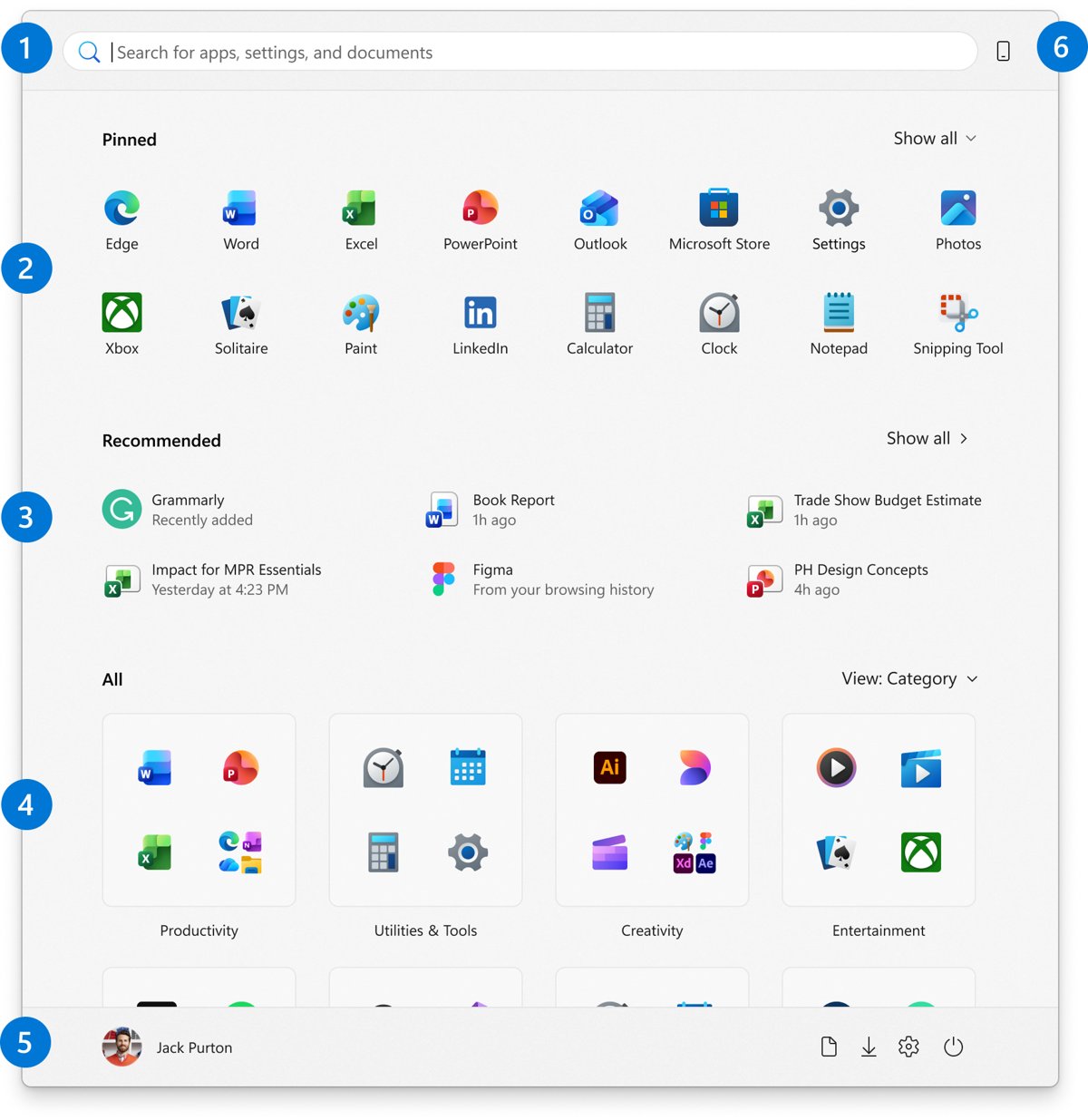
In Windows 11 the account icon sits at the bottom of the Start menu, which replaces the old desktop user account icon route.
- Select Start on the taskbar.
- Select your profile icon at the bottom left of the Start menu.
- Choose the account settings option to open the Your info page.
- Under Adjust your photo, select Browse files or Open camera.
- Pick or take the photo.
Change the picture for a Microsoft account
Use this route when you want the same picture on every device where you sign in with that Microsoft account.
- Sign in to your Microsoft account dashboard in a browser.
- Open the Your info tab.
- Select Add a photo or Change photo.
- Choose an image file from your device.
- To change zoom or rotation, select Change photo again and reload the same image.
- Allow up to 24 hours for the picture to update everywhere.
How to remove old account pictures
Removing old pictures clears the three recent images Windows keeps on the Your info page.
- Open File Explorer from the taskbar, or select Start and type File Explorer.
- If AppData is hidden, select View > Show > Hidden items.
- Go to
C:\Users\yourname\AppData\Roaming\Microsoft\Windows\AccountPictures, replacing yourname with your account folder name. - Select the picture you no longer want.
- Delete it.
How to change the default account picture for new users (advanced)
Windows stores the default picture as %PROGRAMDATA%\Microsoft\User Account Pictures\user.jpg and the guest picture as guest.jpg in the same folder. The Apply the default account picture to all users policy forces that default on everyone and is available on Pro, Enterprise and Education editions.
- Replace
user.jpgin%PROGRAMDATA%\Microsoft\User Account Pictureswith the picture you want, keeping the same file name. - Press Windows + R, type
gpedit.mscand press Enter. - Go to Computer Configuration > Administrative Templates > Control Panel > User Accounts.
- Double-click Apply the default account picture to all users.
- Select Enabled, then select OK.
- Sign out and back in to see the default picture.
Accounts you add to Windows 11 after this change start with the same default picture.
The policy writes the UseDefaultTile value under Software\Microsoft\Windows\CurrentVersion\Policies\Explorer in the machine registry hive. If the default picture files are missing, Windows shows an empty frame.
How to check the new account picture applied
- Open Settings > Accounts > Your info and confirm the new picture is the large one at the top.
- Select Start and check the profile icon at the bottom of the menu.
- Press Windows + L to lock the PC and check the picture on the sign-in screen.
- For a Microsoft account, open the Microsoft account dashboard and confirm the same photo appears on Your info.
How Windows account pictures work
The technical side of things explains most surprises, such as an old picture coming back or a photo not reaching other PCs.
| Behaviour | What Windows does |
|---|---|
| Recent pictures | Keeps your last three pictures on Your info for quick switching |
| Picture storage | Saves them in AppData\Roaming\Microsoft\Windows\AccountPictures inside your user folder |
| Default picture | Uses user.jpg and guest.jpg in %PROGRAMDATA%\Microsoft\User Account Pictures |
| Microsoft account sync | Can take up to 24 hours to appear on every device |
| Short video as account picture | Microsoft's current Windows instructions list only an existing photo or a new camera photo |
| Admin policy | Apply the default account picture to all users removes customization for everyone |
Fix account picture not updating or syncing
These are the troubleshooting steps for the most common issues with a Windows 11 account picture.
The new picture does not show on other devices
Microsoft account photo changes can take up to 24 hours to spread.
- Confirm the picture on the Your info tab of the Microsoft account dashboard.
- Wait up to 24 hours.
- Sign out of Windows and sign back in on the other device.
The picture option is missing or every user shows the same picture
The Apply the default account picture to all users policy is enabled.
- Open
gpedit.mscas an administrator. - Go to Computer Configuration > Administrative Templates > Control Panel > User Accounts.
- Set Apply the default account picture to all users to Not Configured.
- Sign out and back in.
The upload is rejected or the photo looks cropped
Unsupported format, or a non-square photo cut to fit.
- Avoid HEIC files and animated GIFs on a Microsoft account.
- Save the photo as a standard still image instead.
- Add borders in a photo editor to make the image square.
- Upload it again.
An old picture keeps coming back
Windows still holds it as one of the last three pictures.
- Open the
AccountPicturesfolder in your AppData Roaming path. - Delete the old picture.
- Select the new picture again on Your info.
Open camera does nothing
The device has no working camera.
- Connect or enable a camera.
- Take the photo in the Camera app, save it, and use Browse files instead.
Tips for choosing the best Windows profile picture
These additional tips for personalizing your profile keep the picture sharp and accepted everywhere it appears.
| Tip | Why it helps |
|---|---|
| Use a square image | Portrait or landscape photos get cropped; add borders in a photo editor to keep the whole picture |
| Use a standard still image | HEIC files and animated GIFs are not supported for a Microsoft account picture |
| Take a fresh photo with Open camera | Skips saving and browsing for a file |
| Keep favourites in the last three | Windows lets you switch between your three most recent pictures on Your info |
| Choose once for a Microsoft account | The same photo follows you to every device and service you sign in to |
Important considerations before you change the picture
Pick a picture you are comfortable showing on the sign-in screen, and change a Microsoft account picture only when you want it on every device and service. A Microsoft account photo follows you across devices, while the default picture policy overrides every user on the PC with no customization allowed.
Windows 11 account picture FAQs
How long does it take to update the account picture in Windows 11?
On the PC, the new picture shows on the Your info page as soon as you pick it. For a Microsoft account, Microsoft says the picture can take up to 24 hours to update everywhere you sign in.
Can I use any image format for my account picture?
Most static image files work. Microsoft lists HEIC files and animated GIFs as unsupported for a Microsoft account picture, so convert those to a standard still image first. Square images display best.
Why is my account picture not updating?
A Microsoft account change can take up to 24 hours to sync. If every user shows the same picture, the Apply the default account picture to all users policy is enabled and blocks customization.
Can I revert to the default profile picture?
Yes. Delete your pictures from the AccountPictures folder in AppData Roaming, then pick a previous picture or the default image on the Your info page. Administrators can force the default with the default account picture policy.
Does changing the account picture affect all users?
No. Changing it in Settings affects only your own account. Only the Apply the default account picture to all users policy changes the picture for everyone on the PC.
Can I use a short video as my account picture in Windows 11?
Microsoft's current Windows 11 instructions offer only two options: choose an existing photo with Browse files or take a new one with Open camera. No video option is documented.
Can I change the account picture from Control Panel?
Control Panel's User Accounts page handles tasks such as changing a local account name. Microsoft documents the account picture change in Settings > Accounts > Your info, so use that page.
Where are Windows 11 account pictures stored?
Your own pictures are stored in C:\Users\yourname\AppData\Roaming\Microsoft\Windows\AccountPictures. The default user and guest pictures are user.jpg and guest.jpg in %PROGRAMDATA%\Microsoft\User Account Pictures.
Bottom line: the best way to change your Windows 11 account picture
Use Settings > Accounts > Your info to change your picture, and use the Microsoft account website only when the picture must follow you to other devices. The Settings route takes five steps on any Windows 11 PC, keeps your last three pictures for quick switching, and needs no admin rights.