Open Settings > Accounts > Your info: if the word Administrator appears under your name, you have admin privileges on that Windows PC.
This guide covers the Settings, Control Panel, Command Prompt, PowerShell and Computer Management checks for Windows 11 and Windows 10, what UAC prompts reveal, and what to do when your account is a standard user.
Check Your Account Type in Windows Settings
This is the quickest check and needs no commands. Microsoft uses the same path on its own activation support page to confirm an administrator account.
- Select the Start button, then select Settings.
- Select Accounts.
- Select Your info.
- Read the line under your name. Administrator means your account has admin rights on this PC.
- Check the line above Administrator. An email address there means you are signed in with a Microsoft account; no email address means a local account.
If Administrator does not appear, your account is a standard user. Jump to the section on what to do without admin privileges.
Which method should you use?
Every method reads the same fact: whether your account belongs to the local Administrators group. Pick the one that fits where you are.
| Your situation | Use this | Why |
|---|---|---|
| You just want a yes or no | Settings > Accounts > Your info | Shows the label under your name, no typing |
| The PC is joined to a work or school domain | Control Panel User Accounts > Properties > Group Membership | Microsoft's documented route for domain-joined PCs |
| You want to see every admin on the PC | net localgroup Administrators or Get-LocalGroupMember -Group "Administrators" |
Lists all members, not just you |
| You need to check another person's account | net user <name> or the Administrators group list |
Works for any local account name |
| A script must test for admin rights | The PowerShell IsInRole check |
Returns True or False |
| You prefer a graphical group list | Computer Management > Local Users and Groups | Opens the Administrators group directly |
Verify Admin Status from Control Panel
Control Panel shows your account type in its own words. The steps differ slightly depending on whether the PC is joined to a domain.
To find out, open Control Panel > System and Security > System. A domain-joined PC shows Domain: with the domain name; a home PC shows Workgroup: instead.
- Select Start, type Control Panel and open it.
- In the Control Panel window, select User Accounts > Change your account type.
- On a home PC, check that Administrator is selected. If that option is selected, you are an admin.
- On a domain-joined PC, select Properties in the User Accounts window, then open the Group Membership tab.
- Confirm that Administrator is selected on the Group Membership tab.
If you cannot select the Administrator option at all, you are not an administrator. Only someone who already has admin rights can change it for you.
Use Command Prompt to Check Group Membership
Command Prompt gives you three checks. None of them need an elevated window to run.
whoami shows the name Windows is using for you, which you need for the later commands.
- Select Start, type cmd and open Command Prompt.
- Type
whoamiand press Enter. The output shows your computer or domain name and user name, such asDESKTOP-1\alex. - Type
net localgroup Administratorsand press Enter. This lists every member of the local Administrators group. If your user name is in the list, you are an admin. - To check one account, type
net user alex(replace alex with the user name) and press Enter. Look for Administrators among the local groups shown for that account. - Type
whoami /groupsand press Enter to list every group in your current sign-in token. Look for BUILTIN\Administrators in the Group Name column.
In a normal Command Prompt window, Windows runs you with a filtered standard token, so the Administrators entry in whoami /groups is not active there. Treat net localgroup Administrators as the definitive list.
Check Administrator Privileges with PowerShell
PowerShell has a cmdlet that lists the Administrators group and a .NET call that returns a plain True or False. The second one also tells you whether the current window is elevated.
- Select Start, type PowerShell and open Windows PowerShell.
- Run
Get-LocalGroupMember -Group "Administrators"to list every member of the local Administrators group. Your account appears in the Name column if you are an admin. - Run
([Security.Principal.WindowsPrincipal][Security.Principal.WindowsIdentity]::GetCurrent()).IsInRole([Security.Principal.WindowsBuiltInRole]::Administrator)for a single True or False answer. - Read the result. True means this PowerShell window is running with your administrator token.
- If you get False but your name appeared in step 2, close the window and open PowerShell with Run as administrator, then run the check again.
Microsoft's documentation for IsInRole explains why: an administrator gets two tokens under User Account Control, and the check returns False in the standard-user role until you elevate. The fastest ways to open an elevated window are in running PowerShell as administrator.
The Get-LocalGroupMember cmdlet is not available in 32-bit PowerShell on 64-bit Windows. Use the standard 64-bit Windows PowerShell entry.
Check Local Administrator Group Membership in Computer Management
Computer Management holds the local users and groups in a graphical console. Local accounts live under Local Users and Groups.
- Select Start, type Computer Management and open it.
- Expand System Tools > Local Users and Groups.
- Select Groups.
- Double-click Administrators.
- Read the Members list. Your account name there means you have admin rights.
If Local Users and Groups is not listed in your copy of Computer Management, use net localgroup Administrators from the previous section instead.
Look for UAC Prompts and Admin-Only Actions
User Account Control prompts you whenever an action needs administrator-level permissions. The kind of prompt you get tells you which account type you are using.
Settings and buttons marked with a shield icon need a full administrator token. In the Date and Time item, for example, anyone can change the time zone, but Change date and time… carries the shield.
| What you see | Prompt type | What it means |
|---|---|---|
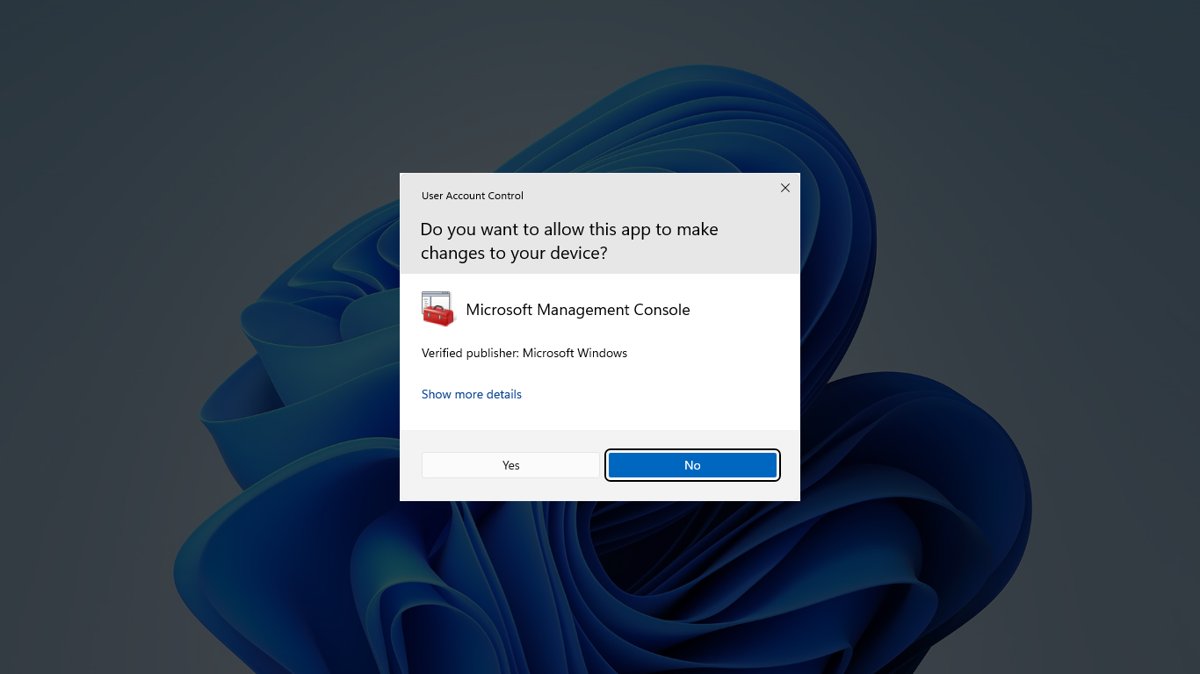
| A prompt with Yes and No only | Consent prompt | You are in the Administrators group; selecting Yes elevates the task |
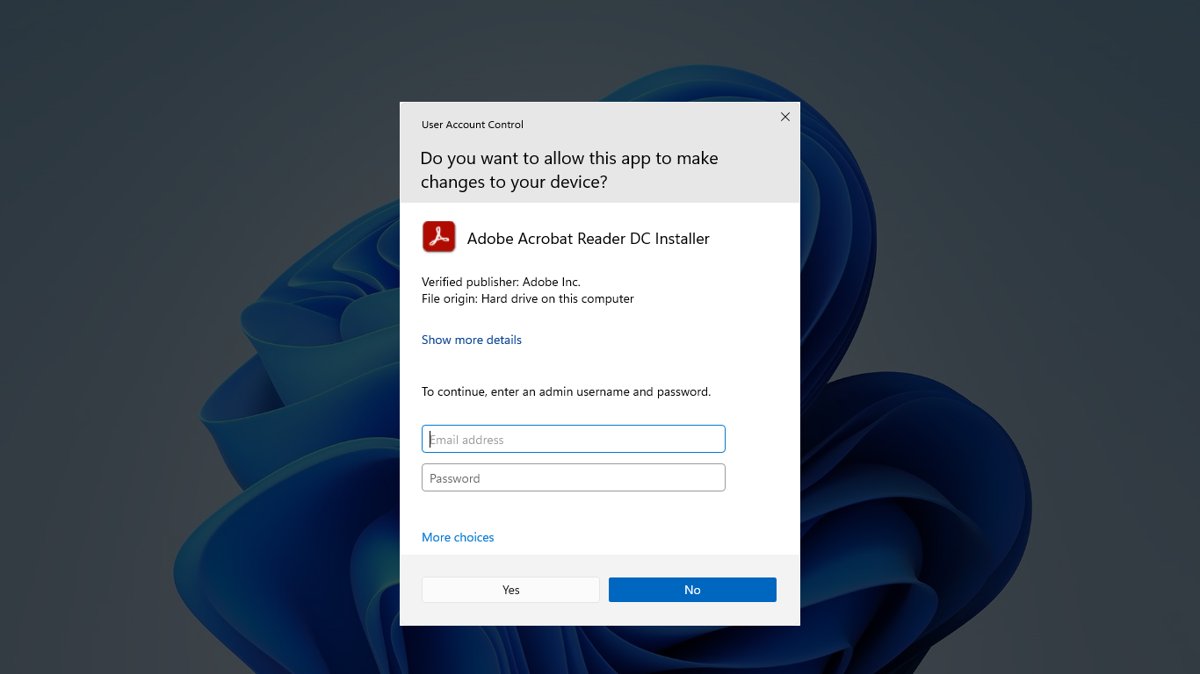
| A prompt asking for a user name and password | Credential prompt | You are a standard user, or an admin whose policy is set to prompt for credentials |
| Gray prompt background | Windows or verified publisher | A Windows admin tool or a signed app from a trusted publisher is asking |
| Yellow prompt background | Unverified publisher | The app is unsigned or its signature is not trusted |
| Shield icon on a button | Admin-only action | Selecting it triggers a UAC prompt before the change runs |
A prompt is not proof of rights on its own: both account types see one. The consent prompt with a plain Yes button is the reliable sign of an admin account under default settings.
How to confirm the result is current
Group changes do not reach a session that was already signed in. Microsoft notes that role information needs a sign-out and sign-in before membership tests report it.
- Select Start, select your user picture and choose Sign out.
- Sign back in to the same account.
- Open Settings > Accounts > Your info and check for Administrator under your name.
- Open PowerShell with Run as administrator and run the
IsInRolecheck. True confirms the account can elevate.
Fix confusing admin check results
My account says Administrator but some actions still ask for permission
User Account Control runs admins with a standard token and asks for consent before using the admin token.
- Select Yes on the consent prompt to let the task run with admin rights.
- Right-click the app and choose Run as administrator when a tool needs elevation from the start.
- Leave UAC on. Microsoft describes it as a key part of Windows security that limits what malware can do with admin rights.
UAC asks for a password even though I think I am an admin
Your account is not in the Administrators group, or policy requires admins to enter credentials.
- Run
net localgroup Administratorsand check whether your user name is listed. - If it is not listed, enter the credentials of an account that is, or ask its owner to type them.
- If it is listed on a work or school PC, contact your IT department, because the prompt behaviour is set by policy.
PowerShell IsInRole returns False for an admin account
The check reads the current window's token, which is the standard token until you elevate.
- Close the PowerShell window.
- Open PowerShell again with Run as administrator and select Yes on the UAC prompt.
- Run the
IsInRolecheck again.
The Administrator option cannot be selected in Control Panel
Only an existing administrator can change an account's type.
- Ask the person who has admin rights on the PC to sign in.
- Have them open Settings > Accounts > Other users, select your account and choose Change account type.
- Sign out and back in, then check Your info again.
What to Do If You Don’t Have Admin Privileges
What you can do depends on who owns the PC. Microsoft advises keeping the number of administrators small and using standard accounts day to day, so a standard account is not a fault.
| Your situation | What to do | Result |
|---|---|---|
| Family or shared home PC | Ask the admin to open Settings > Accounts > Other users, select your account, choose Change account type, pick Administrator and select OK | Your account becomes an admin after you sign out and back in |
| You only need one install or setting change | Ask the admin to type their user name and password in the UAC prompt | The task runs once; your account stays standard |
| PC managed by work, school or another organisation | Contact your IT or technical support team | Admin rights are granted by their policy, not on the PC |
| You own the PC and know another admin account's password | Sign in to that account and change your account type | You restore your own admin rights |
The full steps for changing an account type, plus adding a separate admin account, are in how to add a user account in Windows 11.
Bottom Line
Use Settings > Accounts > Your info for a quick answer, and net localgroup Administrators when you need the full list of admins or a result you can trust on a managed PC. Both read the local Administrators group directly, while UAC prompts and non-elevated token checks can make an admin account look like a standard one.
Frequently Asked Questions
How can I tell quickly if my Windows account is an administrator?
Open Settings > Accounts > Your info and look under your name. The word Administrator means your account has admin rights. If the label is missing, your account is a standard user on that PC.
How do I check if I have admin rights on a PC without Settings?
Open Command Prompt and run net localgroup Administrators. The command lists every member of the local Administrators group. If your user name appears in that list, you have admin rights on the PC.
How do I check if I have admin privileges on Windows 11?
On Windows 11, select Start > Settings > Accounts > Your info and look for Administrator under your name. The Control Panel, net localgroup and PowerShell checks in this guide also work on Windows 11.
How do I check if I have admin privileges on Windows 10?
On Windows 10, select Start > Settings > Accounts > Your info and look for Administrator under your name. You can also use Control Panel > User Accounts, or run net localgroup Administrators in Command Prompt.
Does seeing a UAC prompt mean I already have admin rights?
No. Both account types see UAC prompts. A prompt with only Yes and No is the consent prompt shown to administrators. A prompt that asks for a user name and password is the credential prompt shown to standard users.
What PowerShell command checks whether I am an administrator?
Run Get-LocalGroupMember -Group "Administrators" to list all admins. For a True or False answer, use the WindowsPrincipal IsInRole check with WindowsBuiltInRole Administrator. It returns True only in a window opened with Run as administrator.
Why does my account say Administrator but some actions still ask for permission?
User Account Control runs administrators with a standard token by default. When a task needs the full admin token, Windows shows a consent prompt. Selecting Yes grants the permission for that task only.
What should I do if my Windows account is not an administrator?
Ask an existing administrator to change your account type in Settings > Accounts > Other users, or to enter their password in the UAC prompt. On a work or school PC, contact your IT or technical support team.
Can I see who the administrators are on my PC?
Yes. Run net localgroup Administrators in Command Prompt, or Get-LocalGroupMember -Group "Administrators" in PowerShell. Both list every account in the local Administrators group, including the built-in Administrator account.