To use Windows without typing a user password, turn on automatic sign-in so Windows logs your account in at startup, or replace the password with a Windows Hello PIN, face or fingerprint.
This guide covers both routes on Windows 11 and Windows 10, the passwordless option for Microsoft accounts, the security trade-offs, and how to keep a way back in with a password reset disk.
Turn on automatic sign-in in Windows with Registry Editor
Windows has a built-in automatic logon feature. It stores your user name and password in the registry and signs you in at every restart, so you never see the password prompt at startup. You need an administrator account.
- Select Start, then Run, type
Regedit.exe, and press Enter. - Go to
HKEY_LOCAL_MACHINE\SOFTWARE\Microsoft\Windows NT\CurrentVersion\Winlogon. - Select Edit > New > String Value, name it
AutoAdminLogon, and press Enter. - Double-click
AutoAdminLogon, type1, and select OK. - Double-click
DefaultUserName, type your user name, and select OK. - Double-click
DefaultPassword, type your password, and select OK. If it does not exist, create it with Edit > New > String Value. - On a domain-joined PC, add a
DefaultDomainNamestring set to the domain's full name, such as contoso.com. - Close Registry Editor and restart the PC.
If DefaultPassword is missing, Windows sets AutoAdminLogon back to 0 and automatic sign-in stops. To sign in as someone else once, hold Shift after you sign out or while Windows restarts.
Ways to sign in to Windows without typing a password
| Your situation | Use this | What you give up |
|---|---|---|
| Home PC that only you use, kept at home | Automatic sign-in (registry or Autologon) | Anyone who turns on the PC gets your desktop and files |
| You want no typed password but still want a lock | Windows Hello PIN, face or fingerprint | Nothing; the PIN or biometric works only on that device |
| Microsoft account and Windows Hello already set up | Passwordless mode for Microsoft accounts | The password option disappears from the sign-in screen |
| Kiosk or shared display PC | Automatic sign-in to a standard account | Physical security of the device becomes the only protection |
| Prompt after sleep is the annoyance | Change Require sign-in in Sign-in options | The PC unlocks on wake for anyone nearby |
Use Autologon from Microsoft Sysinternals
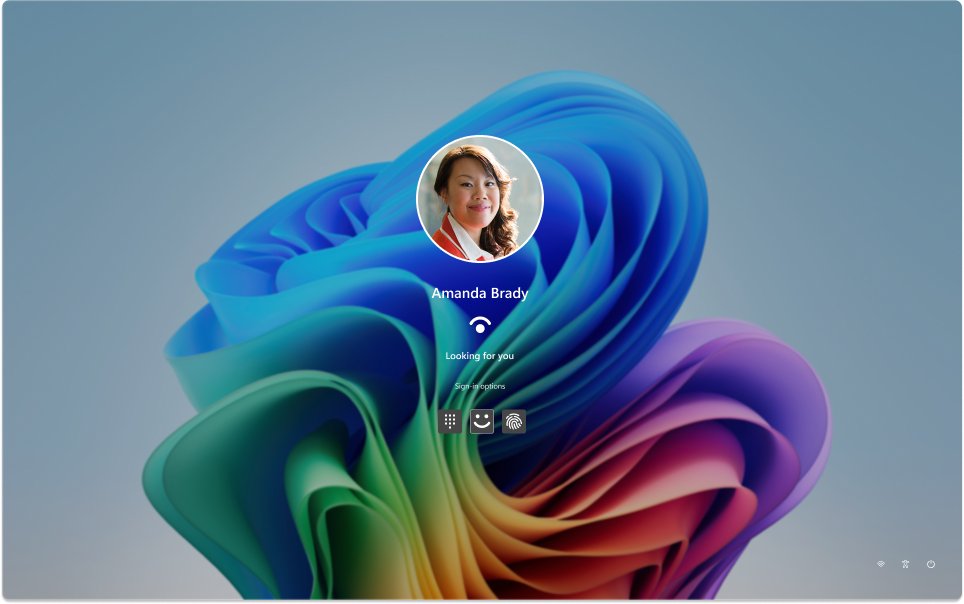
Autologon is a free Microsoft Sysinternals tool that sets up the same automatic logon. It stores the password encrypted as an LSA secret instead of in plain text in the Winlogon key, which is better than the registry method.
- Get Autologon from its page on learn.microsoft.com under Sysinternals.
- Run
autologon.exewith an administrator account. - Enter the Username, Domain and Password for the account that should sign in.
- Select Enable.
- Restart the PC and confirm it goes straight to the desktop.
You can also run autologon user domain password from a command prompt. Select Disable in the tool to turn automatic sign-in off again. Autologon does not check the credentials, so a typo shows up only as a failed sign-in at the next restart.
Sign in with a Windows Hello PIN, face or fingerprint instead of a password
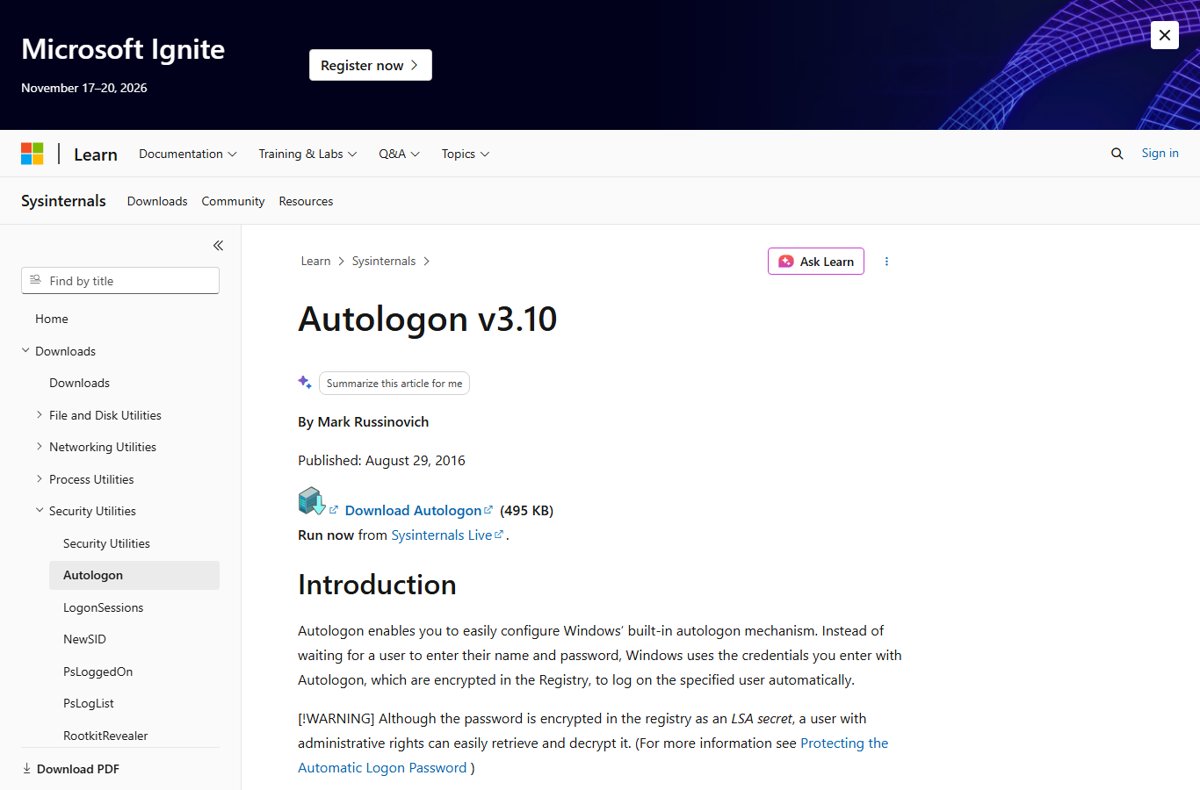
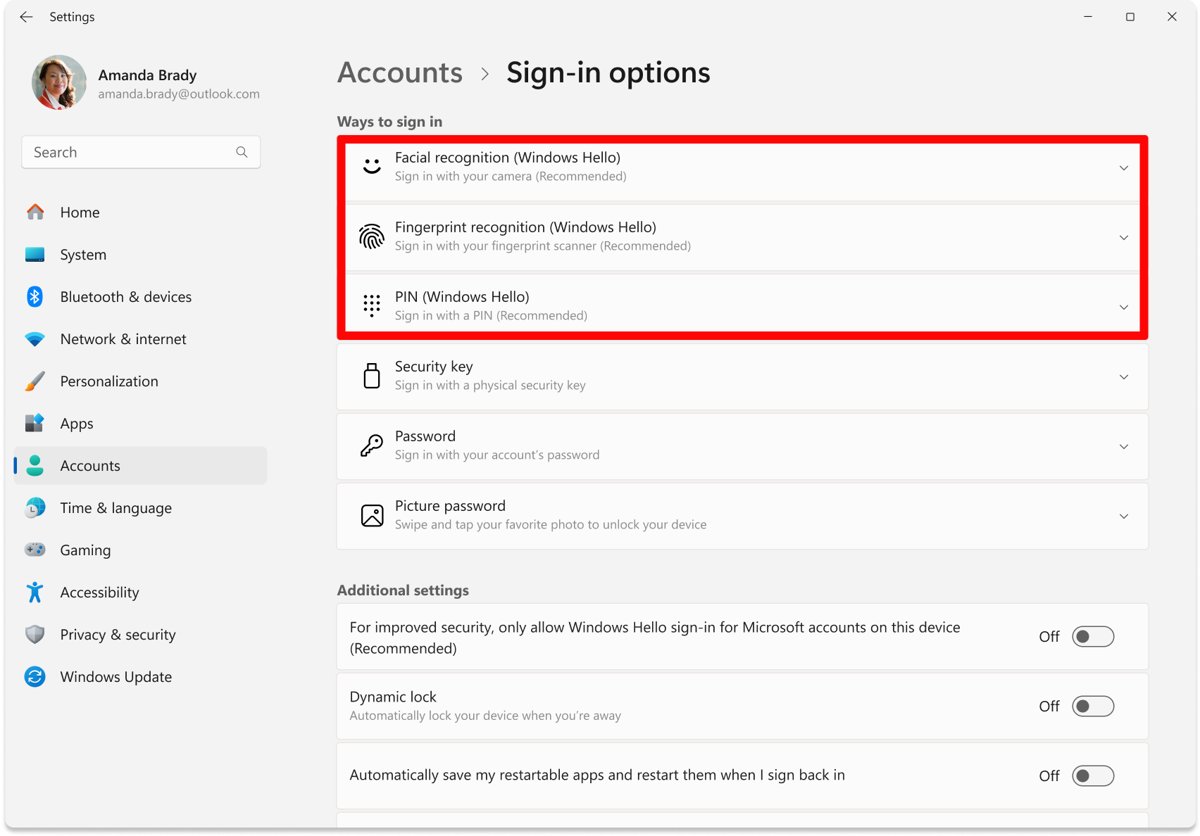
Windows Hello keeps the PC locked but replaces the typed password with a PIN, your face or your fingerprint. Face sign-in needs a Hello-compatible camera, and fingerprint sign-in needs a fingerprint reader.
- Open Settings and select Accounts > Sign-in options.
- Under Ways to sign in, choose PIN (Windows Hello), Facial recognition (Windows Hello) or Fingerprint recognition (Windows Hello).
- Select Set up.
- Follow the prompts to create the PIN or scan your face or finger.
- Lock the PC with Windows logo key + L and sign in with the new method.
Each person who uses the PC can set up Windows Hello in Windows 11 on their own account. If the reader stops responding, you can fix fingerprint sign-in before falling back to the PIN.
Remove the password option for a Microsoft account in Windows
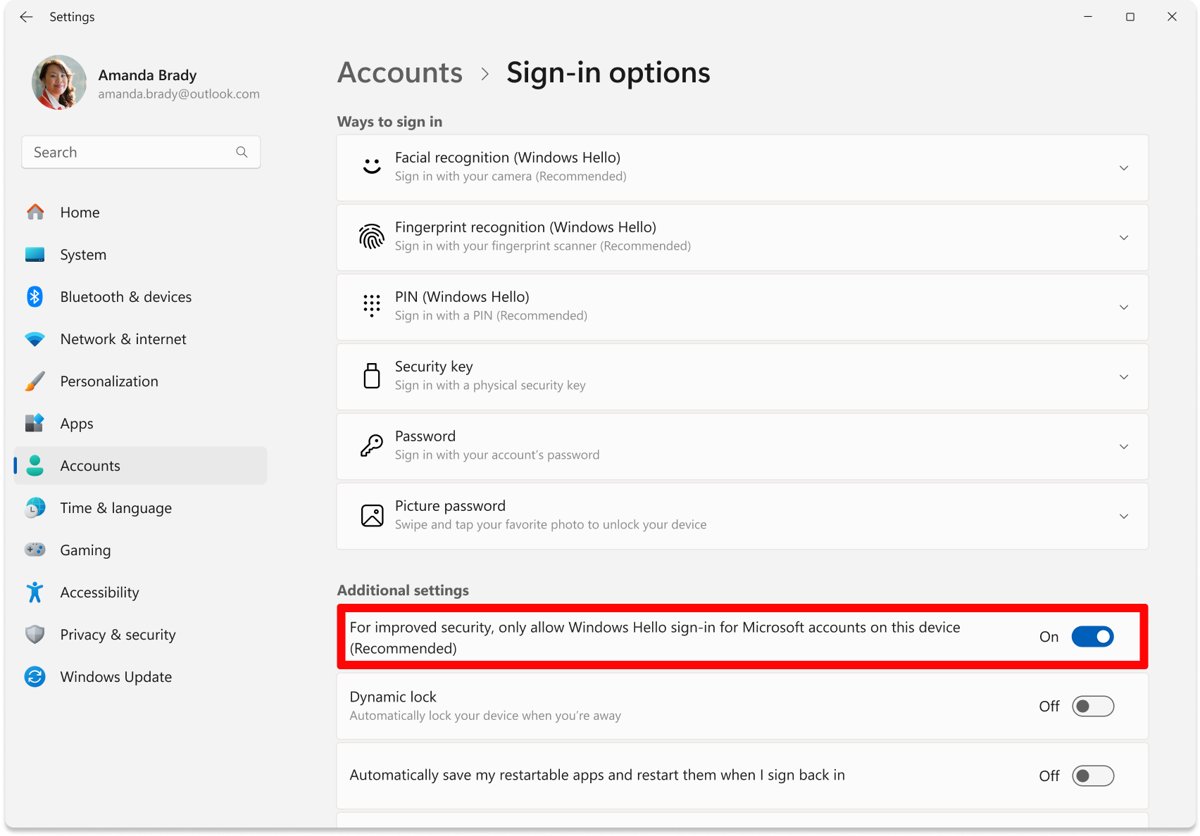
If you sign in with a Microsoft account and Windows Hello is already set up, you can remove password sign-in from the device. Apps and browsers that asked for your Microsoft account password then use Windows Hello instead. This option is not available for local accounts.
- Open Settings and select Accounts > Sign-in options.
- Under Additional settings, turn on For improved security, only allow Windows Hello sign-in for Microsoft accounts on this device.
- On Windows 10, turn on Require Windows Hello sign-in for Microsoft accounts instead.
- Sign out and back in to confirm only face, fingerprint or PIN is offered.
Stop Windows asking for a password after sleep
Automatic sign-in only covers startup. Windows can still ask you to sign in when it wakes from sleep, and that is a separate setting.
- Select Start > Settings > Accounts > Sign-in options.
- Find the Require sign-in setting.
- Choose the option that stops Windows from asking for sign-in when it wakes from sleep.
- Put the PC to sleep and wake it to check the change.
If you use Dynamic lock, Windows still locks automatically within a minute after your paired phone goes out of Bluetooth range.
Use the Control Panel to create a password reset disk first
Before you stop typing your password every day, make sure you can still get in if you forget it. A password reset disk is a USB flash drive that resets a local account password. It is not available for Microsoft accounts, which reset online.
- Sign in with your local account and plug in a USB flash drive.
- In the taskbar search box, type Control Panel and open it.
- In the Control Panel search box, type create password reset.
- Select Create a password reset disk and follow the wizard.
- Remove the USB drive and keep it somewhere safe.
You do not need a new disk when you change your password. If you are already locked out, the steps to reset a Windows 11 or 10 password cover security questions, the reset disk and another administrator account.
Local account or Microsoft account for password-free sign-in
| Option | Local account | Microsoft account |
|---|---|---|
| Automatic sign-in at startup | Yes | Yes, using the Microsoft account password |
| Windows Hello PIN, face, fingerprint | Yes | Yes |
| Remove password option from the device | No | Yes, after Windows Hello is set up |
| Password reset disk | Yes | No; reset the password online |
| Reset from another administrator account | Yes, in Computer Management | No; reset the password online |
Microsoft recommends a Microsoft account for signing in to Windows. To make a separate local account for a family member or a kiosk, add a user account in Windows 11 and choose Add a user without a Microsoft account.
Is it safe to use Windows without a password?
Use automatic sign-in only on a PC that stays in a secure place and that untrusted people cannot reach; everywhere else, use a Windows Hello PIN or biometric, which removes the typed password but keeps the lock. With automatic sign-in, anyone who can physically reach the PC gets all its contents and any network it is connected to. The registry method stores the password in plain text that Authenticated Users can read remotely, and even Autologon's encrypted copy can be decrypted by any administrator.
Check that Windows signs in without a password
- Restart the PC without touching the keyboard.
- Confirm Windows goes past the sign-in screen straight to your desktop.
- Sign out, then sign back in, and confirm only the PIN, face or fingerprint is requested if you set up Windows Hello.
- Put the PC to sleep, wake it, and check whether a sign-in prompt appears.
Windows automatic sign-in not working: fixes
Windows still shows the sign-in screen after a restart
DefaultPassword is missing or wrong, so Windows reset AutoAdminLogon to 0.
- Open the Winlogon key in Registry Editor again.
- Check that
DefaultPasswordexists and holds the current password. - Set
AutoAdminLogonback to1and restart.
Automatic sign-in stopped after you changed your password
The stored password no longer matches the account.
- Update
DefaultPasswordwith the new password, or run Autologon again and select Enable. - Restart the PC.
Automatic sign-in never works on a work or school PC
A logon banner set by Group Policy or Exchange ActiveSync password rules blocks it by design.
- Ask your IT administrator whether a logon banner or EAS password policy applies to the PC.
- Use a Windows Hello PIN or biometric instead if the policy stays in place.
Wrong user signs in automatically
Someone signed in at the console as a different user, which changed DefaultUserName.
- Set
DefaultUserNameback to the intended account. - Hold Shift at restart when you need to sign in as another user, instead of switching at the console.
Turn automatic sign-in off again
- Open Registry Editor and go to
HKEY_LOCAL_MACHINE\SOFTWARE\Microsoft\Windows NT\CurrentVersion\Winlogon. - Set
AutoAdminLogonto0. - Delete the
DefaultPasswordvalue so the password is no longer stored. - If you used the Sysinternals tool, run Autologon and select Disable instead.
- Restart and confirm the sign-in screen asks for your password, PIN or biometric.
Windows without a password FAQ
Can I use Windows without a user account?
No. Windows always runs under a user account. You can stop typing its password by turning on automatic sign-in at startup or by signing in with a Windows Hello PIN, face or fingerprint.
How do I make Windows sign in automatically?
Set AutoAdminLogon to 1 and fill in DefaultUserName and DefaultPassword under the Winlogon registry key, then restart. The Microsoft Sysinternals Autologon tool does the same and encrypts the stored password.
Does automatic sign-in work with a Microsoft account?
Yes. Enter the Microsoft account email as the user name and its password as the stored password. A Microsoft account can also drop passwords completely by allowing only Windows Hello sign-in on the device.
Is a Windows Hello PIN safer than a password?
A Windows Hello PIN replaces the typed password and works only on the device where you set it up. It keeps the PC locked, unlike automatic sign-in, which opens the desktop for anyone who starts the computer.
How do I sign in as a different user when automatic sign-in is on?
Hold the Shift key after you sign out or while Windows restarts. That skips automatic sign-in for that logon and shows the normal sign-in screen.
What if I forget my password after turning on automatic sign-in?
For a local account, use a password reset disk or answer your security questions on the sign-in screen. An administrator can also set a new password in Computer Management. Microsoft accounts reset online.
Why does Windows ask for a password after sleep with automatic sign-in on?
Automatic sign-in applies only at startup. The prompt on wake is controlled by Require sign-in under Settings > Accounts > Sign-in options.
Bottom line: using Windows without a user password
Set up a Windows Hello PIN or fingerprint for everyday password-free sign-in, and reserve automatic sign-in for a PC that stays in a secure place. Both remove the typed password, but only Windows Hello keeps the PC locked to strangers.