To set up Windows Hello in Windows 11, open Settings > Accounts > Sign-in options, pick PIN, Fingerprint recognition or Facial recognition (Windows Hello), select Set up, and use that method at your next sign-in instead of your password.
Windows Hello is built into Windows 11 and Windows 10, and a PIN works on every PC, so you can set it up in a couple of minutes even without a fingerprint reader or IR camera. This guide covers each sign-in method, external cameras and readers, passwordless Microsoft account sign-in, security keys, Windows 10, and the errors that stop setup.
How to set up and use Windows Hello in Windows 11 to sign in?
Windows Hello is built into Windows 11, so there is nothing to install. The PIN works on every PC; fingerprint and face need matching hardware.
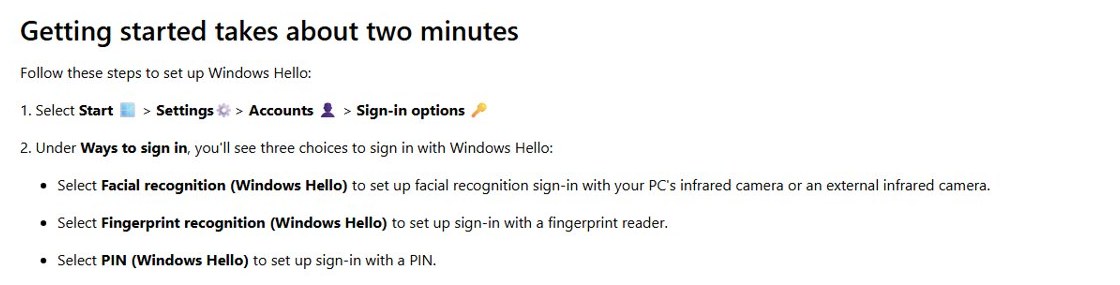
- Select Start > Settings > Accounts > Sign-in options.
- Under Ways to sign in, select PIN (Windows Hello), Fingerprint recognition (Windows Hello) or Facial recognition (Windows Hello).
- Select Set up.
- Confirm your identity with your current password when Windows asks.
- Follow the on-screen instructions to create the PIN or scan your finger or face.
- Lock the PC or sign out, then sign in with the PIN, your finger or your face.
If you set up fingerprint or face first, Windows also asks for a PIN. That PIN is your fallback whenever the sensor cannot read you.
Microsoft says getting started takes about two minutes: the whole job is the Sign-in options page plus one scan or one PIN. The best default is a Windows Hello PIN on every Windows 11 PC, fingerprint or face where the hardware exists, and Windows Hello only sign-in if you use a Microsoft account.
Meet Windows Hello
Windows Hello is the sign-in system in Windows that replaces your password with a glance, a touch or a PIN. It gives you three ways in, each tied to that one device:
- Facial recognition: an infrared camera recognizes your face, built in or connected over USB.
- Fingerprint scan: a reader on the laptop, keyboard or a USB dongle.
- PIN: a code that is local to your device and does not work on any other PC.
The same Windows Hello prompt also approves passkeys on websites and confirms sign-in in apps that support it, so one setup covers far more than the lock screen.

Windows Hello PIN vs fingerprint vs face
| Your situation | Use this Windows Hello method | Why |
|---|---|---|
| No fingerprint reader or IR camera | PIN (Windows Hello) | Works on any Windows 11 PC and is tied to that one device |
| Laptop or keyboard with a fingerprint reader | Fingerprint recognition (Windows Hello) | One touch signs you in, with the PIN as backup |
| Laptop with an infrared (IR) camera | Facial recognition (Windows Hello) | Signs you in as soon as you look at the screen |
| Desktop PC without biometric hardware | A Windows Hello compatible USB camera or fingerprint reader | Adds face or fingerprint sign-in to any PC |
| You want no password on your Microsoft account at all | Windows Hello plus passwordless mode or a FIDO2 security key | Removes the password option that can be phished or guessed |
Windows Hello requirements on Windows 11
| Windows Hello method | Hardware needed | Account needed |
|---|---|---|
| PIN | None beyond the PC itself | Microsoft account or local account |
| Fingerprint | A built-in or USB fingerprint reader | Microsoft account or local account, plus a PIN |
| Face | A camera configured for near-infrared (IR) imaging; a normal webcam cannot be used | Microsoft account or local account, plus a PIN |
| Security key | A FIDO2 USB or NFC key | Added through your Microsoft account security page |
| Passwordless mode | Any Windows Hello method already set up | Microsoft account only |
Windows 11 runs without biometric hardware. A PC with no sensor still gets Windows Hello through the PIN or a security key.
Set up a Windows Hello PIN in Windows 11
A Windows Hello PIN only works on the PC where you create it, and for a Microsoft account it is backed up for recovery. That is why it is safer than a password even when it is shorter.
- Open Settings > Accounts > Sign-in options.
- Select PIN (Windows Hello) and then Set up.
- Verify your account with your password when asked.
- Type the new PIN, confirm it, and finish the prompts.
- Lock the PC and sign in with the PIN to test it.
To change your Windows 11 PIN later, select PIN (Windows Hello) > Change PIN and enter the old PIN first.
Set up Windows Hello fingerprint sign-in
Fingerprint sign-in needs a reader built into the laptop or keyboard, or a USB reader labelled Windows Hello compatible.
- Open Settings > Accounts > Sign-in options.
- Select Fingerprint recognition (Windows Hello) and then Set up.
- Verify your identity with your PIN or password when asked.
- Touch the reader with the same finger repeatedly, as the prompts ask, until the scan completes.
- Create a PIN if Windows asks for one.
- Lock the PC and touch the reader to sign in.
If the reader stops responding after an update, work through fixes for fingerprint sign-in before you remove and re-enroll.
Set up Windows Hello facial recognition sign-in
Face sign-in only appears as available when Windows sees an infrared camera with a working driver. Windows stores an encrypted representation of your face on the PC, never a photo.
- Open Settings > Accounts > Sign-in options.
- Select Facial recognition (Windows Hello) and then Set up.
- Verify your identity with your PIN or password when asked.
- Look straight at the camera until the scan finishes.
- Select Improve recognition afterwards if you wear glasses only some of the time.
- Lock the PC and look at the camera to sign in.
When the option says no compatible camera was found, the IR camera or its driver is missing. Getting the camera driver and Windows Hello Face installed on Windows 11 is a separate job from choosing your sign-in methods.
Sign in to Windows 11 with Windows Hello
After setup, the sign-in screen offers your Windows Hello methods instead of the password box. Face sign-in starts by itself; the PIN and fingerprint wait for you.
- Wake the PC and dismiss the lock screen.
- Look at the camera, touch the fingerprint reader, or type your PIN.
- To switch method, select Sign-in options below the box and pick the PIN, fingerprint or face icon.
- Select the password icon under Sign-in options if you need the password and it is still allowed.
- Use the same face, finger or PIN when an app, Microsoft Edge or a website asks you to confirm with Windows Hello.
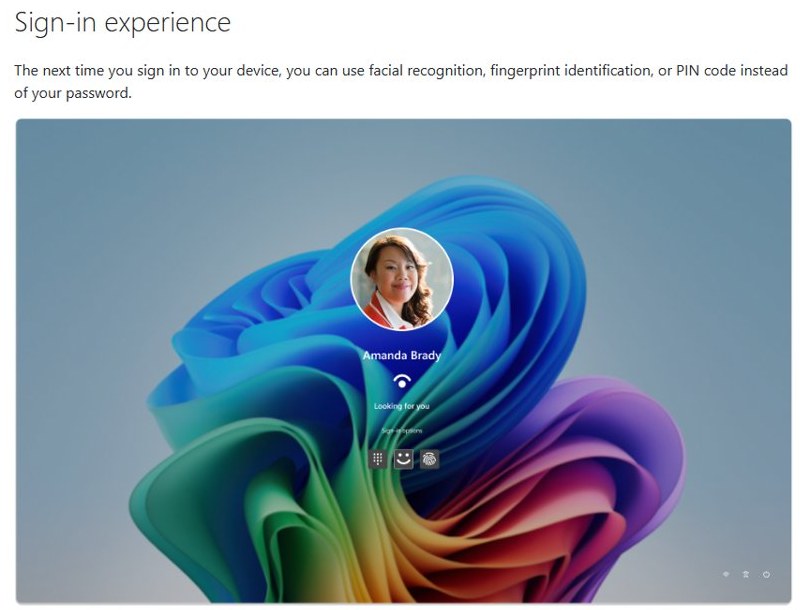
Sign-in experience
The next time you sign in, Windows uses facial recognition, fingerprint identification or your PIN instead of the password. After several failed face or fingerprint attempts it falls back to the PIN, and once you are signed in, the same method approves app sign-ins that support Windows Hello, much like biometric authentication for saved passwords in Chrome.
Using an external camera or fingerprint reader
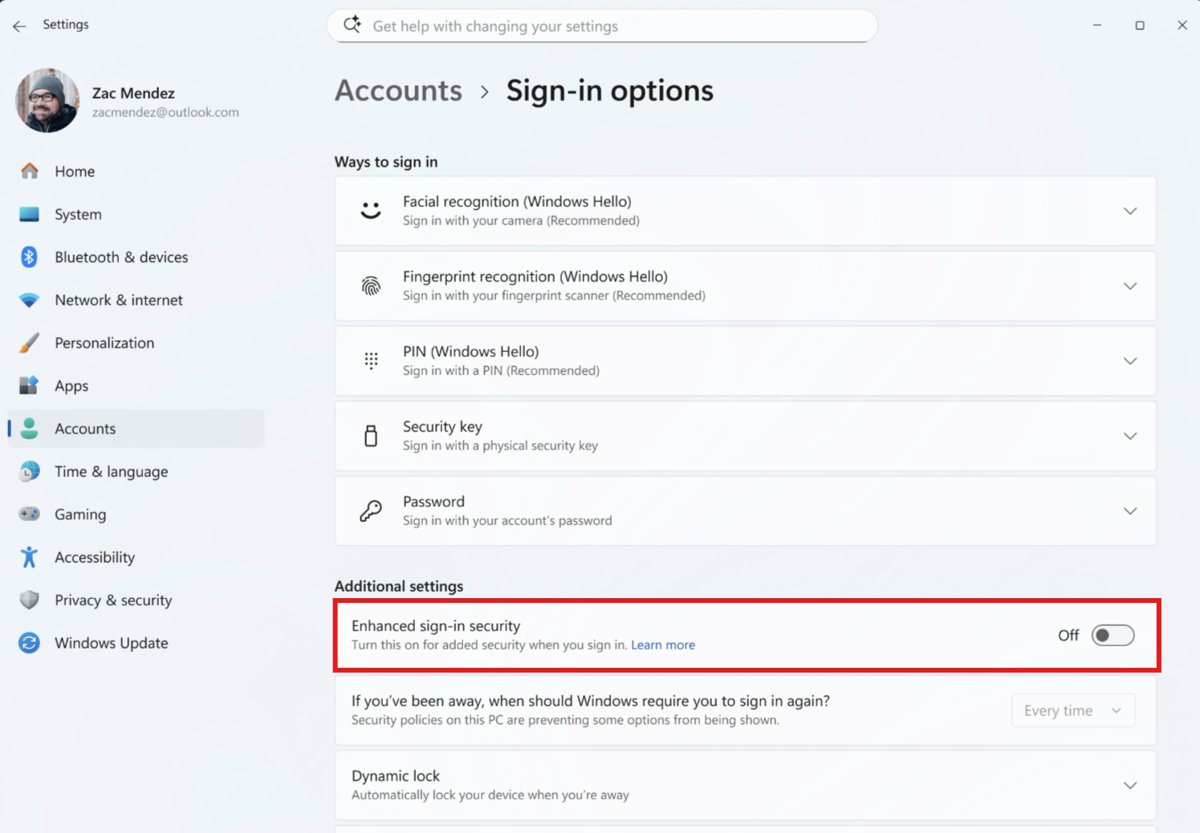
Enhanced Sign-in Security (ESS) keeps biometric data on specialised hardware, and it blocks many external sensors. External camera modules never support ESS, so they need it switched off.
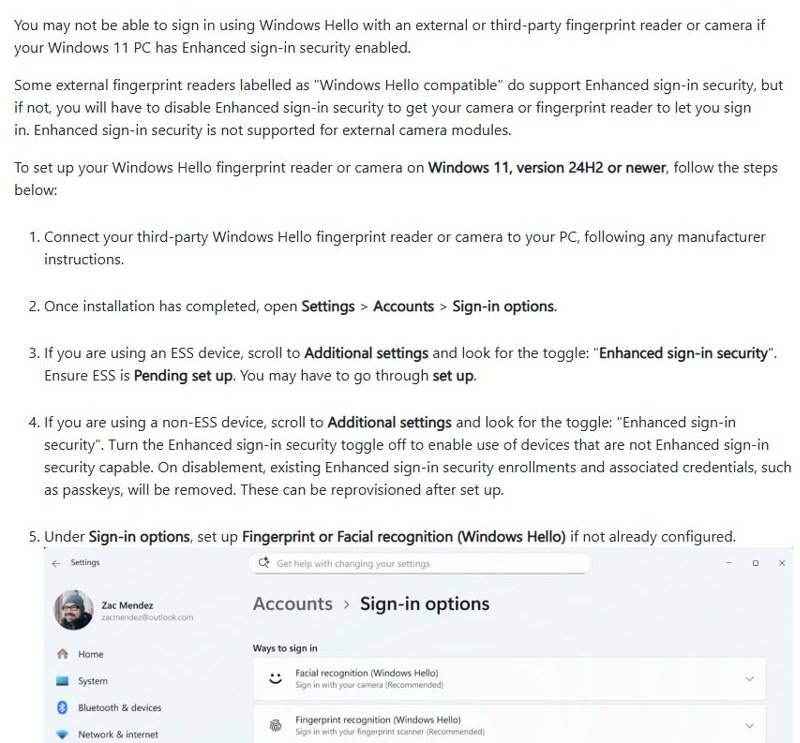
- Connect the Windows Hello compatible camera or reader and follow the maker's setup instructions.
- Open Settings > Accounts > Sign-in options once the driver has installed.
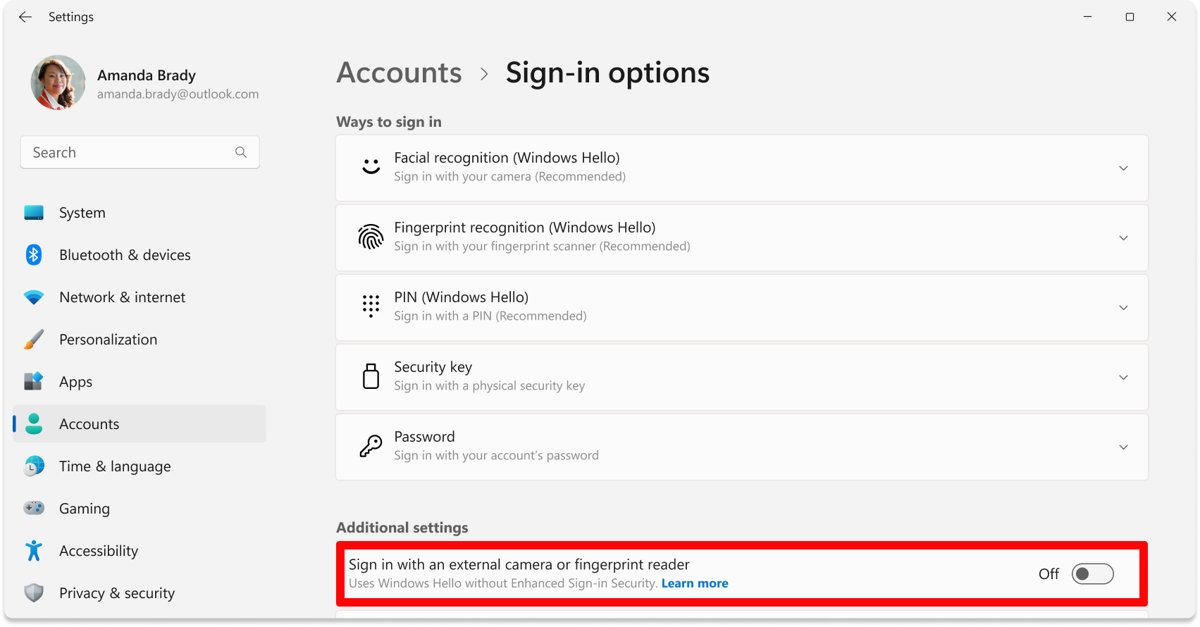
- On Windows 11 version 24H2 or newer, scroll to Additional settings and turn Enhanced sign-in security off for a non-ESS device.
- On Windows 11 version 23H2, turn on Sign in with an external camera or fingerprint reader instead.
- Go back to Ways to sign in and set up Fingerprint recognition (Windows Hello) or Facial recognition (Windows Hello).
Turning ESS off removes existing ESS enrollments and the passkeys tied to them, so set those up again afterwards. External readers that support ESS can stay with ESS on.
Enable passwordless Microsoft-account sign-in
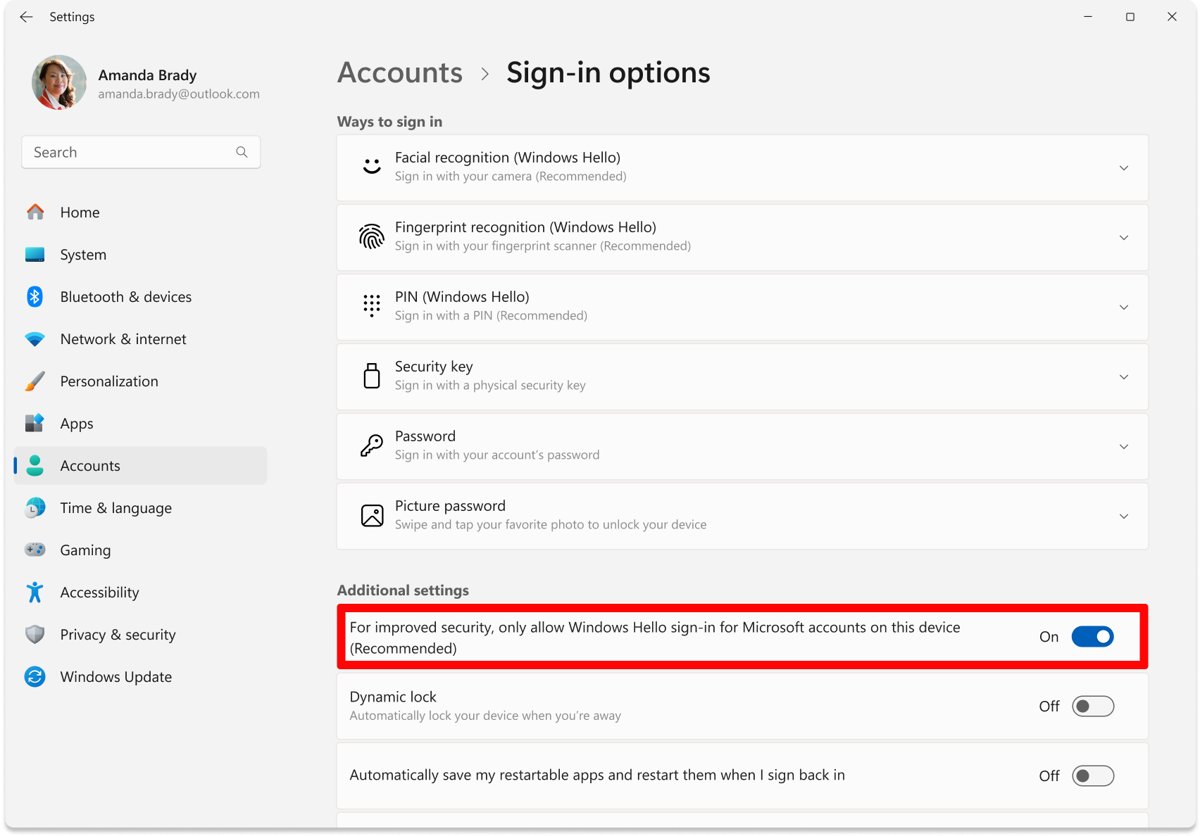
Passwordless mode removes the password option from the Windows sign-in screen for your Microsoft account. Apps and browsers that asked for your Microsoft account password then use Windows Hello instead.
- Set up at least one Windows Hello method, such as a PIN.
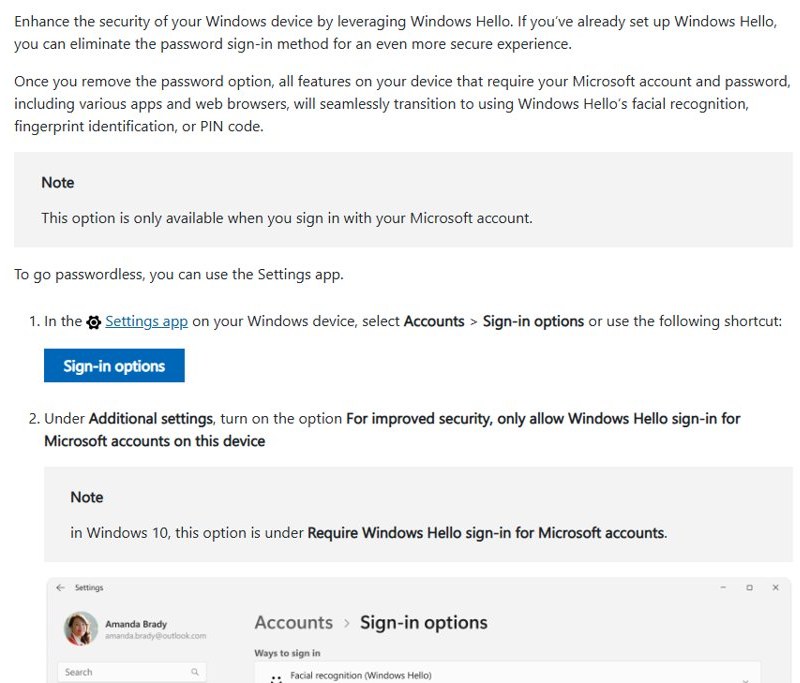
- Open Settings > Accounts > Sign-in options.
- Under Additional settings, turn on For improved security, only allow Windows Hello sign-in for Microsoft accounts on this device.
- Sign out and back in; only face, fingerprint or PIN is offered now.
- To remove the password from the Microsoft account itself, install Microsoft Authenticator, open your account's Additional security options, select Turn on under Passwordless account and approve the request in the app.
This setting only exists for Microsoft accounts. Local accounts keep their password as a sign-in option.
Sign in across apps and websites – no password required
Windows Hello does not only unlock the PC. It also stores and unlocks passkeys, the phishing-resistant replacement for website passwords, so the same face, fingerprint or PIN signs you in to supported websites and apps.
- On a site that supports passkeys, open its security or sign-in settings and choose to create a passkey.
- When Windows asks where to save it, choose this Windows device.
- Confirm with your Windows Hello face, fingerprint or PIN.
- Next time, pick the passkey option on the sign-in page and confirm with Windows Hello again; no password is typed.
- Review saved passkeys in Settings > Accounts > Passkeys and delete any you no longer use.
Browsers have used Windows Hello for web sign-in for years; Firefox added Windows Hello support back in version 66. Turning Enhanced Sign-in Security off removes passkeys tied to ESS enrollments, so recreate them afterwards.

Sign in with a security key in Windows 11
A FIDO2 security key is a USB or NFC device that replaces your user name and password. It is unlocked with its own PIN or fingerprint, so a lost key alone cannot sign anyone in.
- Sign in to the Microsoft account page and select Security.
- Select Add a new way to sign in or verify and then Use a security key.
- Choose USB or NFC and select Next.
- Insert or tap the key, create its PIN, and touch the key's button or gold disk when asked.
- Name the key so you can tell it apart from others.
- To manage the key in Windows, open Settings > Accounts > Sign-in options > Security Key > Manage.
Secure by design
Windows Hello moves sign-in from a reusable password to protection tied to your device:
- Your biometric data and PIN stay on your device, protected by hardware, and are not shared with Microsoft or anyone else.
- No password is required, which reduces the risk of phishing and stolen credentials.
- Infrared sensing helps stop someone unlocking the PC with a photo or video of you.
- Someone who steals the PC still needs your face, fingerprint or PIN, and you can still recover your Microsoft account from another device.

How to use Windows Hello in Windows 10
Windows 10 uses the same Sign-in options page, with a few labels that differ. Windows 10 support ended on October 14, 2025, so new security changes reach Windows 11 only.
| Task | Windows 11 | Windows 10 |
|---|---|---|
| Open Windows Hello settings | Settings > Accounts > Sign-in options | Settings > Accounts > Sign-in options |
| Set up a PIN, fingerprint or face | Select the method under Ways to sign in > Set up | Select the method on the same page > Set up |
| Turn on passwordless sign-in | For improved security, only allow Windows Hello sign-in for Microsoft accounts on this device | Require Windows Hello sign-in for Microsoft accounts |
| Use an external camera or reader | Enhanced sign-in security (24H2+) or Sign in with an external camera or fingerprint reader (23H2) | No Enhanced Sign-in Security toggle |
How to see which Windows Hello sign-in options are set up
- Open Settings > Accounts > Sign-in options.
- Expand each method you set up; it should show Change PIN, Improve recognition or Remove instead of Set up.
- Lock the PC or sign out.
- Select Sign-in options on the sign-in screen and confirm your methods appear as icons.
- Sign in once with each method to confirm it is accepted.
Change or remove Windows Hello credentials
All changes happen in Settings > Accounts > Sign-in options. Removing a biometric deletes its stored template from the PC.
| Goal | What to select | Note |
|---|---|---|
| Change the PIN | PIN (Windows Hello) > Change PIN | Needs the old PIN |
| Reset a forgotten PIN | PIN (Windows Hello) > I forgot my PIN | Verifies your account, then creates a new PIN |
| Make face recognition more reliable | Facial recognition (Windows Hello) > Improve recognition | Adds another face template |
| Re-scan your face from scratch | Facial recognition (Windows Hello) > Remove, then Set up | Keeps only the newest scan |
| Stop using fingerprint or face | Select the method > Remove | The PIN and password keep working |
| Lock the PC when you walk away | Additional settings > Dynamic lock | Locks within a minute after a paired Bluetooth phone leaves range |
How to disable Windows Hello in Windows 11
You can turn Windows Hello off method by method and go back to your password at any time.
- Open Settings > Accounts > Sign-in options.
- Under Additional settings, turn off For improved security, only allow Windows Hello sign-in for Microsoft accounts on this device; the PIN Remove button stays greyed out while it is on.
- Select Facial recognition (Windows Hello) or Fingerprint recognition (Windows Hello) and select Remove.
- Select PIN (Windows Hello) > Remove and confirm with your account password.
- Sign out; the sign-in screen now asks for your password.
On a work or school PC, Windows Hello for Business can be enforced by policy, and only IT can switch it off.
How to reinstall Windows Hello in Windows 11
When face or fingerprint vanishes from Sign-in options after an update or a reset, re-register the sensor and set the method up again.
- In Settings > Accounts > Sign-in options, remove the broken face or fingerprint method if it is still listed.
- Right-click Start > Device Manager, expand Biometric devices (fingerprint) or Cameras (IR camera), right-click the sensor and select Uninstall device.
- Restart the PC so Windows reinstalls the driver.
- Install any camera or fingerprint driver listed in Settings > Windows Update > Advanced options > Optional updates.
- Return to Sign-in options and select Set up for the method again.
Windows Hello Enhanced sign-in security not working with external camera
External camera is not offered for face sign-in
Enhanced Sign-in Security is on, and it does not support external camera modules.
- Open Settings > Accounts > Sign-in options > Additional settings.
- Turn Enhanced sign-in security off (24H2 or newer) or turn Sign in with an external camera or fingerprint reader on (23H2).
- Set up Facial recognition (Windows Hello) again with the external camera.
- Re-create any passkeys that were removed when ESS was turned off.
The Enhanced sign-in security toggle is missing
Your organization has blocked non-ESS Windows Hello devices, or the toggle has not rolled out to the PC yet.
- On a work or school PC, ask IT whether external Windows Hello devices are allowed.
- On a personal PC, install pending updates from Settings > Windows Update and restart.
- Check Additional settings again after the update.
Windows Hello Face not working in Windows 11
"We couldn't find a camera compatible with Windows Hello Face"
The PC has no infrared camera, or the camera's driver or firmware is missing or out of date.
- Check the PC's specifications for an IR camera; a normal webcam cannot do face sign-in.
- Open Settings > Windows Update > Advanced options > Optional updates and install any camera driver listed.
- Install all other pending Windows and firmware updates, then restart.
- If there is no IR camera, connect a Windows Hello compatible USB camera or use a PIN or fingerprint instead.
"Couldn't recognize you."
Lighting, glasses, make-up or a hat differ from the original scan.
- Sign in with your PIN or password.
- Clean the camera and avoid bright light from one side.
- Select Facial recognition (Windows Hello) > Improve recognition and scan again.
Fix Access denied, 0x80090010, NTE_PERM Windows Hello error
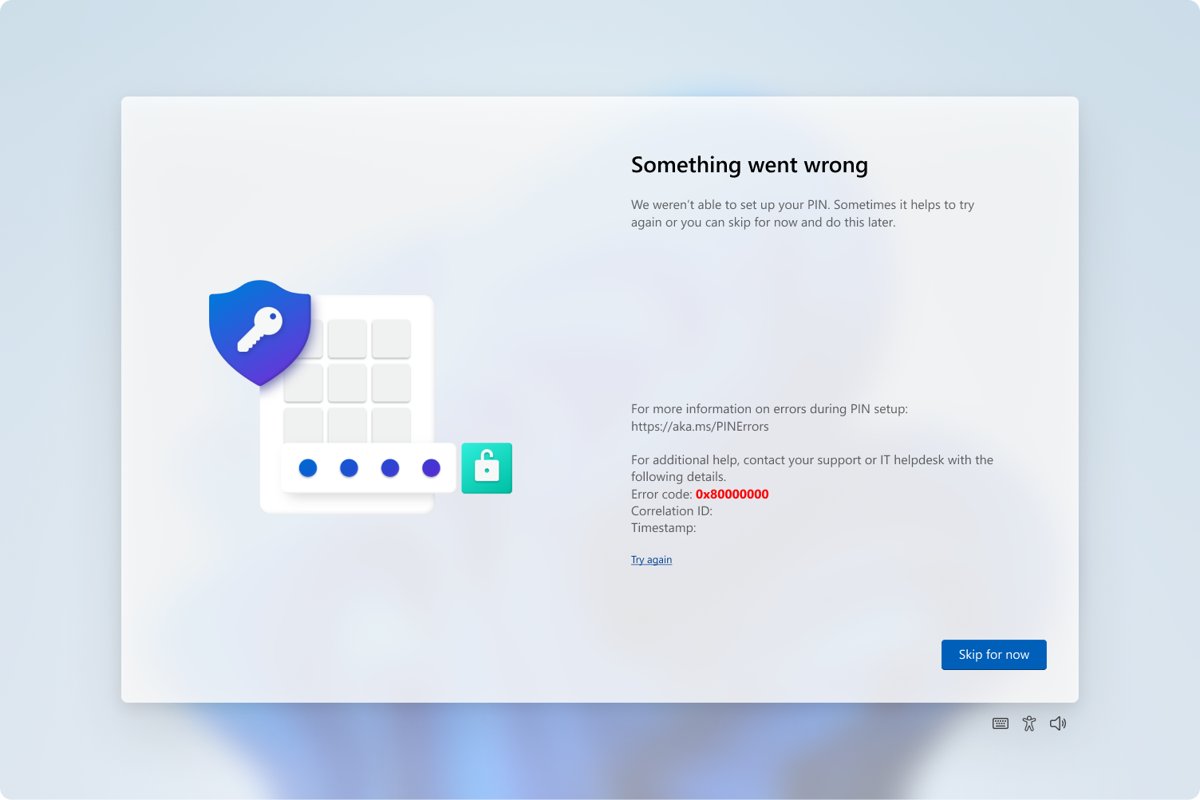
Error 0x80090010 (NTE_PERM, an access-denied code) appears at the Create a PIN step. Microsoft lists no specific fix for it, only the general PIN-creation steps below.
0x80090010 NTE_PERM when creating a Windows Hello PIN
PIN creation failed while Windows was storing the PIN key; some of these failures are temporary.
- Try to create the PIN again.
- Sign out, sign back in, and retry.
- Restart the PC and retry.
- On a work PC joined to Microsoft Entra ID, ask IT to disconnect and rejoin it through Settings > System > About > Disconnect from organization.
- If the error returns, contact Microsoft Support with the error code.
0x80090029 when creating a Windows Hello PIN
The TPM is not set up.
- Sign in with an administrator account.
- Select Start, type
tpm.mscand open it. - In the Actions pane, select Prepare the TPM.
- Restart and create the PIN again; if no TPM is found, turn on TPM 2.0 in the BIOS first.
Forgot the Windows Hello PIN
The PIN is separate from your account password.
- Select I forgot my PIN below the PIN box on the sign-in screen (Microsoft accounts only).
- On a local account, sign in with the password instead, then reset the PIN in Sign-in options.
- If you lost the password as well, reset the Windows password first.
Windows Hello sign-in FAQ
What happens if my hardware doesn't support a Windows Hello login method?
The method shows as unavailable in Sign-in options. Face needs an infrared camera and fingerprint needs a reader, but every Windows 11 PC can use a Windows Hello PIN or a FIDO2 security key, and USB cameras and readers add biometrics.
Why does Windows Hello ask for a PIN when I set up face or fingerprint?
The PIN is the fallback for biometric sign-in. Windows uses it when the camera or reader cannot recognize you, and after several failed face attempts it requires the PIN before face sign-in works again.
Why would you use the Windows Hello only sign-in option?
Turning on Windows Hello only sign-in removes the password option for your Microsoft account on that PC. Nobody can sign in with a stolen or guessed password, and apps that asked for the password use Windows Hello instead.
Is Windows Hello mandatory on Windows 11?
No. Windows Hello is optional, and you can keep signing in with a password. Only passwordless mode depends on it, because that setting removes the password option and leaves Windows Hello as the way in.
Is a Windows Hello PIN safer than a password?
Yes. A Windows Hello PIN works only on the PC where you created it, so someone who learns it cannot use it to sign in to your Microsoft account from another device. A password works anywhere.
Where does Windows Hello store my face and fingerprint?
Biometric data stays on the PC in encrypted form and never roams to other devices or websites. Windows stores a representation of your face or fingerprint, not a photo, and Remove deletes it.
Can I use Windows Hello face with a normal webcam?
No. Windows Hello face needs a camera configured for near-infrared imaging. A normal colour webcam cannot be used, so add a Windows Hello compatible USB camera or use a PIN or fingerprint instead.
Does Windows Hello work with a local account?
Yes. A local account can use a Windows Hello PIN, fingerprint or face. The I forgot my PIN reset and the Windows Hello only sign-in setting are available for Microsoft accounts only.
Does Windows Hello send my face or fingerprint to Microsoft?
No. Microsoft says your biometric data stays only on your device and is never uploaded to its servers.
Can someone unlock my PC with a photo of me?
Windows Hello face is designed to check that it is really you, not an image of you; its infrared sensing helps protect against photo and video spoofing.
What if I lose my PC?
The thief still needs your face, fingerprint or PIN, because those credentials are stored on the device and protected by hardware. Recover or secure your Microsoft account from another device.