To add a user account in Windows 11, open Settings > Accounts > Other users, select Add account next to Add other user, and enter the person’s Microsoft account email or choose I don’t have this person’s sign-in information > Add a user without a Microsoft account for a local account. You must be signed in as an administrator.
This guide covers Microsoft and local accounts, family and work accounts, the net user and New-LocalUser commands, admin rights, removal and fixes when Windows refuses to add someone.
Add a new user account using Windows 11 Settings
You need to be signed in with an administrator account. The new person gets their own desktop, files and settings on the same PC.
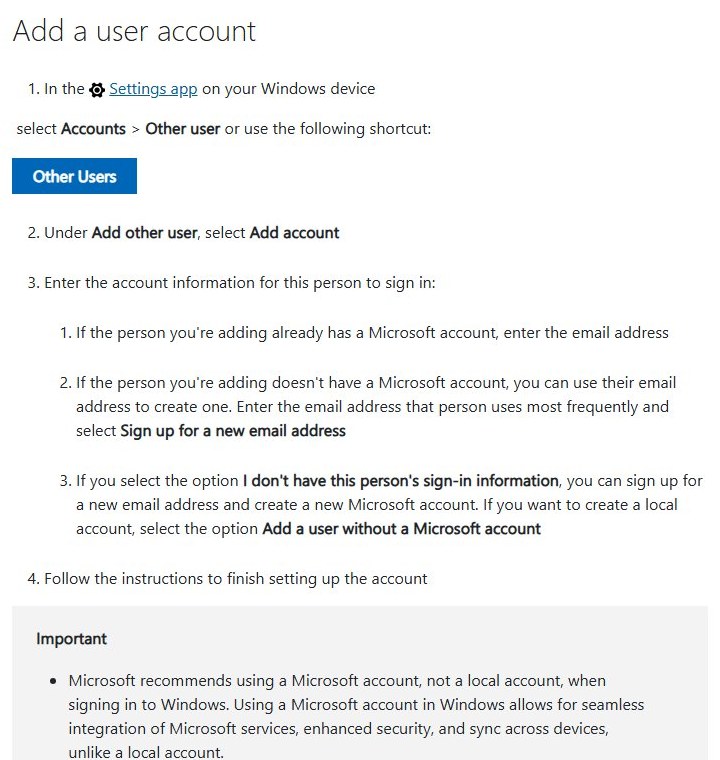
- Open Settings and select Accounts > Other users.
- Under Add other user, select Add account.
- If the person already has a Microsoft account, enter that email address and continue.
- If they have no Microsoft account, enter the email they use most and select Sign up for a new email address.
- For an offline local account, select I don't have this person's sign-in information, then Add a user without a Microsoft account.
- Follow the remaining prompts to finish. The account then appears under Other users.
Microsoft recommends a Microsoft account over a local account, citing integration with its services, stronger security and sync across devices. A local account stays on this PC only.
What are user accounts in Windows 11?
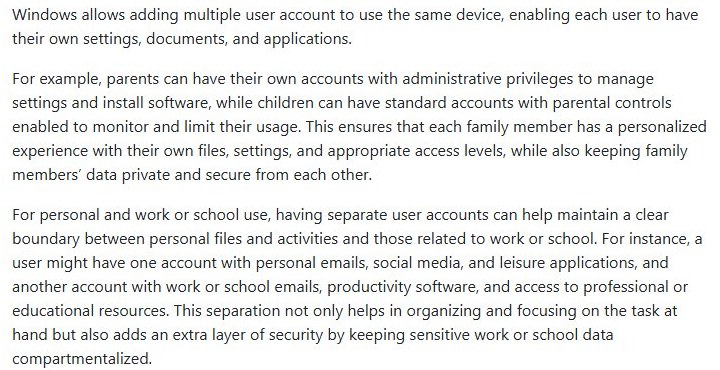
Microsoft describes user accounts as the way several people share one device while each keeps their own settings, documents and apps. Parents can hold administrator accounts while children use standard accounts with parental controls, and one person can keep personal and work accounts apart on the same PC.
Requirements to add a user account in Windows 11
Two choices decide everything else: which kind of account the person signs in with, and how much control they get over the PC.
| Choice | Option | What it means |
|---|---|---|
| Account kind | Microsoft account | Signs in with an email address and syncs across the person's devices. Microsoft's recommended option. |
| Account kind | Local account | Exists only on this PC, with a user name and password you set. No email needed. |
| Access level | Standard user | Can use apps and change their own settings. Needs an administrator's approval for system-wide changes. |
| Access level | Administrator | Can change settings, install software and access all files on the PC. Keep this group small. |
| Your own rights | Administrator required | Only members of the Administrators group can create accounts, in Settings or at the command line. |
| Local user name | Up to 20 characters | Cannot contain " / \ [ ] : ; | = , + * ? < > @, cannot be only periods or spaces, and cannot match another user or group name. |
Ways to add a user account in Windows 11 compared
| Your situation | Use this | Why |
|---|---|---|
| Adding a relative, friend or housemate | Settings > Accounts > Other users | The documented route, and it handles both Microsoft and local accounts |
| Adding a child you want to supervise | Family group, then Settings > Accounts > Family | Screen time, app and website limits apply through Microsoft Family Safety |
| Using this PC for your job or school | Settings > Accounts > Access work or school | Connects you to your organization's resources instead of creating a separate PC account |
| Setting up several local accounts quickly | net user in an elevated terminal |
One line per account, and it works in Command Prompt or PowerShell |
| Scripting accounts with full name and description | New-LocalUser in PowerShell |
Takes the password as a secure string and pairs with Add-LocalGroupMember |
| You want every account option on one screen | Computer Management > Local Users and Groups | Shows password-expiry and disabled check boxes during creation |
| An older guide sends you to Control Panel or netplwiz | Settings or Computer Management instead | Microsoft's Windows 11 account instructions use Settings; the Control Panel and netplwiz routes are not in its current documentation |
Add a family member account
This is also how to add a child user to Windows 11 on a PC; adults you share the PC with can be added as family members too, or as ordinary users from Other users.
Family accounts live in a Microsoft family group. Family organizers are the group's administrators: they add and remove members, set limits and view activity reports. Everyone else in the group is a member.
- Sign in at account.microsoft.com/family with your Microsoft account to create or open your family group.
- Invite the person to the group. Adults can be added as organizers; everyone else joins as a member.
- On the Windows 11 PC, open Settings > Accounts > Family.
- Follow the prompts on the Family page to add the family member to this PC.
- Set screen time limits or block apps and websites from Microsoft Family Safety once the member's device is connected.
Only people already in your family group can be added from the Family page. Anyone else goes through Other users.
Add a work or school account
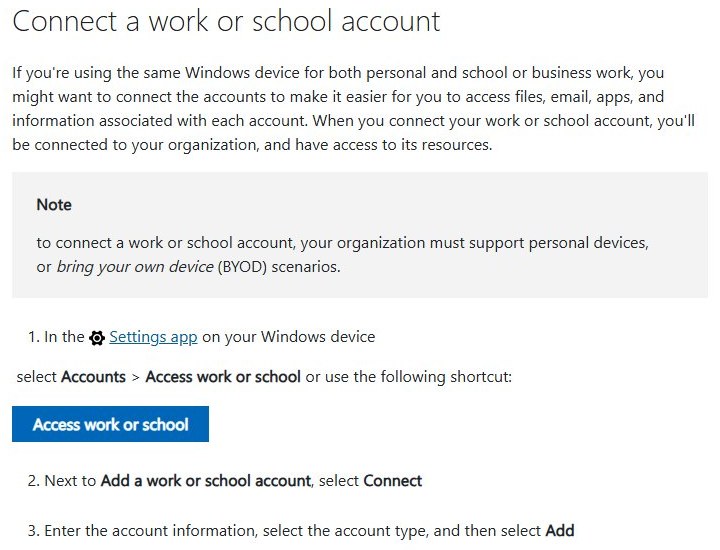
Connecting a work or school account links your existing sign-in to your organization's email, files and apps. Your organization must allow personal devices (bring your own device) for this to work.
- Open Settings > Accounts > Access work or school.
- Next to Add a work or school account, select Connect.
- Enter the account information and select the account type.
- Select Add and complete any sign-in prompts from your organization.
- To undo it later, open the dropdown next to the account, select Disconnect, then Yes.
Disconnecting removes the sign-in information and data from this PC. It does not delete the work or school account itself.
Change a user account to administrator or standard user
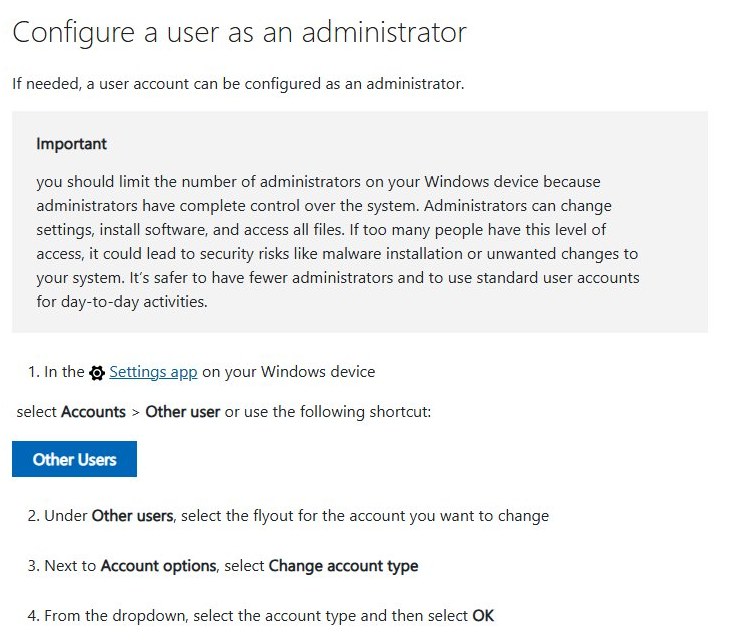
An administrator account that signs in with a Microsoft account is also what Windows needs to link the digital license to your Microsoft account.
Check the account type after adding someone, and grant Administrator only to a person you trust with full control of the PC.
- Open Settings > Accounts > Other users.
- Under Other users, open the flyout for the account you want to change.
- Next to Account options, select Change account type.
- Pick Administrator or standard user from the dropdown.
- Select OK.
- From an elevated terminal,
net localgroup Administrators Alex /addgrants admin rights andnet localgroup Administrators Alex /deleteremoves them.
Add a user account with Control Panel
Control Panel still lists accounts in Windows 11, but adding one hands you over to Settings.
- Open Control Panel and select User Accounts > User Accounts > Manage another account.
- Select Add a new user in PC settings.
- Windows opens Settings > Accounts > Other users; select Add account and follow the Settings steps above.
The same Control Panel page still lets you change an existing local account’s name, password and account type.
Add a user account with netplwiz
The User Accounts dialog (netplwiz) works on every edition, including Windows 11 Home. The same window also opens with control userpasswords2, where you can add, remove and reset local accounts.
- Press Windows key + R, type
netplwizand press Enter. Approve the User Account Control prompt. - On the Users tab, select Add.
- Enter the person’s Microsoft account email, or select Sign in without a Microsoft account (not recommended), then Local account.
- Enter a user name, password and password hint, then select Next and Finish.
- To make the new user an administrator, select it, choose Properties > Group Membership > Administrator and select OK.
Add a user account with Computer Management
Local Users and Groups in Computer Management holds every local account on the PC. It is the most detailed graphical alternative to Settings, but Local Users and Groups is not available in Windows 11 Home; use netplwiz or the commands below there.
- Select Start, type Computer Management, and open it.
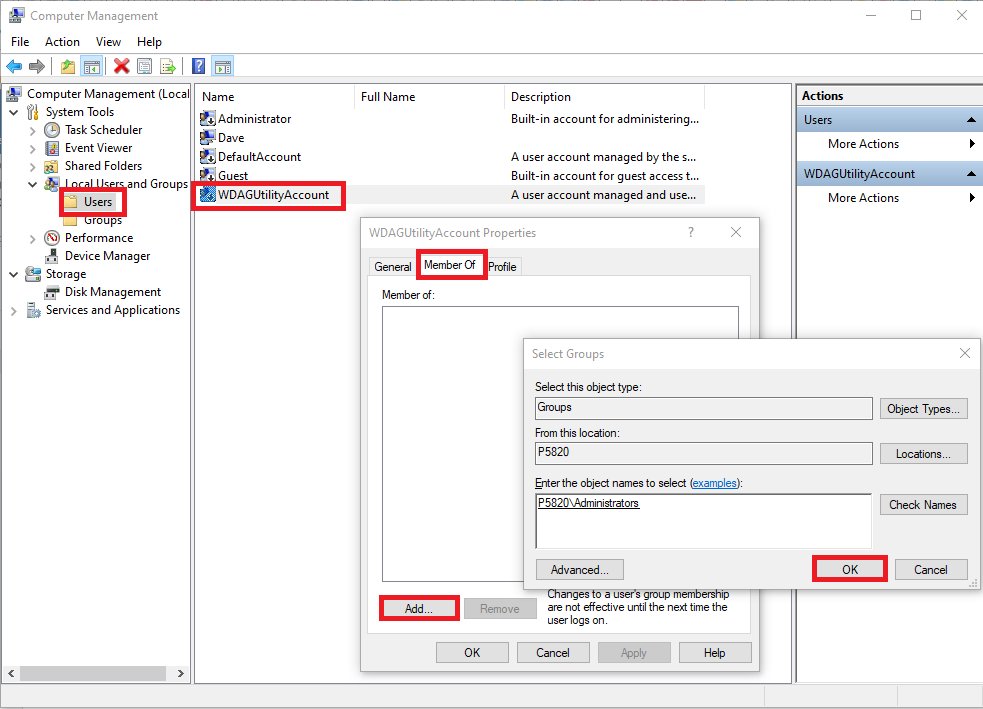
- Go to System Tools > Local Users and Groups > Users.
- On the Action menu, select New User.
- Enter the user name, full name and password twice.
- Select or clear User must change password at next logon, User cannot change password, Password never expires and Account is disabled.
- Select Create, then Close.
Local Users and Groups creates local accounts only. Microsoft accounts are added through Settings > Accounts > Other users, and admin rights are granted with Change account type.
Add a user account with Command Prompt
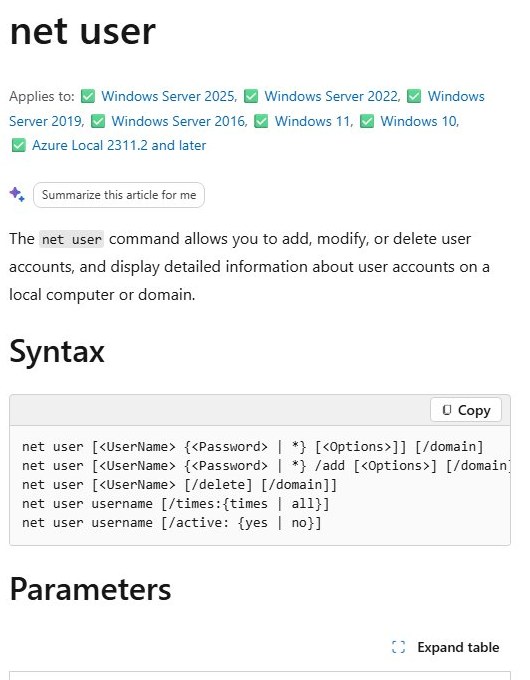
net user creates a local account in one line. Run it from an elevated window, or it fails with an access error.
- Press Win + X and select Windows Terminal (Admin), then approve the User Account Control prompt.
- Type
net user Alex * /addand press Enter. Replace Alex with the user name you want. - Type the new password at the prompt and press Enter; it is not shown on screen. Type it again to confirm.
- To add a display name, run
net user Alex /fullname:"Alex Morgan". - To make the account an administrator, run
net localgroup Administrators Alex /add.
The asterisk makes Windows prompt for the password instead of saving it in the command history. net user Alex shows the account's details afterwards.
Add a user account with PowerShell
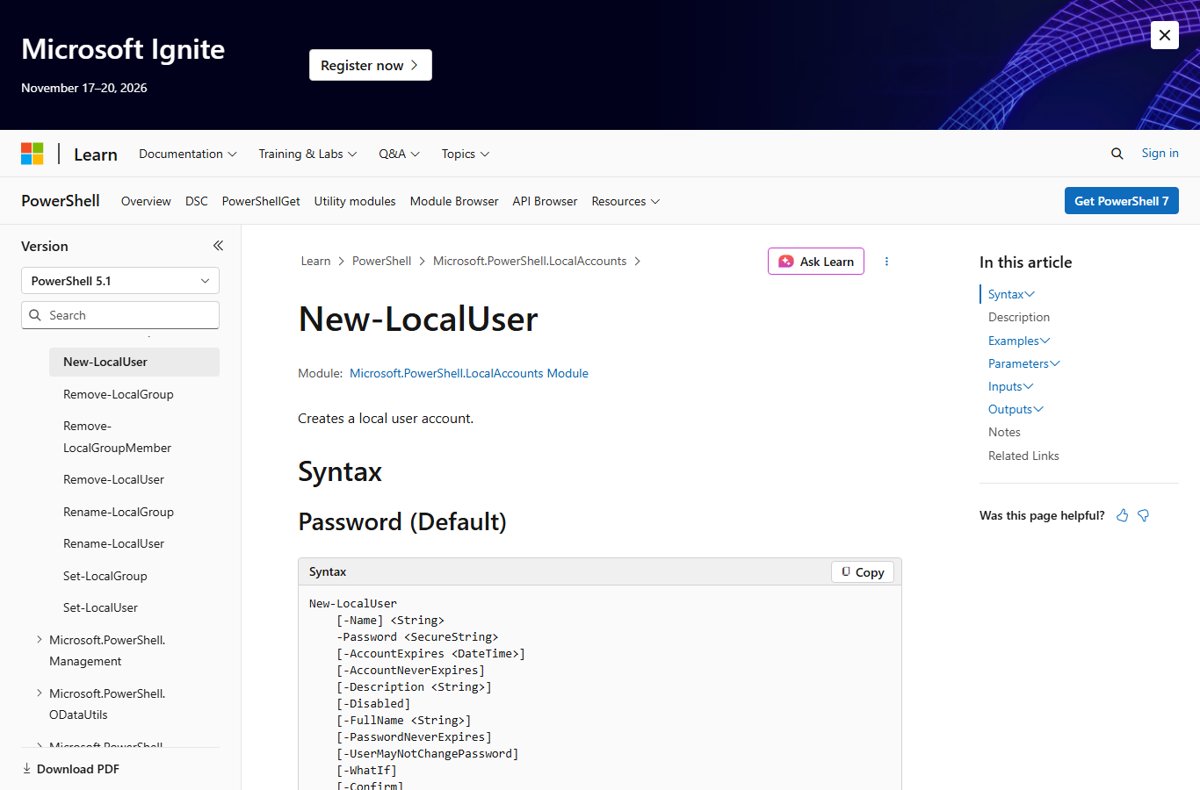
New-LocalUser is part of the Microsoft.PowerShell.LocalAccounts module in Windows PowerShell 5.1. It does not load in 32-bit PowerShell on a 64-bit PC.
- Select Start, type Windows PowerShell, and select Run as administrator.
- Run
$Password = Read-Host -AsSecureStringand type the new password. It is stored as a secure string. - Run
New-LocalUser -Name "Alex" -Password $Password -FullName "Alex Morgan" -Description "Family PC account". - Check the output table shows Alex with Enabled set to True.
- To grant admin rights, run
Add-LocalGroupMember -Group "Administrators" -Member "Alex". - To remove admin rights later, run
Remove-LocalGroupMember -Group "Administrators" -Member "Alex".
-NoPassword creates an account with no password, which anyone at the keyboard can open. Keep descriptions to 48 characters or fewer.
How to add a Microsoft account while installing Windows 11
The first account on a new PC is created during setup. When Windows 11 setup asks you to sign in, enter the Microsoft account email (or create one from that screen) and follow the prompts for a PIN. That account becomes an administrator. Every extra person is added afterwards from Settings > Accounts > Other users. If you set the PC up with a local account, you can switch it to a Microsoft account later without losing files.
Sign in to the new account
Signing in once proves the account works and builds the person's profile folders and desktop.
- Confirm the account is listed under Settings > Accounts > Other users, or run
net userto list every local account. - Select Start, select your user picture, then select the new account to switch to it.
- Alternatively, press Win + L to lock the PC and choose the new account on the sign-in screen.
- Enter the password you set. A Microsoft account uses that account's own password.
- Run
Get-LocalGroupMember -Group "Administrators"if you need to confirm who has admin rights.
Switching users keeps your own apps open in the background. If Chrome is installed, it may add desktop shortcuts to each new profile — you can stop those Chrome shortcuts from appearing.
Set up sign-in options for the new user
The new user sets these up while signed in to their own account. Available options depend on the PC's hardware.
- Sign in as the new user and open Settings > Accounts > Sign-in options.
- Under Ways to sign in, set up Windows Hello with a PIN, fingerprint or face recognition.
- Add a physical security key if the person has one.
- Turn on Dynamic lock to lock the PC automatically when their paired phone moves out of Bluetooth range.
- If a password or PIN is forgotten later, use I forgot my password or I forgot my PIN on the sign-in screen.
How to rename a user account in Windows 11
- Local account: open Control Panel > User Accounts > Manage another account, select the account, then Change the account name. Or run
netplwiz, select the user, choose Properties and edit the User name and Full name. - Microsoft account: the name shown on the sign-in screen comes from the Microsoft account profile, so change it at account.microsoft.com under Your info.
Renaming does not rename the profile folder in C:\Users.
How to change a user password in Windows 11
- Your own password: Settings > Accounts > Sign-in options > Password > Change.
- Another local user’s password (as administrator): run
net user Alex *in an elevated terminal and type the new password twice. - A Microsoft account password: change it online at account.microsoft.com, or reset a forgotten Windows password from the sign-in screen.
Share or restrict files between users
Each account gets its own profile, so documents stay separate by default. Administrators can still access all files on the PC, which is the main reason to keep other people as standard users.
- In File Explorer, right-click the file or folder you want to share and select Show more options.
- Select Give access to > Specific people.
- Choose the user account that should have access, rather than Everyone, to restrict who can open it.
- Confirm the share and tell the other user where the item lives.
- For sharing outside this PC, use OneDrive instead.
Remove a user account in Windows 11
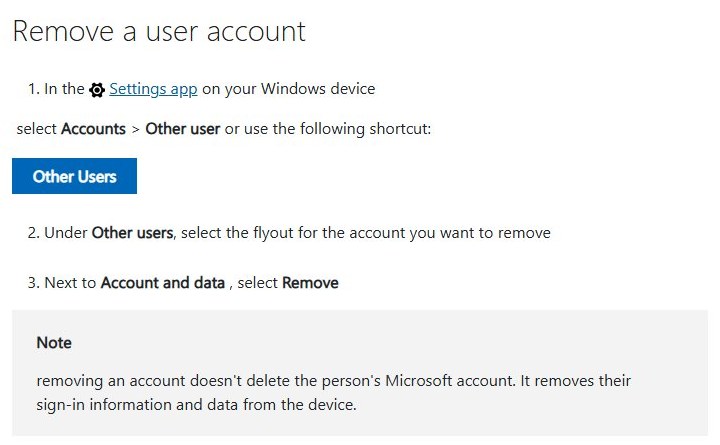
Removing an account deletes its sign-in and its data from this PC. Copy anything the person needs before you start.
- Open Settings > Accounts > Other users.
- Open the flyout for the account you want to remove.
- Next to Account and data, select Remove and confirm.
- For a local account from the command line, run
net user Alex /deletein an elevated terminal. - In PowerShell,
Remove-LocalUser -Name "Alex"does the same.
Removing a Microsoft account from Windows does not close the Microsoft account itself. The person can still sign in to it elsewhere.
Check which accounts exist on the PC
- Settings: Accounts > Other users lists every account except your own.
- Command Prompt:
net userlists all local accounts, including built-in disabled ones such as Administrator and Guest. - PowerShell:
Get-LocalUserlists local accounts with an Enabled column.
Delete leftover profile folders
A removed account can leave its folder in C:\Users. Delete it the supported way so the registry entry goes too.
- Press Windows key + R, type
sysdm.cpland press Enter. - On the Advanced tab, under User Profiles, select Settings.
- Select the profile marked Account Unknown or the removed user’s name, then Delete and confirm.
Copy anything you need from the folder first; deletion is permanent.
Troubleshooting: can’t add a user account
Why can't I add a user account in Windows?
You are signed in as a standard user. Only members of the Administrators group can create accounts.
- Run
net localgroup Administratorsto see which accounts are administrators. - Sign out and sign in with one of those accounts, or ask its owner to add the user.
- Retry Settings > Accounts > Other users > Add account.
The Add account screen asks for an email the person does not have
Settings starts with a Microsoft account sign-in by default.
- Select I don't have this person's sign-in information.
- Select Add a user without a Microsoft account to create a local account.
- Or create a local account with
net userorNew-LocalUserinstead.
net user or New-LocalUser rejects the user name
The name breaks a local account rule or already exists as a user or group.
- Keep the name to 20 characters or fewer.
- Remove any of these characters: " / \ [ ] : ; | = , + * ? < > @.
- Run
net userandnet localgroupto check the name is not already taken, then pick another.
The command reports access denied
The terminal is not running as administrator.
- Close the window.
- Press Win + X and select Windows Terminal (Admin), then approve the prompt.
- Run the command again.
PowerShell does not recognize New-LocalUser
The LocalAccounts module is unavailable in 32-bit PowerShell on 64-bit Windows.
- Close the 32-bit PowerShell window.
- Open Windows PowerShell as administrator from Start.
- Run the
New-LocalUsercommand again.
The new password is rejected
The password is shorter than the minimum length set by policy on this PC.
- Use a longer password; local passwords can be up to 127 characters.
- On a work PC, ask your IT department for the password rules they enforce.
- Run the command again with the new password.
A work or school account will not connect
Your organization does not allow personal devices.
- Confirm with your IT department that bring-your-own-device sign-in is supported.
- Retry from Settings > Accounts > Access work or school > Connect once it is enabled.
Security settings for new Windows 11 user accounts
| Tip | Why it matters |
|---|---|
| Keep new accounts as standard users | Administrators have complete control, including all files. Fewer admins means fewer ways for malware or mistakes to change the system. |
| Use a standard account for daily work yourself | User Account Control asks for admin approval only when a task needs it. |
| Leave the Guest account disabled | It is disabled by default and can give anonymous access if turned on. |
| Never create accounts with -NoPassword on a shared PC | Anyone at the keyboard can sign in to a passwordless account. |
| Type passwords at a prompt, not in the command | net user Alex * /add and Read-Host -AsSecureString keep the password out of your command history. |
| Give each admin account a unique password | Reused local admin passwords let one leak unlock other PCs. |
| Set up Windows Hello for each person | A PIN, fingerprint or face sign-in replaces typing a password. |
Windows 11 user account FAQ
How do I add a user account in Windows 11?
Open Settings > Accounts > Other users and select Add account next to Add other user. Enter the person's Microsoft account email, or choose I don't have this person's sign-in information to create one or add a local account. You must be signed in as an administrator.
How do I add a user account in Windows 10?
Windows 10 also adds people from the Accounts section of Settings. The command-line routes are identical on both versions: net user Name * /add in an elevated Command Prompt, or New-LocalUser in Windows PowerShell run as administrator. Both create a local account.
How do I add a local user account in Windows 11 without a Microsoft account?
In Settings > Accounts > Other users, select Add account, then I don't have this person's sign-in information, then Add a user without a Microsoft account. You can also run net user Name * /add in an elevated terminal, which prompts for the password.
How do I add a user account on Windows 10 Pro?
Use Settings, net user, New-LocalUser, or Computer Management > Local Users and Groups > Users > Action > New User. Local Users and Groups lets you set password-expiry and disabled options on the same screen. Every route requires an administrator account.
Why can't I add a user account in Windows?
The most common cause is signing in with a standard account; only administrators can add users. Other causes are a user name longer than 20 characters or containing forbidden characters, a name that already exists, or a terminal not run as administrator.
How do I add a user to my Microsoft account?
Add them to your Microsoft family group at account.microsoft.com/family. Organizers can add adults as organizers and children as members, then manage screen time and content limits. Family members can then be added to a Windows 11 PC from Settings > Accounts > Family.
How do I add a user account to my PC as an administrator?
Create the account first, then open Settings > Accounts > Other users, open the account's flyout and select Change account type. Pick Administrator and select OK. From the command line, net localgroup Administrators Name /add does the same.
How do I add a password to a user account in Windows 11?
For a local account, run net user Name * in an elevated terminal and type the new password at the prompt. The person can also set a Windows Hello PIN or fingerprint in Settings > Accounts > Sign-in options once signed in.
Does removing a user account delete their Microsoft account?
No. Removing an account from Settings > Accounts > Other users deletes the sign-in and the person's data from that PC only. Their Microsoft account, email and OneDrive files stay intact and work on other devices.







How to Change PIN on Windows 11 for Users - Techdows
[…] up a PIN for someone new starts with their own account. See how to add a user account in Windows 11 first, then have that person sign in and create their […]
How to Add a DWORD to the Registry - Techdows
[…] A DWORD under HKEY_CURRENT_USER applies only to the account that is signed in, so it has to be repeated in every profile, including any user account you add later. […]
How To Make New User Account On Nintendo Switch – Full Guide - Techdows
[…] same split exists on a PC, where a local profile and an online sign-in are also two things; see how to add a user account in Windows 11 for that version of the […]
How to add another OneDrive account [use multiple accounts] - Techdows
[…] another person on the same PC, add a separate user account in Windows 11 rather than sharing one OneDrive […]