To fix a fingerprint reader that stops working in Windows 11, sign in with your PIN, wipe the sensor dry, then remove your fingerprint under Settings > Accounts > Sign-in options and set it up again.
If re-enrolling does not help, the 15 fixes below move on to Windows Update, the reader driver, the biometric service, policy and Enhanced sign-in security settings, and finally the hardware itself.
Method 1: Clean the fingerprint sensor and dry your finger
Microsoft's first advice for the error Your fingerprint couldn't be recognized. Try using a different finger. is a clean, dry reader. Dirt, oil and moisture change what the sensor reads, so this takes a minute and fixes a large share of failed scans.
- Wipe the sensor with a lint-free cloth to remove dirt and oil. Do not use glass cleaner or other cleaning chemicals.
- Wash and dry your hands, then try the same finger you enrolled.
- Place your finger flat on the middle of the sensor with light pressure and keep it still until Windows reads it.
- If your skin is very dry, use a little moisturizer, but not too much, because skin moisture affects recognition.
- If the enrolled finger has a fresh cut or scar, sign in with your PIN and use a different finger.
On a Surface with a Fingerprint Power Button, the light around the button must be on before it works as a reader.
15 ways to fix fingerprint not working in Windows 11
Match what you see to a row, or work down the list in order if you cannot tell the cause. The early fixes are quick; the later ones change drivers, services or system settings.
| # | What you see | Fix | Why it works |
|---|---|---|---|
| 1 | Scans fail with "Your fingerprint couldn't be recognized" | Clean the sensor and dry your finger | Dirt, oil and moisture distort the scan |
| 2 | Reader stopped mid-session or after sleep | Restart Windows 11 | Reloads the reader driver and biometric service |
| 3 | No fingerprint prompt at the sign-in screen | Confirm fingerprint recognition is set up | Fingerprint only works once enrolled, alongside a PIN |
| 4 | Works sometimes, fails often | Add another finger | More templates and angles improve matching |
| 5 | Never recognizes the enrolled finger | Remove the fingerprint and set it up again | Replaces a poor or corrupted enrollment |
| 6 | Broke after an upgrade or long gap in updates | Update Windows 11 and optional drivers | Windows Update is Microsoft's main driver source |
| 7 | Reader listed but misbehaving | Update the driver in Device Manager | Replaces an outdated reader driver |
| 8 | Broke right after a driver update | Roll back the fingerprint driver | Restores the driver that worked |
| 9 | Warning icon on the reader, or Windows Hello says no compatible scanner | Reinstall the fingerprint driver | Forces Windows to load the driver fresh |
| 10 | Enrolled finger ignored although the driver looks fine | Restart the Windows Biometric Service | Clears a stuck biometric service |
| 11 | PIN also fails, or Windows asks for a new PIN | Reset the Windows Hello PIN | Fingerprint depends on a working PIN |
| 12 | Fingerprint option greyed out on a work or school PC | Check the Use biometrics policy | A disabled policy blocks biometrics for every account |
| 13 | External USB reader will not enroll | Turn off Enhanced sign-in security for non-ESS readers | ESS blocks sensors that do not support it |
| 14 | Apps using the reader crash, or system files are suspect | Repair system files with SFC | Microsoft's own fix for an ELAN driver fault |
| 15 | No Biometric devices entry at all | Check UEFI settings and sensor hardware | Firmware or a failed sensor sits below Windows |
Quick prerequisites for Windows 11 fingerprint sign-in before you start
These checks rule out the cases no fix can solve. Have your PIN or account password ready, because several fixes remove the fingerprint and you sign in with the PIN in between.
| Check | How | What it tells you |
|---|---|---|
| A fingerprint reader exists | Open Device Manager and look for Biometric devices | Windows only offers fingerprint sign-in when it detects a reader |
| A PIN is set up | Settings > Accounts > Sign-in options > PIN (Windows Hello) | Windows Hello biometrics need a PIN as the fallback |
| You know your password | Test it at the sign-in screen under Sign-in options | Needed if the PIN also fails and must be reset |
| Work or school device | Check whether the PC is managed by an organization | Policy can turn biometrics off, and only IT can change it |
| External USB reader | Look for Windows Hello compatible on the reader's packaging | Non-compatible readers do not work with Windows Hello |
| Updates pending | Settings > Windows Update | A pending restart can leave an old driver loaded |
Method 2: Restart Windows 11 to reload the fingerprint driver
A full restart reloads the reader driver and the biometric components. Fast sign-out and sleep do not always do that, so restart from the Start menu.
- Save your work and close open apps.
- Right-click Start and select Shut down or sign out > Restart.
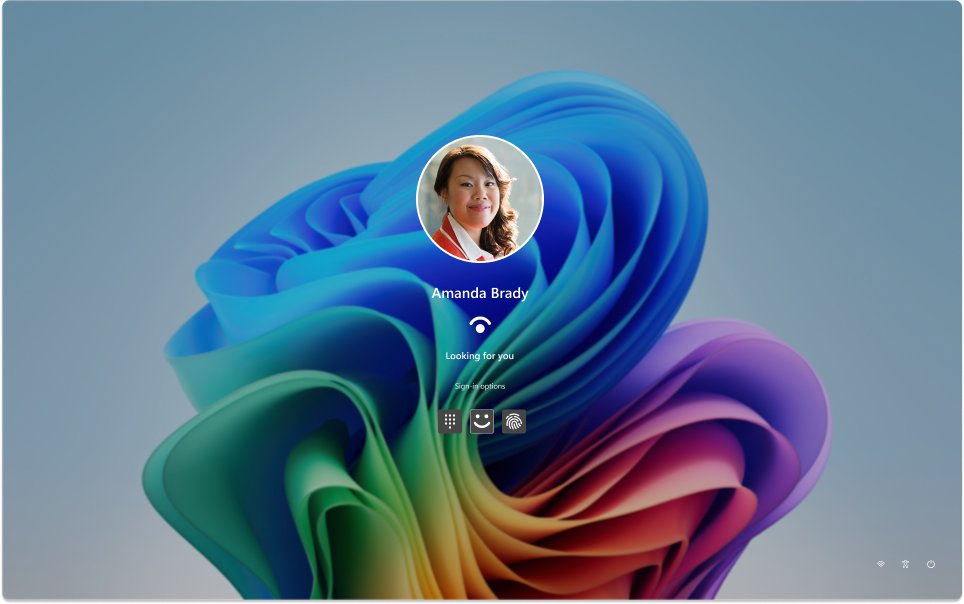
- At the sign-in screen, select Sign-in options and choose the fingerprint option if Windows shows the PIN box instead.
- Place your enrolled finger on the reader.
- On a Surface Pro with a fingerprint keyboard, detach the keyboard, reattach it and try again.
Method 3: Confirm Windows Hello fingerprint recognition is set up
If you set up several sign-in methods, Windows shows them all at the sign-in screen, and the fingerprint is only used when it is enrolled and selected. Check that the enrollment exists before changing drivers.
- Press Windows logo key + I to open Settings.
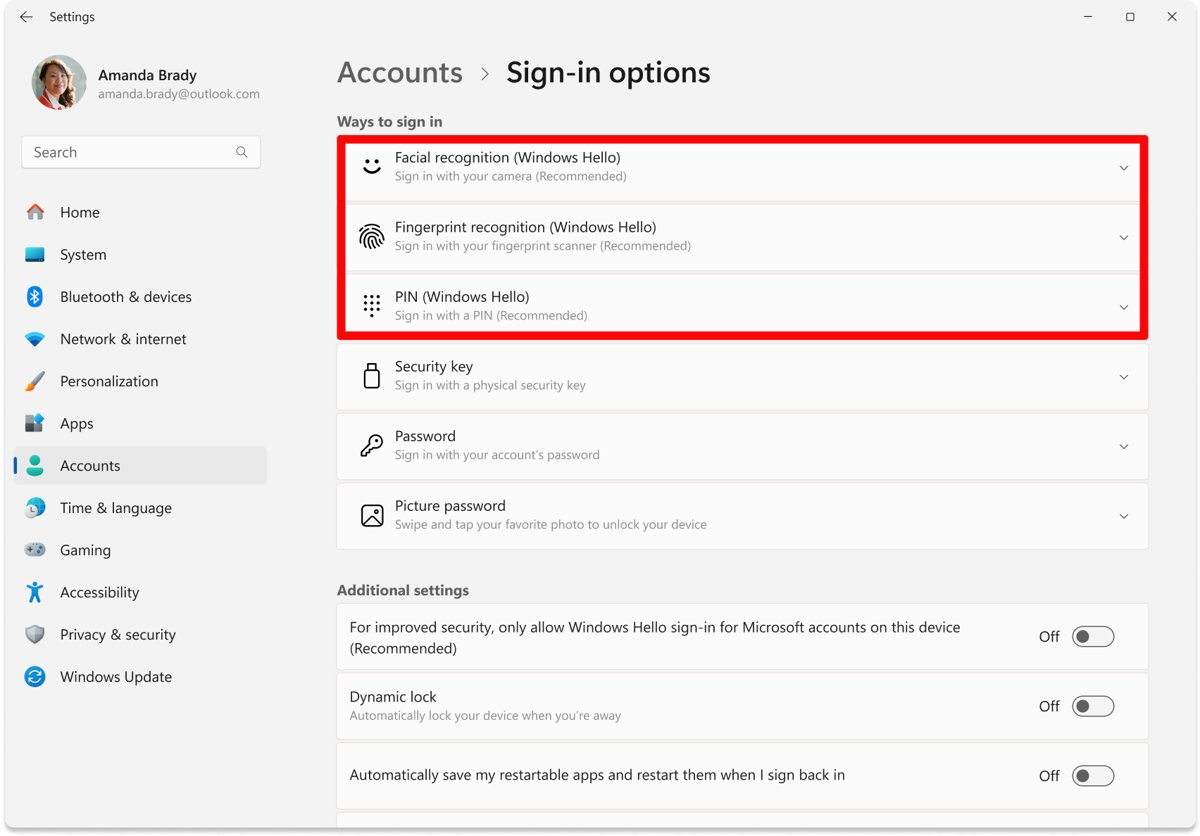
- Select Accounts > Sign-in options.
- Under Ways to sign in, select Fingerprint recognition (Windows Hello).
- If you see Set up, select it and follow the on-screen instructions. Windows asks for your PIN first.
- If you see Add a finger and Remove, the fingerprint is already enrolled, so continue with Method 4 or 5.
- If the option says the device is not available or is greyed out, skip to Method 7.
Method 4: Add another finger to Windows Hello fingerprint
Adding a finger is the fix that keeps your existing enrollment. Microsoft recommends registering more than one finger and capturing different angles of each.
- Sign in with your PIN.
- Open Settings > Accounts > Sign-in options.
- Select Fingerprint recognition (Windows Hello), then Add a finger.
- Confirm your PIN when asked.
- Touch the sensor repeatedly, shifting your finger position slightly each time so more of the finger is recorded.
- Repeat for a second finger on the other hand, then test both at the lock screen.
Method 5: Remove the fingerprint and re-enroll it in Windows 11
A clean re-enrollment replaces a poor or corrupted fingerprint template. Microsoft's own Windows Hello troubleshooting starts with removing the non-working enrollment and setting it up again.
- Sign in with your PIN or password.
- Open Settings > Accounts > Sign-in options.
- Select Fingerprint recognition (Windows Hello), then Remove.
- Restart the PC.
- Return to the same page and select Set up.
- Enter your PIN, then scan the finger several times from slightly different angles until Windows finishes.
- Select Add another to register a second finger before you close the page.
Method 6: Update Windows 11 and install optional fingerprint driver updates
Microsoft lists checking for driver updates as a standard fingerprint fix, and Windows Update is its recommended source. Reader drivers often arrive as optional updates, which Windows does not install on its own.
- Open Settings > Windows Update and select Check for updates.
- Select Download & install for anything offered, then restart if asked.
- Return to Windows Update and select Advanced options.
- Make sure Receive updates for other Microsoft products is turned On.
- Under Additional options, select Optional updates.
- Select any biometric or fingerprint driver listed, then select Download and install.
- Restart the PC even if Windows does not ask you to.
On a Surface, open the Surface app and expand Help & support to see whether driver and firmware updates are pending.
Method 7: Update the fingerprint reader driver in Device Manager
The reader appears under Biometric devices in Device Manager. If Windows has no newer driver, get one from the laptop maker's official support site for your exact model, because Microsoft warns against drivers from any other website.
- Right-click Start and select Device Manager.
- Expand Biometric devices.
- Right-click the fingerprint reader and select Update driver.
- Select Search automatically for updated driver software.
- If nothing is found, select Search for updated drivers on Windows Update.
- For a driver from the manufacturer, select Browse my computer for drivers, select Browse…, choose the extracted driver folder and select Next.
- Select Close and restart the PC.
The manufacturer's package for your model is the better choice when a generic driver from Windows loads but scans keep failing.
Method 8: Roll back the fingerprint driver after a bad update
If the reader stopped right after a driver update, Windows keeps the previous driver and can restore it. You need administrator rights, and a greyed-out button means no earlier driver is stored.
- Right-click Start and select Device Manager.
- Expand Biometric devices.
- Right-click the fingerprint reader and select Properties.
- Select the Driver tab, then Roll Back Driver.
- Choose a reason when prompted and select Yes.
- Restart the PC if prompted, then test the fingerprint.
Method 9: Reinstall the fingerprint reader driver
Microsoft's biometric troubleshooting for the message that Windows cannot find a compatible fingerprint scanner is a driver reinstall. Windows reloads the driver during the next startup.
- Save your work and close all apps.
- Right-click Start and select Device Manager.
- Expand Biometric devices.
- Right-click the fingerprint reader and select Uninstall device.
- Select Uninstall in the Uninstall Device window.
- Restart from the Start menu and let Windows reinstall the driver.
- If the reader comes back without a driver, run Method 6 or Method 7.
Method 10: Restart the Windows Biometric Service (wbiosrvc)
The Windows Biometric Service runs every fingerprint scan. Microsoft's troubleshooting says to remove the PIN under Settings > Accounts > Sign-in options first, which also removes the fingerprint, then restart the service from an administrator Command Prompt.
Select Start, type cmd, right-click Command Prompt and select Run as administrator before you run the command.
net stop wbiosrvc && net start wbiosrvcStops the Windows Biometric Service and starts it again straight away, so the reader is enumerated afresh.
You should see: Both commands report that the service stopped and then started. Add your PIN back, set up the fingerprint again and test it.
Method 11: Reset the Windows Hello PIN to fix fingerprint sign-in
Fingerprint and PIN belong to the same Windows Hello setup, so a broken PIN takes the fingerprint with it. Microsoft notes that security updates or system changes can make Windows ask for a new PIN.
- Sign in with your account password. At the sign-in screen, select Sign-in options and then the password option.
- Open Settings > Accounts > Sign-in options.
- Select PIN (Windows Hello), then I forgot my PIN.
- Verify your account and create a new PIN.
- If PIN creation fails, sign out, sign back in and try again.
- Set up the fingerprint again under Fingerprint recognition (Windows Hello).
I forgot my PIN at the sign-in screen only appears for Microsoft accounts. Local account users sign in with the password and reset the PIN from Settings.
Method 12: Check the Group Policy that blocks Windows 11 biometrics
The Use biometrics policy decides whether Windows Hello biometric gestures are allowed. When it is disabled, fingerprint sign-in is blocked for every account type on the PC.
On a work or school device, IT sets this policy, so ask them before changing anything.
- Press Windows logo key + R, type
gpedit.mscand press Enter. - Go to Computer Configuration > Administrative Templates > Windows Components > Windows Hello for Business.
- Double-click Use biometrics.
- If it is set to Disabled, select Not Configured or Enabled, then select OK.
- Restart the PC and set up the fingerprint again.
If gpedit.msc does not open, your edition of Windows does not include the Local Group Policy Editor, and the policy can only arrive from an organization's management tools.
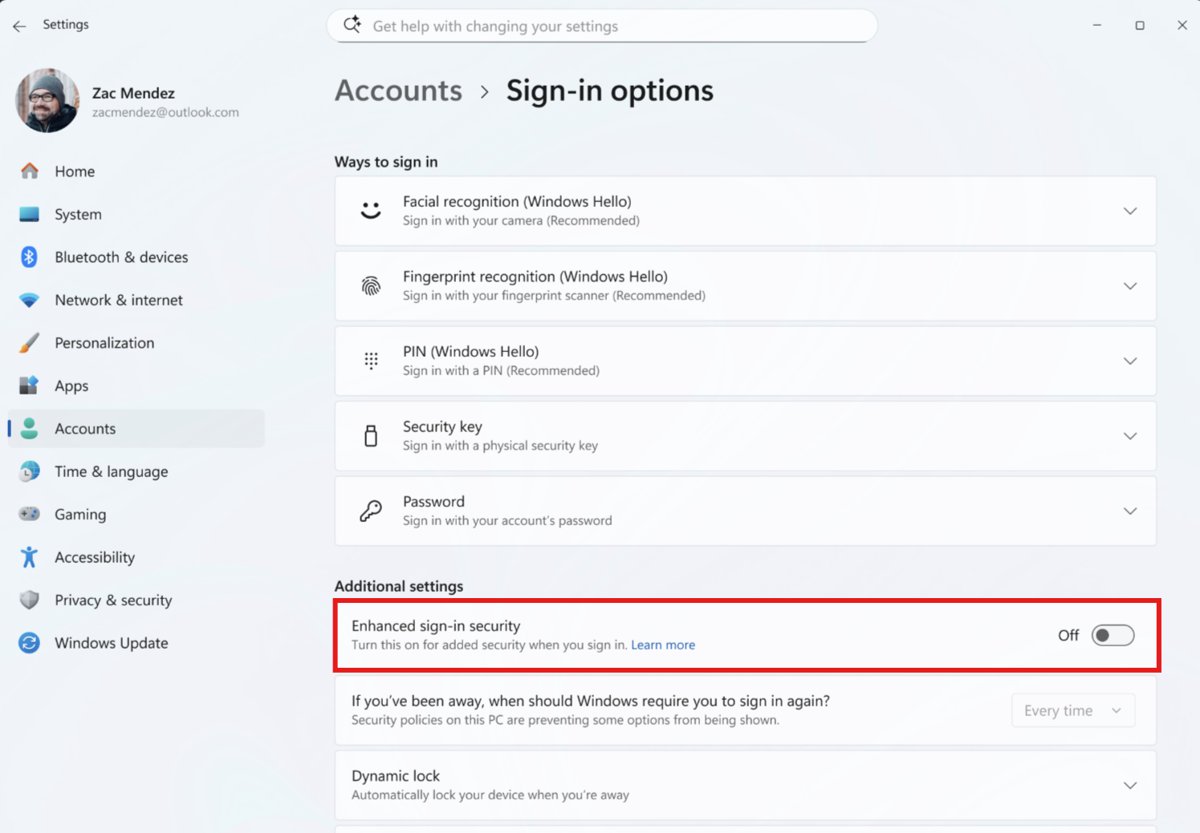
Method 13: Turn off Enhanced sign-in security for an external fingerprint reader
Enhanced sign-in security (ESS) isolates biometric data in protected hardware. With ESS on, Windows blocks fingerprint readers that do not support it, which is why an external USB reader can refuse to enroll on a newer laptop. All Copilot+ PCs ship with ESS on.
Turning ESS off removes existing ESS enrollments and credentials such as passkeys, which you then set up again.
- Connect the external reader and finish any setup the manufacturer requires.
- Open Settings > Accounts > Sign-in options.
- Scroll to Additional settings.
- On Windows 11, version 24H2 or newer, turn the Enhanced sign-in security toggle Off.
- On Windows 11, version 23H2, turn Sign in with an external camera or fingerprint reader On, which disables ESS.
- Set up Fingerprint recognition (Windows Hello) with the external reader.
No toggle usually means the PC detects no incompatible sensor, or your organization blocks non-ESS devices. Some readers labelled Windows Hello compatible support ESS, so check the reader's documentation first.
Method 14: Repair Windows system files with SFC for fingerprint errors
Microsoft confirmed that some PCs upgraded from Windows 10 with ELAN fingerprint driver versions 3.10.11001.10606, 3.10.11001.10502 or 3.10.11001.10801 can crash apps that use a damaged onnxruntime.dll. A built-in troubleshooter runs SFC on those PCs automatically and cannot be run by hand.
Check whether it ran under Settings > System > Troubleshoot > Recommended troubleshooter history. If it did not, run the same repair yourself from an administrator Command Prompt.
sfc /scannowSystem File Checker scans protected Windows files and repairs corrupted or broken ones.
You should see: The scan reaches 100% and reports its result. For the ELAN case, open C:\Windows\System32, right-click onnxruntime.dll, select Properties > Details and confirm File Version is not 0.0.0.0 or blank.
Method 15: Check UEFI firmware settings and fingerprint sensor hardware
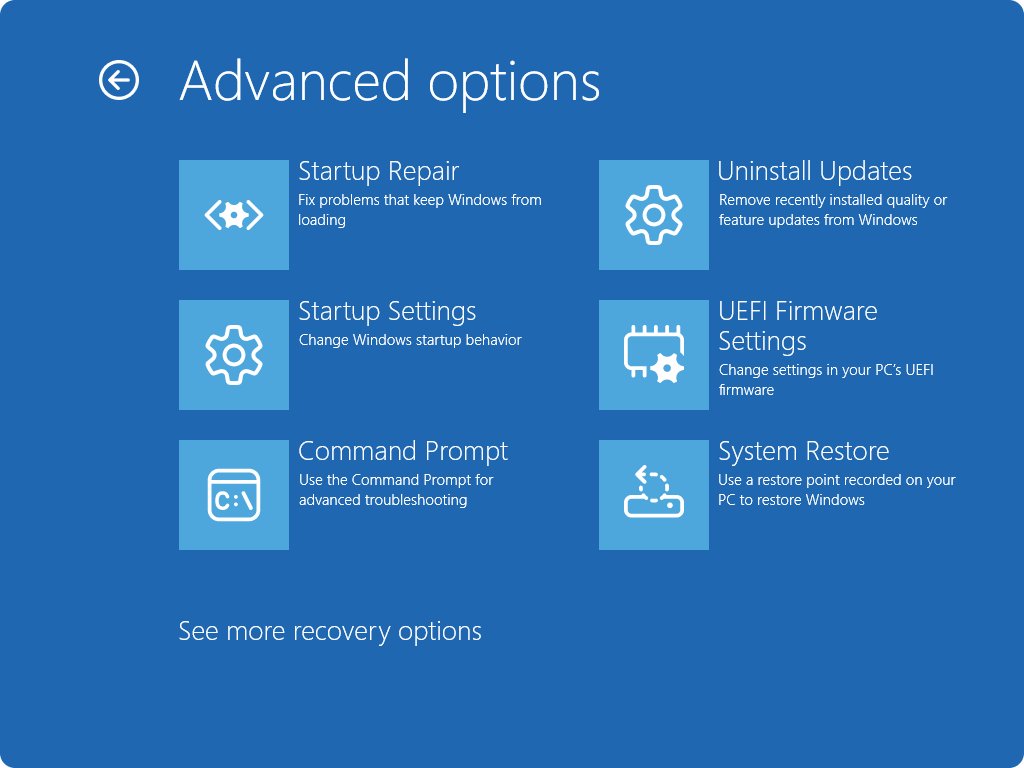
When the reader is missing from Biometric devices even after Windows Update and a driver reinstall, the cause sits below Windows. Some laptops can disable built-in devices in firmware, and a failed sensor needs the manufacturer. Have your BitLocker recovery key ready before you open firmware settings.
- Open Settings > System > Recovery.
- Next to Advanced startup, select Restart now.
- Select Troubleshoot > Advanced options > UEFI Firmware Settings, then Restart.
- Look for a fingerprint, biometric or security device option in the firmware menus, using your laptop's manual for the exact name.
- If it is disabled, enable it, save the changes and exit.
- If firmware shows no reader option and Windows still does not list it, contact the manufacturer with the model and serial number for a hardware check.
How to check the Windows 11 fingerprint reader is working again
- Restart the PC and choose the fingerprint option under Sign-in options on the sign-in screen.
- Touch the sensor with each enrolled finger and confirm Windows signs you in without the PIN.
- Open Device Manager, expand Biometric devices, right-click the reader and select Properties. The Device status box should report no error.
- Open Event Viewer and go to Applications and Services Logs > Microsoft > Windows > Biometrics > Operational.
- Look for event ID 1108 for the fingerprint sensor, which shows the biometric framework loaded it.
- If you use ESS, confirm Enhanced sign-in security shows On under Settings > Accounts > Sign-in options.
Why your Windows 11 fingerprint stopped working
Fingerprint sign-in fails at one of four layers: the finger and sensor, the enrollment and PIN, the driver and service, or policy and hardware. The table maps each cause to its fix.
| Cause | Typical sign | Fix |
|---|---|---|
| Dirty sensor, wet or dry finger, wrong finger | "Your fingerprint couldn't be recognized. Try using a different finger." | Methods 1 and 4 |
| Poor or corrupted enrollment | Enrolled finger never matches | Method 5 |
| Fingerprint not set up or not selected | Only the PIN box appears at sign-in | Method 3 |
| Outdated or wrong driver | Fails after an upgrade, or Windows Hello says no compatible scanner | Methods 6, 7 and 9 |
| Faulty new driver | Failed right after a driver update | Method 8 |
| Stuck biometric service | Driver looks fine but scans do nothing | Method 10 |
| Broken PIN | Windows asks you to create a PIN again | Method 11 |
| Policy blocks biometrics | Fingerprint option greyed out on a managed PC | Method 12 |
| ESS blocks a non-ESS reader | External reader will not enroll | Method 13 |
| Damaged system files | Apps using the reader crash after an upgrade | Method 14 |
| Disabled in firmware or failed sensor | No Biometric devices entry | Method 15 |
Common Windows 11 fingerprint failures and what to try next
Can't set up fingerprint in Windows 11
Windows Hello needs a PIN first, and setup stops when the reader driver or service is not ready.
- Set up or reset the PIN under PIN (Windows Hello) (Method 11).
- Install optional driver updates (Method 6).
- Reinstall the reader driver from Biometric devices (Method 9).
- For an external reader, check the Enhanced sign-in security toggle (Method 13).
Fingerprint option not available in Windows 11
Windows does not detect a compatible reader, or policy blocks biometrics.
- Check that Biometric devices appears in Device Manager.
- If it is missing, run Windows Update and then check firmware settings (Methods 6 and 15).
- If it is present, check the Use biometrics policy (Method 12).
Fingerprint reader stopped working after a Windows update
The update replaced the reader driver or changed sign-in security, which can clear enrollments.
- Roll back the reader driver (Method 8).
- If Roll Back Driver is greyed out, open Settings > Windows Update > Update history, select Uninstall updates under Related settings, and remove the newest update.
- Re-enroll the fingerprint (Method 5).
- Check Optional updates later for a fixed driver (Method 6).
Windows 11 keeps asking to set up fingerprint again
Switching ESS on or off, or a PIN reset after security updates, removes existing Windows Hello enrollments.
- Set up the PIN again when Windows asks.
- Enroll the fingerprint again and add a second finger (Methods 4 and 5).
- On a multi-user PC with ESS, expect every user to re-enroll at next sign-in after an ESS upgrade.
Fingerprint scanner not recognized on a Surface
Pending Surface firmware or a loose keyboard connection stops the reader.
- Open the Surface app, expand Help & support and install pending updates.
- Detach and reattach a Surface Pro keyboard with a fingerprint reader.
- On a Fingerprint Power Button, confirm the light around the button is on.
Fingerprint and PIN both fail
The Windows Hello setup is damaged, or a recent app, driver or update broke sign-in. When no sign-in method works at all, you can still regain access to Windows through WinRE and then set up a new PIN.
- Sign in with your account password and reset the PIN (Method 11).
- Remove and re-enroll the fingerprint (Method 5).
- If sign-in was working recently, use System Restore from Troubleshoot > Advanced options to roll back system files and settings without touching personal files.
Windows 11 fingerprint not working FAQ
How do I fix Windows 11 fingerprint not working?
Sign in with your PIN, clean and dry the sensor, then remove the fingerprint under Settings > Accounts > Sign-in options > Fingerprint recognition (Windows Hello) and set it up again. If that fails, update, roll back or reinstall the reader driver under Biometric devices in Device Manager.
Why can't I set up fingerprint on Windows 11?
Fingerprint setup needs a working Windows Hello PIN and a reader that Windows detects. Create or reset the PIN first, install driver updates through Windows Update, and on a PC with Enhanced sign-in security, an external reader that lacks ESS support is blocked until you change the setting.
Why is the fingerprint option not available in Windows 11?
Windows only offers fingerprint sign-in when it detects a reader with a working driver. If Biometric devices is missing from Device Manager, install updates and check firmware settings. On a managed PC, a disabled Use biometrics policy also hides fingerprint sign-in.
Why does Windows 11 keep saying I need to set up fingerprint again?
Changes to sign-in security remove existing enrollments. Turning Enhanced sign-in security on or off deletes Windows Hello enrollments, and security updates can make Windows ask for a new PIN. Set the PIN up again, then enroll the fingerprint and a second finger.
How can I tell if the driver is the problem?
Open Device Manager and expand Biometric devices. A warning icon, a missing entry or a failure right after a driver update all point to the driver. Event ID 1108 in the Biometrics Operational log in Event Viewer shows the sensor loaded correctly.
Will a new Windows 11 update break fingerprint again?
An update can replace the reader driver, so a failure after updating is common. Keep the previous driver available with Roll Back Driver, install the manufacturer's driver for your model, and watch Optional updates for a corrected driver after a bad release.
My laptop has no Biometric devices entry in Device Manager. What now?
Windows does not see the reader. Run Windows Update including optional driver updates, then check the laptop's UEFI firmware settings for a disabled fingerprint device. If firmware shows nothing either, contact the manufacturer, since the sensor or its connection may have failed.
Is there any way to fix it without removing fingerprints?
Yes. Clean the sensor, restart, update or roll back the driver, and use Add a finger to register extra templates without deleting the old one. Only remove the enrollment if those steps fail, because re-enrolling keeps only the newest scan.
Can I use a USB fingerprint reader with Windows 11?
Yes, if it is Windows Hello compatible. Connect it, then set it up under Sign-in options. On PCs with Enhanced sign-in security, a reader without ESS support only works after you turn ESS off under Additional settings.
Bottom line: which Windows 11 fingerprint fix to try first
Clean the sensor, restart, then remove and re-enroll your fingerprint with a second finger before you touch drivers. Most failed scans come from the sensor or the enrollment, and these steps take five minutes. If the reader still fails, the driver under Biometric devices is next, and a reader missing from both Device Manager and firmware is a hardware fault for the manufacturer. When the same update also broke your pointer, the steps to fix a Windows 11 touchpad and repair an unresponsive touchscreen use the same Device Manager rollback.