To set up a local print server in Windows 10/11, install the printer on one host PC, turn on File and printer sharing, share the printer from its Sharing tab, and connect other PCs to \\ComputerName\ShareName.
This guide covers the prerequisites, the Windows 11 and Windows 10 sharing steps, PowerShell commands, day-to-day queue management, driver security prompts and fixes for clients that cannot connect.
Set up and manage a local print server in Windows 10/11
Any Windows 11 or Windows 10 PC with a working printer can act as the print server for a home or small office network. The host shares its print queue, and every client sends jobs through it.
- On the host PC, add the printer in Windows 11 and print one test page so you know it works locally.
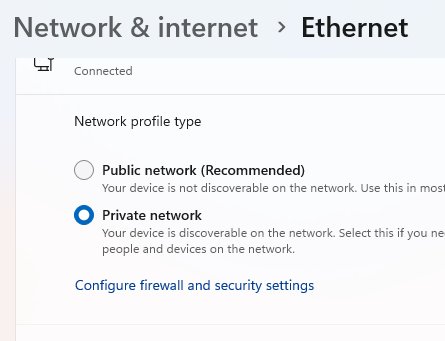
- Set the host's network to Private in Settings > Network & internet, and only do this on a network you trust.
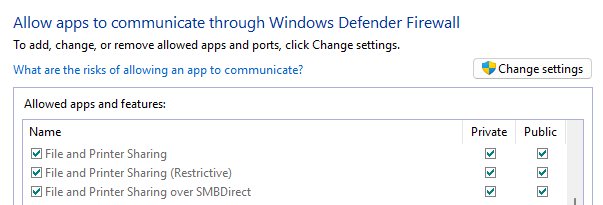
- Open Settings > Network & internet > Advanced network settings > Advanced sharing settings and turn on Network discovery and File and printer sharing.
- Open Settings > Bluetooth & devices > Printers & scanners, select the printer and select Printer properties.
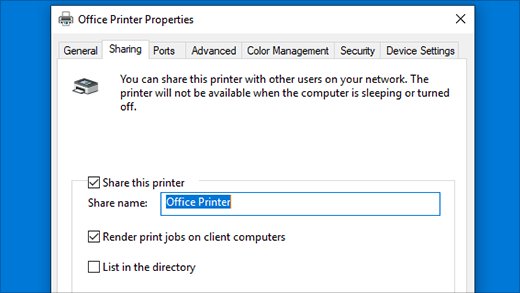
- On the Sharing tab, select Share this printer, note the Share name, then select Apply and OK.
- On each client PC, add the printer by name with
\\ComputerName\ShareName.
The host must stay powered on and connected to the network, because every print job passes through it.
Shared printer vs network printer: which local setup fits
| Your situation | Set it up this way | Why |
|---|---|---|
| Printer connects to one PC by USB | Share it from that PC as a local print server | The USB printer has no network connection of its own, so the host PC provides it |
| Printer has Wi-Fi or Ethernet and few PCs use it | Add it directly on each PC with Add device | No host PC has to stay on, and each PC talks to the printer itself |
| Several PCs share one network printer and you want one queue | Install it on one host PC and share that queue | Jobs, drivers and the share name are managed in one place |
| You need to see or clear every user's jobs | Share from one host PC | All jobs sit in the host's queue, where you can view or remove them |
Print server prerequisites for Windows 10/11
| Requirement | What it means | Where to check |
|---|---|---|
| A working printer on the host PC | The printer is installed and prints locally before you share it | Settings > Bluetooth & devices > Printers & scanners |
| Host stays on | Clients cannot print while the host PC is off, asleep or offline | The host's power and sleep settings |
| Same local network | Host and clients are on the same home or office network | Settings > Network & internet on each PC |
| Private network profile | Sharing is set up under the Private profile | Settings > Network & internet > Wi-Fi or Ethernet |
| Sharing turned on | Network discovery and File and printer sharing are on | Advanced sharing settings |
| Administrator rights | Changing sharing settings can ask for administrator credentials | Your account type in Settings > Accounts |
| The host's name or IP address | Clients connect with \\ComputerName\ShareName or \\IPAddress\ShareName |
Settings > System > About for the device name |
| Matching credentials | Use the same account on both PCs, or enter the host's username and password when prompted | The sign-in prompt on the client |
Windows 10 support ended on October 14, 2025, so a Windows 11 host is the better long-term choice.
Step-by-step instructions to share a printer in Windows 11
- Select Start > Settings > Network & internet, open Wi-Fi or Ethernet, select the connection and set the network profile to Private.
- Go back to Network & internet, select Advanced network settings > Advanced sharing settings.
- Under Private networks, turn on Network discovery and File and printer sharing.
- Select Bluetooth & devices > Printers & scanners and select the printer you want to share.
- Select Printer properties and open the Sharing tab.
- Select Change Sharing Options if it appears, then select Share this printer.
- Type a short Share name without spaces, such as OfficeLaser, then select Apply and OK.
- Open System > About and write down the Device name, which clients need to connect.
Share a printer as a print server in Windows 10
The Windows 10 sequence is the same, but the menus sit in different places.
- Select Start > Settings > Network & Internet > Status, select Properties for your connection and choose Private.
- Open Control Panel > Network and Sharing Center > Change advanced sharing settings.
- Expand Private, turn on network discovery and file and printer sharing, then select Save changes.
- Open Settings > Devices > Printers & scanners, select the printer and select Manage.
- Select Printer properties, open the Sharing tab and select Change Sharing Options.
- Select Share this printer, confirm the Share name, then select OK.
Connect client PCs to the shared printer by name
Do this on every PC that will print through the host.
- On the client, select Start > Settings > Bluetooth & devices > Printers & scanners.
- Select Add device and wait for the list; select the shared printer if it appears.
- If it does not appear, select Add manually.
- Choose Select a shared printer by name.
- Type
\\ComputerName\ShareName, for example\\OFFICE-PC\OfficeLaser, and select Next. - If the name fails, try the host's IP address instead, such as
\\192.168.1.20\OfficeLaser. - Enter the host's username and password if Windows asks, then finish the wizard and print a test page.
Share a printer on the print server with PowerShell
Run this in PowerShell as administrator on the host. Replace the printer name with the exact name shown in Printers & scanners.
Set-Printer -Name "Office Laser" -Shared $true -ShareName "OfficeLaser"Set-Printer changes an installed printer. -Shared $true turns sharing on and -ShareName sets the name clients type. The cmdlet needs administrator credentials.
You should see: The command returns no output. Run Get-Printer -Name "Office Laser" | Format-List and check that Shared is True and ShareName shows OfficeLaser.
To list every printer the host offers, run Get-Printer on the host or Get-Printer -ComputerName OFFICE-PC from another PC.
Connect to a shared printer from PowerShell
On a client PC, this adds the same connection the Add device wizard creates.
Add-Printer -ConnectionName \\OFFICE-PC\OfficeLaser-ConnectionName takes the host's name and the printer's share name. Windows may ask for administrator credentials if it has to install a driver from the host.
You should see: The shared printer appears in Printers & scanners on the client, and Get-Printer lists it with the host name in its path.
Manage the print server queue, jobs and printers
Day-to-day management happens on the host, because the host owns the queue.
| Task | How to do it | Notes |
|---|---|---|
| See waiting jobs from all clients | Run Get-PrintJob -PrinterName "Office Laser" on the host |
No administrator rights are needed to list jobs |
| Remove a stuck job | Run Remove-PrintJob with the printer name and the job ID from Get-PrintJob |
Or clear it from the printer's queue window on the host |
| Pause and resume a job | Use Suspend-PrintJob and Resume-PrintJob |
Useful when one large job blocks the queue |
| Rename the printer | Use Rename-Printer on the host |
The share name is separate; change it on the Sharing tab or with Set-Printer -ShareName |
| Manage drivers, ports and queues in one console | Open the Print Management console on the host | Shows every queue, driver and port the host holds |
| Restart printing after a freeze | Restart the Print Spooler service on the host | Clients reconnect once the spooler is running again |
The Print Management console gives you the same queue and driver controls in a window. When one job blocks the rest, you can also cancel a stuck print job from the host.
Check that the Windows print server shares the printer
- On a client, open File Explorer, type
\\ComputerNamein the address bar and press Enter. - Confirm the shared printer appears in the window that opens.
- Open Printers & scanners on the client and check that the printer is listed.
- Print a test page from the client.
- On the host, run
Get-PrintJob -PrinterName "Office Laser"while the job prints to confirm it passed through the host's queue.
Stop sharing a printer in Windows 11 and Windows 10
- On the host, open Printers & scanners, select the printer and open Printer properties.
- On the Sharing tab, clear Share this printer and select OK.
- Or run
Set-Printer -Name "Office Laser" -Shared $falsein PowerShell as administrator. - On each client, select the shared printer in Printers & scanners and select Remove.
Point and Print driver prompts on a shared printer
Windows protects printer driver installs from shared printers with Point and Print Restrictions. A standard user who connects to a shared printer can be asked for administrator credentials before the driver installs.
Enter administrator credentials once on each client when prompted, and keep the Point and Print protection turned on. Microsoft notes that disabling the Point and Print Restrictions policy removes the enhanced printer driver installation security. In a domain, administrators can instead allow only trusted print servers through Computer Configuration > Policies > Administrative Templates > Printers > Point and Print Restrictions.
Local print server tips and troubleshooting notes
Client cannot see the host PC on the network
The PCs are on different networks, or name resolution to the host fails.
- Confirm both PCs are connected to the same local network.
- On the client, type
\\ComputerNamein the File Explorer address bar. - If that fails, try
\\IPAddressof the host instead. - Fix the network connection before you try to add the printer again.
Shared printer does not appear in Add device
Network discovery or File and printer sharing is off on one of the PCs.
- On both PCs, open Advanced sharing settings.
- Turn on Network discovery and File and printer sharing.
- On the client, select Add device > Add manually > Select a shared printer by name.
- Type
\\ComputerName\ShareNameand select Next.
Windows asks for a username and password
The client account does not exist on the host.
- Sign in with the same Microsoft account or local account on both PCs, or
- Enter the username and password of an account on the host when prompted.
Windows asks for administrator credentials to install the driver
Point and Print Restrictions require an administrator to approve the printer driver install.
- Have an administrator enter credentials at the prompt on the client.
- Finish the connection, then print a test page.
Clients stop printing or the queue does not move
The Print Spooler service on the host stopped running.
- On the host, restart the Print Spooler service.
- Check the host can still print locally.
- Send a new test page from a client.
The connection worked before but now fails
The saved printer connection on the client is out of date.
- On the client, open Printers & scanners, select the shared printer and select Remove.
- Restart the client PC.
- Add the shared printer again with Select a shared printer by name.
Keep share names short and without spaces, and give the host a fixed IP address on your router if clients connect by IP.
Windows 10/11 print server FAQ
Can a Windows 11 PC act as a print server?
Yes. Any Windows 11 or Windows 10 PC can share an installed printer with other PCs on the same network. Turn on File and printer sharing, select Share this printer on the printer's Sharing tab, and clients connect with \\ComputerName\ShareName.
Do I need Windows Server to share a printer?
No. Windows 11 and Windows 10 include printer sharing for home and small office networks. A Windows Server print server adds central management for larger organizations, but a single shared printer works from a normal Windows PC.
Does the host PC need to stay on for others to print?
Yes. Every print job from a client passes through the host's print queue, so the host must stay powered on and connected. If the host sleeps or shuts down, clients cannot print until it is back on the network.
What path do I type to connect to a shared printer?
Type \\ComputerName\ShareName, using the host's device name from Settings > System > About and the share name from the printer's Sharing tab. If the name does not resolve, use the host's IP address, such as \\192.168.1.20\ShareName.
Can Windows 10 and Windows 11 PCs share the same printer?
Yes. A printer shared from a Windows 11 host can be added on Windows 10 clients, and the reverse also works. Each client uses Select a shared printer by name with the host's name and share name.
Why does Windows ask for administrator credentials when I connect?
Point and Print Restrictions require an administrator to approve the printer driver that the client installs from the host. Enter administrator credentials at the prompt once, and the connection finishes. Keep this protection turned on.
How do I see print jobs from all PCs on the print server?
Open the printer's queue on the host, or run Get-PrintJob -PrinterName with the printer's name in PowerShell on the host. Jobs from every client appear there because they all pass through the host's queue.
How do I stop sharing a printer?
On the host, open Printer properties, go to the Sharing tab and clear Share this printer. In PowerShell, run Set-Printer with the printer name and -Shared $false. Then remove the shared printer from each client in Printers & scanners.
Conclusion: is a Windows 10/11 print server worth setting up?
Share a USB printer from an always-on Windows 11 PC when several computers need it, and add a Wi-Fi or Ethernet printer directly on each PC when no host can stay on. A shared host gives you one queue and one place to manage jobs, but it only works while that PC is running and reachable.