To set up WSUS on Windows Server 2022 or 2019, add the Windows Server Update Services role in Server Manager, run the WSUS Configuration Wizard, then point clients at the server with Group Policy.
This tutorial covers the role install by GUI and PowerShell, the first sync, computer groups, client policy, the remote console on Windows 10 and 11, and WsusPool tuning.
Install WSUS with PowerShell in one command
Sign in with an account in the local Administrators group and open an elevated Windows PowerShell window.
Install-WindowsFeature -Name UpdateServices -IncludeManagementTools -RestartUpdateServices is the WSUS role. -IncludeManagementTools adds the WSUS management console, and -Restart reboots the server if the install needs it.
You should see: The command returns Success True. When you first open the console from Tools > Windows Server Update Services, a Complete WSUS Installation dialog may appear; select Run, then Close when it finishes.
WSUS ports, database and firewall requirements
| Item | Requirement |
|---|---|
| Account | Member of the local Administrators group on the server |
| Database | One database type must be selected: Windows Internal Database (default) or SQL Server; with none selected, post-installation tasks fail |
| Content folder | A valid path for downloaded updates, for example a dedicated folder on a data drive |
| Internet access | Only the topmost WSUS server needs it, outbound on ports 80 and 443 to the Microsoft Update domains |
| Client ports | Clients and downstream servers reach WSUS on TCP 8530 (HTTP) and 8531 (HTTPS) by default |
| Web server | WSUS adds the default IIS (Web Server) role services; accept the defaults |
Allow the Microsoft Update domains by name on any edge firewall. Their IP addresses change constantly, so IP ranges do not work.
How to install WSUS role on Windows Server 2022/2019?
The Server Manager route is the same on Windows Server 2022, 2019, 2016 and 2012 R2. If you are new to the console, the Windows Server 2022 changes do not affect this wizard.
- In Server Manager, select Manage > Add Roles and Features, then Next on Before you begin.
- Keep Role-based or feature-based installation selected and select Next.
- Choose the destination server and select Next.
- Select Windows Server Update Services, select Add Features in the prompt, then Next.
- Keep the default features and role services, including the database type, and select Next on each page.
- On Content location selection, type the folder for updates, for example
D:\WSUS, and select Next. - Accept the Web Server Role (IIS) defaults, then select Install on Confirm installation selections.
- When the install completes, select Launch Post-Installation tasks and wait for Configuration successfully completed.
- Select Close, and restart the server if Server Manager shows a restart notice.
Initial WSUS configuration on Windows Server
The WSUS Configuration Wizard opens the first time you start the console. Every choice can be changed later under Options.
- In Server Manager, select Tools > Windows Server Update Services.
- Select Next on Before you Begin, then choose whether to join the Microsoft Update Improvement Program.
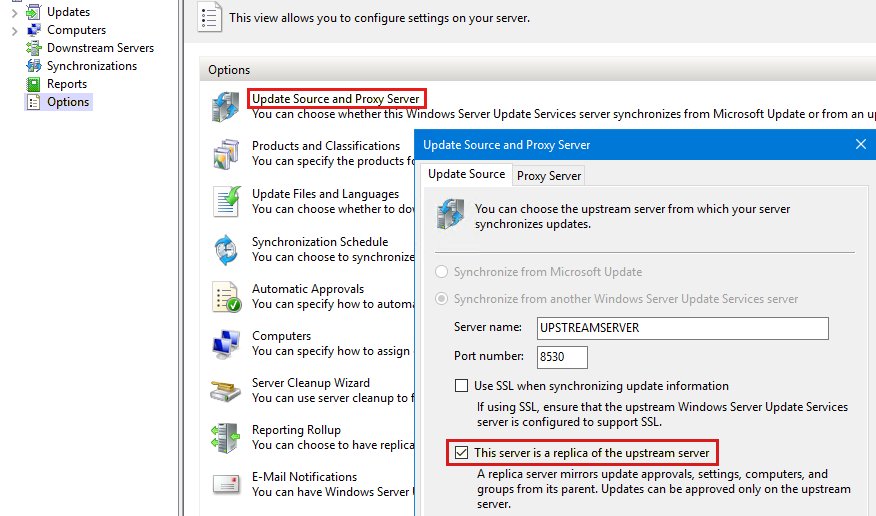
- On Choose Upstream Server, select Synchronize from Microsoft Update, or Synchronize from another Windows Server Update Services server for a downstream server.
- On Specify Proxy Server, select Use a proxy server when synchronizing only if the server needs one, and enter its name and port.
- On Connect to Upstream Server, select Start Connecting, then Next when it finishes.
- On Choose Languages, select Download updates only in these languages and tick only the languages your clients use.
- On Choose Products, tick only the products you deploy, such as Windows Server 2022 or Windows 11.
- On Choose Classifications, tick the update types you want, then set Synchronize automatically and the First synchronization time on Set Sync Schedule.
- On Finished, select Begin initial synchronization, then Finish.
The first sync takes a long time. Its progress shows on the server's home page in the WSUS Administration Console.
Create WSUS computer groups and enable client-side targeting
Every client lands in All Computers and Unassigned Computers on first contact. Create at least one test group so updates reach a few machines before the rest.
- In the WSUS Administration Console, expand the server, then Computers.
- Right-click All Computers and select Add Computer Group.
- Type a Name, such as Test or Servers, and select Add.
- To assign groups by policy instead of by hand, select Options > Computers and choose Use Group Policy or registry settings on computers on the General tab.
- With server-side targeting, right-click a client in Unassigned Computers, select Change membership, tick the group and select OK.
Configure Group Policy for WSUS clients
Create a GPO that holds only WSUS settings and link it to the right domain or OU. Without Active Directory, use the Local Group Policy Editor on each machine.
- Edit the GPO and go to Computer Configuration > Policies > Administrative Templates > Windows Components > Windows Update.
- On Windows 10 and 11, open Manage end user experience, double-click Configure Automatic Updates, select Enabled and choose Auto download and schedule the install.
- Back under Windows Update, open Manage updates offered from Windows Server Update Service and double-click Specify intranet Microsoft update service location.
- Select Enabled and enter the server URL with its port, for example
https://wsus.contoso.com:8531orhttp://wsus.contoso.com:8530, in both the detection and statistics boxes. - For client-side targeting, enable Enable client-side targeting and type the group name under Target group name for this computer.
- On a client, run
gpupdate /forcefrom an elevated Command Prompt, restart, then select Check for updates in Settings > Windows Update.
Use the HTTPS port only after you bind a certificate to the WSUS site; clients configured for TLS also need the server's fully qualified domain name.
How to install WSUS management console on Windows 10 and 11?
The console ships as part of Remote Server Administration Tools, which install only on Pro and Enterprise editions. You can add Server Manager on Windows 11 from the same list.
- Open Settings.
- On Windows 11, select System > Optional features; on older Windows 10 builds, select Apps > Optional features.
- Select Add a feature.
- Type *Remote* in the search box.
- Tick the RSAT entry for Windows Server Update Services Tools and install it.
- Open the WSUS console, select Connect to Server, and enter the server name and port 8530, or 8531 with SSL.
Optimizing WSUS performance
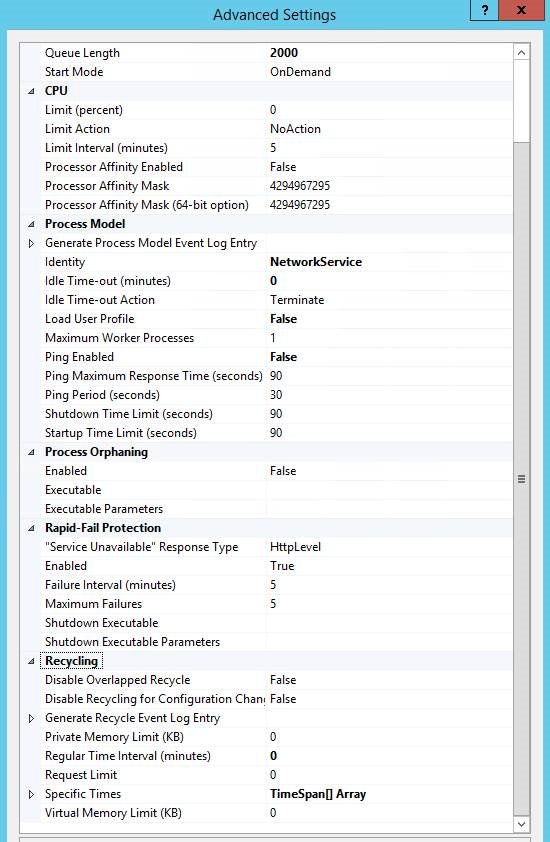
Most slow or crashing WSUS servers trace back to the IIS WsusPool recycling under memory pressure, or to years of superseded updates. Change these in IIS Manager > Application Pools > WsusPool > Advanced Settings.
| WsusPool setting | Default | Recommended |
|---|---|---|
| Queue Length | 1000 | 2000 |
| Idle Time-out (minutes) | 20 | 0 |
| Ping Enabled | True | False |
| Private Memory Limit (KB) | 1,843,200 | 0 (unlimited) |
| Regular Time Interval (minutes) | 1740 | 0 (no scheduled recycle) |
Beyond the pool, sync only the products and classifications you deploy, decline superseded updates once you stop deploying them, and run regular database maintenance. A server caching around 17,000 updates can need more than 24 GB of memory while the cache builds.
Check WSUS clients are reporting to the server
- On the client, confirm a manual update scan completes without an error.
- Wait about 20 minutes after the scan.
- In the WSUS Administration Console, open Computers > All Computers.
- Confirm the client is listed, in Unassigned Computers for server-side targeting or in its target group for client-side targeting.
Fix WSUS installation and client errors
Post-installation tasks fail
No database type was selected on Select Role Services.
- Run Add Roles and Features again.
- On Select Role Services, make sure one database type is ticked.
- Select Launch Post-Installation tasks when the wizard finishes.
Clients get HTTP 503 errors or the console disconnects
WsusPool overruns its memory limit and recycles, throwing away its cache.
- Open IIS Manager > Application Pools > WsusPool > Advanced Settings.
- Apply the values from the performance table above.
- Recycle WsusPool once and let the cache rebuild.
Clients never appear in the console
The policy has not refreshed, the URL or port is wrong, or the firewall blocks 8530/8531.
- Run
gpupdate /forceon the client and restart it. - Check that Specify intranet Microsoft update service location uses the exact server name and port.
- Open TCP 8530 and 8531 inbound on the WSUS server.
- Run a manual update scan and wait 20 minutes before checking again.
Synchronization fails
The server cannot reach Microsoft Update through the firewall or proxy.
- Allow outbound ports 80 and 443 to the Microsoft Update domains by name.
- Open Options > Update Source and Proxy Server > Proxy Server and check the proxy name, port and credentials.
- Start a manual synchronization from the console.
WSUS on Windows Server 2022 FAQ
What ports does WSUS use?
WSUS serves clients and downstream servers on TCP 8530 for HTTP and 8531 for HTTPS by default. The topmost server also needs outbound ports 80 and 443 to reach Microsoft Update. If you change the client ports, the HTTP port must be exactly one below the HTTPS port.
Does WSUS need SQL Server?
No. WSUS installs with Windows Internal Database by default, which suits most single-server setups. SQL Server is an option when several WSUS servers share one database, which avoids full client rescans when clients switch servers.
Do WSUS clients need internet access?
No. Clients only need network access to a WSUS server. Only the topmost WSUS server must reach the internet, and downstream servers only need access to that upstream server.
How long until a client shows up in WSUS?
A client usually appears within about 20 minutes of its first successful scan against the server. Speed this up with gpupdate /force, a restart and a manual check for updates in Settings.
Can I install the WSUS console on Windows 11 Home?
No. Remote Server Administration Tools, which include the WSUS console, install only on Pro and Enterprise editions of Windows 10 and Windows 11.
How many clients can one WSUS server handle?
Microsoft rates a single WSUS server at up to 100,000 clients, but advises staying well below that. Two to four servers sharing one SQL Server database give redundancy and prevent scan storms.