To set up an FTP server on Windows 11 or Windows 10, turn on the built-in FTP Server feature of Internet Information Services (IIS), then add an FTP site in IIS Manager.
This guide covers installing the feature, creating the site, giving specific users access, opening Windows Firewall, connecting from a client, and the SFTP alternative.
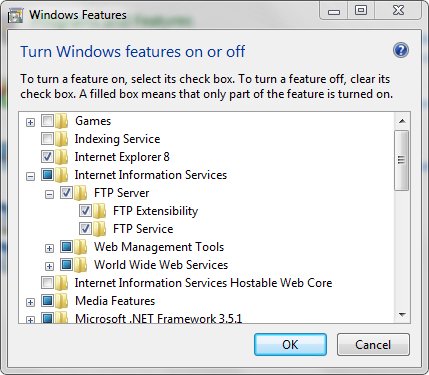
Setup FTP server on Windows 11/10
The FTP service ships with Windows as an optional IIS component, so nothing has to be downloaded. You need an administrator account.
- Press Win + R, type
optionalfeaturesand press Enter to open Turn Windows features on or off. - Expand Internet Information Services.
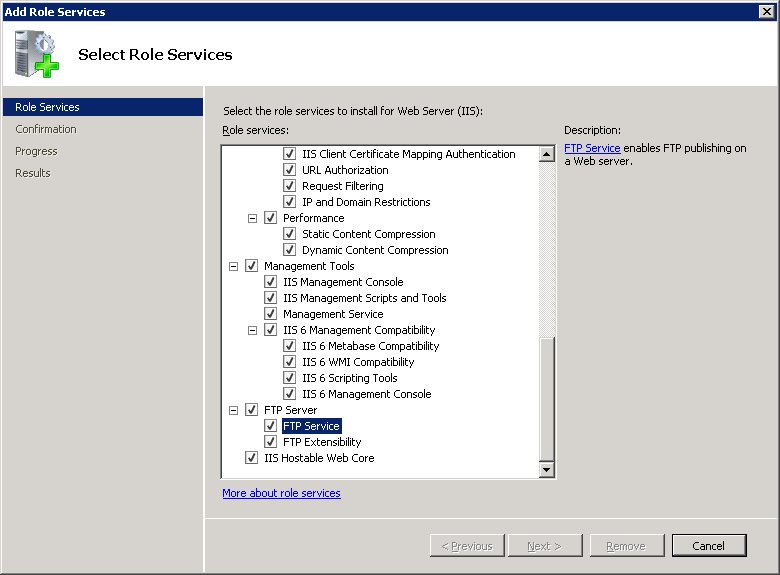
- Expand FTP Server and tick FTP Service. Tick FTP Extensibility only if you plan to use IIS Manager users or ASP.NET membership.
- Expand Web Management Tools and tick IIS Management Console.
- Select OK and wait for Windows to apply the changes, then select Close.
Windows now runs the Microsoft FTP Service (short name ftpsvc). The next step is to add a site for it to serve.
Configuring an FTP server on Windows 11/10 with IIS Manager
An FTP site maps a folder on your PC to an address and port. The default content folder is %SystemDrive%\inetpub\ftproot, but any folder works.
- Create the folder you want to share, for example
C:\inetpub\ftproot. - Search Start for Internet Information Services (IIS) Manager and open it.
- In the Connections pane, expand your PC, right-click Sites and select Add FTP Site.
- Enter an FTP site name, set the Physical path to your folder and select Next.
- Under Binding, keep All Unassigned or pick your PC's IP address, keep Port at 21, and leave Virtual Host blank.
- Under SSL, choose No SSL for a home LAN test, or Require SSL with a certificate for anything reachable from the internet, then select Next.
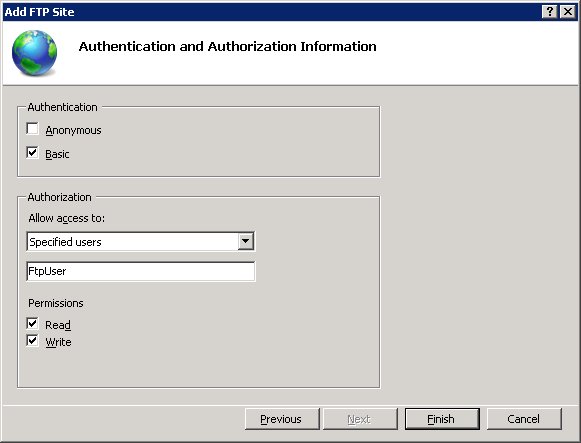
- Under Authentication, tick Basic. Under Authorization, choose who gets access and tick Read and, if needed, Write.
- Select Finish. The site appears under Sites and starts immediately.
Basic authentication sends passwords in clear text unless SSL is on, so do not expose a No SSL site outside your home network.
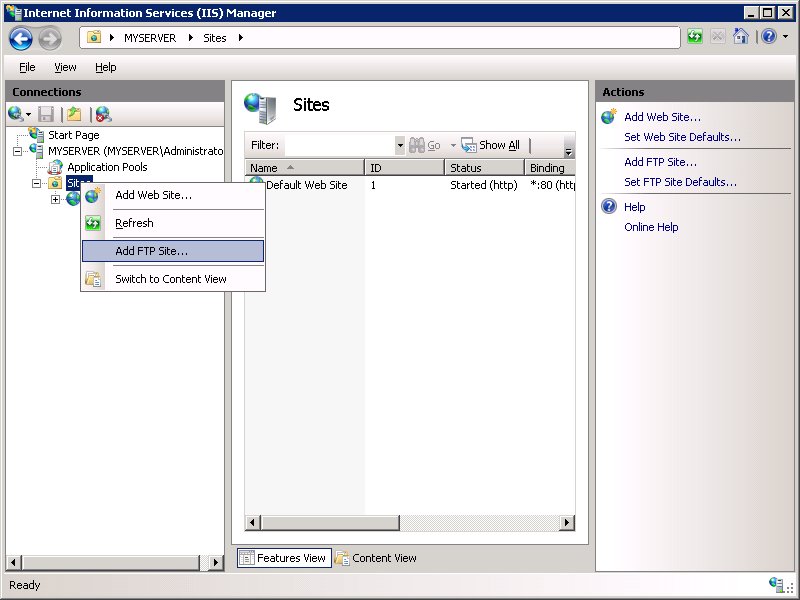
How to add specific users to access an FTP server on Windows 11
FTP access in IIS uses Windows accounts plus an authorization rule on the site. The user also needs NTFS permissions on the shared folder.
- Create or pick a local Windows account for the person who will connect.
- Right-click the FTP folder, select Properties > Security > Edit, add that account and grant the permissions it needs.
- In IIS Manager, select your FTP site and double-click FTP Authentication. Select Basic Authentication and click Enable in the Actions pane.
- Select the site again and double-click FTP Authorization Rules.
- Click Add Allow Rule in the Actions pane.
- Choose Specified users and type the account name.
- Tick Read, and tick Write if the user should upload, then select OK.
To allow anyone without a password, enable Anonymous Authentication and add an allow rule for Anonymous users with Read only.
Configure Windows Firewall for FTP connections to pass through
FTP uses port 21 for commands and a second data connection for listings and file transfers. Opening only port 21 lets clients log in but not list or move files.
netsh advfirewall firewall add rule name="FTP (non-SSL)" action=allow protocol=TCP dir=in localport=21
netsh advfirewall set global StatefulFtp enable
Run both lines in an elevated Command Prompt. The first opens inbound TCP port 21. The second turns on stateful FTP filtering, which opens data ports dynamically for each transfer.
You should see: Each command prints Ok. A client on another PC can now log in and see a directory listing.
For FTP over SSL, stateful filtering cannot read the encrypted traffic. Instead run netsh advfirewall firewall add rule name="FTP for IIS" service=ftpsvc action=allow protocol=TCP dir=in and then netsh advfirewall set global StatefulFtp disable.
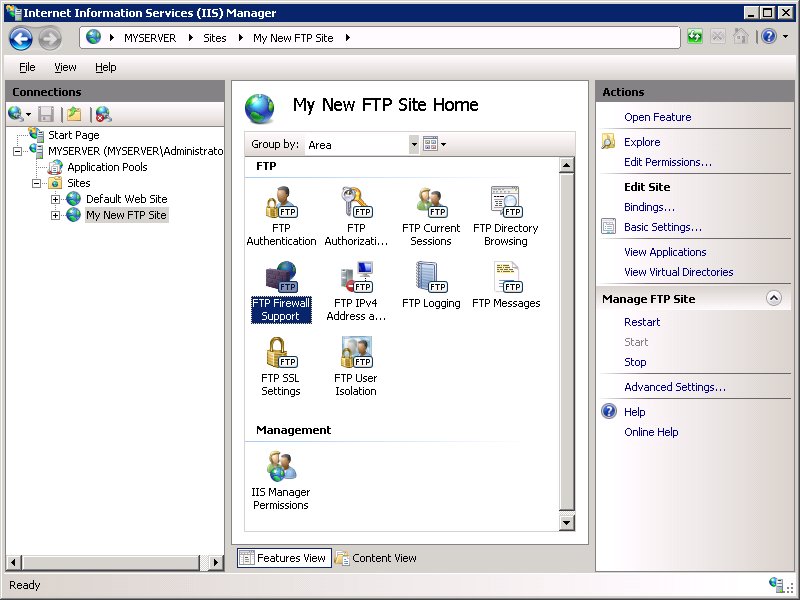
FTP passive port range and external IP behind a router
Clients connecting from outside your network through a router or firewall need a fixed passive port range and your public IP address.
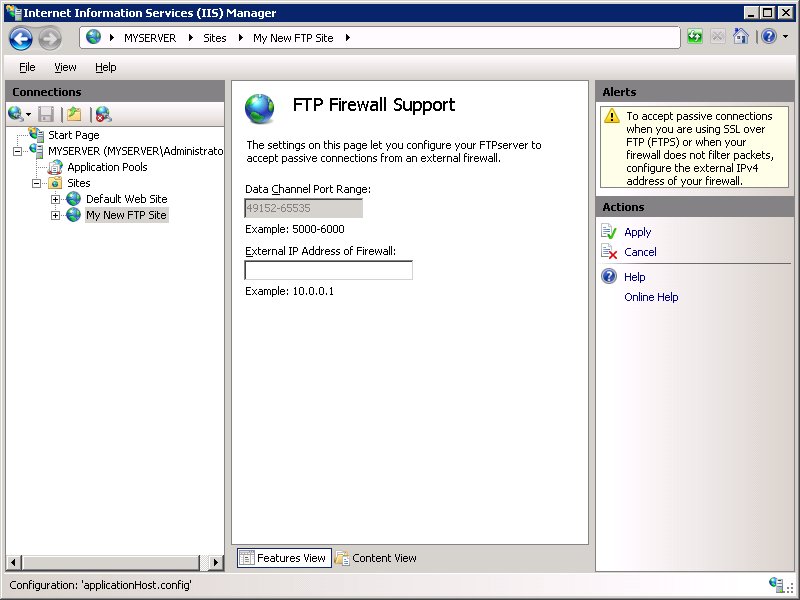
- In IIS Manager, select the server node at the top of Connections.
- Double-click FTP Firewall Support.
- Enter a Data Channel Port Range between 1024 and 65535, for example
50000-50100, and click Apply. - Select your FTP site, double-click FTP Firewall Support again, enter your public address in External IP Address of Firewall and click Apply.
- Open services.msc and restart Microsoft FTP Service.
- Forward port 21 and the same data port range on your router to the PC.
How to connect to an FTP server from Command Prompt
The built-in ftp command is the quickest test, run first on the server itself.
ftp localhostOpens an FTP session to the server on the same PC. From another PC, replace localhost with the server's IP address. Enter the Windows user name and password when prompted, then type dir to list files and bye to quit.
You should see: The server answers with a 230 User logged in message and dir shows the folder contents. A 530 reply means the login or the authorization rule is wrong.
How to use FileZilla free FTP client to transfer files on Windows PC
Any FTP client can connect to the IIS FTP site, and FileZilla Client is a common free choice. Get it only from the FileZilla project's own website.
- Open FileZilla Client.
- In the quick connect bar, enter the server's IP address as the host.
- Enter the Windows user name and password you allowed on the FTP site.
- Enter 21 as the port and connect.
- Drag files from the local pane on the left to the remote pane on the right to upload, or the other way to download.
If the login works but the listing times out, the data connection is blocked; recheck the firewall and passive port settings.
How to add FTP site on Windows Server
On Windows Server the FTP service is a role service under Web Server (IIS), installed from Server Manager. The site wizard afterwards is the same as on Windows 11.
- Open Server Manager, select Manage > Add Roles and Features.
- Select Next through installation type and destination server.
- On Server Roles, expand Web Server (IIS) and select FTP Server.
- Select Next, then Install, then Close.
- Open IIS Manager, right-click Sites and select Add FTP Site, then finish the wizard as described above.
How do I create an SFTP server in Windows 11?
IIS FTP does not do SFTP. SFTP runs over SSH, and Windows includes OpenSSH Server as an optional feature.
| Step | Where |
|---|---|
| Install OpenSSH Server | Start > search Optional Features > Add a feature |
| Set the service to start automatically | services.msc > OpenSSH SSH Server > Startup type: Automatic > Start |
| Firewall | Setup creates the OpenSSH-Server-In-TCP rule for port 22 |
| Connect | Any SFTP-capable client, using port 22 and a Windows account |
Fix FTP server on Windows not connecting
Login works but directory listing fails or times out
Only port 21 is open, so the data channel is blocked.
- Enable stateful FTP with
netsh advfirewall set global StatefulFtp enable. - For connections through a router, set a Data Channel Port Range and forward it.
- Restart Microsoft FTP Service.
530 User cannot log in
Basic authentication is off or the account has no authorization rule.
- Enable Basic Authentication under FTP Authentication.
- Add an allow rule for the user under FTP Authorization Rules.
- Check the account has NTFS permissions on the folder.
Cannot connect to the FTP site from another PC
Windows Firewall blocks port 21 or the site is bound to 127.0.0.1.
- Add the port 21 inbound rule shown above.
- In IIS Manager, select the site, click Bindings and confirm the IP address is the PC's LAN address or All Unassigned.
- Test with
ftp <server IP>from the other PC.
Windows FTP server FAQ
How do I set up an FTP server on Windows 11?
Turn on Internet Information Services > FTP Server > FTP Service and IIS Management Console in Turn Windows features on or off. Then open IIS Manager, right-click Sites, choose Add FTP Site and finish the wizard.
How do I set up an FTP server on Windows 10?
The steps match Windows 11: enable the IIS FTP Service feature, add an FTP site in IIS Manager, allow users with authorization rules and open port 21 in Windows Firewall.
How do I set up an FTP site?
In IIS Manager, right-click Sites and select Add FTP Site. Name it, choose the folder, set the binding and port 21, pick SSL settings, then choose authentication and who may read or write.
How do I connect to an FTP server?
Open Command Prompt and run ftp followed by the server's address, then enter a user name and password. FTP clients such as FileZilla connect with the host, user name, password and port 21.
How do I FTP to a server using CMD?
Type ftp and the server name or IP, for example ftp 192.168.1.10, and log in. Use dir to list files, get to download, put to upload and bye to close the session.
How do I configure FTP access for one user only?
Enable Basic Authentication on the site, remove any rule for all or anonymous users, and add an allow rule under FTP Authorization Rules for that specific Windows account.
Why do we need FTP?
FTP moves files between computers over a network with a simple client, which suits sharing large folders or uploading website files. For transfers over the internet, use FTPS or SFTP so passwords are encrypted.
Can Windows 11 run an SFTP server?
Yes. Install the OpenSSH Server optional feature, set the OpenSSH SSH Server service to Automatic and start it. Windows opens port 22 with the OpenSSH-Server-In-TCP firewall rule.