To install Server Manager on Windows 11, open Optional features in Settings, select View features, pick RSAT: Server Manager, then select Next and Add; it works on Windows 11 Pro and Enterprise, not Home.
This guide covers the Settings, PowerShell and DISM routes, installs on managed or offline networks, the Windows 10 differences, adding remote servers, removal and fixes for installs that fail.
Method 1: Install Server Manager from Windows 11 Settings
Server Manager is not a download on Windows 11. It ships inside Windows as a Feature on Demand called RSAT: Server Manager, and Settings fetches it from Windows Update.
- Sign in with an account that has administrator rights.
- Select Start, type Optional features and open the result. In Settings the page sits under System > Optional features, or Apps > Optional features on older Windows 11 releases.
- Check the installed list first. If RSAT: Server Manager is already there, skip to opening it.
- Next to Add an optional feature, select View features.
- Type Server Manager in the search box and tick RSAT: Server Manager.
- Select Next, then Add. The download progress shows at the top of the Optional features page.
- When the status reads installed, select Start, type Server Manager and open it.
Search for RSAT instead of the full name to see every Remote Server Administration Tool in one list. Add the role tools you need, such as RSAT: DNS Server Tools, in the same pass.
What Server Manager is on Windows 11
Server Manager is the central console for Windows Server roles and features. On Windows Server it is built in. On Windows 11 it is one of the Remote Server Administration Tools (RSAT), used to manage servers from your own PC.
| Question | Answer on Windows 11 |
|---|---|
| What it is | The Server Manager console plus PowerShell tools for remotely managing Windows Server |
| Feature name in Settings | RSAT: Server Manager |
| Capability name for PowerShell and DISM | Rsat.ServerManager.Tools~~~~0.0.1.0 |
| Approximate install size | About 32 MB, per Microsoft's Features on Demand list |
| Where the files come from | Windows Update, WSUS on newer managed setups, or a Languages and Optional Features ISO |
| What it manages | Remote Windows Server machines, not the Windows 11 PC it runs on |
| Other RSAT tools that rely on it | File Services Tools, IPAM Client, Remote Access Management Tools and Shielded VM Tools list it as a dependency |
Microsoft notes that a Windows client cannot itself be managed by Server Manager. The console on your PC exists to reach servers over the network.
Before you start: requirements and limitations
Check these first. A missing edition or admin right is the usual reason RSAT: Server Manager never appears in the list.
| Requirement | What Microsoft states | What to do if you miss it |
|---|---|---|
| Use a supported Windows 11 edition | RSAT installs on Windows 11 Pro or Enterprise only; Home cannot install it | Upgrade to Pro, or manage the server from the server itself |
| Windows 10 version | Windows 10 October 2018 Update (version 1809) or later, Pro or Enterprise | Update Windows 10 before using Optional features |
| Use an administrator account | Admin rights on the PC where RSAT is installed | Sign in as an administrator or ask your IT team |
| Rights on the servers | Admin rights on each remote server for the service you manage | Get a server admin account before adding servers |
| Connect to the internet, unless you have offline source files | Online installs download the package from Windows Update | Use a matching Languages and Optional Features ISO (Method 4) |
| Arm64 PCs | On Windows 11, version 25H2 on Arm64, RSAT Features on Demand are not supported; some tools, including RSAT: Server Manager, are under Turn Windows features on or off | Use the Windows Features dialog instead of Optional features |
| Know what you are installing | A management console only; it adds no server role to your PC | Nothing to change |
Server Manager does not come from the Microsoft Store or a downloaded installer. For everyday programs, the guide to installing apps on a Windows PC covers the Store and installer routes.
Which install method should you use?
All four methods add the same Rsat.ServerManager.Tools package. They differ only in where you type and where the files come from.
| Your situation | Use this | Why |
|---|---|---|
| One PC, internet access, no scripting | Method 1: Settings | Search, tick and add; no names to type |
| Several PCs, or you want to check the state first | Method 2: PowerShell | Get-WindowsCapability and Add-WindowsCapability work in scripts |
| Command Prompt, a batch file or a deployment task sequence | Method 3: DISM | DISM /Online /Add-Capability needs no PowerShell |
| No internet, or a work PC whose updates come from WSUS or Configuration Manager | Method 4: offline source or policy change | Points Windows at an ISO or Windows Update for the package |
| Windows 11 on Arm64, version 25H2 | Turn Windows features on or off | RSAT Features on Demand are not supported on that platform |
Where to add Server Manager in Windows 11 and Windows 10
The feature has the same name on both versions. The buttons around it differ, which is why Windows 10 steps fail on a Windows 11 PC.
| Windows version | Where to go | Buttons to select |
|---|---|---|
| Windows 11 | Start > search Optional features | View features > tick RSAT: Server Manager > Next > Add |
| Windows 11, version 25H2 on Arm64 | Control Panel > Programs > Programs and Features > Turn Windows features on or off | Tick RSAT: Server Manager > OK |
| Windows 10, version 1809 or later | Start > search Optional features (also called Manage optional features) | Add a feature > search Server Manager > Install |
| Windows 10 before version 1809 | Not in Optional features | Microsoft offered RSAT as a separate download for those releases; update Windows 10 instead |
Method 2: Install Server Manager with PowerShell
Select Start, type PowerShell and choose Run as administrator. First confirm the capability exists and is not yet installed.
Get-WindowsCapability -Online | Where-Object Name -like 'Rsat.ServerManager*' lists it with State : NotPresent when it is missing. Swap the filter for 'RSAT*' to find all RSAT components available on your PC.
Add-WindowsCapability -Online -Name Rsat.ServerManager.Tools~~~~0.0.1.0-Online targets the running copy of Windows. -Name is the exact capability name, including the four tildes. With no -Source, Windows Update downloads the package, or the local WSUS server where policy allows it.
You should see: PowerShell returns Online : True and RestartNeeded : False. Running the Get-WindowsCapability line again shows State : Installed.
To install multiple common RSAT tools, run one Add-WindowsCapability line per tool, for example Rsat.Dns.Tools~~~~0.0.1.0, Rsat.DHCP.Tools~~~~0.0.1.0 and Rsat.GroupPolicy.Management.Tools~~~~0.0.1.0.
If every source fails, Microsoft notes the cmdlet fails silently. Always re-check the state rather than trusting an absence of errors.
Method 3: Install Server Manager with DISM
DISM does the same job from an elevated Command Prompt. It is the better fit for batch files and deployment tools that do not load PowerShell modules.
DISM /Online /Add-Capability /CapabilityName:Rsat.ServerManager.Tools~~~~0.0.1.0/Online services the running PC. /Add-Capability installs a Feature on Demand by name. DISM looks in any /Source you give first, then the location set by Group Policy, then Windows Update unless /LimitAccess is added.
You should see: DISM /Online /Get-CapabilityInfo /CapabilityName:Rsat.ServerManager.Tools~~~~0.0.1.0 then reports the state as Installed.
When DISM is preferable: inside task sequences, on PCs where PowerShell is restricted, or when you want to add a source switch. DISM /Online /Get-Capabilities lists every capability and its install state.
Method 4: Install Server Manager offline or on a managed network
Use this when the PC has no internet access, or when a company update server blocks the download. Pick the branch that matches your PC.
- For an offline PC, get the Windows 11 Languages and Optional Features ISO that matches your exact Windows version from your organisation's volume licensing or subscription portal.
- Double-click the ISO in File Explorer to mount it, and note its drive letter, for example
E:. - In an elevated PowerShell window, run
Add-WindowsCapability -Online -Name Rsat.ServerManager.Tools~~~~0.0.1.0 -Source E:\ -LimitAccess.-LimitAccessstops Windows from trying Windows Update. - Or use DISM:
DISM /Online /Add-Capability /CapabilityName:Rsat.ServerManager.Tools~~~~0.0.1.0 /Source:E:\ /LimitAccess. - To fix WSUS blocking optional feature downloads on Windows 10 version 2004 through Windows 11 version 21H2, ask your admin to enable Specify settings for optional component installation and component repair under Computer Configuration > Administrative Templates > System.
- In that policy, the admin sets an Alternate source file path or selects the option to download repair content and optional features directly from Windows Update instead of WSUS, then runs
gpupdate /force. - Run the Method 1, 2 or 3 install again.
Windows 11, version 22H2 and later can get Features on Demand from WSUS through on-premises Unified Update Platform updates, so the policy is no longer needed there. From version 24H2 Microsoft removed the Windows Update options from that policy.
Do not copy loose .cab files into a folder and point -Source at it. Microsoft states a repository needs extra metadata; use the mounted ISO or a repository built with DISM /Export-Source.
How to check Server Manager installed and open it
- Open Optional features again. RSAT: Server Manager now appears in the installed list.
- In PowerShell, run
Get-WindowsCapability -Online -Name Rsat.ServerManager.Tools~~~~0.0.1.0and confirm State : Installed. - Select Start, type Server Manager, and select Server Manager in the results.
- Or open Start > All apps > Windows Tools, where Microsoft places the RSAT consoles.
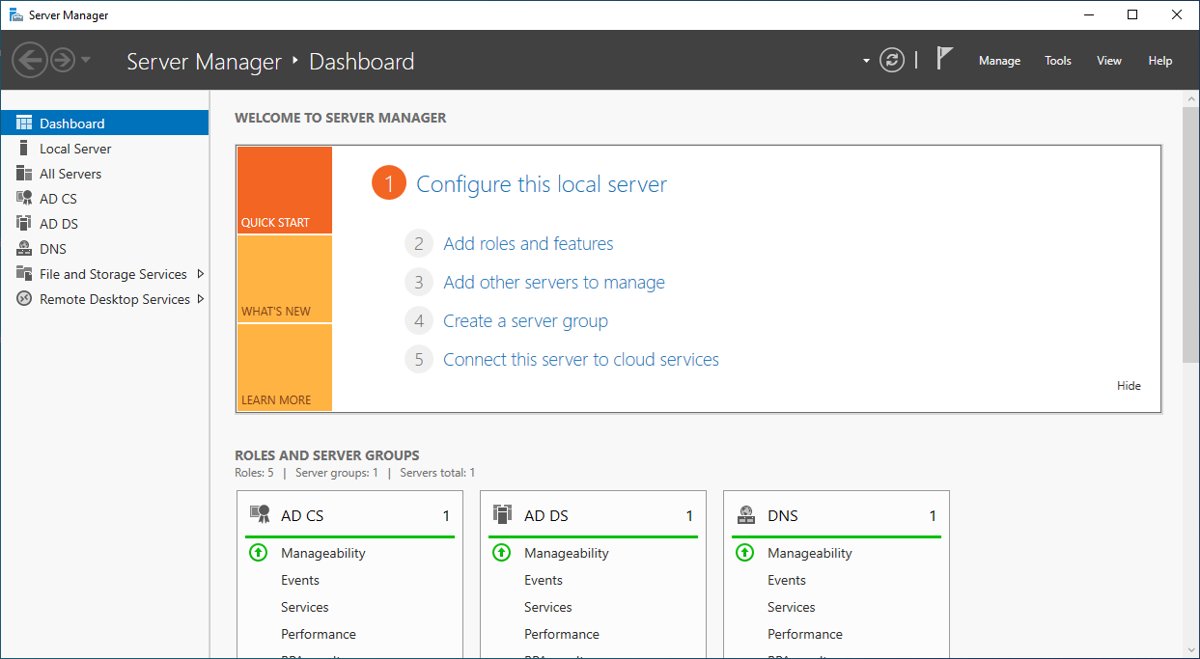
- Confirm the Dashboard loads and the Manage and Tools menus appear at the top right.
How to add and manage servers in Server Manager
A fresh install shows an empty server pool. Add servers before any role tile fills with data.
- Open Server Manager and select Manage > Add Servers.
- To add a remote server from Active Directory, use the Active Directory tab, select servers in your domain and select the right arrow.
- Or use the DNS tab: type the first characters of a computer name or IP address, press Enter, select the server and select the right arrow.
- Or use the Import tab to load a text file with one computer name or IP address per line.
- Select OK. The servers appear under All Servers.
- To use the right credentials, right-click a server in the Servers tile, select Manage As, and enter an account in
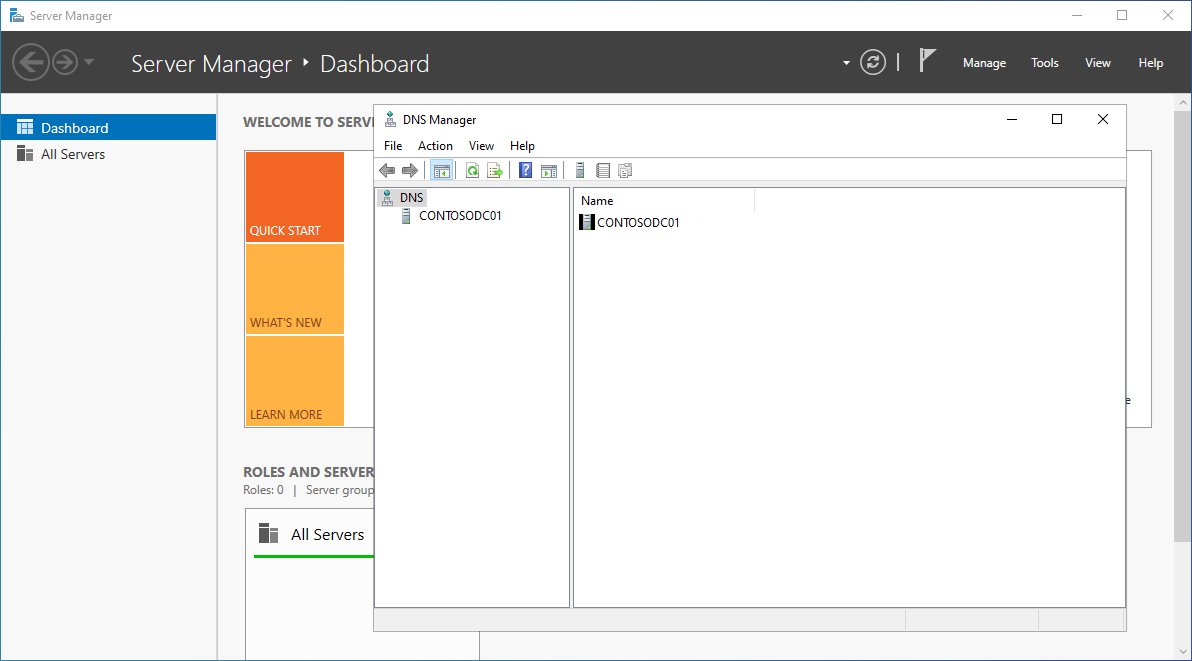
Domain\User nameorUser [email protected]form. - Open Tools at the top right to launch role consoles, such as DNS, against a remote server.
To enable remote management on Windows Server when it has been turned off, run Configure-SMRemoting.exe -enable in an elevated session on the server. Microsoft enables remote management by default on Windows Server 2016, so this is only needed if someone turned it off.
For a server in a workgroup, first add it to your PC's trusted hosts with Set-Item wsman:\localhost\Client\TrustedHosts Server01 -Concatenate -Force, replacing Server01 with the server's name.
Should you install all RSAT tools?
No. Install RSAT: Server Manager plus the role tools for services you actually run. Each tool is a separate download, and several depend on Server Manager anyway.
| If you manage | Add this tool | Capability name |
|---|---|---|
| Any Windows Server roles from one console | RSAT: Server Manager | Rsat.ServerManager.Tools~~~~0.0.1.0 |
| Users, computers and domains | RSAT: Active Directory Domain Services and Lightweight Directory Services Tools | Rsat.ActiveDirectory.DS-LDS.Tools~~~~0.0.1.0 |
| Group Policy objects | RSAT: Group Policy Management Tools | Rsat.GroupPolicy.Management.Tools~~~~0.0.1.0 |
| DNS zones and records | RSAT: DNS Server Tools | Rsat.Dns.Tools~~~~0.0.1.0 |
| DHCP scopes | RSAT: DHCP Server Tools | Rsat.DHCP.Tools~~~~0.0.1.0 |
| File shares and quotas | RSAT: File Services Tools | Rsat.FileServices.Tools~~~~0.0.1.0 |
| Clusters | RSAT: Failover Clustering Tools | Rsat.FailoverCluster.Management.Tools~~~~0.0.1.0 |
Hyper-V Manager is not in this list; on Windows 11 it is under Turn Windows features on or off as Hyper-V Management Tools. SQL Server is not managed by RSAT either; use SQL Server Management Studio for that.
How to uninstall Server Manager from Windows 11
Remove any RSAT tool that depends on Server Manager first. Microsoft states a capability that other packages depend on cannot be removed.
- To uninstall from Settings, select Start, type Optional features and open it.
- Find RSAT: Server Manager in the installed list and select it.
- Select Remove (on Windows 10, Uninstall).
- To uninstall with PowerShell, open an elevated window and run
Remove-WindowsCapability -Online -Name Rsat.ServerManager.Tools~~~~0.0.1.0. - Or run
DISM /Online /Remove-Capability /CapabilityName:Rsat.ServerManager.Tools~~~~0.0.1.0in an elevated Command Prompt. - Restart Windows if Server Manager was open while you removed it.
Common installation problems and fixes
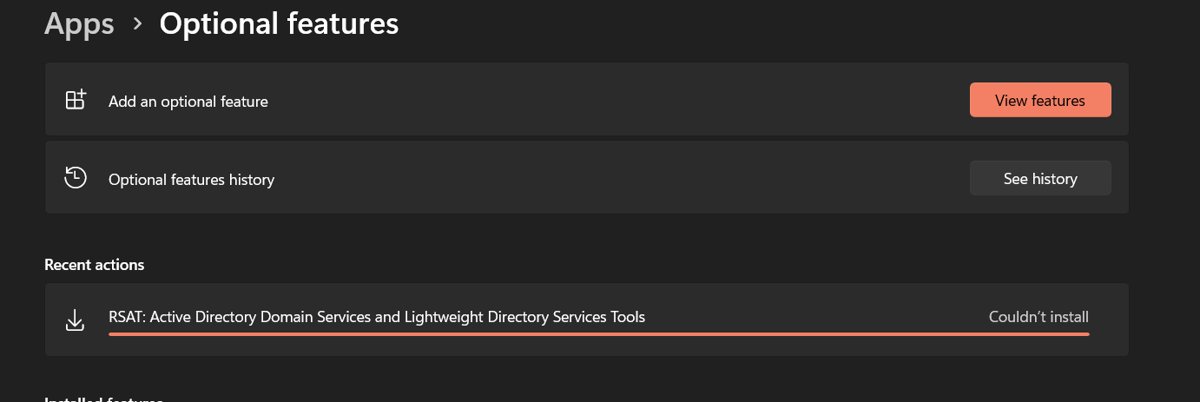
Server Manager does not appear in Optional features
The PC runs Windows 11 Home, an Arm64 build, or a Windows 10 release older than 1809.
- Press Windows logo key + R, type
winverand press Enter to see your edition and version. - On Home, upgrade to Pro before trying again; RSAT cannot be installed on Home.
- On an Arm64 PC with Windows 11, version 25H2, open Turn Windows features on or off and tick RSAT: Server Manager there.
- Check the installed list in Optional features; an already-installed feature does not show under View features.
Install fails or never finishes on a work PC
Updates come from WSUS or Configuration Manager, and the Feature on Demand content is not available from that source.
- Confirm with your IT team that the PC gets updates from WSUS or Configuration Manager.
- On Windows 10 version 2004 through Windows 11 version 21H2, ask them to set Specify settings for optional component installation and component repair to allow Windows Update, as in Method 4.
- Ask them also to check Specify source service for specific classes of Windows Updates; Microsoft states downloads fail when it points feature or quality updates to WSUS.
- Or install from a matching Languages and Optional Features ISO with
-Sourceand-LimitAccess.
Install fails on a home or unmanaged PC
Windows cannot reach Windows Update to download the package.
- Confirm the PC is online and that Windows Update can install updates.
- Install any pending updates and restart.
- Run Method 1 or Method 2 again.
The command says installed, but Start search cannot find Server Manager
A different RSAT tool was installed, or Start search has not listed the new shortcut yet.
- Run
Get-WindowsCapability -Online -Name Rsat.ServerManager.Tools~~~~0.0.1.0and confirm State : Installed for this exact name. - Open Start > All apps > Windows Tools and look for Server Manager there.
- Restart Windows and search again.
Server Manager opens but cannot connect to servers
Credentials, workgroup trust or remote management on the server block the connection.
- Read the Manageability column under All Servers; Credentials not valid, Kerberos authentication error and Online – Access denied point to account problems.
- Right-click the server, select Manage As, and enter an account that is an administrator on that server.
- For workgroup servers, add the server name to TrustedHosts with the
Set-Item wsman:command shown above. - On the server, run
Configure-SMRemoting.exe -getin an elevated session, and-enableif it reports remote management is off. - Make sure the server's WinRM listener still uses the default port 5985; Server Manager cannot talk to a changed listener.
Microsoft also documents that Server Manager cannot manage a newer Windows Server release than itself. Keep Windows 11 updated so its Server Manager matches your newest servers.
Security and best practices
| Practice | Why it matters |
|---|---|
| Install only the RSAT tools you use | Each tool is a separate package to keep updated, and unused consoles add nothing |
| Use Manage As with a named admin account instead of sharing the built-in Administrator | Actions trace back to a person; Manage As credentials are cached only on that PC |
| Add only the servers you manage to TrustedHosts | Microsoft requires the list for NTLM authentication to workgroup servers; keep it to named machines |
Treat LocalAccountTokenFilterPolicy as a last resort on workgroup servers |
Microsoft warns it overrides UAC protections for remote local administrators |
| Do not move WinRM off port 5985 or change its authentication types | Server Manager expects the default listener with Kerberos and Negotiate enabled |
| Keep the PC and servers on current updates | Older Server Manager versions cannot manage newer Windows Server releases |
Quick reference: commands you may need
| Task | Command (elevated) |
|---|---|
| List RSAT components and their state | Get-WindowsCapability -Online | Where-Object Name -like 'RSAT*' |
| Install Server Manager with PowerShell | Add-WindowsCapability -Online -Name Rsat.ServerManager.Tools~~~~0.0.1.0 |
| Install Server Manager with DISM | DISM /Online /Add-Capability /CapabilityName:Rsat.ServerManager.Tools~~~~0.0.1.0 |
| Install from a mounted ISO at E: | Add-WindowsCapability -Online -Name Rsat.ServerManager.Tools~~~~0.0.1.0 -Source E:\ -LimitAccess |
| Check the install state with DISM | DISM /Online /Get-CapabilityInfo /CapabilityName:Rsat.ServerManager.Tools~~~~0.0.1.0 |
| Remove Server Manager | Remove-WindowsCapability -Online -Name Rsat.ServerManager.Tools~~~~0.0.1.0 |
| Trust a workgroup server | Set-Item wsman:\localhost\Client\TrustedHosts Server01 -Concatenate -Force |
| Turn on remote management (run on the server) | Configure-SMRemoting.exe -enable |
| Apply a changed Group Policy now | gpupdate /force |
Frequently Asked Questions
How do I install Server Manager on Windows 11?
Open Optional features from the Start menu, select View features, tick RSAT: Server Manager, then select Next and Add. In PowerShell as administrator, Add-WindowsCapability -Online -Name Rsat.ServerManager.Tools~~~~0.0.1.0 does the same. It needs Windows 11 Pro or Enterprise.
How do I install Server Manager on Windows 10?
On Windows 10 version 1809 or later, open Optional features from Start, select Add a feature, search for Server Manager and select Install. The PowerShell and DISM commands are the same as on Windows 11. Older Windows 10 releases used a separate RSAT download instead.
Can I install Server Manager on Windows 11 Home?
No. Microsoft supports Remote Server Administration Tools, including Server Manager, only on Pro and Enterprise editions of Windows 11 and Windows 10. Upgrade the PC to Pro first, or sign in to the server directly and use the Server Manager built into Windows Server.
What is Server Manager in Windows Server?
Server Manager is Windows Server's central console for adding roles and features, watching server health and opening role tools. It is installed with Windows Server by default and opens automatically after a new installation. On Windows 11 it is an optional RSAT feature for remote management.
How do I open Windows Server Manager?
Select Start, type Server Manager and select it in the results. It is also listed under Start > All apps > Windows Tools. On Windows Server, Server Manager opens by default at sign-in and has a taskbar shortcut.
How do I get to Server Manager if Start search does not find it?
Open Start > All apps > Windows Tools, where Microsoft places the RSAT consoles. If it is missing there too, run Get-WindowsCapability -Online -Name Rsat.ServerManager.Tools~~~~0.0.1.0 in PowerShell. A state other than Installed means the feature still needs adding.
How do I use Server Manager to manage a remote server?
Select Manage > Add Servers, find the server on the Active Directory or DNS tab, move it to the Selected list and select OK. Then use the Tools menu to open role consoles such as DNS, or right-click the server and choose Manage As for different credentials.
How do I add Server Manager tools for other roles?
Add each role's RSAT feature separately, such as RSAT: DNS Server Tools or RSAT: Group Policy Management Tools, from Optional features or with Add-WindowsCapability. Once installed, those consoles appear in Server Manager's Tools menu and under Windows Tools.
Does Server Manager on Windows 11 need a restart after installing?
Usually not. Add-WindowsCapability reports RestartNeeded : False for RSAT features in Microsoft's examples, and the console opens straight away. Restart only if Windows asks, or if Start search does not show the new shortcut.
Why does the RSAT install fail on my work laptop?
Work PCs that take updates from WSUS or Configuration Manager can be blocked from downloading Features on Demand. On Windows 10 version 2004 through Windows 11 version 21H2, an admin must allow Windows Update in the optional component policy, or you install from a matching Languages and Optional Features ISO.







Windows 10 & 11: Install Active Directory Users and Computers - Techdows
[…] AD DS tools depend on RSAT: Server Manager, so Windows adds Server Manager automatically if it is […]